Rating 4.4 out of 5 stars with 616 reviews
4.4- Print Quality (243)
- Ease of use (169)
- Size (40)
- Wireless (33)
- Price (23)
- Paper Tray (15)
- Reliability (6)
- Scanning (5)
Customer Images
The vast majority of our reviews come from verified purchases. Reviews from customers may include My Best Buy members, employees, and Tech Insider Network members (as tagged). Select reviewers may receive discounted products, promotional considerations or entries into drawings for honest, helpful reviews.
- Rated 5 out of 5 stars
Surprisingly good and inexpensive color printer
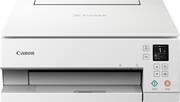
We haven’t had a decent photo printer in a while and once I saw what the price was for this new Pixma printer for Cannon I had to try it out. Unboxing and Setup: The printer came packaged in a Styrofoam frame and was very well protected. In the box with the printer were the ink cartridges, power cord, USB Cable, manual and installation CD, they even included 3 sheets of photo paper for you to try out. After taking the printer out and removing the plastic bag around it there were instructions showing that there were some packing tapes that had to be removed. One of the pieces goes under the lid to the print cartridge carrier and you have to be careful removing that one as it goes just under the print heads. After removing all of that, attaching the power cord and plugging it in you press the power button located just above the right side of the paper output tray. The display is pretty small but it’s usable and tells you to install all the cartridges. Just follow the instructions printed on each cartridge and install them. There two black cartridges, one is used for regular txt and the other is for photo printing. After installing the cartridges the printer goes through a print alignment test and with this one it’s all automatic and you don’t have to do a thing, just let it go about its business until it’s finished. This one doesn’t have an Ethernet jack, and only had a USB port if you want to physically have it attached; we used the Wi-Fi connection in our case. After doing that I followed the instructions and used the Canon setup website and downloaded the install software. That software found the printer quickly and setup all the printing functions without a hitch. I also installed the app on my S9 to give it a tryout and it found and setup the printer without issue also. Actual Use: Printing with this was as simple as all the other printers we have, it’s starts printing very quickly and is surprisingly quiet. The paper tray is pretty small, and only holds a fifth of what our laser printers hold. Text is nice and sharp, very clean and clear, very comparable to our other ink jets and close to laser printer quality. There’s a light bar above the output tray that moves as it prints giving a visual indicator of printing progress, this is super handy because I can see it across the room where we have it installed. The paper output tray is also different; it slides out by itself once the unit starts printing. You have to manually push it back after printing but not having to remember to pull it out is a nice touch. Now I wanted to try something difficult for it to copy and tried a sheet of coupons from our Safeway store. The coupon sheet was printed on glossy paper and I didn’t expect it to do that great of a job, was I ever surprised. The print quality from just using plain old paper turned out so close to the original we were both impressed. Next we tried some pictures using glossy photo paper. There’s a manual feed tray on the back of the unit that pulls up out of the unit. It’s completely hidden and you really wouldn’t know it’s there at all, a very nice design touch. As far as the quality of the photos, we were both really amazed, they came out looking every bit as good as the box store prints we’ve gotten lately. Summary: This new Cannon printer is really impressive, it’s very very quiet when printing, a lot quieter than our laser printers. It’s plenty fast for home use, and the print quality for photos “if you are looking for a photo printer”, are simply outstanding. It’s also very compact and doesn’t take up near as much desk space as any of our laser printers do, less than half the size. I do like that it has separate black for photos so you aren’t using up the regular black cartridge while printing photos. The cost of replacement print cartridges is very reasonable compared to our other inkjet. Scanning was simple enough, and was able to scan documents without a problem from my Windows PC. I also gave the app a try on my phone and printed out a few emails and a PDF that I downloaded. It worked perfectly without a problem also. The only thing I have a problem with is how small the display is and for me it’s a little hard to read but it is functional. So if you are looking for an inexpensive color inkjet printer that is very capable of making great looking color copies and excellent photo prints take a hard look at this new Pixma from Canon.
Posted by SteveC
- Rated 5 out of 5 stars
Printer
I really like it, quiet and fast. I didn't regret buying it.
Posted by Nina
- Rated 5 out of 5 stars
Awesome product!
I absolutely love this printer!!! Setup was a bit difficult as I don’t have a good WiFi connection, so I had to use Bluetooth. It took maybe an hour of back and forth trying different connection methods. It was worth the mild frustration after seeing the awesome print quality at a pretty fast for standard printing. Also, it was on sale, so that was a MAJOR +!!! ⭐️ ⭐️⭐️⭐️⭐️
Posted by Gigi
- Rated 5 out of 5 stars
Printer with no problems
Best printer for home use. Printing and scanning quality is so good. For now, printer does not overuse cartridges. Satisfied with the product.
Posted by Suresh
- Rated 4 out of 5 stars
Lots of features
After testing this printer for 3 days (Windows 7 and iphone 6) I finally feel like I know and understand it. I have more respect for it than I did the first day! The initial set up was relatively easy and took about an hour from unbox to final set up of PC and phone. I used the instructions found at ij.start.canon/TS6320. I had to use a combination of the written on-line instructions, on-line videos and printed Quick Start guide. I will say that it probably would’ve gone more quickly if I hadn’t tried to connect the phone and PC simultaneously. The phone initially would not connect, but when I retried after the PC set up was complete, it connected immediately. The printer has a multitude of options and settings. I would advise downloading the 460 page manual at usa.canon.com to become familiar with them. The cool thing is that if Troubleshooting or Manual is selected from the printer display, there is a QR button on the printer that brings up a QR code for instant on-line help from a phone. The printer has 2 cassettes – one in the rear for photo paper and one in the front for copy paper. The print quality was almost as good as I get with my laser printers. It does do double sided printing. The copy function worked well, although it takes about 5 steps: Menu/Copy Settings/Copies(1)/OK/Start. Picture quality was excellent. Printing pictures was easy from either the PC or phone: select a picture/select print. Initially all the pictures were printing on copy paper, but by using the 460 page manual, I found how to adjust the settings for the rear paper tray. Scanning using the IJ Scan Utility worked very well. The utility brings up a table with multiple product names. Clicking on an option starts the scan – so remember to insert the document before clicking. There is a light bar across the front that lights up when using the printer and a small section of it stays on for some undetermined time afterwards. Not sure what the purpose is. The manufacturer’s statement that it holds 100 sheets of paper seemed a little exaggerated. The paper tray is very shallow and I could only fit 50 sheets into it. The rear paper tray is for thicker photo paper and 30 sheets filled it to capacity. The most annoying thing for me was the paper output tray. It normally stays inside, but when selecting print or copy, it shoots out the front and knocks off anything in front of it. Total required depth with rear paper tray and output tray extended is 24 inches which makes it a little large for my space. But the good thing is that it’s wireless and I can move it to a place where the output tray won’t be an issue. Printing seemed a touch slow, but there is the initial lag time while the output tray shoots out. Leaving it out would resolve the issue. The printer is also quite noisy and makes about 20 seconds of noise after every print session. Using the Quiet mode didn’t seem to help much. But its good points far outweigh the bad.
Posted by jkj1