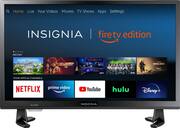
Rating 4.5 out of 5 stars with 1859 reviews
4.5- Picture Quality (727)
- Ease of use (294)
- Smart TV (265)
- Size (114)
- Price (102)
- Remote Control (44)
- Volume (10)
Customer Images
The vast majority of our reviews come from verified purchases. Reviews from customers may include My Best Buy members, employees, and Tech Insider Network members (as tagged). Select reviewers may receive discounted products, promotional considerations or entries into drawings for honest, helpful reviews.
- Rated 5 out of 5 stars
Awesome TV!
I ordered this tv to use stickily for streaming and using my DISH Anywhere app in my kitchen. No need for cables -only a power plug-in. It works great! Very light and I ordered a mount and put it on the wall above the sink. LOVE it! The built-on fire tv is really great! Using my Dish app I can stream live tv, DVR, or anything. It has lots of other apps too such as Internet so that I can look up a recipe real quick. I also can view my wireless cameras on this TV just by using the voice remote. I highly recommend this tv. You can also use a USB drive to access photos, recipes, etc.
Posted by vcwalters
- Rated 5 out of 5 stars
Great Smart TV ~ Fire Edition.
I purchased this Insignia 24" Smart HDTV ~ Fire Edition for my kitchen counter. I am very pleased with Insignia Brand and overall quality of the TV in general. The picture, sound quality are very good, the TV legs are very sturdy and it fit perfectly under my kitchen cabinets. The Fire Edition is a big bonus because of all the Apps that are already downloaded and other Apps you can download. I purchased this TV on sale and if I would have known what a quality TV this was at the time, I would have purchased 2 more for family members. All in all, I am very pleased with my purchase, would buy again and I highly recommend!
Posted by CindySue
- Rated 5 out of 5 stars
Great tv for a low price
This TV was purchased for my kitchen. It fits under my cabinets while sitting on my counter top. My cabinets do sit a bit higher than typical cabinets, so this may not work for everyone. I like how the firestick is built in to the TV and the remote is simple to use. The picture is very good for the price.
Posted by Raquel
- Rated 5 out of 5 stars
Great kitchen TV
It fits on my counter perfect. I like that it works as easy as my other Amazon Prime TVs. I'm able to access all of my TV accounts wirelessly. Great value.
Posted by Dwedge
- Rated 5 out of 5 stars
Great smaller tv for kids
I bought 2 of these for our rv bunk house for the kids they were the perfect size to mount over each bed and it being a fire tv was perfect only 1 cord to plug in.
Posted by ec4evany