Rating 4.6 out of 5 stars with 771 reviews
4.6- Picture Quality (323)
- Ease of use (181)
- Smart TV (59)
- Price (39)
- Setup (14)
- Remote Control (30)
- Response Time (6)
- Lag (3)
Customer Images
The vast majority of our reviews come from verified purchases. Reviews from customers may include My Best Buy members, employees, and Tech Insider Network members (as tagged). Select reviewers may receive discounted products, promotional considerations or entries into drawings for honest, helpful reviews.
- Rated 5 out of 5 stars
A captivating experience
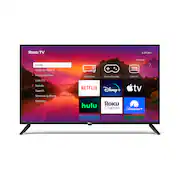
I recently had the pleasure of purchasing a 40-inch Roku TV, and I must say, it has completely transformed the way I enjoy my favorite shows and movies. This remarkable television ticks all the boxes when it comes to performance, convenience, and value for money. Allow me to share why this Roku TV has left me absolutely raving with delight. First and foremost, the picture quality on this 40-inch display is nothing short of stunning. The vibrant colors, sharp details, and impressive contrast bring every scene to life, creating an immersive visual experience that's hard to beat. Whether I'm watching a thrilling action movie or a scenic nature documentary, the Roku TV delivers exceptional clarity and realism, making me feel like I'm right in the middle of the action. Equally impressive is the sound quality of this TV. Despite its compact size, the built-in speakers produce clear, well-balanced audio that fills the room. Dialogues are crisp and intelligible, while the soundstage adds depth and dimension to my viewing experience. Of course, if you're an audiophile or prefer a more theater-like experience, you can always connect external speakers or a soundbar for enhanced audio immersion. Now, let's talk about the Roku platform. The integration of Roku into this TV is a game-changer. The user interface is incredibly intuitive and user-friendly, making it a breeze to navigate through the extensive library of streaming services and apps. With just a few clicks, I can access popular streaming platforms like Netflix, Hulu, Amazon Prime Video, and many more, ensuring I never miss out on the latest shows or movies. Additionally, the Roku Channel provides a wide range of free and ad-supported content, giving me even more options to explore without breaking the bank. Setting up the Roku TV was a breeze as well. Thanks to the simple on-screen instructions, I was able to connect to my Wi-Fi network effortlessly and link my existing streaming accounts seamlessly. The inclusion of multiple HDMI ports and USB inputs also makes it easy to connect gaming consoles, Blu-ray players, or other devices, ensuring I have all my entertainment needs covered. Lastly, the affordability of this 40-inch Roku TV is truly remarkable. Considering the exceptional picture quality, built-in smart features, and overall performance, the price tag is incredibly competitive. It's a fantastic option for those who want a feature-packed television without burning a hole in their wallet. To sum it up, my experience with the 40-inch Roku TV has been nothing short of extraordinary. It combines outstanding picture and sound quality with a user-friendly interface, making it an ideal choice for anyone seeking a delightful and hassle-free entertainment experience. Whether you're a movie enthusiast, a binge-watcher, or a casual viewer, this Roku TV is sure to exceed your expectations. I wholeheartedly recommend it to anyone in search of a reliable, feature-rich television that won't disappoint.
Posted by JaimeO
- Rated 5 out of 5 stars
Great tv!
I purchased the Roku TV because I did not want a huge cable bill. I certainly wasn't disappointed. It is extremely lightweight, the picture and sound are amazing and it was just the right size for me. I use the basic remote that came with the TV and purchased a pro remote, which you can use wired headphones with. I really like the voice search with the remote feature. Almost everything I have searched has come up on at least one channel. A few older movies did not. Obviously, some channels charge and others don't. When searching a movie, it shows you what channels have that movie playing and whether or not there is a charge. You have the option to add the app to your home screen, or just watch the movie and be done. I chose to take a picture on Pandora, you can see how clear it is. Most times, the pictures of artists from decades ago are not very clear, they're extremely grainy.
Posted by Shelly
- Rated 5 out of 5 stars
Happy with RokuTV!
I bought the Roku 40" Full HD Smart TV a couple of months ago. I'm very happy with it. The set up was really easy. I love the user interface. It's easy for my wife and I to use and find the programs and services that we use frequently. The picture and color are excellent. And for the price, it's a great purchase.
Posted by MichaelT
- Rated 5 out of 5 stars
Smart Television
Easy to install 40 inch television in bathroom. Minimum amount of assembly. Multiple of mount holes. The best on screen instructions ever. Very lightweight. And less than $265 with taxes included. I can never go wrong with Roku TV products.
Posted by YolandaT
- Rated 5 out of 5 stars
Great purchase!
I've been very pleased with this TV's quality. Picture quality is amazing! I purchased this to replace a plasma TV that is due to die; however, since it hasn't died, I'm using it as an extra TV in another room. The picture is actually better than the plasma! It's easy to use manually or with voice remote. I've already recommended to a neighbor who has purchased one based on what I showed her. Mine was purchased on Black Friday. I'm using it with an indoor antenna and internet. I have not counted but believe I have 400-500 stations.
Posted by Pconlan