Sony - INZONE Mouse-A Ultra-Lightweight Optical Switch Wireless 8K Gaming Mouse - Wireless - Black
Customers are saying
Customers admire the INZONE Mouse-A for its lightweight design, excellent battery life, and great build quality. Users also appreciate the smooth and accurate sensor performance, ease of customization, and high polling rate. The mouse's ergonomics are well-received for comfortable long-term use, along with its wonderful connectivity and signal power, and its precision.
Features
48.4g. Optimized lightweight. Refined with Fnatic pros.
Refined to 48.4g (approx.) based on pro feedback, INZONE Mouse-A helps reduce fatigue and sharpen control over extended play. Its polyamide frame, engineered with hollow glass microspheres to reduce weight, delivers a stable feel with minimal flex.
Form for the grip of the game
Shaped with the insight of Fnatic’s elite players, INZONE Mouse-A is built for optimal control and stability. Its contoured design supports high-speed maneuvers and repeat clicks, empowering focused play and minimal strain across competitive sessions.
3950IZ sensor. Fast, precise, relentless.
Our custom 3950IZ sensor delivers up to 30,000 dots-per-inch (DPI) of tracking resolution, dramatic linear accelerations with up to 70G of force, and 750 inches-per-second (IPS) imaging for wide sweeps and pinpoint accuracy even at elite-level speeds.
8000Hz polling for ultra-fast input response
INZONE Mouse-A supports custom polling from 500 to 8000Hz, communicating via its USB dongle for stable, low-latency performance. High-speed transmission reduces input lag and enables sharper tracking—fine-tuned for peak control in competitive play.
Stable 8000Hz performance with INZONE tuning
The 3950IZ sensor delivers steadier 8000Hz polling over time, unlike other leading competitors—such as X and Y in the comparison table—which show sharp drops mid-game. INZONE holds strong, session after session.
Light-speed clicks with optical switch
The optical switch reacts on light, not friction—delivering faster input and smoother keystrokes. Built for long-term reliability, it offers precise, consistent control from the first press to the final round.
Wheel
Designed with Fnatic pros, the scroll wheel delivers tactile feedback on every notch, so you feel each scroll and stay in rhythm with play.
Side button
Built with a reinforced design, the side button resists unwanted flex, staying solid under pressure even with firm clicks.
Back button
The back button toggles power with a long press, or cycles through up to four customisable profiles. Versatile control, all in one.
Fast-charging, up to 90-hour battery life
Please update battery life bullet to say: With up to 90 hours of use and a 5-minute quick charge delivers up to an extra 10 hours for play, the INZONE Mouse-A keeps you in the game longer
Fine-tune with the INZONE Hub
The INZONE Hub puts full customization at your fingertips. Adjust DPI, polling rate, button functions, and more—then save it all to game-specific profiles for quick access. Available in both software and web versions.
Specifications
- Connection TypeWireless
Reviews
Rating 4.7 out of 5 stars with 22 reviews
- Weight (18)
- Battery Life (8)
- Build Quality (8)
- Sensor Performance (5)
- Customization (4)
Customer Images
The vast majority of our reviews come from verified purchases. Reviews from customers may include My Best Buy members, employees, and Tech Insider Network members (as tagged). Select reviewers may receive discounted products, promotional considerations or entries into drawings for honest, helpful reviews.
Compare similar products
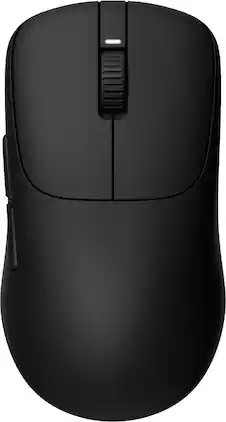
At just 48.4g (approx.), INZONE Mouse-A delivers pro-level speed and control without compromise. Built with Fnatic, it features the custom 3950IZ sensor, optical switches, and 8000Hz polling for ultra-low-latency action. Add in long battery life, wireless freedom, and an esports-optimized fit—it’s every edge, engineered.
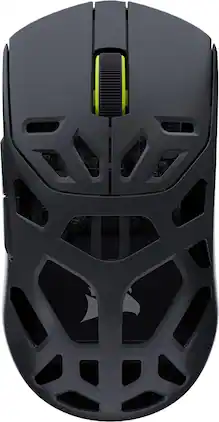
Get pro-level performance with the CORSAIR SABRE v2 PRO Wireless MG Gaming Mouse. Purpose-built for elite FPS players who expect exceptional precision but also want the cooling benefits and strength of a magnesium alloy shell. With its 8,000Hz hyper-polling and CORSAIR MARKSMAN S 33,000 DPI sensor, SABRE v2 PRO delivers latency-defying responsiveness and pixel-perfect control. The light weight, symmetrical shape, and up to 120 hours of 2.4GHz wireless freedom provide comfort and endurance to grind through competitive sessions. Customize it with the included additional grip tape, replacement skates, and lightweight, web-based CORSAIR Web Hub. Built Beyond.

An ergonomic 9-button mouse with 5 quick action side buttons designed for top speed and utility in fast-paced Battle Royale games and more. It has a TrueMove Air optical gaming sensor for pinpoint precision, anti-dust mechanical switches guaranteed for 80 million clicks, super mesh cable, and brilliant PrismSync lighting.
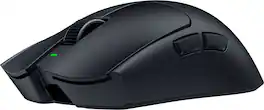
Enter the Razer Viper V4 Pro—fully upgraded with our latest mouse technologies, designed with and trusted by pros. At 49 g, this ultra-lightweight powerhouse is 9% lighter than the previous generation, maintaining flawless balance and agility thanks to advanced mechanical and structural optimizations. Powered by Razer HyperSpeed Wireless Gen-2, it delivers unrivaled speed and reliability, now over 60% more power-efficient with true 8000 Hz polling and 55% lower latency. Gain pro-level control with the Razer Optical Scroll Wheel, engineered for superior precision, durability, and tactile feedback that stops unintentional scrolls. For unerring accuracy, the Razer Focus Pro 50K Optical Sensor Gen-3 offers a groundbreaking 50,000 DPI, 930 IPS, and 90 G acceleration, enhanced with Frame Sync technology for just-in-time reporting. Enjoy peak esports performance for longer with up to 180 hours of battery life on 1000 Hz or 45 hours on 8000 Hz. Built to withstand the demands of elite play, the Razer Optical Mouse Switches Gen-4 boast a redesigned click mechanism with improved tactility and an incredible 100-million-click lifespan. Every detail of the Razer Viper V4 Pro is made for speed, precision, and endurance—giving you the ultimate edge to dominate every match.
| Pros for Sony - INZONE Mouse-A Ultra-Lightweight Optical Switch Wireless 8K Gaming Mouse - Wireless - Black | |||
|---|---|---|---|
| Weight, Battery Life, Build Quality, Sensor Performance, Customization | There were no pros for this product— | Overall Performance, Weight, Ergonomics, RGB Lighting, Ease of use | Weight, Overall Performance, Battery Life, Ergonomics, Tracking Accuracy |
| Cons for Sony - INZONE Mouse-A Ultra-Lightweight Optical Switch Wireless 8K Gaming Mouse - Wireless - Black | |||
| There were no cons for this product— | There were no cons for this product— | Side Buttons, Size, Software, Connectivity | Noise Level, Button Tactility |
Specs
Customers often buy these together
![Esc F1 F2 F3 F4 F5 F6 F7 F8 F9 F10 F11 F12
1 ! 2 @ 3 # 4 $ 5 % 6 ^ 7 & 8 * 9 ( 0 ) - + Del
Tab Q W E R T Y U I O P [ ] \ | Ins
Caps A S D F G H J K L : ; Enter PU
Shift Z X C V B N M , < . > / ? Shift PD
Ctrl Win Alt Fn Ctrl >](https://pisces.bbystatic.com/image2/BestBuy_US/images/products/d915924e-9b3a-4361-9ce2-988e00ff5b8f.jpg;maxHeight=232;maxWidth=233?format=webp)
Sony - INZONE KBD-H75 75% CNC Wired Aluminum Frame Gaming Keyboard with Rapid Trigger - Black
$229.99The price was $299.99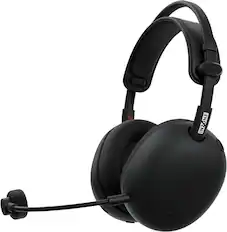
Sony - INZONE H9 II Wireless Noise Cancelling Gaming Headset for PC, PS5, Switch, and Mobile - Black
$249.99The price was $349.99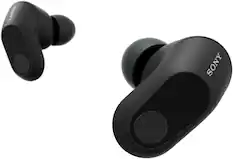
Sony - INZONE Buds Truly Wireless Noise Cancelling Gaming Earbuds, Perfect for PS5, PC - Black
$149.99The price was $239.99
![G 4 TAB 1 F1 ! Q 2 2@ F2 W 3 # F3 E 4 $ F4 R 5 % F5 T 6 F6 Y 7 & F7 U 8 FB I 9 ( F9 O o ) F10 P - - F11 [ { + F12 ] } DEL I CAPS A S D F G H SCRLK J INS K L 114 PRINT PG UP PG DN HOME SHIFT Z x C V B N M V / ? SHIFT P/B END CTRL ALT ALT FN CTRL PRO](https://pisces.bbystatic.com/image2/BestBuy_US/images/products/f085d13c-9c7b-4dbd-afe5-b046c048330e.png;maxHeight=232;maxWidth=233?format=webp)
![G CAPS LOCK 144 I P ESC F1 F2 F3 F4 F5 F6 F7 F8 F9 F10 F11 F12 PRINT LOCK P/B - 1 1! 20 3# 4S 5% 6 7 7& 8 9 I 0) - = INS HOME PAGE TAB W E R T Y U I O P [ C ] } 1 DEL END PAGE UP PAGE DOWN CAPS LOCK A S D F G H J K L ; u SHIFT Z X C V B M V > ? SHIFT CTRL ALT ALT FN H CTRL](https://pisces.bbystatic.com/image2/BestBuy_US/images/products/eb9af4c8-3264-44d8-863b-3c38c161efb6.jpg;maxHeight=232;maxWidth=233?format=webp)
More to consider
 $155.99The price was $169.99
 Our 365-day lowest price$59.99The price was $89.99
 Techtober Deal$24.99The price was $32.99
Explore tech essentials Sponsored
 $69.99The price was $99.99
Discover related products
 $249.00The price was $275.00
 Techtober Deal$10.99The price was $13.99
Keep exploring
 $23.99The price was $24.99
 $139.95The price was $187.95
Logitech - B100 Corded Mouse – Wired USB Mouse for Computers and laptops, for Right or Left Hand Use
$12.05The price was $20.06