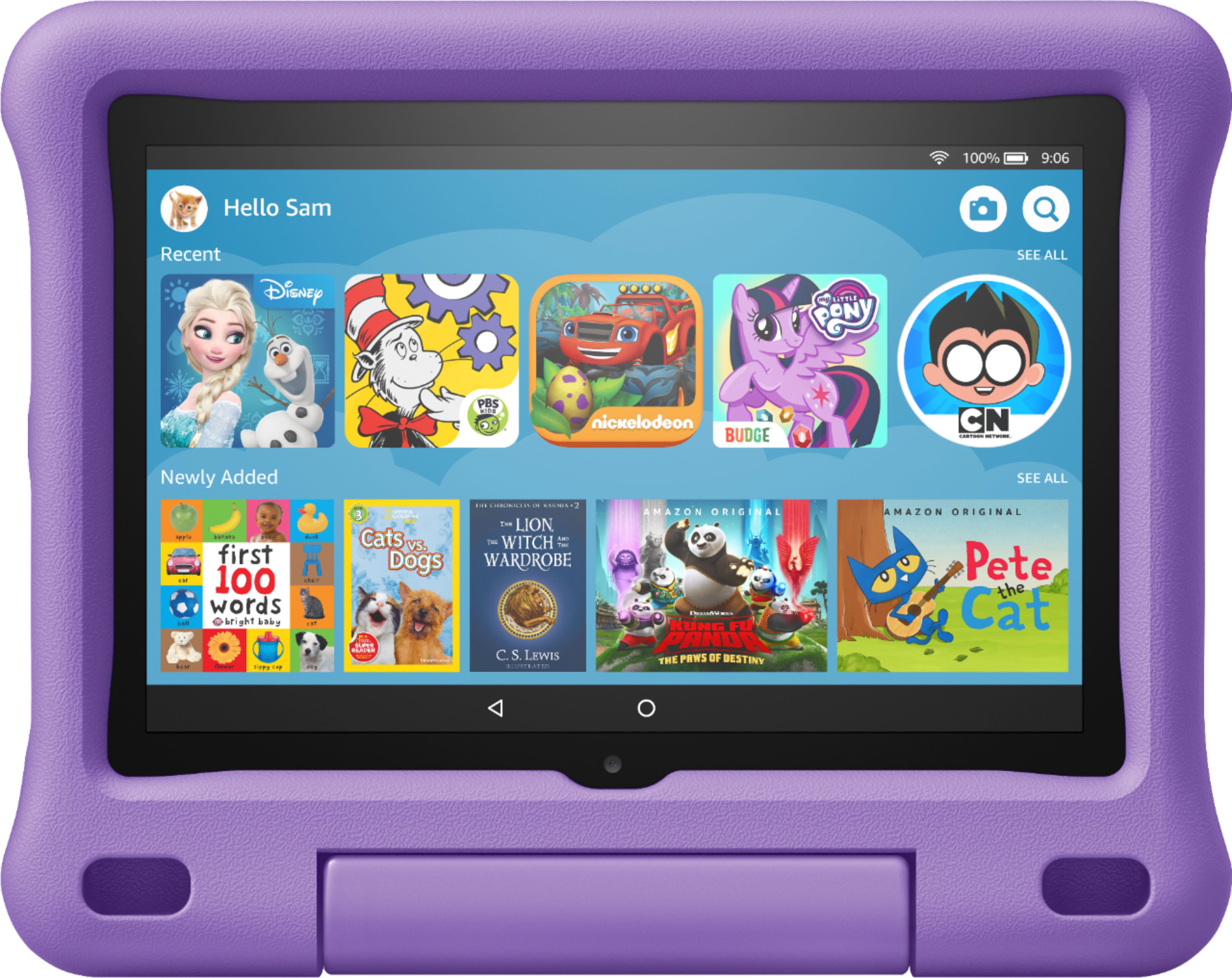
A:AnswerThis tablet has an "adult" profile and child profile. So yes, you can use it as a regular tablet and download books, apps, use the internet, etc...
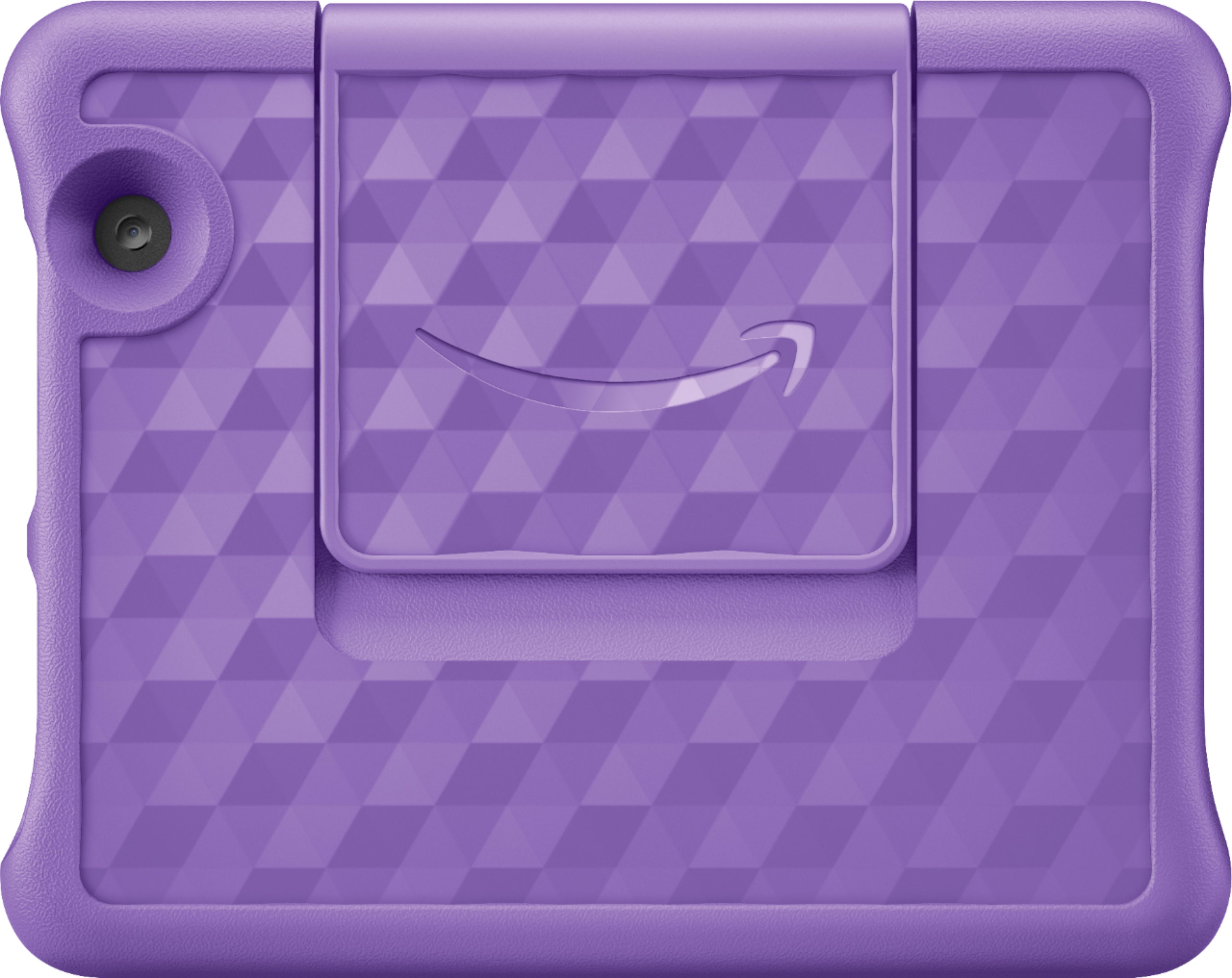
A:AnswerHello! The Fire HD 8 Kids Edition does come with a case and a charger in the box. There are many different accessories you can get for the device, but those are included when you purchase the tablet. Have a great day!
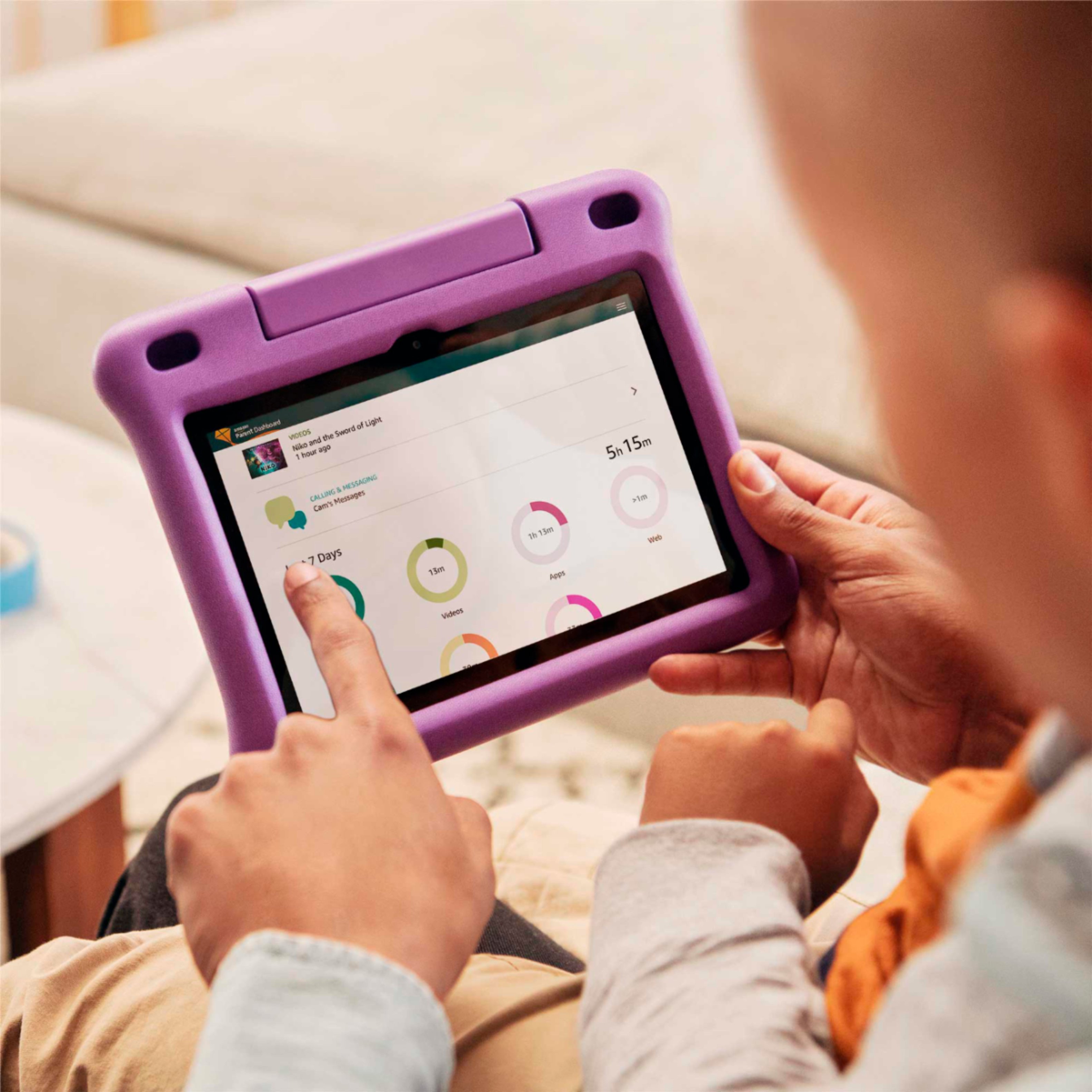
A:AnswerHi Paloma! The age range for the Fire 8 Kids Tablet is a suggested range based on the preloaded kids content, and the case included with the device. You can add multiple profiles to this device, and control what content each user has access to via the Parent Dashboard. Here's how you can do that: To add content to your Child Profile on a Fire Tablet, follow these steps:
1. Go to the Parent Dashboard
2. Navigate to the child profile you wish to manage and select Settings.
3. Select Add content.
4. Select the desired content category using the tabs above the list of content.
5. Add or remove content by toggling the switch next to them.
Have a great day!
A:AnswerHello Cmarie! Thanks so much for your question! Yes, Hooked on Phonics is an available app that you can download from the Amazon Appstore. You can find it by tapping Apps & Games and then searching for Hooked on Phonics. I hope this helps and that you have a great day!
A:AnswerYes, I've listed the steps to enable parental controls without the subscription. There are going to me limitations to standard parental controls vs. the parental controls in the Kid's superscription though.
Set Up Parental Controls on Your Fire Tablet. Restrict access to shopping, downloading content, and settings on your device (FireOS 5 and higher). Alternatively, use Amazon FreeTime to select and share content from your Amazon library with your child or allow access to kid-friendly Amazon-curated content. Note: Your parental controls password is different from your lock screen password. Swipe down twice from the top of the screen to show Quick Settings. > Tap the Settings icon. > Tap Parental Controls. > Toggle the switch to On. > Enter and confirm your password. Make sure that you record your password. > Tap Finish. A lock icon appears at the top of the screen when parental controls are enabled.
A:AnswerHello,
Unfortunately, it is not, but you can always buy gift cards for Kindle (reading) or Audible (audiobooks) or Amazon for them to use when they set up and want to pay for those subscriptions. Hope that helps.
A:AnswerHi Dianne,
There are no full manuals included in the packaging anymore in an attempt to save paper. You can search for how to videos on various websites (amazon included) to find helpful videos that can show you more about the tablet. Have a great day!
A:AnswerHello, Movie! I'm not sure of a way to lock it so that they cannot leave the movie, but you could enable some features on FreeTime that would keep the child from accessing apps and games during the time you have the movie open. Once in your FreeTime account, you can adjust what the child can access. I hope that helps! Have a great day!
A:AnswerHI! Amazon Kids+ is not a requirement to use this tablet. Amazon Kids+ is an all-in-one subscription that gives kids access to thousands of kid-friendly books, movies, TV shows, educational apps, and games on compatible Fire, Fire TV, Android, iOS and Kindle devices. Plus, kids can enjoy hundreds of hours of fun with ad-free radio stations and playlists, and a growing list of premium kid’s skills available on compatible Echo devices. You would lose these curated items if you set up without Amazon Kids+. Hope this helps, enjoy your day!