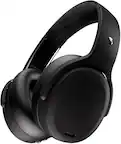
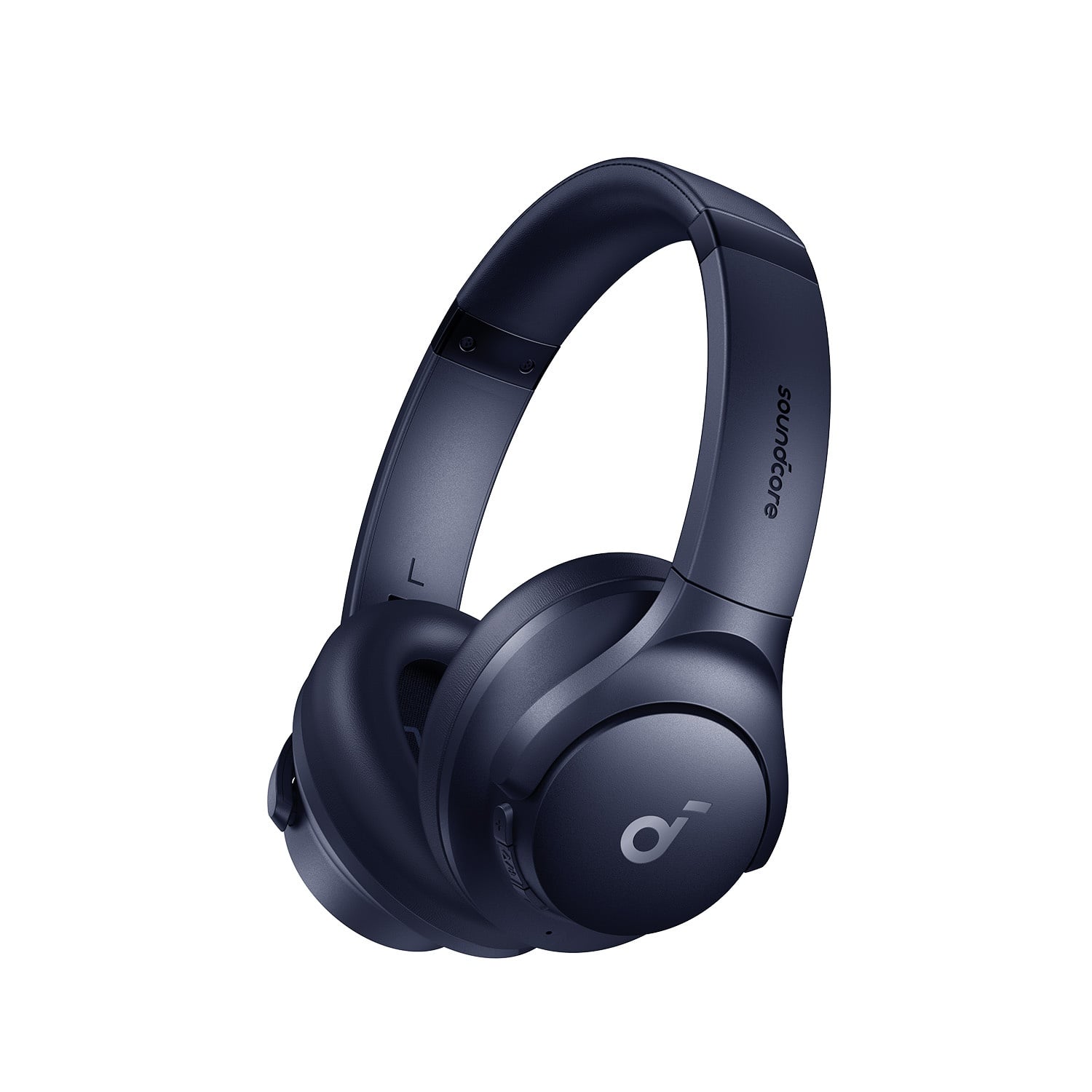
A:AnswerThe information provided does not mention whether the Soundcore Q20i True Wireless Noise Canceling Over-the-Ear Headphones support aptX Low Latency. Based on the details provided, this feature is not explicitly listed among the headphone specifications or functionalities.
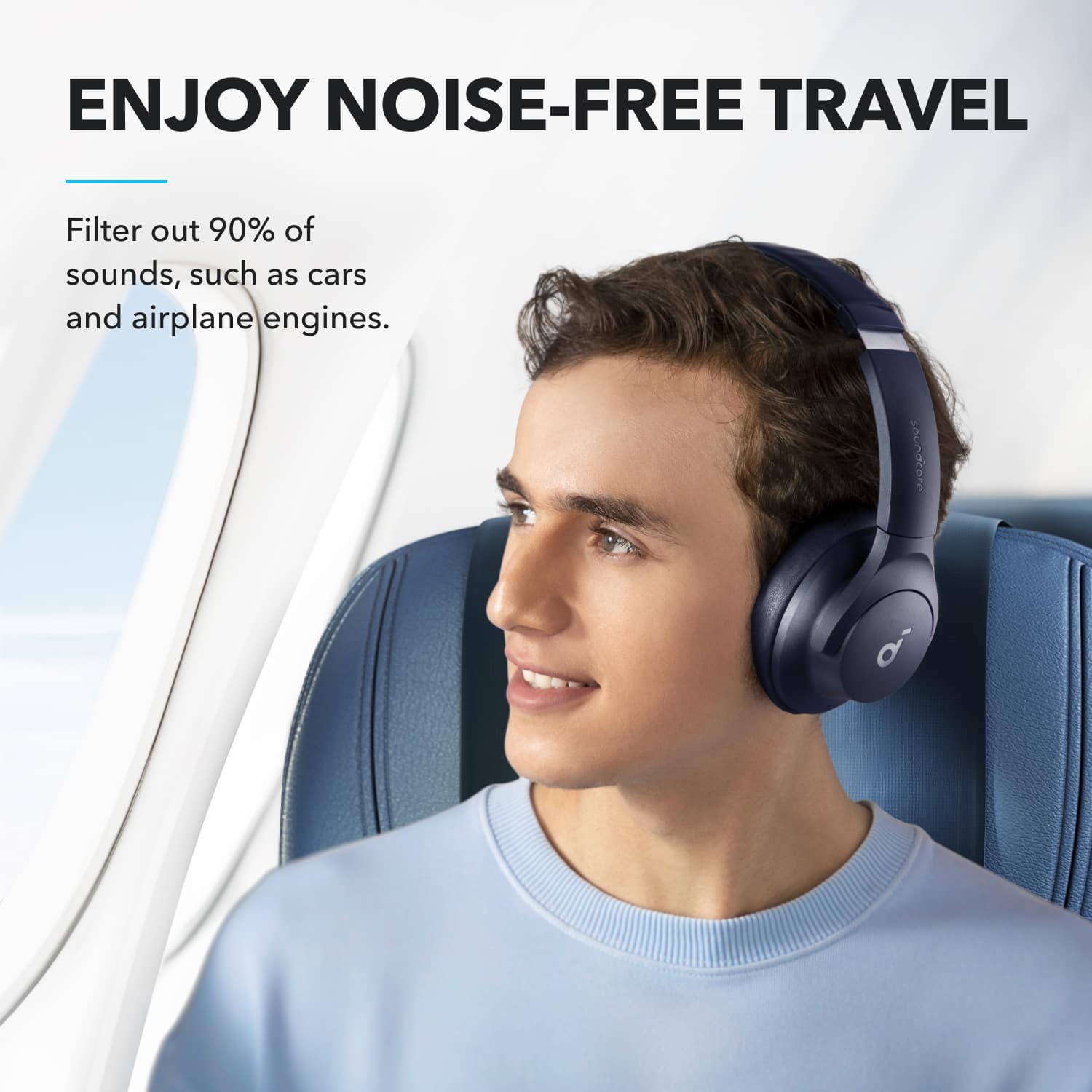
A:AnswerThe Soundcore Q20i headphones' noise cancellation is primarily designed to eliminate low-frequency noises, such as the roar of airplane engines, but it does not provide complete silence. Human voices and certain higher-frequency sounds may still be audible. This feature helps reduce environmental noise effectively, particularly in situations like planes, improving your listening experience but not completely isolating all sounds.
For the best noise cancellation experience, ensure that you are wearing the headphones correctly and activate the "Active Noise Cancellation" mode to optimize their performance.
A:AnswerThanks for your interest in our products.
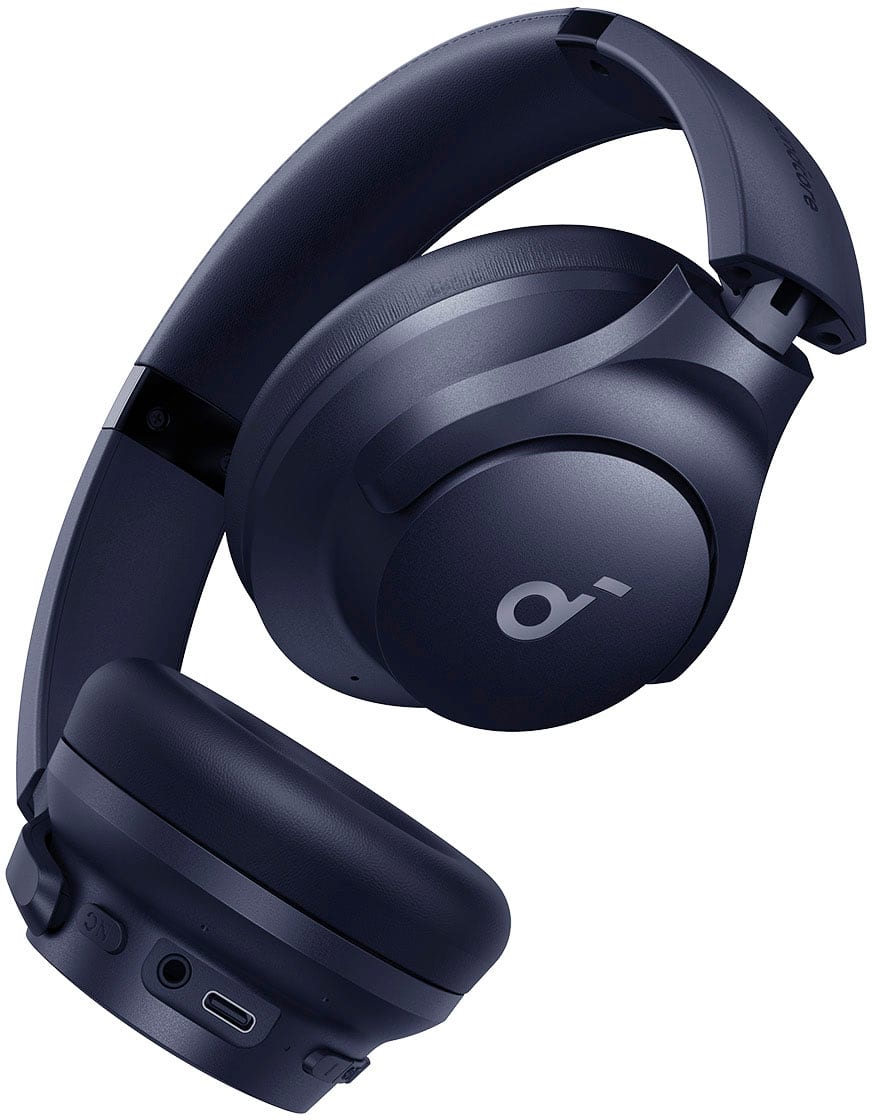
Yes, Q20i will come along with an aux cable, which allows you to connect them in a jack.
Please feel free to contact us via [email protected] with your order information and problems. We will always be more than happy to help you.
A:AnswerThanks for the message.
Yes, Q20i has a built-in microphone.
Please feel free to contact us via [email protected] if there is anything we can help you with.
A:AnswerThe Soundcore Q20i's noise cancellation mode primarily targets low-frequency noises (e.g., engines, air conditioning sounds) and may not completely eliminate all noises, such as human voices. This means that while you can effectively reduce some annoying sounds, like high-pitched flute notes, you will still hear the surrounding environment to some extent.
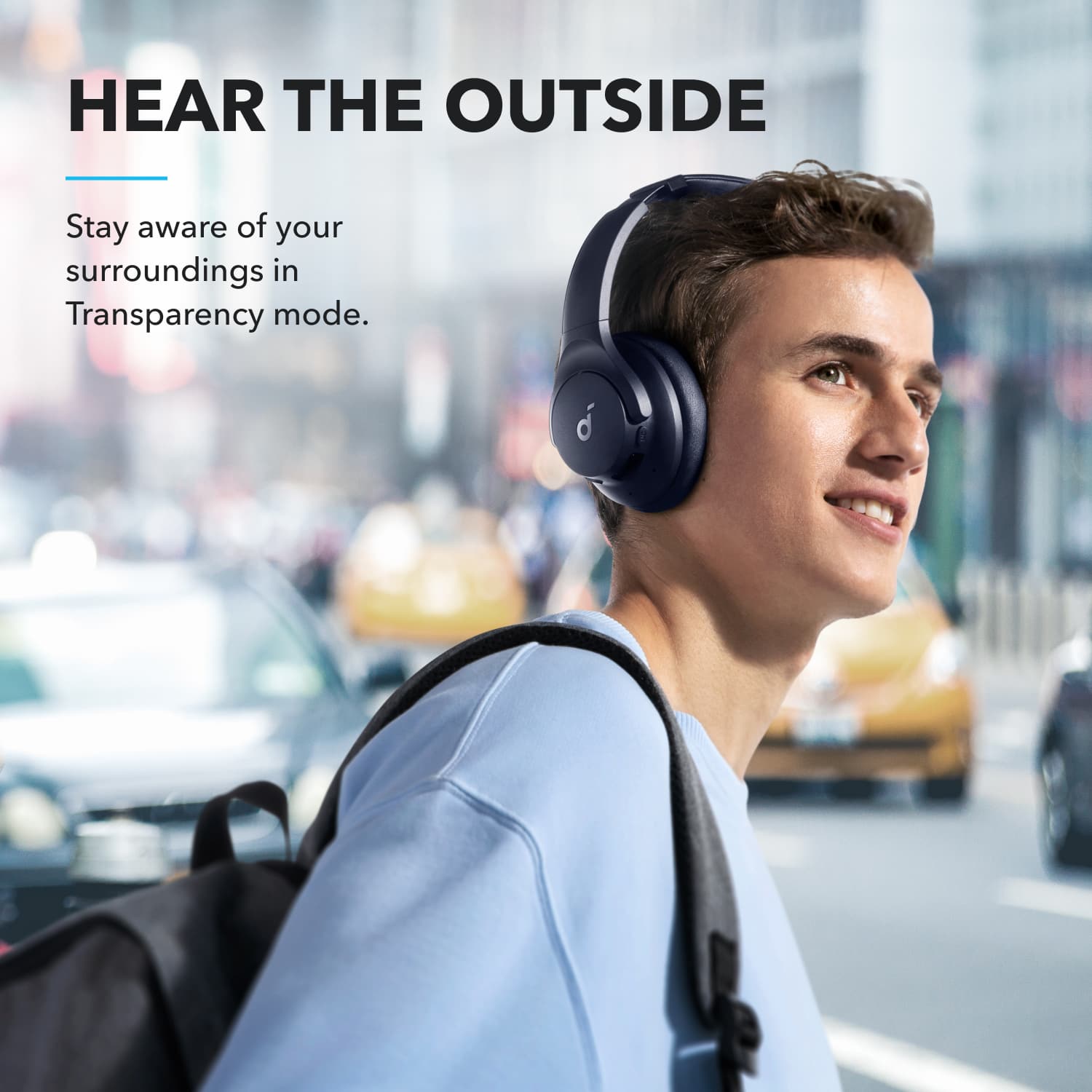
The Q20i also features a transparency mode, which allows in natural external sound. However, it does not amplify the surrounding sounds, so playing music at higher volumes might overshadow external noise. You can adjust the music volume or pause it to better hear other people while in transparency mode.
Based on your use case, using transparency mode and adjusting the music volume might help reduce the noise to a desired level without isolating you entirely from your environment.
A:AnswerYes! they are compatible with Android, and I love using them when I mow the lawn at home because the noise of the mower is very annoying, I totally recommend them
A:AnswerI'm unable to access detailed information at the moment, but typically, Bluetooth headphones like the Soundcore Q20i should be able to pair with most smart TVs that support Bluetooth connectivity. Please ensure your TV has Bluetooth functionality and follow the pairing instructions for both the headphones and TV.
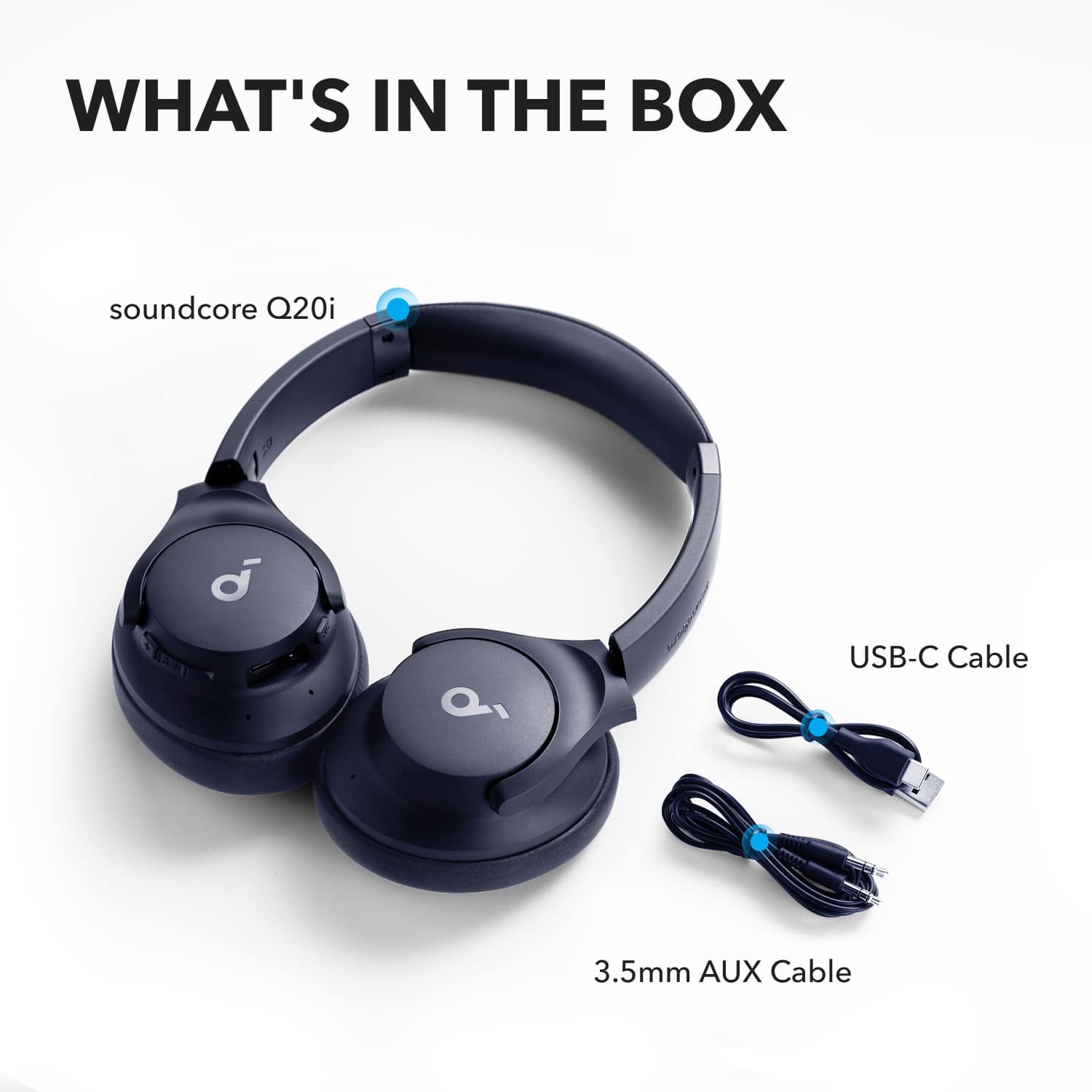
A:AnswerBased on the standard packaging for the Soundcore Q20i, here is what is typically included in the box:
• Soundcore Q20i Over-Ear Headphones
• Carrying Case (for storage and travel)
• USB-C Charging Cable
• 3.5mm Audio Cable (for wired listening)
• User Manual & Warranty Information
For the most precise and up-to-date list, please check the "What's Included" section on the Best Buy product page or the packaging itself, as contents can occasionally vary.
A:AnswerBased on the knowledge retrieved, here are some steps you can try to fix the sound issue with your Soundcore Q20i headphones when the balance is already set to the center:
Clean the Hardware: Remove the ear tips from the headphones and gently clean the metal filter mesh. Use a Q-tip with a small amount of rubbing alcohol to clean the surfaces. Make sure the cleaning is thorough, as debris or dirt can affect sound quality.
Reset the Headphones: Perform a reset by following these steps:
Place the earbuds into their charging case and ensure the case remains open.
Hold the button on the back of the charging case for 10 seconds until the LED flashes white rapidly three times, signaling that the reset is successful.
Test on a Different Device: If possible, pair the headphones to a different Bluetooth device to determine if the problem is device-specific.
Recheck the Audio Source: Ensure that the audio source (e.g., music, app) you’re using has clear and balanced audio so that no distortion is coming from the source itself.
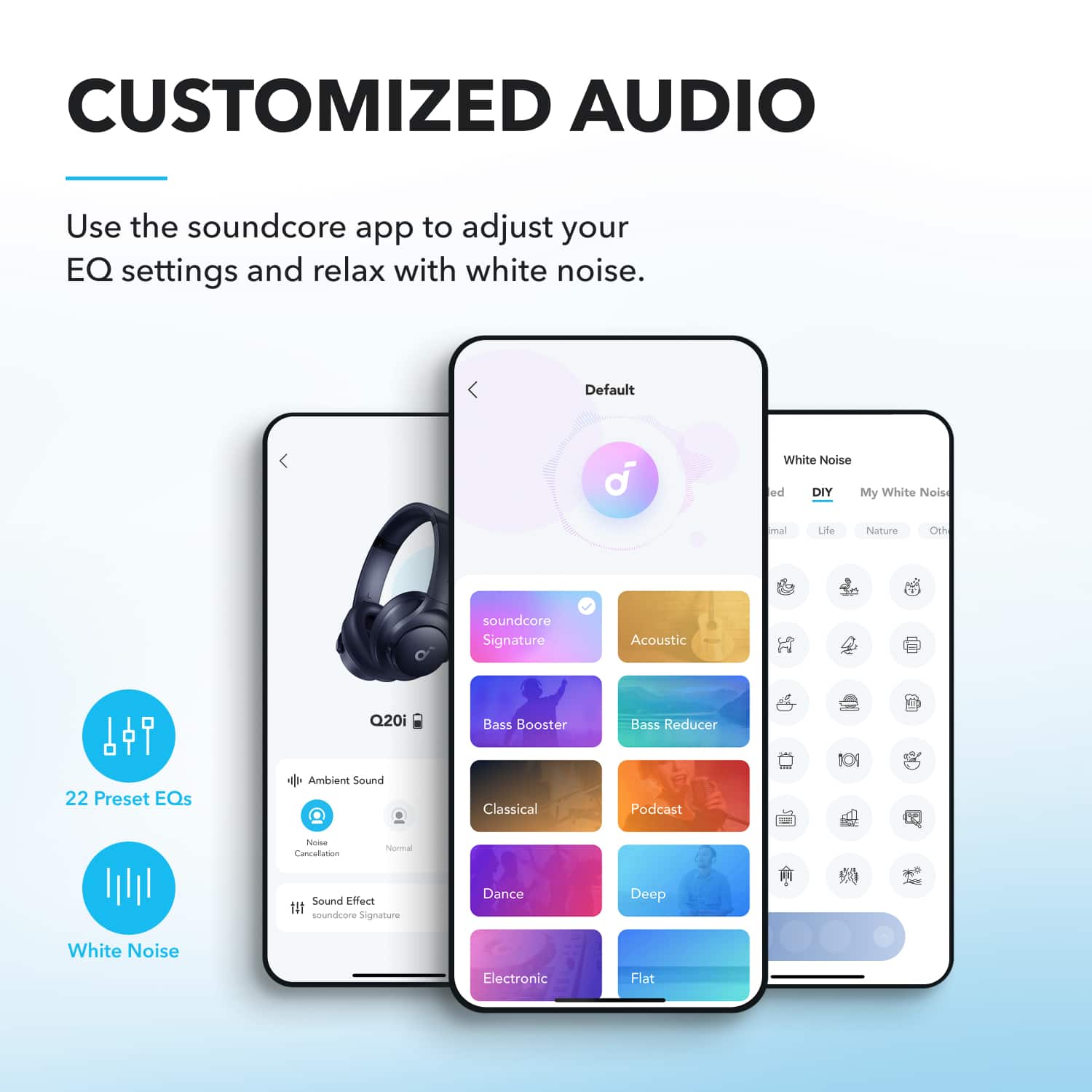
Customize EQ Settings: Use the Soundcore app to set or adjust the equalizer (EQ) to fine-tune the sound per your preference.
By following these tips, you should be able to improve your headphones’ sound. Make sure to test after completing each step. If the issue still persists, you may need to explore other solutions.
A:AnswerHere are the steps to pair your Soundcore Q20i Over-Ear Headphones with your phone:
Initial Pairing:
If this is the first time pairing the headphones, press and hold the "power on" button for 5 seconds while the headphones are off. This will activate pairing mode.
Reconnections:
If the headphones were previously paired with your phone, press and hold the "power on" button for 1-3 seconds until you hear the boot-up tone. The headphones will automatically attempt to reconnect to the last paired device. If reconnection fails after 5 seconds, the headphones will re-enter pairing mode.
Pairing with a New Device:
If the headphones are already paired with a device and you want to connect them to another, manually disconnect the current connection from the Bluetooth settings on the phone. The headphones will then automatically enter pairing mode, allowing you to pair them with a new device.
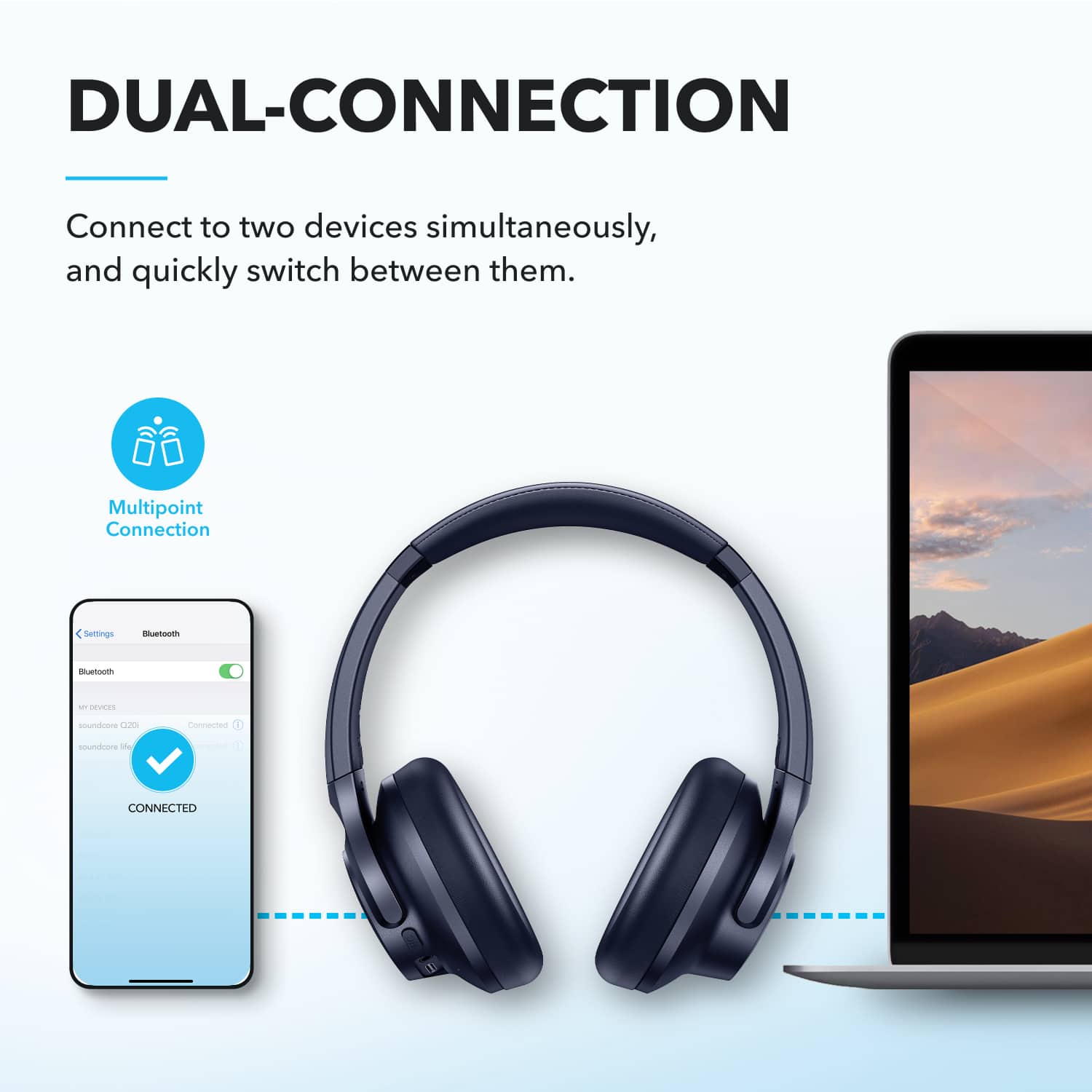
Connecting to Multiple Devices:
To connect to a second device while staying connected to the first, double-click the switch button. This puts the headphones back into pairing mode for connecting to the second device.
Also, when pairing, you can locate the device name in your phone's Bluetooth list and select to complete the connection. Once the pairing is successful, the blue light on the headphones will flash slowly.
A:AnswerUnfortunately, the provided knowledge base does not specify instructions or policies regarding replacing the ear padding of Soundcore Q20i True Wireless Noise Canceling Over-the-Ear Headphones. Typically, such replacements are not mentioned as part of regular maintenance or support for the headphones. You may consider checking third-party options for compatible ear pads if necessary. If you'd like other assistance related to your headphones, feel free to ask!