DoorBOOsters are hereExclusions apply. Ends 11/2/25.Shop now

Main Content

Questions & Answers

Your price for this item is $599.99
Clearance
The comparable value price is $749.99
Page Showing 21-36 of 36 questions
  • QuestionIs the storage only 128gb SSD or does it have additional 1tb hdd

    Asked by Harsha.

    • Answer This laptop has only 128GB SSD.

      Answered by AABU

  • QuestionWill this model play World of Warcraft?

    Asked by WriterMel.

    • Answer According to Intel's game optimization website, yes. This laptop does not have a dedicated graphics card so don't expect it to work nearly as well as it would with a dedicated GPU. https://gameplay.intel.com/CPUAndGameSelected/Index/124967/626536/0

      Answered by Andrew

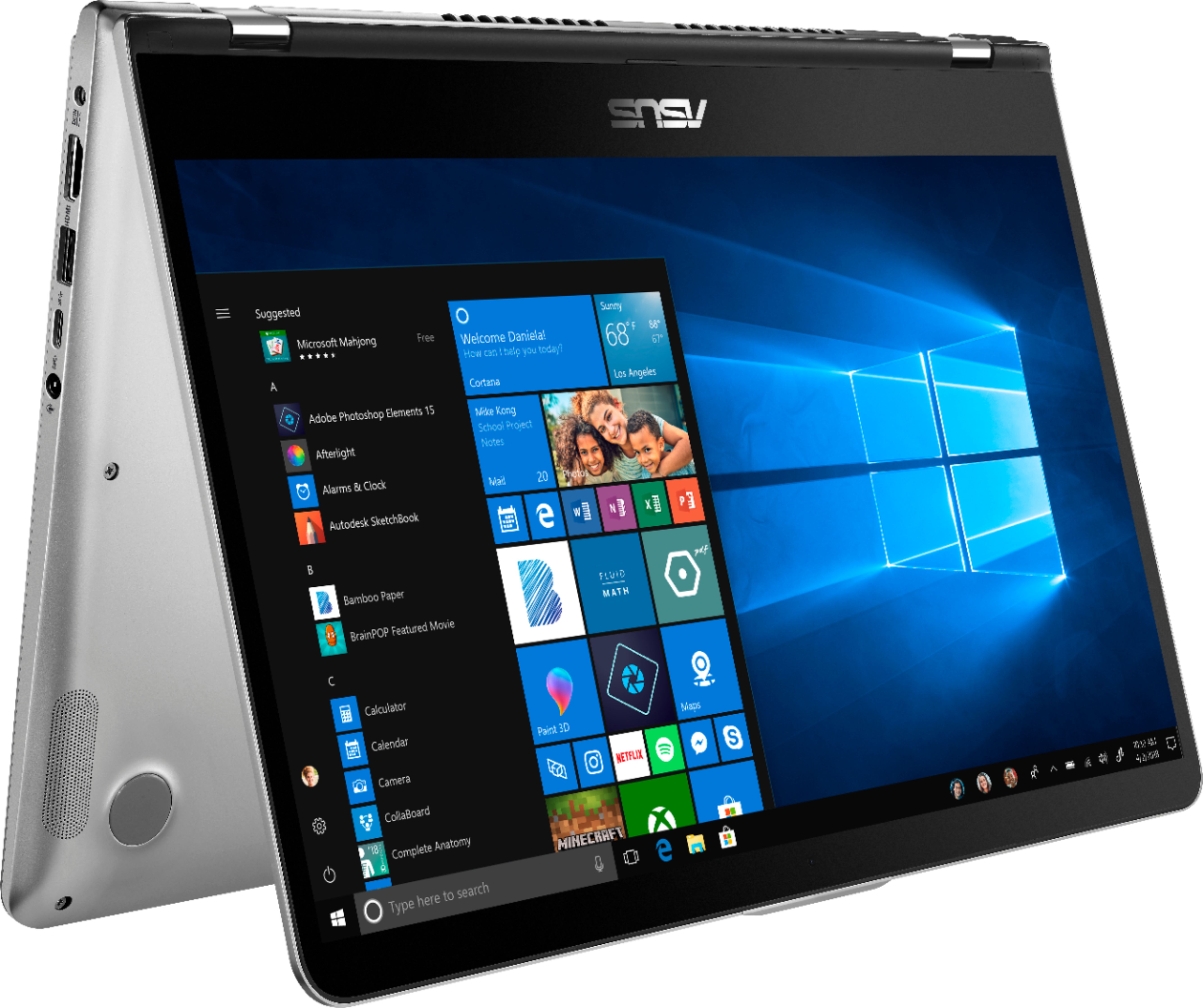
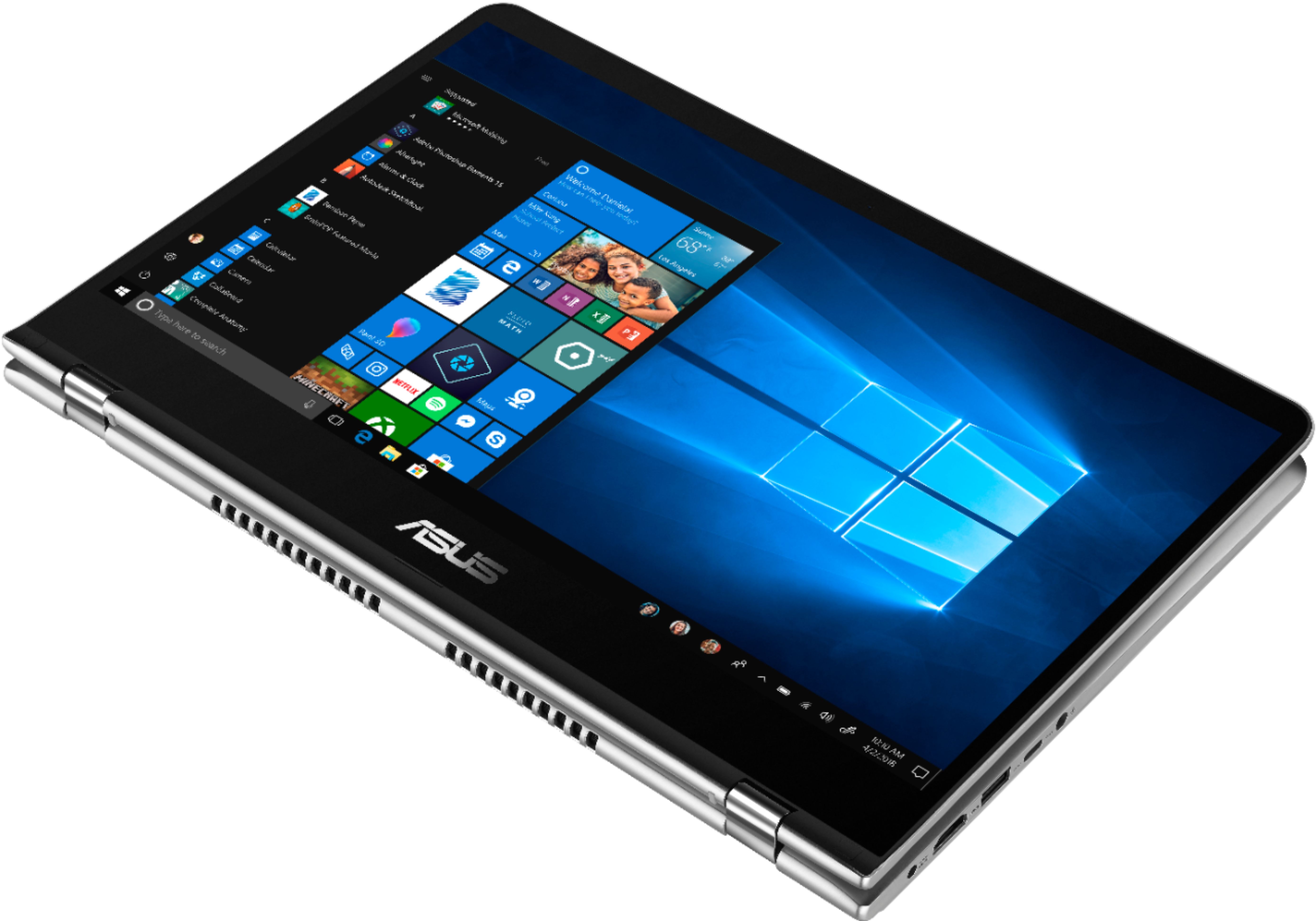
  • QuestionWhich one is detachable and can be used as a tablet?

    Asked by xistentl1.

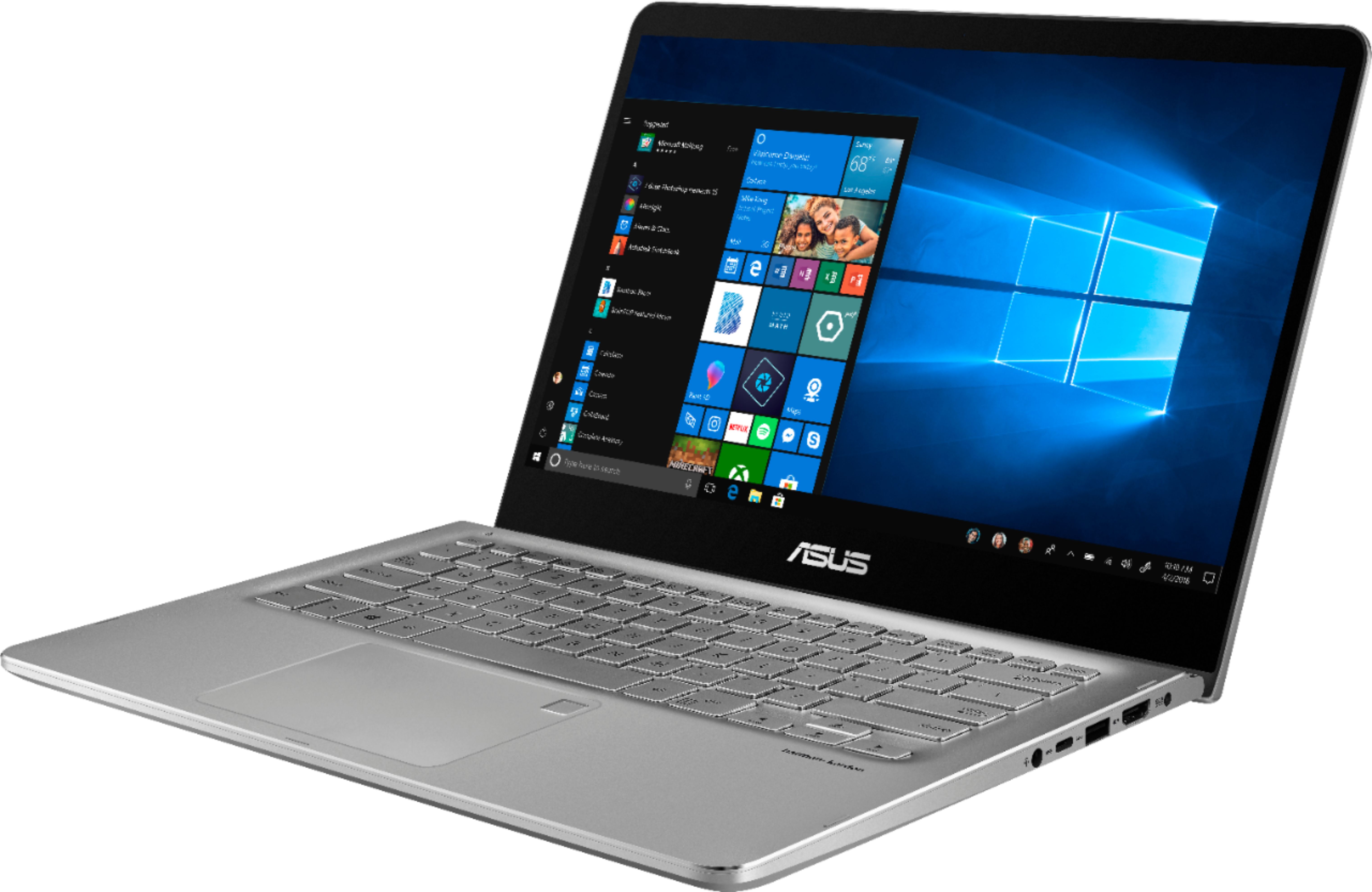
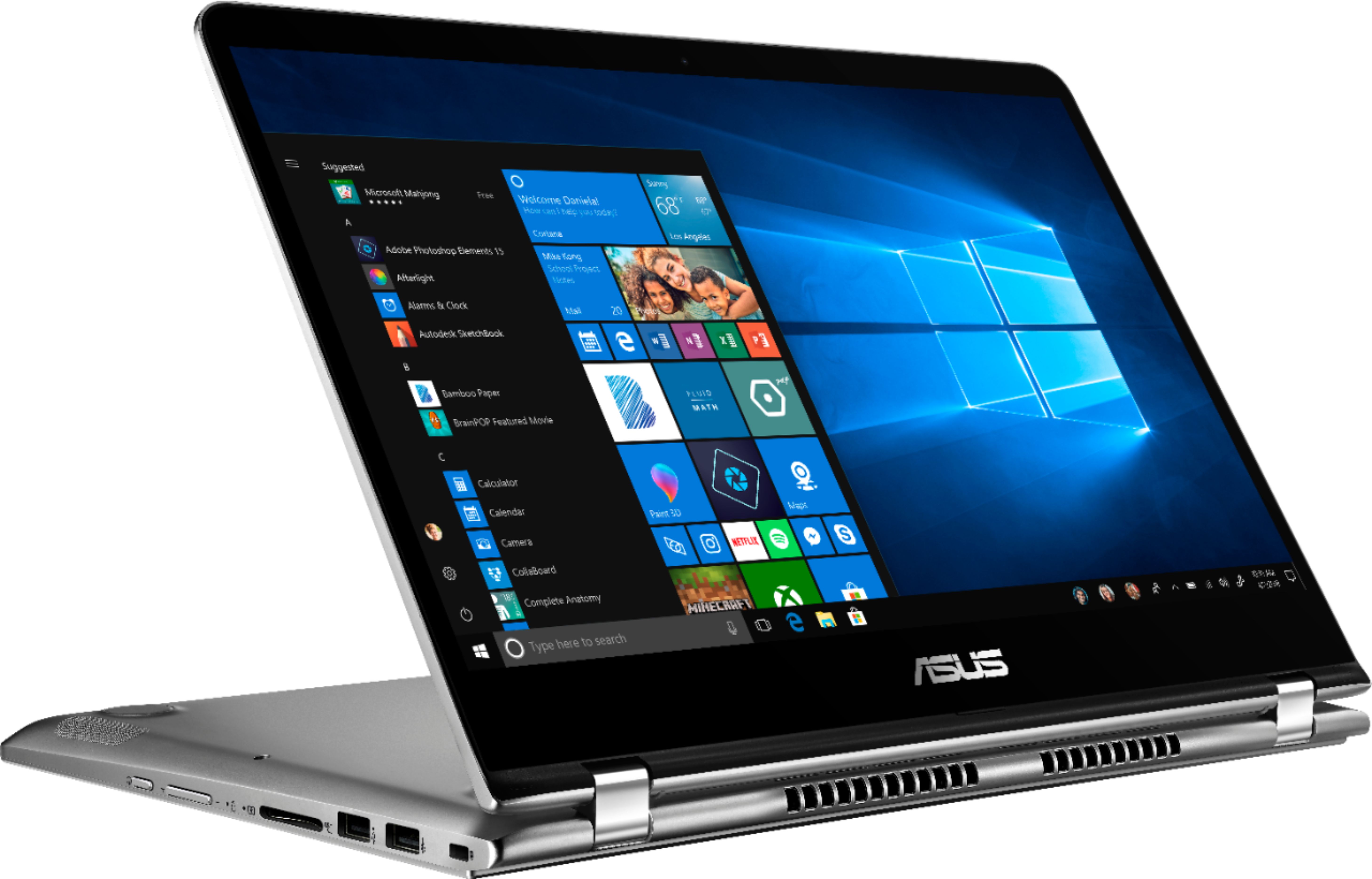
    • Answer Neither. If you want a tablet fold it flat, Wala it's a tablet.

      Answered by Curiousue

  • QuestionHello, i bougth this computer last year. Is posible upgrade i5 to i7?

    Asked by Franff.

    • Answer No, it can't be upgraded to i7.

      Answered by CommunityAnswer

  • QuestionDoes this support DJ software

    Asked by Kolekarter.

    • Answer Yes, this supports DJ software.

      Answered by ASUS Answers

  • QuestionI just purchased this laptop and I noticed when the picture is black (when I watch a movie or if I have a black background) the edges of the screen aren't black, they almost look foggy. Is this normal?

    Asked by Stk1991.

    • Answer This is normal, -IPS technology offers a good viewing experience by providing wider viewing angles. It keeps image quality clear when viewed from all directions, which is ideal for watching videos and playing games, especially when you’re not right in front of the screen. -The IPS process creates a pre-tilt angle in the liquid crystal layer that causes divergence in the R/G/B light transmittance at different viewing angles. -As a result, you can see faint colors when viewing dark corners of the screen from an angle. -This IPS glow effect is a natural phenomenon associated with the panel technology. It is different than light leakage or backlight bleed.

      Answered by ASUS Answers

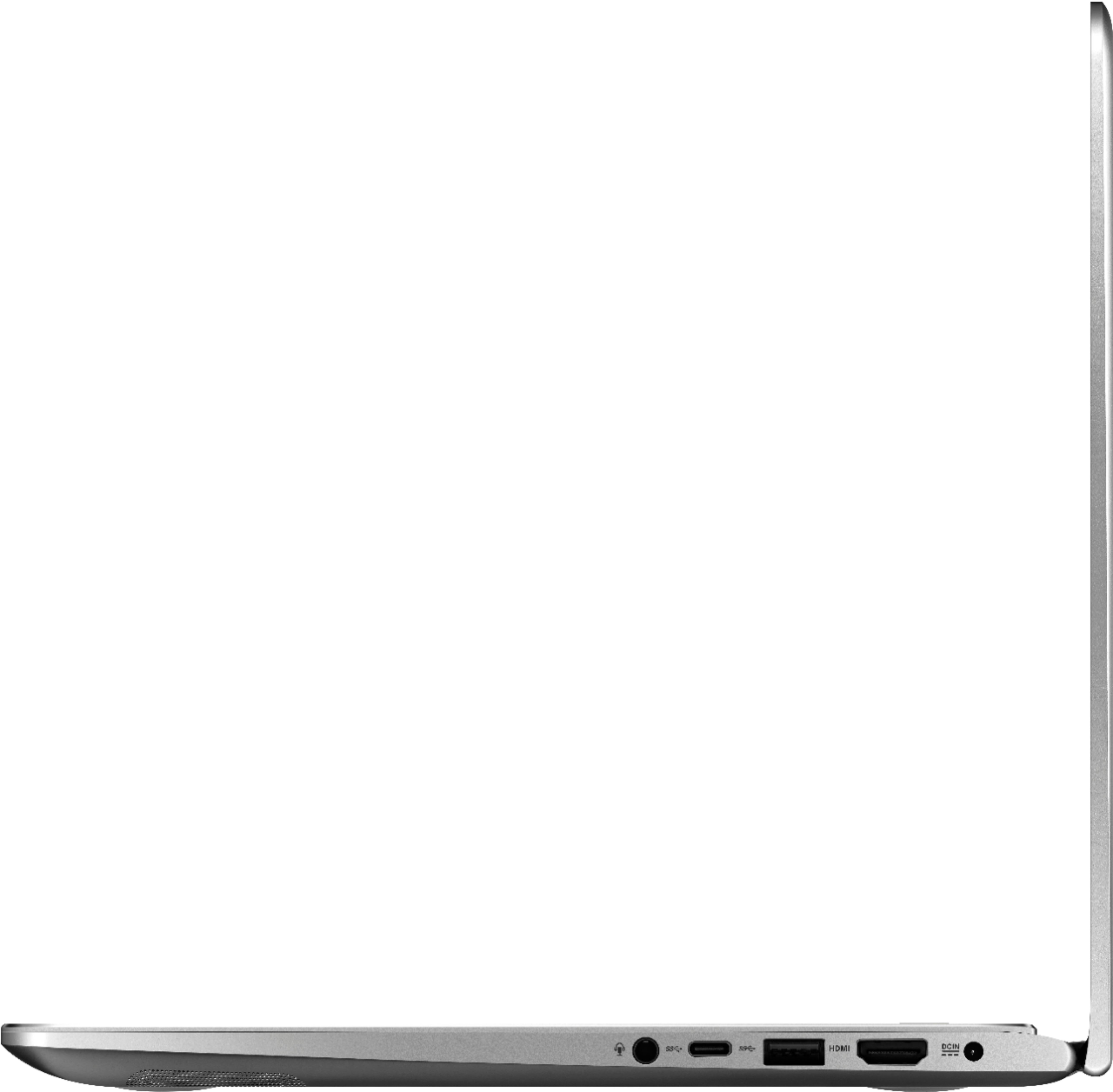
  • QuestionHow large of a memory card, in GB, will the Q405UA accept? The specs only state SD/SDHC, and my understanding is 64GB is max for SDHC. Seems quite low for a 2018 model... Thanks!

    Asked by Lyndenrider.

    • Answer My 512 gb PNY sd card works fine.

      Answered by CLQuake

  • QuestionHow can I upgrade the ram. Is it user upgradable? Any instructions?

    Asked by Ujanik.

    • Answer The RAM can be expanded to 16GB, however you have to remove the motherboard to access the DIMM socket. Use an 8GB 2400Mhz DDR4 Non-ECC CL17 Single Rank SODIMM. Here's the process, but keep in mind it will void your warranty to upgrade it. * Turn the computer off, and disconnect the power cable. * Remove the case screws from the bottom of the notebook. Keep track of each screw as there are different lengths. * Use a case cracker to separate the bottom cover, but do not lift it more than a half an inch. * Gently lift the four cables under the keyboard with a plastic spudger to release the glue, and then disconnect the cables from the motherboard. * It's a good idea to take a picture of the board at this point so you have a reference to help you remember how to put everything back together. * Use the Uspudger to disconnect the battery. * Remove the SSD if there is one connected to the SATA socket. * Remove the tape from the WIFI card, and remove the card. * Remove the tape from the wiring. * Remove the battery screws and remove the battery from the notebook. * Disconnect the LCD and speaker connectors. * Remove the motherboard screws. * Lift the board out, starting by the CPU fan. * Turn the board over and install the RAM, if you want to upgrade the SSD this is the time to do it. Use an m.2 2280 SATA SSD. * Carefully put the computer back together by reversing this process.

      Answered by Andrew

  • QuestionCan the RAM on this computer be increased? I don't know how many slots it has butI was wondering if it can be increased to 16GB?

    Asked by Juan.

    • Answer The RAM can be expanded to 16GB, however you have to remove the motherboard to access the DIMM socket. Use an 8GB 2400Mhz DDR4 Non-ECC CL17 Single Rank SODIMM.

      Answered by Andrew

  • QuestionCan this laptop handle games like Minecraft, Roblox, or Steam?

    Asked by Zander.

    • Answer Don't listen to ASUS... Yes, this laptop can handle Minecraft and Roblox just fine. One of the Q405UAs that we own is used for that and school work. As for Steam, it really depends on the game. Don't expect to run any AAA titles on it at native resolutions, but many games will play at 40-60FPS if you drop the resolution to 720P and use medium settings. You can use Intel's tool to find games that play well on this laptop. https://gameplay.intel.com/CPUSelectedGameSearch/Index/124967/0

      Answered by Andrew

  • QuestionHas anyone done a teardown of this model, or can they? I'd like to know if the hdd board is really not included and if the battery is different.

    Asked by SomeUser.

    • Answer Motherboard has a 2280 m.2 ssd plugged in. You can upgrade and use minitool to copy your c drive. There is also an empty 2.5 SSD slot (Not HDD) that's ready for additional memory. Remove the 5 screws on the bracket. Plug in the SSD and put the bracket on.

      Answered by Will

  • QuestionIs the RAM expandable in this model?

    Asked by Delta.

    • Answer Yes, but the motherboard has to be completely removed from the laptop to access the SO-DIMM socket which is somewhat tedious. You can upgrade it to 16GB using an 8GB 2400Mhz DDR4 Non-ECC CL17 Single Rank SODIMM.

      Answered by Andrew

  • QuestionCan the RAM be upgraded? If so, how much? Will it play games like World of Warcraft?

    Asked by RAM.

    • Answer The RAM can be expanded to 16GB, however you have to remove the motherboard to access the DIMM socket. Use an 8GB 2400Mhz DDR4 Non-ECC CL17 Single Rank SODIMM. Here's the process, but keep in mind it will void your warranty to upgrade it. * Turn the computer off, and disconnect the power cable. * Remove the case screws from the bottom of the notebook. Keep track of each screw as there are different lengths. * Use a case cracker to separate the bottom cover, but do not lift it more than a half an inch. * Gently lift the four cables under the keyboard with a plastic spudger to release the glue, and then disconnect the cables from the motherboard. * It's a good idea to take a picture of the board at this point so you have a reference to help you remember how to put everything back together. * Use the spudger to disconnect the battery. * Remove the SSD if there is one connected to the SATA socket. * Remove the tape from the WIFI card, and remove the card. * Remove the tape from the wiring. * Remove the battery screws and remove the battery from the notebook. * Disconnect the LCD and speaker connectors. * Remove the motherboard screws. * Lift the board out, starting by the CPU fan. * Turn the board over and install the RAM, if you want to upgrade the SSD this is the time to do it. Use an m.2 2280 SATA SSD. * Carefully put the computer back together by reversing this process.

      Answered by Andrew

  • QuestionIs this 128GB SSD or 1TB HD as one of previous 4 answers said?

    Asked by zwu98.

    • Answer 128GB and costly to upgrade.

      Answered by Rando

  • QuestionThe model I just purchased from Best Buy, Q405UA-BI5T7, came with a 128GB SSD. Is that drive on a m.2 slot? And if so, would that mean an open SATA bay is available for a second 2.5" SSD?

    Asked by Lyndenrider.

    • Answer I answered this question already, but I have upgraded my second unit and have more info to report. I removed the motherboard to add an 8GB Crucial SODIMM to upgrade the memory to 16GB. I also added a 2.5" Samsung 1TB SSD into the empty SATA port. I reassembled the unit and powered up. Everything worked great, but only when the AC adapter was plugged in. If I unplugged it, the screen started flickering, making the laptop unusable. I reopened the unit and removed the original m.2 SSD, and again reassembled. The flickering problem is now gone when running on battery. I guess the battery is not strong enough to power the extra memory and two SSD's simultaneously. My other unit has two SSD's, but no added memory, and it also has no problems when running on battery. So, when upgrading this laptop, you will only be able to use one SSD if you upgrade your RAM.
      Answered by NJMike

  • QuestionThis model, Q405UA, comes with a 128GB SSD. Is that drive on a m.2 slot? And if so, would that mean an open SATA bay is available for a second 2.5" SSD? Thanks!

    Asked by Lyndenrider.

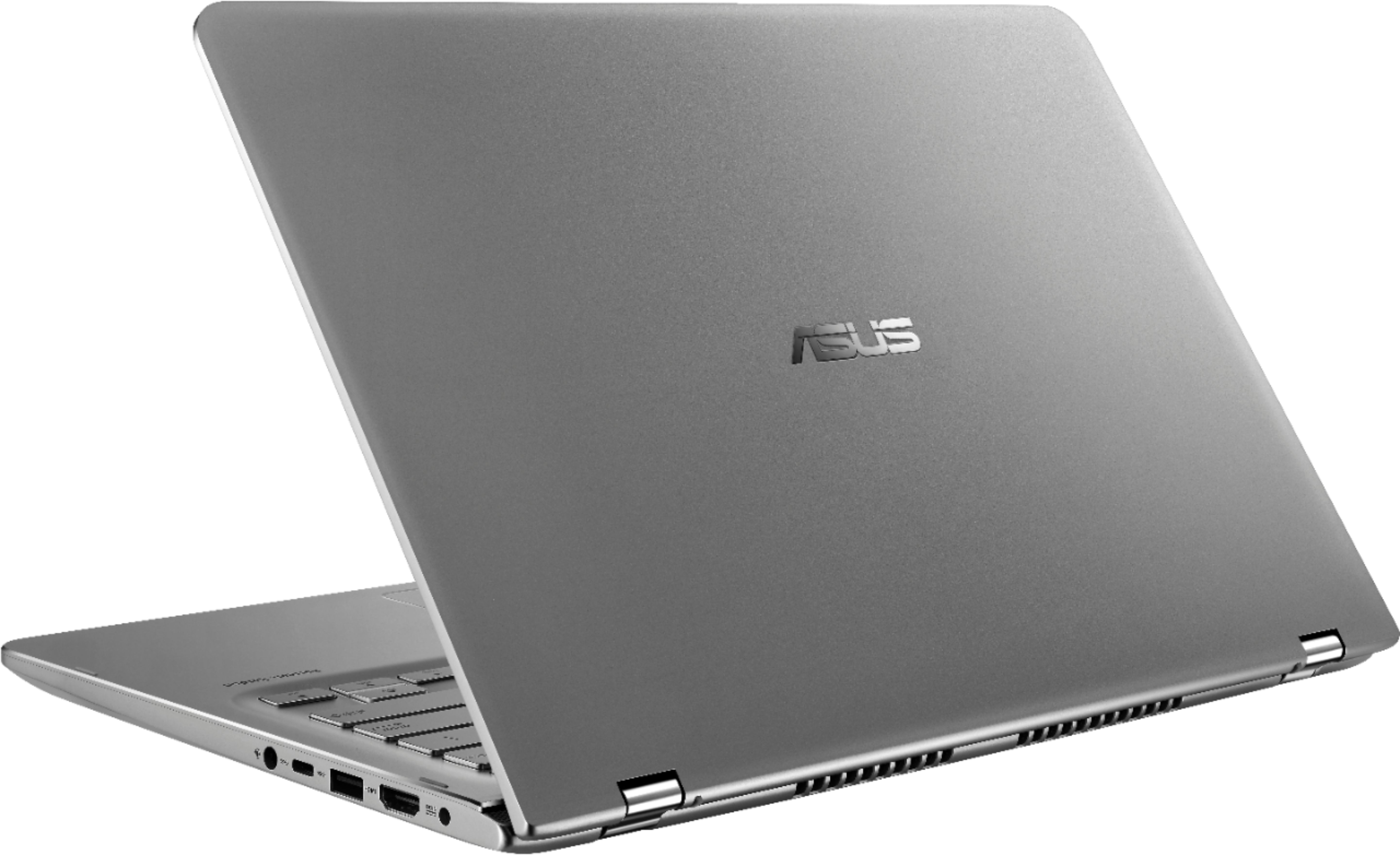
    • Answer The 128GB SSD is on a SATA port or connector. The 128GB SSD needs to be removed in order to upgrade to a bigger size SATA SSD.

      Answered by ASUS Answers