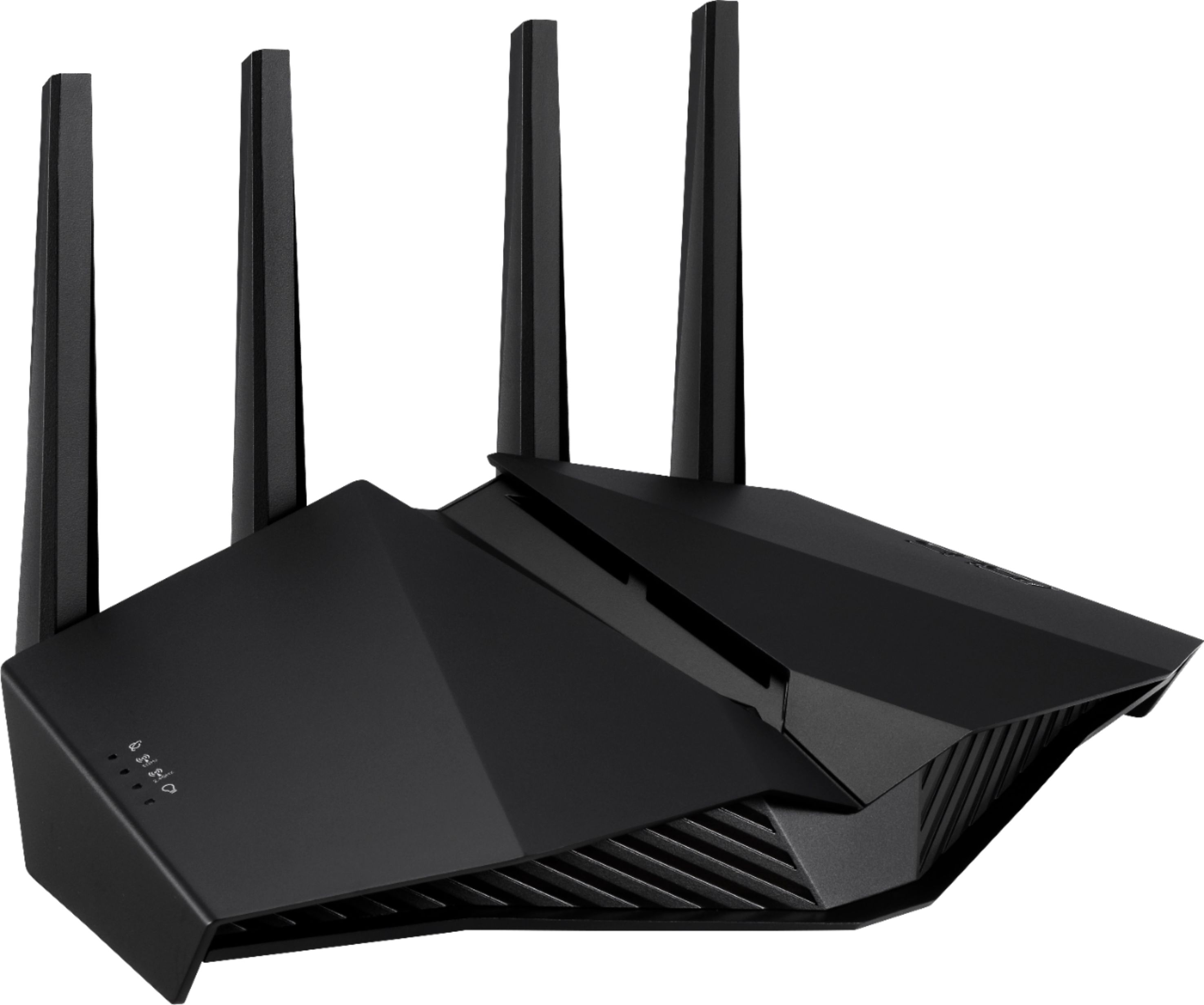
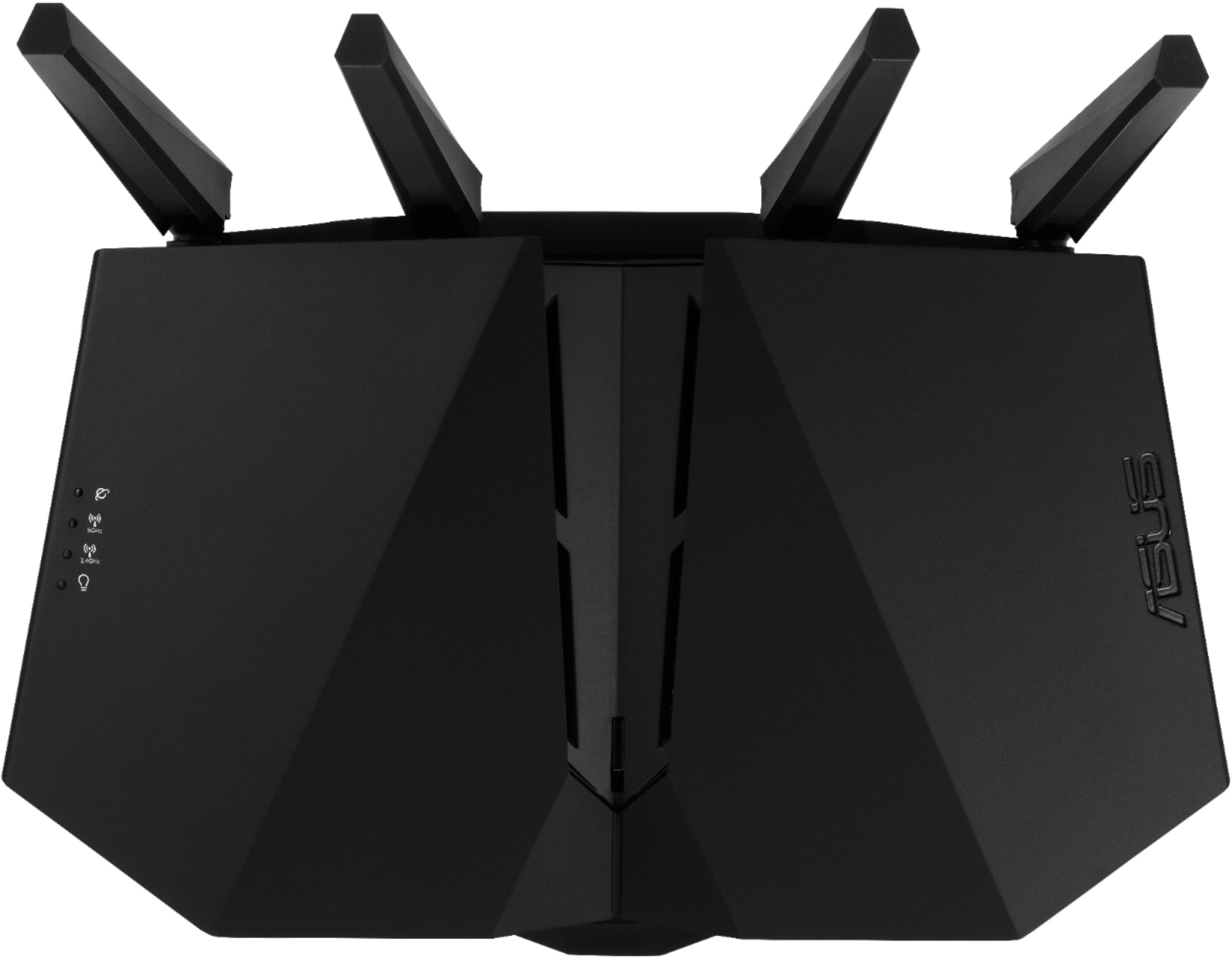
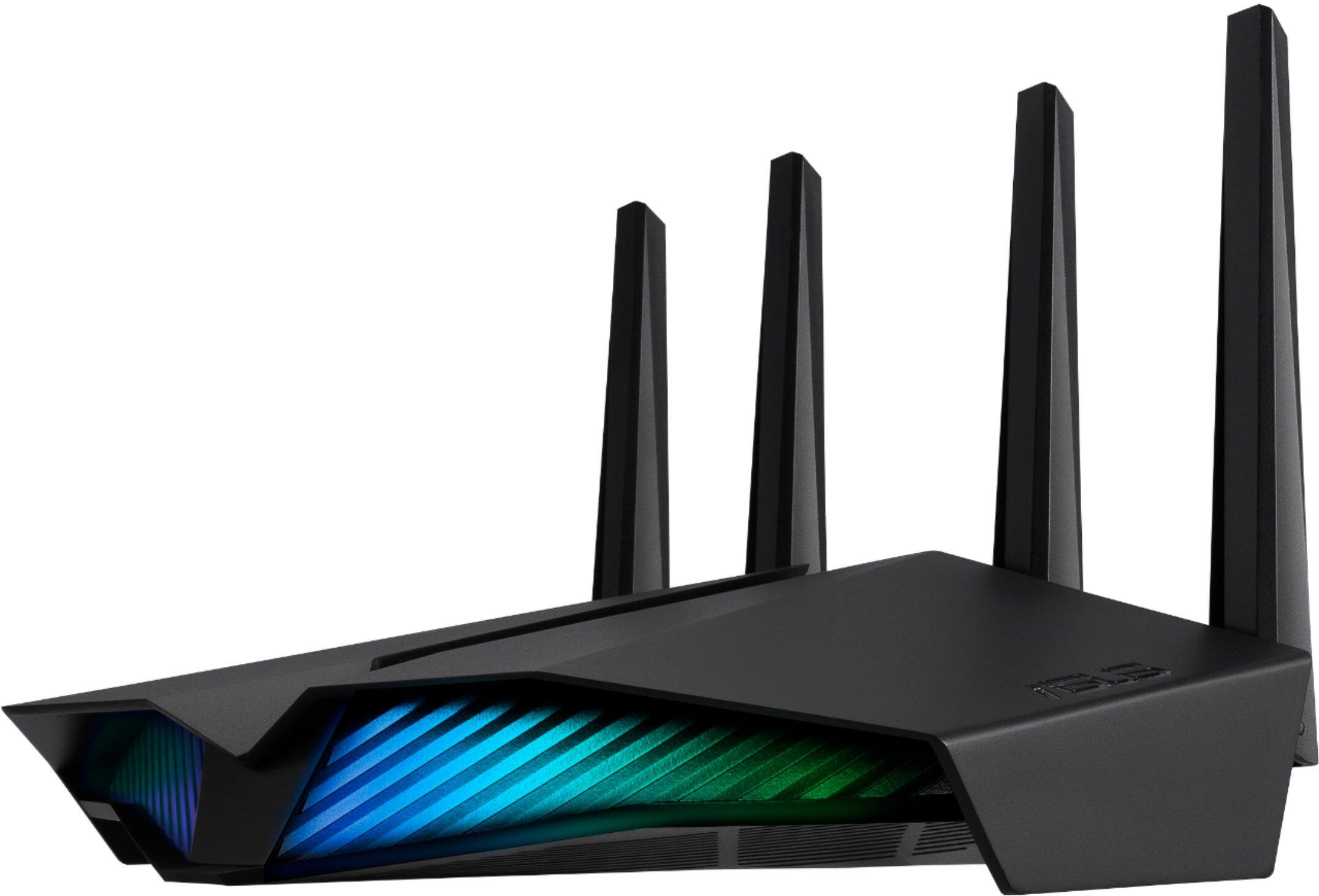
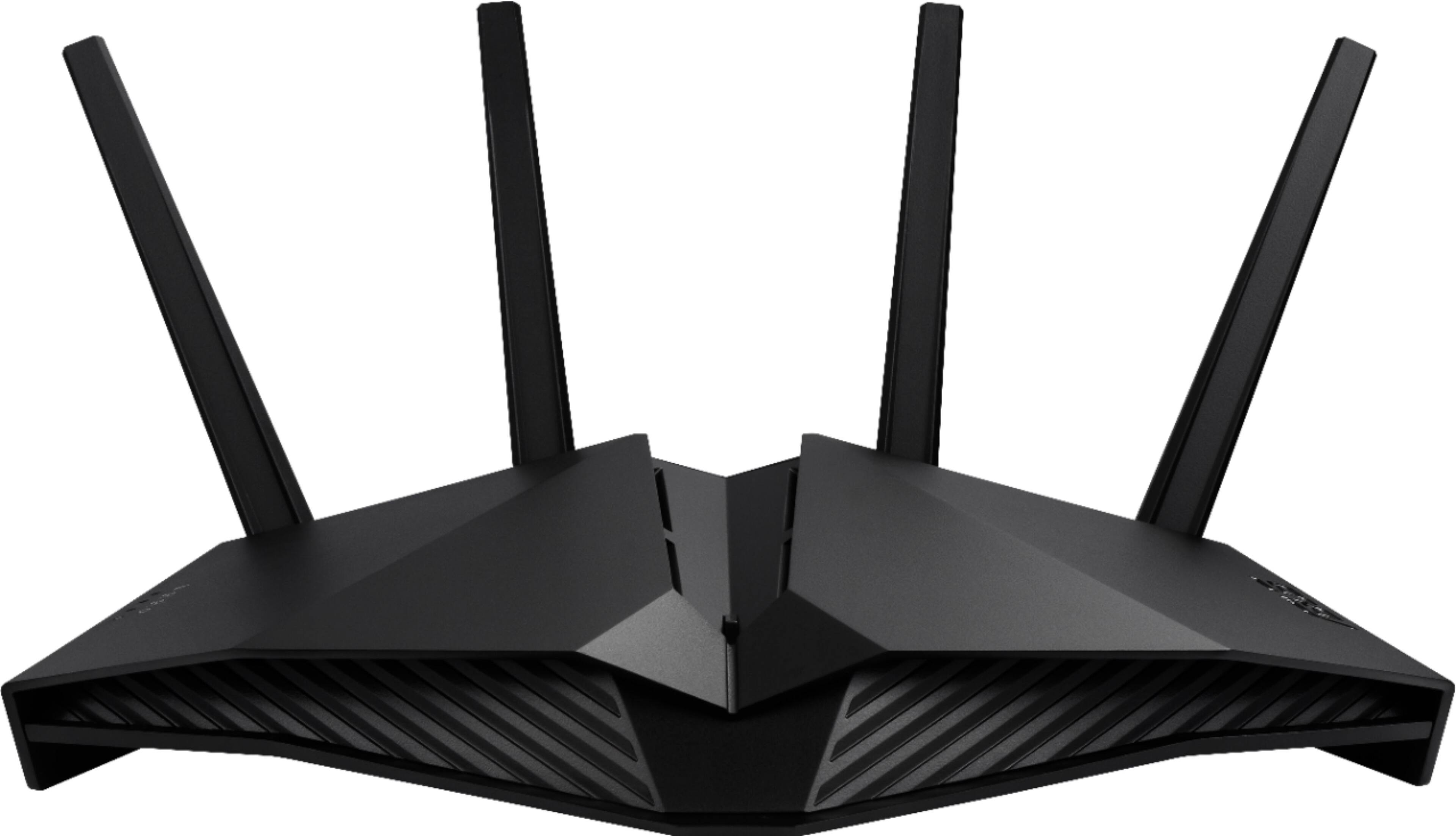
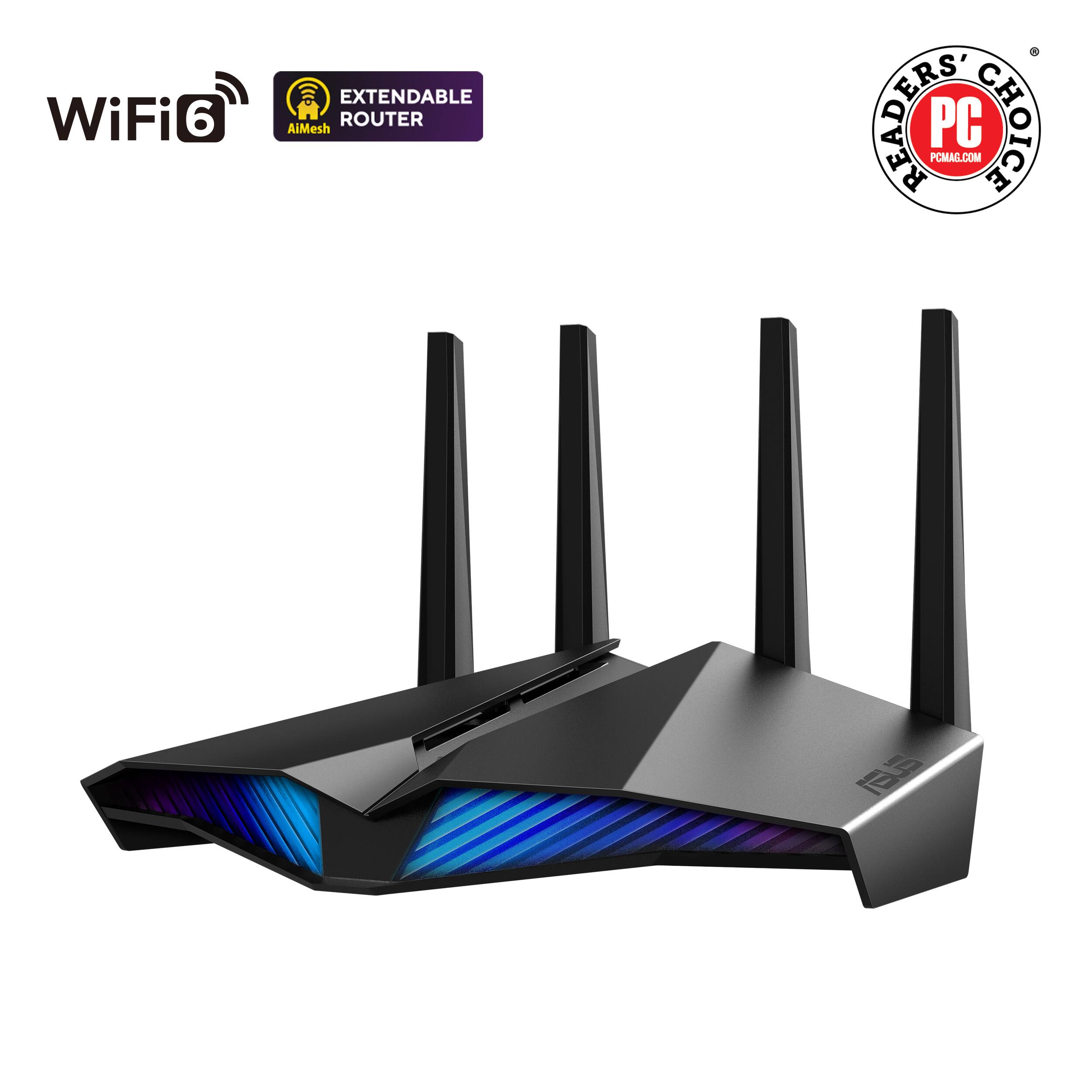
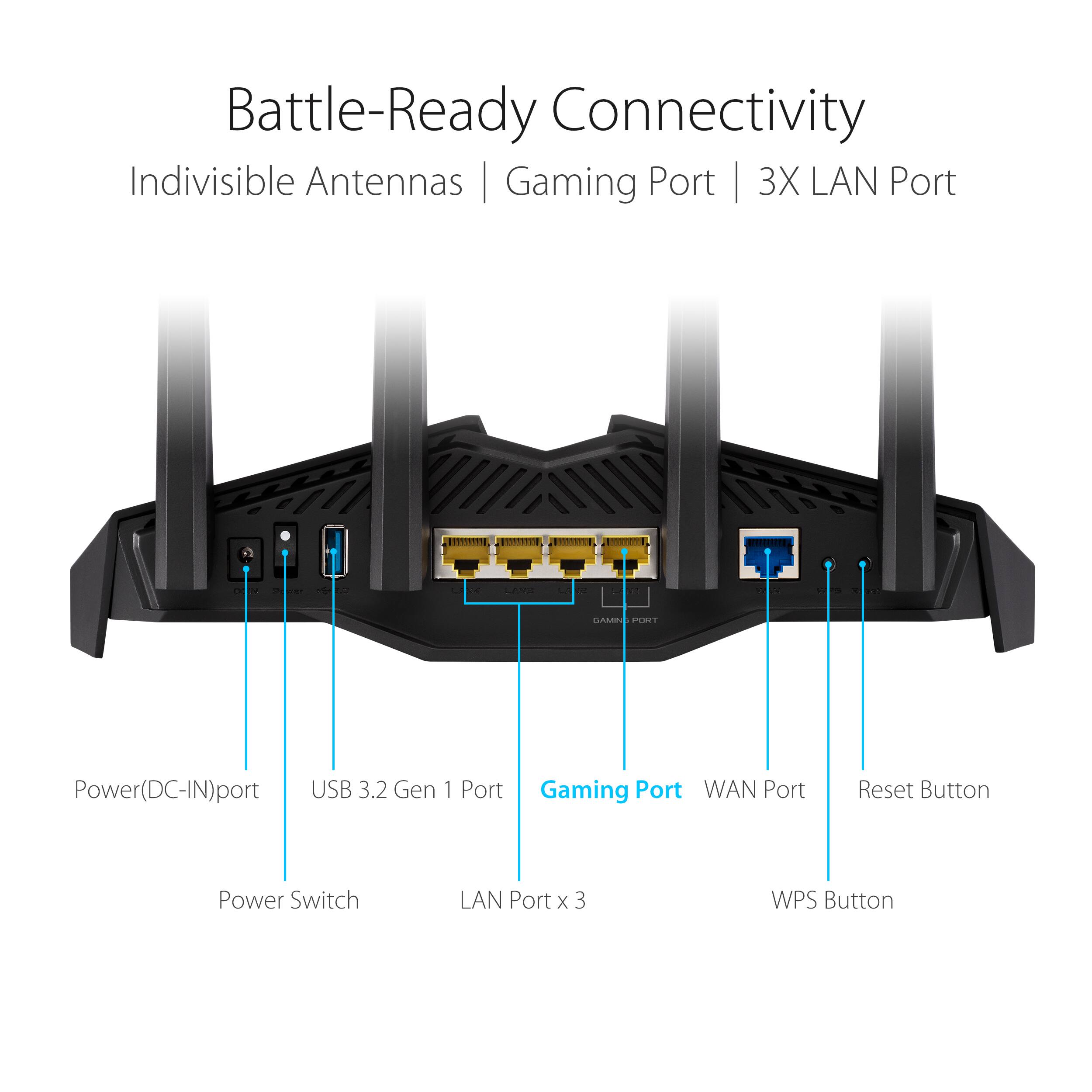
A:Answer Yes, an ASUS router can be connected to an external hard drive:
Connect the hard drive: Plug the hard drive into the USB 2.0 or 3.0 port on the router.
Access the router: Connect a computer to the router using a wired or WiFi connection. Then, open a browser and enter the router's URL or LAN IP address.
Log in: Enter the router's username and password.
View the hard drive: Go to Network Map and click the USB Disk Status icon.
Here are some things to check if the hard drive isn't detected:
Format and partition: Make sure the hard drive is formatted and partitioned correctly.
Firmware: Ensure the router's firmware is up to date.
Power: If the hard drive needs extra power, connect its power supply.
USB hard drive: Try connecting the hard drive to another device to confirm it's working.
USB drive enclosure: Try connecting a different USB hard drive or enclosure to the router.