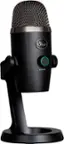
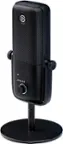
A:AnswerThe Blue Yeti is USB powered. There's no battery. If yours isn't working, it's either a hardware problem or a software/driver problem on your PC or Operating System.
A:AnswerThe Blue yet is a condenser Mic that doesn't need any thing extra ti use, just plug it in and it works.
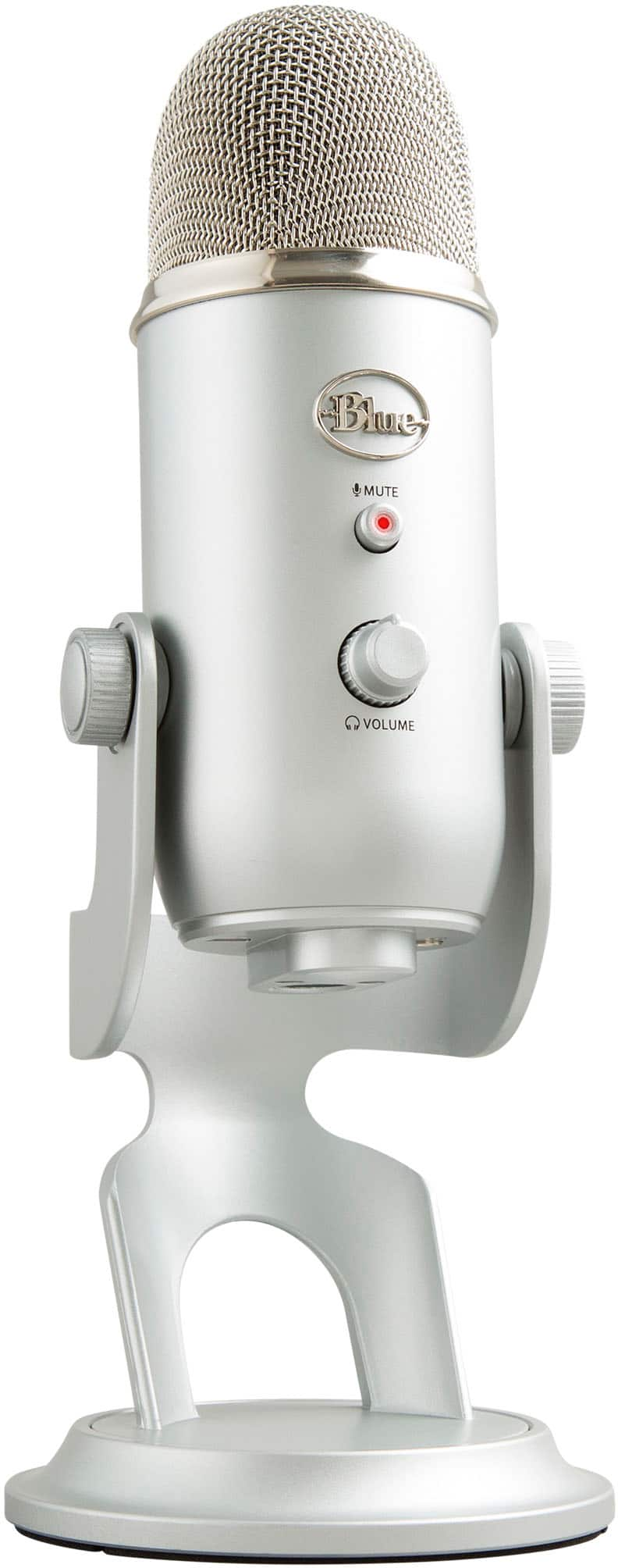
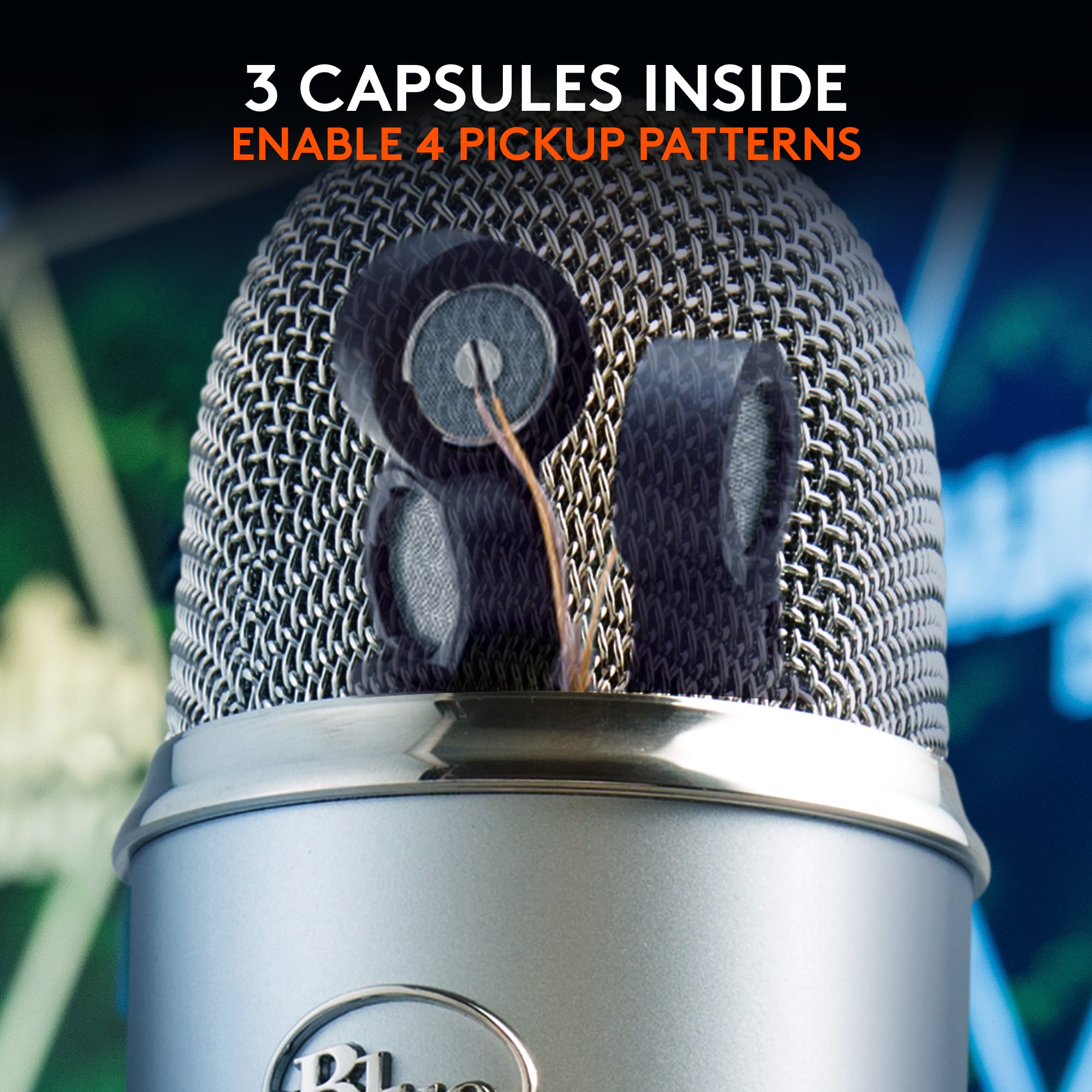
It has an array of mic sensors surrounding the rim of the Mic but not the top so this isn't your classic point the top at your mouth to speak the advantage being the mic can pic audio up from anywhere depending on what mode you have it set in. https://www.youtube.com/watch?v=9E006QLHt0Y Will explain further
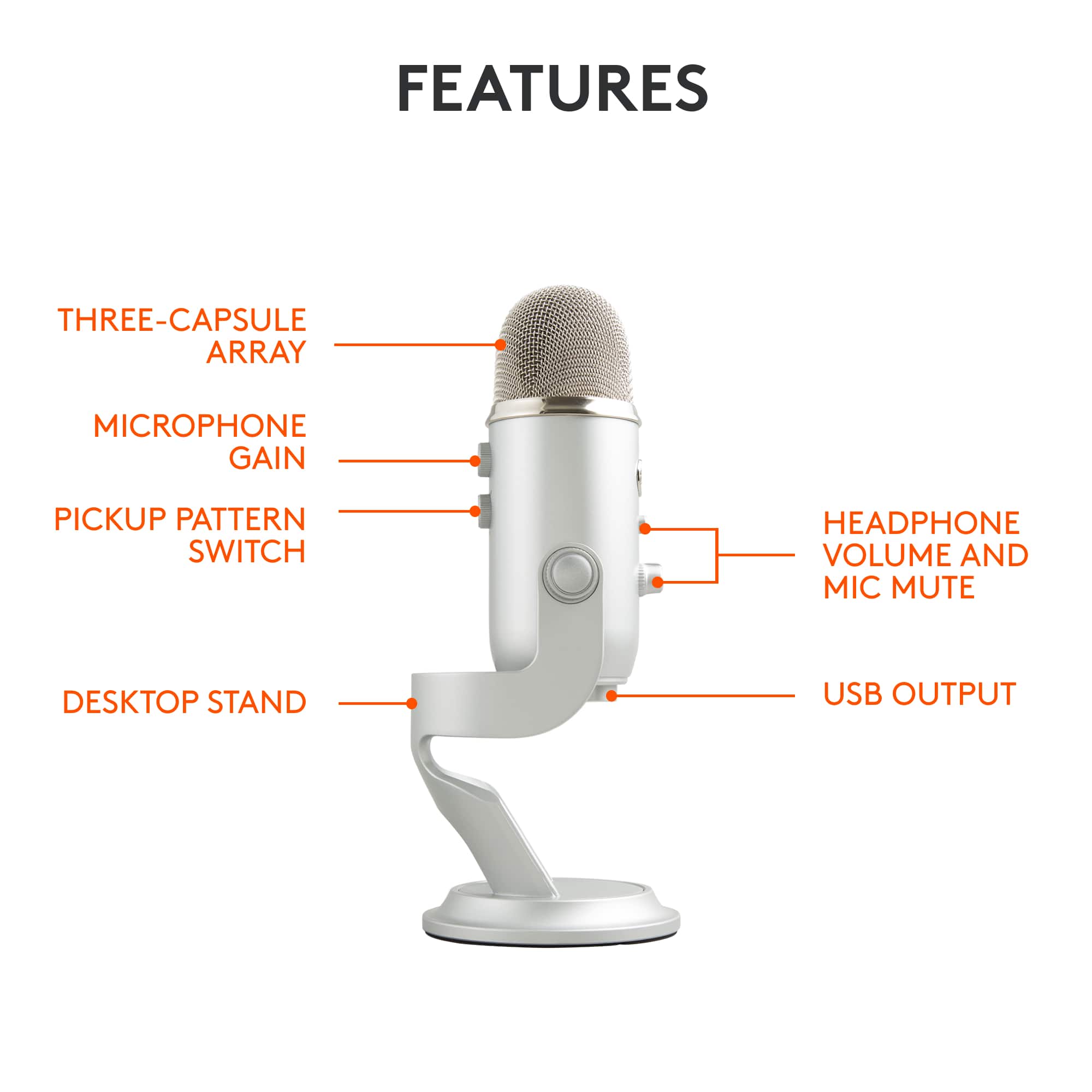
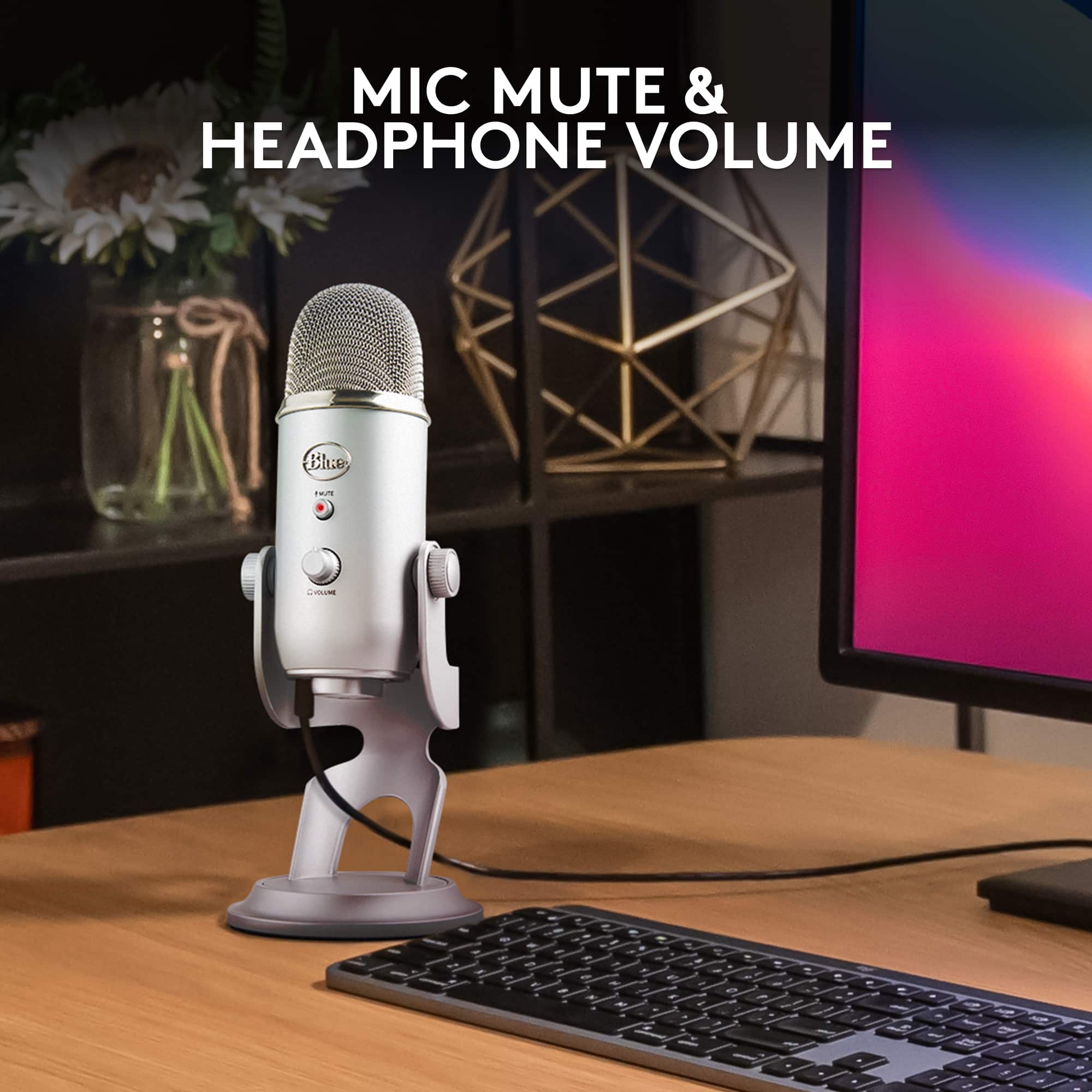
A:Answeryes, there is a headphone jack along with the Older USB connection plug, but it's not necessarily the best way to listen, because you could change the volume of the headphones, and also change the volume for what the microphone is Recording
A:AnswerMay have already been answered, but you can have your headphones connected through Bluetooth and still utilize the microphone. I like to run the aux, but it is not necessary
A:AnswerYou can connect the Yeti directly to your HP Envy via USB. For video recording, select the Yeti as your audio input in your recording software. Optional accessories like a pop filter or boom arm can help improve sound quality and positioning.
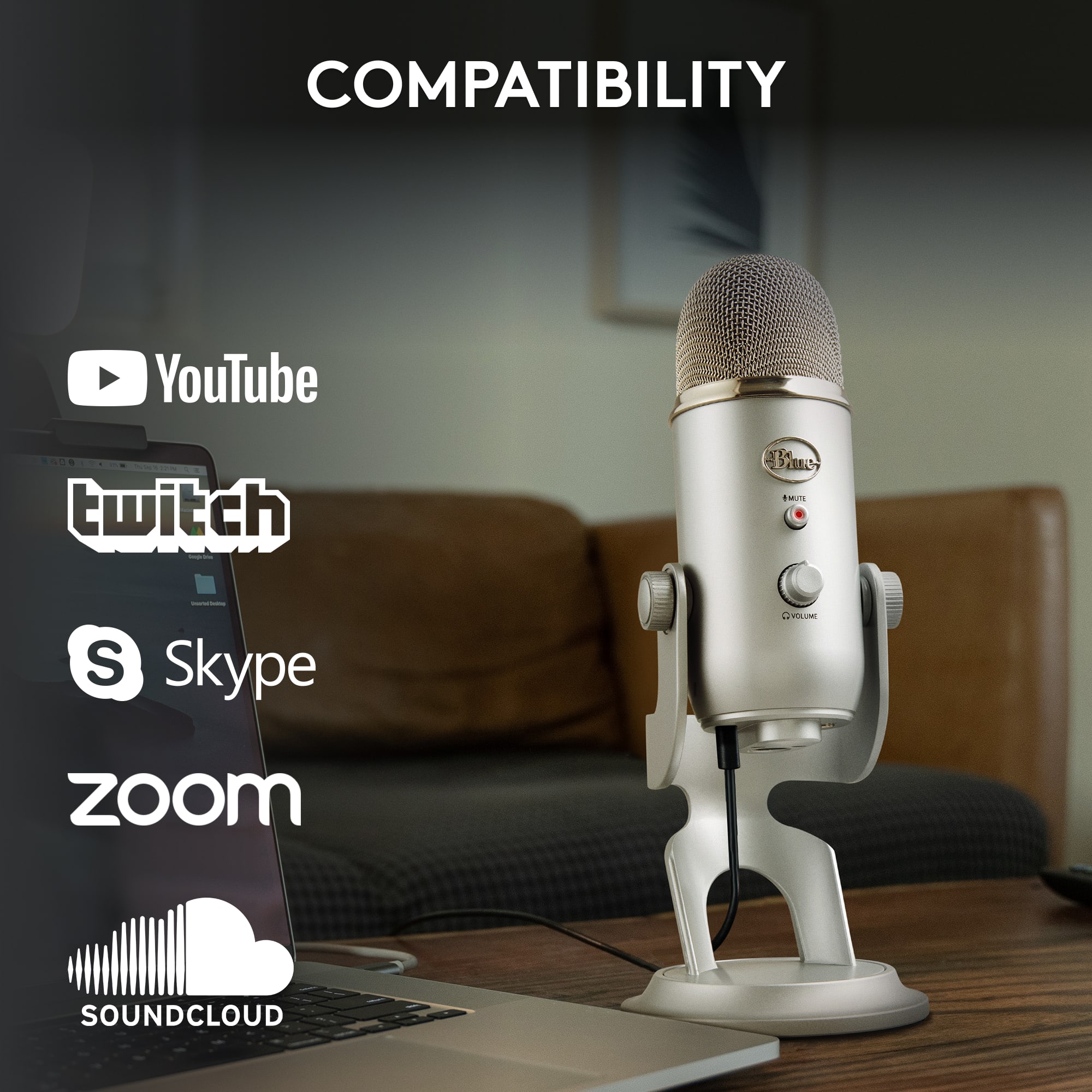
A:AnswerWhile you can certainly try using a mini-USB to USB-C cable to connect the Blue Yeti to your iPhone 16 Pro, full compatibility isn't guaranteed. The Blue Yeti is primarily designed for use with Windows 10 or later and macOS 10.14 or later.
A:AnswerThe Blue Yeti is a microphone, not a speaker. It's designed to capture audio, not play it back. Therefore, you wouldn't use it to introduce teams or play music through your gym's speakers.