A:AnswerThat's unexpected! In order to help you effectively, please provide your information to our support team via email at socialcare@logitech.com with your
- Name:
- Email Address:
- Country:
- Product Name:
- Brief description of issue:
A:AnswerThe Blue Yeti X is primarily designed for computers, not direct camera connection. You'll likely need an audio interface or adapter for camera use. Dedicated on-camera microphones are usually better suited for video recording.
A:AnswerConfirmed, running windows 11 on my second PC it has handled its self well in the foreign environment that is the new operating system, no hickups or lag in transmission from my experience
A:AnswerHello Ok, Yes, you can use a Yeti X with your XBox Series X, but you'll need a few additional items in order to do so. You'll need to use your controller, a 3.5 mm mic splitter cable, headset adapter, and 3.5 mm Male to Male AUX cable. Step one, plug the Yeti X into your XBox and you should see the lights come on around the front button. Step two, plug the headset adapter into your controller then take the splitter and plug the single end into the bottom of the adapter. Step three, take the 3.5 mm Male to Male AUX cable and plug one end into the Yeti X and the other end you'll plug into the splitter cable, be sure to use the end that has a microphone pictured. That's it. - Richard from Logitech
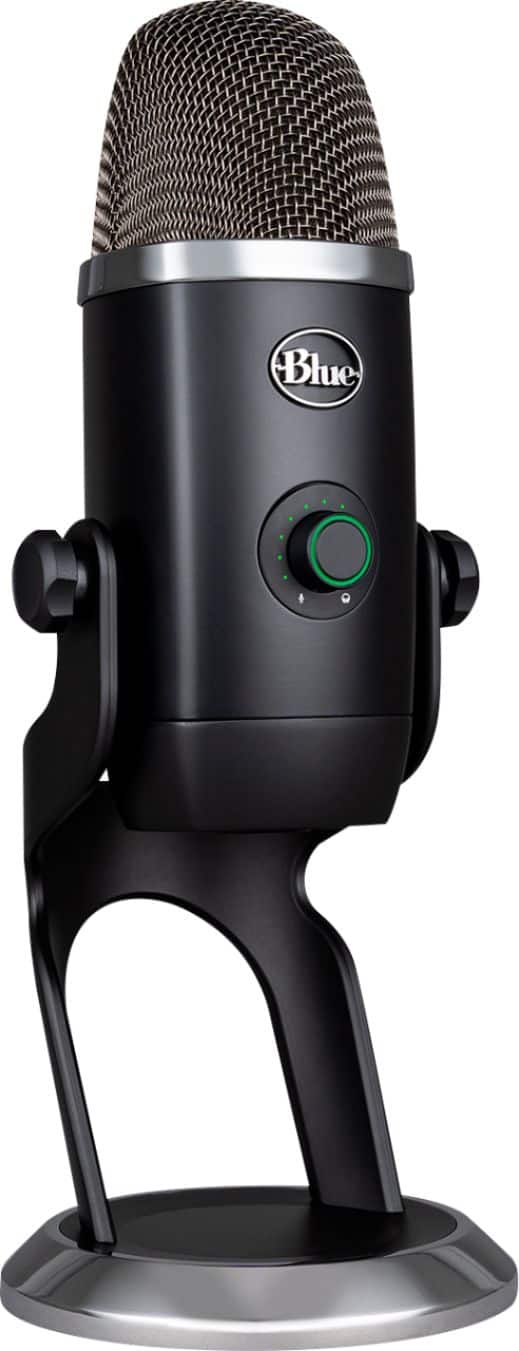
A:AnswerHello ghieghie! The Yeti X Professional Wired Multi-Pattern Condenser USB Microphone is designed to be used on PC or Mac computer by connecting it to a USB port, so it won't work with Karaoke machines unfortunately. On the other hand, if you're looking for a similar microphone that has the XLR cable connection, this model from Blue, the Yeti Professional USB Microphone https://www.bestbuy.com/site/blue-microphones-yeti-professional-usb-microphone/1620218.p?skuId=1620218 also has the XLR connection option, so it would be a great solution!
A:AnswerHello Kat,
The Blue Compass Boom arm is a great option. The most ideal setup would be with the Compass boom arm and the Radius III shock mount. They are both available at Best Buy, I have attached links below. I have also attached a link to the Yeti X's "Getting Started" guide. Please feel welcome to visit the Blue website for further support.
Best regards,
John at Logitech
Compass Boom arm: https://www.bestbuy.com/site/logitech-compass-microphone-stand/6271938.p?skuId=6271938
Radius III: https://www.bestbuy.com/site/blue-microphones-radius-iii-custom-shock-mount-black/6456909.p?skuId=6456909
Yeti X: https://support.bluedesigns.com/hc/en-us/articles/360043110094
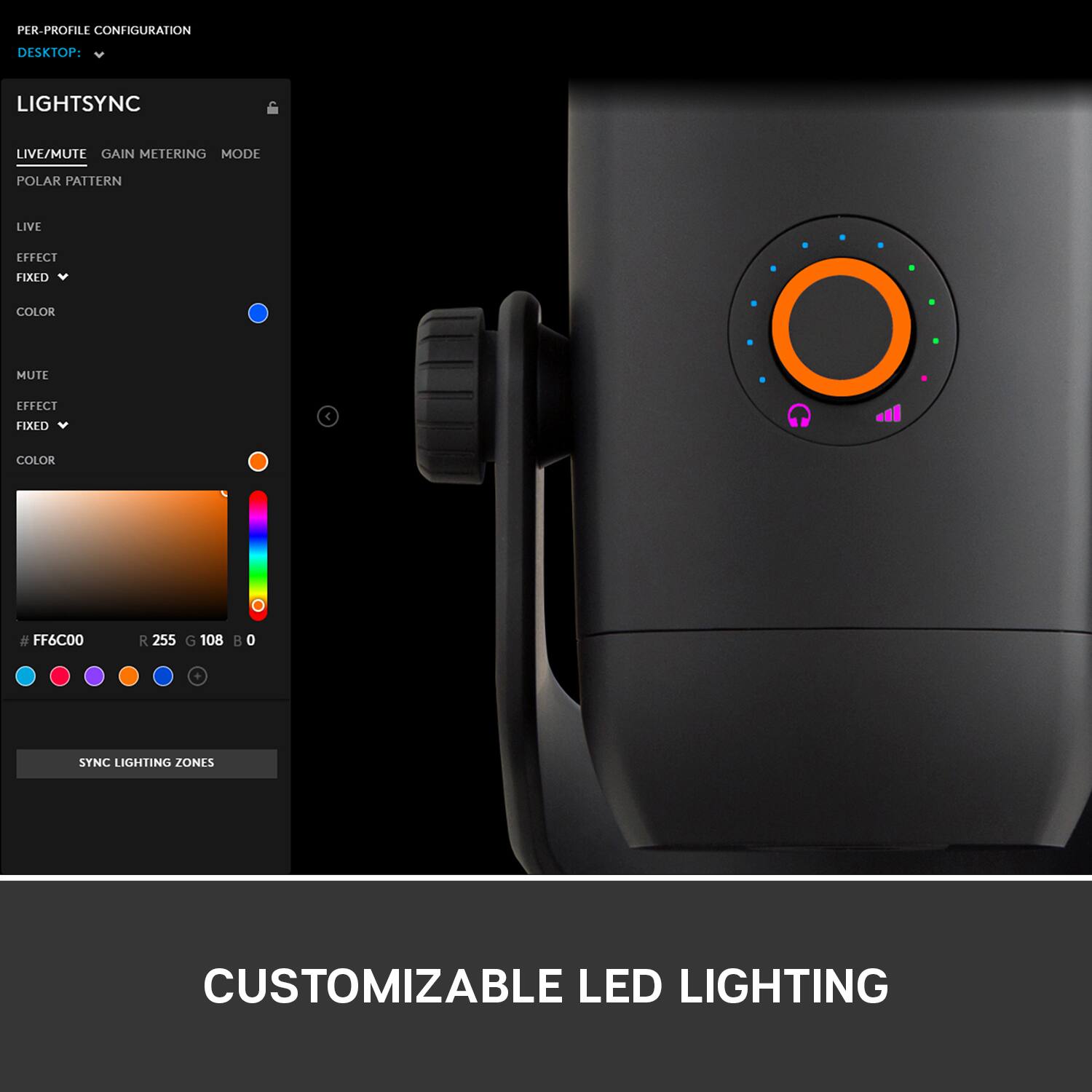
A:AnswerHi E, It sounds like you need to check the settings for whatever application that you're using the Yeti X for. Also, here's a link to the G Hub software which you can use to test your Yeti X's settings and also fully customize them: https://www.logitechg.com/en-us/innovation/g-hub.html. Also, here's a link to for the manual for the Yeti X: https://s3.amazonaws.com/cd.bluemic.com/pdf/yeti-x/Yeti_X_OnlineManual_REV_A_EN.pdf.
A:AnswerHello Austin,
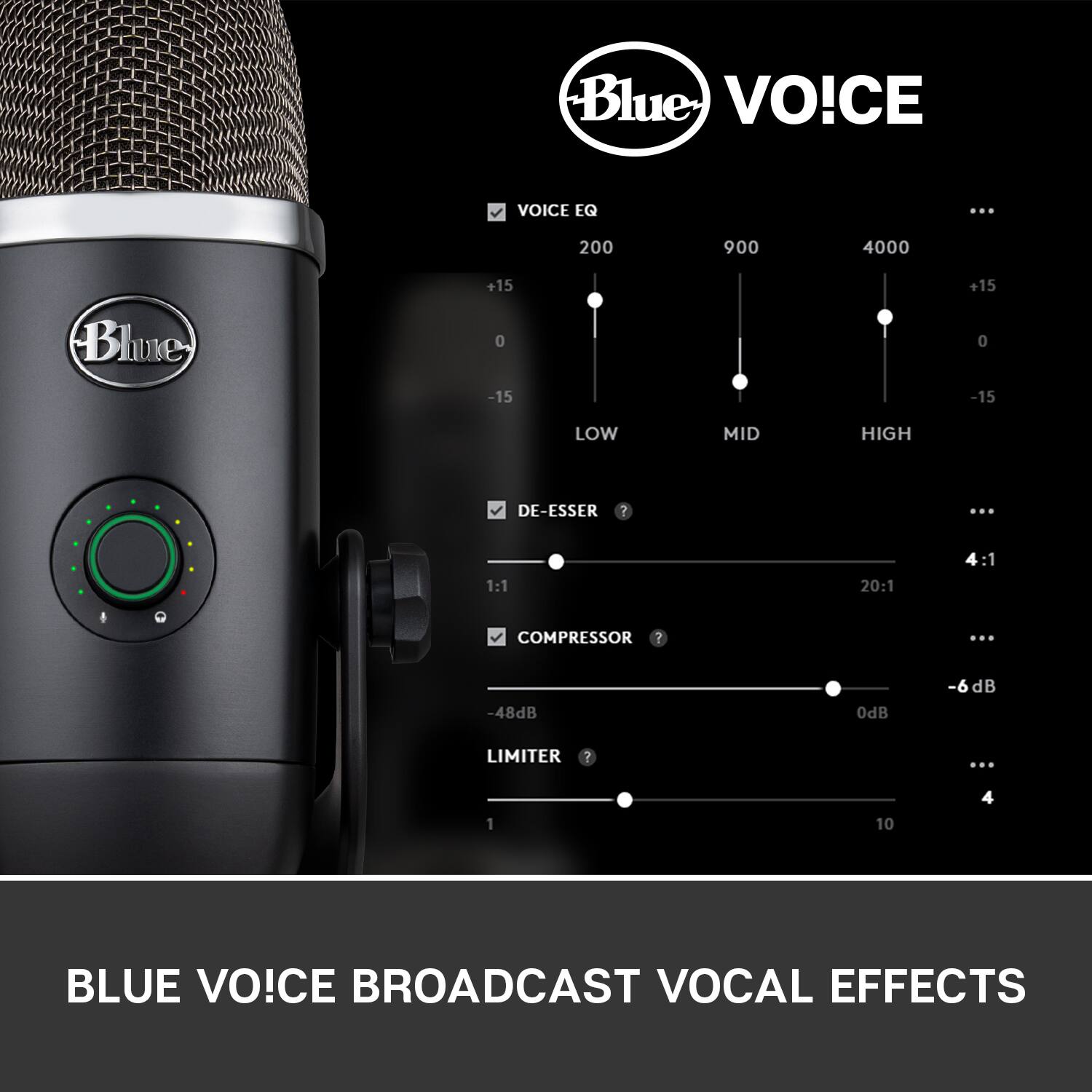
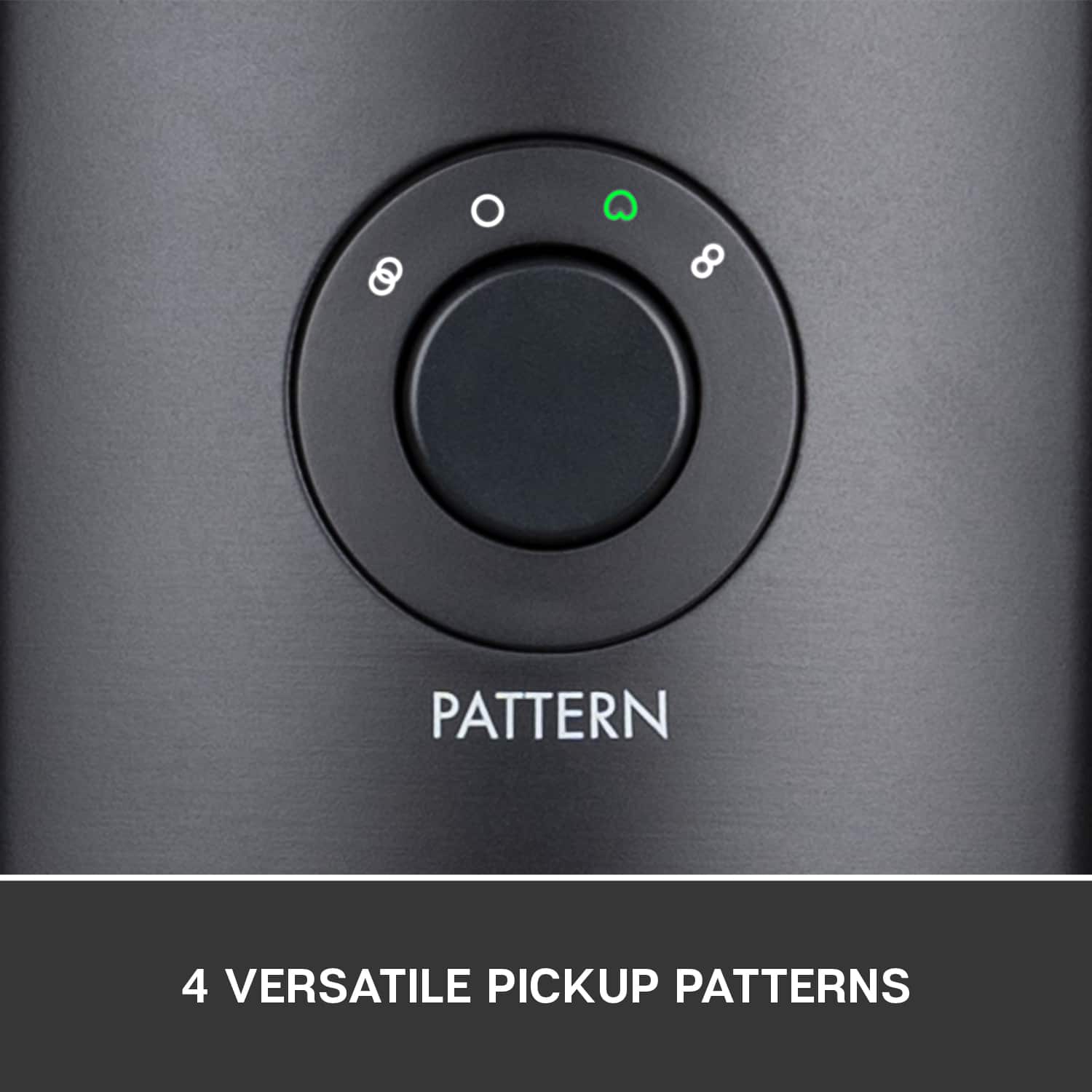
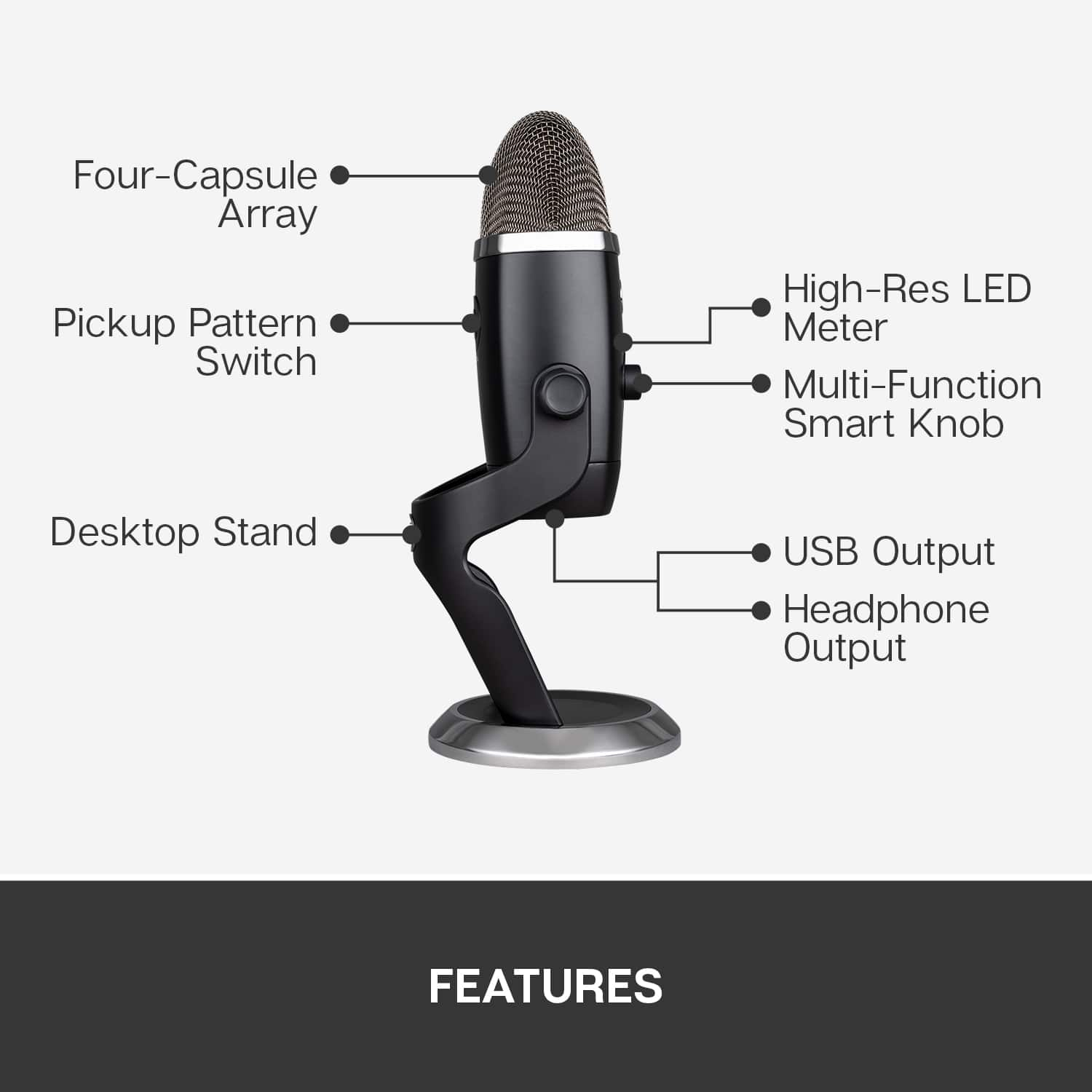
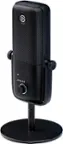
Thank you for considering the Blue Yeti X microphone. Yes, Yeti X is a great option for streaming. Yeti X is a Custom four-capsule condenser mic with four versatile pickup patterns: cardioid, omni, bi-directional and stereo. The bit depth/sample rate is 24-bit / 48 KHz and Blue VO!CE broadcast vocal effects include streamer and podcast presets. I have attached a link to the support page for your reference, where you can find software downloads, specifications and further assistance.
Best regards,
John
https://support.bluedesigns.com/hc/en-us/articles/360043110094
A:AnswerHello, yes this will work great in that kind of room. Simply just set it to cardioid mode and it will only pick up on the sound directly in front of the microphone(you speaking).
-Danielle from Logitech
A:AnswerHello Hungy, at the end of this message, I'll attach a link for you to follow so you can submit a warranty claim. Once you're on the page, scroll down and enter "submit warranty claim" on the question box. Next, scroll down to where it says "I still need help". You'll be able to then submit your info and then wait for us to reach out to you to finish the process. Hope this helps, have a great rest of your day! https://support.logi.com/hc/en-us/articles/360037454513-Warranty-Yeti-X