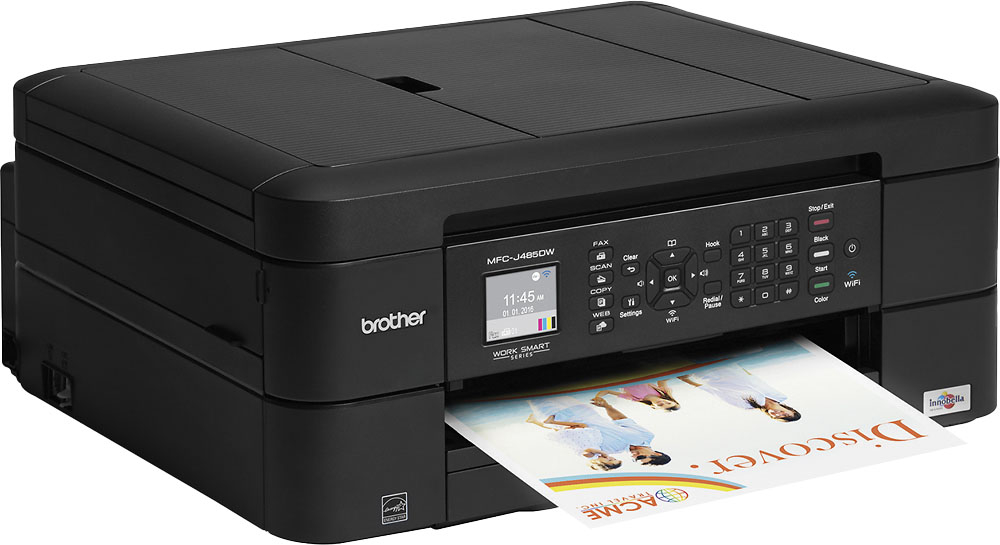
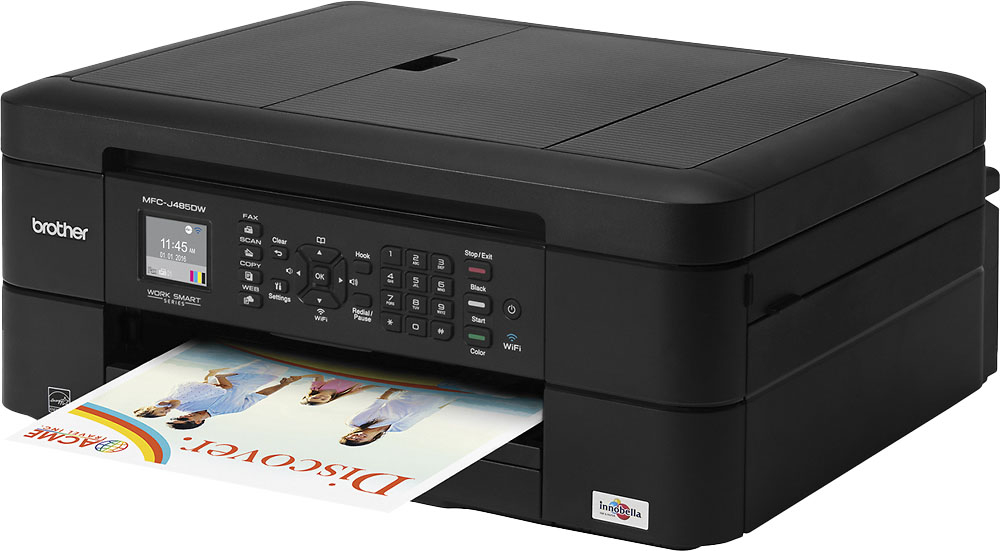
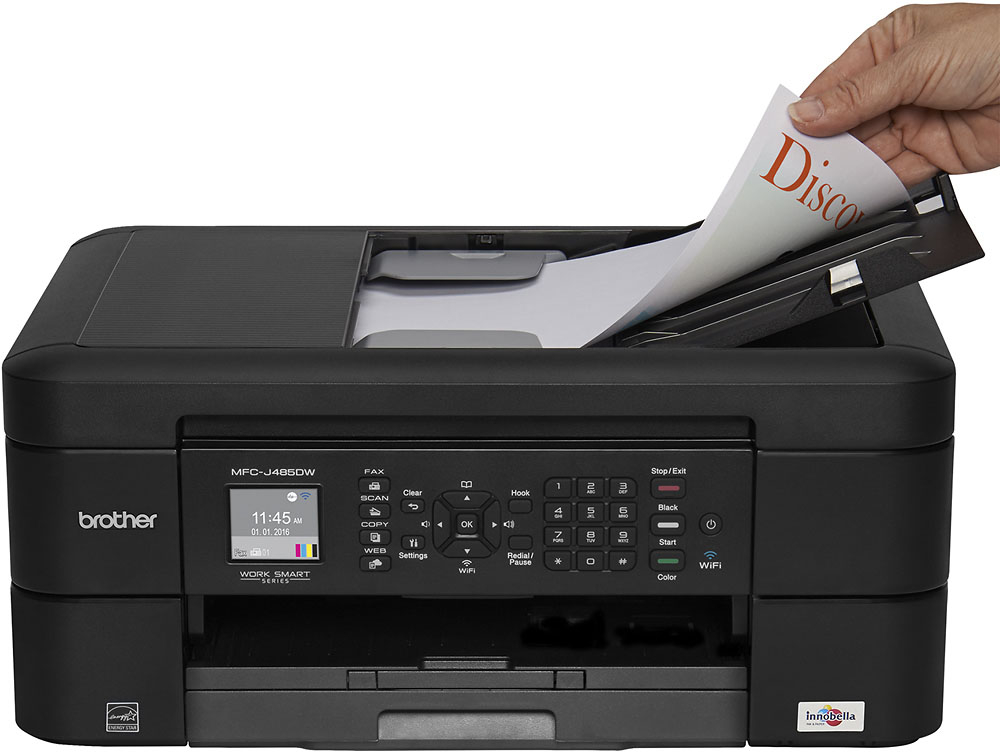
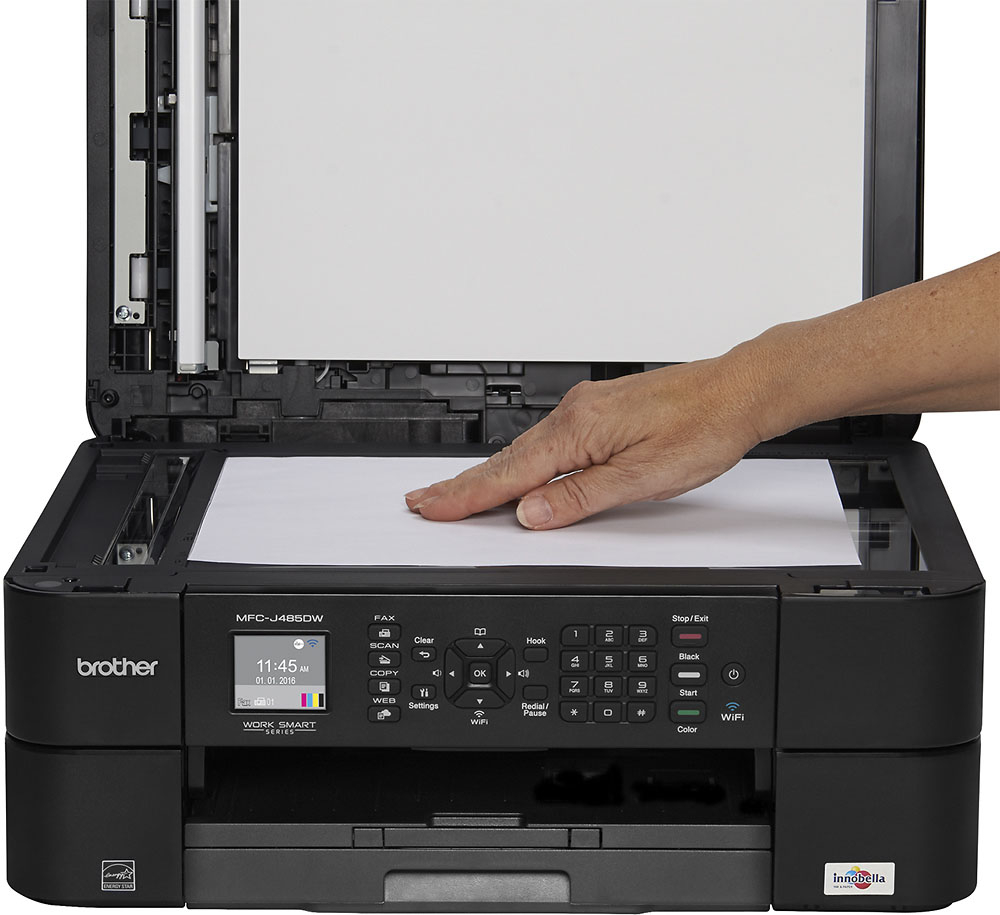
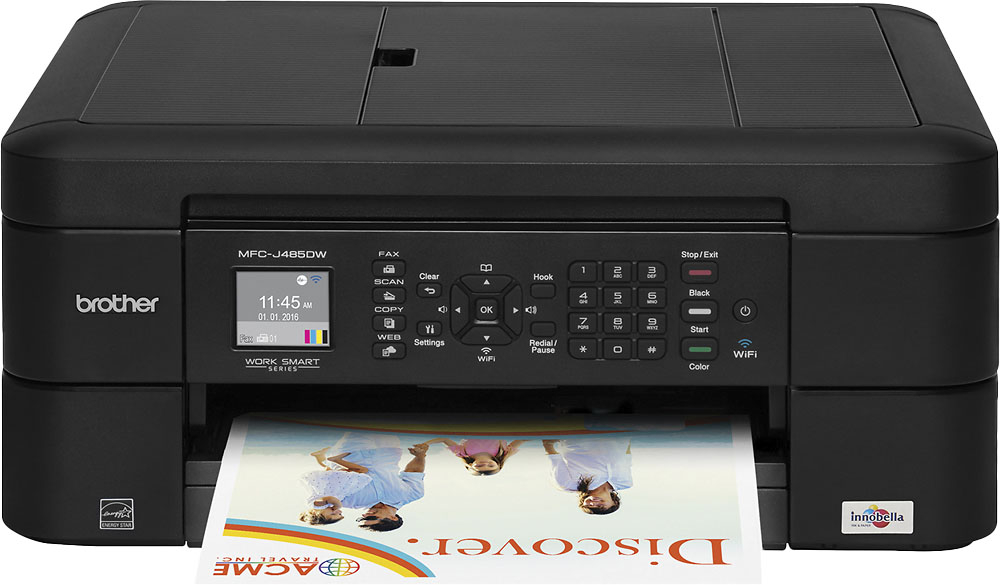
A:AnswerIt has a front loading tray for paper and then the document feeder is on the top and loads from the side. The paper shoots out the front as well....the 8.5 coming straight at you. A small drawback is that the flip that prevents the copies from shooting out the front is attached to the paper tray so if you want to add paper you have to remove all your copies too. Though not important to most people, I like to keep my copies on the printer until I've completed a batch. If I ran out of paper in the middle, I had to pull the copies off, load the paper, and then place my copies back in the holding area.
A:AnswerYes it will.
There is an app for it.
It also has an add-in that adds a print option to certain apps so you don't have to go through the app to print. Which I love.
I can just print directly from my email or chrome browser for example.
A:Answerno....it goes bang..bang..and then the paper comes thru..and I do my nails while I wait for it to finish. If you have already purchased the machine, try different things. If you are anticipating the purchase, HP Photo Smart is a beautiful machine for that.
A:AnswerIt should come with ink installed. When One runs out, open the door at the lower right on the front , press down the grey lever over the color that needs to be replaced and insert the new cartridge
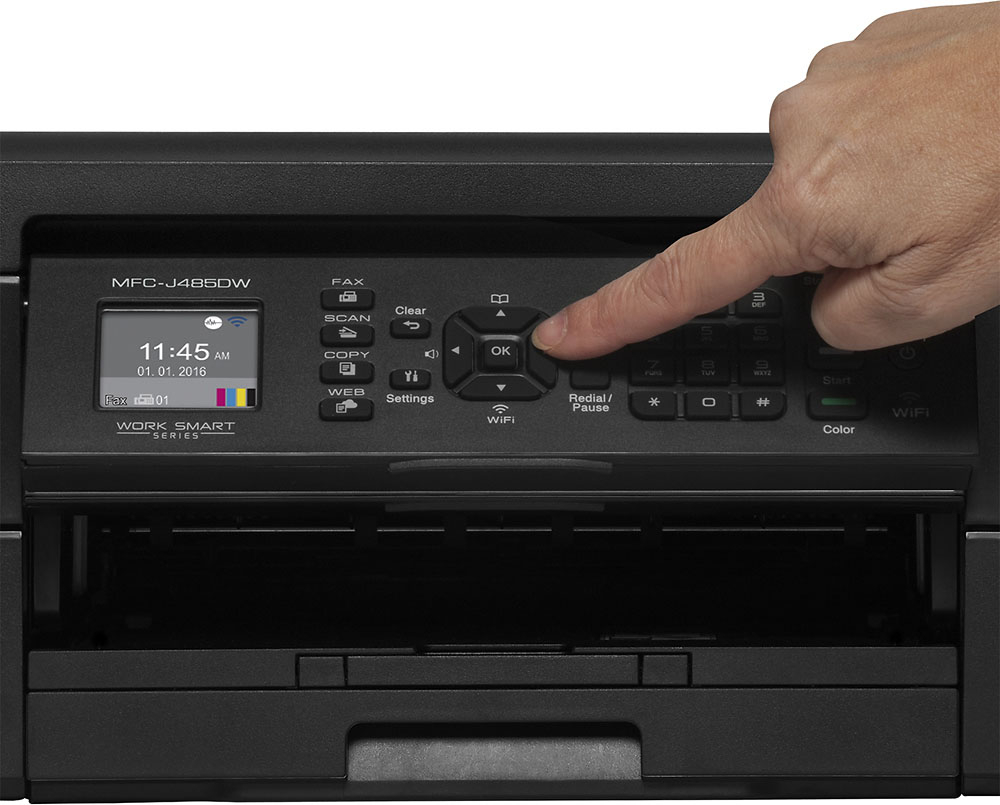
A:AnswerGo into the settings on the printer and you can find the IP address and MAC address of the built in wireless radio. Works great on Android and Apple withe the app.
A:AnswerYou have to put your page in the paper tray. If it's a letter size check form, you can put it on the top of the plain paper and print. Note that printing on a form requires you to put the page in FACE DOWN, with the BOTTOM of the form feeding into the printer first. The paper orientation image is on the paper tray under the paper.