Questions & Answers
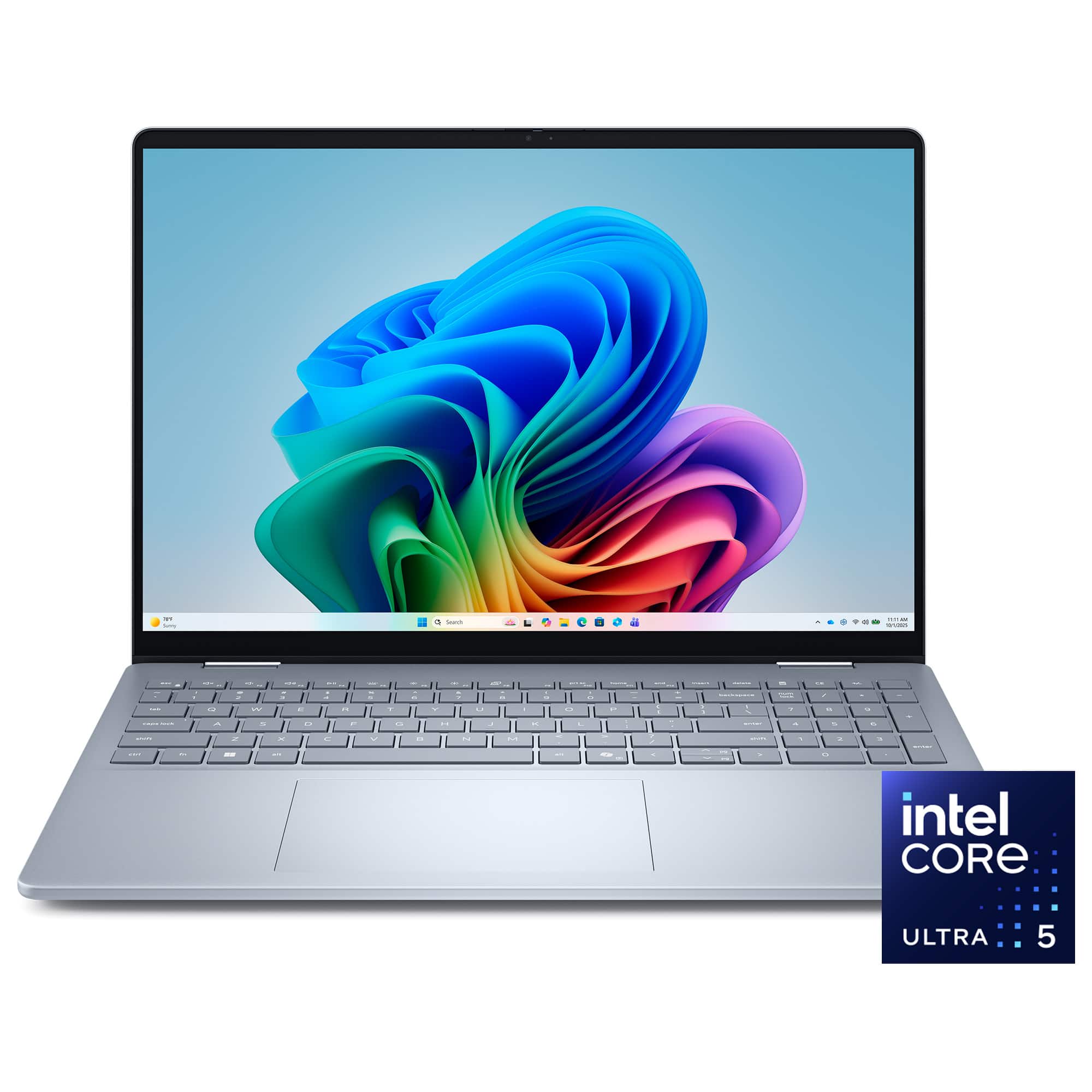
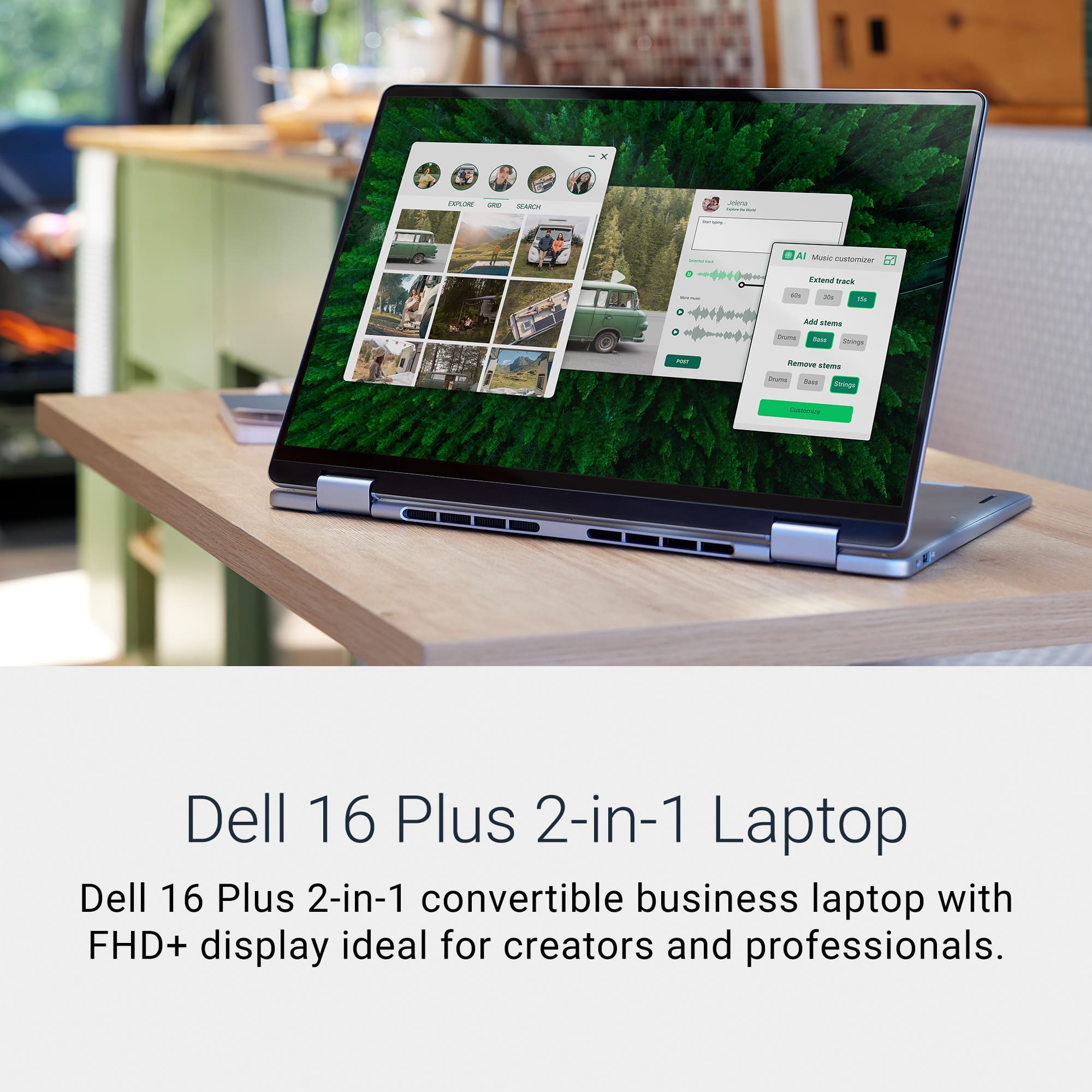
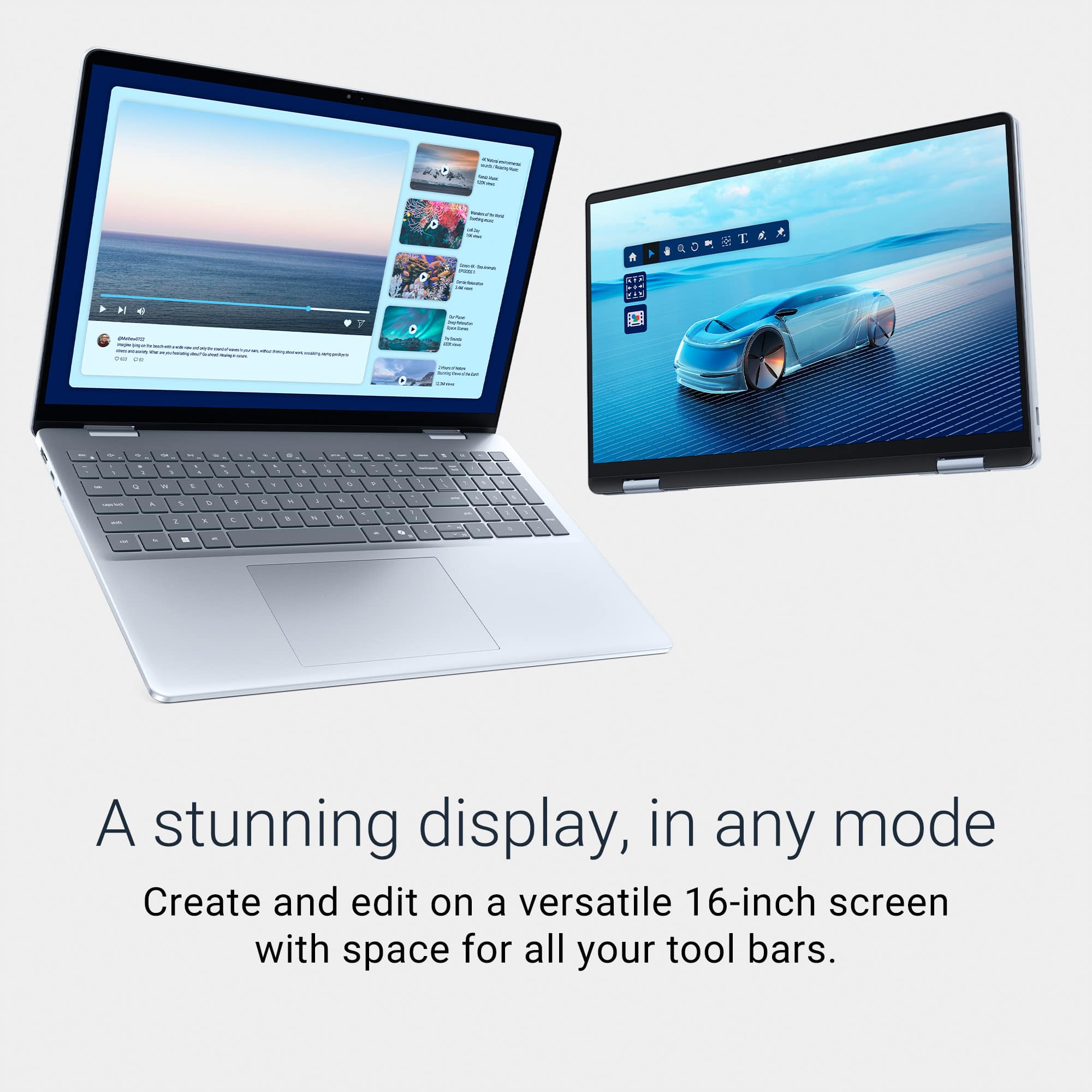







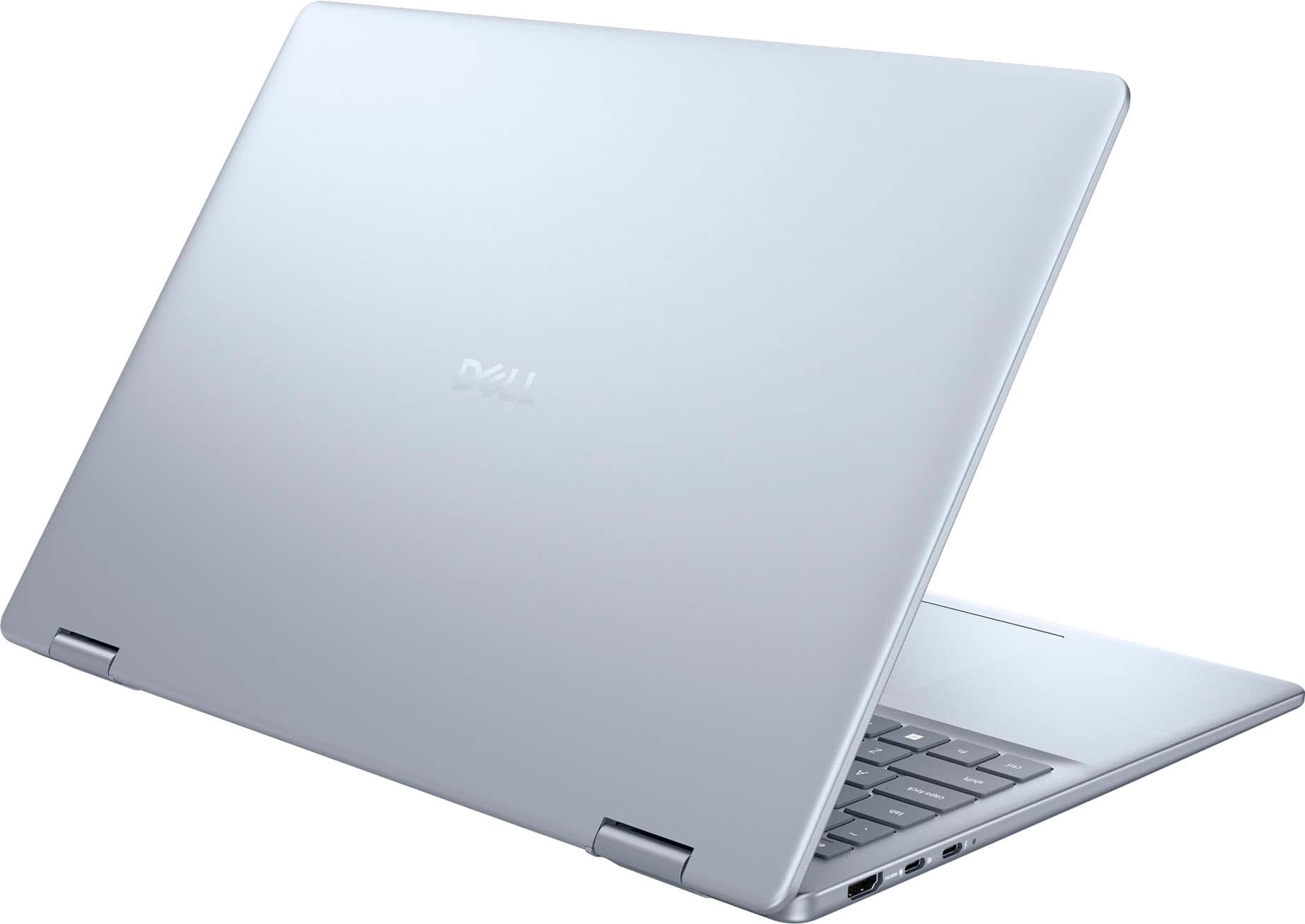
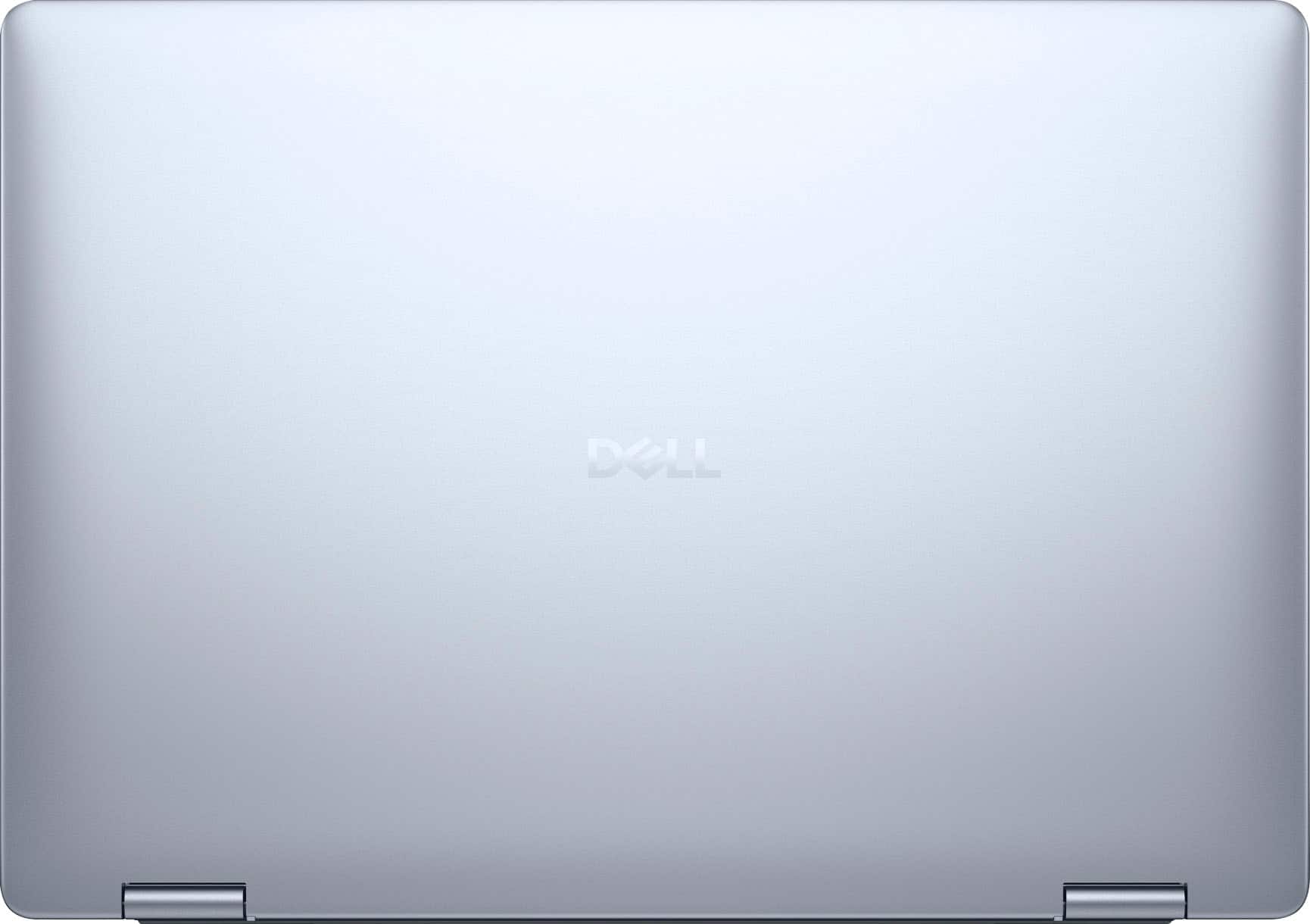

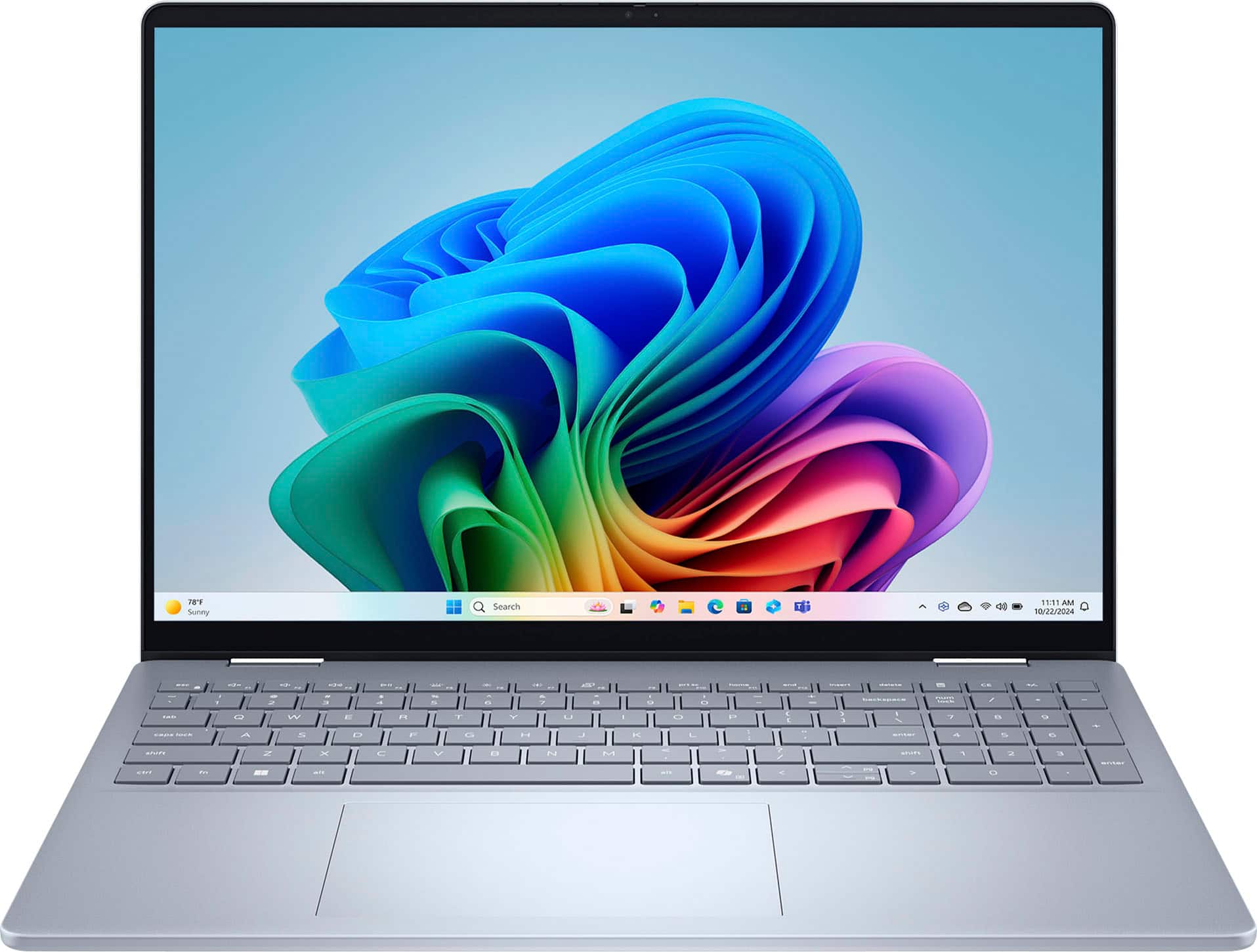






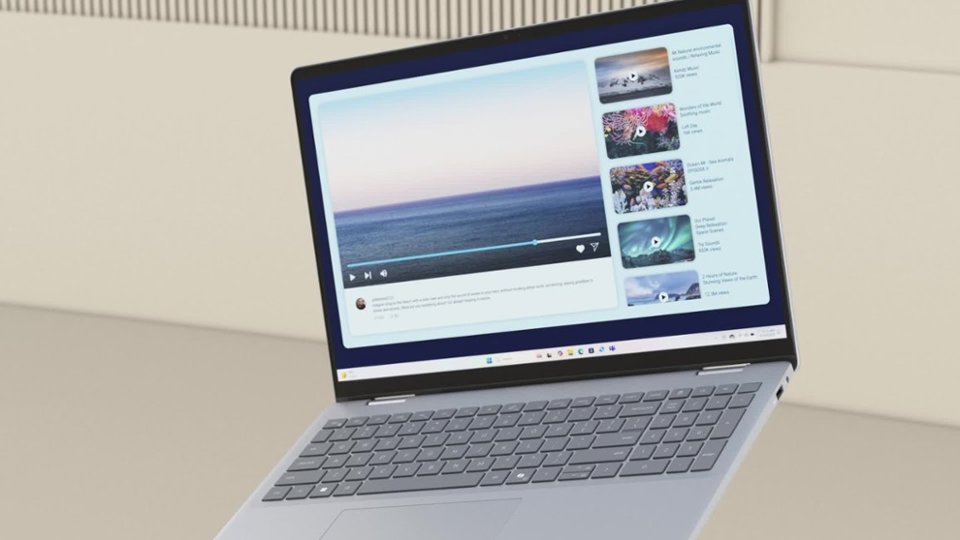





- Model:
- LDB06250-5175BLU-PUS
- SKU:
- 6620603
Tech Fest Deal
$599.99
Save $350
Comp. Value: $949.99
Deal ends tomorrow
Page
QuestionWhat type of display does this laptop have?
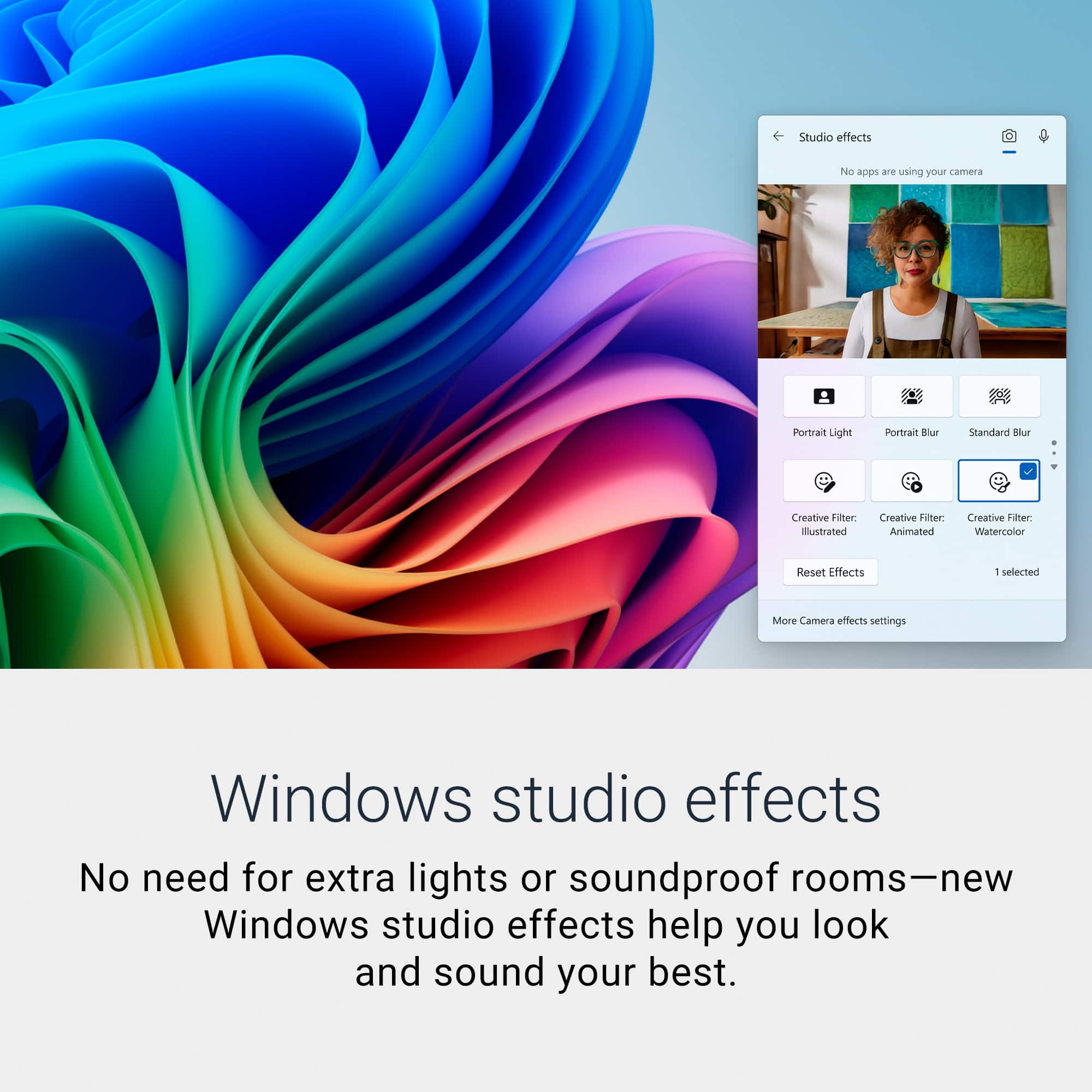
This question and answer was generated by AI based on customer and product data.QuestionDoes this laptop have a built-in microphone?
This question and answer was generated by AI based on customer and product data.QuestionWhat is the screen resolution of this laptop?
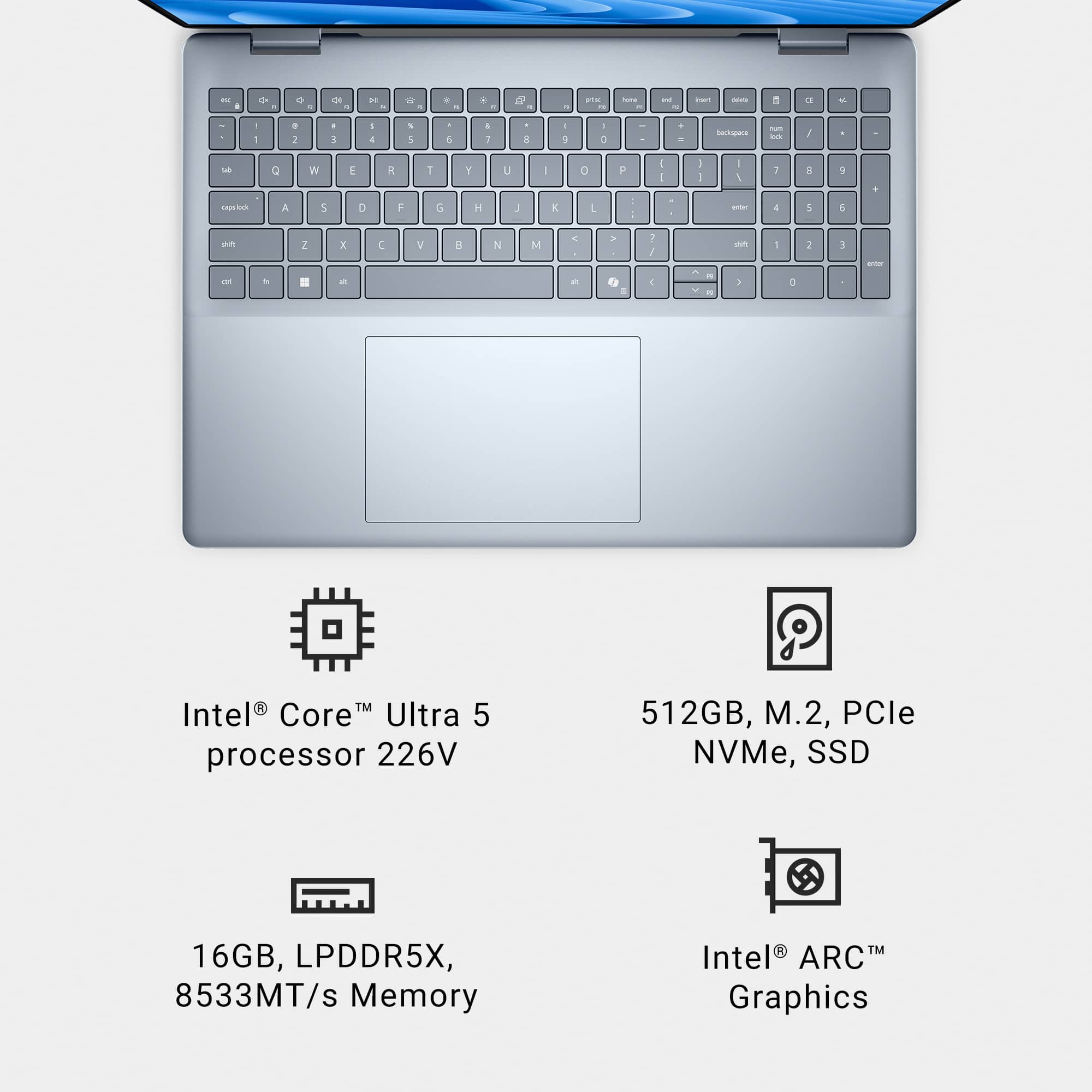
This question and answer was generated by AI based on customer and product data.QuestionHow much RAM does this laptop have?
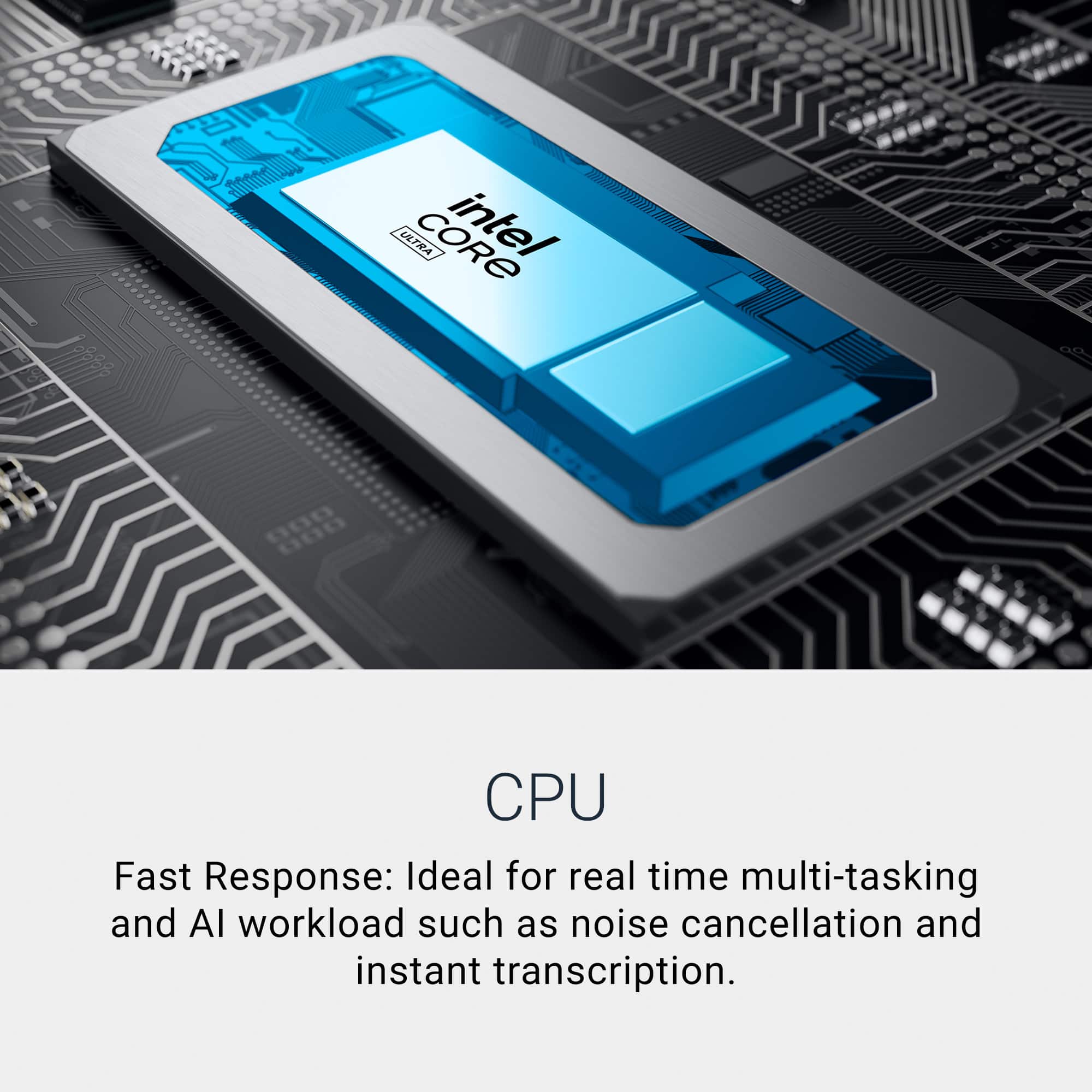
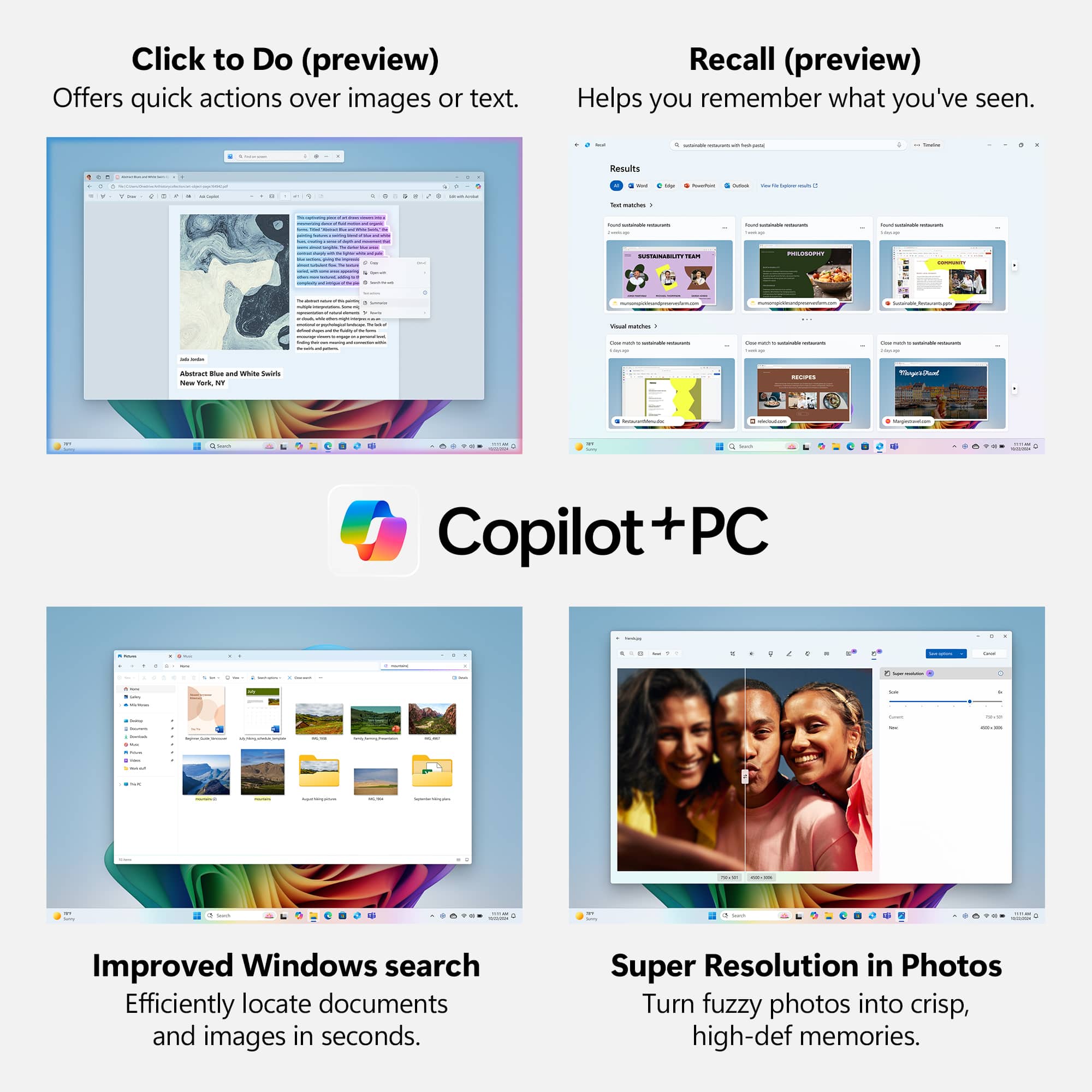
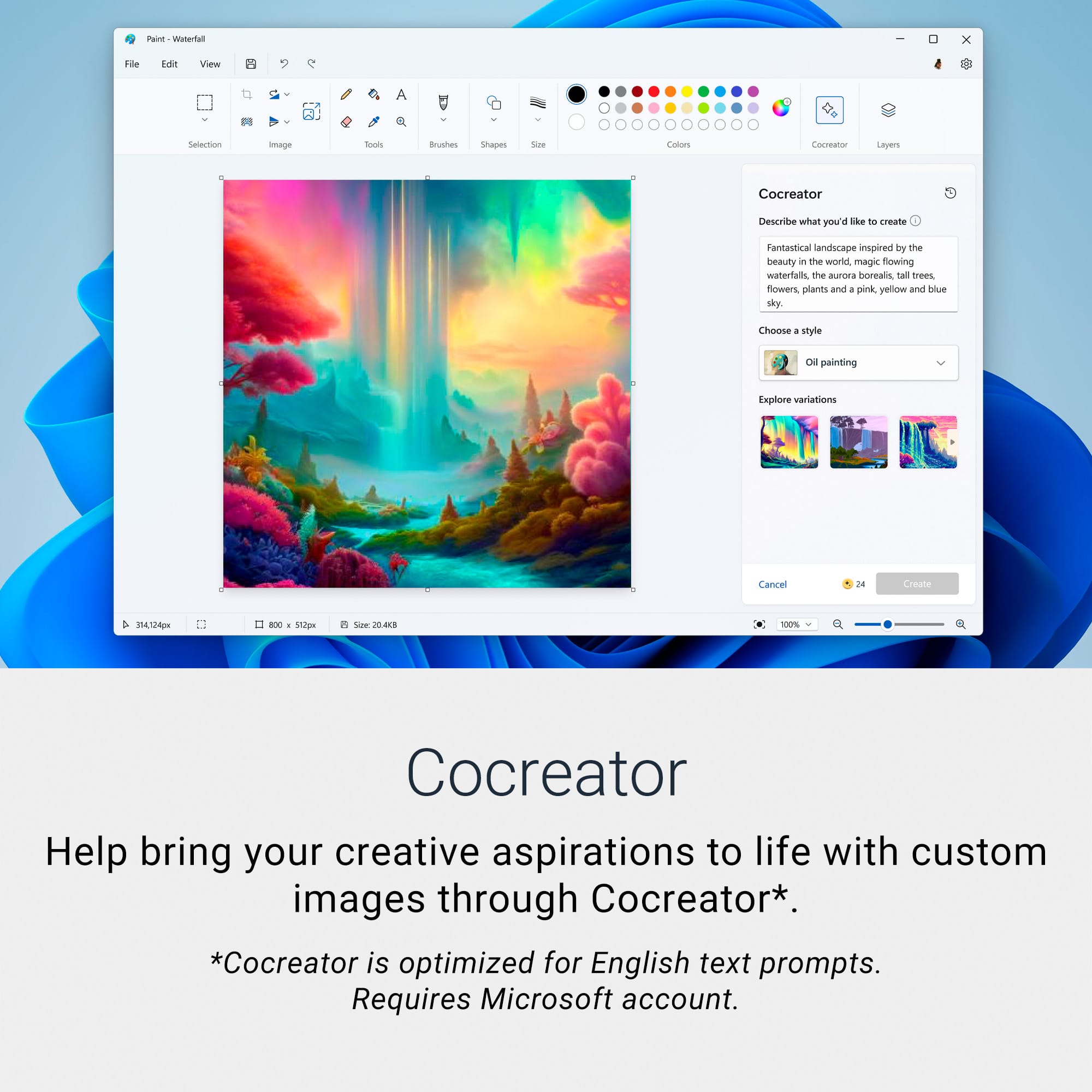
This question and answer was generated by AI based on customer and product data.QuestionHow can I use AI on this laptop?
This question and answer was generated by AI based on customer and product data.QuestionWhat is the total storage capacity of this laptop?
This question and answer was generated by AI based on customer and product data.