A:AnswerIf you read in the instructions in the application, you will find that BLUE means the pod is looking for a connection. Red means the connection has been lost. White is the normal working condition. If the blue color persists for more than, say, 5 minutes, then it is likely that the pod is too far away from another connected pod. My suggestion is to either move the pod closer to another one that is showing white, or purchase another one to fill the gap. In my case, I ended up with 3 - 3packs (a total of 9 pods) to cover my house, garage, and backyard.
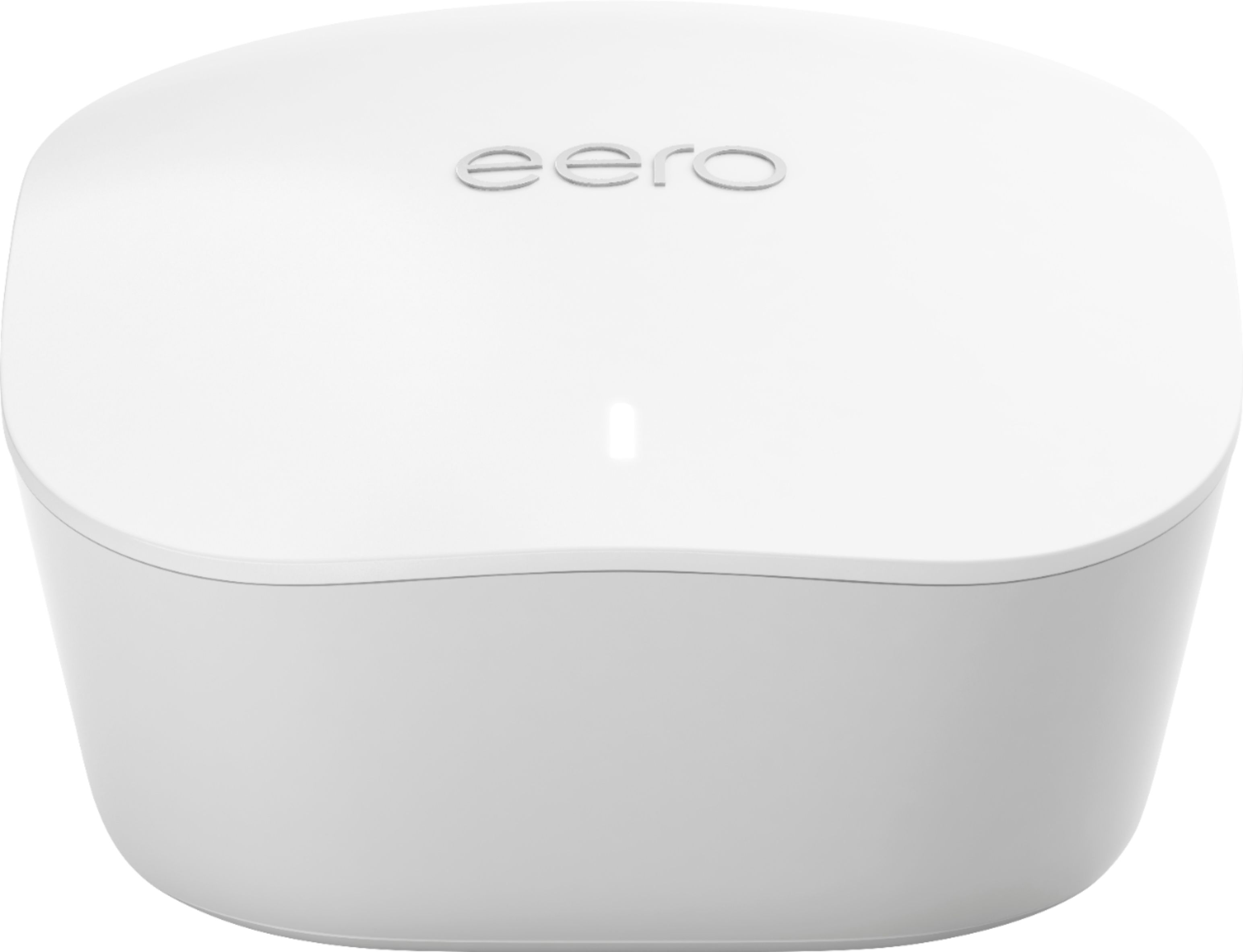
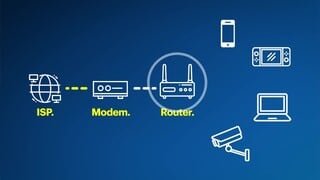
A:AnswerPlug one of them into your modem/router and then they can be used as extenders. A mesh network is a better way to do extenders because WiFi name and password are the same between all points and your devices will move to whatever node has the best connection.
A:AnswerI think the system selects what band will work with it. Ours automatically figures out what's most efficient and its a seamless install from the system to adding new wifi items. Love it
A:AnswerHello, if your going wireless you should able to connect multiple devices seamlessly using eero. ( Games / Cameras / Sonos )
It does have a network jack on it for use if needed, more utility or if you added a switch in A/V gear closet set up..
But remember the beauty of eero is there is a power mini processor inside them that calculates & adjusts constantly to give you optimal WiFi performance., The more EERO you add the better your mesh network strength.
A:AnswerThis will create a mesh wifi network using your existing modem. Your overall internet speed will be determined by what you pay for with your ISP. The eero router will connect to your modem and broadcast your wifi signal. The signal strength throughout your house will depend on the size of your house and the number of eero devices you have. I believe they recommend 1 eero device per 1000 sq feet, though you can use more. I have about 9 eero devices covering just around 4000 sq feet and no weak signal spots anywhere inside or outside the house.
A:AnswerWe have not seen any drop off in speed overnight unless the entry point (or router) the mesh is connected to has speed issues. I don't think this mesh can operate any faster than the router is operating. I strongly suspect that if you are seeing a drop off overnight that the issue is the router itself or the internet traffic load in your surrounding area. We replaced our Xfinity pod mesh with this mesh and it has speeds much faster than the pods yet not as fast as connecting directly to the Xfinity router itself. The only slow downs we have seen are times when we need to reboot the router (entry point) that the mesh is connected to in the first place. When that has happened it takes about 10 minutes or so for everything to get back to normal.
A:AnswerThis will connect to your modem and broadcast a wifi signal. The number you need will depend on your home, but 2-3 is generally a good start - you can always add more. I have 7 covering 4000 sq ft, which exceeds the recommendation of eero, but I have a strong signal in every corner of our property - both inside and out.
A:AnswerBesy buy person told us how to set up and it was super easy. They also emailed Tips after we purchased this. My husband set it up in 10 minutes and it’s been great. Basically plug one into the modem (we disconnected our spectrum router) and then the other 2 plugged in to wall sockets in 2 different areas of the house.
A:AnswerHope my example helps answer your question. I added this mesh to our Xfinity router. The speeds are much faster than the Xfinity pods we had in the past but not as fast as connecting directly to the router itself. Once connected, the eero mesh formed it's own network which I set up using the app on my iPhone. I now have two WiFi networks. One is the Xfinity router and the second is the eero mesh. The only devices connected to the original WiFi are the media devices such as the TV, Roku, etc that are right next to the Xfinity router. I moved almost all of our other WiFi devices to the eero mesh including our printer. The printer was important because I found that a laptop on the eero network could not communicate with the printer if it was on Xfinity WiFi network. In the end: two WiFi connections in the house, one is the original Xfinity WiFi and the other is the eero WiFi (which still has to run through the Xfinity Router). May sound complicated but it really is not.
A:AnswerYes to all of that. It's geared toward getting a basic setup up and running very quickly, so if your needs are more complex you'll have to go digging through advanced settings, but it's all there. I was running OpenWRT on our old router, with address reservations and port forwarding; it took me a few minutes to find where to configure the same features in the eero app, but it wasn't that hard to do.
A:AnswerI don't know if my example will help: I replaced our Xfinity pods with the eero mesh. The eero mesh is much faster than the pod mesh we had but I did run into a small problem. When I set up the eero mesh it created separate wifi network. So I had one Xfinity wifi network and a separate eero wifi network (which I gave a different name). I found that my laptop on the eero wifi could not communicate with the printer left on the Xfinity wifi. Once I moved the printer to the eero network the problem resolved itself. I moved almost all our wifi devices to the eero mesh wifi and left only a limited number of devices on the original Xfinity wifi. I wouid make sure both your Chromebook and TV are on the mesh wifi network. If they are both on the eero mesh wifi and the issue is one being on 2.4 GHz band and the other 5 GHz band then my example does not help.
A:AnswerConnecting one eero to modem is good enough. After connecting one eero to modem and you may need to pair other eero to same wifi connection using EERO app.