A:AnswerHi there,
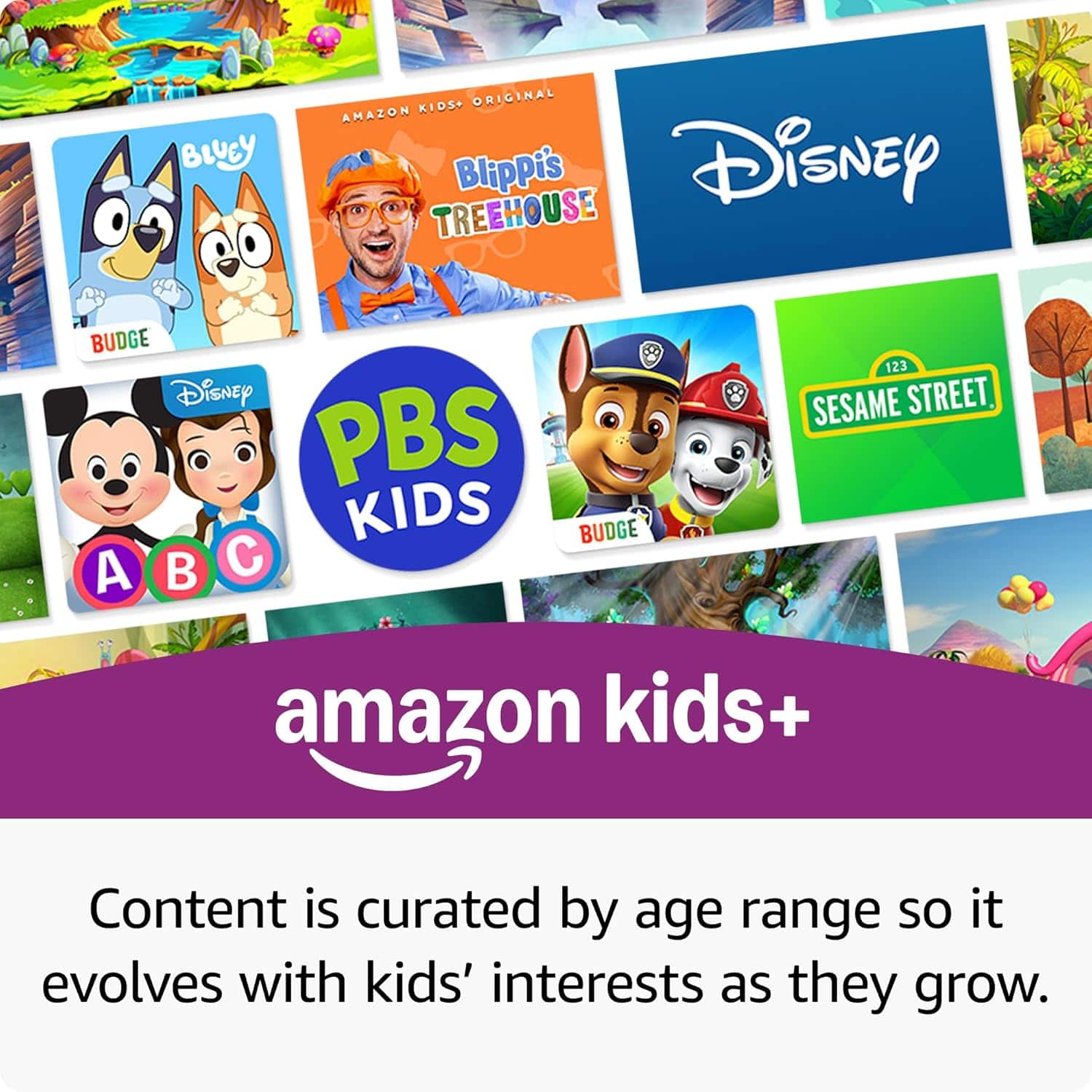
If you already have Amazon services, the Kids Fire 7 still works normally. Amazon Kids+ is optional as it just adds kid-friendly learning apps, books, and videos.
Hope this helps.
A:AnswerHi Britteny,
Unfortunately, WhatsApp is not available on the Amazon Fire 7 Kids tablet.
Here's why:
Kids tablets are designed for children ages 3-7 with age-appropriate content only
The Amazon Kids+ environment doesn't include messaging or social media apps for safety reasons
Parental controls limit access to communication apps to protect young user
If you need WhatsApp access, consider:
Regular Fire 7 tablet (adult version) - allows apps from Amazon Appstore, though WhatsApp availability may be limited
Standard Android tablets or smartphones - full access to WhatsApp and other communication apps
The Fire 7 Kids tablet focuses on educational games, videos, books, and age-appropriate entertainment rather than messaging apps. I hope this information helps, have a great day!
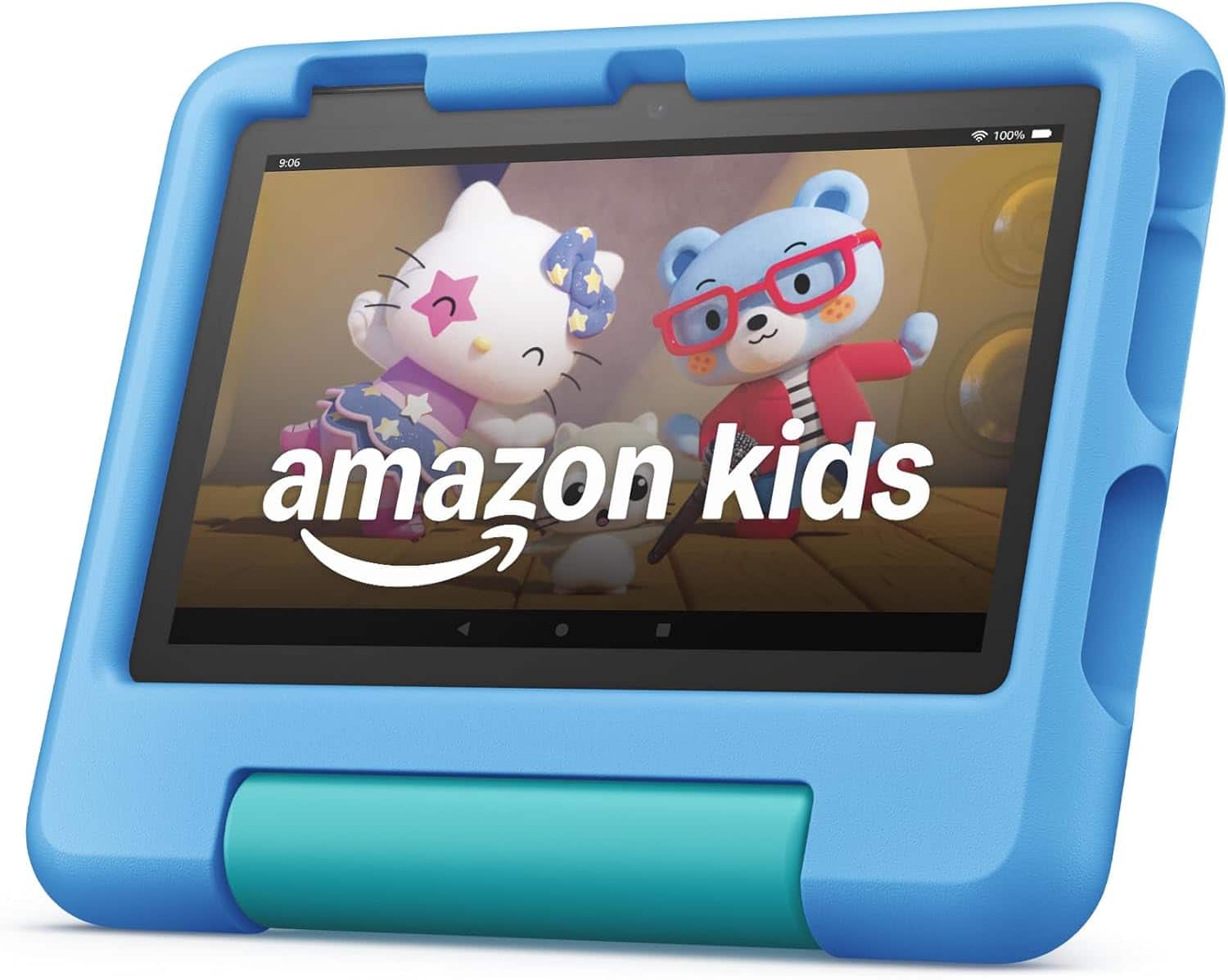
A:AnswerHello June, the Amazon Fire 7 Kids Tablet does have several features that may be helpful for your son. VoiceView screen reader enables access to the vast majority of Fire tablet features for users who are blind or visually impaired using text-to-speech. Using VoiceView he could access the music you load onto the tablet. You can also enable the Alexa features via the Parental Dashboard which will allow your son to ask Alexa to play his favorite songs when connected to WI-FI. I hope this answers your questions.
Have a great day!
A:AnswerHello Leelee, thank you for your question. No, you cannot download the official YouTube or YouTube Kids app directly from the Amazon Appstore. However, you can watch YouTube on a Fire 7 Kids tablet by using the Silk browser to visit the YouTube website or YouTube Kids website. I hope that helps, have a great day!
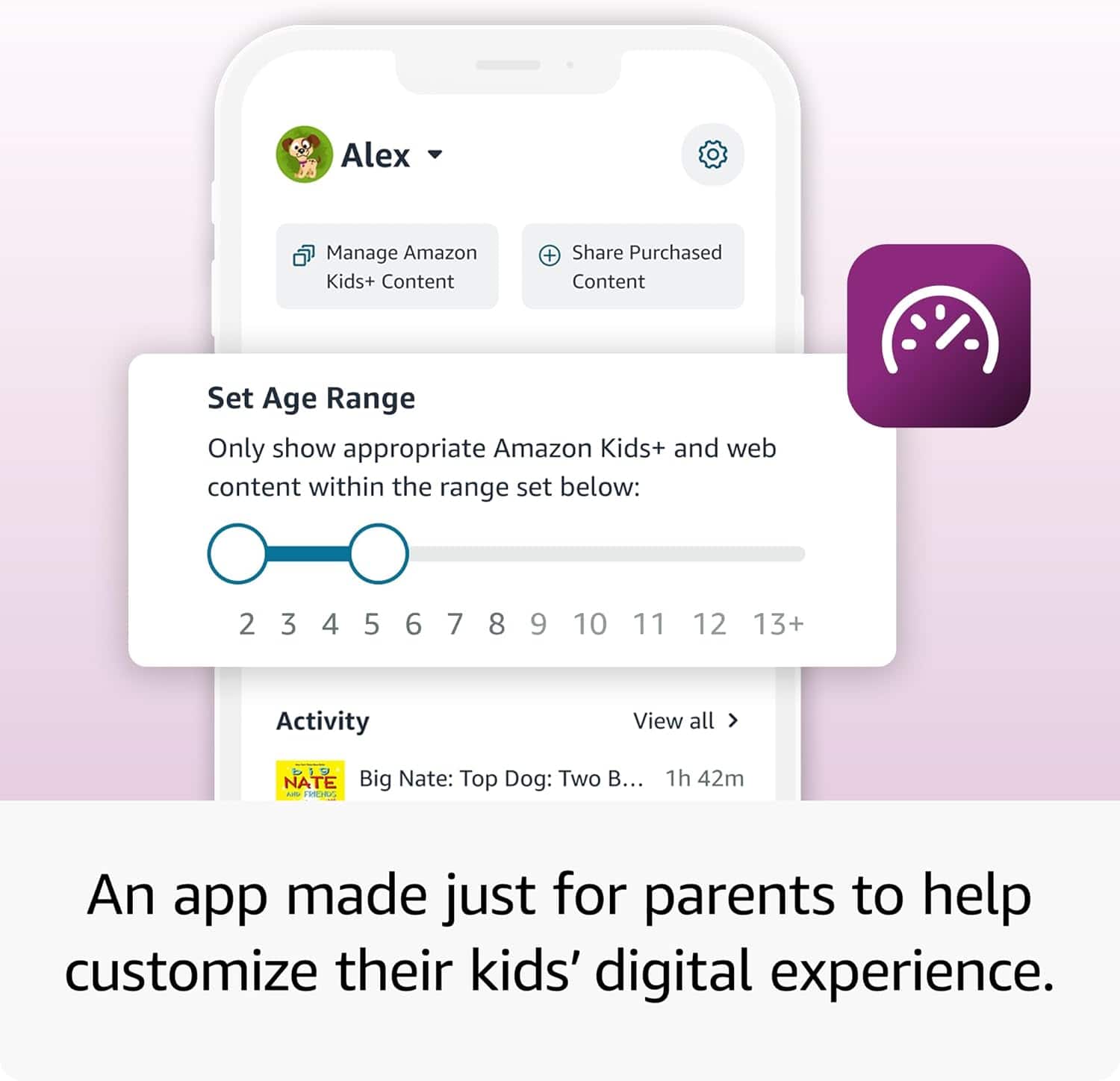
A:AnswerHI Jhony! To add content to your Child Profile on a Fire Tablet, follow these steps:
1. Go to the Parent Dashboard
2. Navigate to the child profile you wish to manage and select Settings.
3. Select Add content.
4. Select the desired content category using the tabs above the list of content.
5. Add or remove content by toggling the switch next to them.
Hope this helps! Have a great day!
A:AnswerHi Coco! Yes, you can watch content on your tablet without a WiFi connection, but you will need to download the content in advance while connected to WiFi. Hope this helps, have a great day!
A:AnswerHello wel! To add content to your Child Profile on a Fire Tablet, follow these steps:
1. Go to the Parent Dashboard
2. Navigate to the child profile you wish to manage and select Settings.
3. Select Add content.
4. Select the desired content category using the tabs above the list of content.
5. Add or remove content by toggling the switch next to them.
Have a great day!
A:AnswerHello and thank you for asking this question. Fire tablets can cast or mirror on Fire TVs or a TV with a Fire Stick connected to it after enabling the option in the settings. I hope this answers your question and that you have a great day.
A:AnswerHello MovingMom
This Fire 7 Kids tablet has a standard 3.5 mm jack for you to plug in headphones. It also supports wireless Bluetooth headphones. I hope this information helps. Have a great day!
A:AnswerHi Hkk! Yippee TV is available to download on the Amazon App Store, and you can give a child account access to it via the parent dashboard on Amazon's website. To download apps: Select Games & Apps or open the Apps or Games app. Select an app from your Library to download it or search for a new app in the Store. Looking online it looks like Yippee TV also supports offline sync, so you can use the Fire 7 Kids' micro SD card slot to add up to 1TB of additional storage if you need more space to take your favorite movies and shows on the go! I hope that helps, have a great rest of your day!
A:AnswerHi Hkk, Thanks for reaching out about the Ftre TV Stick. HappyKids is available to download on the Fire TV stick. I hope this helps. Have a great night!