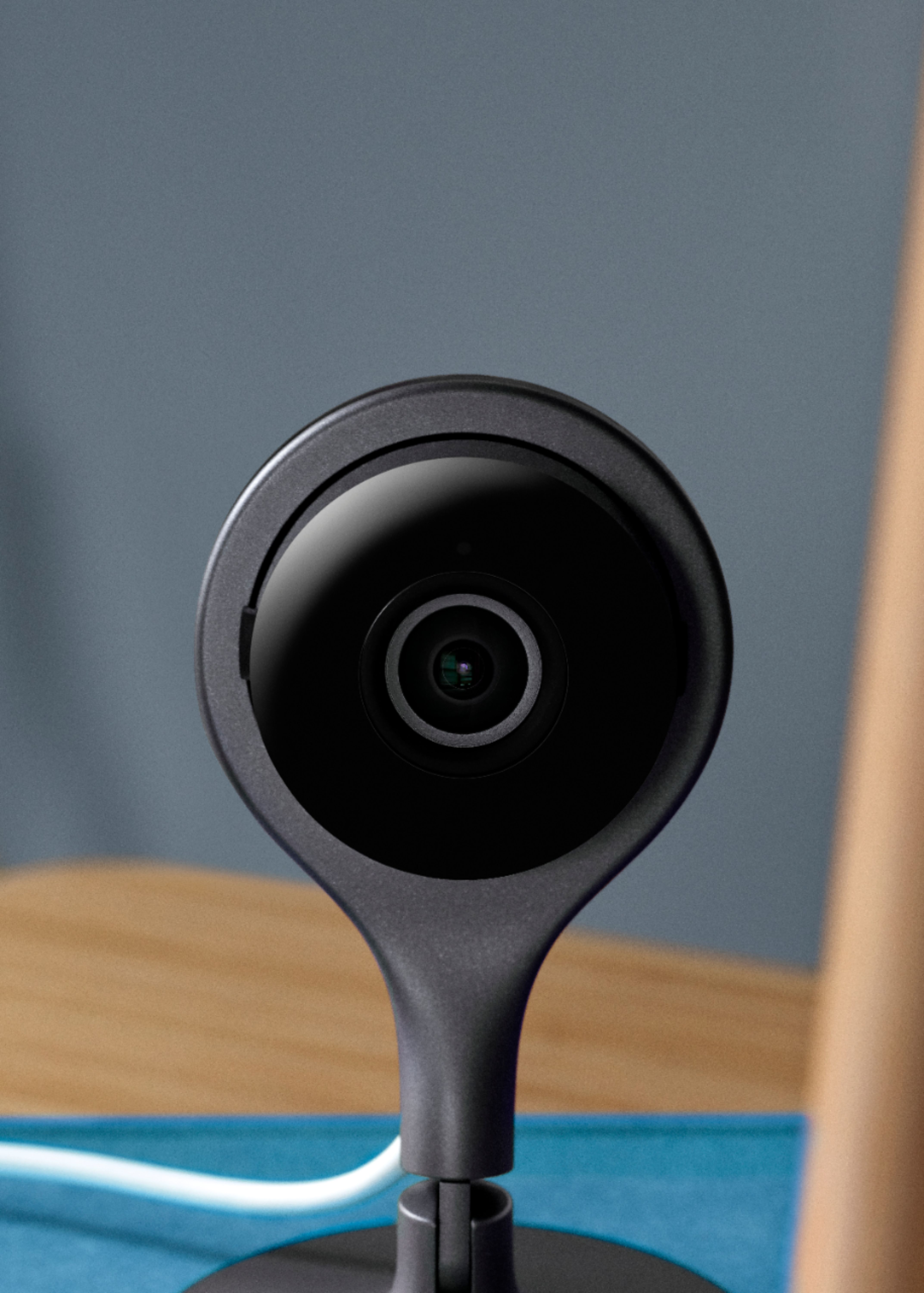
A:AnswerGoogle Nest Cam Indoor's motion detector is smart and powerful enough to notice small and fast changes even through a window. For more details, visit this article: https://support.google.com/googlenest/answer/9250426?hl=en
A:AnswerNot exactly. Each camera will generate it's own sound, which is saved as part of the video clip for that specific camera. Each child's room--given that each will have its own camera--will have its own video recording and its own ability to hear sound. You won't be able to listen to both simultaneously, but there is a way to see all the videos from each camera at the same time--LIVE--you just won't be able to hear the audio at the same time.
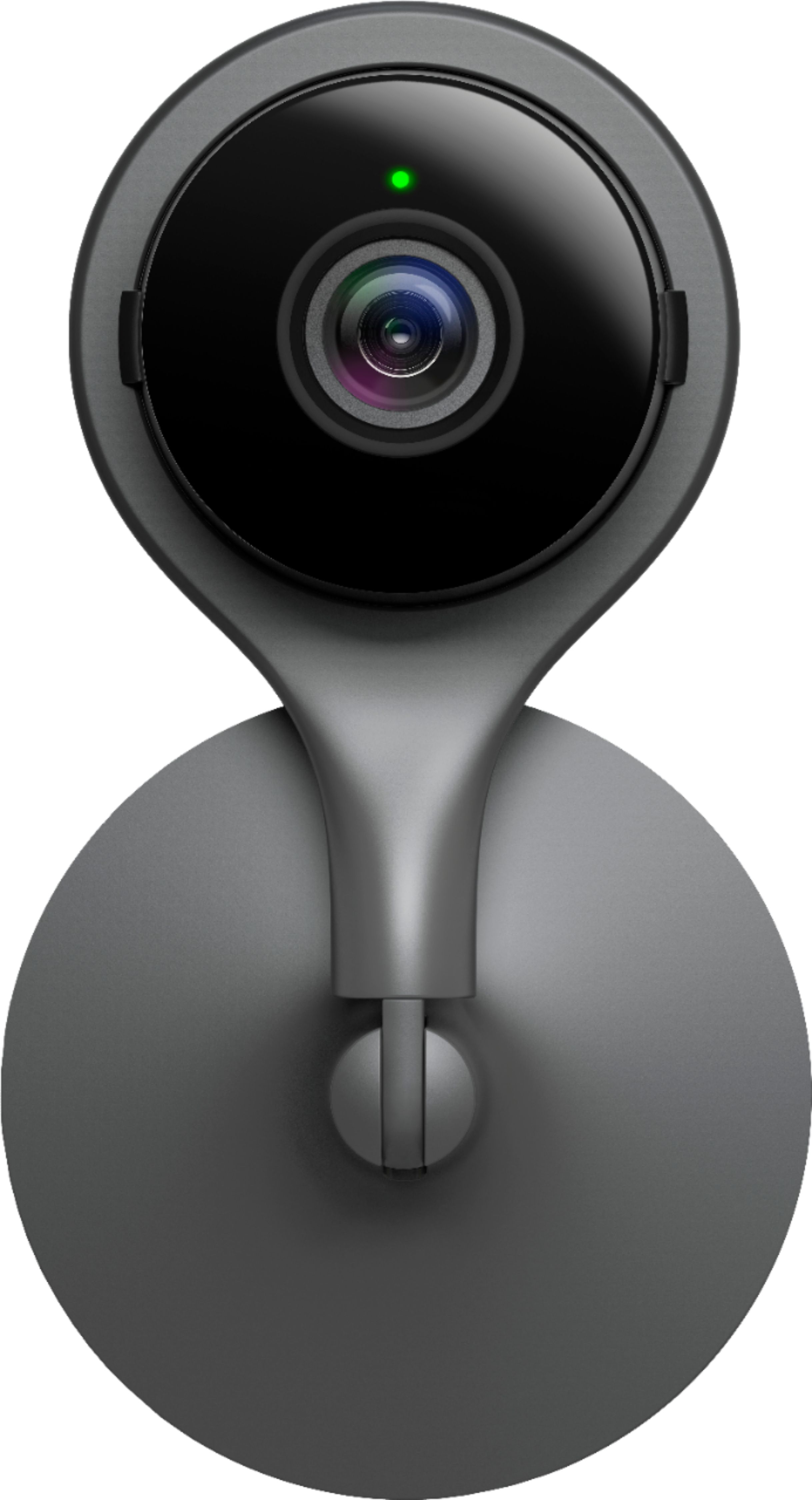
A:AnswerYou can easily turn off all light indicators on the camera. There are several options for how and if the camera will light up wile recording. If you can conceal the camera well enough, you definitely have to know what your looking for in order to see it is there and recording.
A:AnswerNo. Since the cameras send the video stream to the cloud servers where they are recorded and your mobile app connects to the cloud service to watch the video stream, you experience a delay in the time it takes for the video to go from the camera to your router to your ISP, through the Internet to NestCam servers, onto their disks, and then back to you from their disks to their servers, routers, through the Internet to your broadband ISP (or wireless carrier infrastructure) and finally to your mobile device.
Amazingly, I only see about a 2 second delay personally, but your mileage may vary since there are so many component parts in the system.
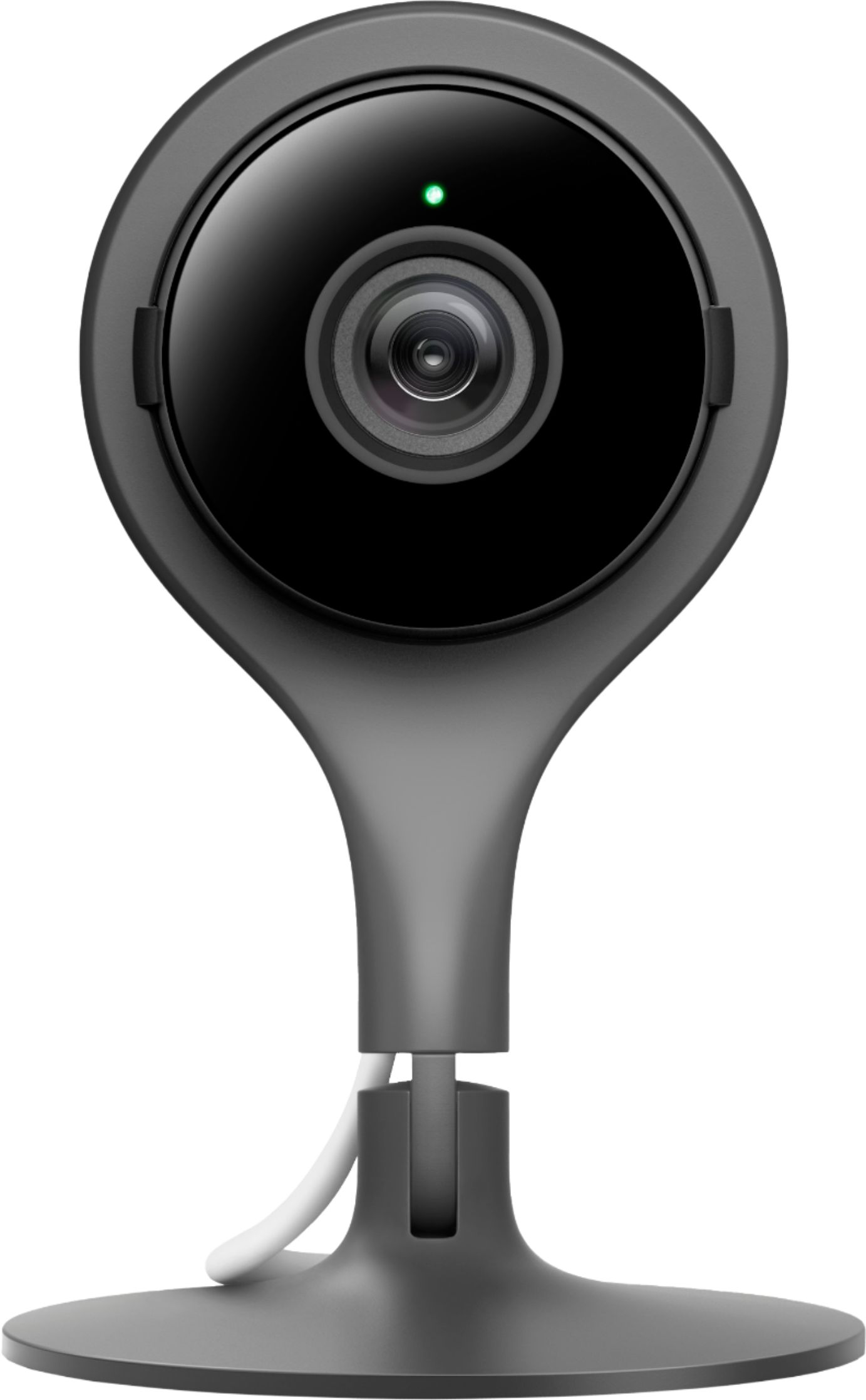
A:AnswerWhen your Nest camera is turned off with the Home app or the Nest app by any user with shared access, it won’t detect sound or motion, stream live video, or record and save activity. In addition, your camera will stay powered and connected to Wi-Fi when it’s switched off. That way, you or any user with shared access can turn it back on and control it remotely in the app.
A:AnswerYes, there is. Nest camera lights let you know whether your Nest camera is working normally or not. You can change status light brightness to Low, High or Auto. You can click this link https://support.google.com/googlenest/answer/9268073?hl=en to learn about Nest camera lights and sound and how to change brightness settings.
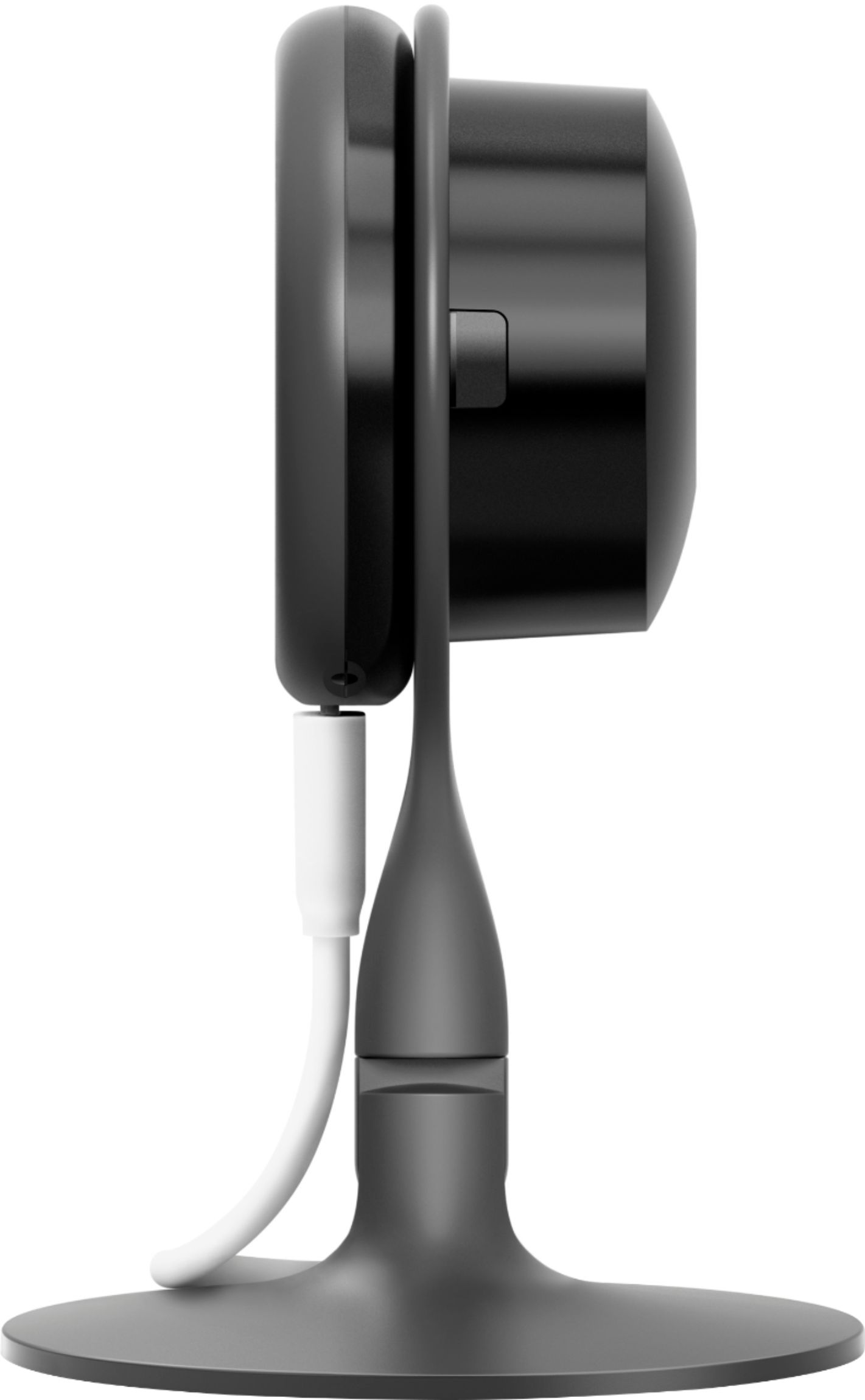
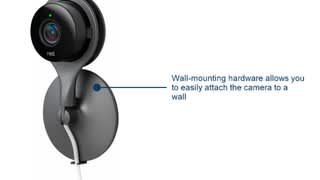
A:AnswerThe camera plugs into a wall outlet for power and then it connects by wifi. If you set it on a shelf or table then that is it! It does come with a wall mount you would need a screwdriver for. Super easy to set up! App is easy. Clear view. We love it!
A:AnswerAs far as i can tell it continually monitors and does not need to reset example you can thum back to 2:36 am and watch for the next ten hours what happened
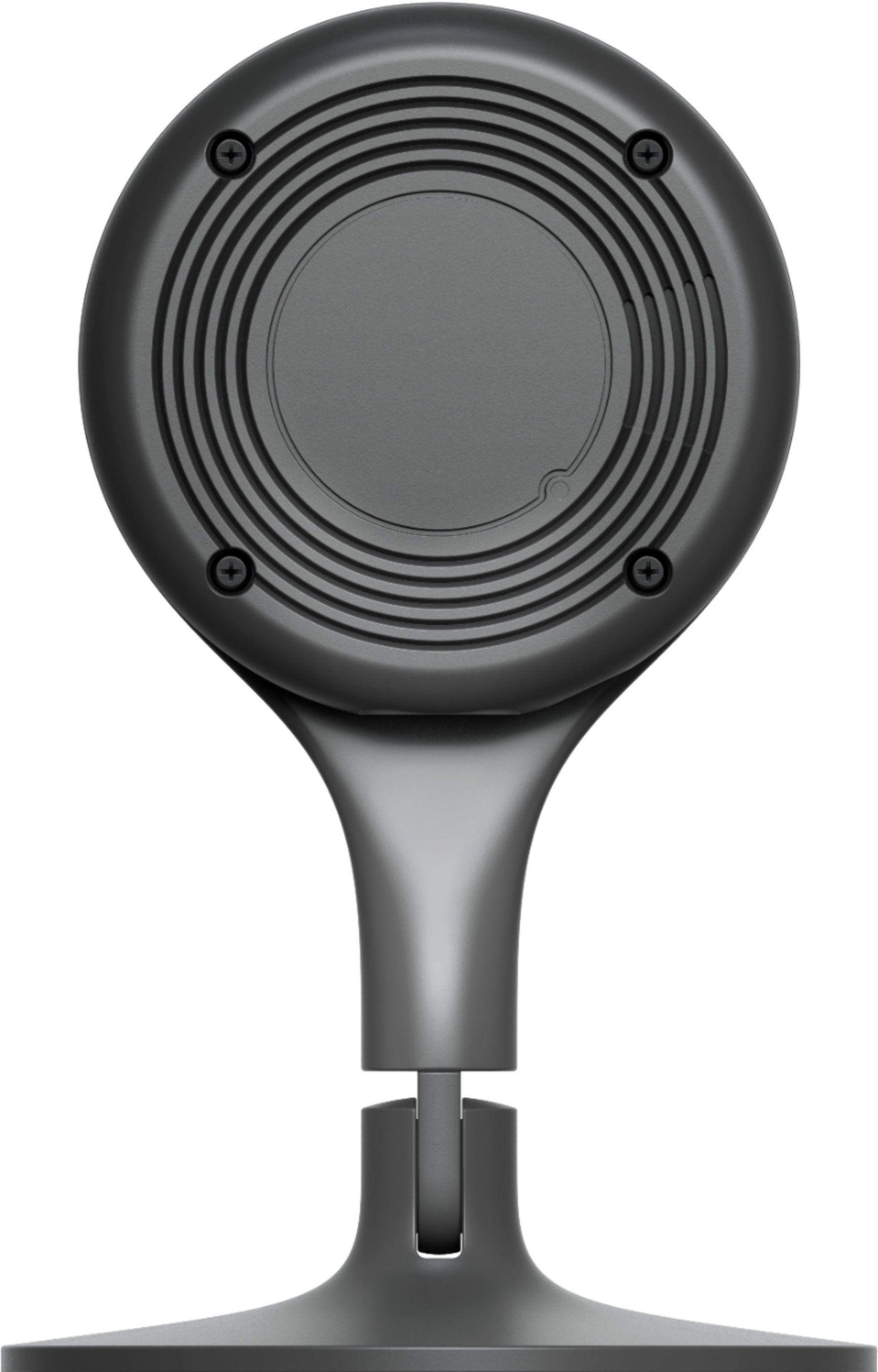
A:AnswerThe Nest Cam has a built in heat sync which can produce some warmth on the back of the Nest Cam when on and running 24/7, however it does not get hot enough to cause any potential danger when touched or to your home.