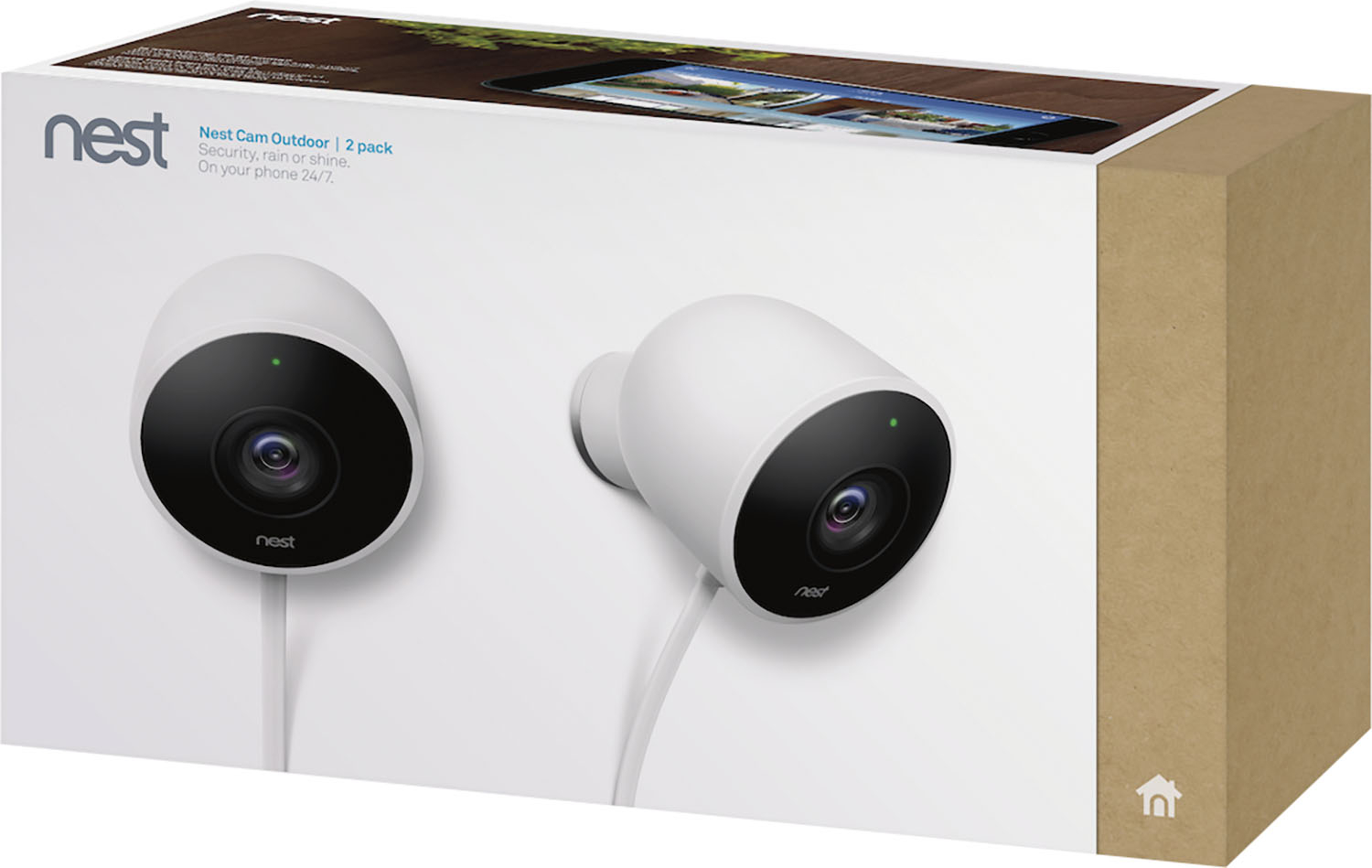
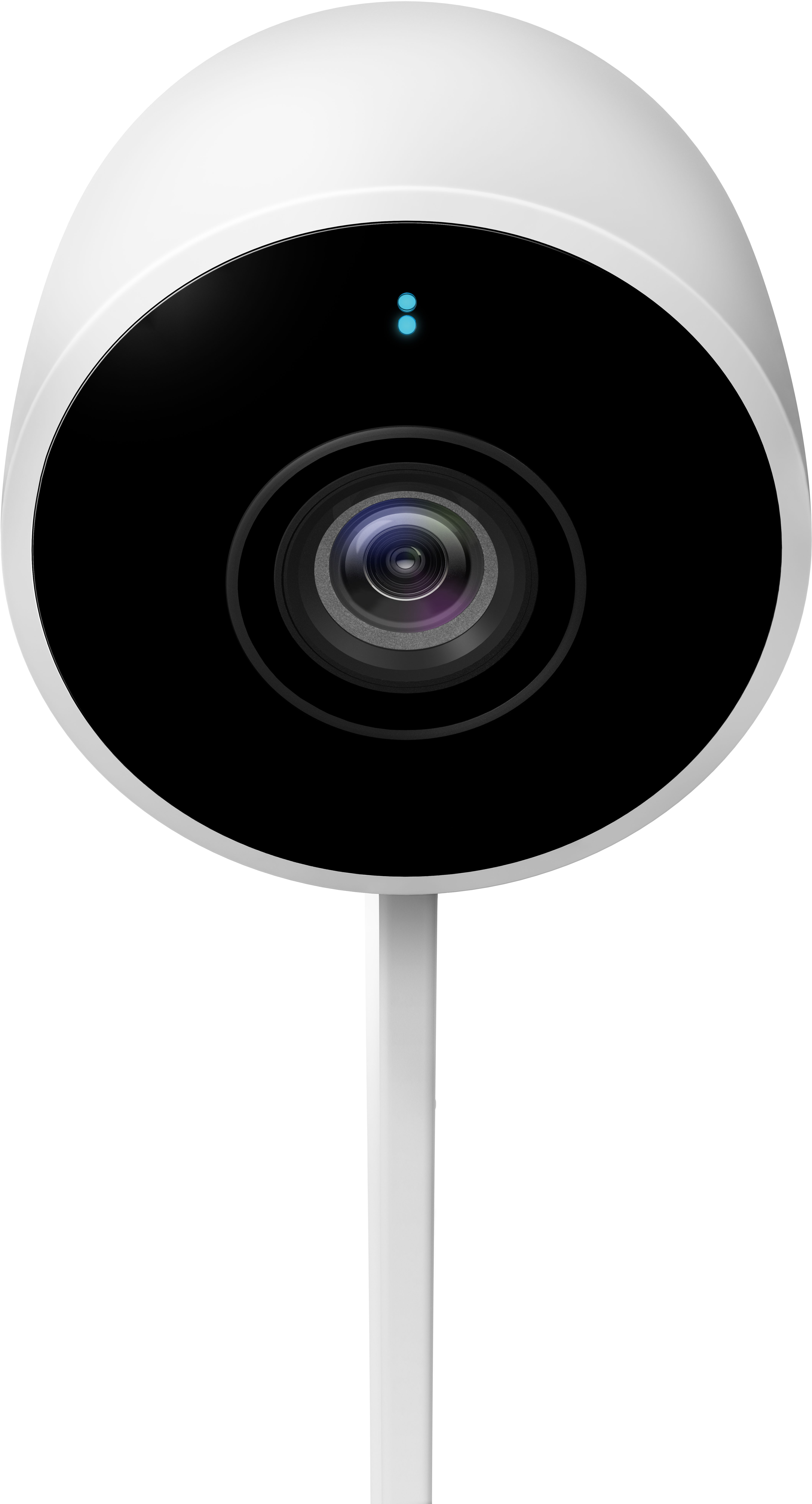
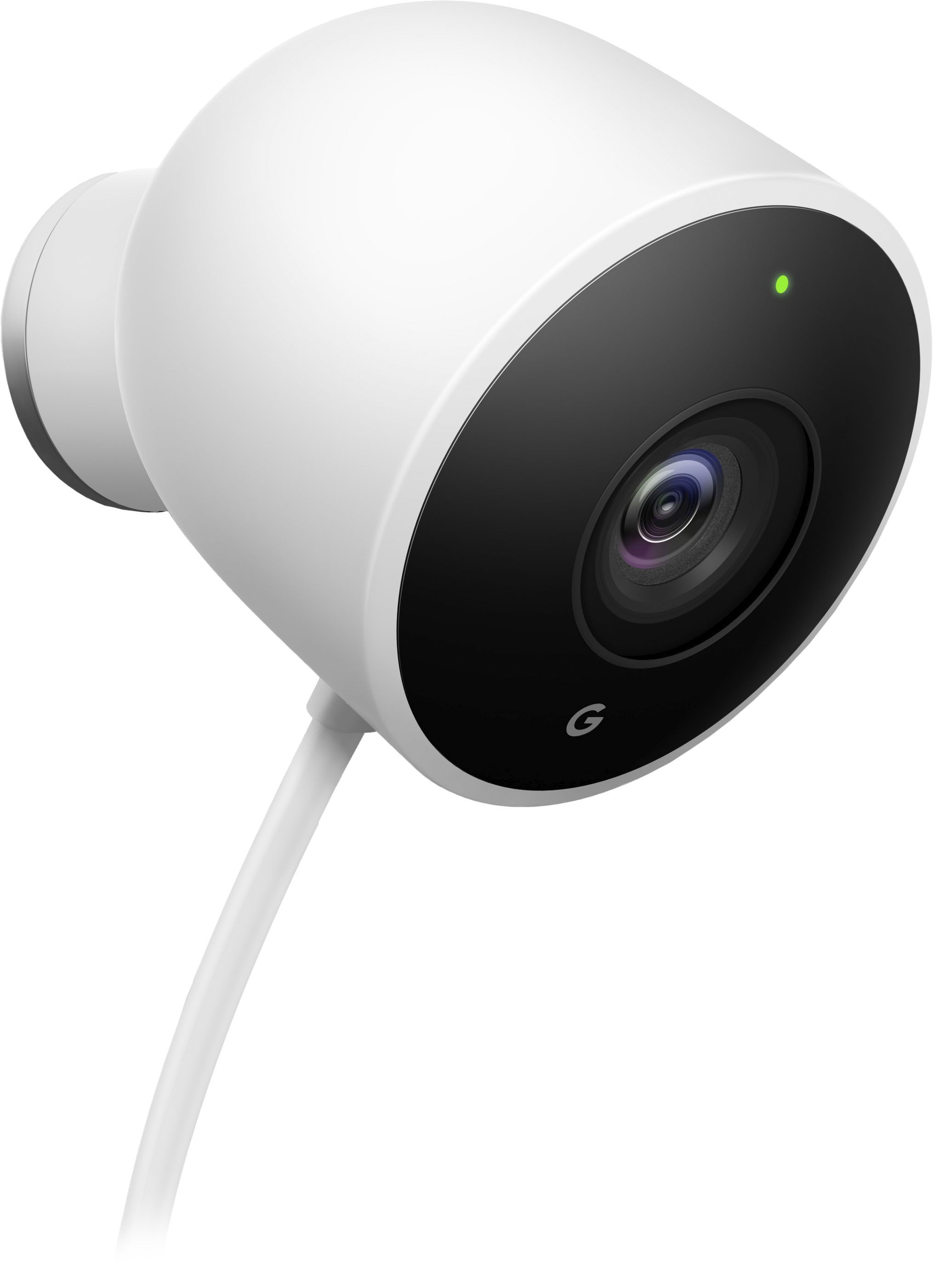
A:AnswerYou need to have a subscription in order to be able to download video recordings from your Nest Camera and upload to your chosen drive or platform.
A:AnswerYes, you can stream your Nest camera on your TV. You need to have Google Nest or Home speaker or display and Chromecast or a TV with Chromecast built-in. You can check more details on this support article: https://support.google.com/googlenest/answer/7529598
A:AnswerRegrettably, you won´t be able to use the Nest App to control or view the Live video feed from the Nest camera if you connect it to your phone's hotspot. To get the most out of the Nest Cam Outdoor, we recommend setting up a home Wi-Fi network with any of the available Internet Service Providers in your area.
A:AnswerAlthough there is no specific range to detect and identify faces as face detection requires high clarity which can be affected by several factors such as the time of the day, movement of the person, physical obstruction, weather conditions, dirt on the lens etc. You can find more information on Nest cameras here: https://support.google.com/googlenest/answer/9268625
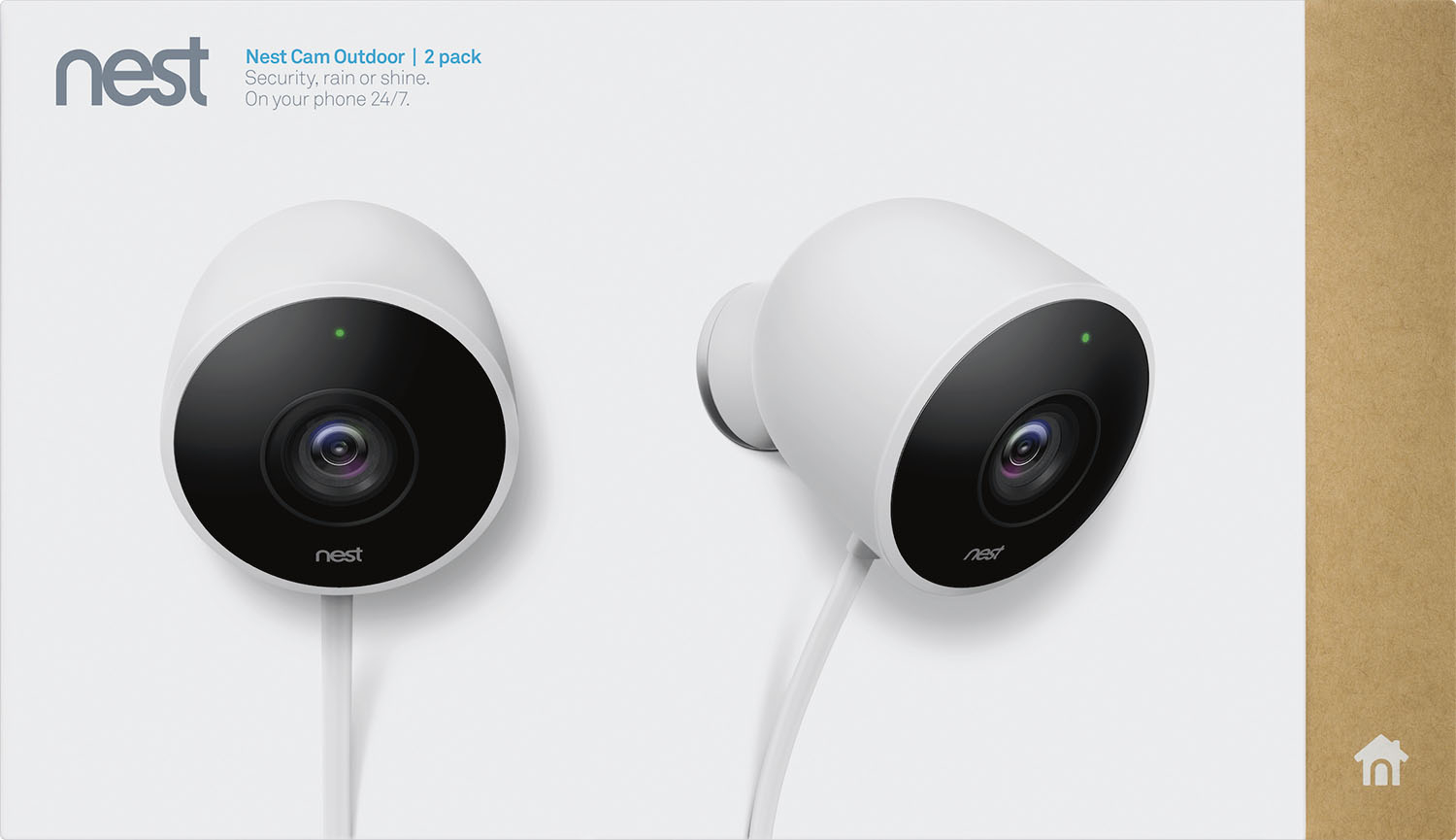
A:AnswerNo direct connections. The camera connects to the Nest service in the cloud (internet) automatically when powered on. The Nest smartphone app on your phone or the Nest website on your PC also connects to that same Nest service. The Nest service is always in the middle. While you could probably connect the cameras to the Nest service through your phone's hotspot, that would mean they only work when your phone is near the camera, which is probably not a viable option.
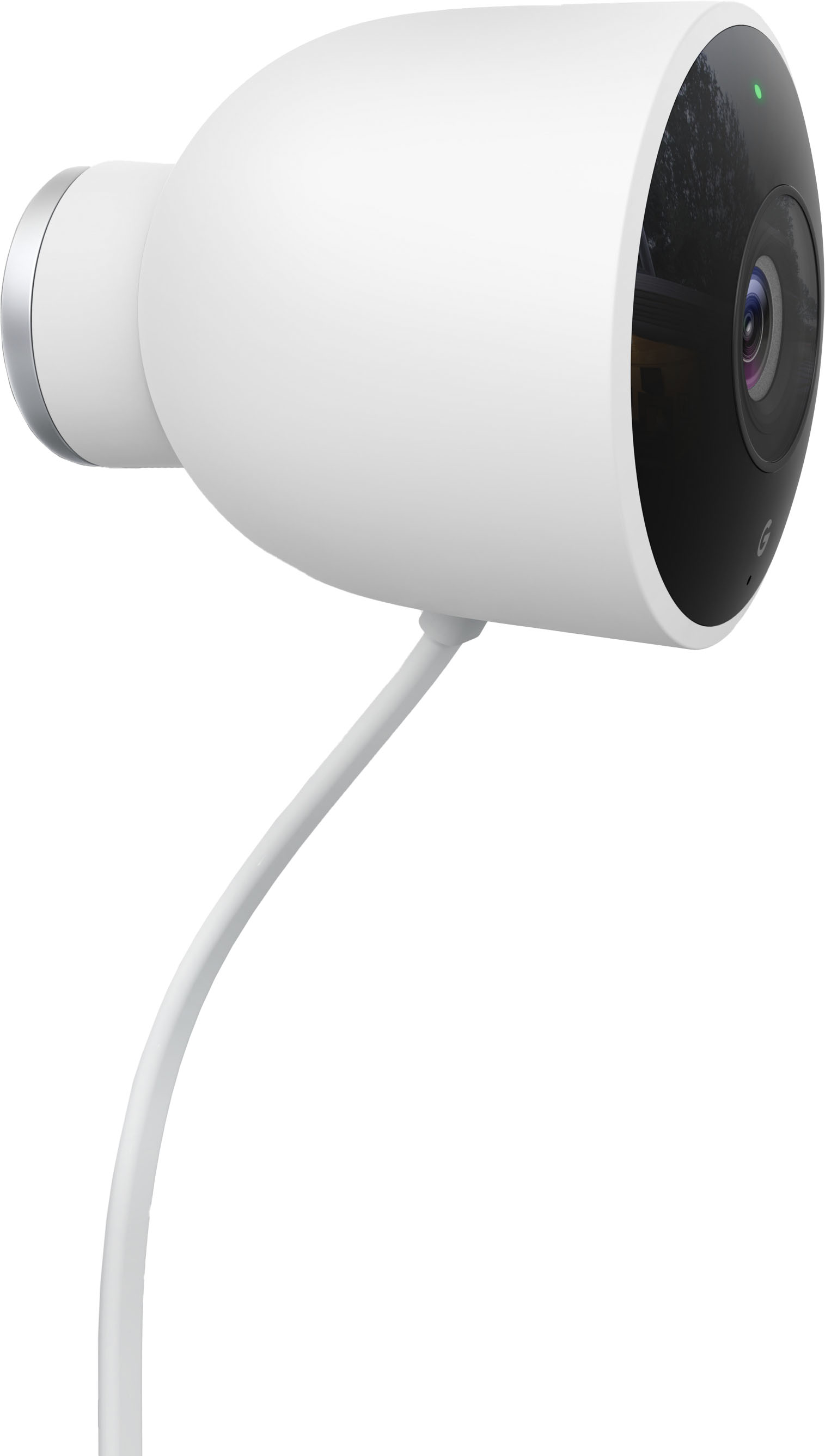
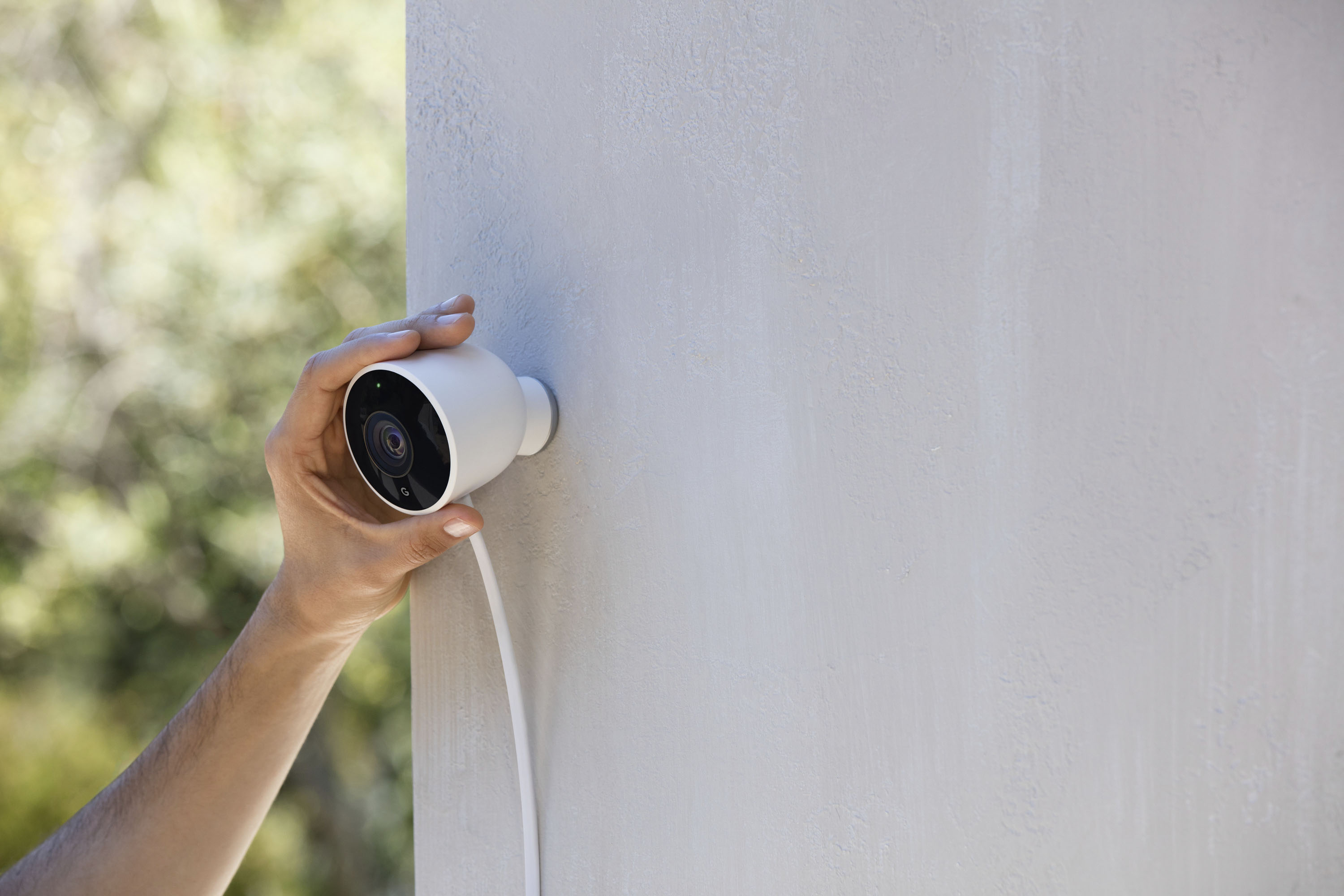
A:AnswerNest Cam Outdoor has a versatile mounting magnet that helps you point your camera exactly where you want. You can either mount your camera on brick, wood, or other non-metal surface by installing the wall plate or attach your camera to a metal surface using the magnet. For more details on how to install Nest Cam Outdoor, you can visit here: https://support.google.com/googlenest/answer/9228553
A:AnswerShort answer is no, you do not need a subscription. The doorbell sends video to the Nest service in real time. You can view the video in real time. Several hours of video are preserved with no subscription. With a subscription, 30 days of video is preserved plus you gain access to a few more features such as the ability to save clips, add facial recognition, etc. I believe the subscription price was just changed to $6 per household - used to be $5 per device.
A:AnswerYes. It will notify you on your phone and Apple watch if you have one. You can set your notifications to be for people, motion or sound or all or any combination of them. It shows a short video of it and you can click it to stream live of what is going on.
A:AnswerNo, Nest Cam Outdoor can't pan as it doesn't have a motorized swivel to move around but it has a 130° diagonal wide–angle view which lets you view more and you can manually change the direction of the camera. You can learn more here: https://support.google.com/googlenest/answer/9259110?hl=en
A:AnswerAlthough you can, we don't recommend this as Nest Cam Outdoor is designed for outdoor installation and use. We use algorithms to continuously improve performance, and an outdoor camera may not perform as well when placed inside. In addition, it does not come with a stand, so you may need to install a mounting plate to hold your camera in position.
A:AnswerUse a browser from a PC... login to nest.com and go to the camera. Settings and notifications. Make sure push is enabled and create zones and make sure the boxes are check for each zone.