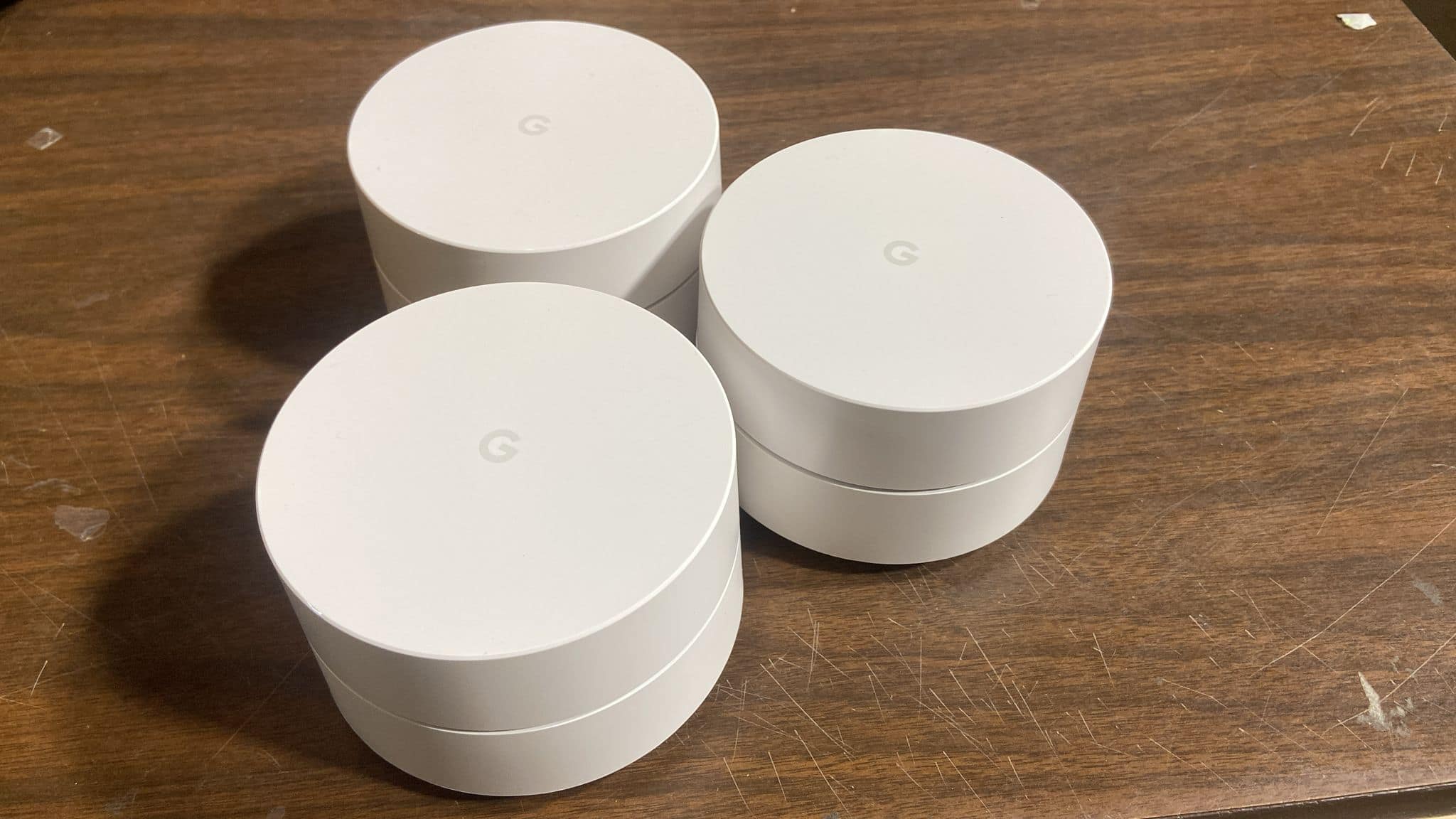
A:AnswerIt does not matter who your service provider is. I put one in my upstairs, one on the middle floor and one in the basement. At my house the internet service provider comes in the upstairs. With Google WiFi, I finally have a perfect signal in the basement - for the first time ever. It's been great. That's actually what Google WiFi Mesh is really good at.
A:AnswerIt can't speed up your internet faster than your internet provider. However if you have coverage problems and weak signal causing your internet to appear slow, you will see a vast improvement of what appears to be the speed of your intenet. The truth is your just connecting better and more reliably to your internet provider and that makes the perception that you internet is faster. But no matter what WiFi you buy, it can only be as good as your internet service provider. My experience is that my internet service provider seemed much better with Google Wifi because the wireless signal in my house was so much profoundly better.
A:AnswerThey work great! I installed them at home and also for a client who has a small office environment. I use four across a large space and have complete coverage including outside on my patio which I never had before. The office environment streams music, accesses a lot of software as a service cloud based stuff and has no problem whatsoever. Nice thing too is that you can manage the entire thing from your phone. You will still need your ISP device as a gateway to their service. WIth the above installations I have FiOS and their wifi router but it is used only as a gateway to everything Verizon. I do not use their SSID and use the Google WiFi network created for all devices. Google WiFi automatically discovers the ISP path out and is painless.
A:AnswerI have no idea how television signals are broadcast in Mexico. But since the Roku collects signals of specific services I really doubt if it will work below the border.
A:AnswerYes, this replaces the wifi portion of your AT&T network. You just use your AT&T modem for the incoming Internet and plug in the Google wireless device into your modem so it can broadcast the wireless signal. The TV boxes and other devices will need be set to recognize the correct network and password information that you use when you set up your new Google system. If you disable your AT&T wireless network, you can just set up your Google wifi with the exact same network name and password information, so all of your devices should be able to connect without changing all of their settings. Otherwise, just create a new network ID and password and then go to each of your TV boxes/computers and set up the new wireless connection information for the appropriate new wifi network.
A:AnswerI would dump Att and go full package with spectrum. Then hook the Google to spectrum...you be wired, wireless. It worked like a charm for me and my network.
A:AnswerThat's exactly all you need to do, turn off your current wifi, plug in the google wifi in and set it up, and thats it!
For a more advance setup though, you could always play around with the advance settings on your Xfinity device so it the connection passes trough it as "unfiltered" as possible, letting the Google WiFi do all the heavy lifting...hope that makes sense.
A:AnswerI am not sure but you don't need help. It's pretty easy since the app guides you through the installation. Perhaps the most complicated thing was understanding that there are 2 ethernet ports on each node. One is labeled with a World icon (symbol for world wide web) and the other port is for connecting to your local network