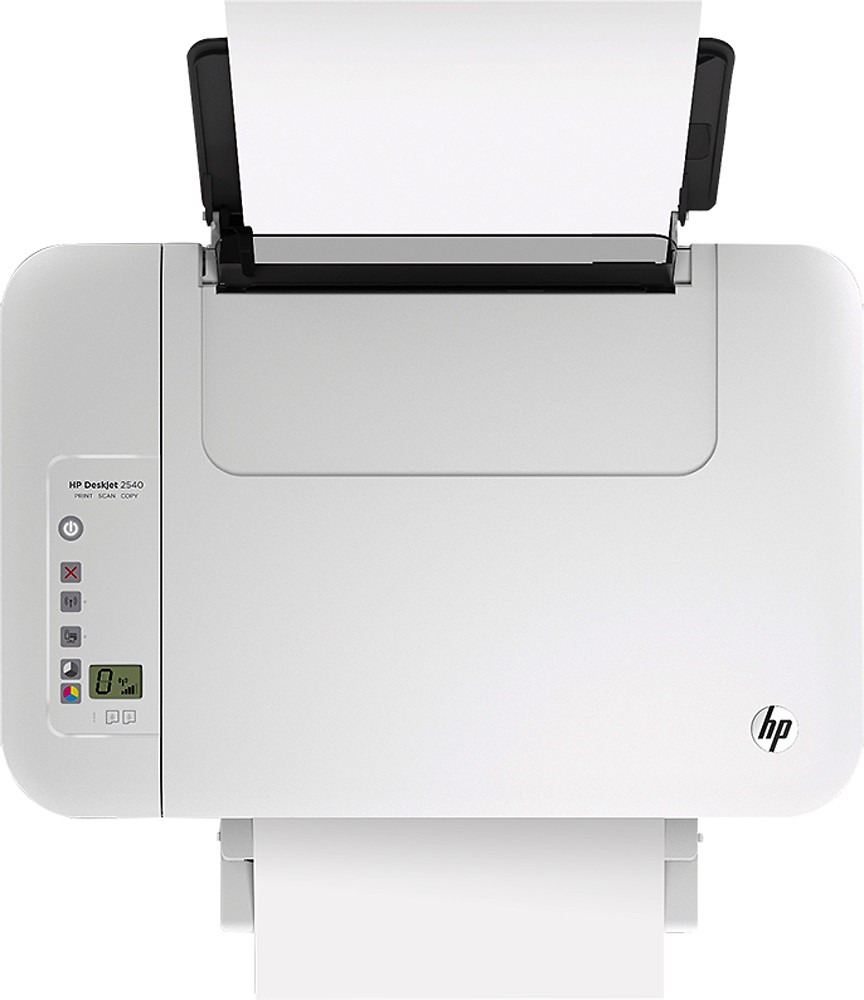
A:AnswerFirst connect you printer to your pc and run setup with out the printer cord m it will setup on your network if you have WiFi
Once 5hats done and you have the pc that you setup with is connected it go to the printer in control panel and right click it you should see scan there go thru the steps and it will scan . Some in depth document will need the cord to transfer the image .
A:AnswerI have not experienced any difficulty with it not printing. It does a nice job so far on everything I have sent to it. I have had several HP deskjet printers and have never had a problem. this is my first wireless. So far I am quite pleased with it.
A:AnswerYes. However, it will create it's own personal WiFi network that your mobile device will need to connect to. With that in mind just don't plan on printing anything from the Internet because you won't be able to be connected to your home WiFi network and your printer's network at the same time.
A:Answer1. disconnect power
2. pull paper out of paper tray - look inside with flashlight to ensure all debris is gone
3. turn printer upside down and check for debris again - use flashlight
4. reconnect power supply
5. print
Please see this tutorial <http://www8.hp.com/h20621/video-gallery/us/en/customer-care/2870676173001/fixing-a-paper-jam---hp-deskjet-2540-all-in-one-printer/video/>