A:AnswerIt's only designed for 110v, so unless you've got a step down transformer to convert the 220v to 110, you'll need to use it only in places like the US that have 110v mains.
A:AnswerHello! Thanks so much for asking this question! Yes, all HP Printers are compatible with multiple Operating Systems. Compatible via USB cable or wireless using Apple AirPrint, as well as with Windows devices.
A:AnswerThe HP Envy 6055 printer can print, copy, and scan. That is what an all in one printer can do. Some all in one printers have the capability to fax. This one does not have the fax capability.
A:AnswerThe HP Envy 6055 printer does not have the capability to fax via a landline. You can send faxes through the mobile fax option on the HP Smart app. Or you can use a service like eFax to send or receive faxes.
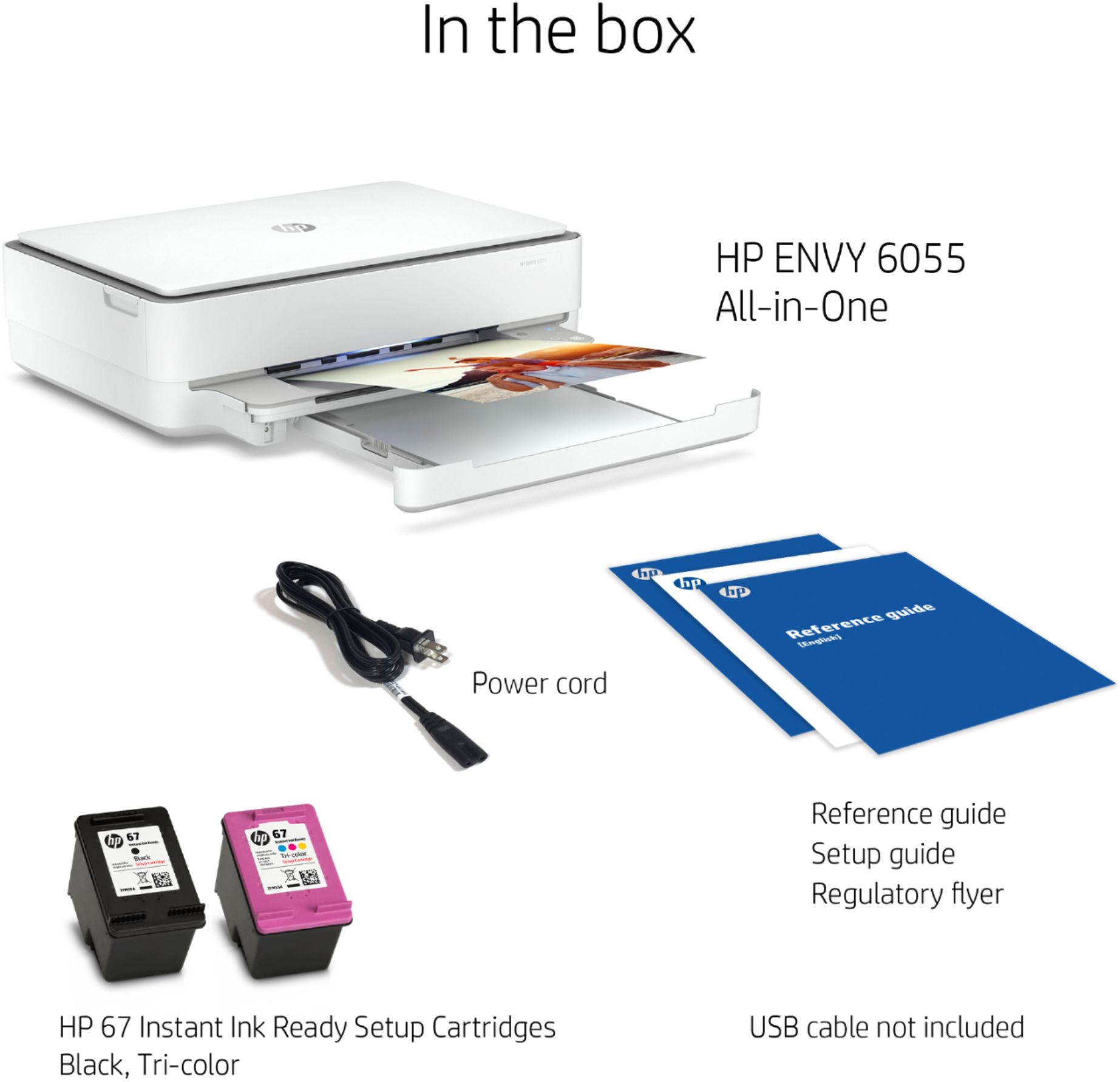
A:AnswerHere are some instructions with a video that shows you how to install in the ink cartridges on this printer: https://support.hp.com/us-en/document/c06543202
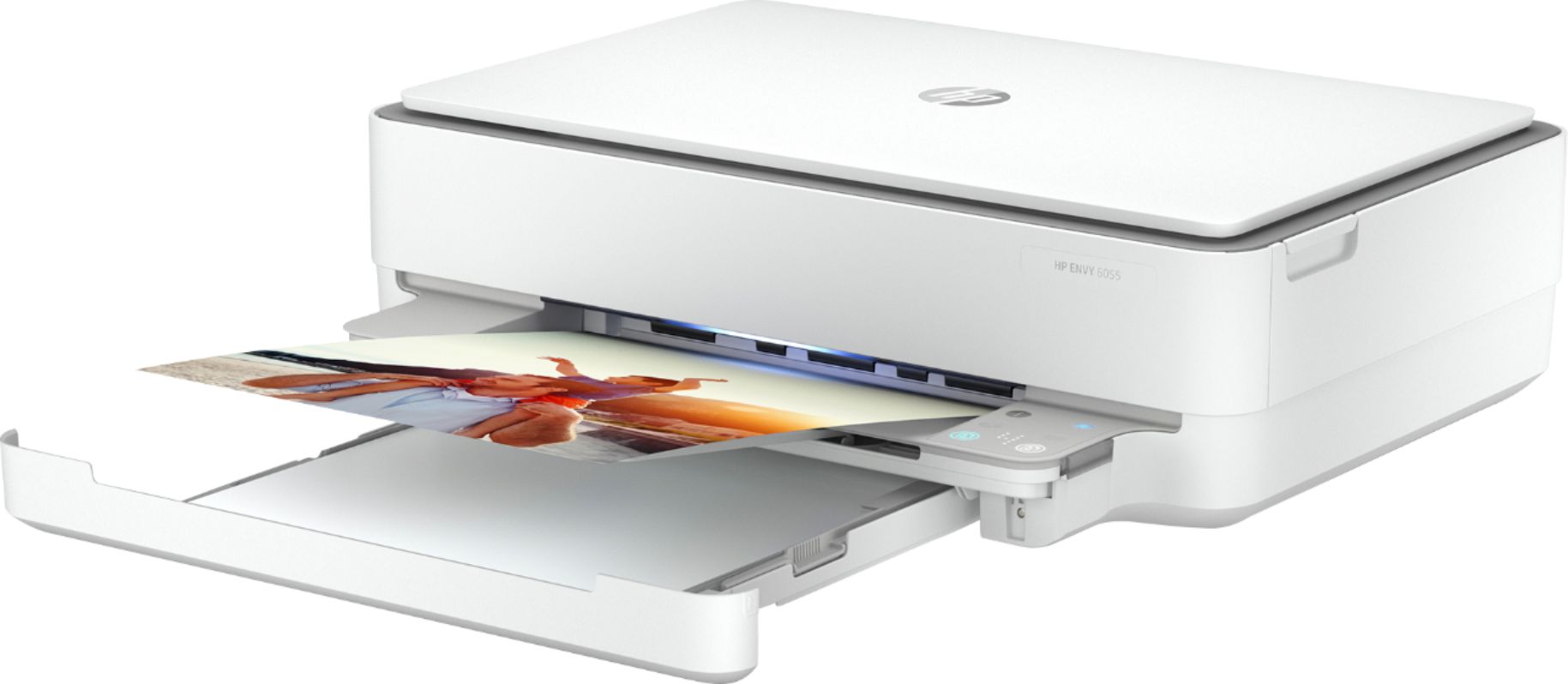
A:AnswerHi Catherine, thank you for your question! The power button is located on the back of the HP ENVY 6055 All-In-One Printer. The power button is above where the power cord is plugged in.
A:AnswerHello and thank you for your question! Yes, the S7 Tablet is compatible with our Envy 6055 printer! Go to the Google Play store, search for HP Smart App, download and install on your tablet, and complete install from there!
A:AnswerThis HP Envy 6055 printer can only handle up to 80 pound paper. If you want to print on 110 pound cardstock, waterslide and printable vinyl sheets, we recommend looking at the HP Officejet Pro 8025, 8035, 9015, and 9025 printers. You want to be sure the waterslide and printable vinyl sheets are made for inkjet printers.
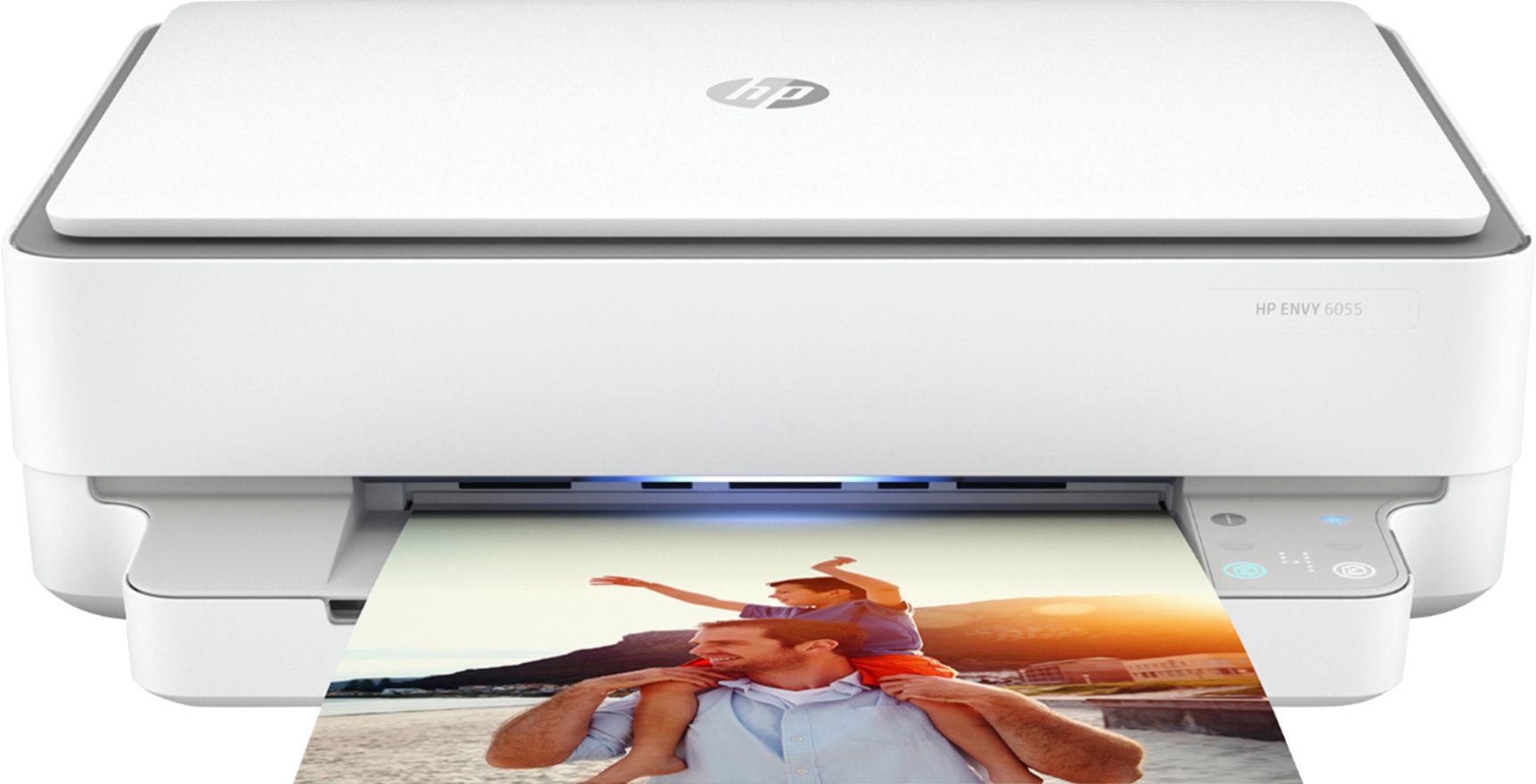
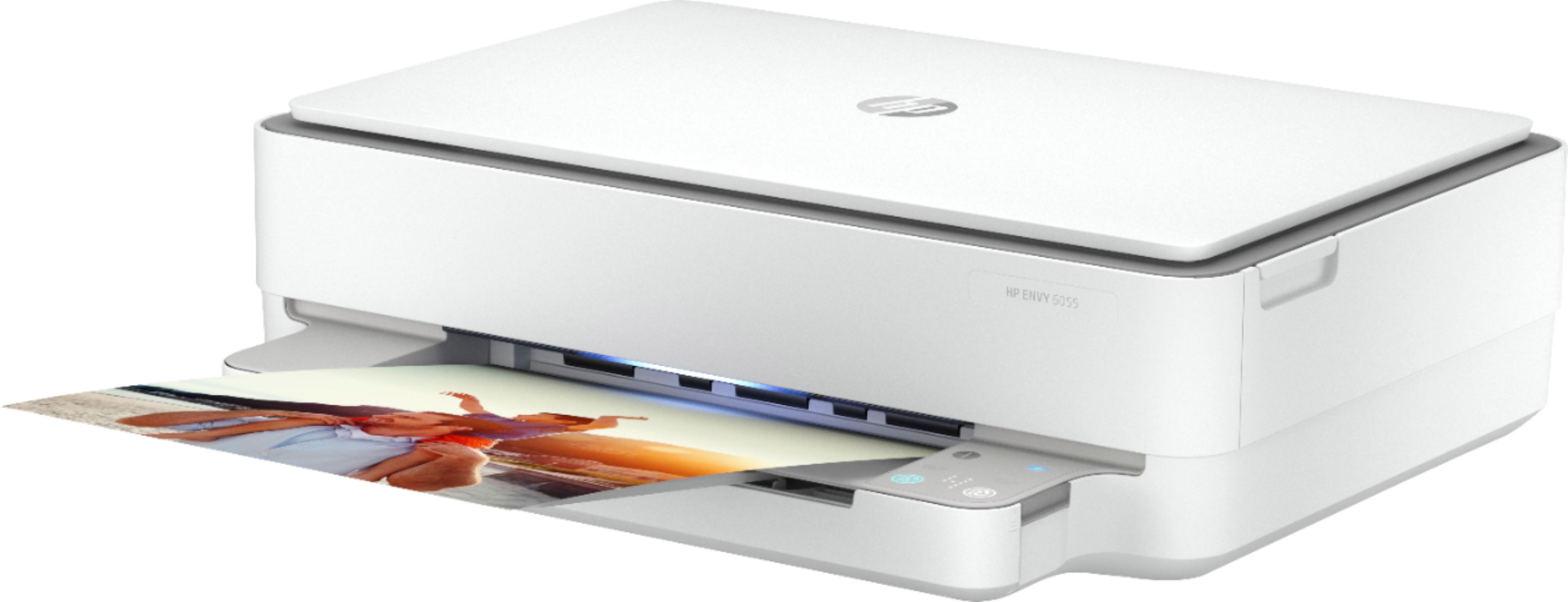
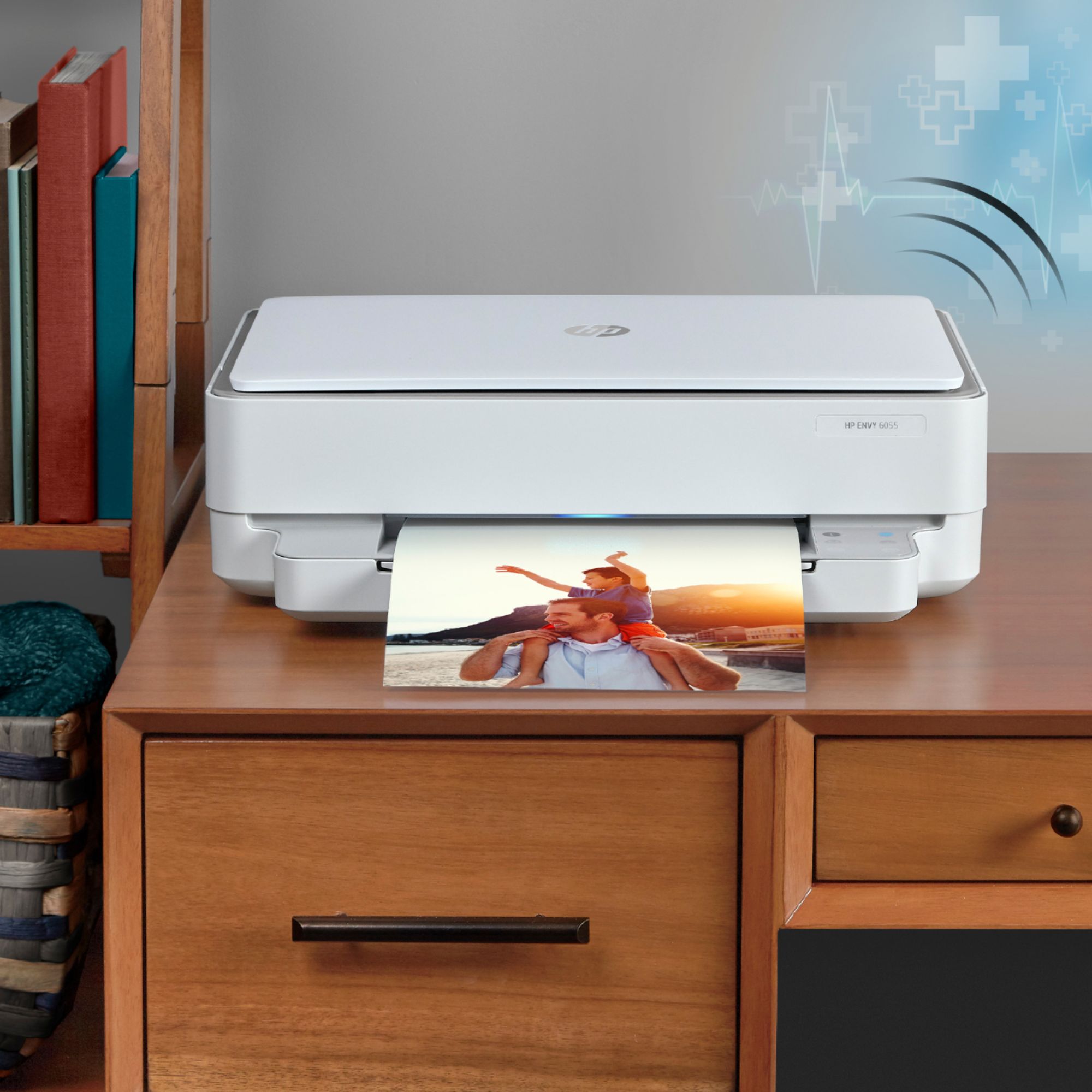
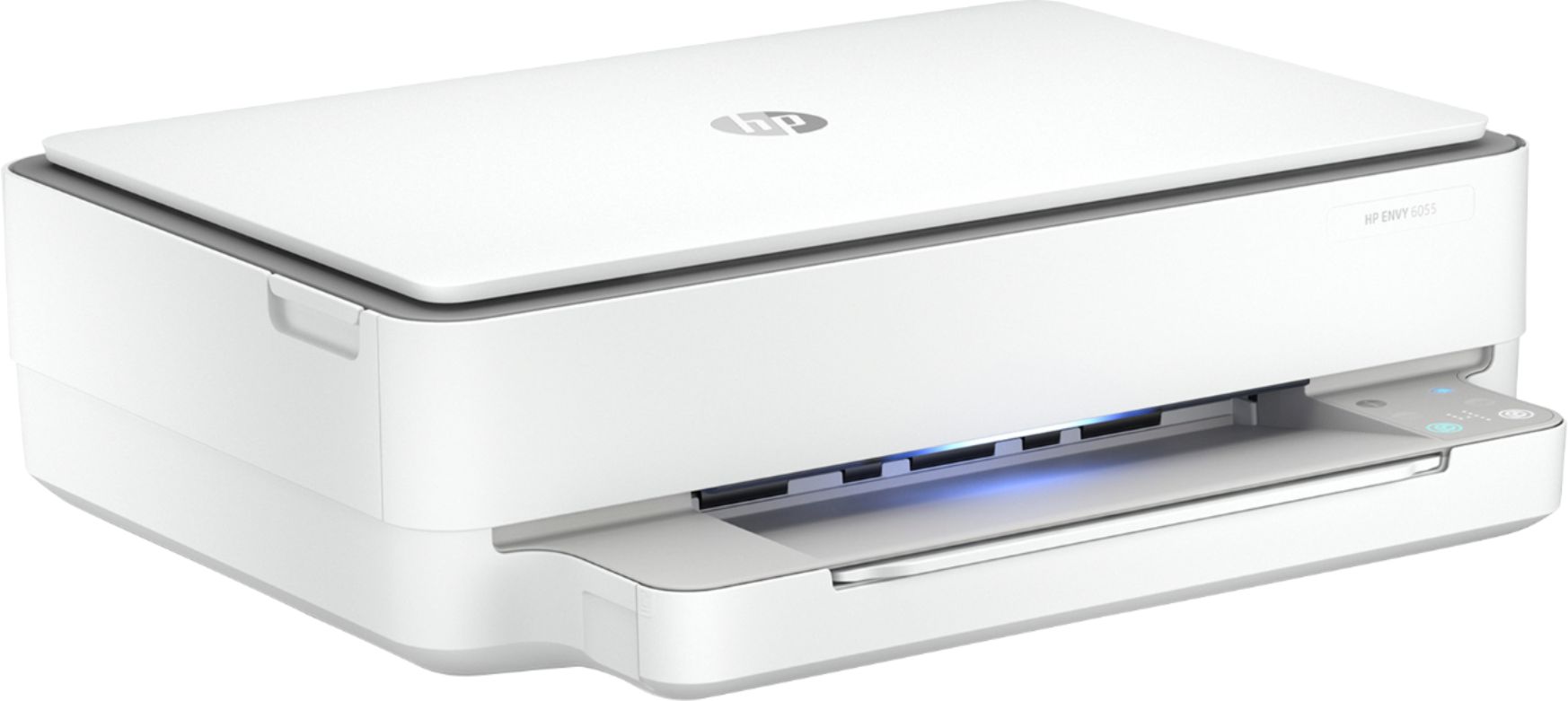
A:AnswerHello, Linda. This printer has edge lighting on the front of the printer. When the light bar glows blue-white that means the printer is idle and connected to a wireless printer. If the light bar is white, the printer is idle and not connected to a wireless network. When the printer first turns on, it will be green. Then, it will transition into one of the above color patterns. Page 8 of the user guide gives you more details about the edge lighting: http://h10032.www1.hp.com/ctg/Manual/c06584210.pdf