A:AnswerDear Max;
Take the ink cartridges out and put them in a ziplock to keep them from drying out. Sadly, printheads dry up over time when not used (which is a common problem with them). Clean them all you want, and they still clog up and stop working. This is why laser printers (even cheap ones) are gaining in popularity. To me, it's more about making more printers than selling printers that last. More money, more profits.
Best of luck.
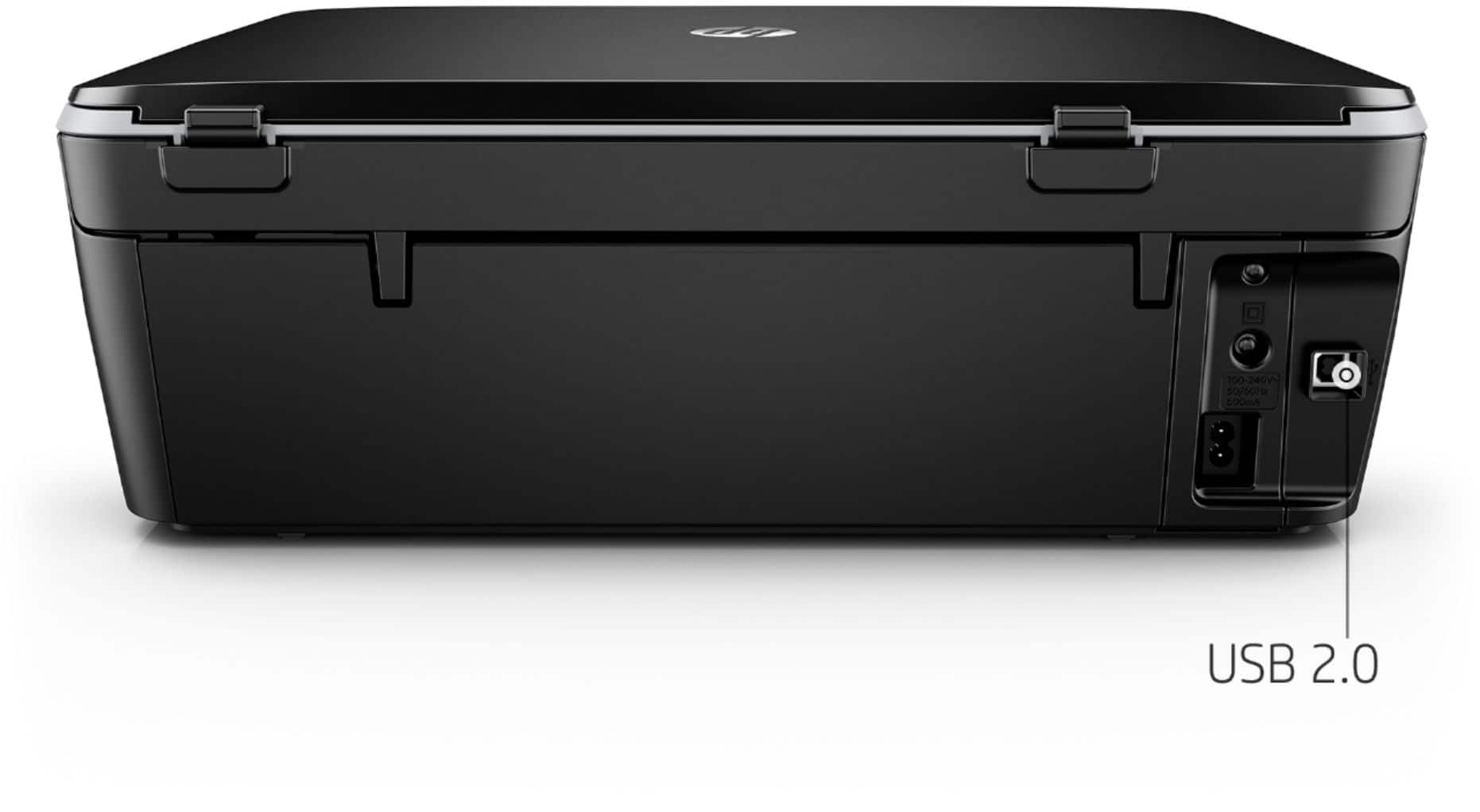
A:AnswerHello! Thank you for your question! The HP Envy Photo 7155 does not have an ethernet connection option but can be connected to a computer via a USB A-B cable.
A:AnswerI am really bad with technology. But, I was able to set this printer up by plugging it in, using my samsung smartphone ( old, cheap, trident model). I do not own a computer....only iPad and phone. We do have wifi at our house. (I'm sure I put in the wifi password....and that was about it. I can print from my phone or iPad.
A:AnswerThank you for the question. Sepia toning is a function of photo editing software, for example, Photoshop. In theory, any printer (especially a photo printer) can print sepia antique with the proper color saturation settings.
A:AnswerHello. Yes, this HP ENVY Photo 7155 can print on sticker paper. Make sure that the packaging of that sticker paper says something along the lines of 'Inkjet Compatible' before you decide on which sticker paper brand to purchase.
A:AnswerHi Sarah, apologies for what you are experiencing. Perform a "hard reset" on the printer and make sure that the printer is connected directly to the wall outlet and not to a surge protector.
Hard Reset: With the printer turned on, disconnect the power cord from the rear of the printer and also unplug the power cord from the wall outlet. Remove USB cable, if present. Wait for 2-3 minutes, press and hold the power button on your printer for about 30 seconds to remove any additional charge. Now plug back the power cable into a wall outlet without any surge protector or an extension cord and then plug back the power cord to the printer. Turn on the printer and wait until the warm-up period finishes and the printer is idle. Now, try and make a copy to determine whether the issue is with the printer or not. Place a document on the scanner glass and choose “Copy” option. If the printer is making a good copy, then the printer hardware is fine. If this doesn't solve the issue, please reach out to Tech Support at https://support.hp.com/us-en/contact-hp.
A:AnswerYes, I think so. The color quality is excellent. It would depend on the paper that you are planning to use though. This is for printing on regular computer and photo paper. You may need a special printer for your business.
A:AnswerI would double check all the packaging to make sure there is no ink.You will want to contact Best Buy support if it did not come with ink. You can do that at this link https://www.bestbuy.com/site/customer-service/contact/pcmcat1511375025410.c?id=pcmcat1511375025410
A:AnswerYes.. it comes with an ink cartridge and a color cartridge. Upon set up.. I visited my Staples account online and bought additional sets ( 1 of each) so that I'd have back up when needed. I was not sure how quickly I would use ink.
A:AnswerIt depends on how much air the print cartridges are exposed to. If you leave the printer running, the heads stay exposed to the air and that lets the ink in the heads dry out. I've had printers that have gone more than six months without use without problems. I always turn the printer off on with the power button on the printer when I'm not using it. That way, the printer can cap the heads so they're not exposed.