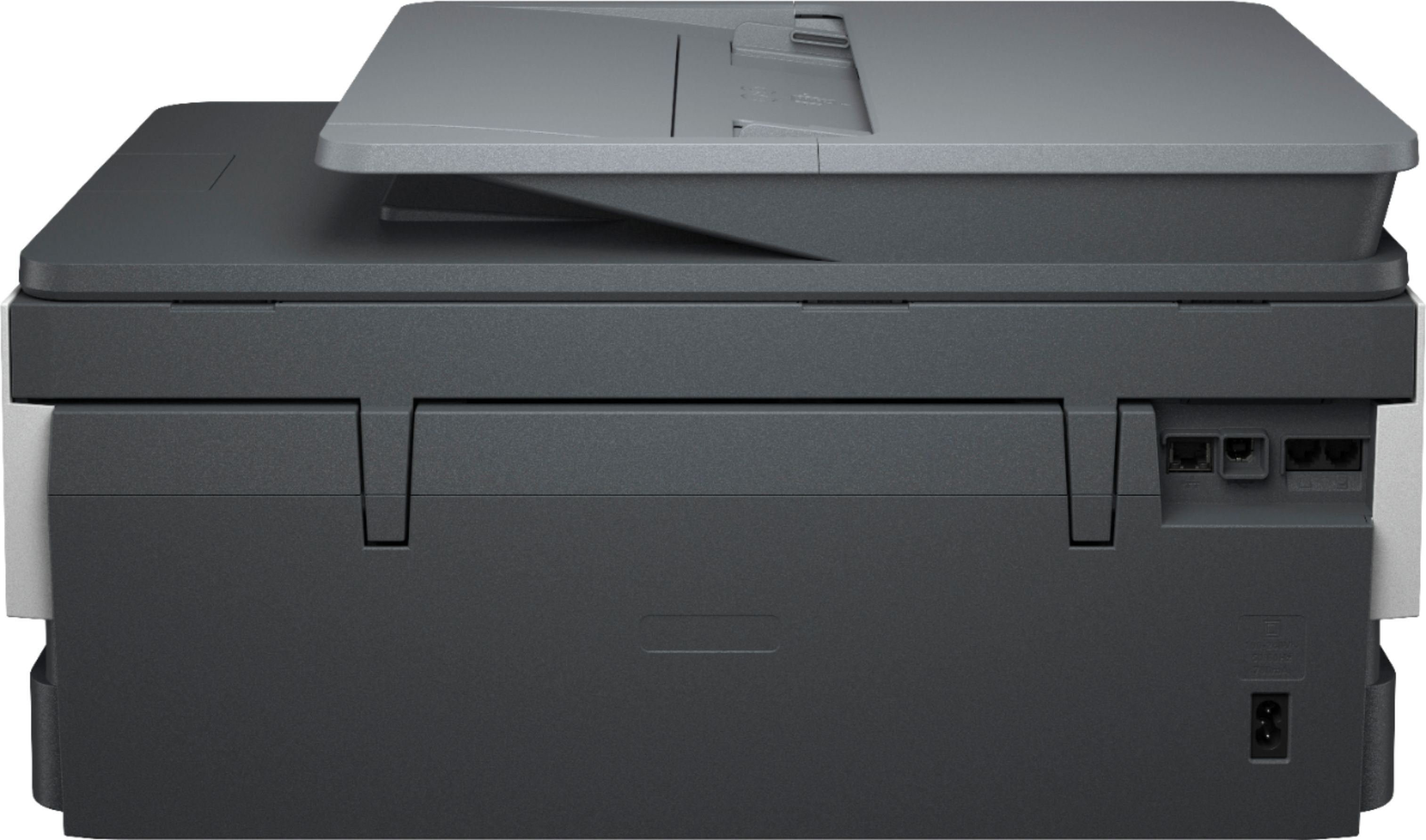
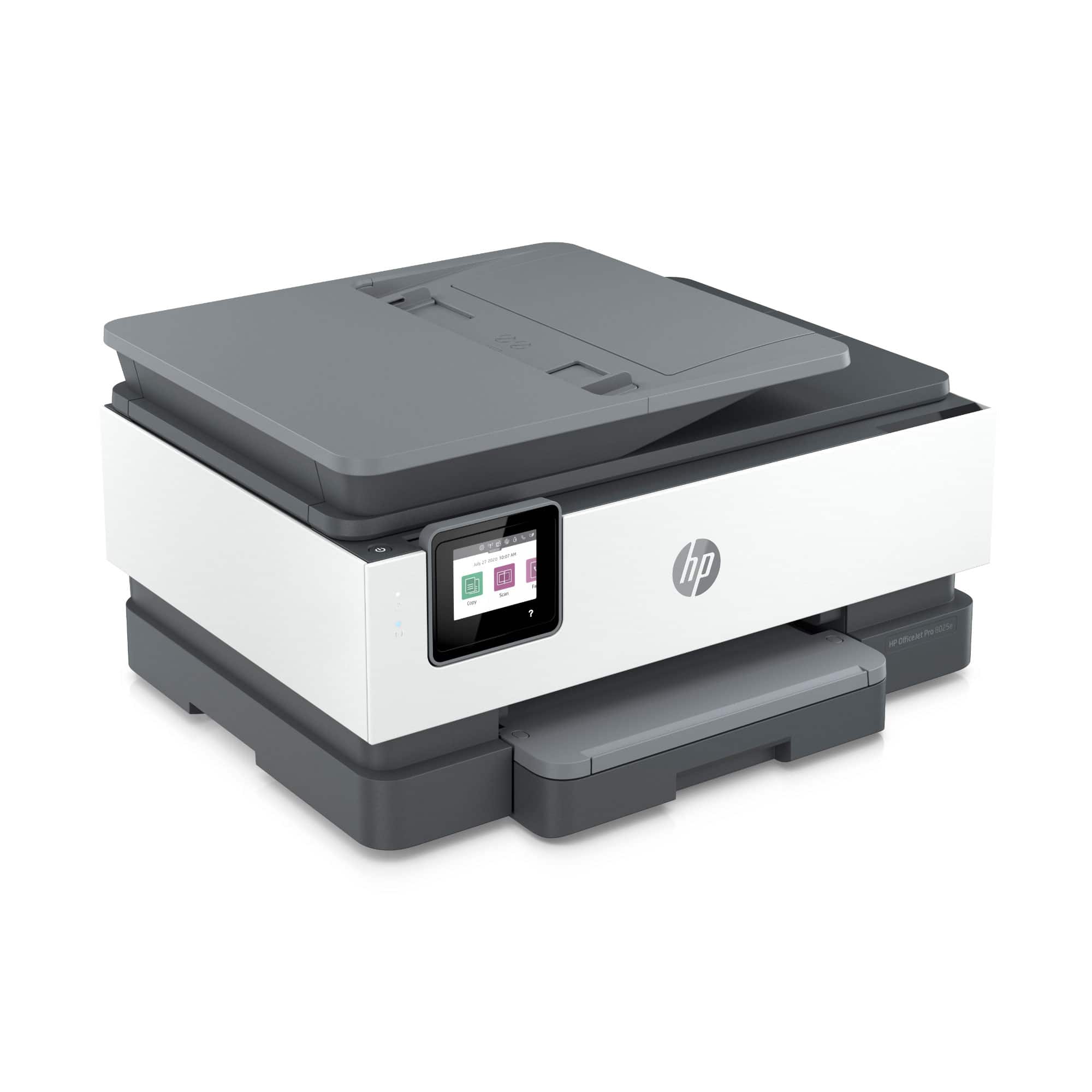
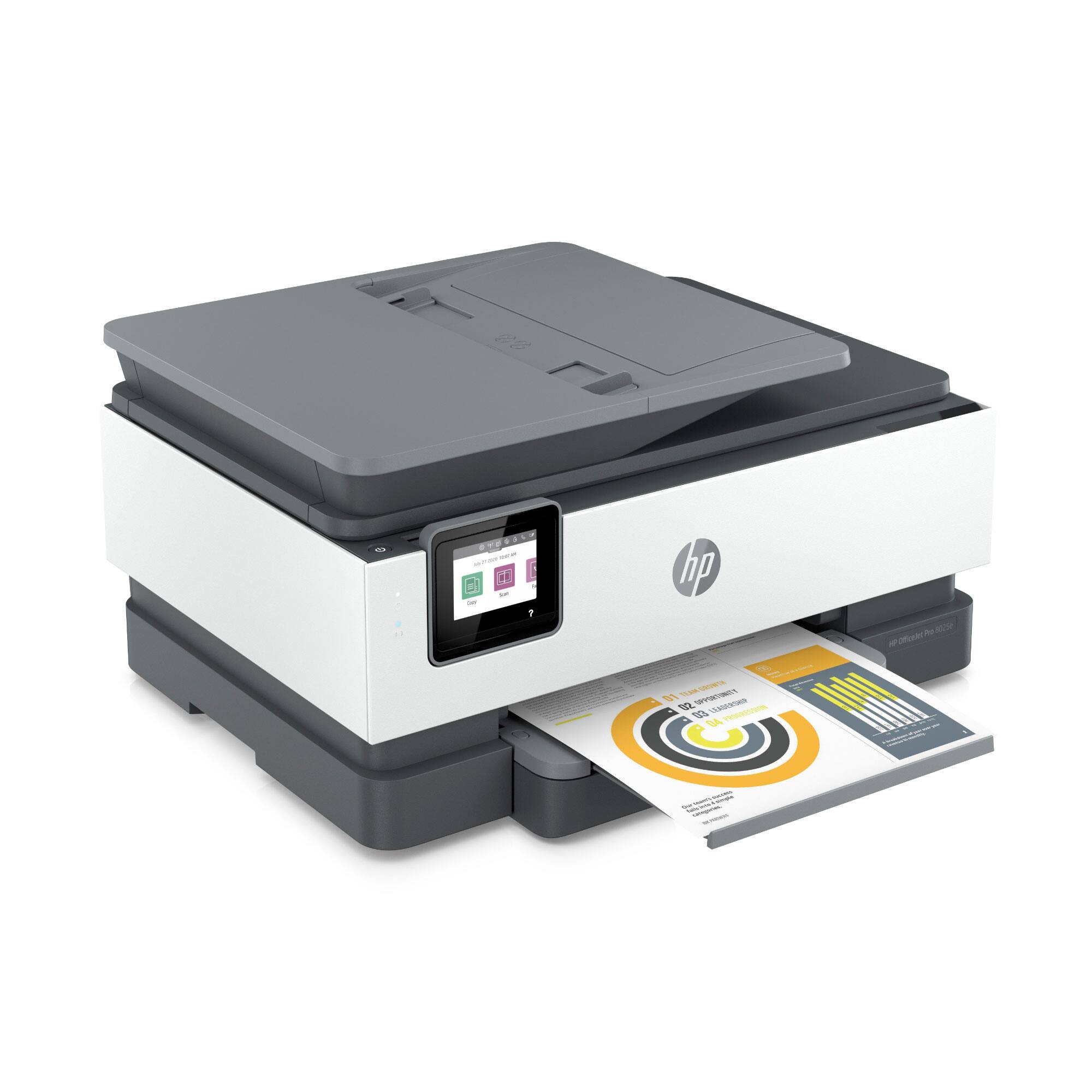
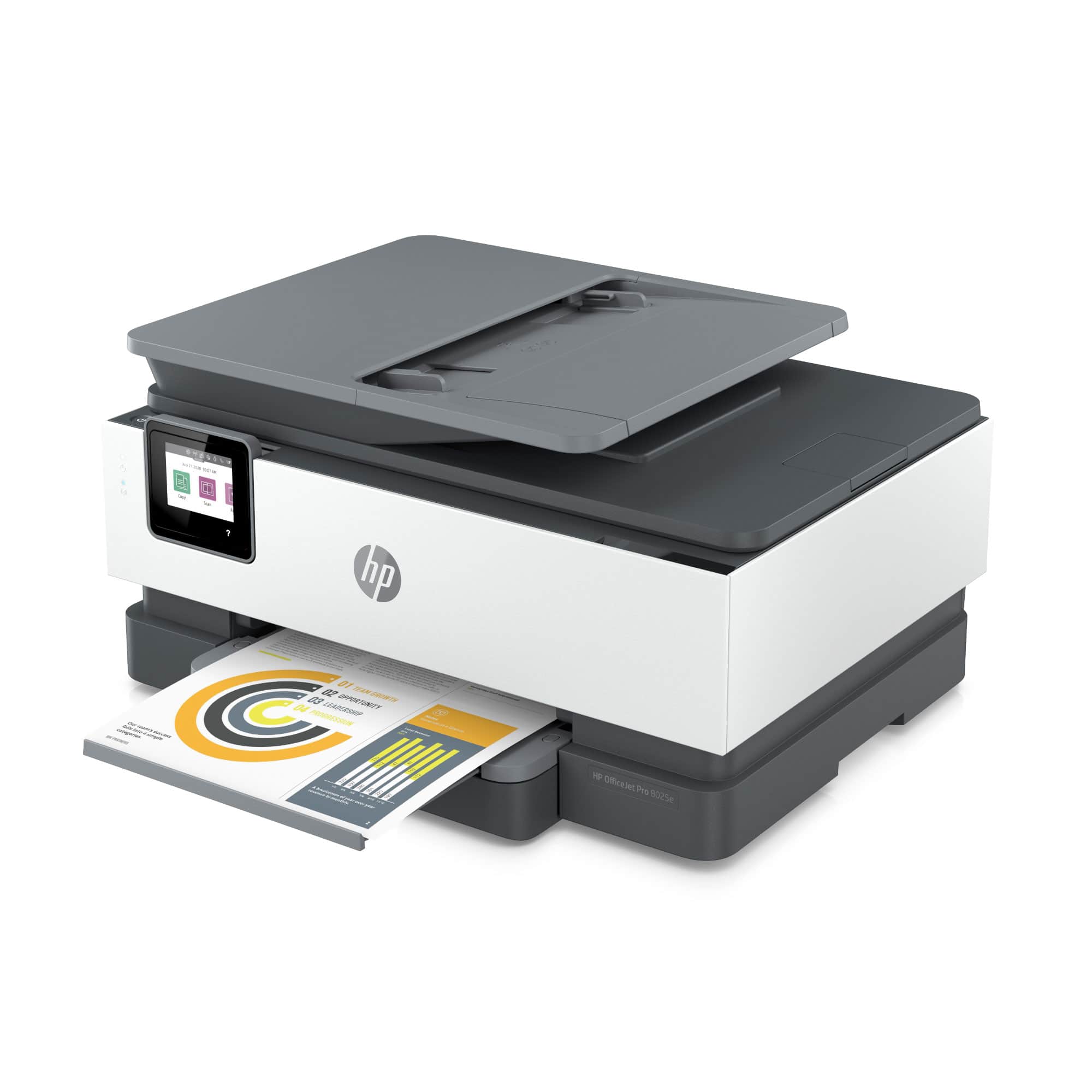
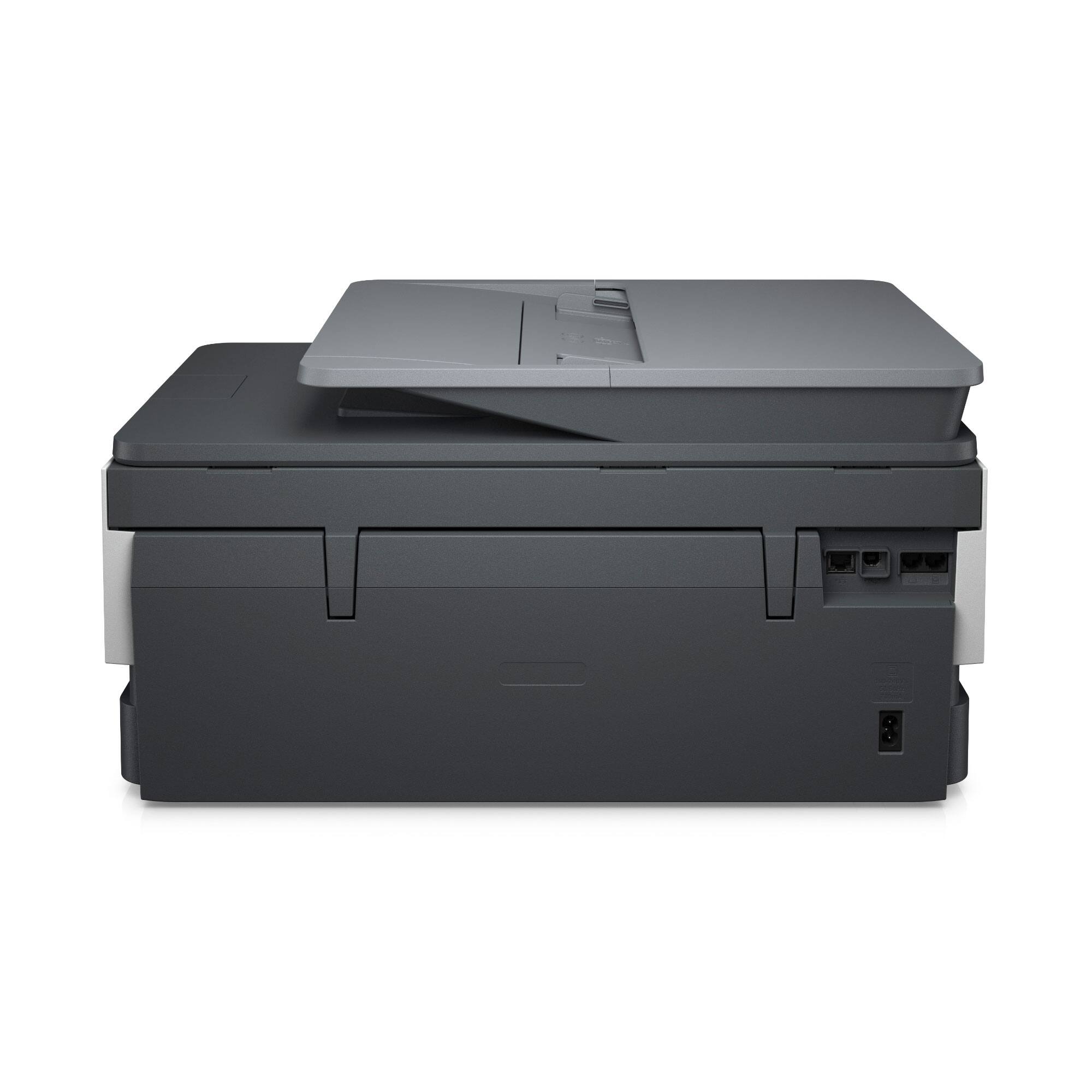
A:AnswerYes, but the printer itself doesn't support WPA3 (very few if any printers do). However, your WPA3 router is backward compatible with the WPA2 encryption supported by the printer.
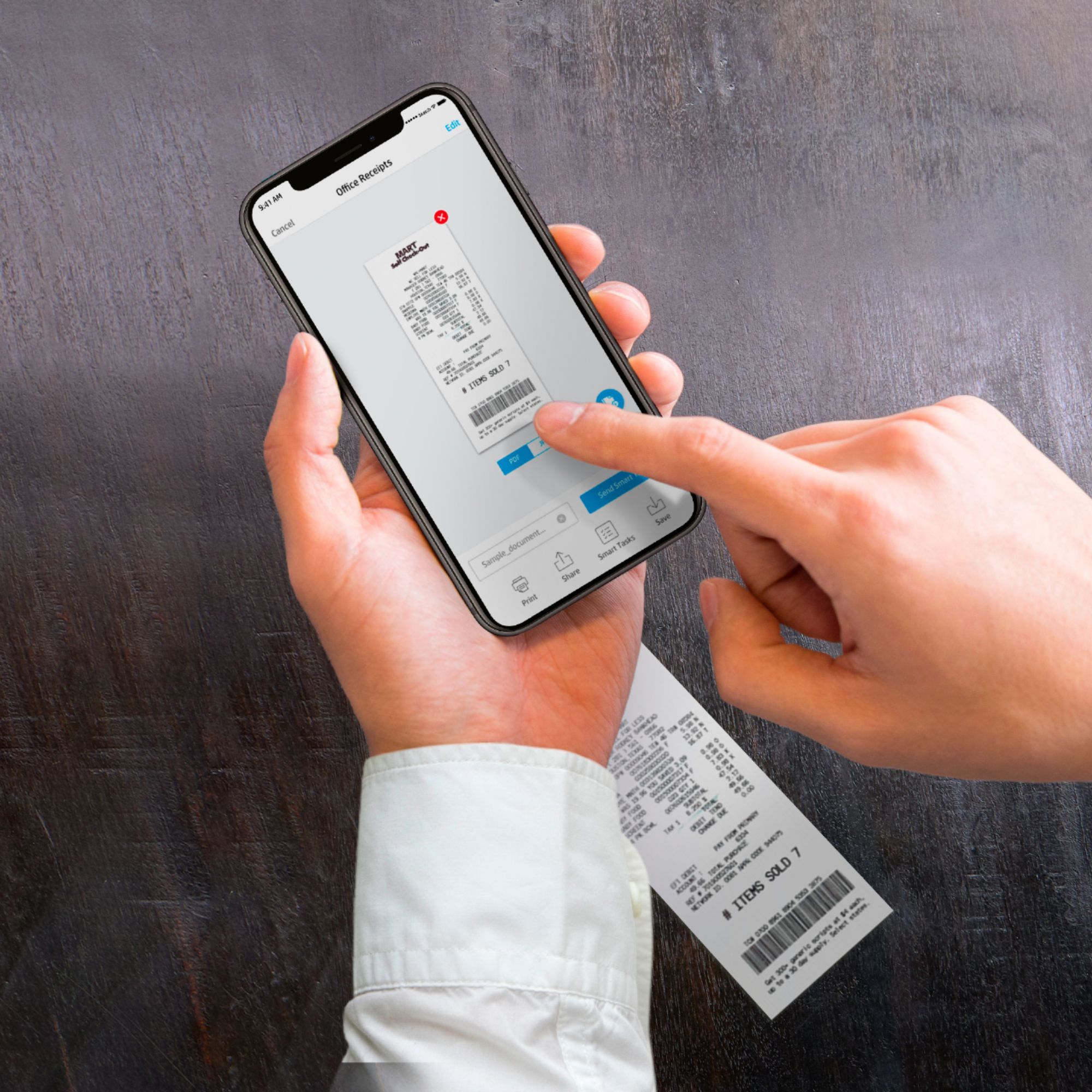
A:AnswerHello, this is not specifically a photo scanning device but you can put multiple photos on the scanning bed to scan to your computer. Thank you for being an HP customer!
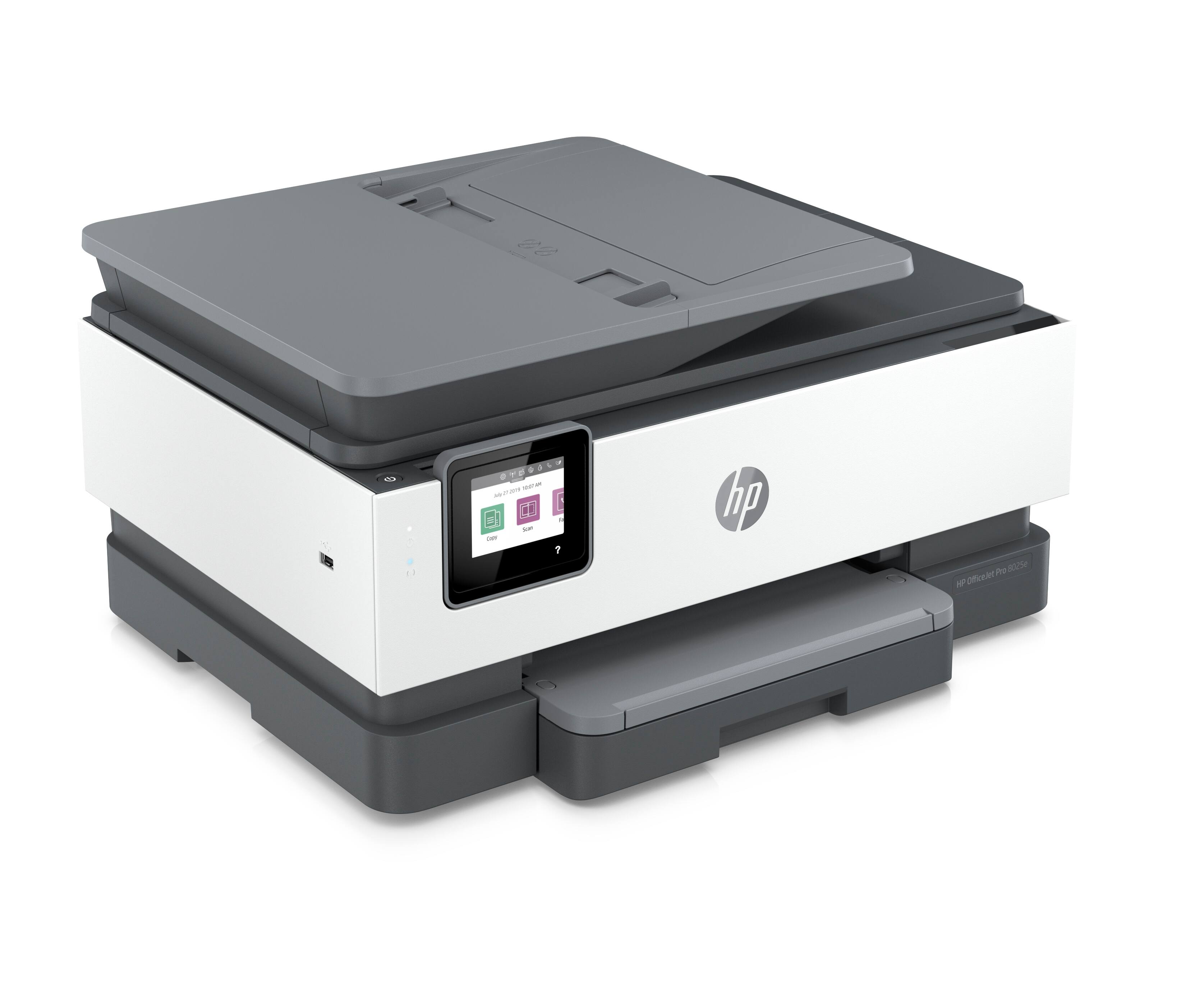
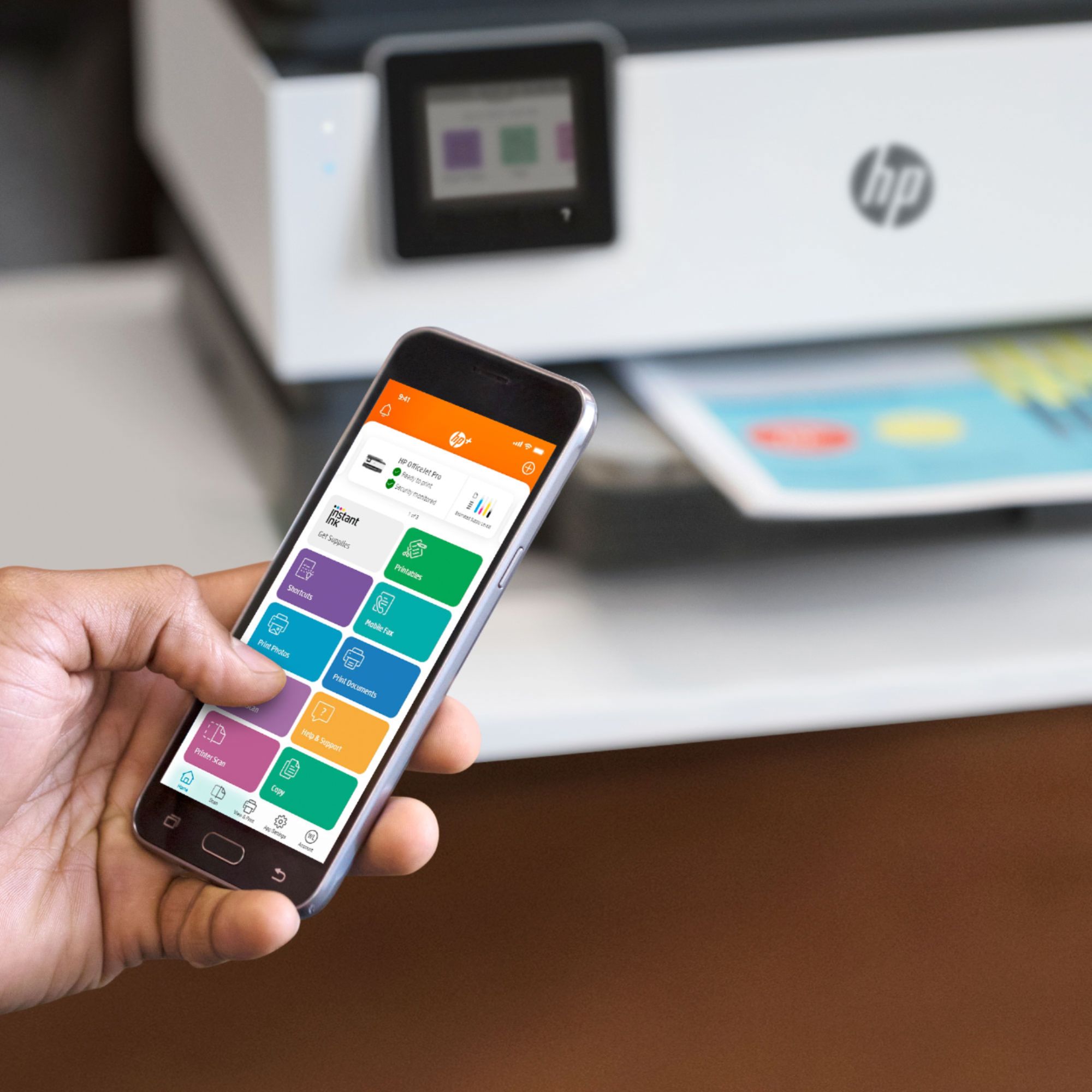
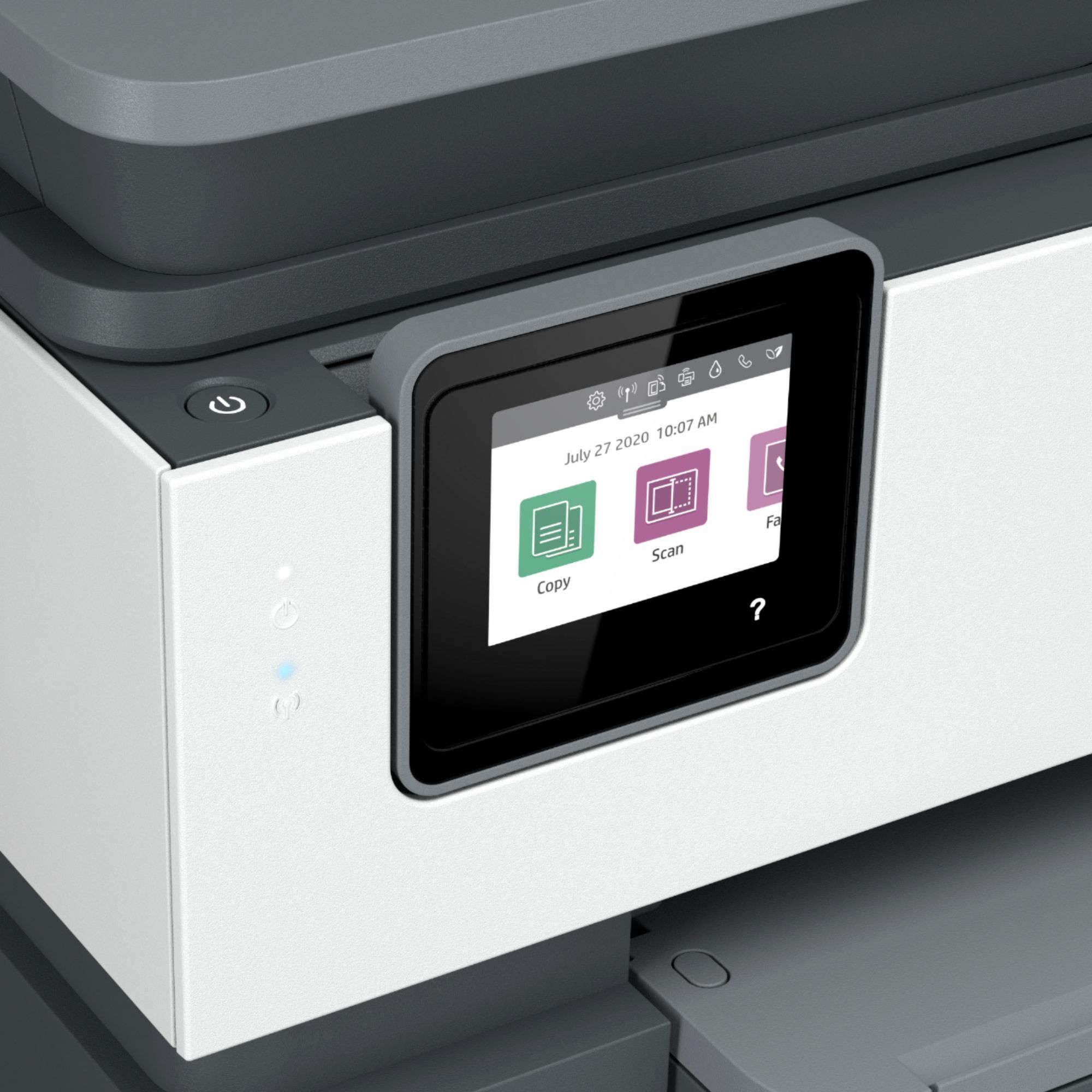
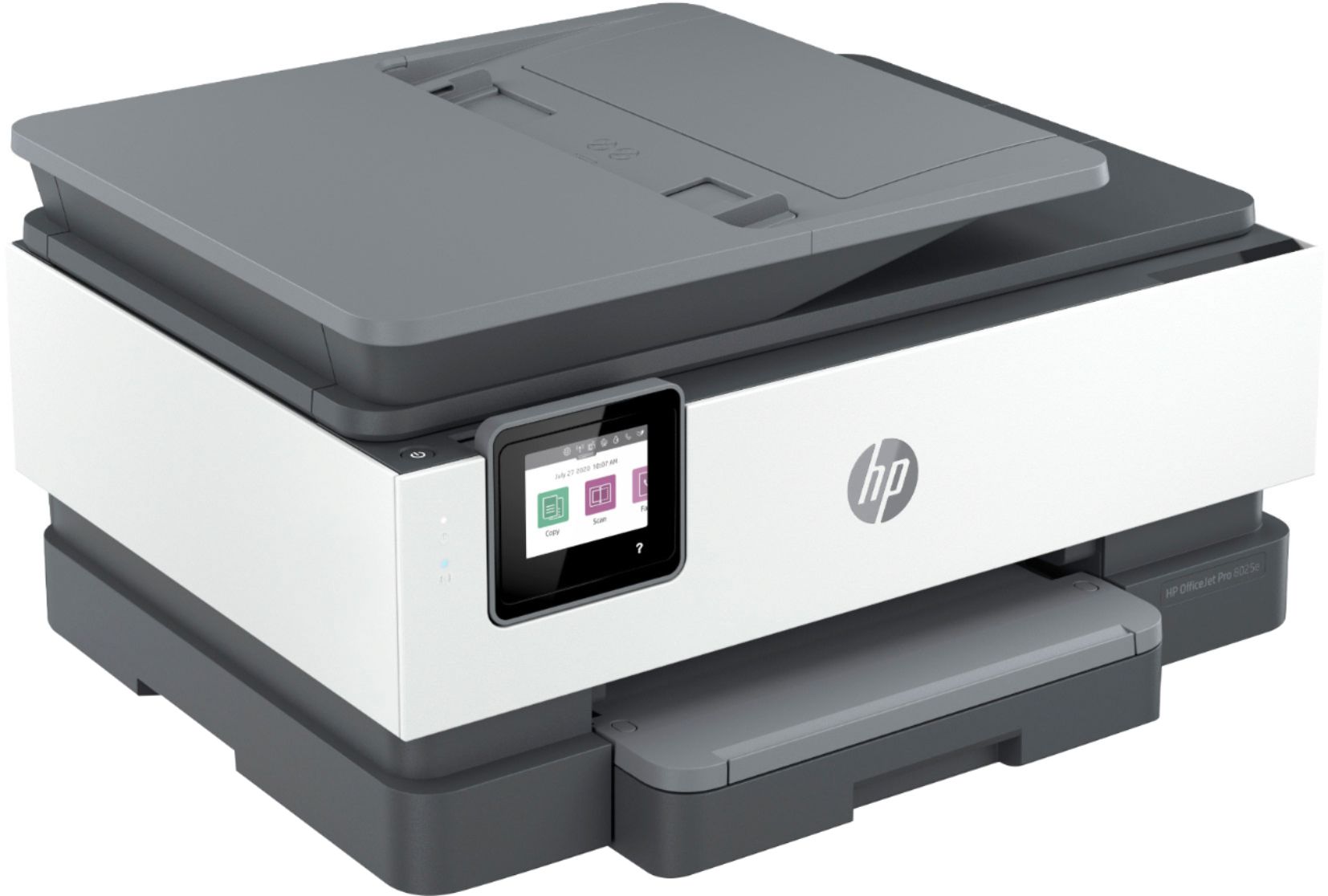
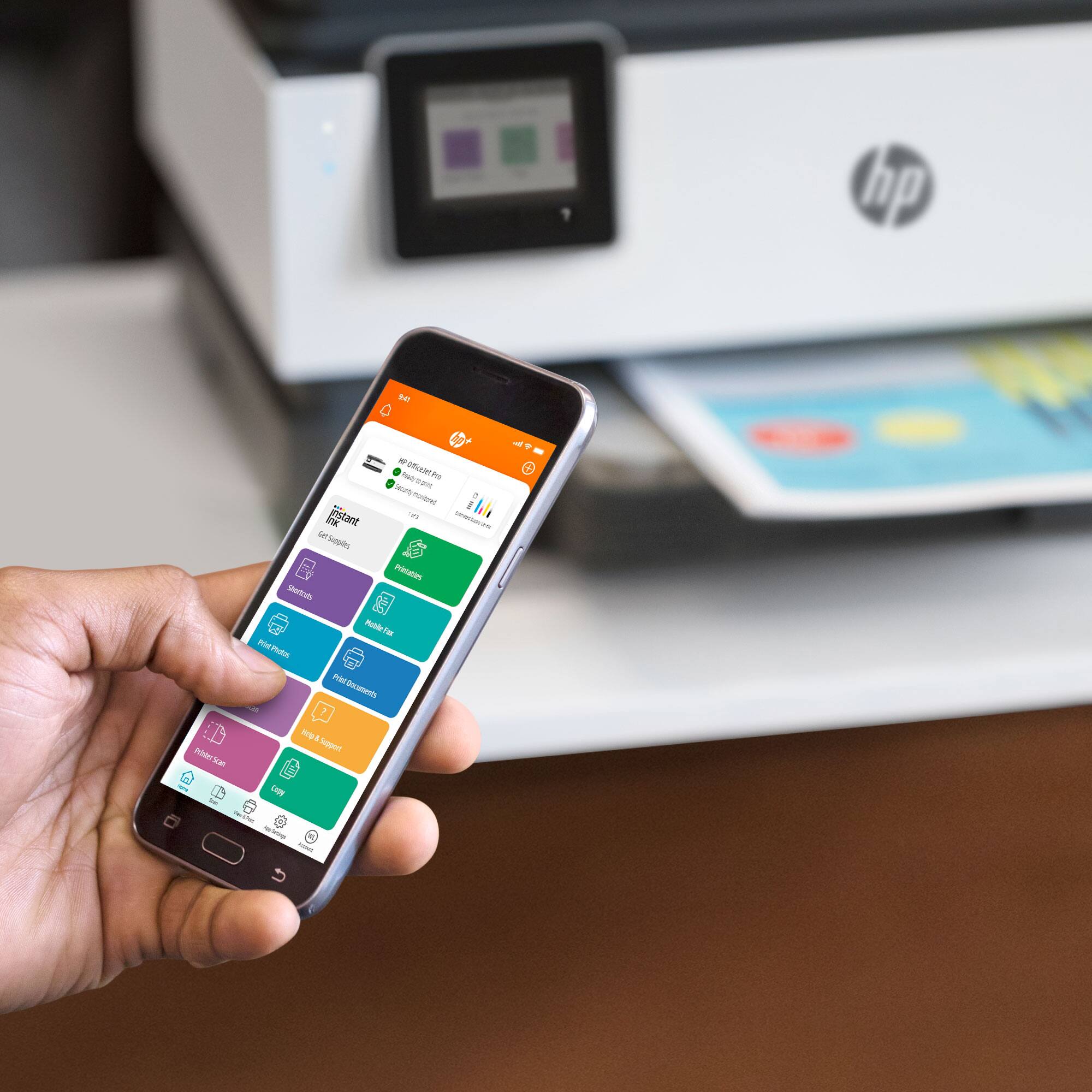
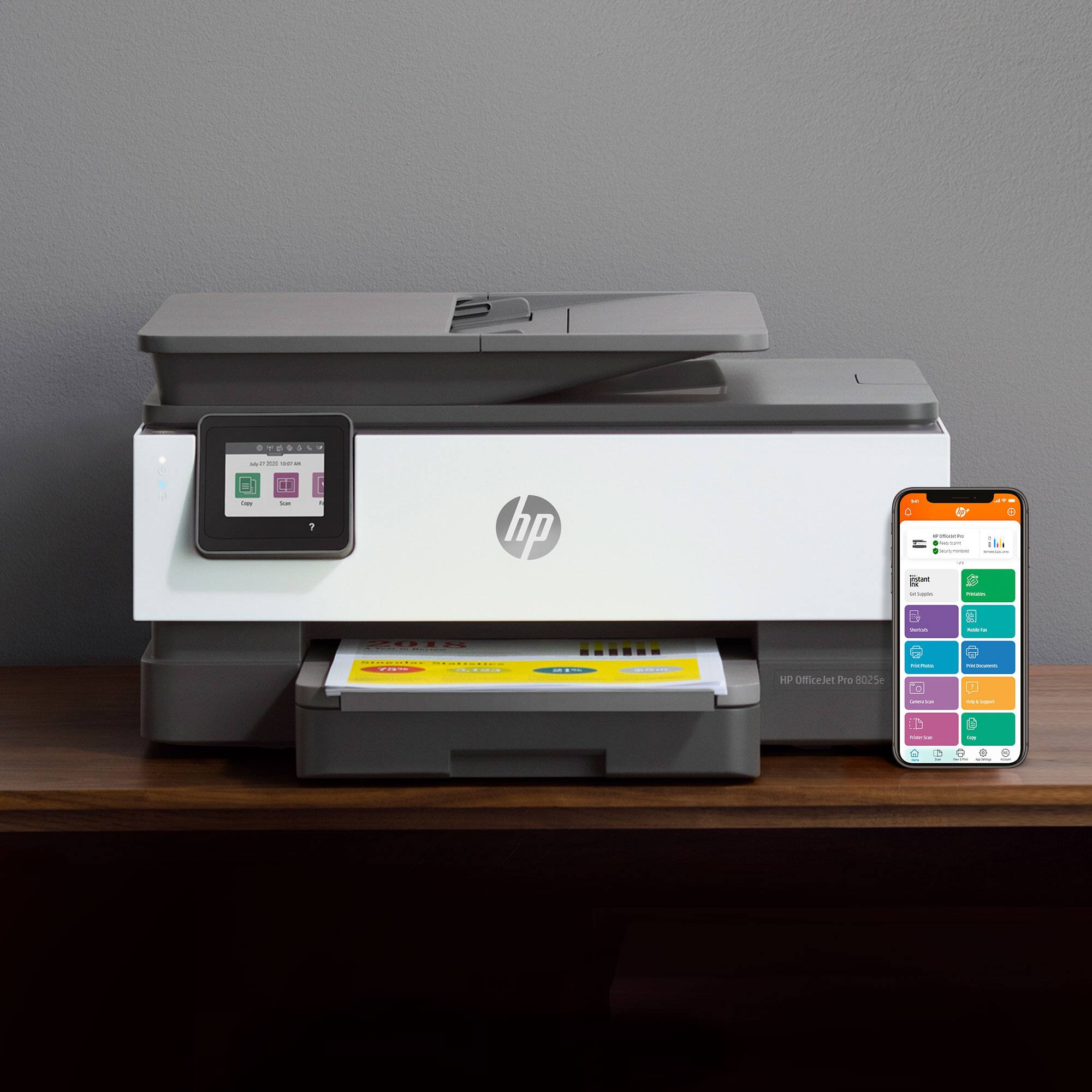
A:AnswerThank you for the question. No, this printer does not have an SD card reader. You'd need to insert the SD card into your PC's card reader (if applicable) to open documents to print. However, you can print documents directly from your smartphone using the HP Smart App.
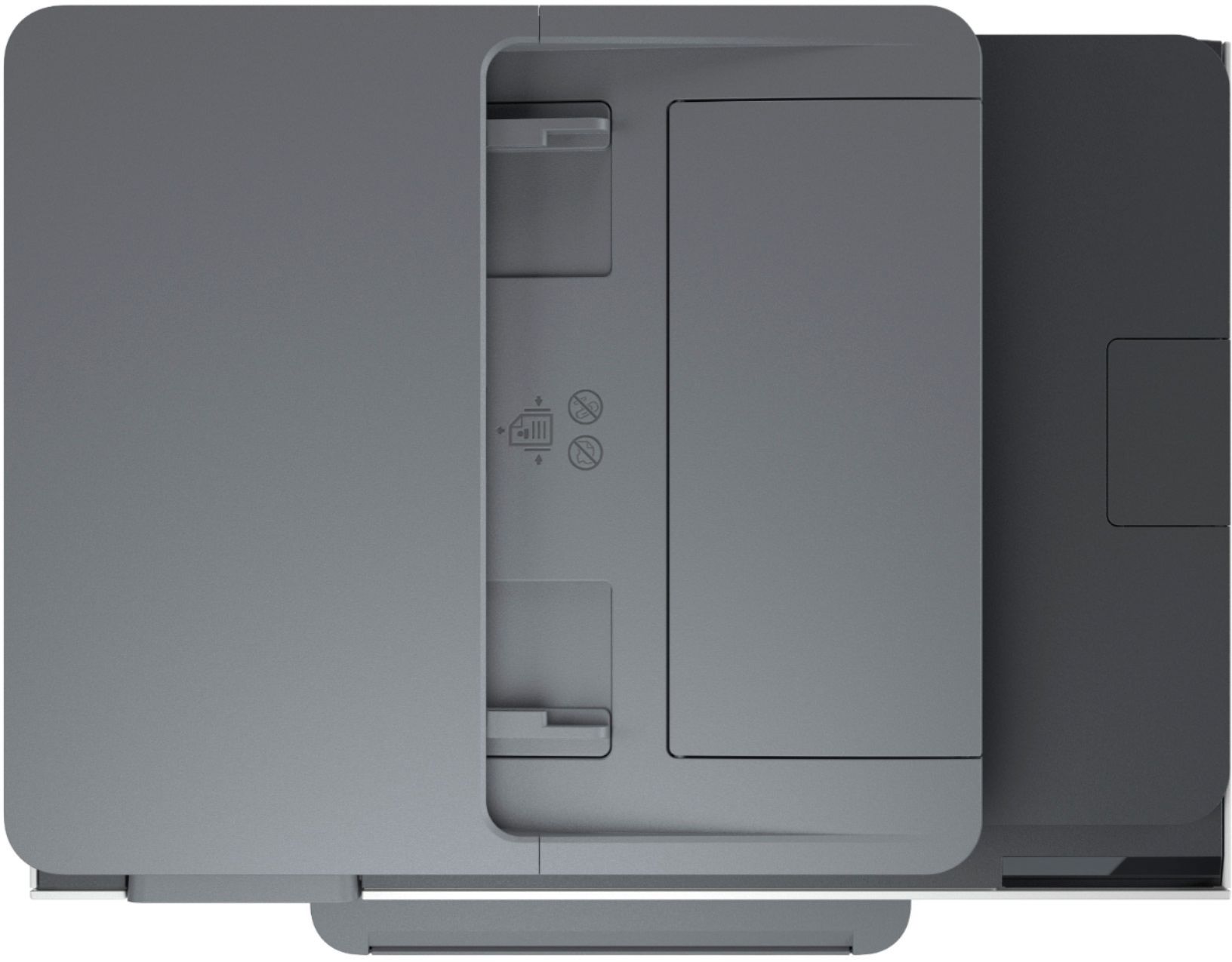
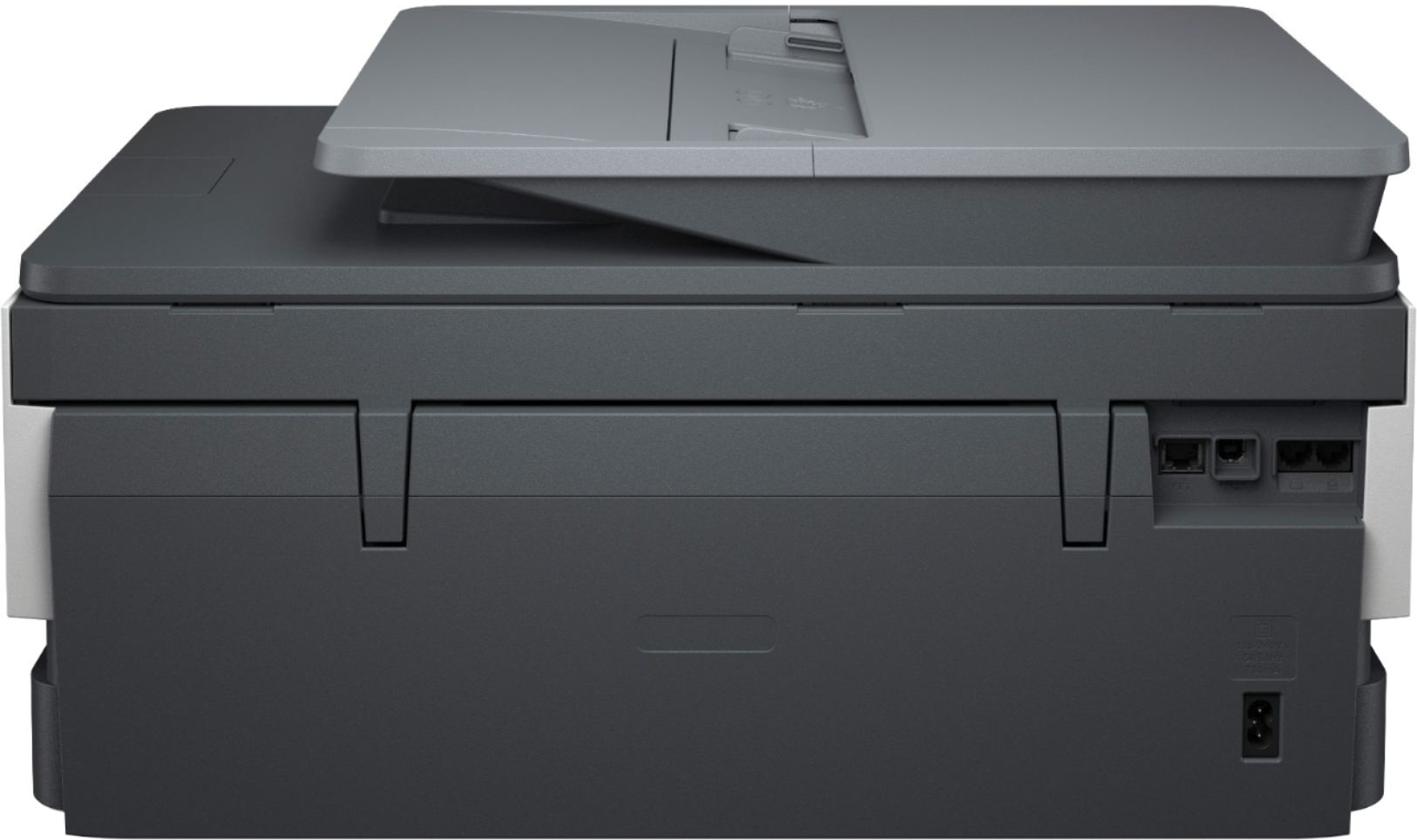
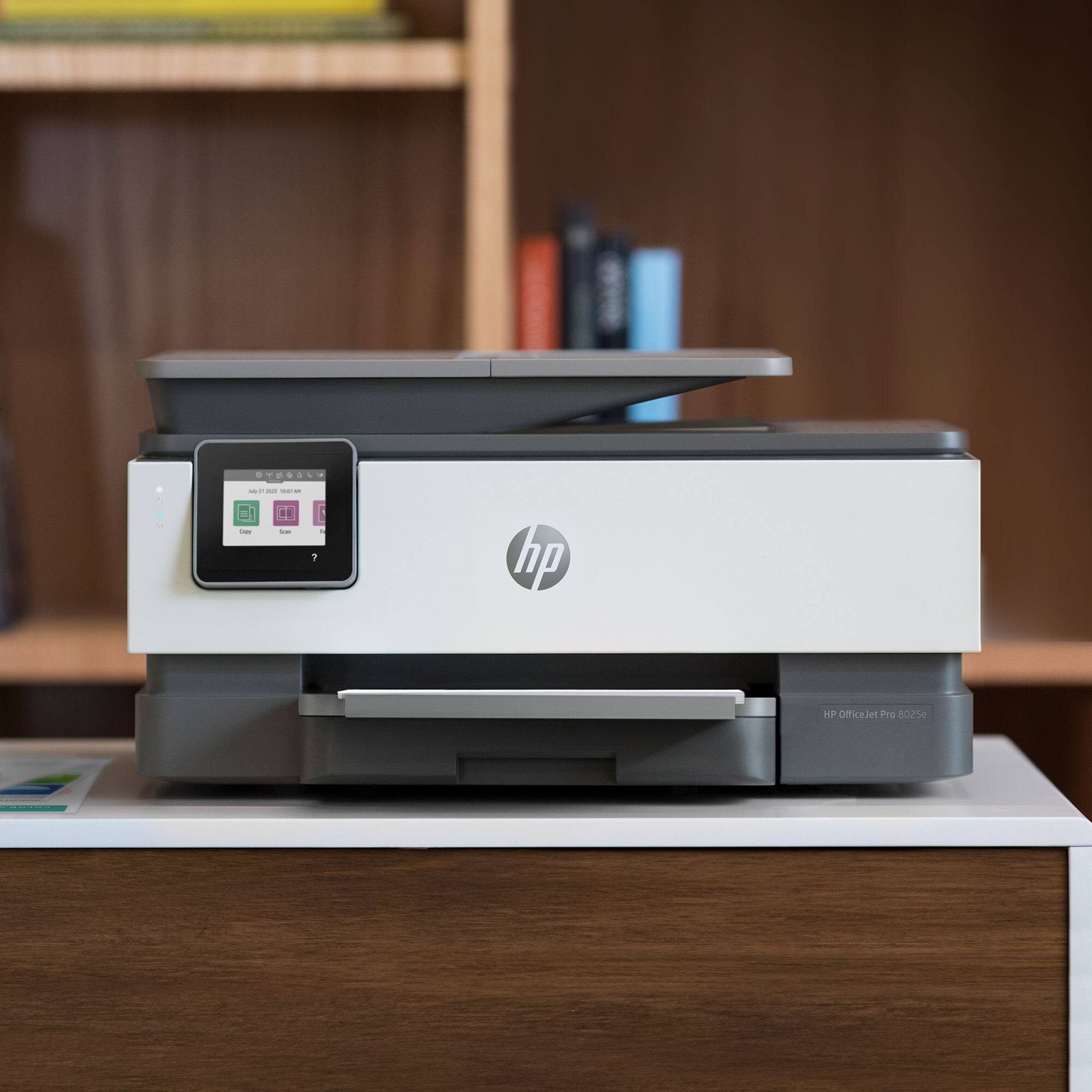
A:AnswerThank you for asking. The OfficeJet Pro 8025e does not have a host USB port for saving scans to a flash drive, or printing files from a flash drive. But you'll find that feature on OfficeJet 8034, 9015, and 9025 models.
A:AnswerHello, the printing photo resolution is 1200x1200 with black color and Resolution (color) Up to 4800 x 1200 optimized dpi on HP Advance Photo Paper 1200 x 1200 dpi input with the HP Officejet Pro 8025e. Thank you for being an HP customer!
A:AnswerThank you for the question. Yes, you probably need to set your margins using the printer dialog box. It could also be that you've got the document enlarged or scaled at more than 100%..See page 53 of the User Guide here: http://h10032.www1.hp.com/ctg/Manual/c06940368.pdf