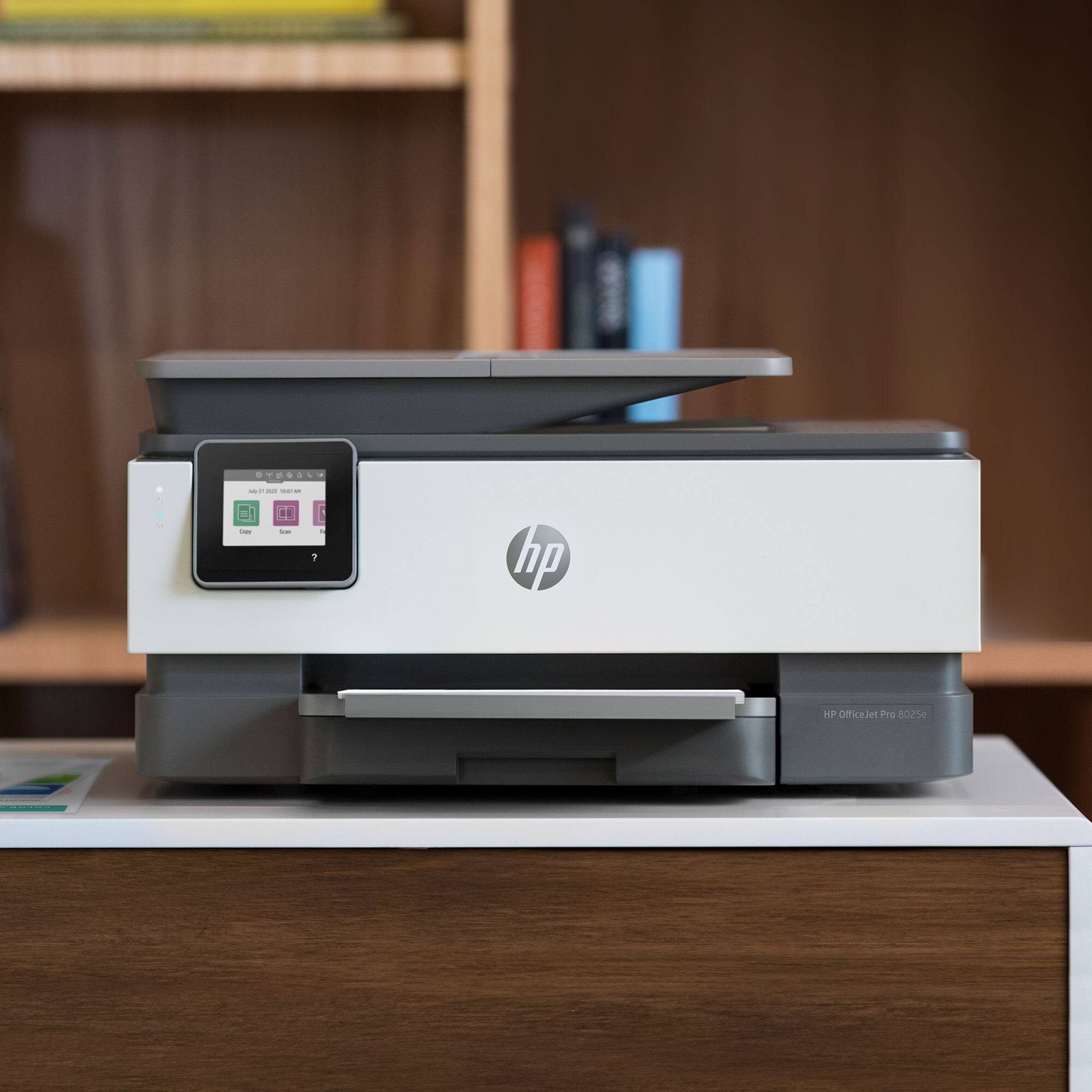
A:AnswerYou can use this printer with Linux. You will need to download additional drivers. This link has more info. https://developers.hp.com/hp-linux-imaging-and-printing/
A:AnswerHello. Thanks for your question. Yes, you can use this printer with a Chromebook. Here are some instructions on how to set up the printer on the Chromebook: https://support.hp.com/us-en/document/c04122530 and a YouTube video: https://youtu.be/Mf6LUKTMw9c
A:AnswerYou can chose to print in color or black and white, but all cartridges need to be installed. The printer comes with the first full set of cartridges.
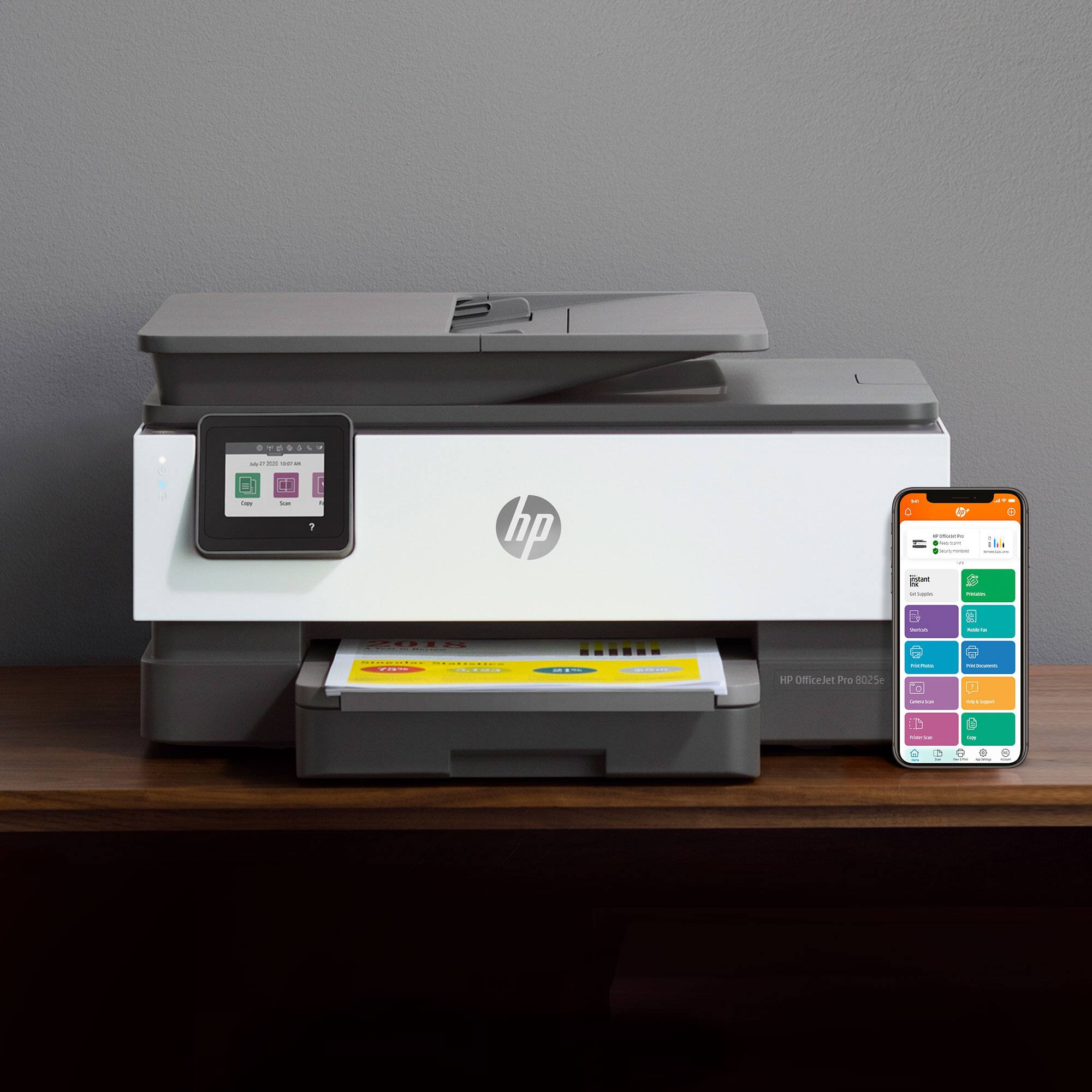
A:AnswerHi TOMQ. Almost all printers will accept 8.5" x 11" (letter size), and 8.5" x 14" (legal size) media, in addtion to smaller photo papers, brochures, post cards, etc. This includes the OfficeJet Pro 8025, on which you clicked to ask your question.
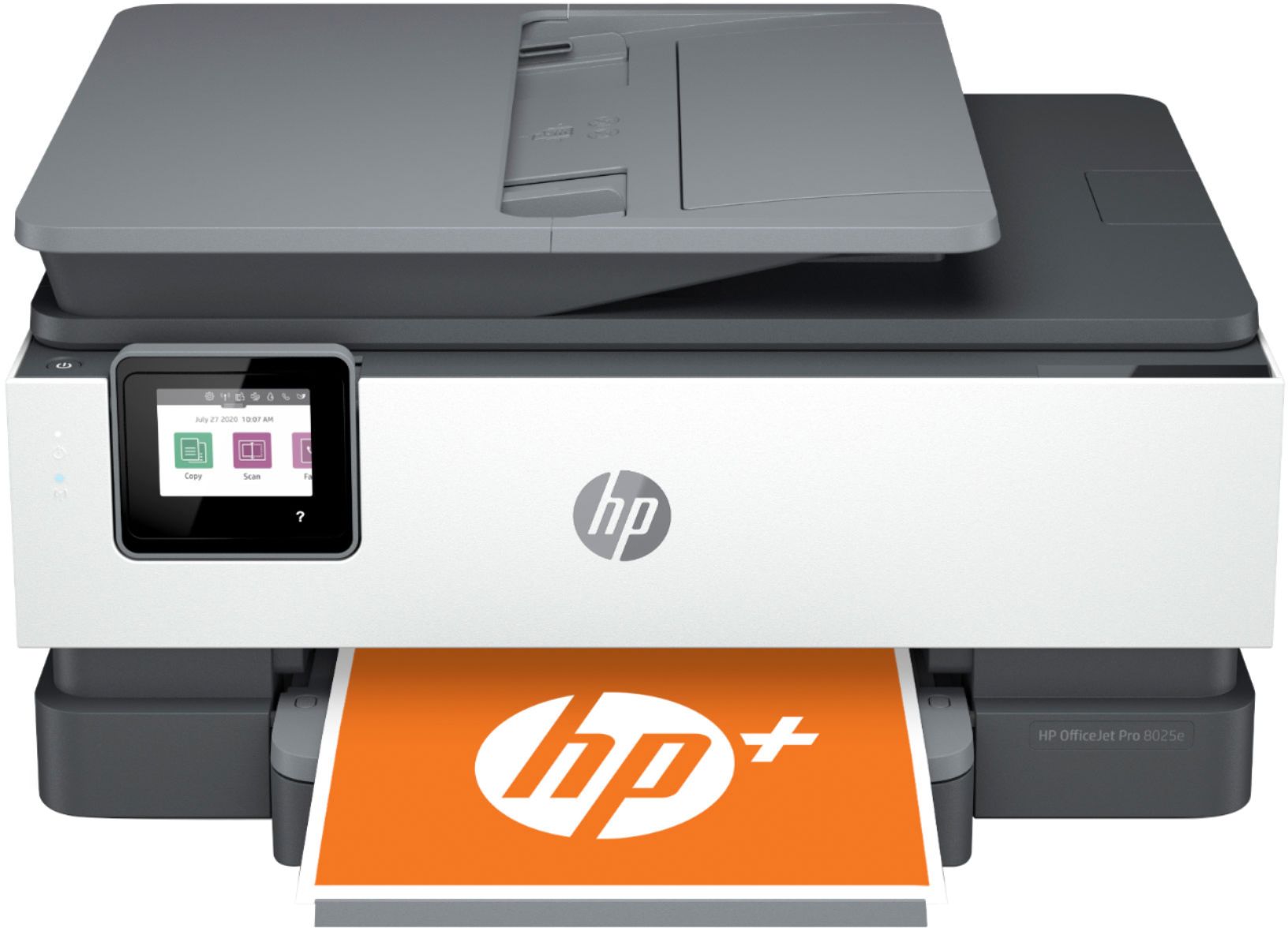
A:AnswerNo, the OfficeJet Pro 8025 can only print up to 8.5x14". You will need to move up to the OfficeJet Pro 7740 printer to get that feature. This link will take you to it. https://www.bestbuy.com/site/hp-officejet-pro-7740-wireless-all-in-one-inkjet-printer-white/5536900.p?skuId=5536900
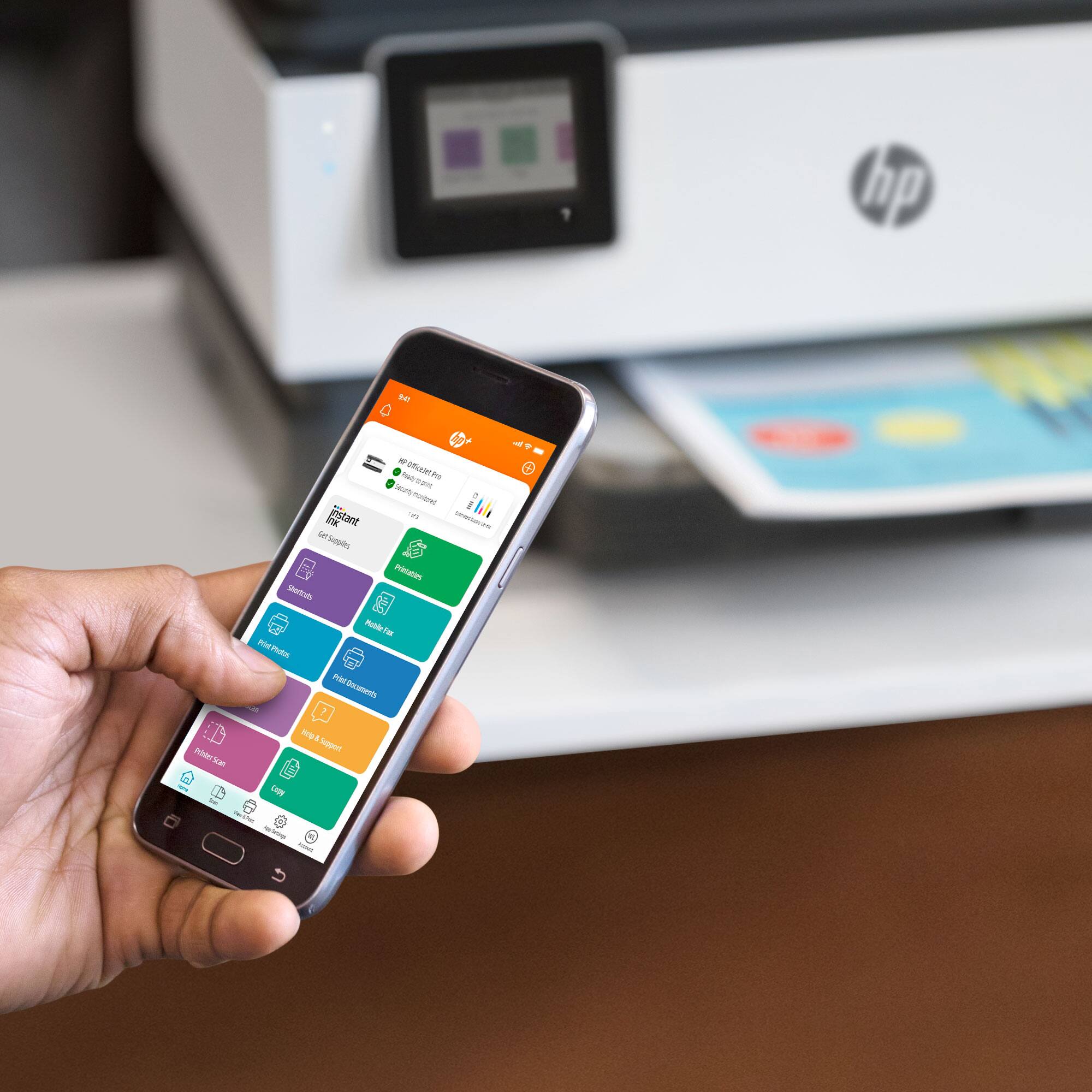
A:AnswerYou can setup your printer on the MacBook Air by visiting https://123.hp.com/setup We do recommend using the HP Smart app with either your MacBook Air or the iPhone 12: https://bit.ly/3cEujqO
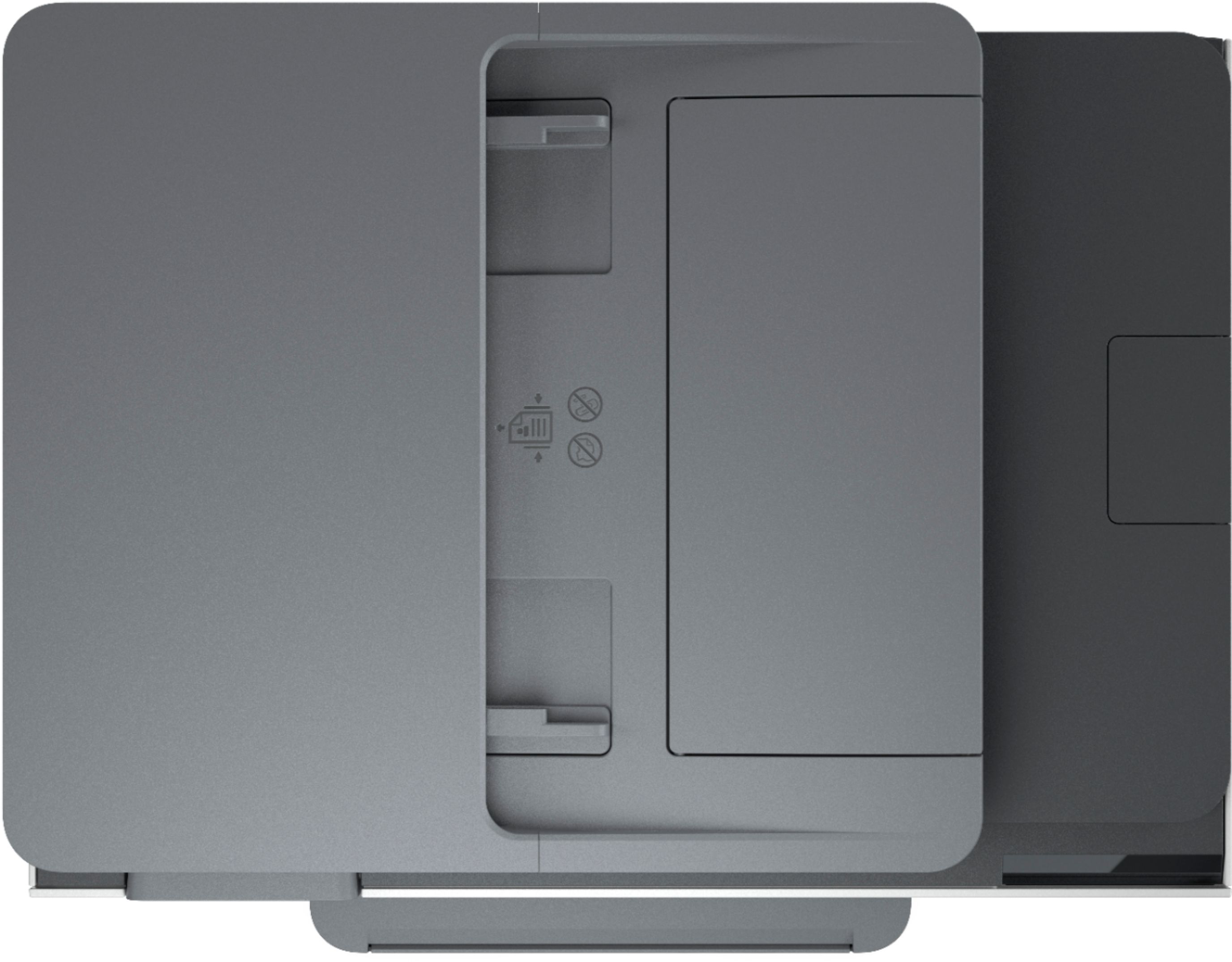
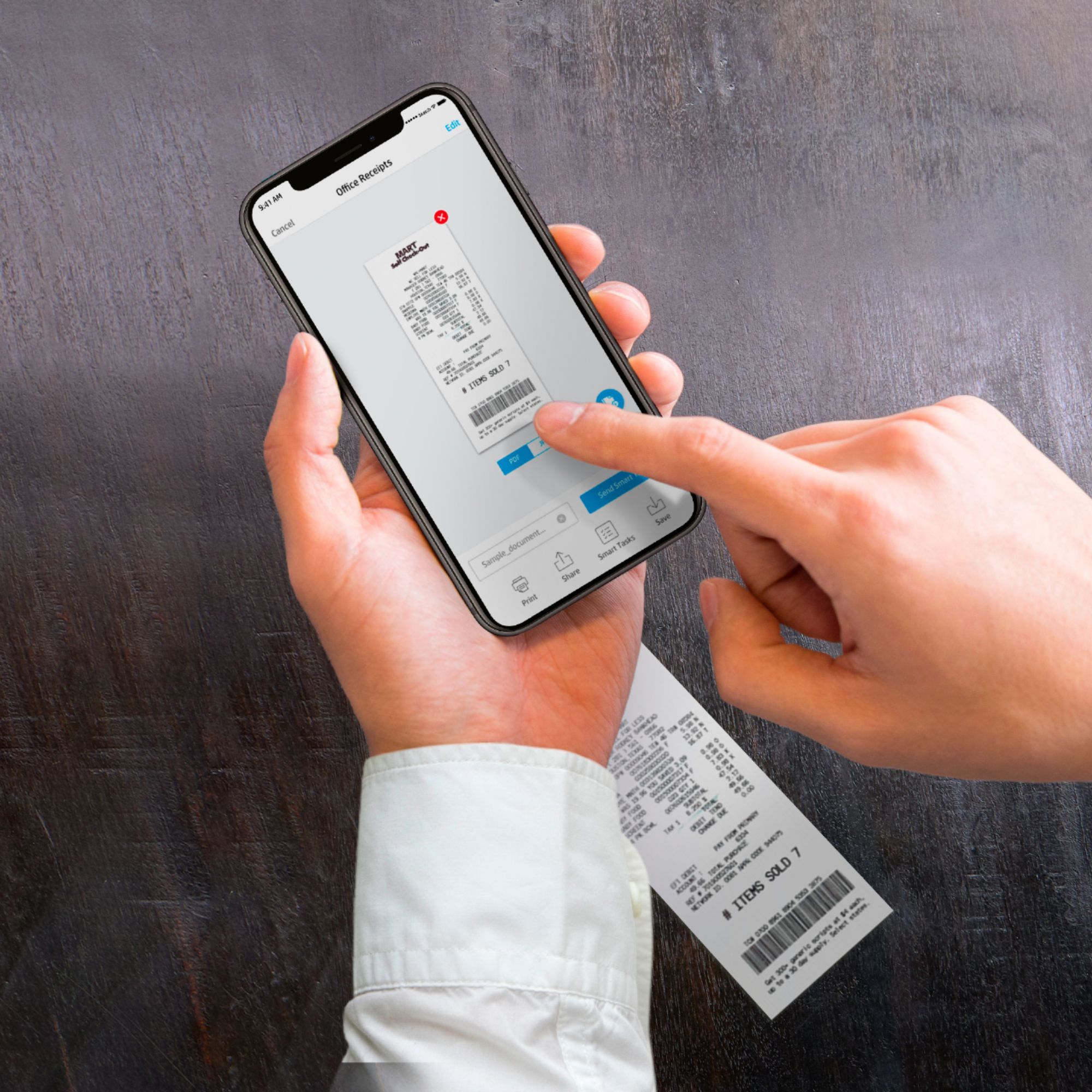
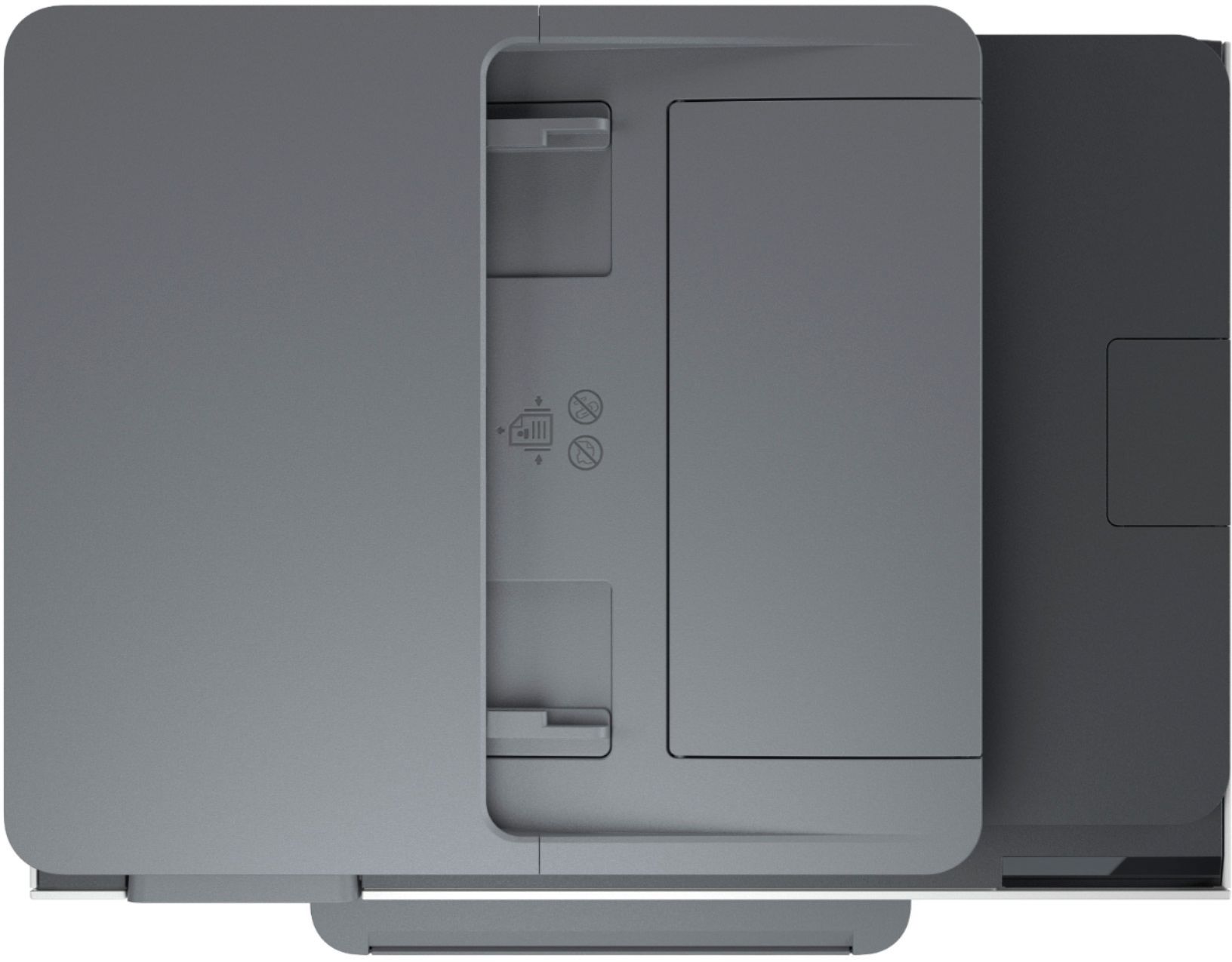
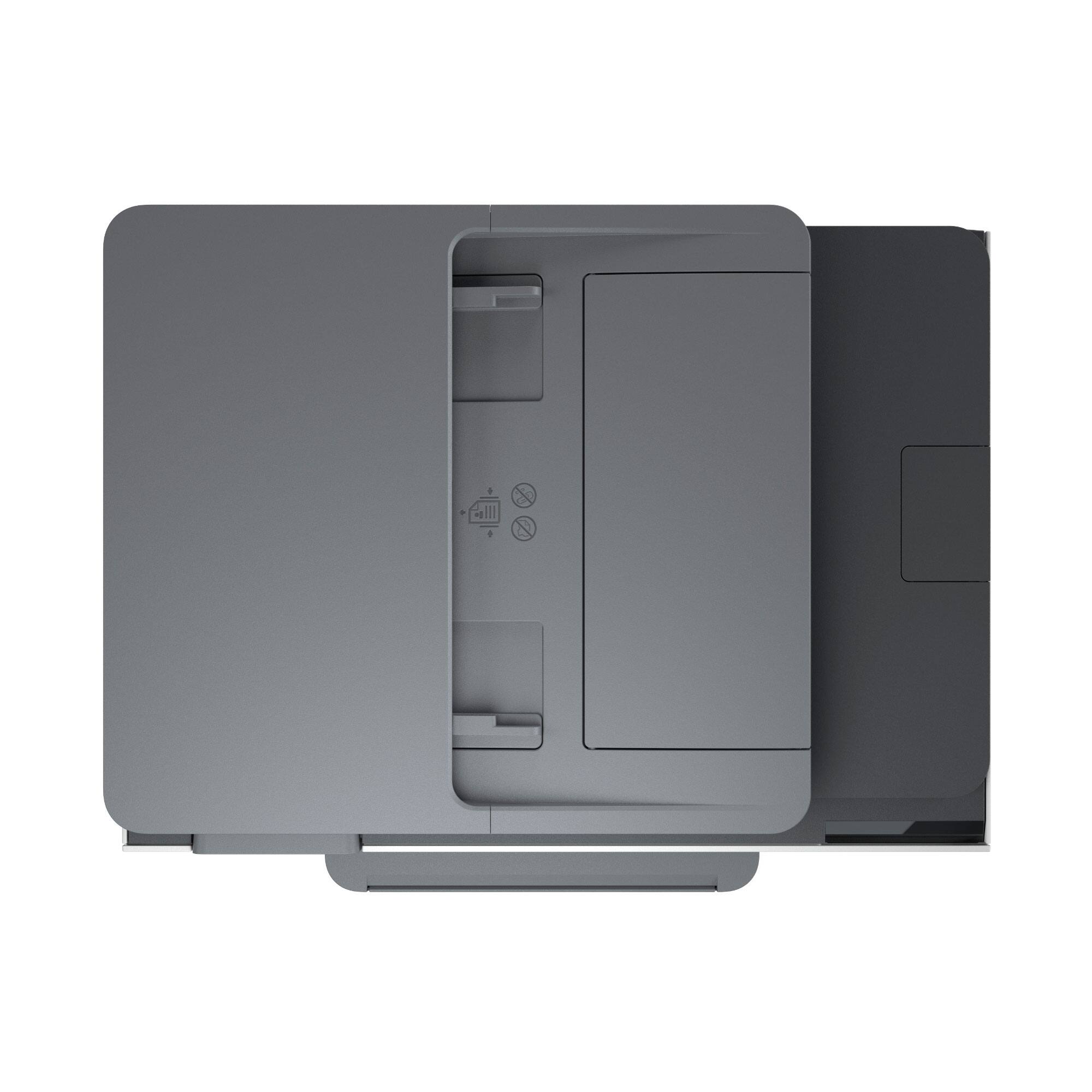
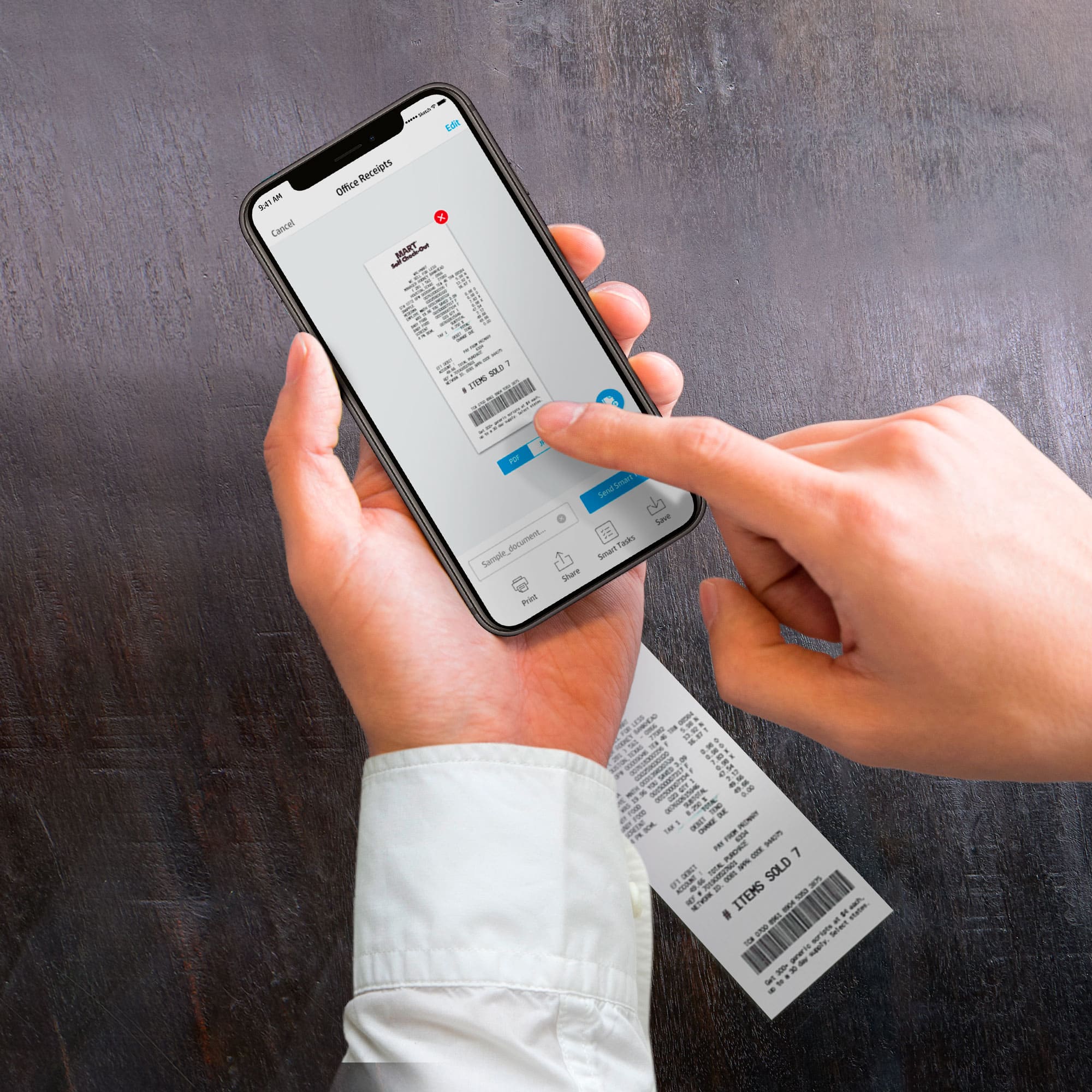
A:AnswerIf you want to automatically scan several pages, I would recommend using the auto document feeder that is on top. It can hold up to 35 pages pages for scanning or copying. Then, you will be able to save that scanned document as a PDF. If you are trying to scan more than one page on flatbed scanner of this HP Officejet Pro 8025 printer, you can would scan the first page. Then, add a page to scan the next page. You would continue until all of the pages are scanned. Then, you can save the document as a PDF. We recommend using the HP Smart app. Here is more information on the HP Smart app: https://support.hp.com/us-en/product/hp-deskjet-2600-all-in-one-printer-series/12319824/model/21481524/document/c04675142
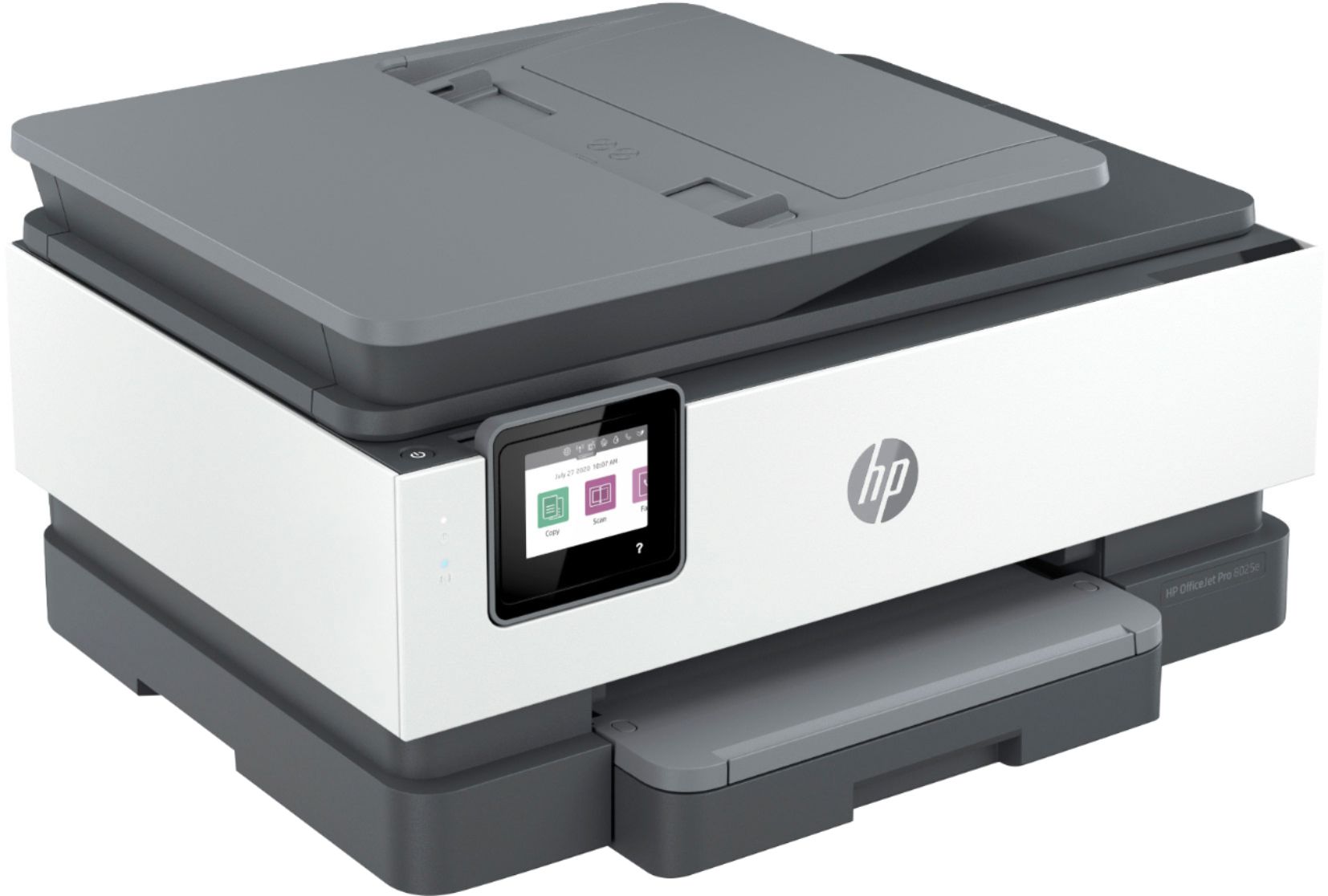
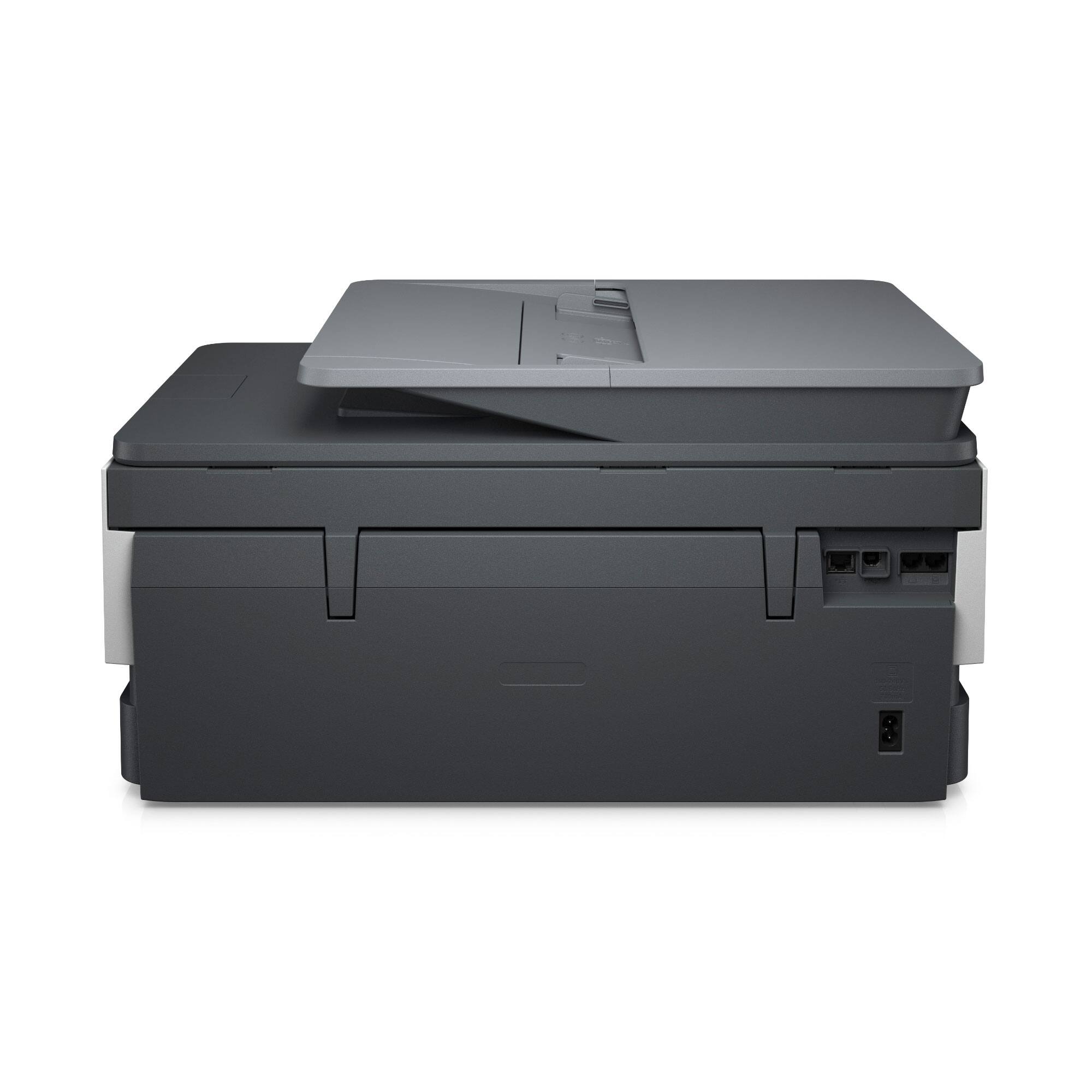
A:AnswerThe HP OfficeJet Pro 8025 does not have an SD card reader for printing photos directly from a digital camera. You would need to load the photos onto a smartphone, tablet, or computer and then send the print job from the device the photos have been transferred to.