Outlet EventEnds Jan. 19. Limited quantities. No rainchecks.Shop now

Main Content

Questions & Answers

Your price for this item is $648.00
The comparable value price is $849.99
Page Showing 81-100 of 129 questions
  • QuestionIs this laptop have fingereader?

    Asked by Eddy.

    • Answer It does not have a fingerprint reader, although you could add an external one that is USB compatible.

      Answered by Jeff

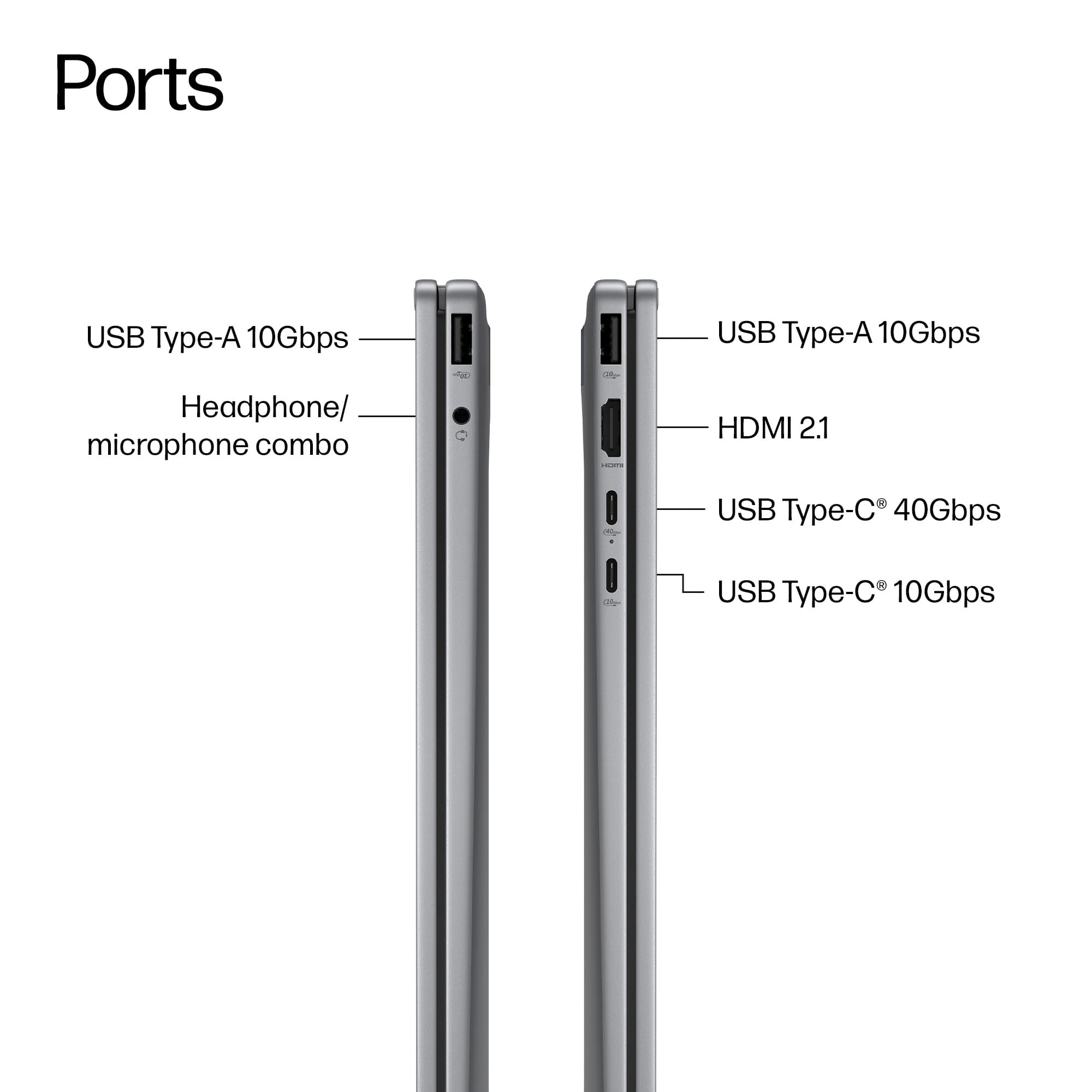
  • QuestionCan the USB-C port be used to display when connected to a docking station?

    Asked by chuckerp.

    • Answer Yes, i have a hdmi and usb docking station and have had the laptop hooked up to 2 different monitors.

      Answered by Alex

  • QuestionWhich docking station is compatible with this laptop to connect two monitors to it?

    Asked by Anonymous.

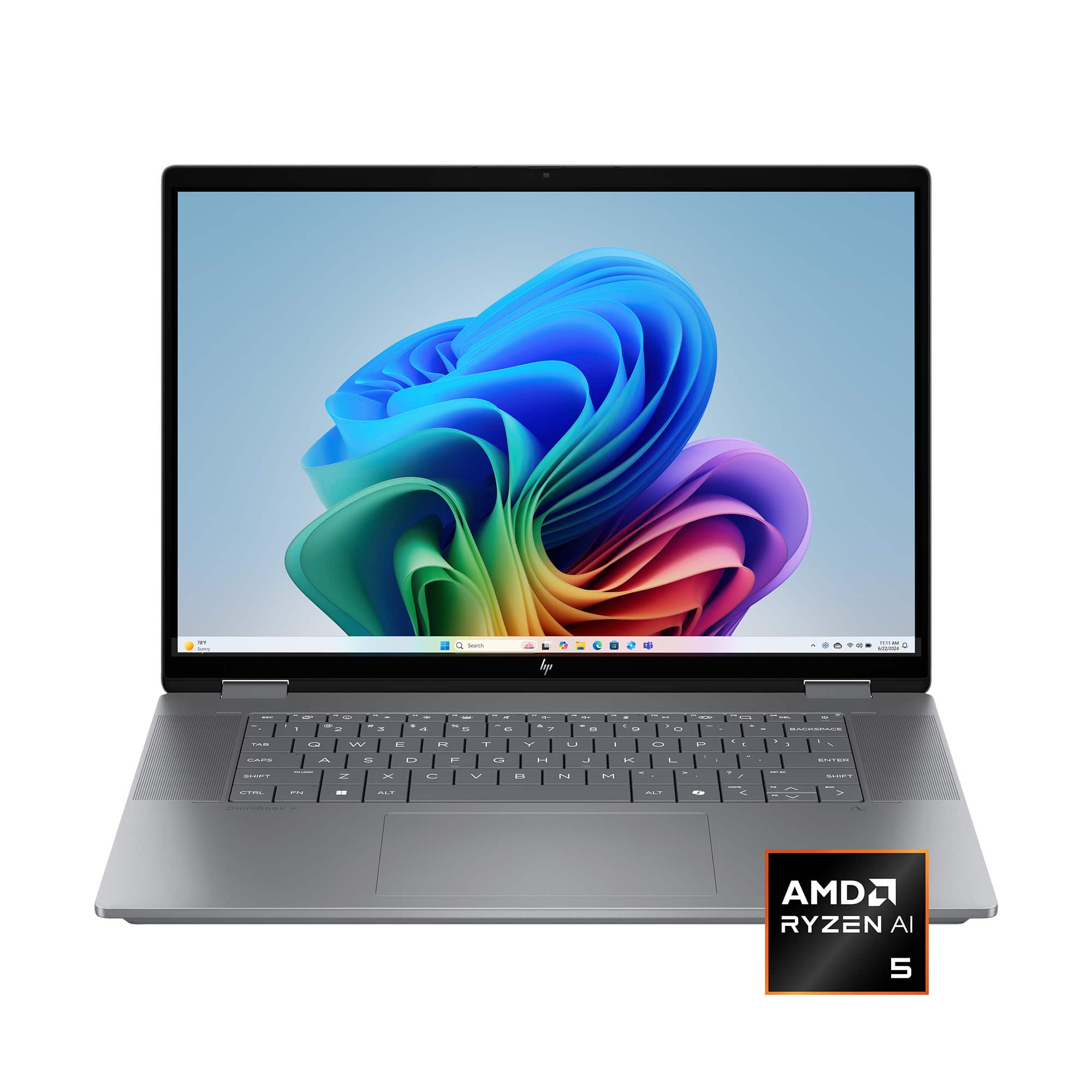
    • Answer You can buy docking stations compatible with your HP Ominbook X Flip from major retailers like HP's official store, Amazon, Best Buy, Target, Newegg, Office Depot, Staples, and Micro Center. HP USB-C/A Universal Dock G2 Top HP-Compatible Docks HP Thunderbolt 4 Ultra 280W G6 Dock Target + others Supports multiple displays and high power delivery for HP laptops via Thunderbolt/USB-C. HP G5 USB-C Dock microcenter.com favicon Micro Center + others Universal USB-C dock compatible with HP and other brands, connects via single cable. HP Thunderbolt Dock 120W G4 Macy's + others Thunderbolt 4 dock with multi-display support and security features for HP notebooks. Plugable USB 3.0 Universal Docking Station officedepot.com favicon Office Depot + others Universal USB dock for Windows laptops including HP, with HDMI, Ethernet, and multiple USB ports. Hope this helps! Merry Christmas! John A.
      Answered by jwakers23

  • QuestionDoes it explode out of the box??

    Asked by Nancie.

    • Answer didnt happen to me bh

      Answered by collegeman

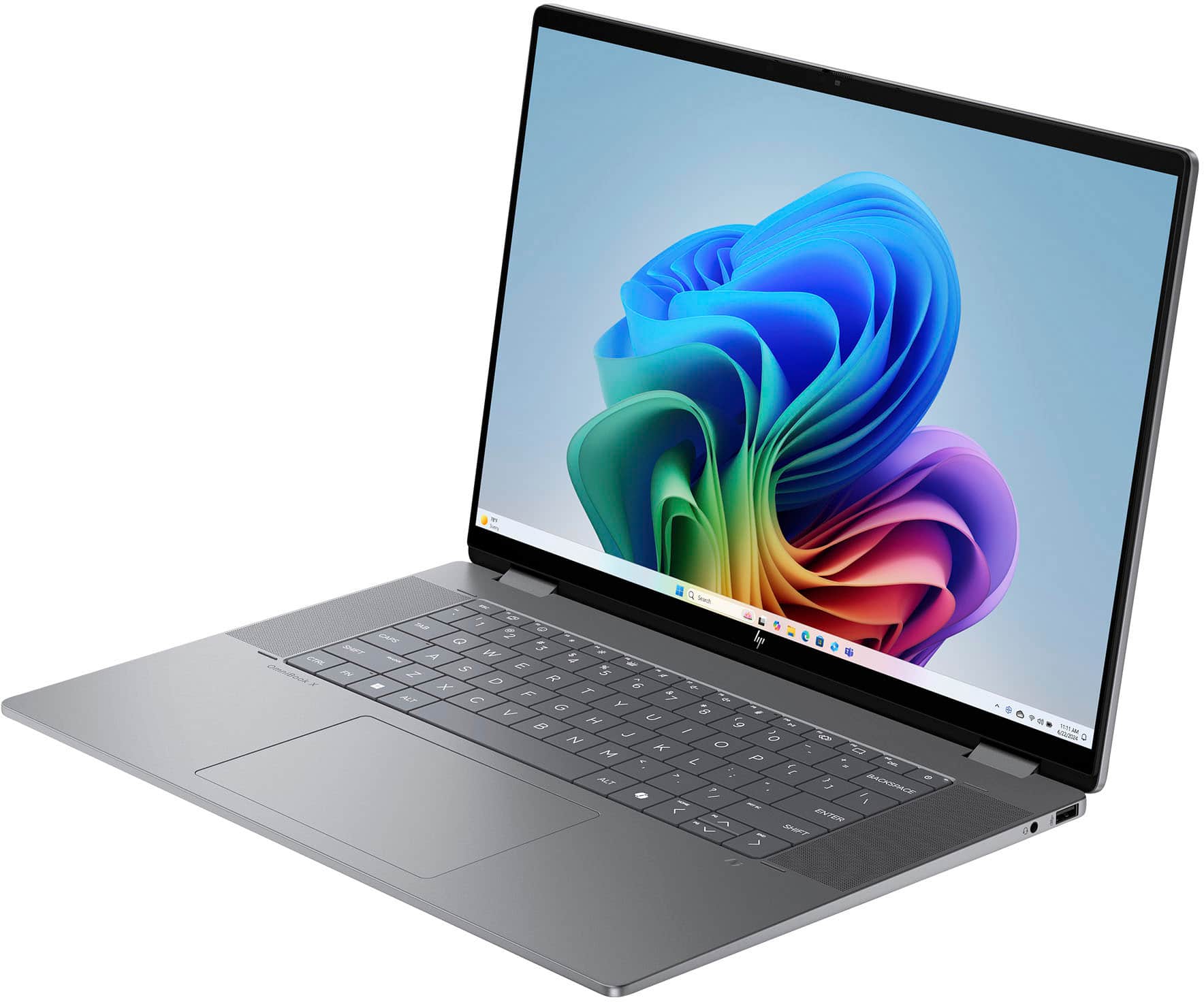
  • QuestionThe sound is coming out from underneath the laptop and it sounds muffled when I'm typing because my palms cover the speakers. How can I switch it the top left and right speakers (next to the keyboard) instead? I imagine that would make the sound clearer.

    Asked by Martin1290.

    • Answer Maybe or adjust how you type to not cover speakers

      Answered by TerenceD

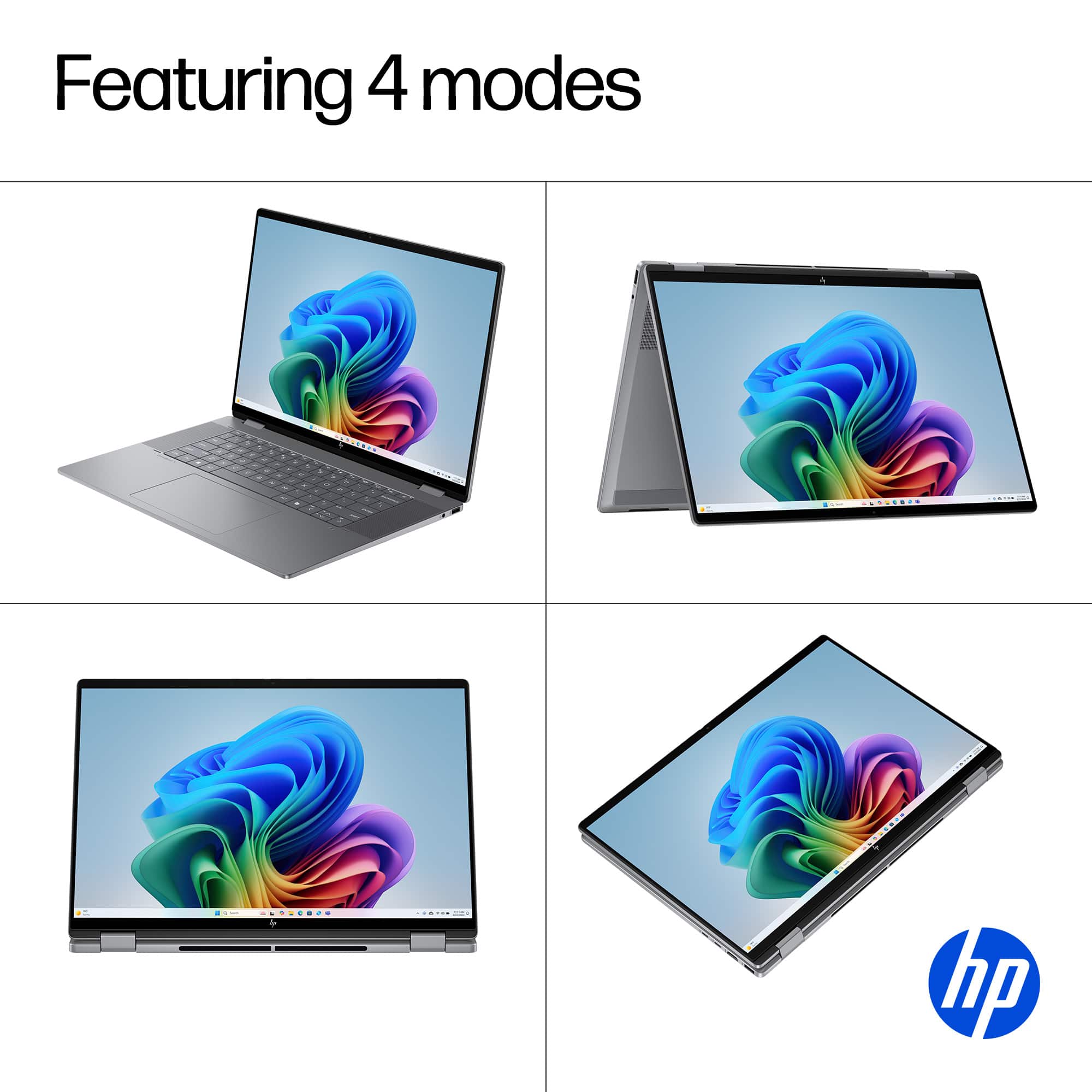
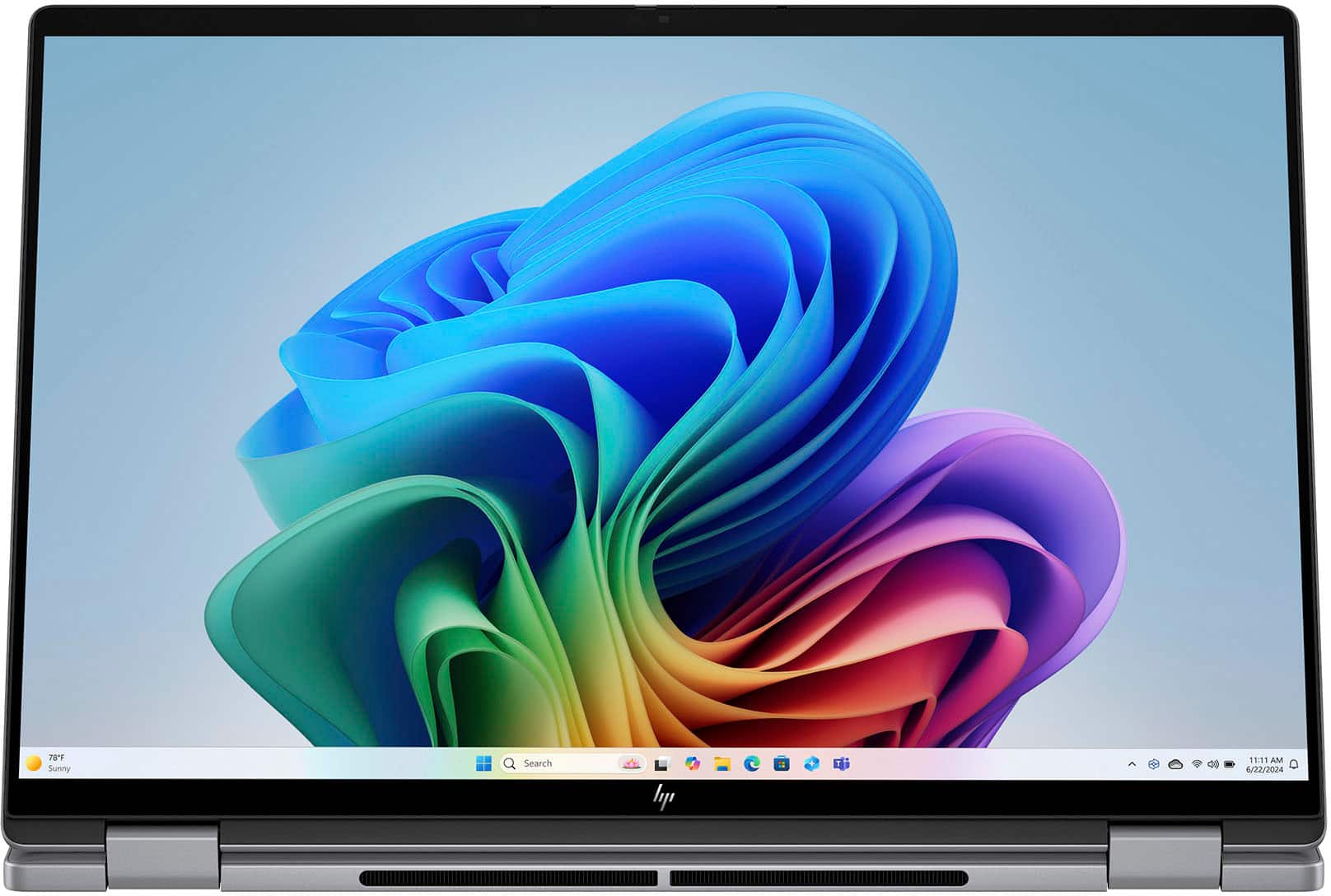
  • QuestionDoes this function as a pad as well as laptop?

    Asked by Anonymous.

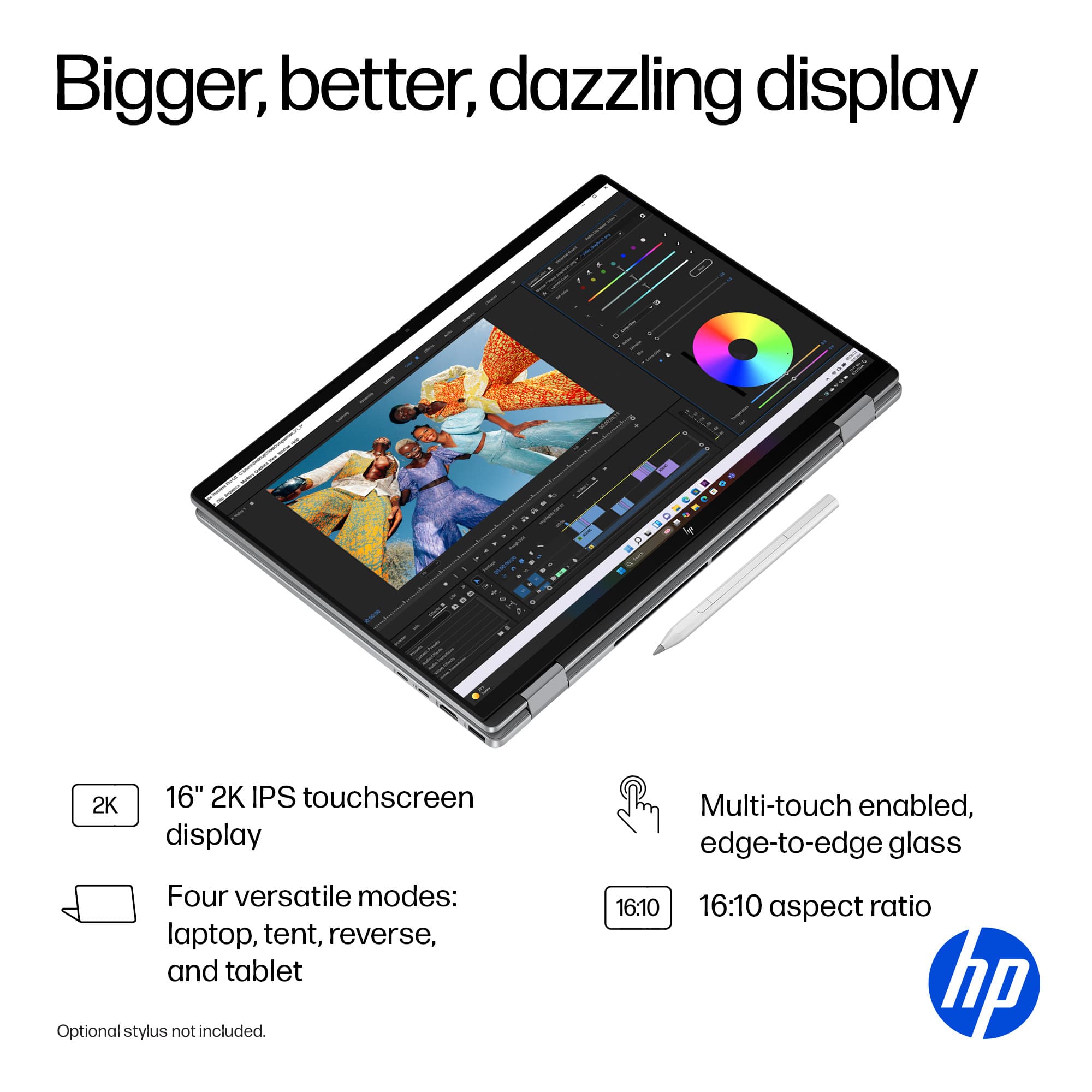
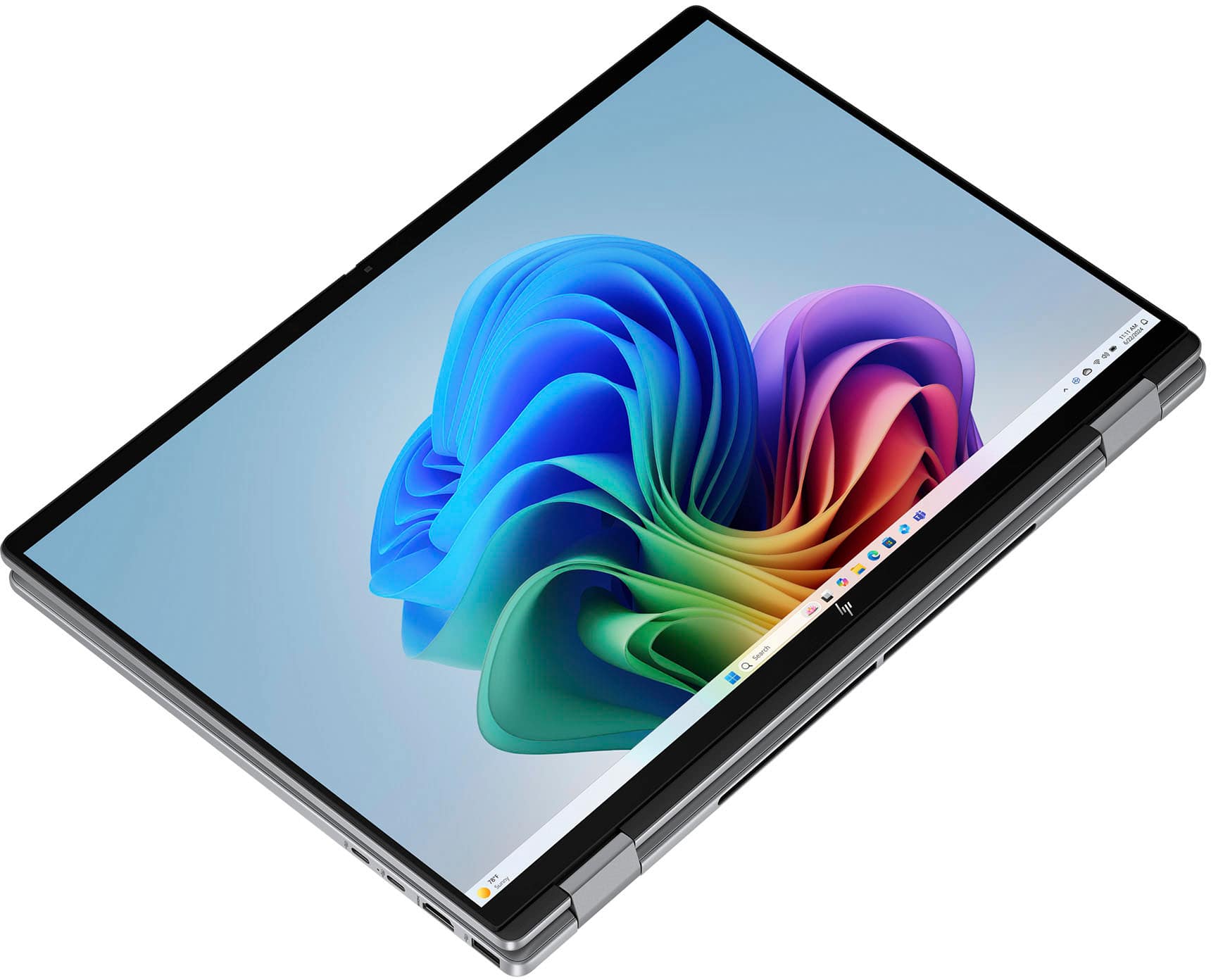
    • Answer yes very easy flip and can be used horizontally or vertically. a bit awkward being that its quite large but works.

      Answered by collegeman

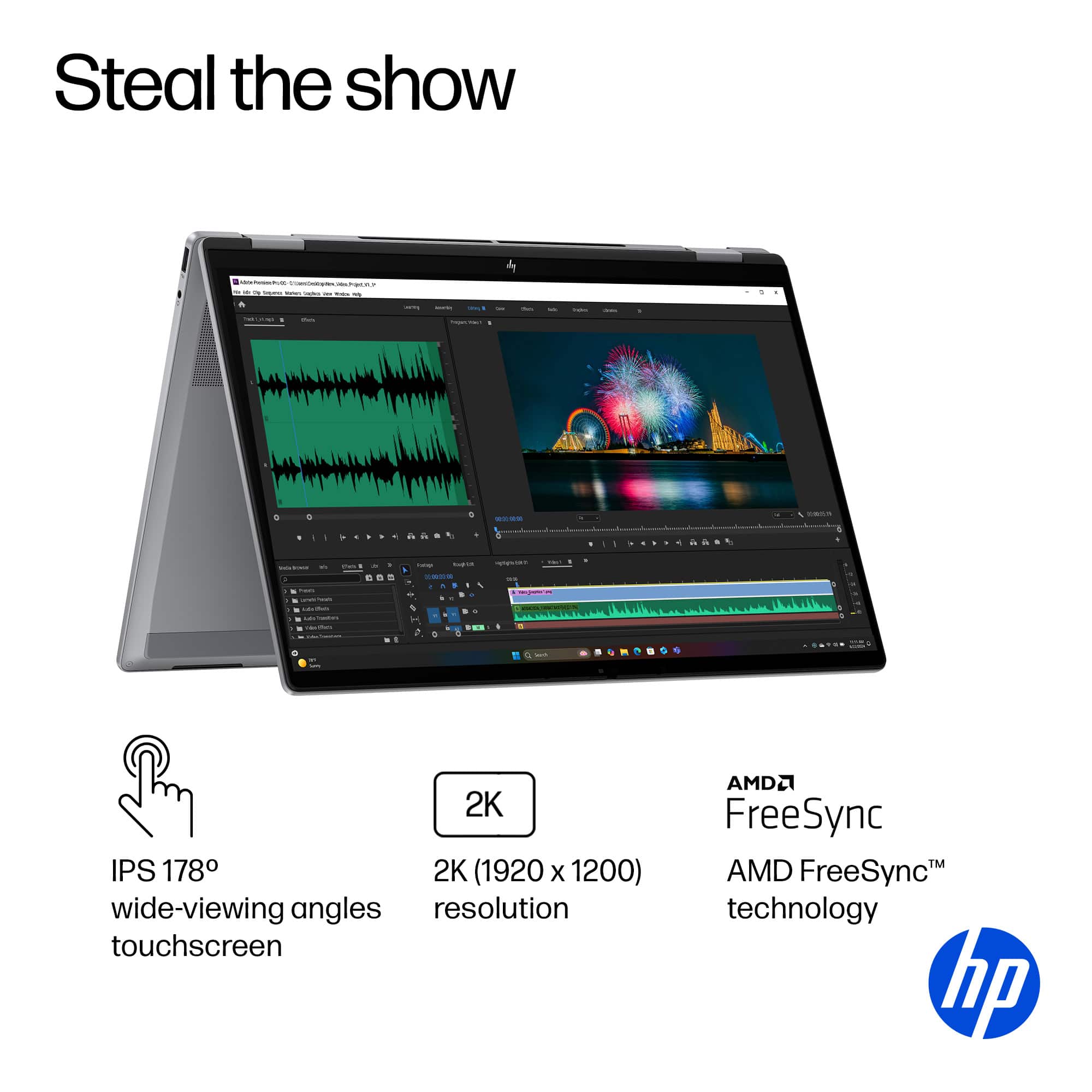
  • QuestionWhat is the screens maximum refresh rate?

    Asked by At.

    • Answer 60 Hz.

      Answered by Camden

  • QuestionWill Microsoft office run ob it?

    Asked by BigDaddyMike.

    • Answer Yes it even comes with a free trial of MS office.

      Answered by PAULC

  • QuestionHow long is manufacturers warranty ?

    Asked by Anonymous.

    • Answer HP Warranty - Parts: 1 year - Labor: 1 year

      Answered by Camden

  • Questionwhat is the warranty does it have?

    Asked by ogie.

    • Answer HP Warranty - Parts: 1 year - Labor: 1 year

      Answered by Camden

  • QuestionAre there pens available for the touch screen for art purposes.

    Asked by Nathan.

    • Answer Yes, the Wacom bamboo ink

      Answered by JongE

  • QuestionDoes it support dual monitor,?

    Asked by K.

    • Answer Yes it does

      Answered by TerenceD

  • QuestionWhat operating system does tablet use?

    Asked by Battery.

    • Answer Windows 11 Home

      Answered by Jake

  • QuestionDo you have above laptop on display? Want to see above laptop.

    Asked by Ron.

    • Answer There is usually an in-store model! My store had one. I would call and check to make sure.

      Answered by Camden

  • QuestionMy Omni book won't charge and I can't turn it on how do I troubleshoot this issue

    Asked by Storm.

    • Answer You need tech support

      Answered by TerenceD

  • QuestionDoes it have a warranty?

    Asked by K.

    • Answer Yes! This device's HP Warranty is: - Parts: 1 year - Labor: 1 year

      Answered by Camden

  • QuestionDoes this computer have safe mode?

    Asked by Anonymous.

    • Answer Yes it does

      Answered by TerenceD

  • QuestionIs this easy for teaching online college courses?

    Asked by Sam1.

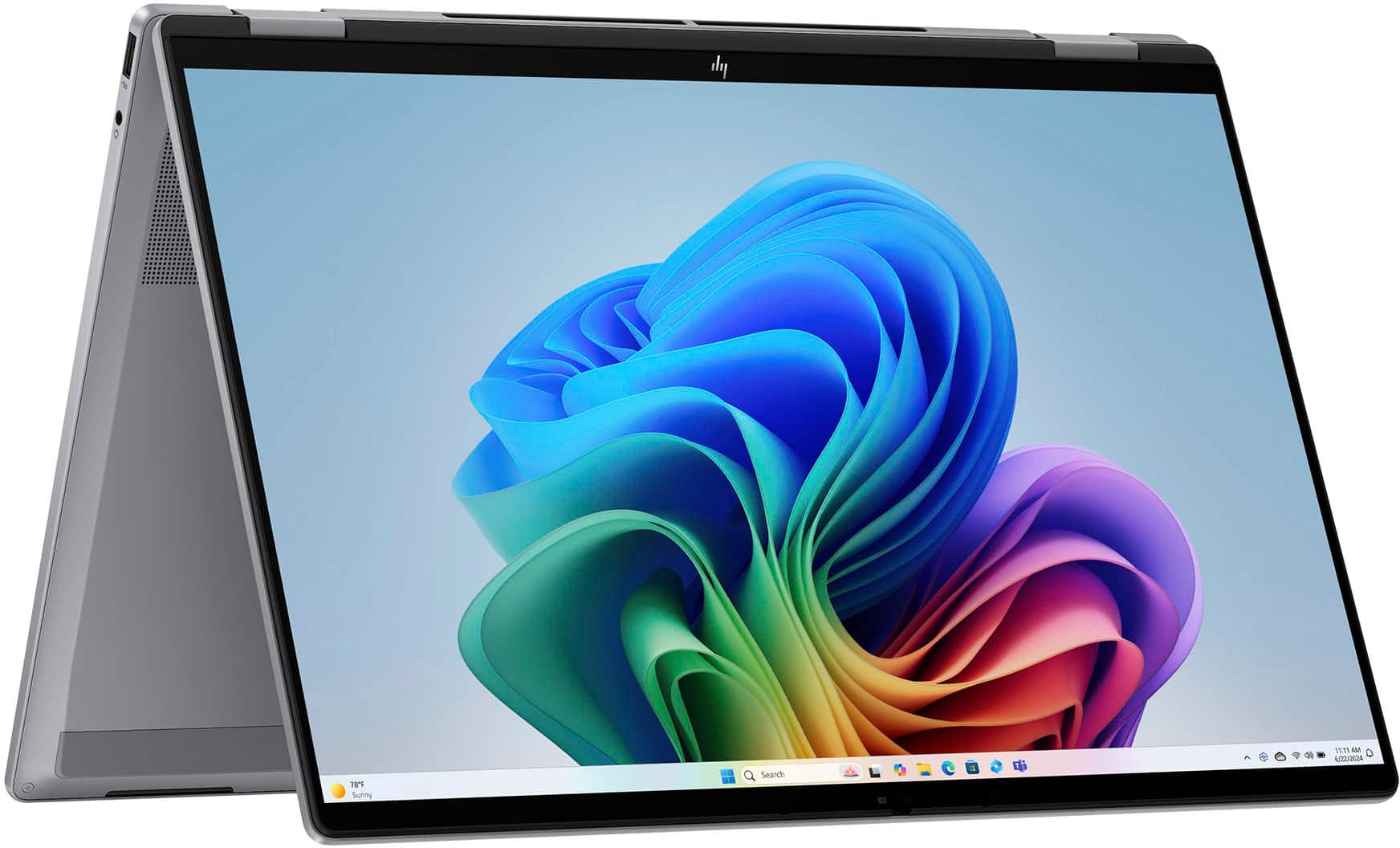
    • Answer Yes especially with the Tent Mode or casting to whatever screen you are using for class

      Answered by TerenceD

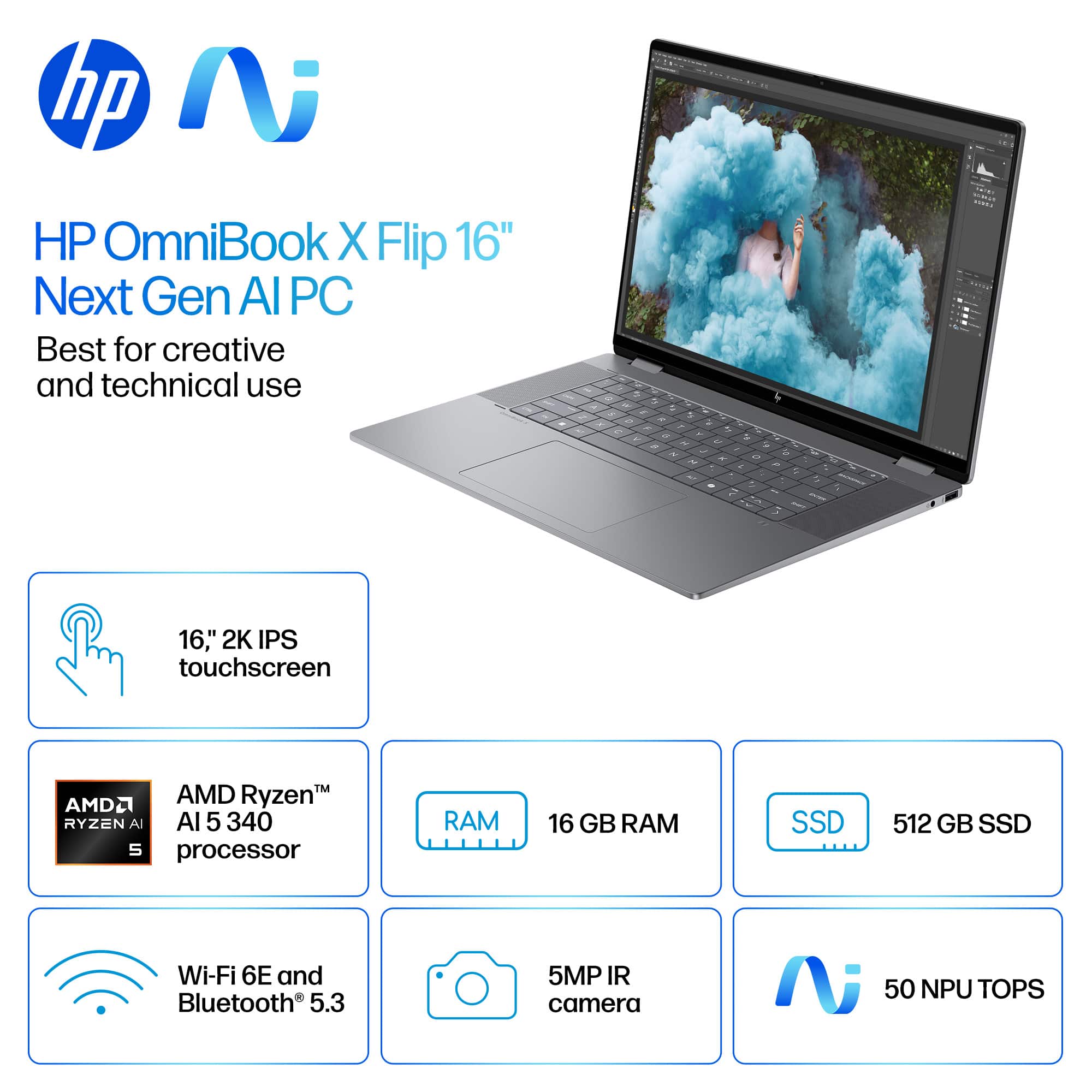
  • QuestionCan you use a stylus with this laptop (HP - OmniBook X Flip 2-in-1 - Copilot+ PC - 16" 2K Touch-Screen Laptop - AMD Ryzen AI 5 - 16GB Memory - 512GB SSD - Meteor Silver)?

    Asked by Darryl.

    • Answer Yes, you can use a stylus. I use this for nomad sculpt.

      Answered by Twistedhalo

  • QuestionCan this laptop handle Virtualization? BIOS settings?

    Asked by CesarF.

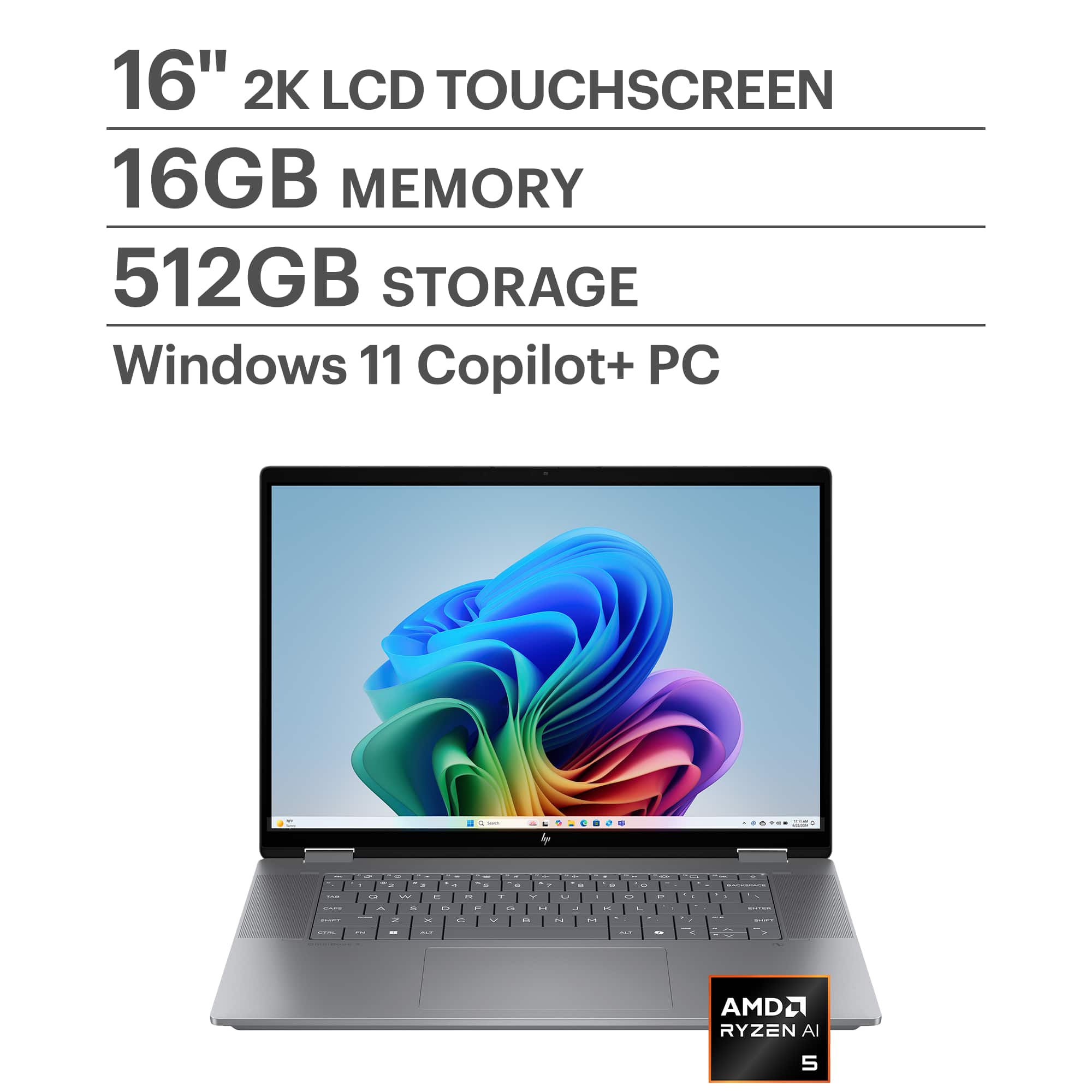
    • Answer Yes, the HP OmniBook X Flip 2-in-1 Copilot+ PC with an AMD Ryzen AI 5 340 processor can handle virtualization, but there are a few details to check: Virtualization Support The AMD Ryzen AI 5 series supports AMD-V (AMD Virtualization) technology, which is required for running virtual machines (VMs) in software like Hyper-V, VMware, or VirtualBox. With 16GB RAM and 512GB SSD, your hardware is sufficient for most virtualization tasks, including running multiple lightweight VMs. BIOS Settings To enable virtualization: Restart your laptop and enter BIOS/UEFI (usually by pressing Esc, F2, or Del during boot). Look for: SVM (Secure Virtual Machine) or Virtualization Technology under Advanced or CPU Configuration. Enable the setting and save changes. After reboot, confirm virtualization is active by: Opening Task Manager → Performance → CPU (Windows) and checking if Virtualization: Enabled. Additional Notes If you plan to use Hyper-V, ensure you have Windows 11 Pro or Enterprise (Home edition does not include Hyper-V). For AI workloads or GPU passthrough, check if BIOS also has IOMMU or SR-IOV options. Do you want me to give you step-by-step instructions for enabling virtualization in BIOS for HP laptops, or a guide for setting up Hyper-V/VMware on Windows 11? Provide your feedback on BizChatYou said: yesCopilot said: CopilotHere’s a clear guide for both steps you asked for: Enable Virtualization in BIOS (HP OmniBook X Flip) Restart your laptop. As soon as the HP logo appears, press Esc repeatedly, then select F10 for BIOS Setup. In BIOS: Go to Advanced → System Options (or CPU Configuration). Find Virtualization Technology (SVM). Enable this option. Press F10 to Save and Exit. After reboot, confirm: Open Task Manager → Performance → CPU. Check Virtualization: Enabled. Set Up Hyper-V on Windows 11 Check Edition: Hyper-V is available on Windows 11 Pro/Enterprise (not Home). To check: Settings → System → About → Edition. Enable Hyper-V: Press Win + R, type optionalfeatures, hit Enter. In Windows Features, check: Hyper-V Management Tools Hyper-V Platform Click OK, restart when prompted. Create a Virtual Machine: Open Hyper-V Manager (search in Start). Click New → Virtual Machine. Follow the wizard: Assign memory (e.g., 4GB for light VMs). Choose Generation 2 for modern OS. Attach ISO for OS installation. Start your VM and install the OS. For VMware or VirtualBox: After enabling virtualization in BIOS, just install the software and create VMs normally. Hope this helps! Merry Christmas! John A.
      Answered by jwakers23