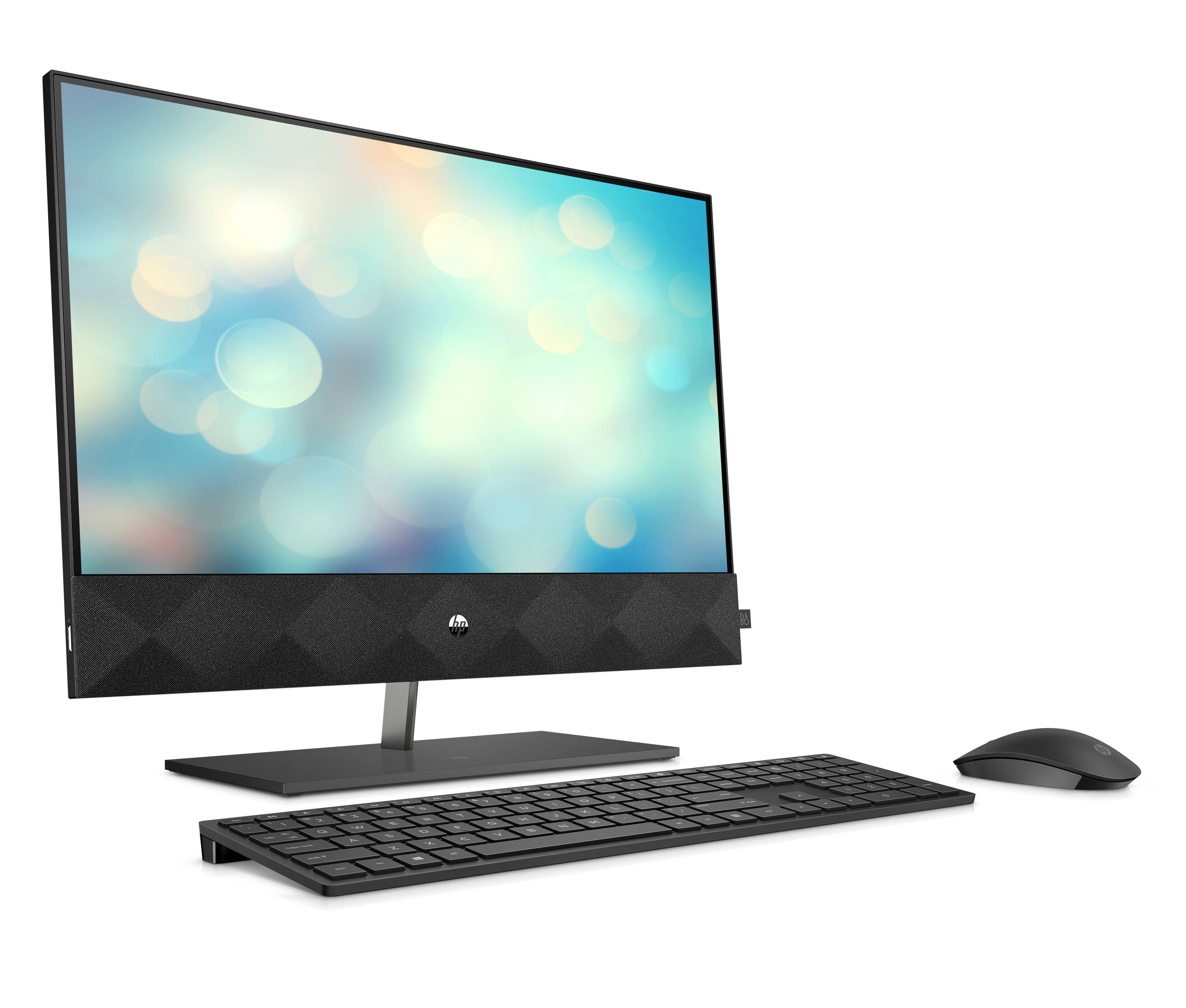
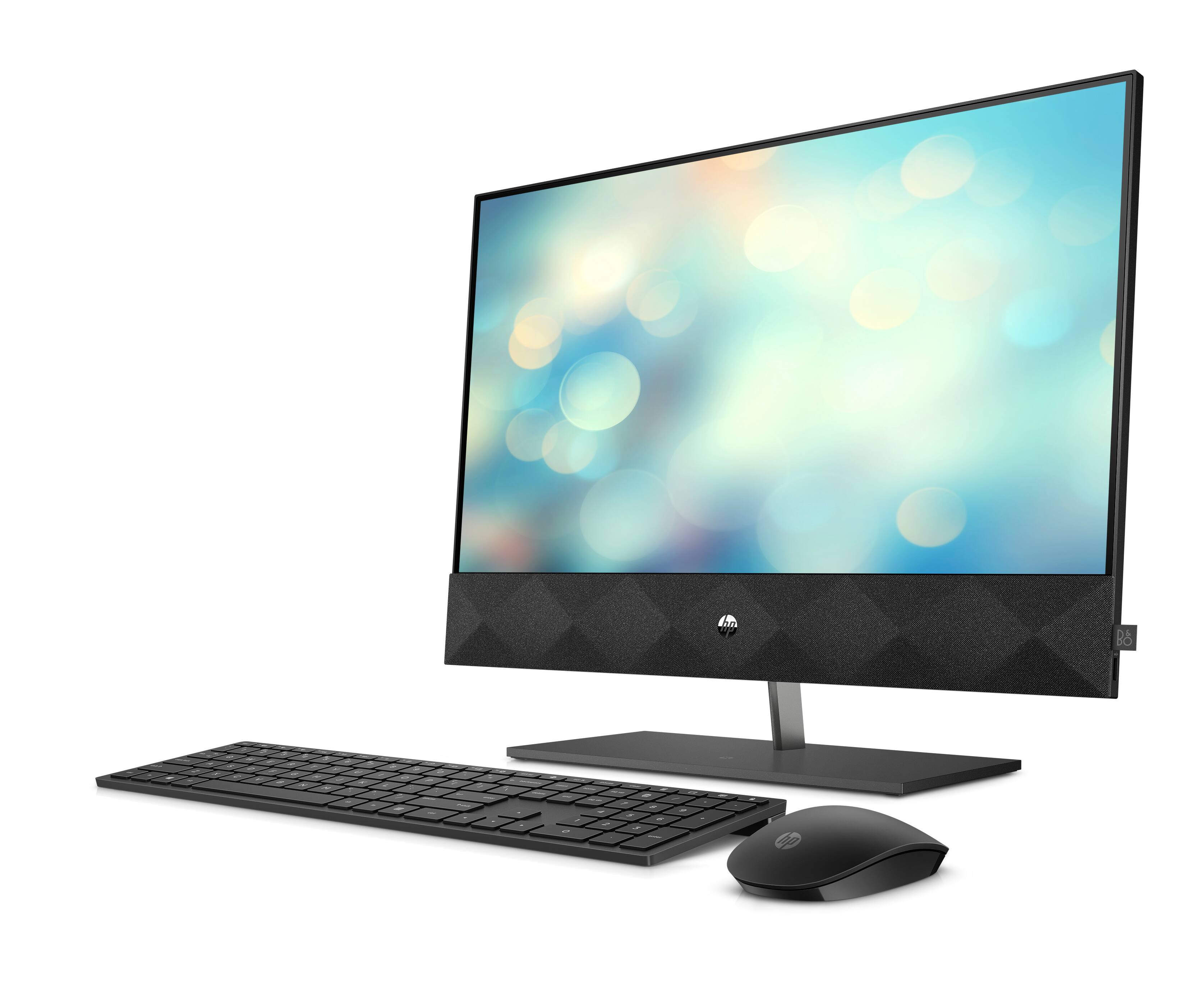
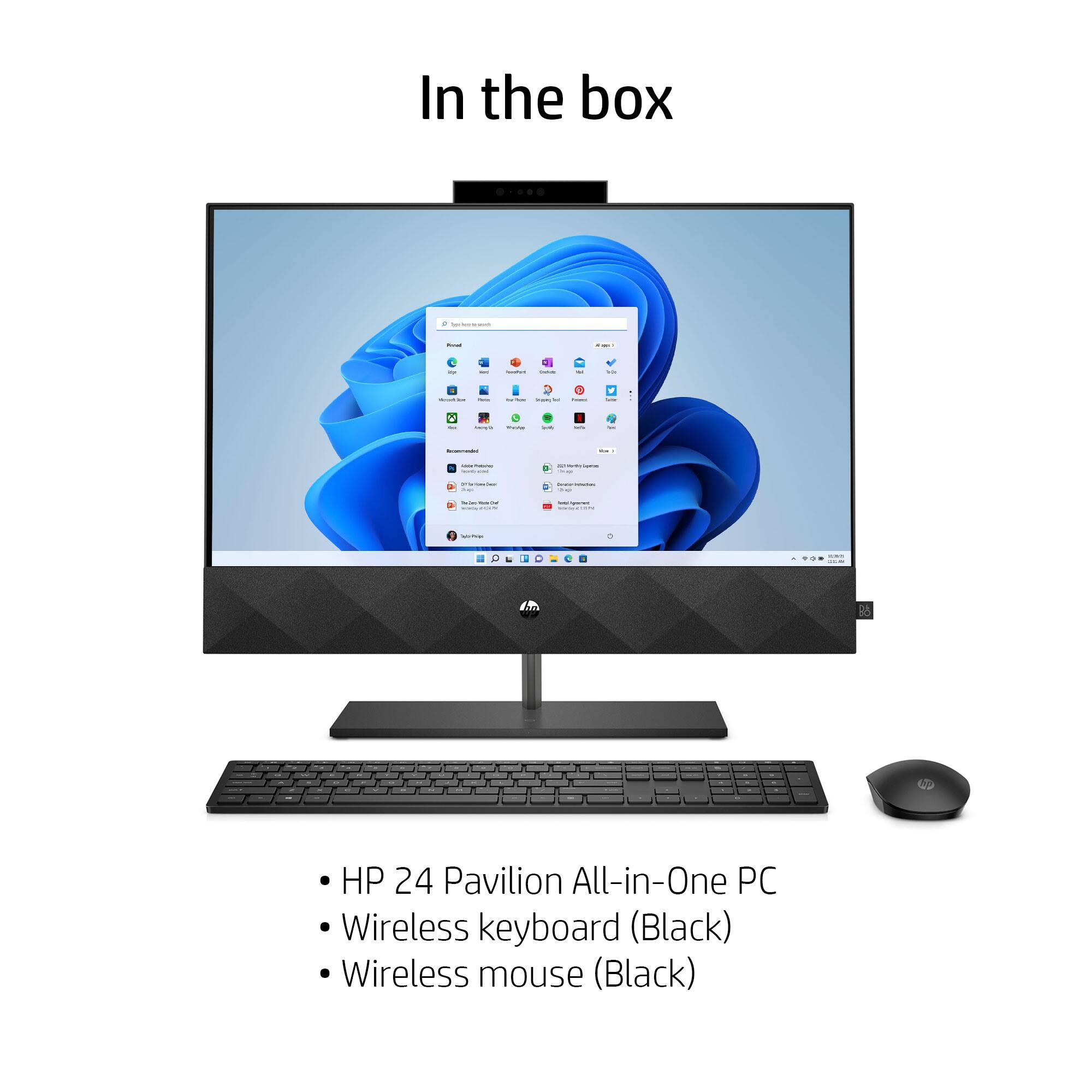
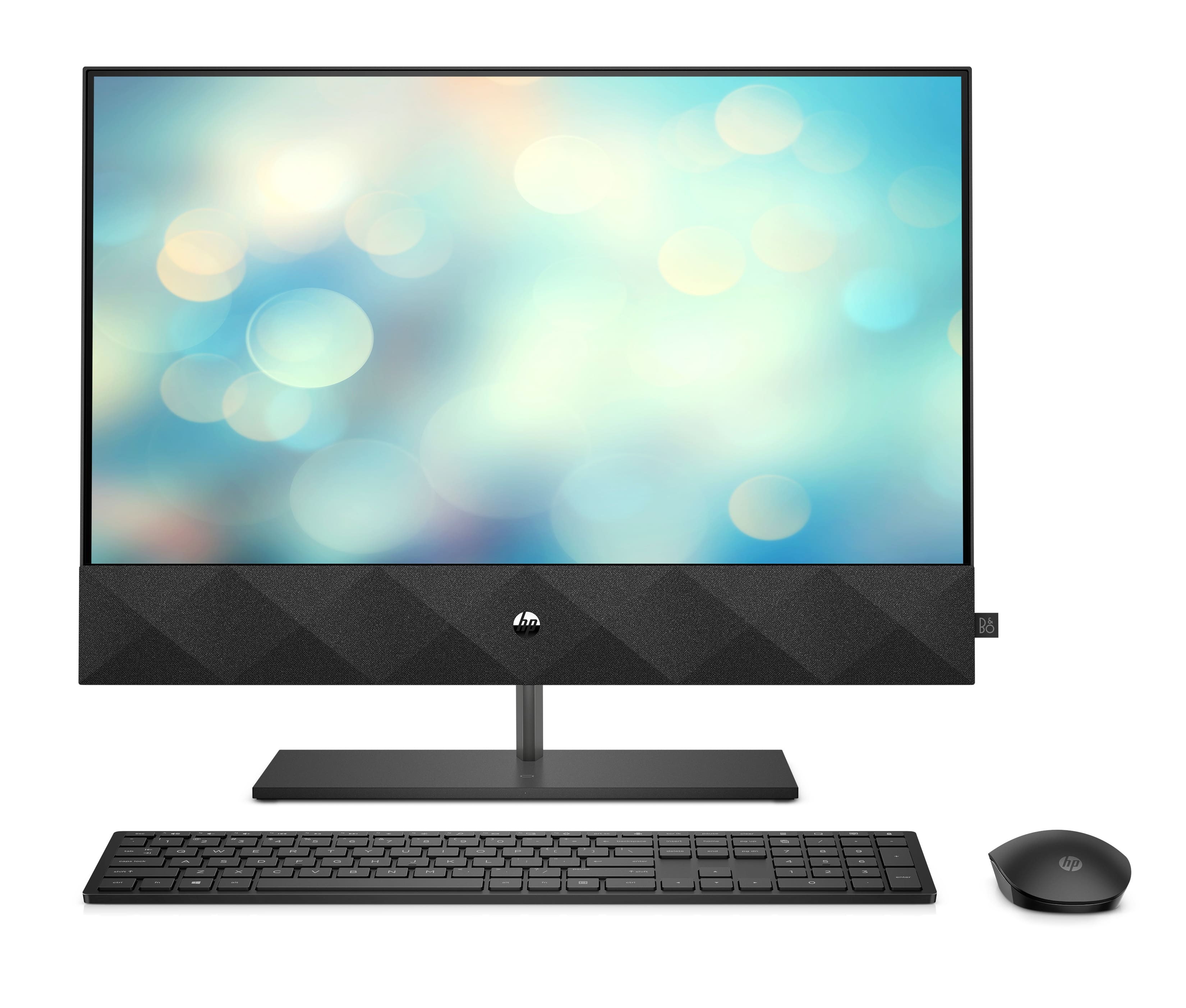
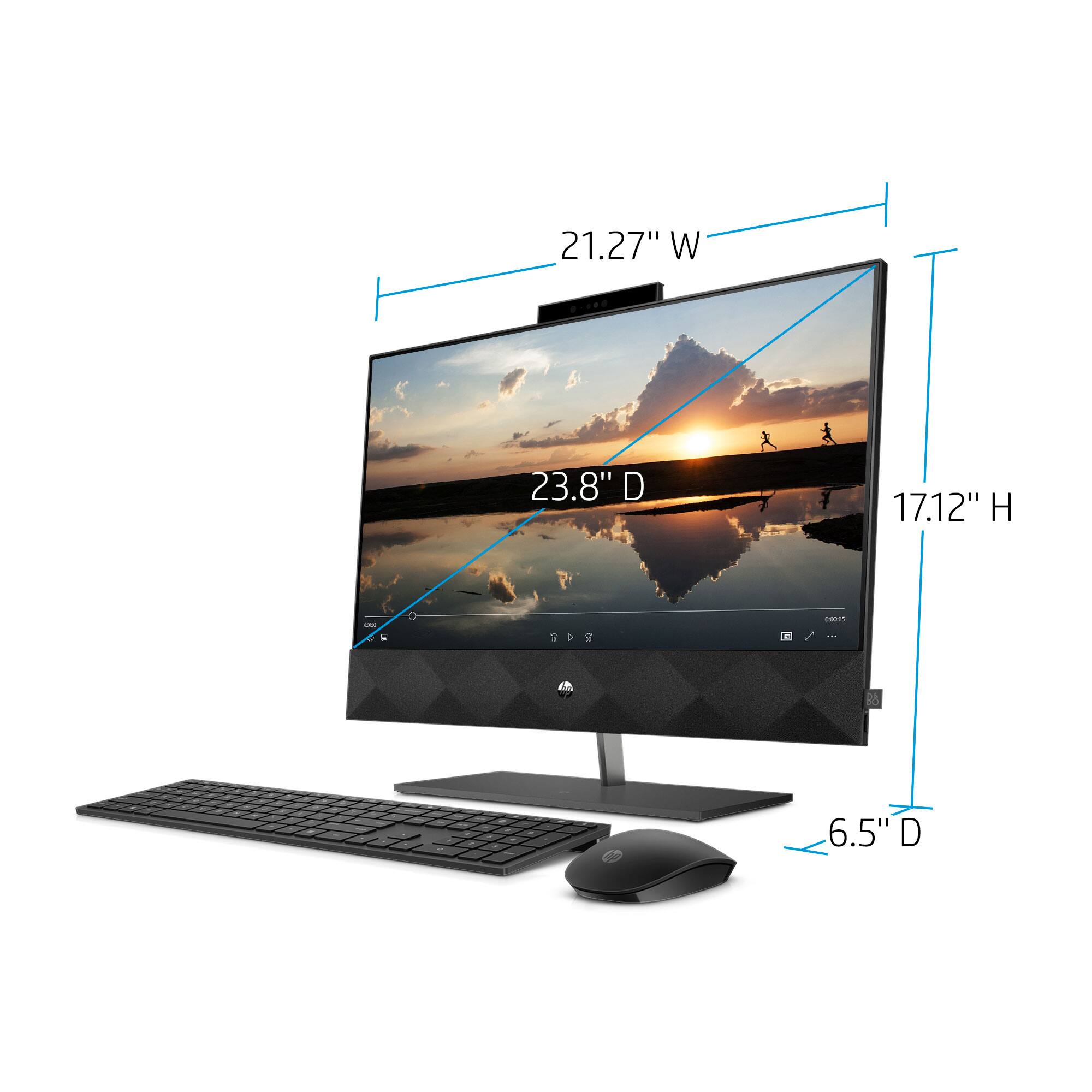
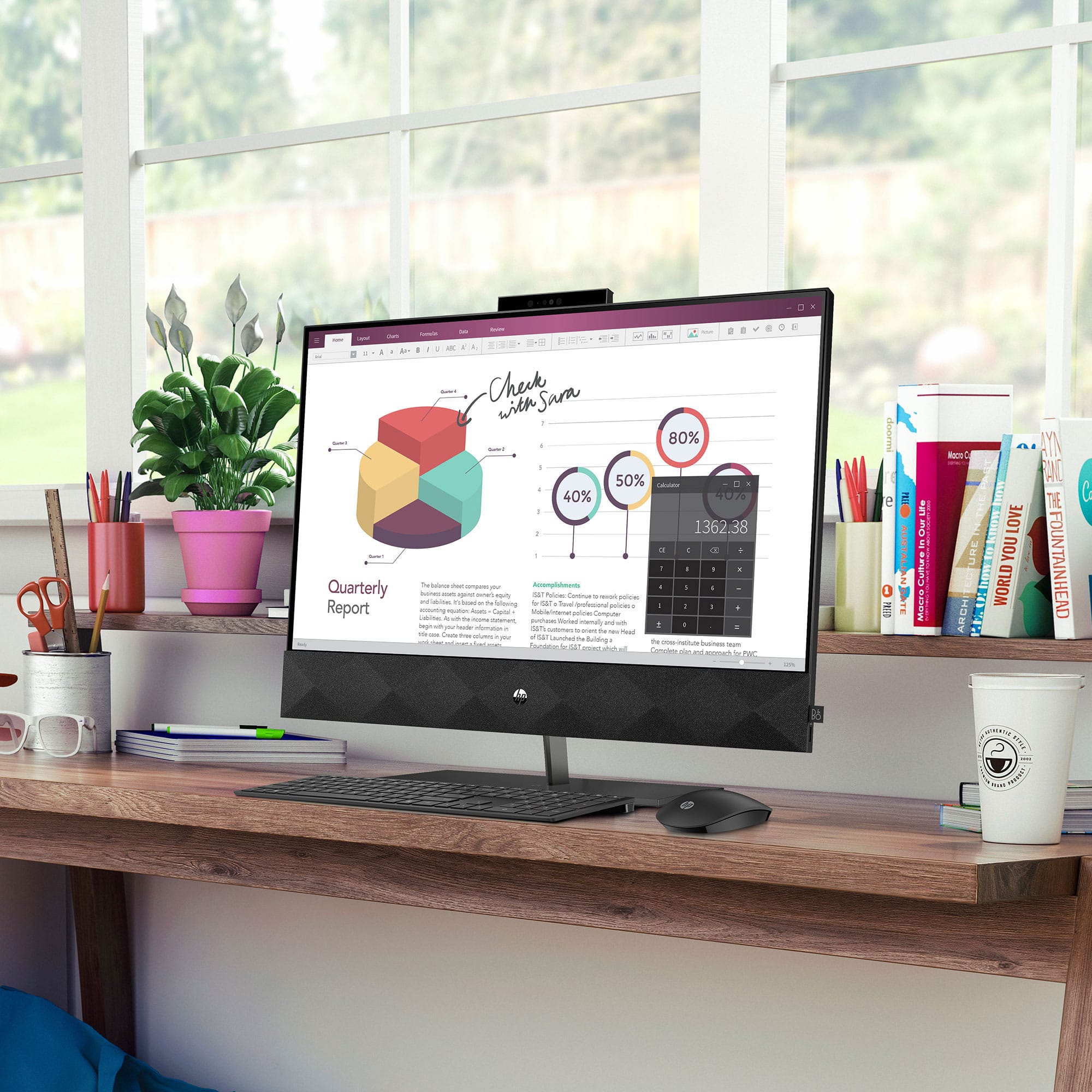
A:AnswerIt is small, no problem , i have a desk with a pull out shelf where I keep the keyboard. Then i have a small stand where I keep my mouse where I csn rest my arm and lean back.
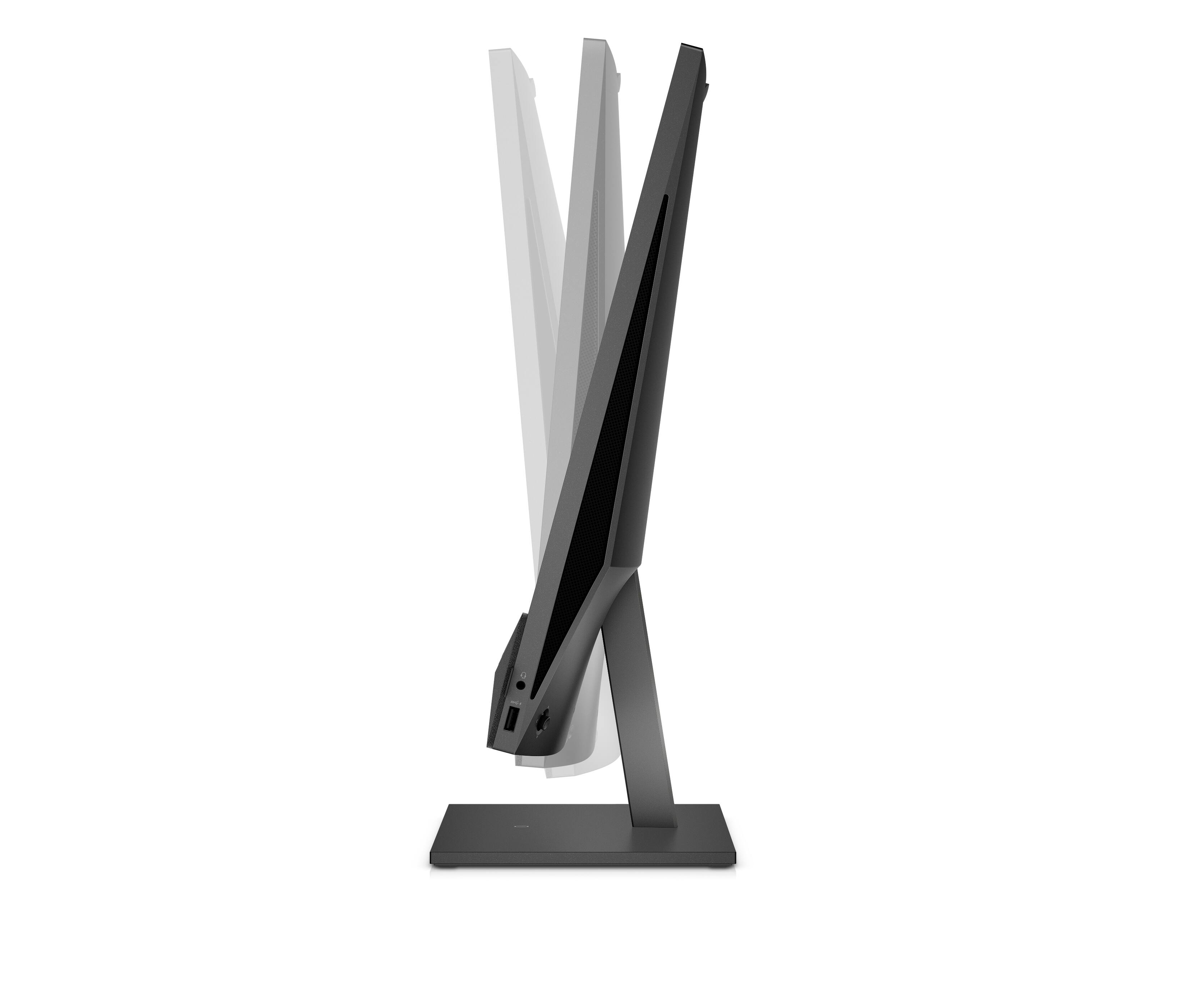
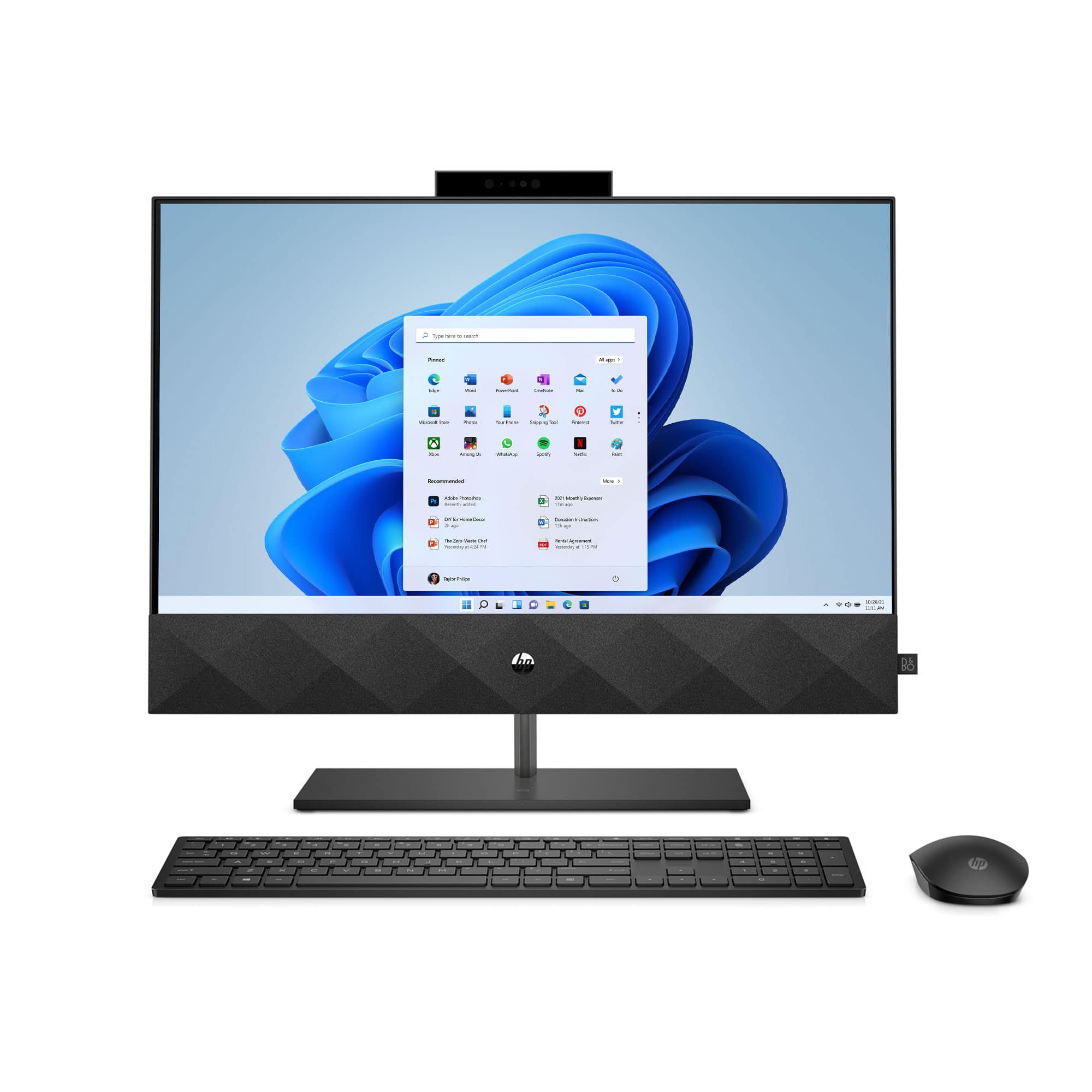
A:AnswerThis Pavilion All-In-One computer has a tilt angle of -5° to 25°; it does not swivel from side to side. Yes, you can attach a wired mouse and keyboard if you would like.
A:AnswerHello. Thanks for your question. First, we recommend that the monitor is plugged into the HDMI out port. Not the HDMI in port. Press f4 to cycle through four display states:
● PC screen only: View the screen image on the computer only.
● Duplicate: View the screen image simultaneously on both the computer and the external device.
● Extend: View the screen image extended across both the computer and the external device.
● Second screen only: View the screen image on the external device only.
Each time you press f4, the display state changes. The User Guide is available on this website under the Manuals tab: https://support.hp.com/us-en/product/hp-pavilion-24-all-in-one-pc-24-k0000i/37914257/manuals This info was found on page 17. If you need further assistance, visit https://support.hp.com
A:AnswerIf you are having any concerns, reach out to either HP Support or Geek Squad right away. Do not hesitate to contact them as they can troubleshoot and figure out what is causing the problem and if the unit would need to be repaired or replaced. The longer it takes to contact them, the harder it will be to figure out what might be causing the issue and the more it could potentially cost to get it fixed.
A:AnswerHi John, it will not come with a recovery drive, but you can make one easily. This link has instructions for making a recovery drive. https://support.microsoft.com/en-us/windows/create-a-recovery-drive-abb4691b-5324-6d4a-8766-73fab304c246
A:AnswerYou will want to make sure it meets the requirements for the software you would be using from the developer's website. You would also have to make sure that you meet the recommended internet requirements if you are using cloud-based software in your home. Geek Squad offers at home support for this, and Best Buy has tools to help check coverage as well as speed and can make sure you are properly setup.