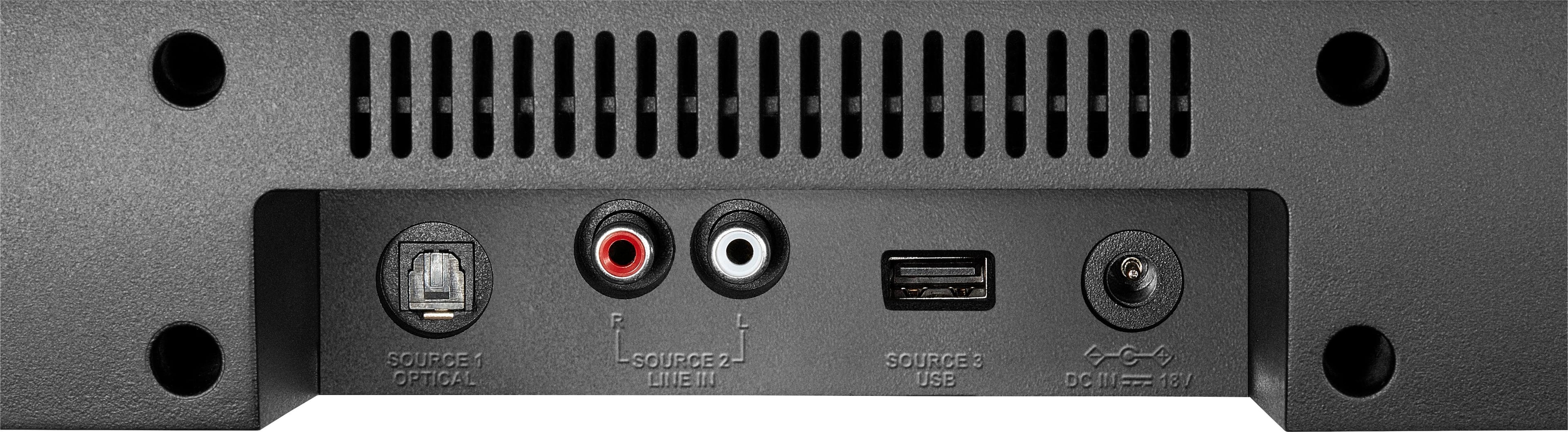
A:AnswerHave you adjusted the sound settings in your Samsung to push all audio out to the soundbar? If not, you can press the gear button on your TVs remote, and look for “sound out” settings on your right side of the screen, which should have about 4-6 preset audio out options, One being optical. (Click here) There should be another setting that changes the quality or preset speaker options for the primary audio output device. Unless your TV is set up to automatically connect to new external devices you’ll have to do it manually thru the TV settings, which isn’t hard to walk thru, but basically everything I started this off with. Feel free to ask questions
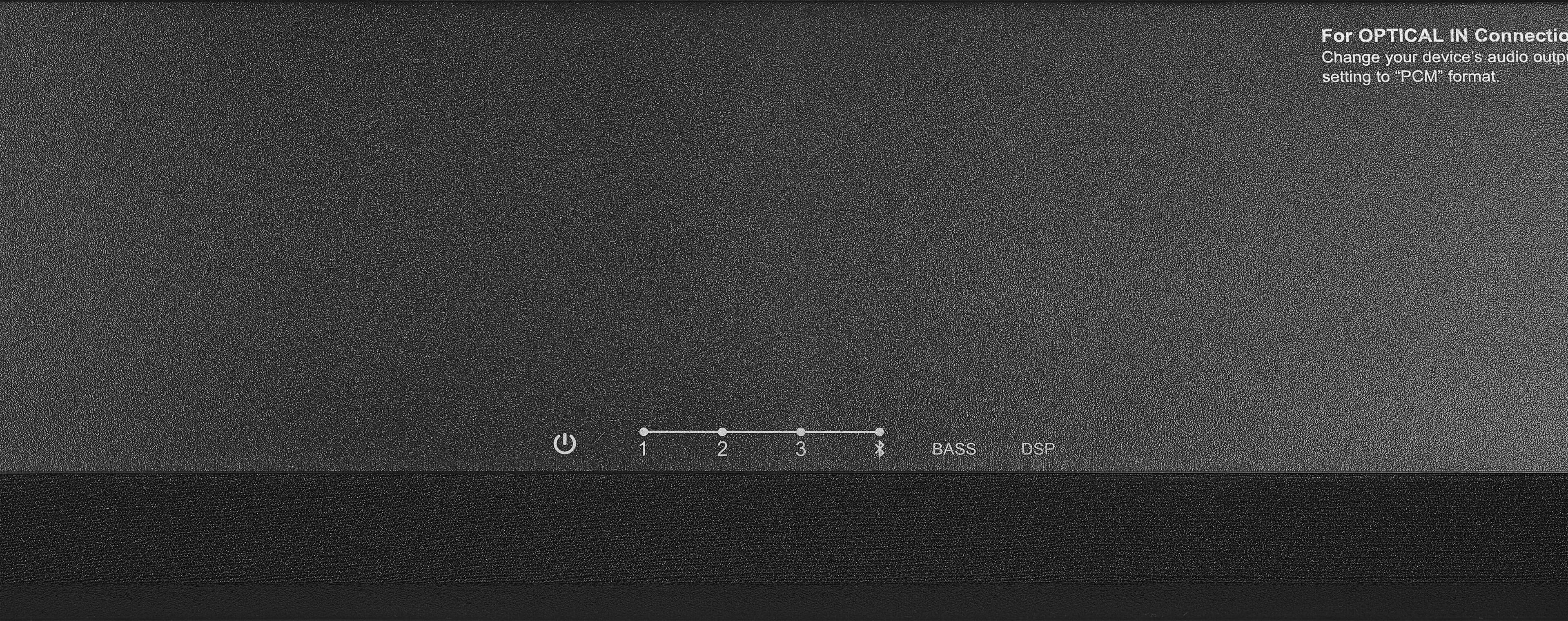
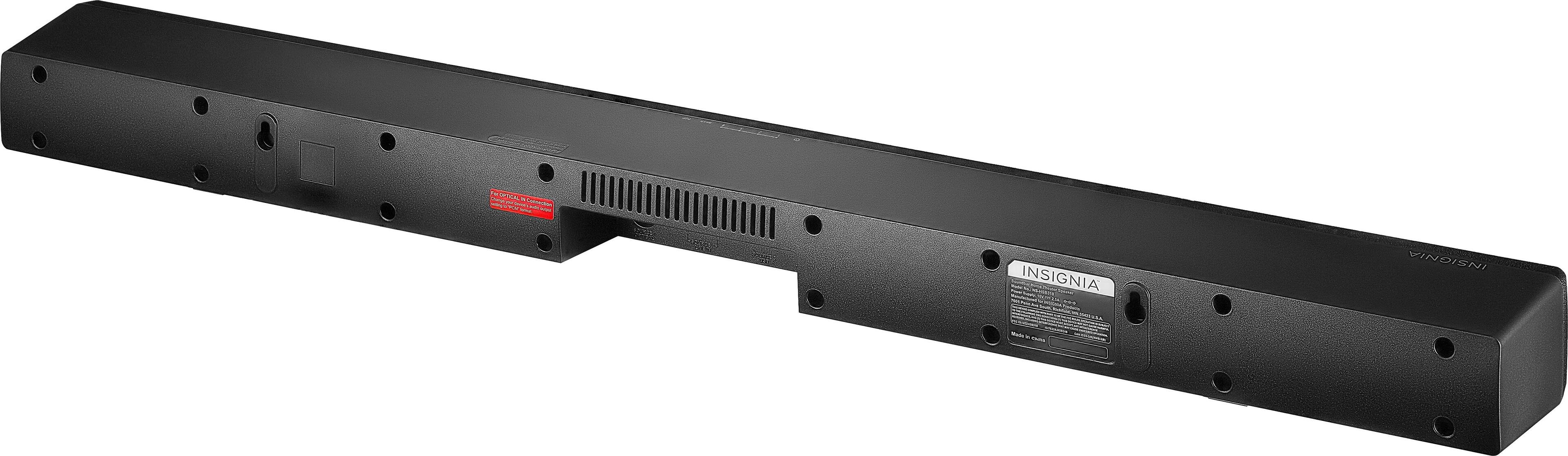
A:AnswerThere should be a few buttons on the side/top, and one of them should look like the one I’ve posted along with this. That’s the input switch for the device to switch from one connected device to another. If it’s green then it’s likely just not on the input you may have the TV on.
A:AnswerAs with most TV’s the onboard speaker(s) are not the best for high quality or high volume sound.
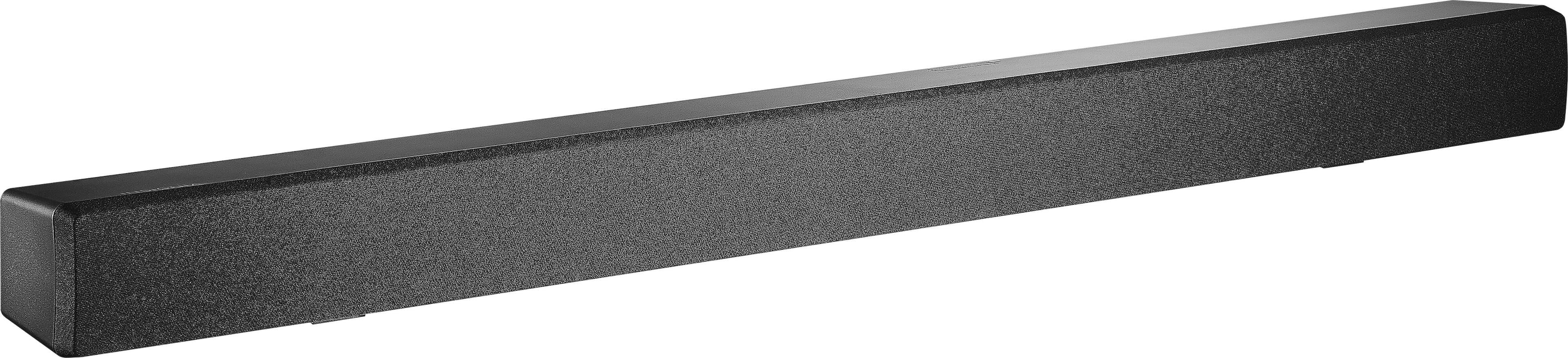
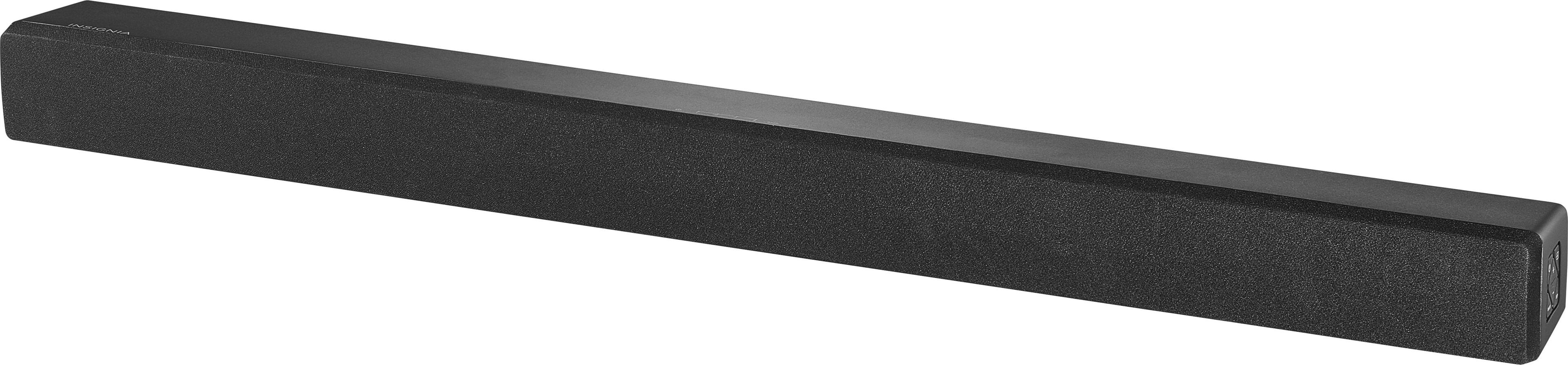
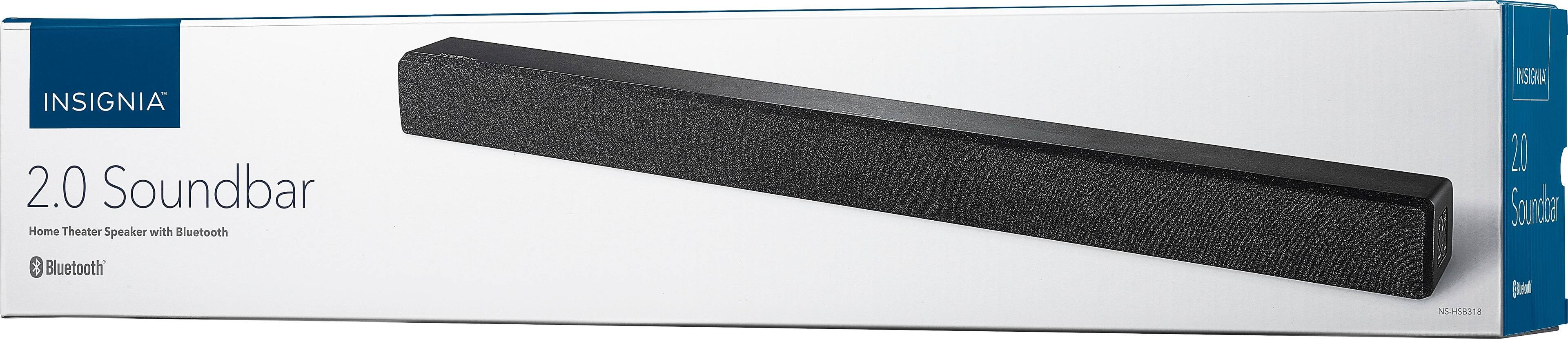
The easiest way to augment your TV’s sound is to add a sound bar, there are many available and depending upon features, range in price from fairly inexpensive to many hundreds of dollars with subwoofers and wireless rear surround speakers etc
Almost any sound bar will do the trick and make the sound coming from your TV louder and better.
A:AnswerI have not had that issue, I only use it on my Xbox One with the optical audio connection(Best Quality). Is it connected directly into the television? If it connected to another sound system to replace the sub-woofer of that system, that may be the issue. If there are no issues with the connections or that the cable is not damaged, the quick set up guide gives a few more ways to check the braking-up or buzzing sounds.
A:AnswerIf you are a lover of music and quality sound, this is NOT for you. Low watts and the remote works when it wants. You have to change everything manually.