Questions & Answers
- Model:
- NS-24F201NA23
- |
- SKU:
- 6491295
Q: QuestionCan this TV be set up without a wifi connection? (I just want to connect the TV to an antenna for watching local stations.)
Asked by KeepItSimple.
- A:Answer Hi Molly, thank you for reaching out. Yes, it is possible to set up this TV without an internet connection. I hope this information is helpful, and if you have any further questions, please feel free to ask! - Carl | Insignia Support
Answered by InsigniaCustomerSupport

Q: QuestionHow much storage does it have?
Asked by Kalam.
- A:Answer Hi Kalam, thank you for reaching out. Insignia Fire TVs generally come with 8GB of internal storage; however, you can expand this storage capacity by using a USB flash drive as external storage. - Carl | Insignia Support
Answered by InsigniaCustomerSupport

Q: QuestionCan I loop photos or videos using the USB port?
Asked by Video.
- A:Answer Yes, you can loop photos or videos using the USB Port but it requires a bit of setup since the TV’s built-in media player doesn’t natively support looping. Here’s how you can do it: The TV has a USB port that allows you to play media files (like photos and videos in formats such as MP4, AVI, or JPG) from a USB drive. However, the default media player on the Fire TV platform is fairly basic and primarily designed for simple playback, without an explicit option to loop content. To enable looping, you’ll need to download a third-party media player app from the Fire TV Appstore that supports this feature. One popular option is VLC for Fire, a free app widely praised for its versatility. After plugging your USB drive into the TV’s USB port, follow these steps: 1 Go to the Fire TV Appstore using the TV’s home screen. 2 Search for and download “VLC for Fire.” 3 Open the VLC app, grant it permission to access your USB drive, and locate your photos or videos. 4 VLC allows you to create a playlist from the files on your USB drive. Add your photos or videos to the playlist. 5 In VLC’s playback settings, enable the “Repeat” or “Loop” option (typically found in the playback controls or settings menu). This will make your content play continuously in a loop. This workaround has been confirmed to work based on user feedback and technical details about the TV’s capabilities. The Insignia F20 Series supports USB media playback, and apps like VLC enhance functionality beyond the default player, which some users have noted flattens file structures and lacks advanced features like looping. With VLC, you can loop either a single file or an entire playlist, making it ideal for displaying slideshows of photos or repeating videos seamlessly. So, while the TV itself doesn’t offer a built-in looping feature through its native interface, using VLC via the USB port gets the job done effectively! I hope this helps.
Answered by PeterC
Q: Questioncan the sound be adjusted? tone, base, treble.
Asked by cadman.
- A:Answer Copilot Yes, the sound settings on the Insignia™ 24" Class F20 Series LED HD Smart Fire TV can be adjusted to suit your preferences. You can modify the balance, bass, and treble by navigating to the settings menu on your TV. Simply press the Home button on your remote, go to Settings, select Display & Sound, and then choose Audio Settings. Here, you can fine-tune the audio to your liking, ensuring the best possible sound experience for your viewing pleasure. Patricia | Insignia Support
Answered by InsigniaCustomerSupport

Q: QuestionIs this Fire TV a 1st or 2nd generation device for which support has ended?
Asked by e46.
- A:Answer Thank you for reaching out to Insignia Customer Support. We appreciate your inquiry regarding the generation of your Insignia™ 24" Class F20 Series LED HD Smart Fire TV. The Insignia™ 24" Class F20 Series LED HD Smart Fire TV is a more recent model and is not classified as a 1st or 2nd generation device. Therefore, support for this model has not ended. If you have any specific concerns or need further assistance with your TV, please let us know. We're here to help!
Answered by InsigniaCustomerSupport

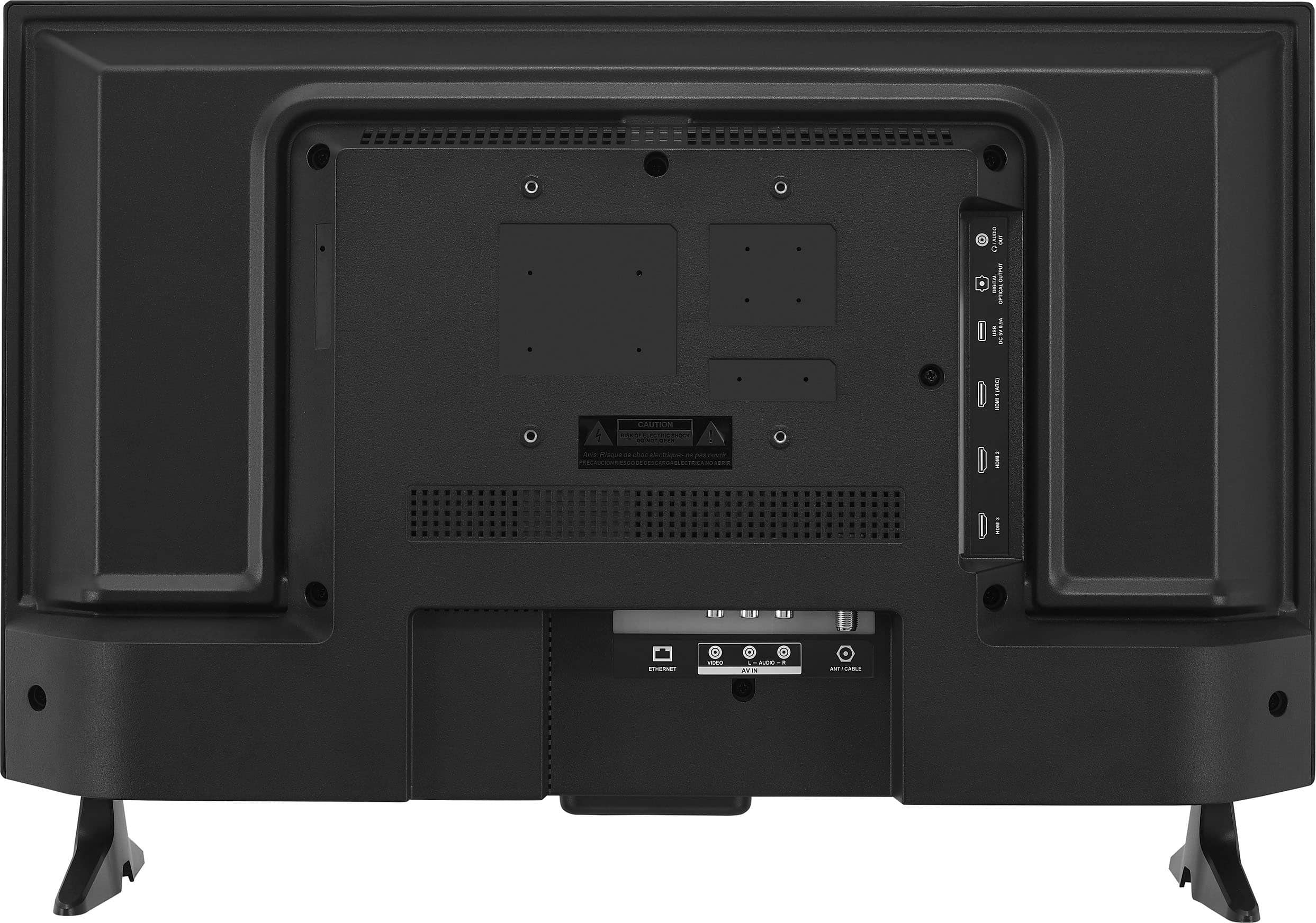
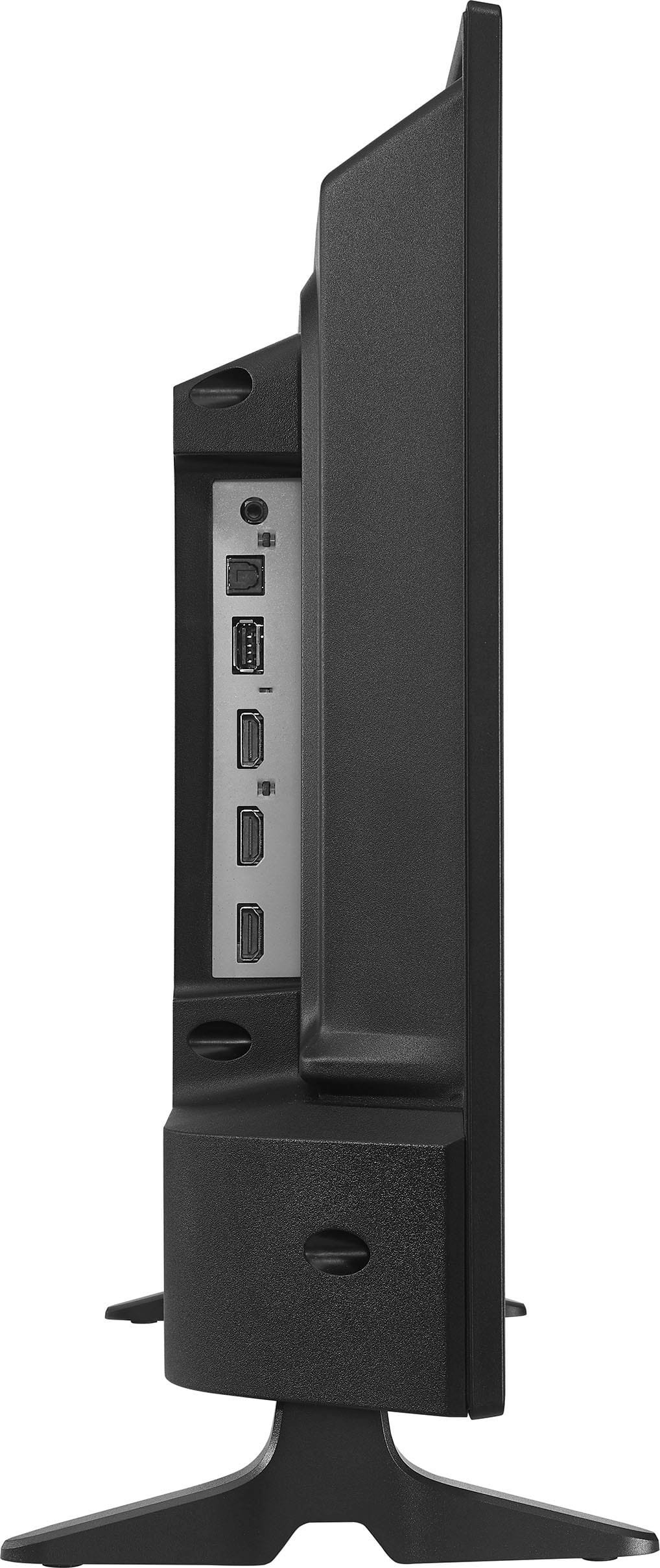
Q: QuestionIs it possible to hook up a vhs/dvd player to this tv?
Asked by Anonymous.
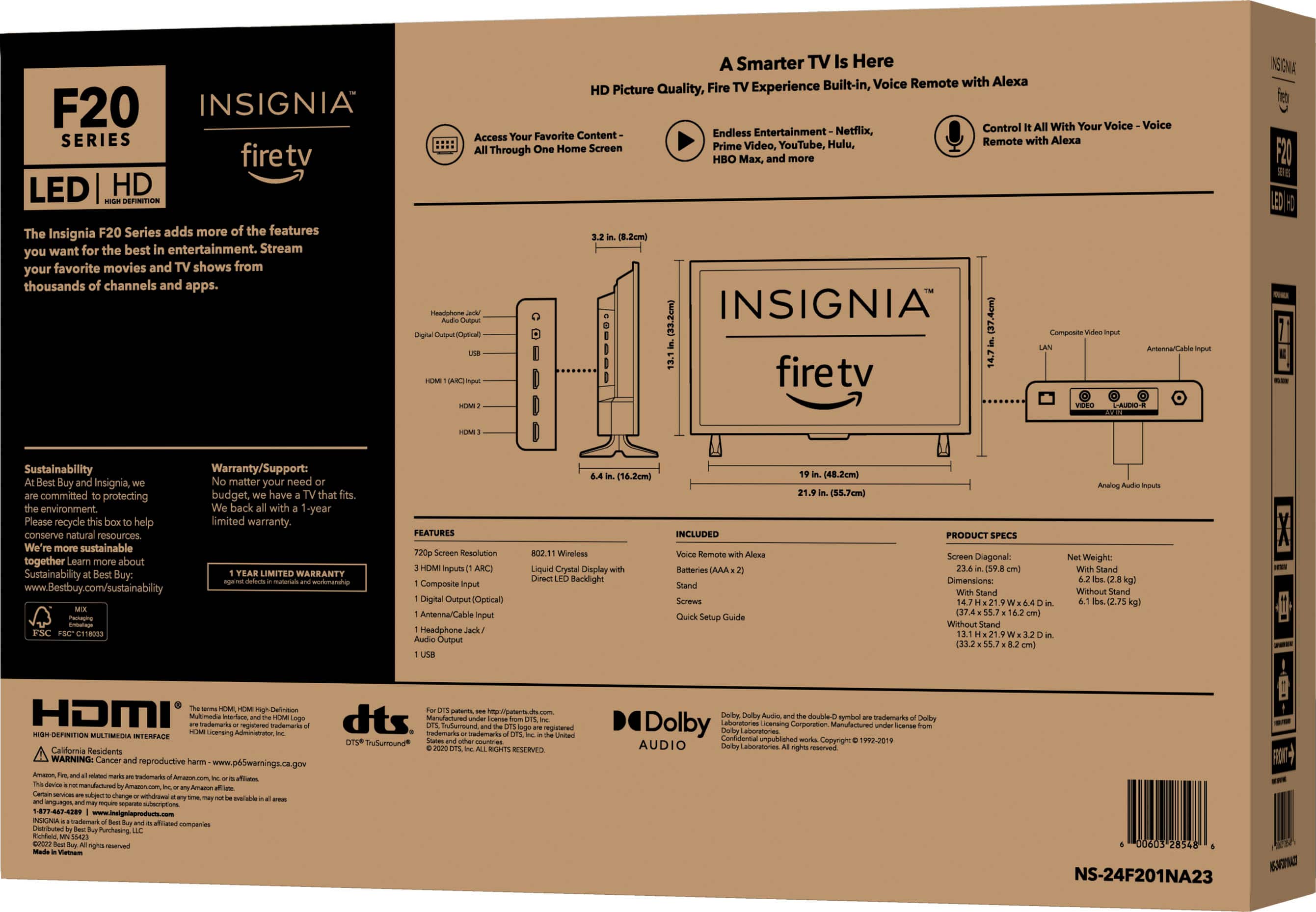
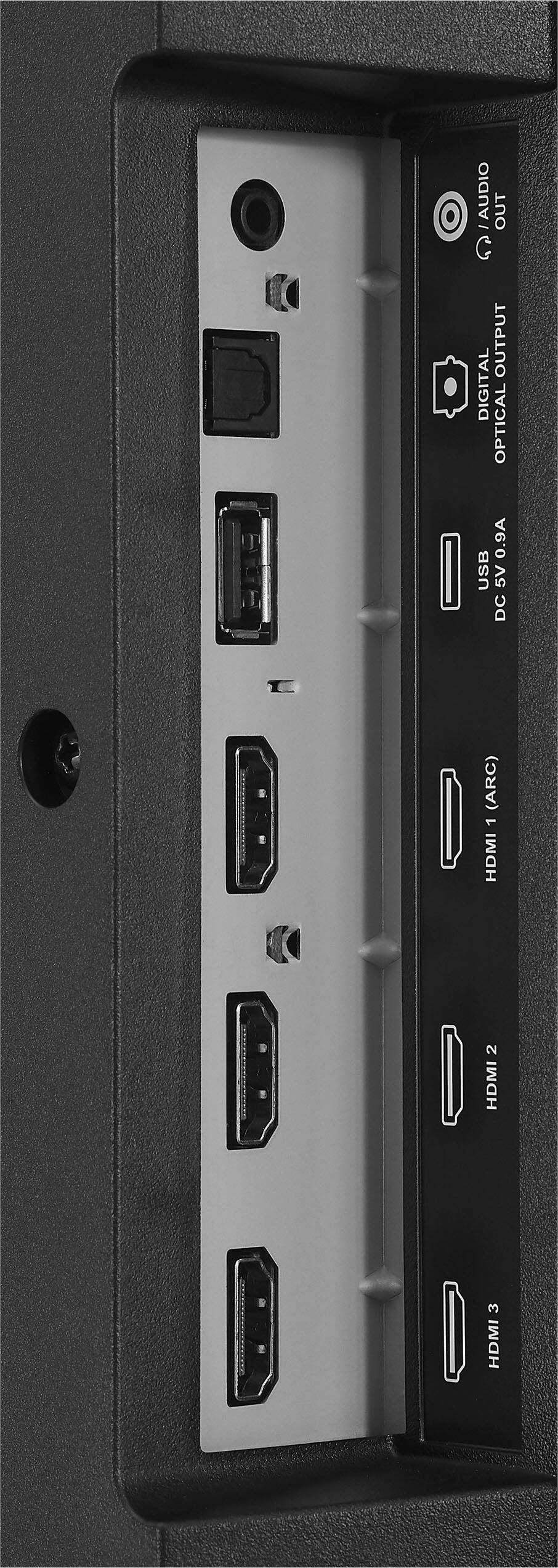
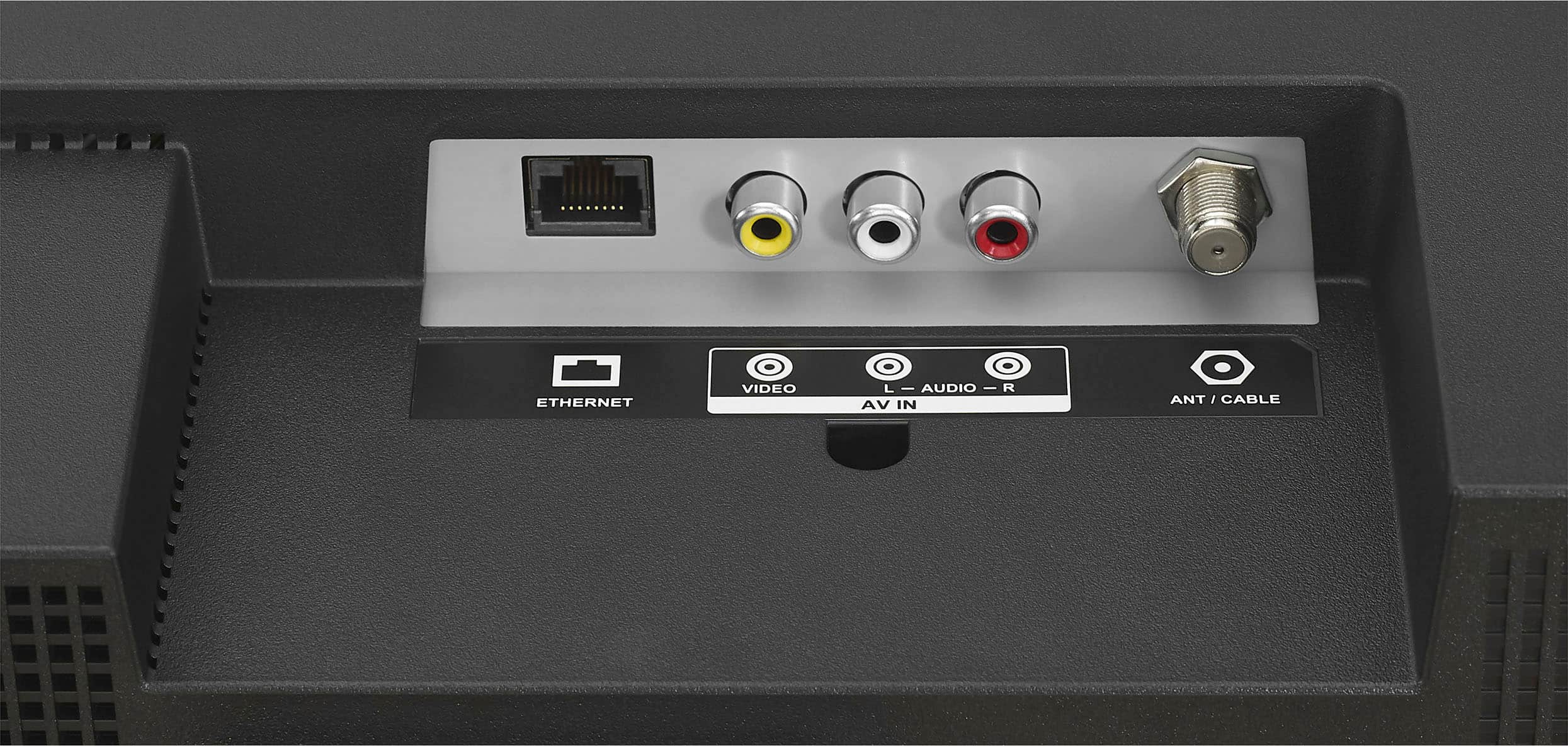
- A:Answer Yes, you can connect a DVD player to the Insignia™ 24" Class F20 Series LED HD Smart Fire TV. Simply use an HDMI cable to connect the DVD player to one of the HDMI inputs on the TV or use AV (composite) cables to connect the yellow, red, and white outputs from the DVD player to the corresponding inputs on the TV. Then, select the appropriate input on the TV to start watching your DVDs. Patricia | Insignia Support
Answered by InsigniaCustomerSupport

Q: QuestionDo Insignia TV's require any kind of subscription to setup/activate and can Direct Stream TV be downloaded without any issue?
Asked by Brooks.
- A:Answer Insignia TVs, including the 24" Class F20 Series LED HD Smart Fire TV, do not require any subscription to set up or activate. However, you will need an Amazon account to access the full range of features and apps, but creating an Amazon account is free. As for Direct Stream TV, you can download and use it on your Insignia Fire TV without any issues. -Ed | Insignia Support | https://www.bestbuy.com/site/brands/best-buy-brands/pcmcat1596746025285.c?id=pcmcat1596746025285
Answered by InsigniaCustomerSupport

Q: Questioncan I use this as a computer monitor
Asked by pots.
- A:Answer Yes, you can use the Insignia™ 24" Class F20 Series LED HD Smart Fire TV as a computer monitor. Here are a few things to keep in mind: 1. Connections: Ensure your computer has an HDMI output, as this TV has HDMI inputs which are necessary for connecting to a computer. 2. Resolution: The TV supports HD resolution (720p), which is suitable for general computing tasks, but might not be ideal for tasks requiring high resolution, such as detailed graphic design or gaming. 3. Settings: You may need to adjust the display settings on your computer to match the TV's resolution for the best picture quality. 4. Audio: If you need sound, the TV's speakers will work, but you can also connect external speakers or headphones to your computer for better audio quality. Using a TV as a monitor can be a great way to get a larger display for your computer. If you have any more questions or need further assistance, feel free to ask!
Answered by InsigniaCustomerSupport

Q: QuestionDoes this tv have sleep timer on the remote? I’m looking for a tv with sleep timer I’m putting it in my bedroom.
Asked by Anonymous.
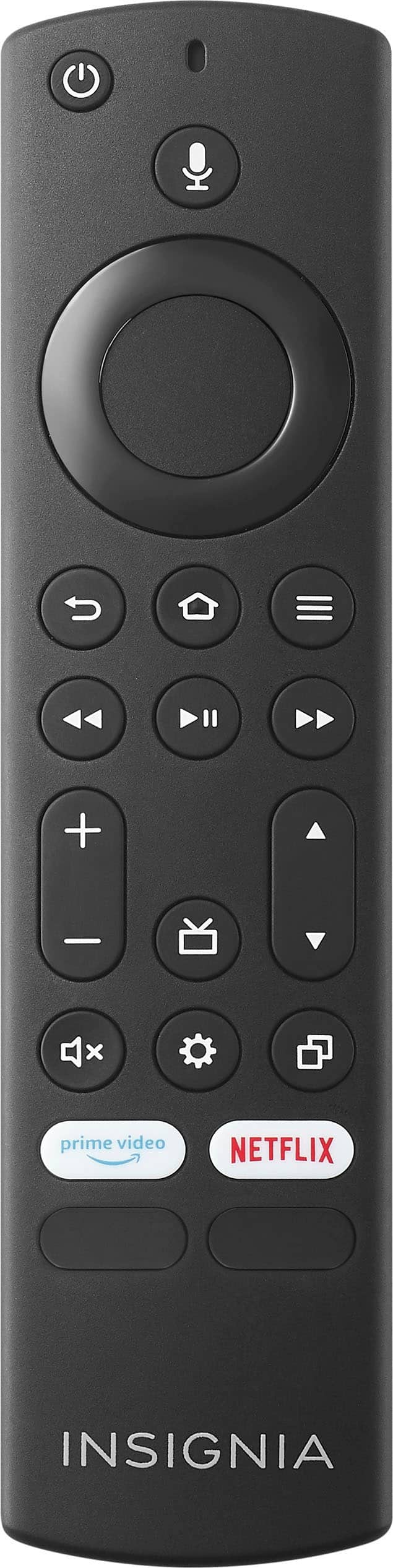
- A:Answer The remote for the Insignia™ - 24" Class F20 Series LED HD Smart Fire TV does not have a dedicated sleep timer button, but you can still access the sleep timer feature by navigating through the menu. Simply go to the "Home" screen, select "Settings", and then choose "Sleep Timer". This will allow you to conveniently set a sleep timer for your TV. Patricia | Insignia Support https://www.bestbuy.com/site/insignia-24-class-f20-series-led-hd-smart-fire-tv/6491295.p?skuId=6491295
Answered by InsigniaCustomerSupport

Q: QuestionCan I use Roku for this tv?
Asked by ToniK.
- A:Answer Thank you for your inquiry! Yes, you can use a Roku device with your Insignia™ 24" Class F20 Series LED HD Smart Fire TV. While the TV comes with Amazon's Fire TV platform built-in, it also has HDMI ports that allow you to connect external streaming devices such as Roku, Apple TV, Chromecast, or others. To use Roku with your TV, simply connect the Roku device to one of the HDMI ports on the TV, and then switch the TV input to the corresponding HDMI port. You'll then be able to navigate and stream content using the Roku interface on your TV. Keep in mind that you'll need a separate remote for the Roku device, as it won't be controlled by the TV's remote. Keith | Insignia Support https://www.bestbuy.com/site/insignia-24-class-f20-series-led-hd-smart-fire-tv/6491295.p?skuId=6491295

Answered by InsigniaCustomerSupport

Q: QuestionI have 2 questions: 1. Does this TV have a built in web browser ? 2. Can monitor stay on "forever" without going to sleep mode? (Going to use it as display screen in buildings lobby and need to ensure it won't go to sleep) Thanks!
Asked by Shine.
- A:Answer Hi Shine, we appreciate your inquiry! Insignia™ - 24" Class F20 Series LED HD Smart Fire TV (Model: NS-24F201NA23) does not come with a built-in web browser. Regarding with the sleep mode, make sure that the sleep timer is not turned on. Press and hold Home until the Quick Settings menu opens. Select Sleep Timer, then change the setting to Off. For more information about this product, you may click this link: https://www.bestbuy.com/site/insignia-24-class-f20-series-led-hd-smart-fire-tv/6491295.p?skuId=6491295. Carlo | Insignia Support

Answered by InsigniaCustomerSupport

Q: Questionwill this TV download and work with the Xfinity app
Asked by Mike.
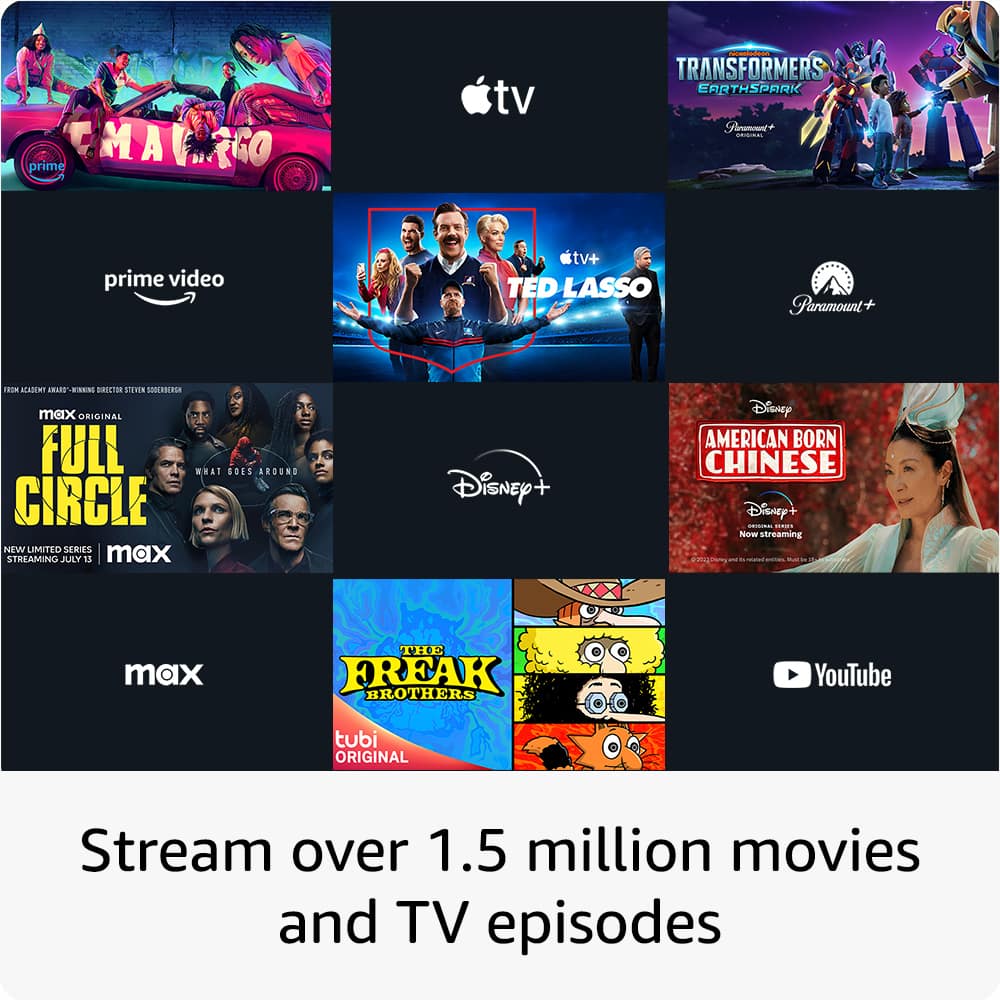
- A:Answer Yes, the Insignia™ 24" Class F20 Series LED HD Smart Fire TV should be able to download and work with the Xfinity app. Fire TV Edition televisions like this one typically support a wide range of popular streaming apps, including the Xfinity Stream app. You should be able to download the Xfinity Stream app directly from the Amazon Appstore on the TV and use it to access your Xfinity content, including live TV, on-demand shows, and recordings. However, it's always a good idea to double-check compatibility and availability by searching for the Xfinity Stream app in the Amazon Appstore on the TV itself or by consulting the manufacturer's specifications or support documentation. Keith | Insignia Support https://www.bestbuy.com/site/insignia-24-class-f20-series-led-hd-smart-fire-tv/6491295.p?skuId=6491295
Answered by InsigniaCustomerSupport

Q: QuestionCan I hook up a dvd player to this tv?
Asked by Anonymous.
- A:Answer It has video and L-audio-R: IN, Audio out - analog , Digital Optical Output, HDMI 1,2 and 3(ARK) jack to connect a digital audio system.
Answered by Smash
Q: QuestionHow do I watch local channels with an antennae on this TV?
Asked by Anonymous.
- A:Answer Hi there, 1.Make sure that your TV’s power cord is unplugged and all connected equipment is turned off. 2.Connect a coaxial cable to the antenna/cable jack on your TV and to the antenna or cable TV wall jack. 3.Plug your TV’s power cord into a power outlet, then turn on your TV. 4.On the HOME screen, navigate to the INPUTS row, then select Antenna. 5.If you cannot tune to channels you know exist, scan for channels. Go to Settings > Live TV > Channel Scan. Insignia Support Shella https://www.bestbuy.com/site/brands/best-buy-brands/pcmcat1596746025285.c?id=pcmcat1596746025285
Answered by InsigniaCustomerSupport
Q: Questionhow much does the 24" insignia TV weigh
Asked by George.
- A:Answer Hi George, the product weight with stand is 6.2 pounds, if without stand the weight is 6.1 pounds. Mariepel C.| Insignia Products https://www.bestbuy.com/site/brands/best-buy-brands/pcmcat1596746025285.c?id=pcmcat1596746025285
Answered by InsigniaCustomerSupport
Q: QuestionI travel around a lot and am often without cell phone service. Can I use airplay or screen mirror on my iPhone to play movies that I have previously downloaded on my Netflix app? Or must I use the apple lightning to hdmi cable? (It doesn’t work well!)
Asked by TDriver.
- A:Answer TDriver, Yes,you can use Apple AirPlay if you have a apple devices or screen mirroring for the andriod. Insignia Product Marites www.bestbuy.com/site/brands/best-buy-brands/pcmcat1596746025285.c?id=pcmcat1596746025285
Answered by InsigniaCustomerSupport
Q: QuestionDoes this run off of 12 volt DC? I am looking for a hurricane / camping television.
Asked by CurtisWorstBUY.
- A:Answer No, 110 volts A/C only
Answered by JoseG
Q: QuestionDoes this TV have an ac/dc converter box in the power cable? I am looking for a TV specifically with the inverter built into the cable, not in TV The power port on the TV should look round, but there are no pictures or information on it.
Asked by Eric.
- A:Answer Does not come with converter box. You would have to buy that box. The power cord is only 1 wire that plugs into the outlet. 110 voltage. The only thing built in to the INSIGNIA TV is SMART TV.
Answered by Isaac01
Q: QuestionCan this tv be used as a monitor for my laptop
Asked by Curious.
- A:Answer My granddaugther has the same one and she uses it for her laptop. She has no complaints.
Answered by Guinie
Top Rated
- $699.99Your price for this item is $699.99$1,299.99The comparable value for this item is $1,299.99
- $119.99Your price for this item is $119.99$229.99The comparable value for this item is $229.99
- Black Friday Deal$229.99Your price for this item is $229.99
- $189.99Your price for this item is $189.99$249.99The comparable value for this item is $249.99
- $129.99Your price for this item is $129.99$149.99The comparable value for this item is $149.99
- $199.99Your price for this item is $199.99$349.99The comparable value for this item is $349.99
- Black Friday Deal$1,399.99Your price for this item is $1,399.99
- $279.99Your price for this item is $279.99$379.99The comparable value for this item is $379.99
- $139.99Your price for this item is $139.99$189.99The comparable value for this item is $189.99
- Black Friday Deal$499.99Your price for this item is $499.99
- $479.99Your price for this item is $479.99$649.99The comparable value for this item is $649.99
- $74.99Your price for this item is $74.99$149.99The comparable value for this item is $149.99
- Black Friday Deal$1,999.99Your price for this item is $1,999.99
- Black Friday Deal$399.99Your price for this item is $399.99
- $999.99Your price for this item is $999.99$1,999.99The comparable value for this item is $1,999.99
- $949.99Your price for this item is $949.99$1,999.99The comparable value for this item is $1,999.99
- Black Friday Deal$599.99Your price for this item is $599.99
- $589.99Your price for this item is $589.99$999.99The comparable value for this item is $999.99
- $319.99Your price for this item is $319.99$469.99The comparable value for this item is $469.99
- $179.99Your price for this item is $179.99$299.99The comparable value for this item is $299.99