A:AnswerSorry, I don't have an answer for your/this question.
I'm strictly a "hard-wired-guy" and will be for the rest of my life which is maybe 15 years from my current 72.
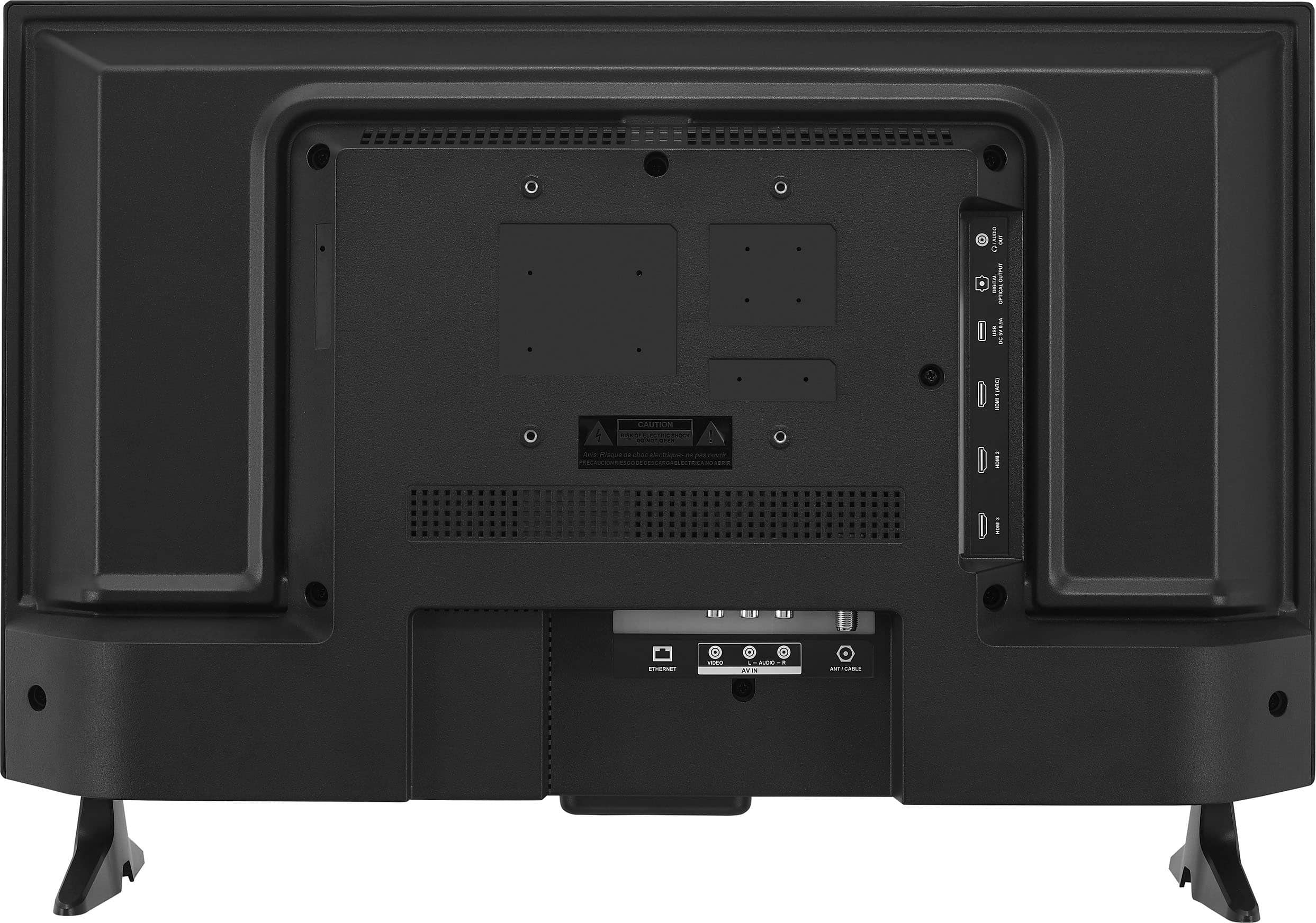
But as a retired engineer, I know that it will be years after I'm gone before BT or any other radio transmitted audio signal will have the sound quality equal to that of hard-wired signals; if ever. Provided you're interested in sound quality. So, I guess I do have an answer, use hard-wired connections/signals. You'll be glad you did. (again, if sound quality is important to you)
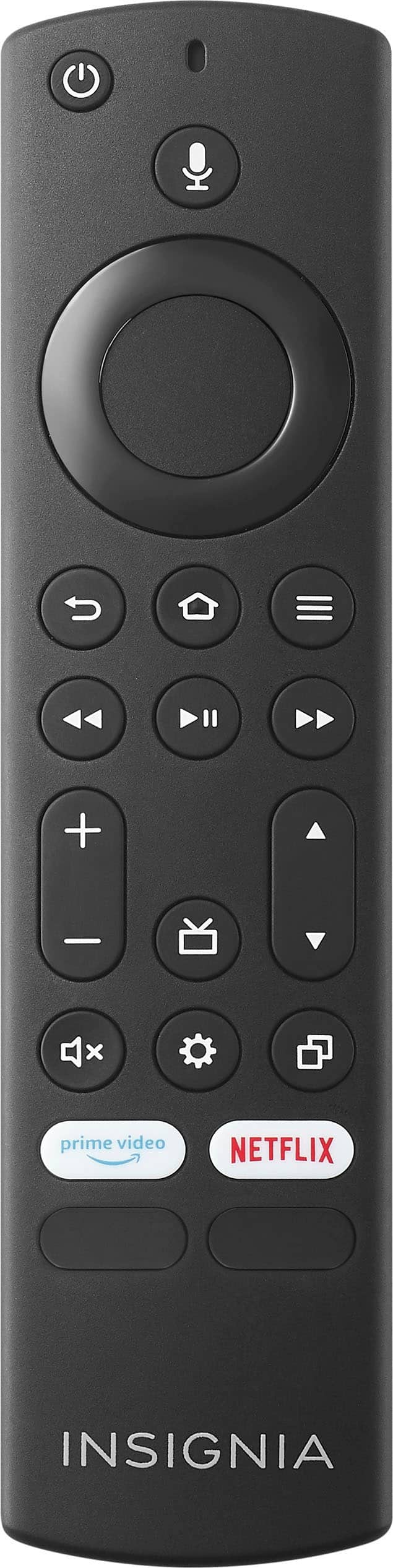
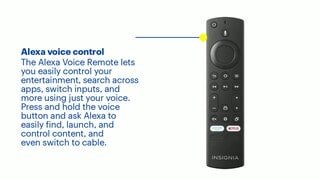
A:AnswerI've never actually used SAP, but "on/off" instructions are "under" one of the "Settings" selections, or you can ask Alexa, and finally on your "QUICK SETUP GUIDE" in a box headed FIND YOUR USER GUIDE ONLINE, "1 Go to www.insigniaproducts.com" and I'll let you read the rest of the information in that box.
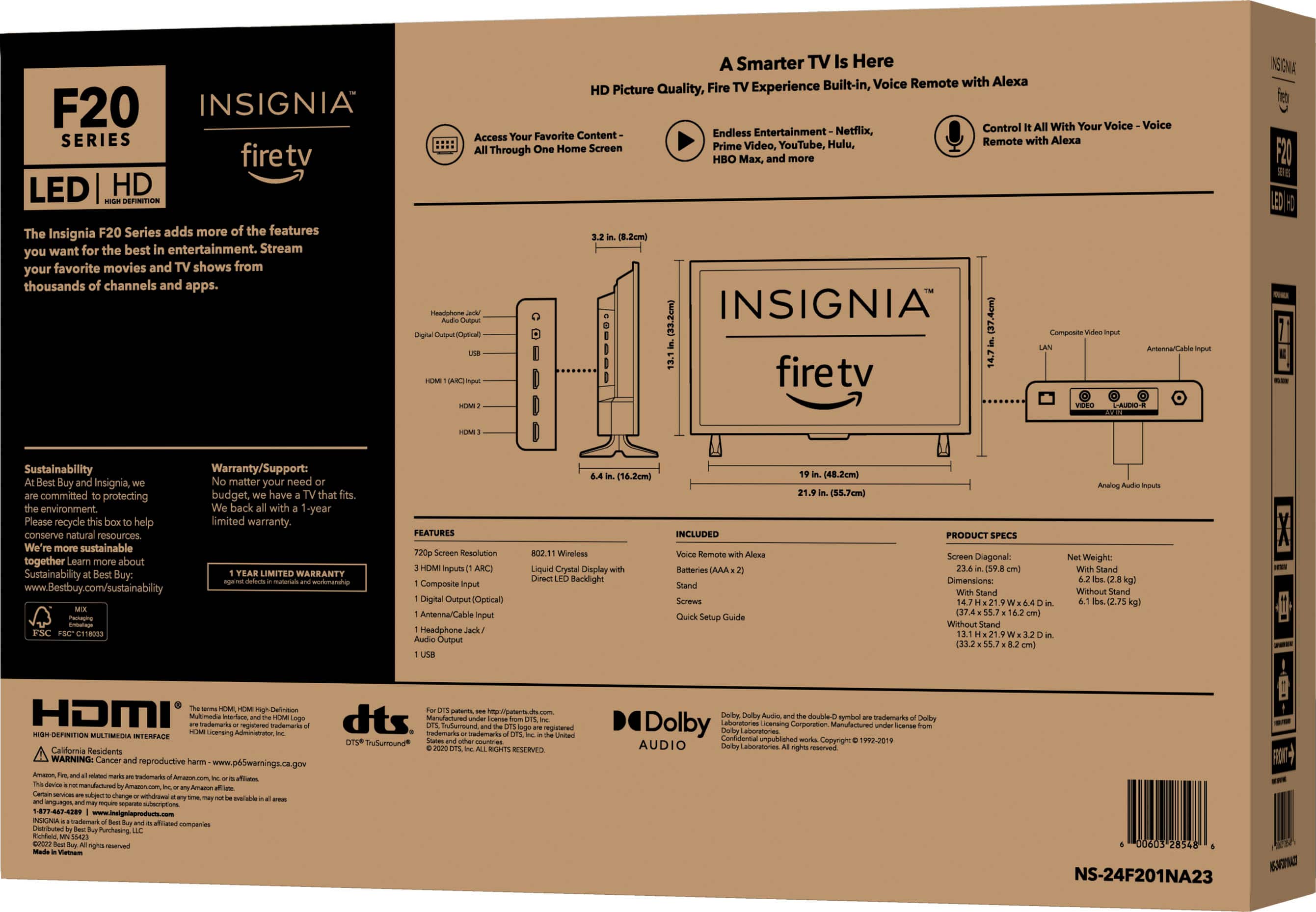
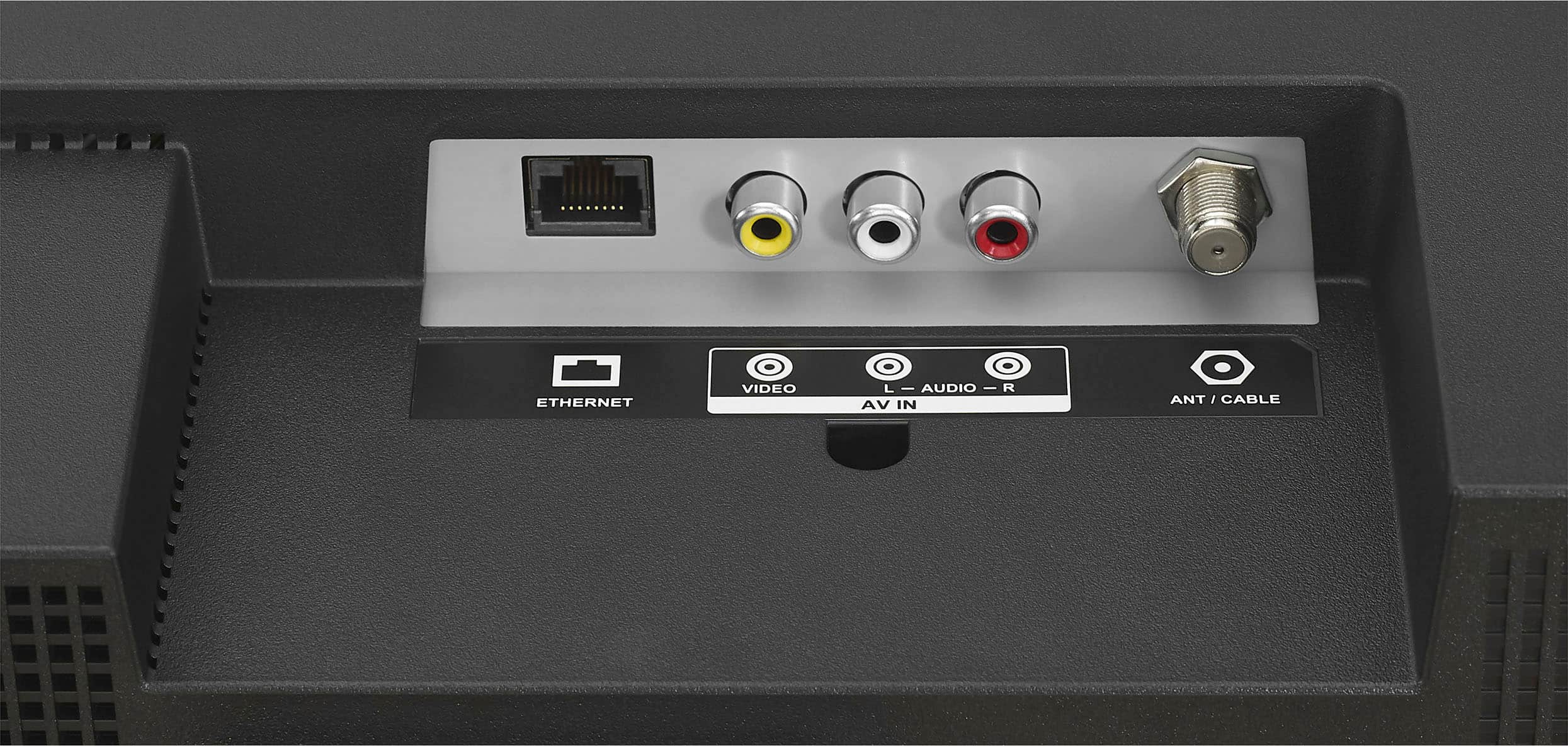
A:AnswerI believe your question is how do you get the antenna/coax cable connection to display on the TV. If that is the case, when the TV starts up it should be on the Home screen. You will want to use the remote to go left, well or right, to get to the Inputs selection. The icon is a rectangle with an arrow pointing from left to the right. On the Inputs screen, use the remote and scroll down, then use the remote to scroll to Antenna. After this I'm unsure but it looks like one should choose the Antenna Channels option.
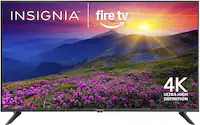
A:AnswerThank you for your inquiry! Yes, the Insignia™ 24" Class F20 Series LED HD Smart Fire TV can be used with an antenna to access over-the-air channels. For the best performance, consider using a highly directional outdoor antenna or a set-top antenna with a built-in amplifier. Keith | Insignia Support
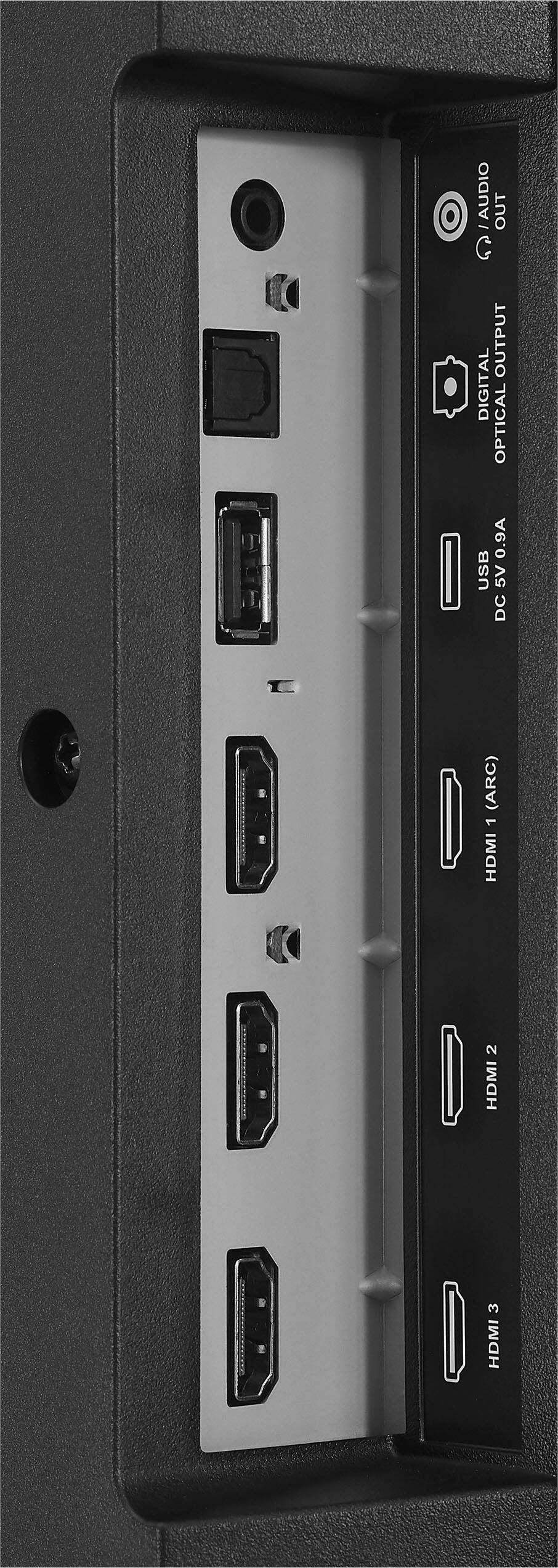
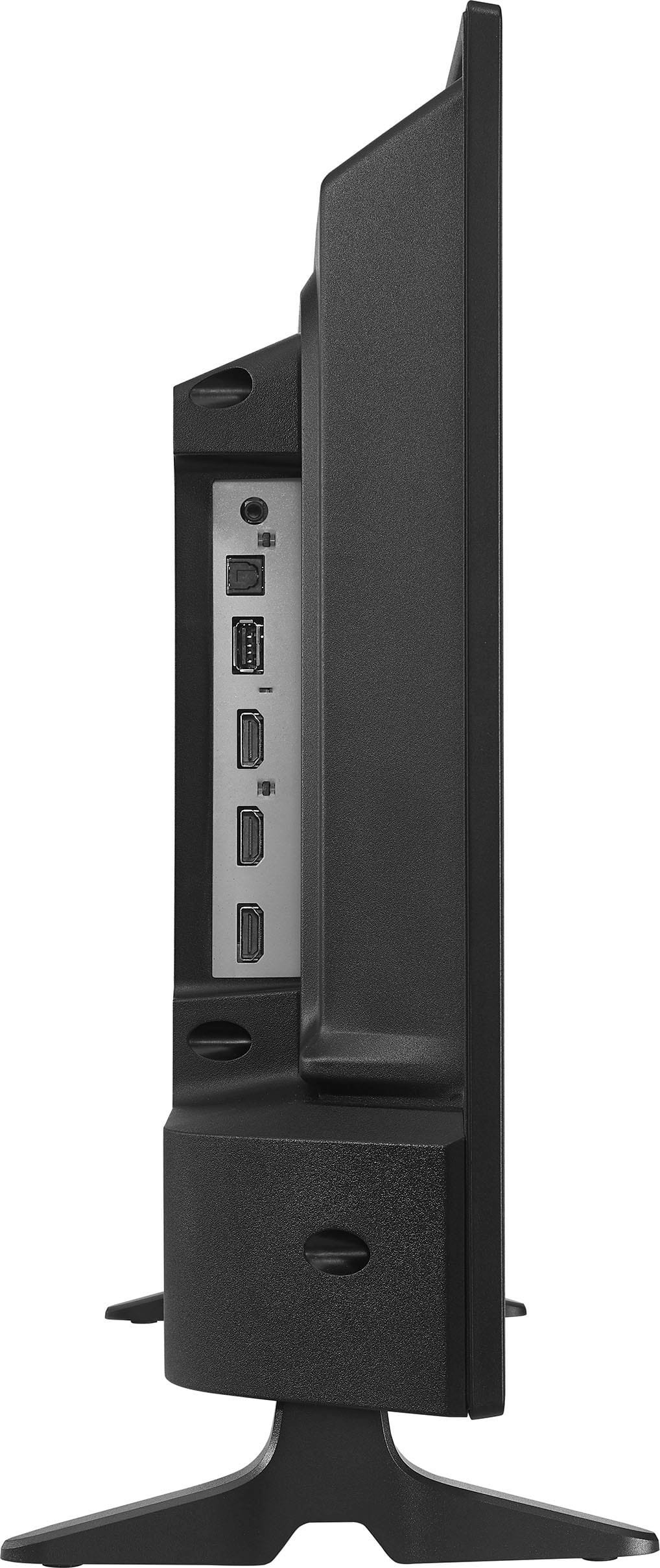
A:AnswerFor your Insignia™ 24" Class F20 Series LED HD Smart Fire TV, here are the details regarding the USB port:
1. Maximum USB Drive Size: The TV typically supports USB drives up to 128 GB.
2. File Formats: The TV supports the following file formats for media playback:
- Video: AVI, MP4, MKV, MOV
- Audio: MP3, WMA, WAV
- Image: JPEG, PNG, BMP
3. File System: Ensure your USB drive is formatted to FAT32 or NTFS. These are the most commonly supported file systems for media playback on this TV.
If your USB drive is not being recognized, try the following steps:
- Reformat the USB Drive: Backup your data and reformat the drive to FAT32 or NTFS.
- Check for Errors: Use your computer to check the USB drive for errors and repair any issues.
If you continue to experience issues, it might be helpful to test the USB drive on another device to ensure it is functioning properly. Let me know if there's anything else I can assist you with!