A:AnswerHello Jos,
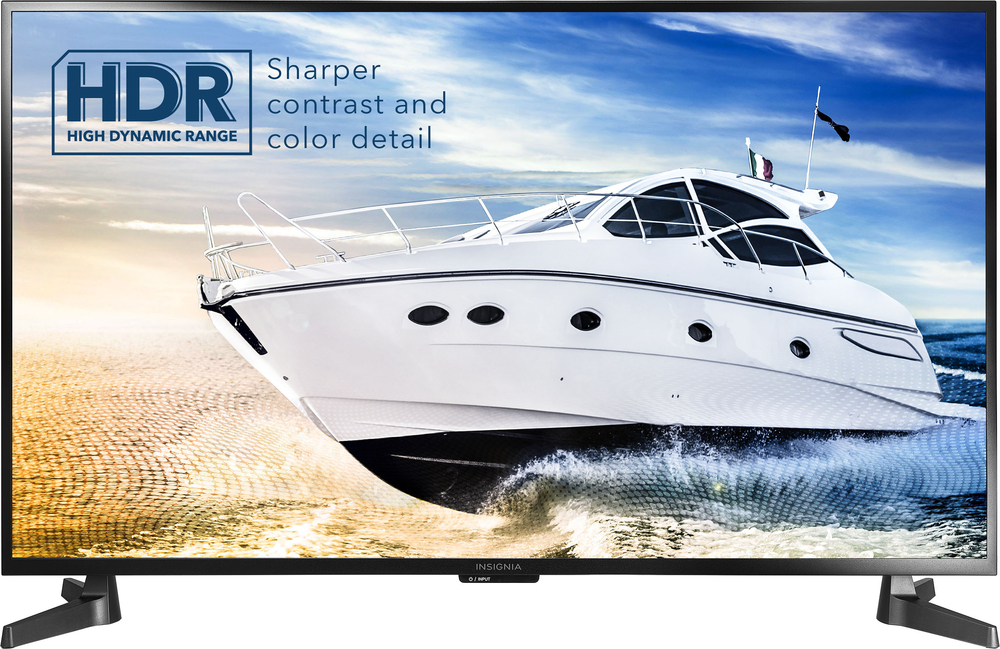
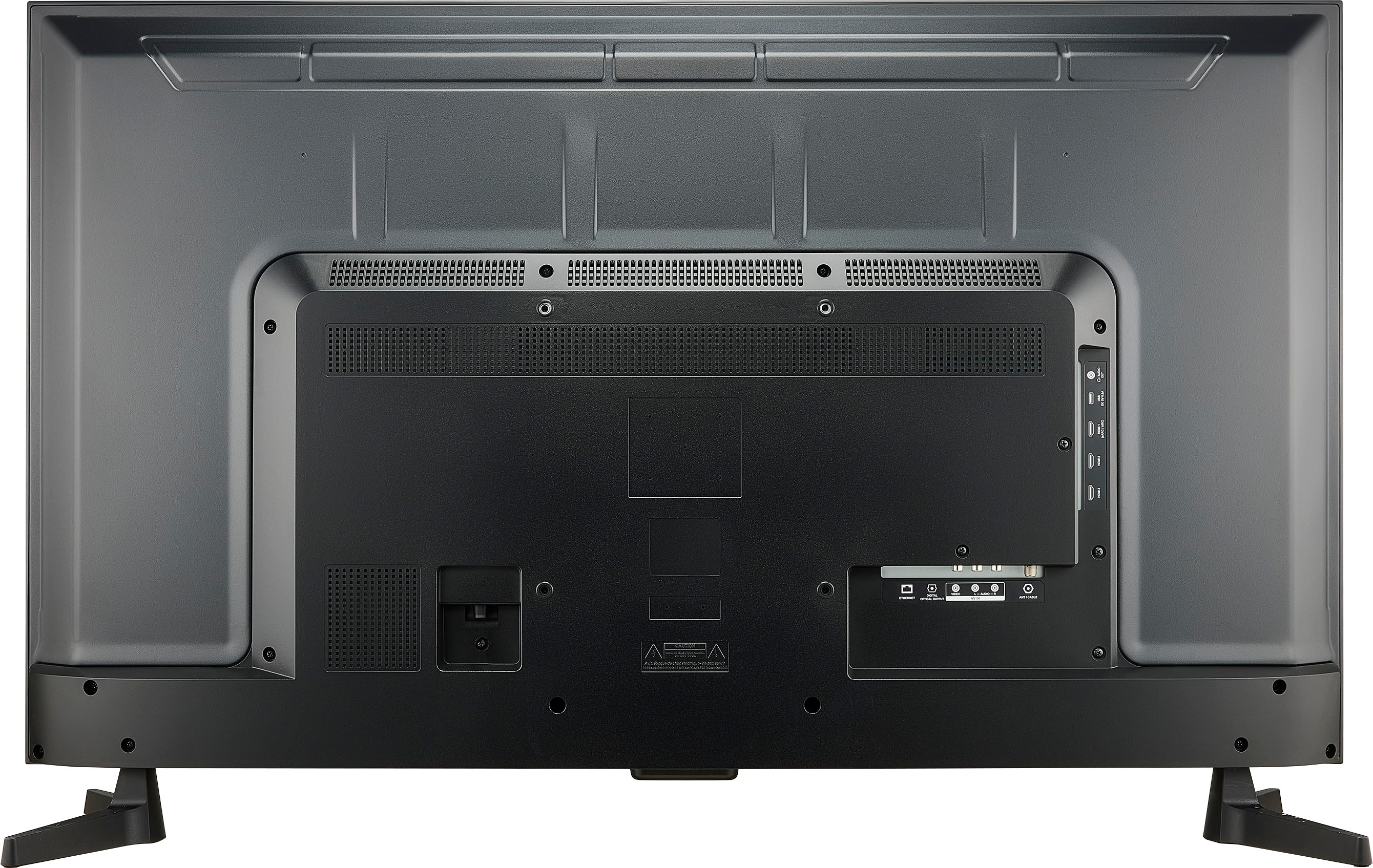
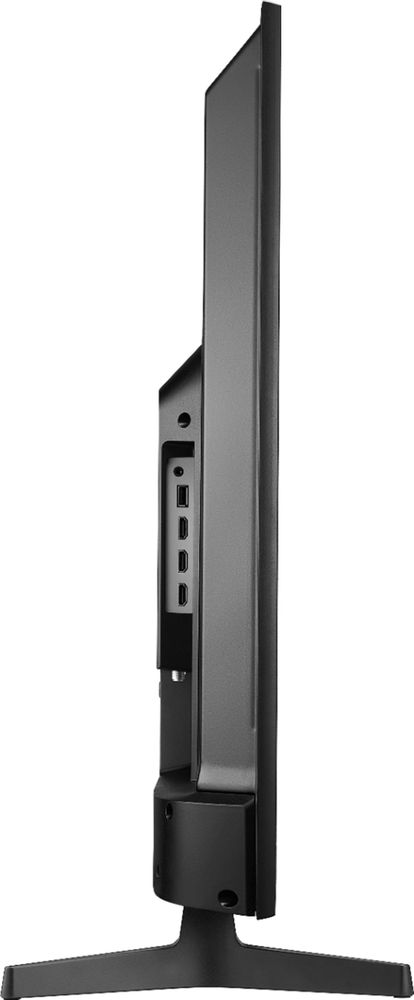
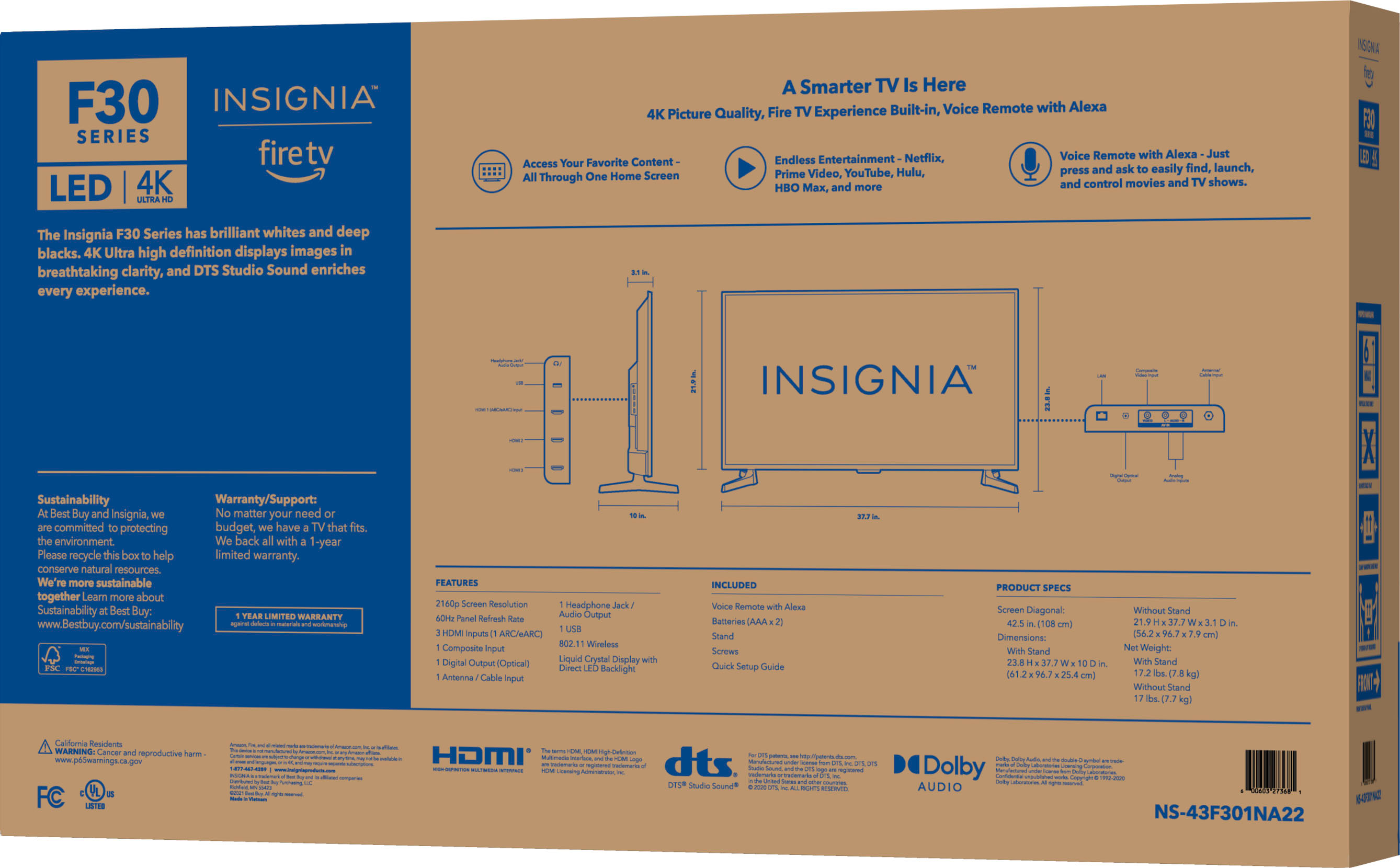
The distance between the legs is 36.36". The length of the stand is 10". The center stand should be with VESA pattern 200 × 200.
Insignia Support
Molina
www.insigniaproducts.com/support
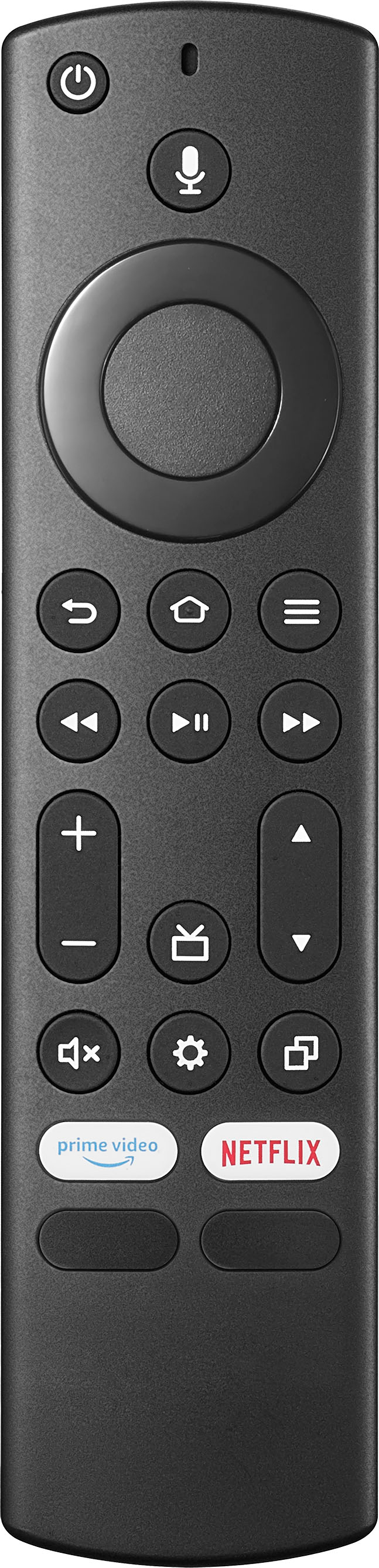
A:AnswerPress the settings button on the remote and a menu will pop up in the right side of the screen that will let you go to another input. You can always click the home button and well and start back over in the firetv home screen.
A:AnswerI’m not entirely sure if you can expand it, as this is my first Fire TV. But I do see my storage info on settings> device & software> About > Storage. It does show me my storage amount left on the TV and that there is “no USB storage connected” so if what I’ve read online is true, this means I can connect a usb device to allow for more? Any additional comments appreciated :D
A:AnswerFor someone hard of hearing, I wouldn’t recommend this TV. We had our kitchen exhaust on and I had to turn the volume up to 60 or so hear and understand. But normally, great sound and great picture quality
A:AnswerYes if fact voice assist is something you turn on when you’re setting up the TV if you want to use it. I don’t even have Alexa and I just use the remote.
A:AnswerThe only way I've found to see additional program description information when the description shows theres more is the use the text banner option in settings/accessibility. The banner feels very intrusive to screen real estate though. Also I never have or plan to connect the set to the internet so if a firmware update is availible I'll have to manually update if thats possible in a fire TV.