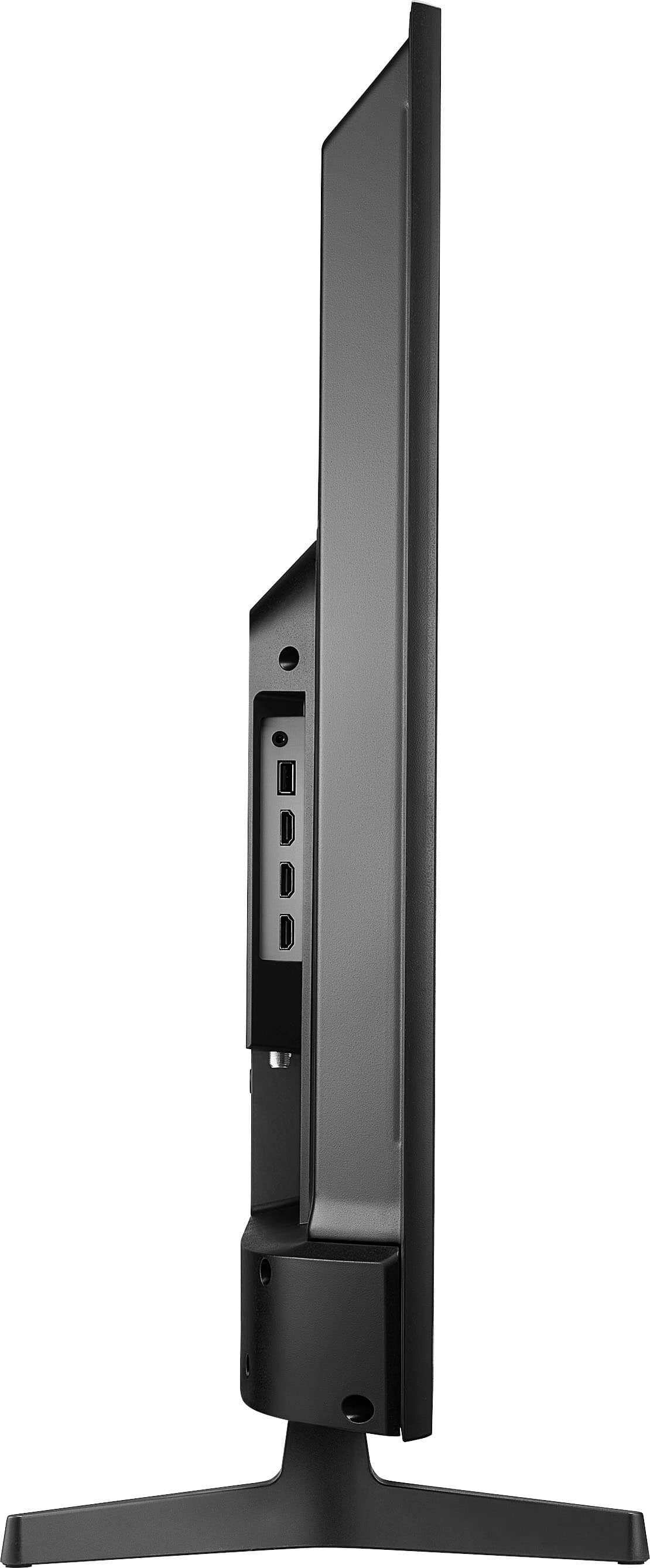
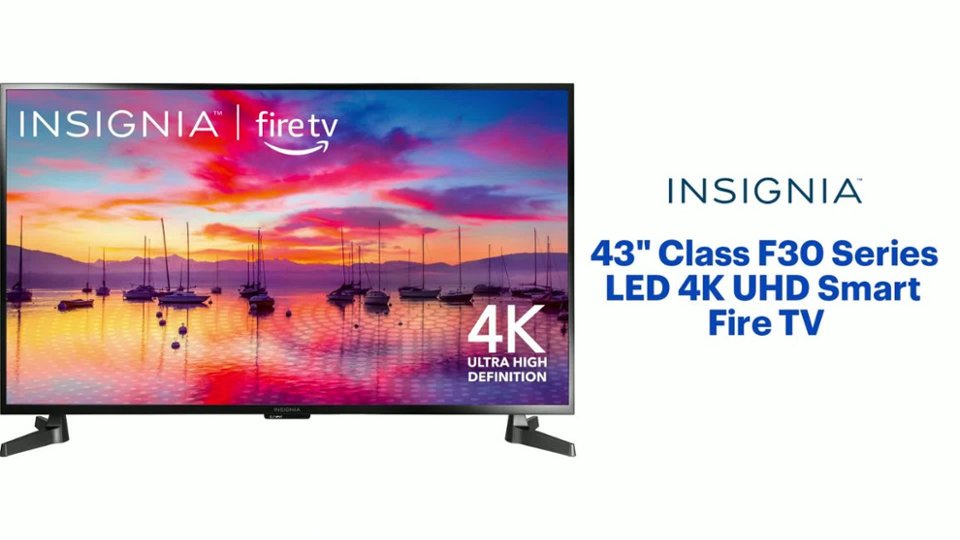
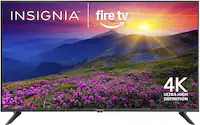
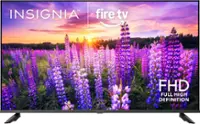
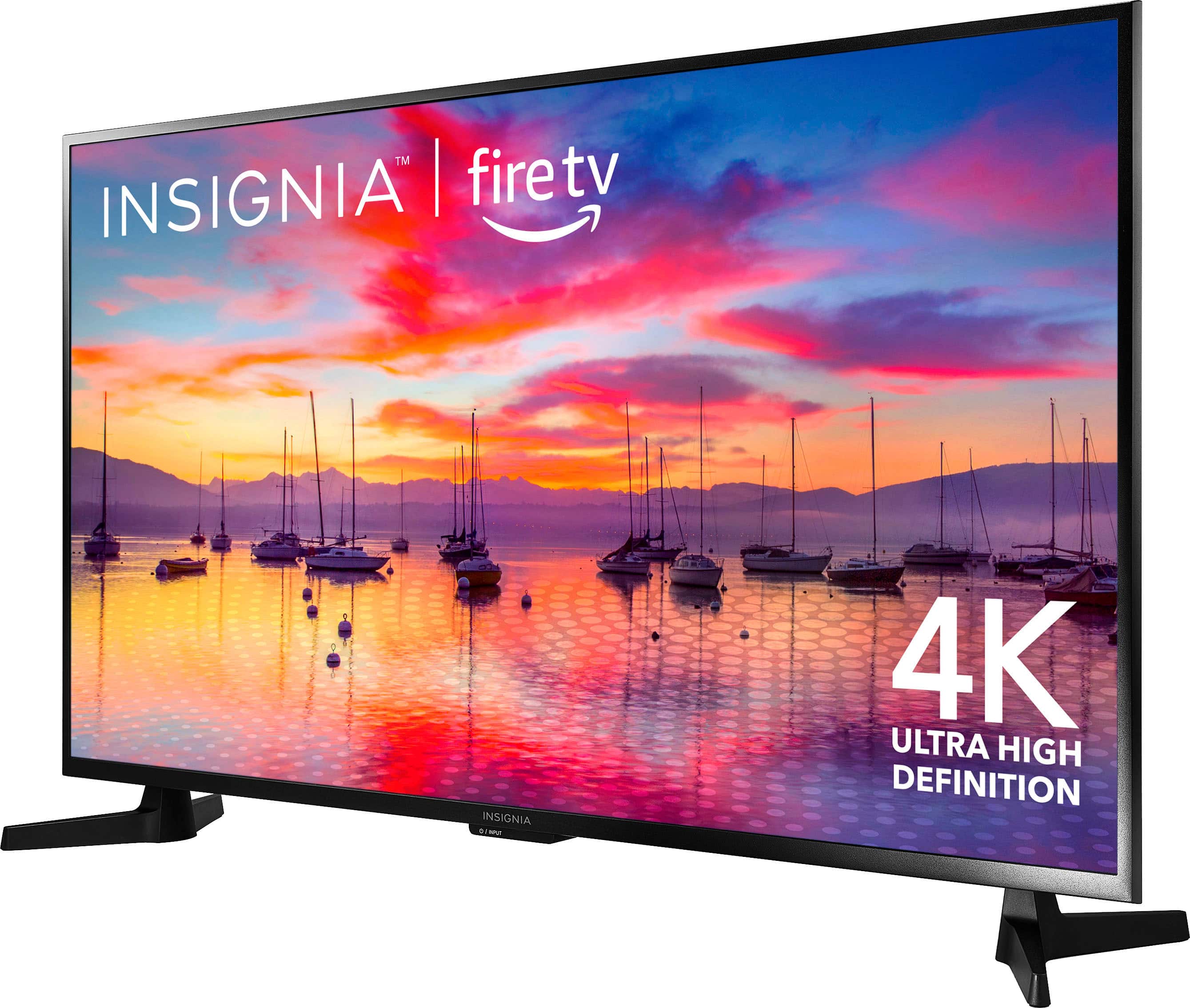
A:AnswerThe Insignia™ 43" Class F30 Series LED 4K UHD Smart Fire TV has a width of 37.7 inches and a height of 21.9 inches without the stand. When the stand is attached, the height increases to 23.8 inches, and the stand itself has a width of 36.36 inches. This compact yet impressive TV is designed to fit comfortably in various spaces while delivering a high-quality viewing experience. Patricia | Insignia Support
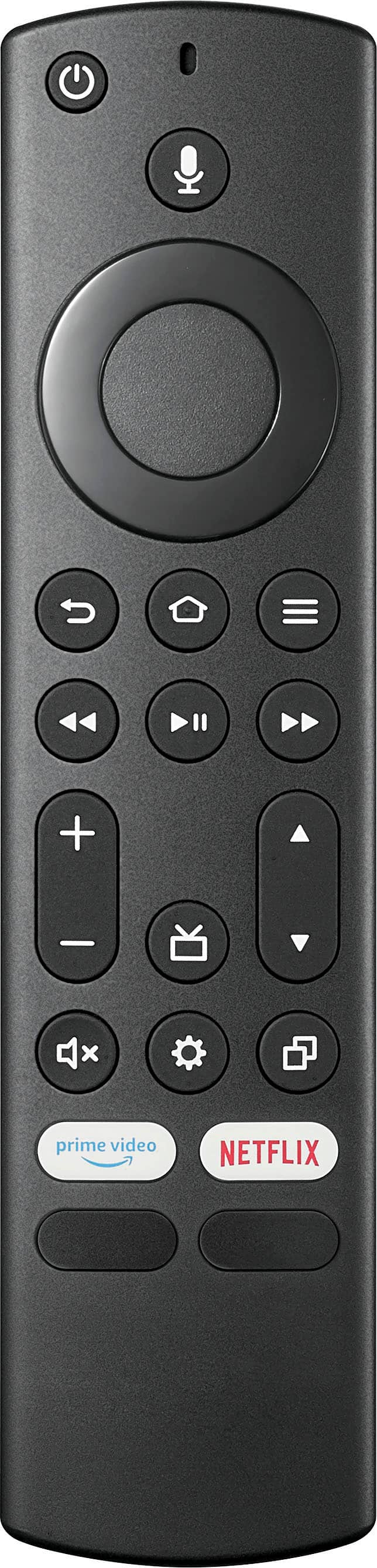
A:AnswerThis TV comes with an Alexa voice remote control that works very well. I don’t know if it would work with this TV but I don’t think you’d need another remote.
A:AnswerMaybe, I got errors attaching it to my Roku Ultra, it kept bouncing back and forth between the content and the error message. The error message was never up long enough for me to get more than it was a security violation with the HDTV copy protection.
A:AnswerThe Insignia™ 43" Class F30 Series LED 4K UHD Smart Fire TV is designed to operate on a standard voltage of 120V. Unfortunately, this means it won’t be directly compatible with the 240V power supply in Australia.
To use this TV in Australia, you would need a step-down voltage converter that can safely convert 240V to 120V. Make sure the converter can handle the power requirements of your TV to avoid any potential damage.
If you have any questions or need further assistance, please don't hesitate to reach out. Thank you for choosing Insignia! - Emman | Insignia Support | https://www.bestbuy.com/site/brands/best-buy-brands/pcmcat1596746025285.c?id=pcmcat1596746025285
A:AnswerThank you for your inquiry! To connect your Bluetooth device to the Insignia™ - 43" Class F30 Series LED 4K UHD Smart Fire TV soundbar, first make sure the Bluetooth feature on the soundbar is enabled. This can usually be done by pressing the Bluetooth button on the soundbar or by accessing the settings menu on the TV. Once Bluetooth is enabled, go to the Bluetooth settings on your device and search for available devices. The soundbar should appear in the list of available devices. Select the soundbar to pair with it. You may be asked to enter a PIN for pairing, which is usually 0000 or 1234. Once paired, you should be able to stream audio from your device to the soundbar wirelessly. Keith | Insignia Support https://www.bestbuy.com/site/insignia-43-class-f30-series-led-4k-uhd-smart-fire-tv/6562495.p?skuId=6562495
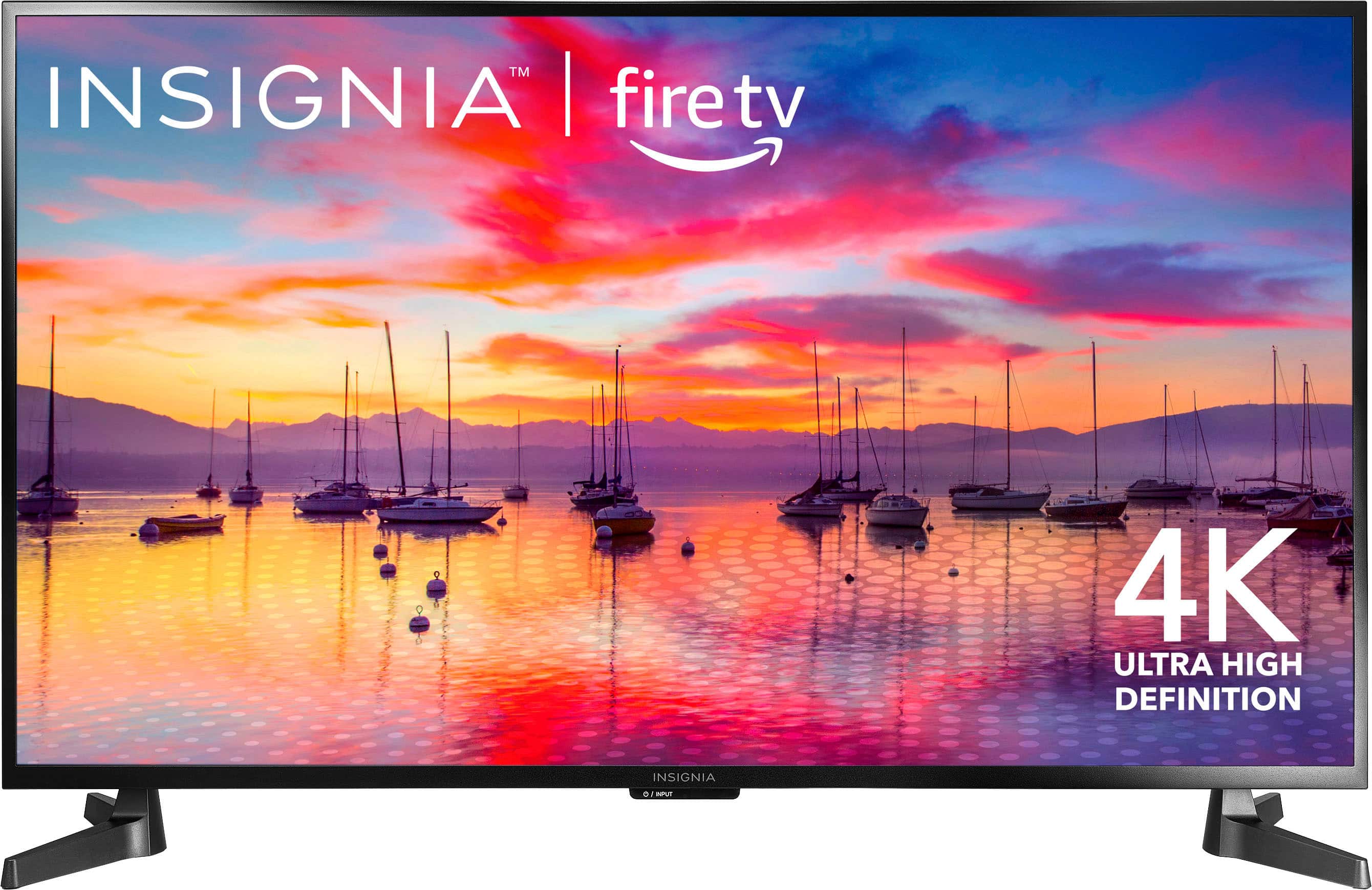
A:AnswerThe measurements of the Insignia™ - 43" Class F30 Series LED 4K UHD Smart Fire TV are 37.7 inches in width, 23.8 inches in height with stand, 21.9 inches without stand, and with a depth of 10 inches with stand, 3.1 inches without stand.
A:AnswerThank you for your inquiry! The Insignia™ - 43" Class F30 Series LED 4K UHD Smart Fire TV, running on the Fire TV platform, supports the ability for guests to sign in and out of streaming services. However, it does not have a dedicated guest mode or a specific feature tailored for Airbnb guests. To manage this for your Airbnb guests, you can create a separate profile for them, allowing them to sign into their streaming accounts without affecting your personal profile. Additionally, remind guests to sign out of their streaming accounts before they check out, and include this reminder in your house rules or welcome guide. For added security, you can perform a factory reset on the TV after each guest checks out to ensure all personal information and account logins are removed. This can be done by going to Settings, selecting Device & Software, and choosing Reset to Factory Defaults. Since the Fire TV requires an Amazon account to operate, consider creating a dedicated Amazon account for the TV used in your Airbnb, which can be used solely for this purpose to minimize potential issues with personal information. While the TV lacks a specific guest mode, these steps can help manage guest access and ensure privacy and security for both you and your guests. Keith | Insinga Support https://www.bestbuy.com/site/insignia-43-class-f30-series-led-4k-uhd-smart-fire-tv/6562495.p?skuId=6562495
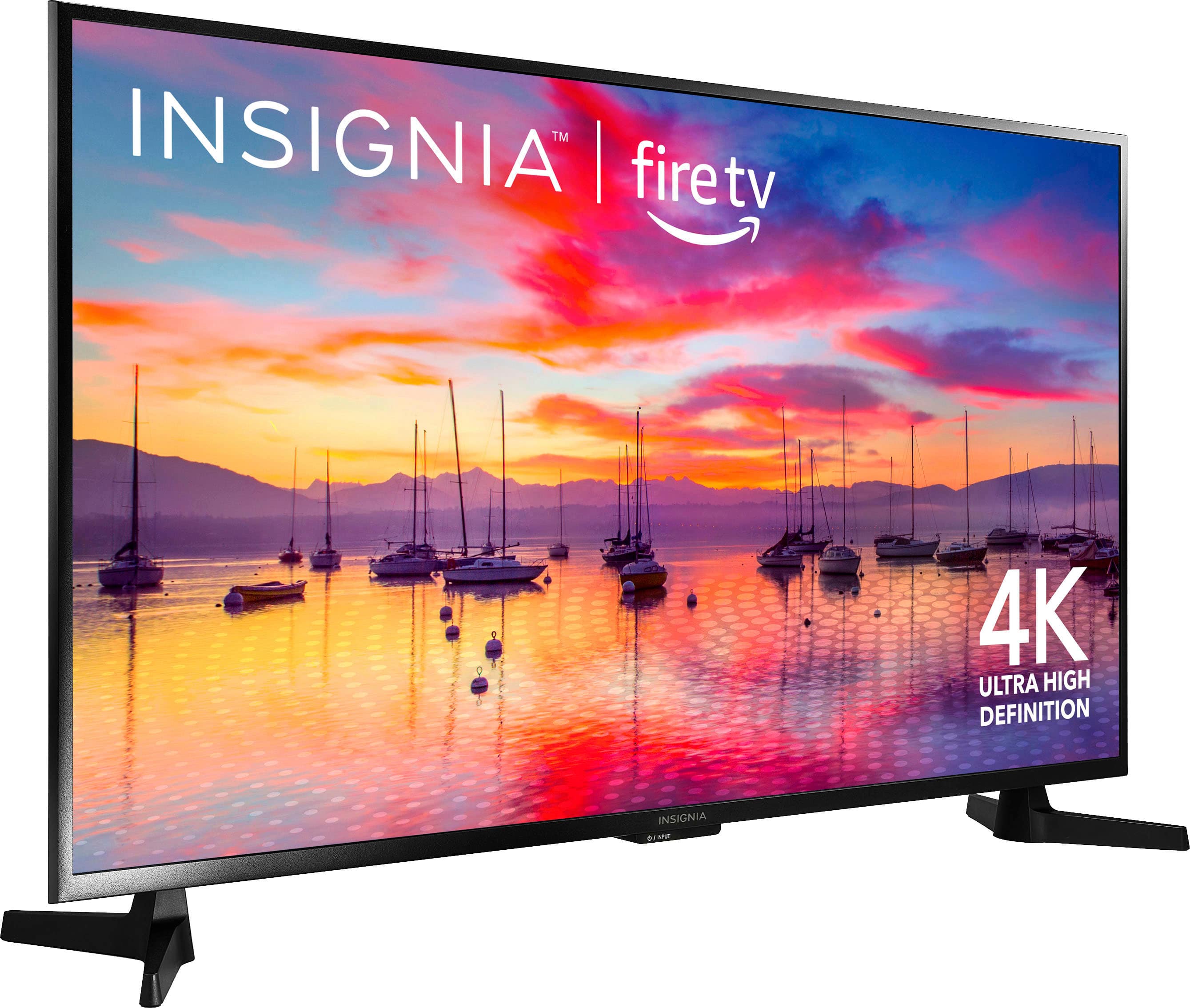
A:AnswerHi Jetssn, yes! Because this TV is capable of communicating with another device via Bluetooth, provided they are within the required range of each other. However, the Bluetooth-enabled device must also be the same Bluetooth version or higher than the accessory it is intended to pair with. Jeth | Insignia™ Support. https://www.bestbuy.com/site/insignia-43-class-f30-series-led-4k-uhd-smart-fire-tv/6562495.p?skuId=6562495
A:AnswerHello Insignia Customer! Thank you for inquiring about our Insignia™ - 43" Class F30 Series LED 4K UHD Smart Fire TV. Yes, this TV is compatible with you Kanto - Full-Motion TV Wall Mount. This TV has VESA mounting pattern 200 x 200 mm which is supported by your specific wall mount. I hope this helps. Have a wonderful day! - James | Insignia Support | https://www.bestbuy.com/site/brands/best-buy-brands/pcmcat1596746025285.c?id=pcmcat1596746025285
A:AnswerHi Ron, thank you for your inquiry! The TV feet/stand need to be attached or installed manually. For the instructions on how to attach/install the stand/feet of the tv, please check this link: https://www.bestbuy.com/site/insignia-43-class-f30-series-led-4k-uhd-smart-fire-tv/6562495.p?skuId=6562495 then go to "Features" and select "Quick Start Guide". -Carlo, Insignia Support
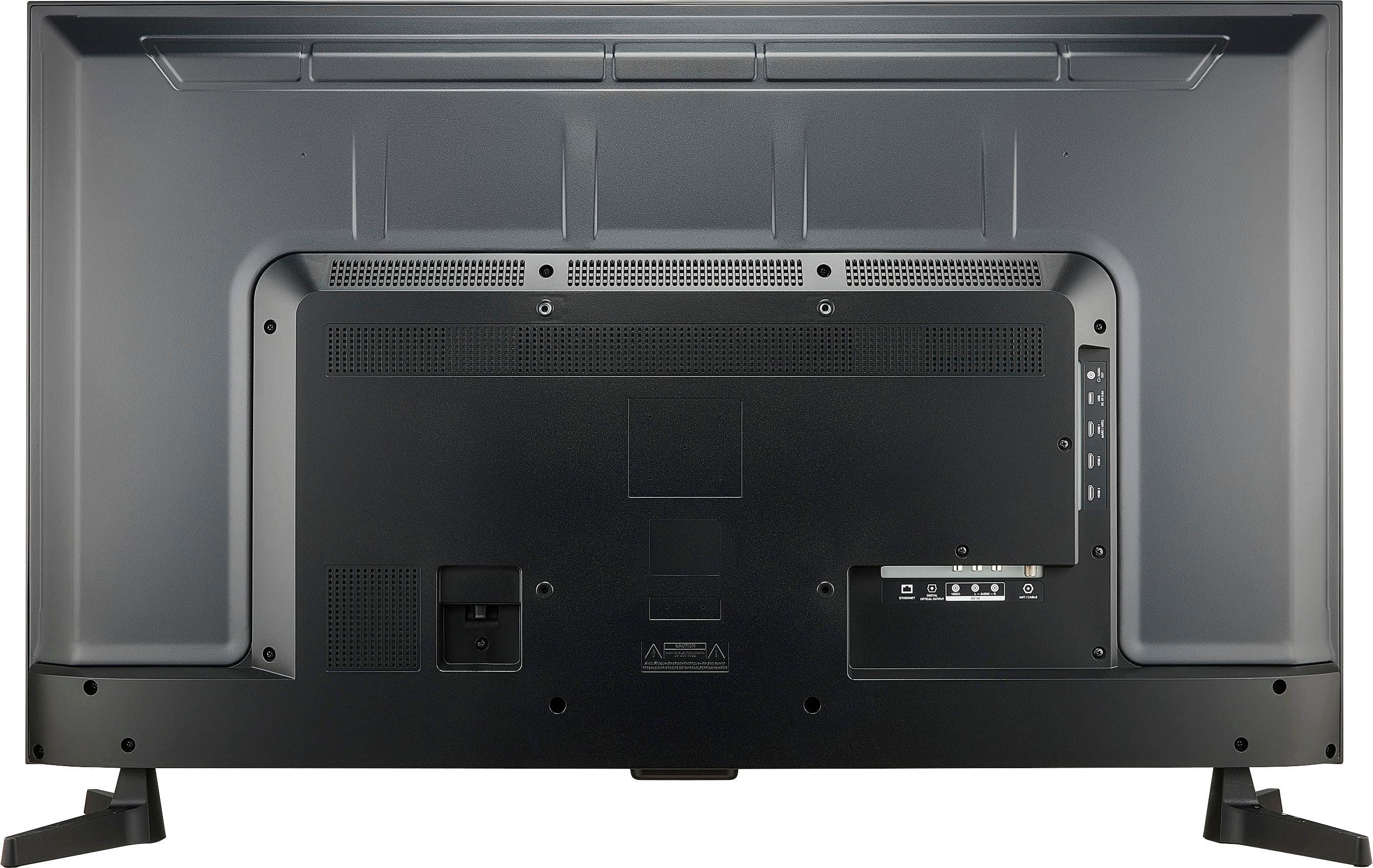
A:AnswerVoice Command: If your Insignia TV supports voice commands, you can say "Turn off screen" to turn off the display while keeping the TV on.
Remote Control: Use the remote control to navigate to the power settings and select the option to turn off the display.
Settings Menu: Access the settings menu on your Insignia TV, navigate to the power or energy settings, and look for options like Sleep Timer, Auto Sleep, or Idle TV Standby. Choose Off, Disable, or the longest available time setting.
1
These methods will help you manage the display settings on your Insignia TV effectively.