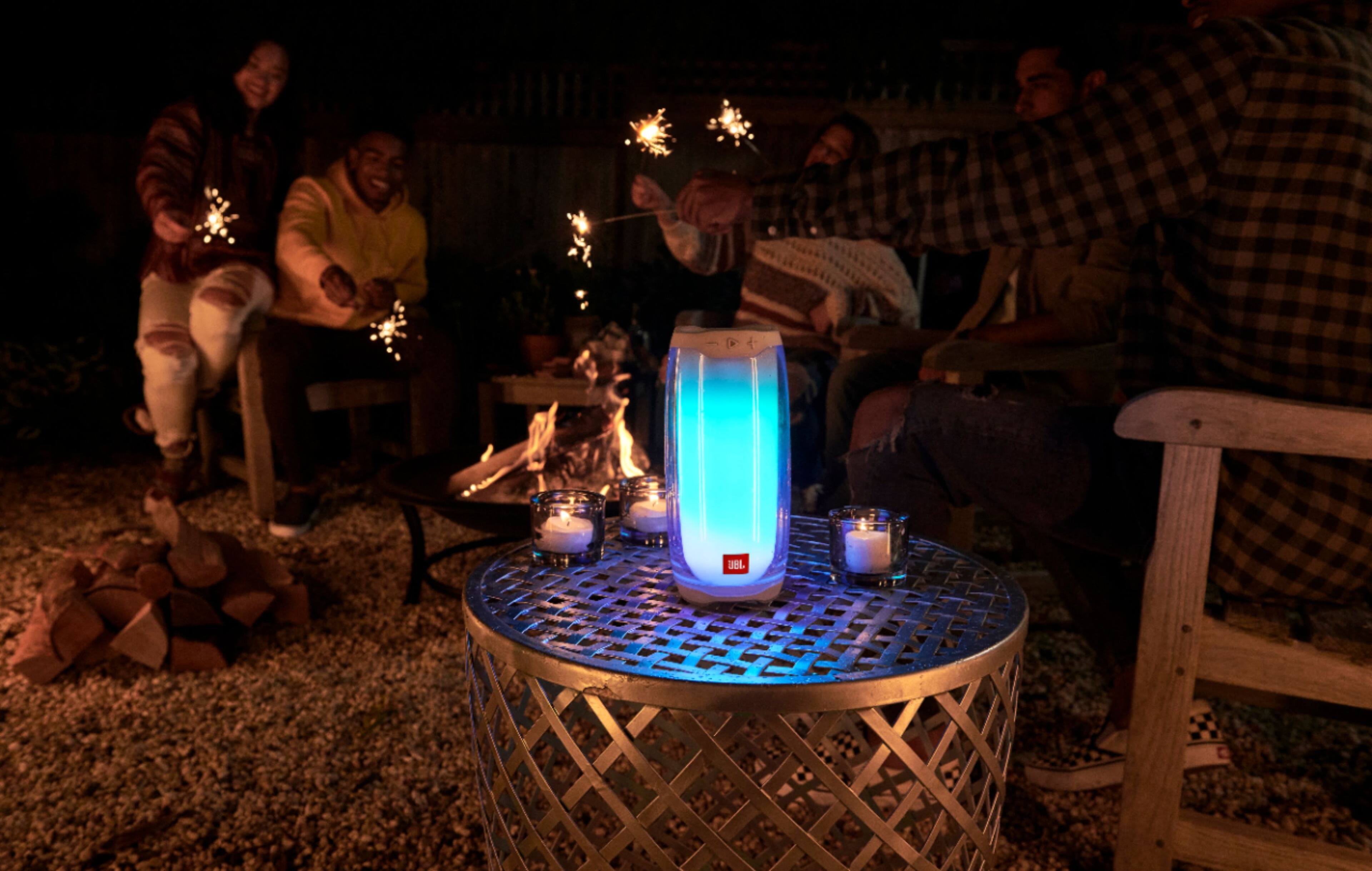
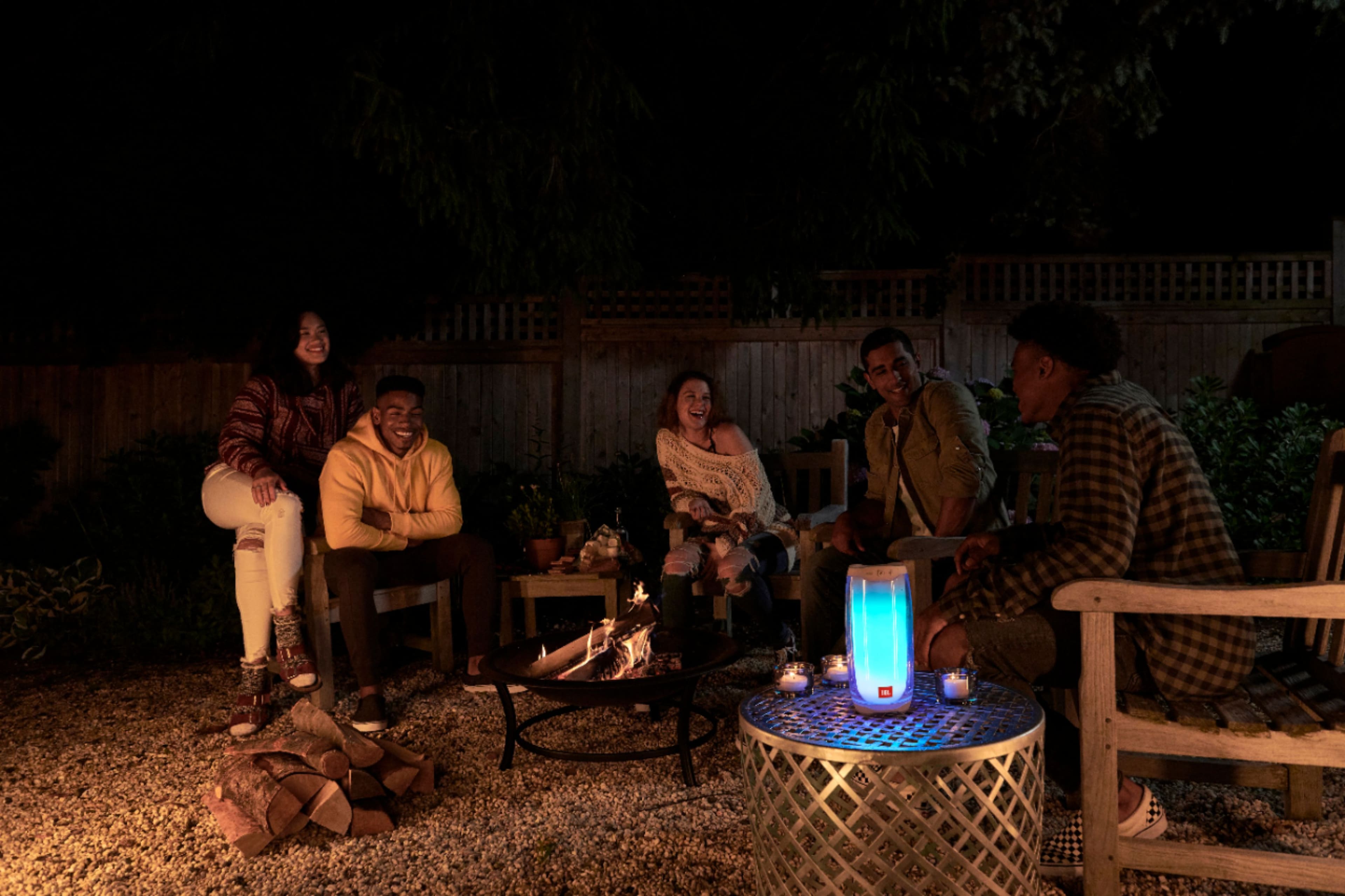
A:AnswerYou can depending on how old your computer is. My computer was fairly new and I still need to update my Bluetooth driver to work with JBL speakers. You can also use the auxiliary input on some of the JBL speakers. I wouldn't recommend using the speaker with the computer simply because it's is single mono speaker. I would recommend getting the JBL Flip 5. I would get two of them. Then you can link them together.
A:AnswerIt's possible if your Alexa device can connect with Bluetooth speakers. Microphones don't work with it. Other portable JBL speakers with a PartyBoost feature like Flip 5 and Boombox 2 can connect to and play the same music at once.

A:AnswerThe major difference is their design, the music playing time and output power are the same, however the JBL PULSE 4 takes 3.5 hours to be fully charged whereas the JBL PULSE 3 charges completely in 4.5 hours, the JBL PULSE 4 sounds better too, a price difference should be expected as well

A:AnswerYou can use any type-C usb cable to charge JBL Pulse 4. The recommended charging time for the speaker is 3 to 4 hours. There's an LED indicator showing the charging progress of the battery, once it's full it will turn off.
A:AnswerOur JBL Flip 5 sounds more powerful, crisper, and goes louder thanks to its improved driver. While the JBL Pulse 4 has acceptable music performance, It has a well-balanced midrange, so it can accurately reproduce vocals and lead instruments.
A:AnswerThank you for bringing this to our attention. We'd like to work with you directly to address the issues you're experiencing with your JBL Pulse 4. If needed, we'd also like to get more information so we can check your options. Please contact our customer support service via our official website or toll-free hotline.
A:AnswerWe're sorry about what happened with your Pulse 4. Please perform a forced power cycle. First, make sure that your product is not connected to a power supply or charger. Next, hold down the power button for 30 seconds. If you need more help, please contact our customer support.

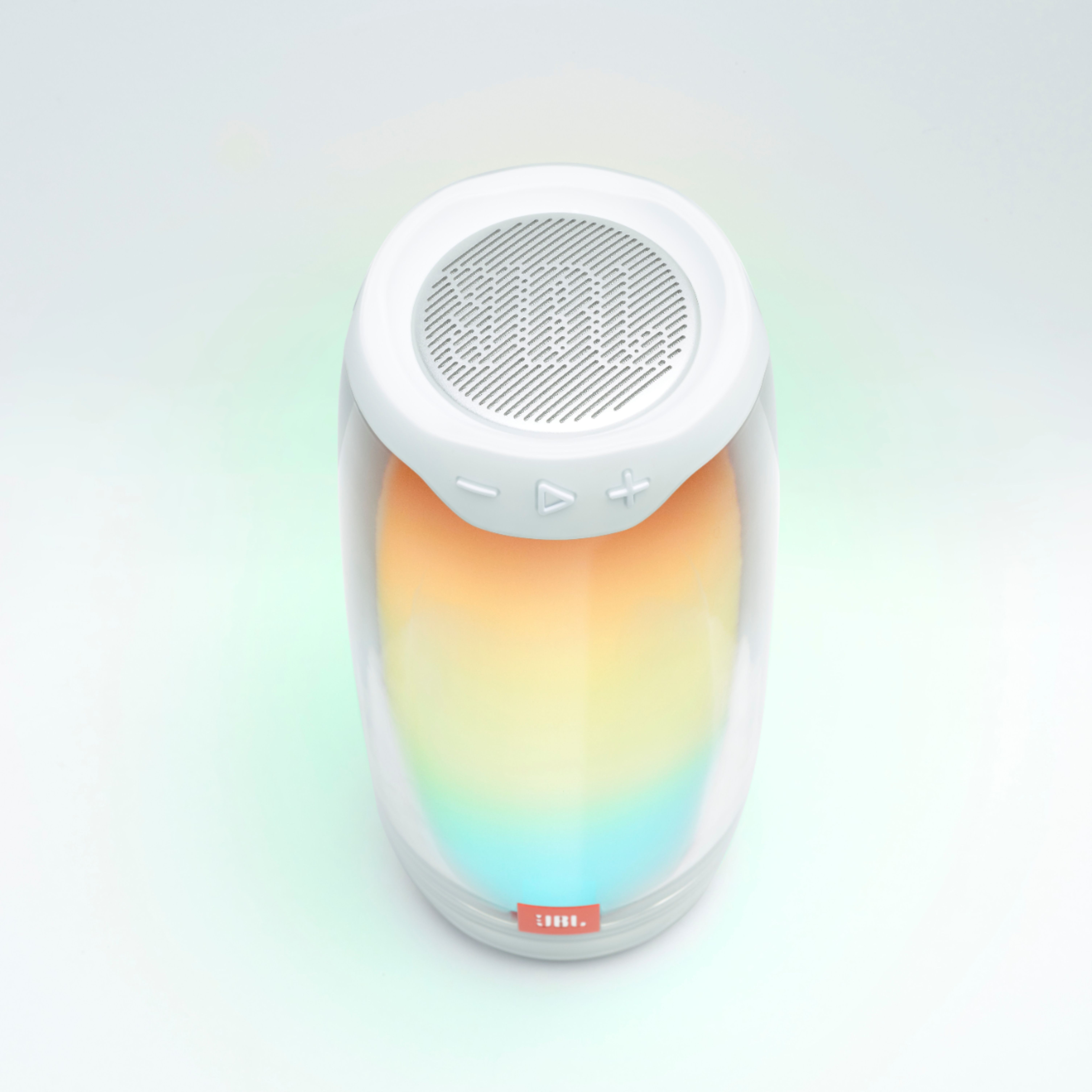

A:AnswerWe're here to help with your JBL Pulse 4. Please check the JBL Portable App to enable the light show. If it is already enabled and still unresponsive, try to reset your speaker by pressing and holding the Volume+ and Play/pause buttons down simultaneously for more than 5 seconds. Make sure to remove or forget the JBL Pulse 4 from your Bluetooth list before pairing. If you need more help, please contact our customer support for assistance.
A:AnswerThanks for reaching out. Please try to reset your speaker by pressing and holding the Volume+ & Play/pause buttons down at the same time for more than 5 seconds. The Pulse 4 will turn off, indicating that you did a successful reset. Once done, please make sure that your unit has a sufficient charge and connect it to a different source (phone, tablet, computer) to check if it will fix your problem. If the issue persists, please reach out to our customer support to check your options here: https://bit.ly/3pC8WOU