A:AnswerFirst try powering your Chromebook off by holding the power button down for six seconds, then turning it back on again. ... If this does not work, reset your Chromebook. Here is a link to instructions for resetting a chromebook: https://support.google.com/chromebook/answer/183084?hl=en
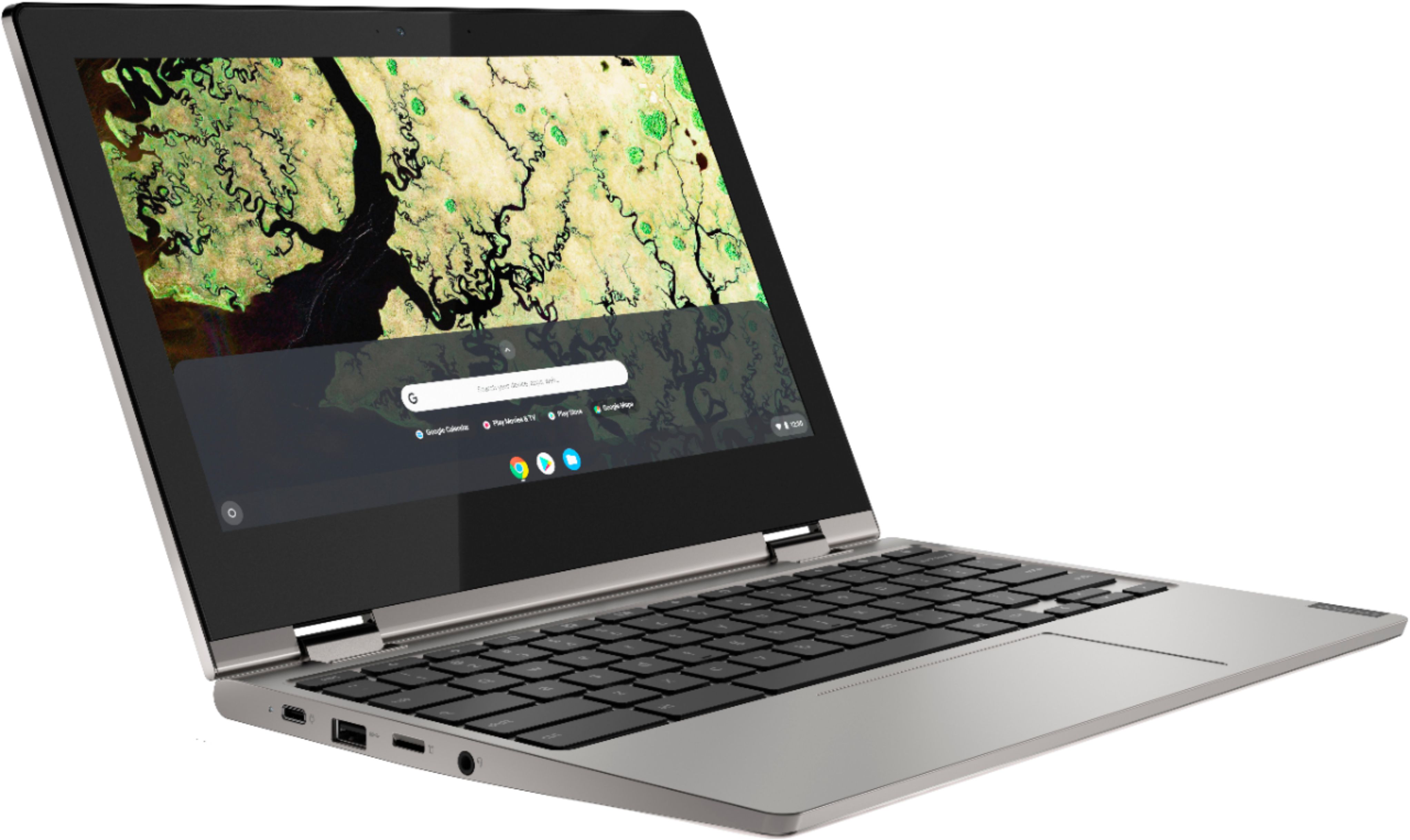
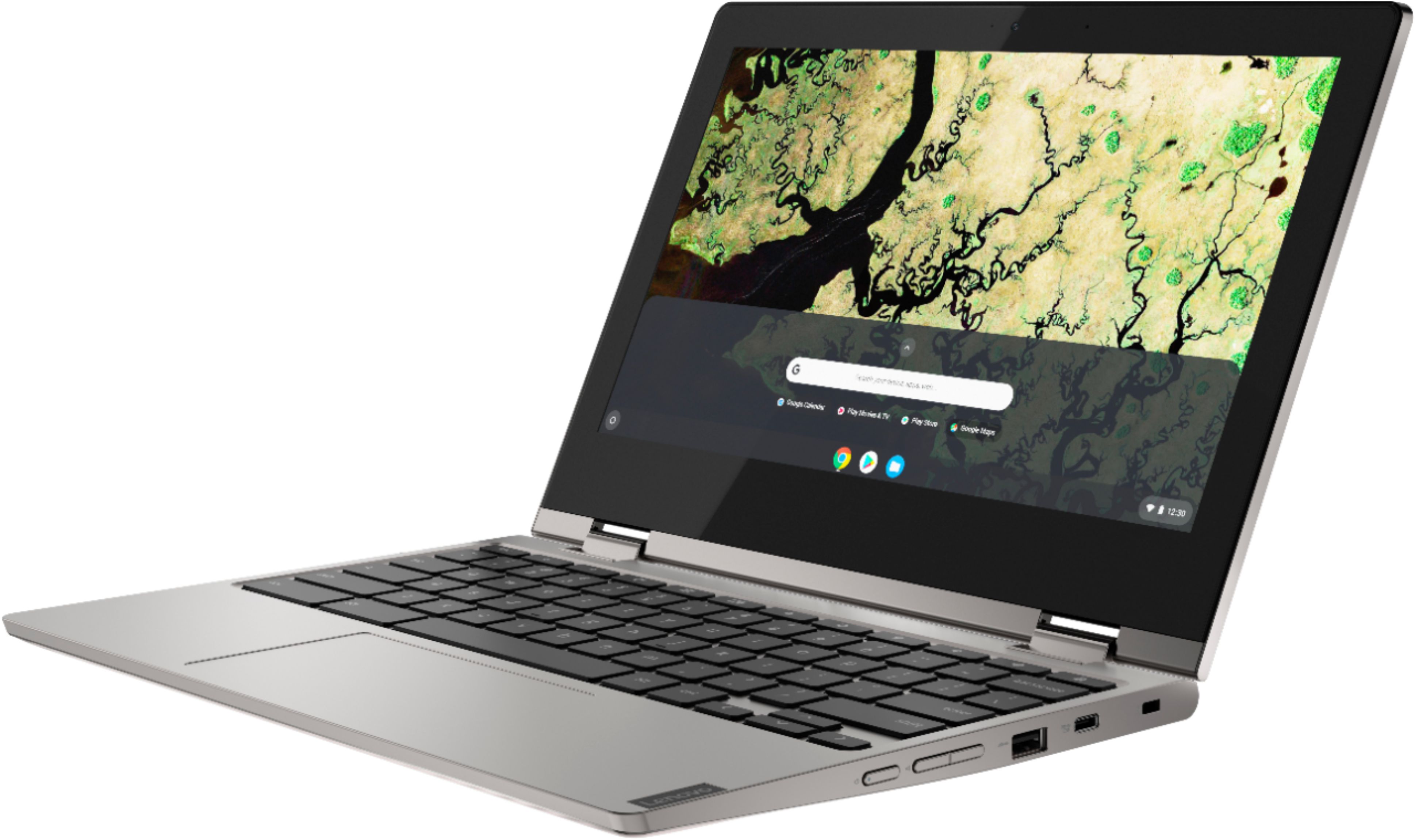
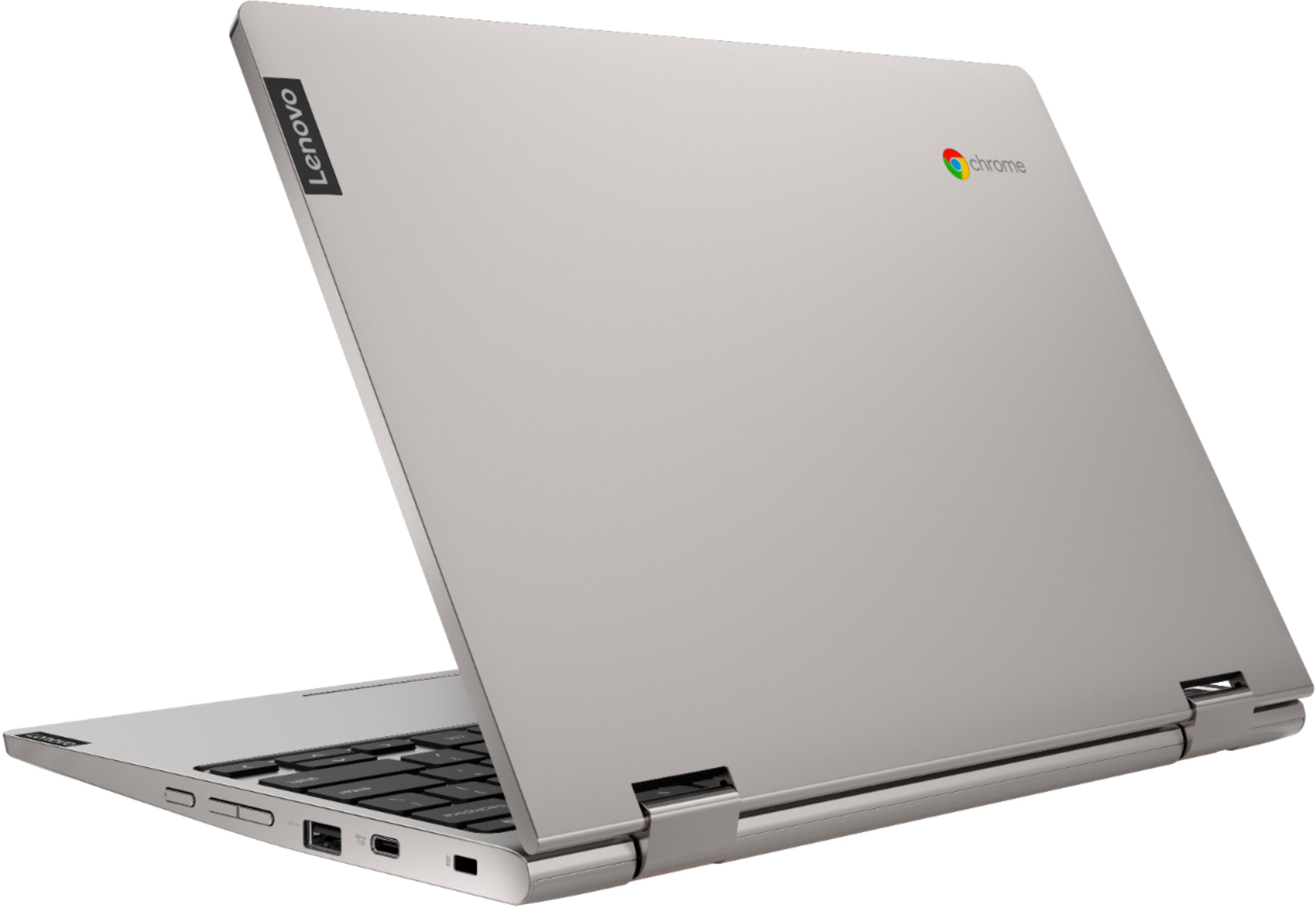
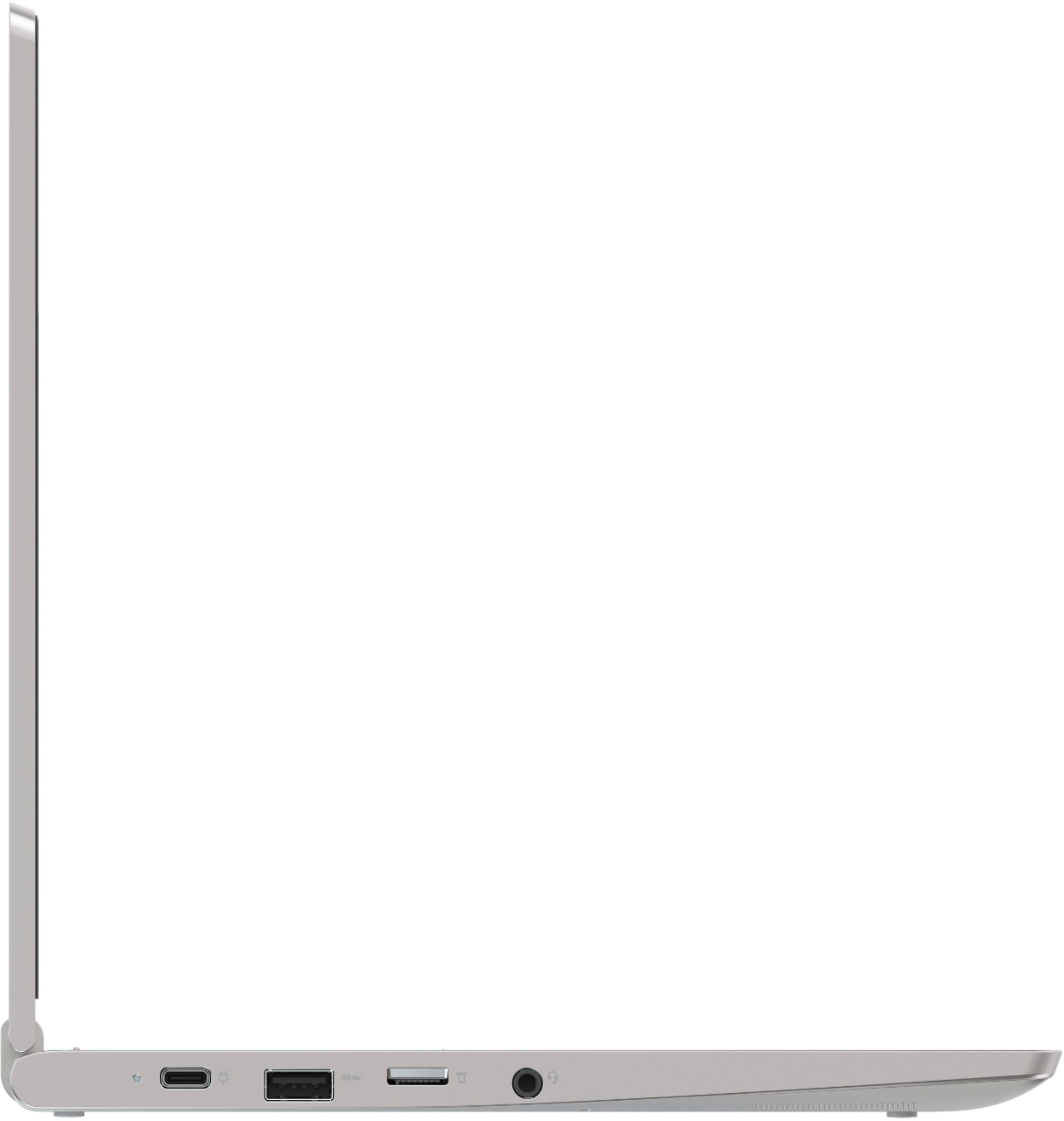
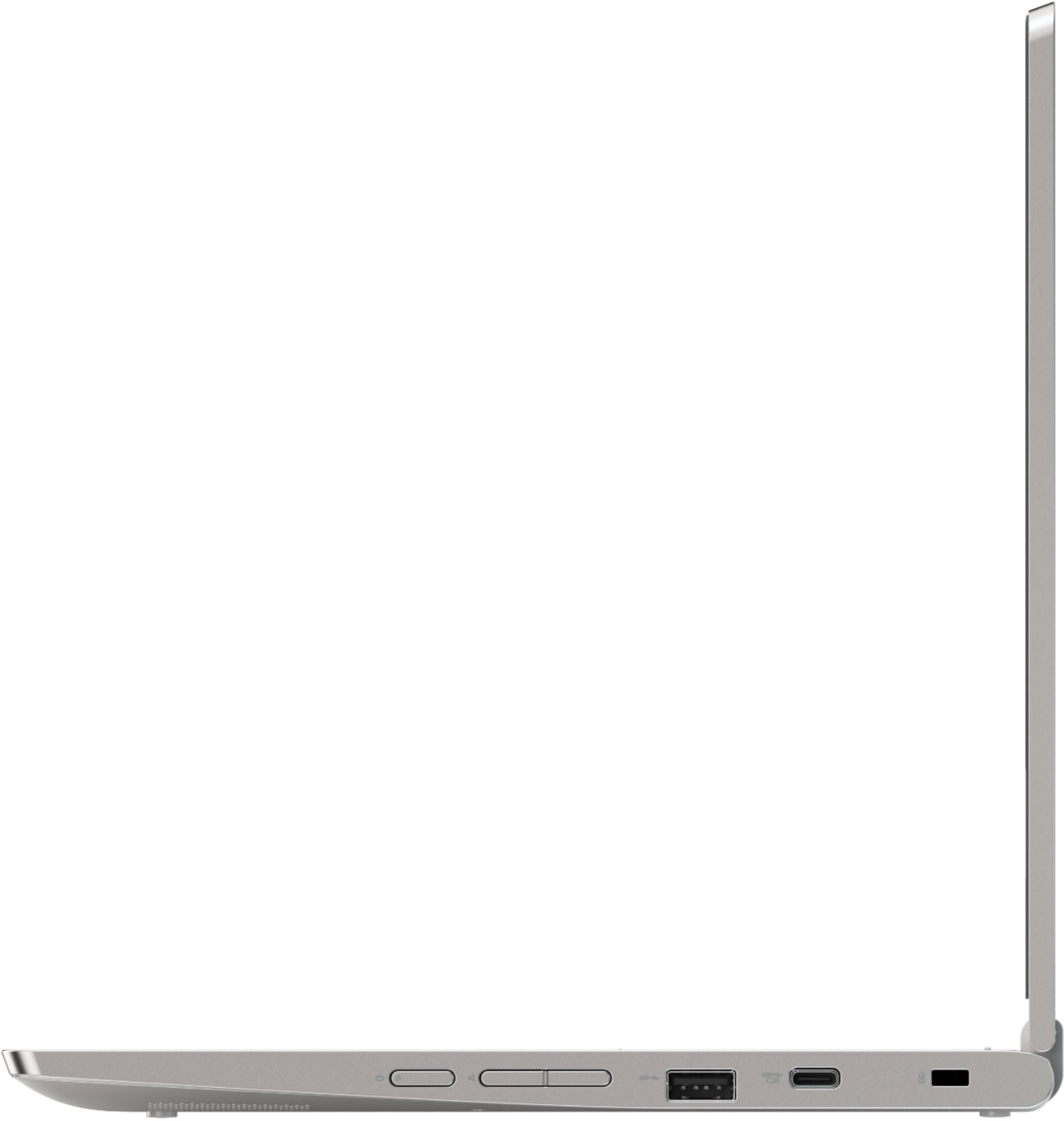
A:AnswerYes. Although the Lenovo C340-11 Chromebook does not have a built in ethernet port, you can use a USB to ethernet adapter to attach this Chromebook to an ethernet cable.
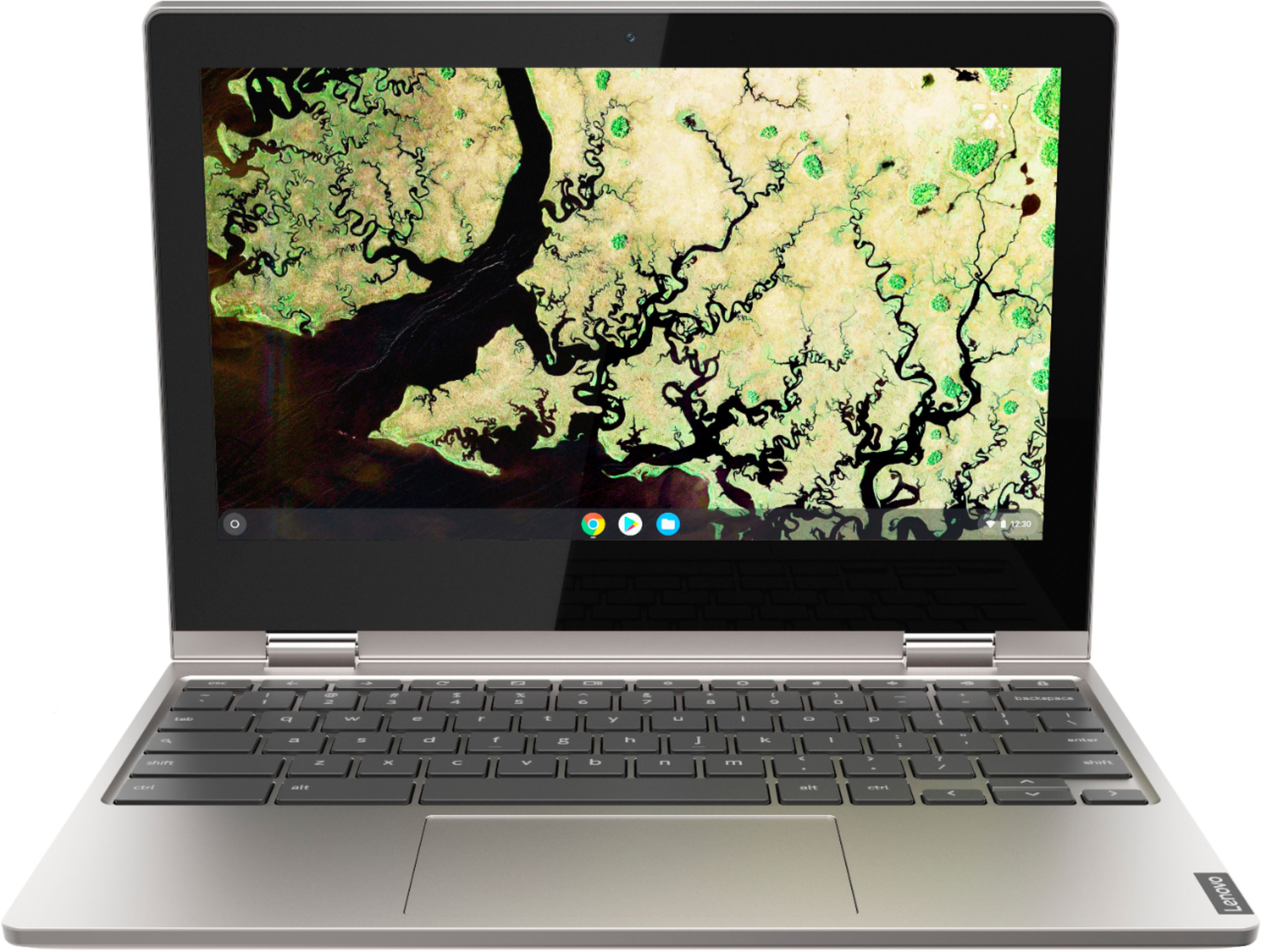
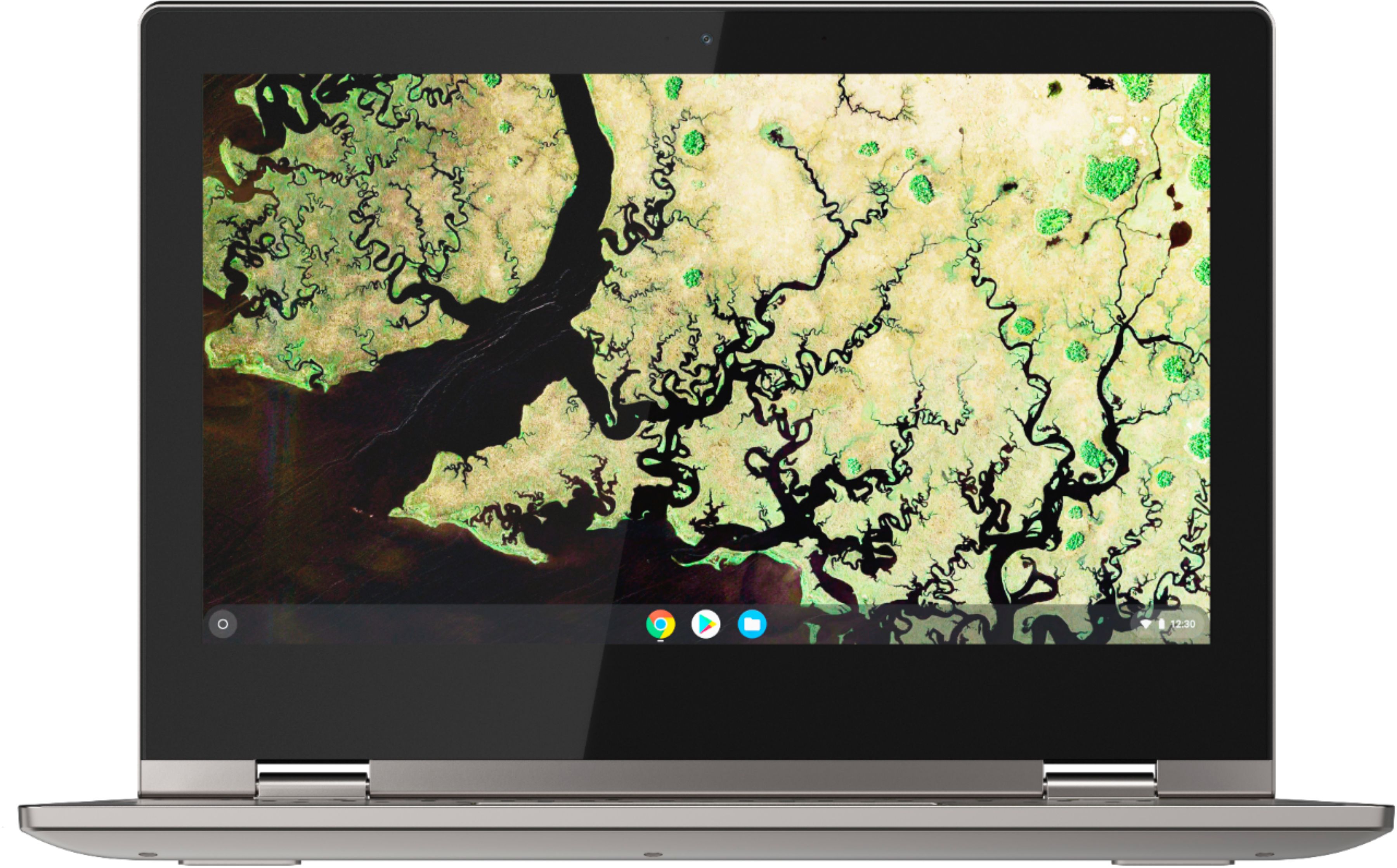
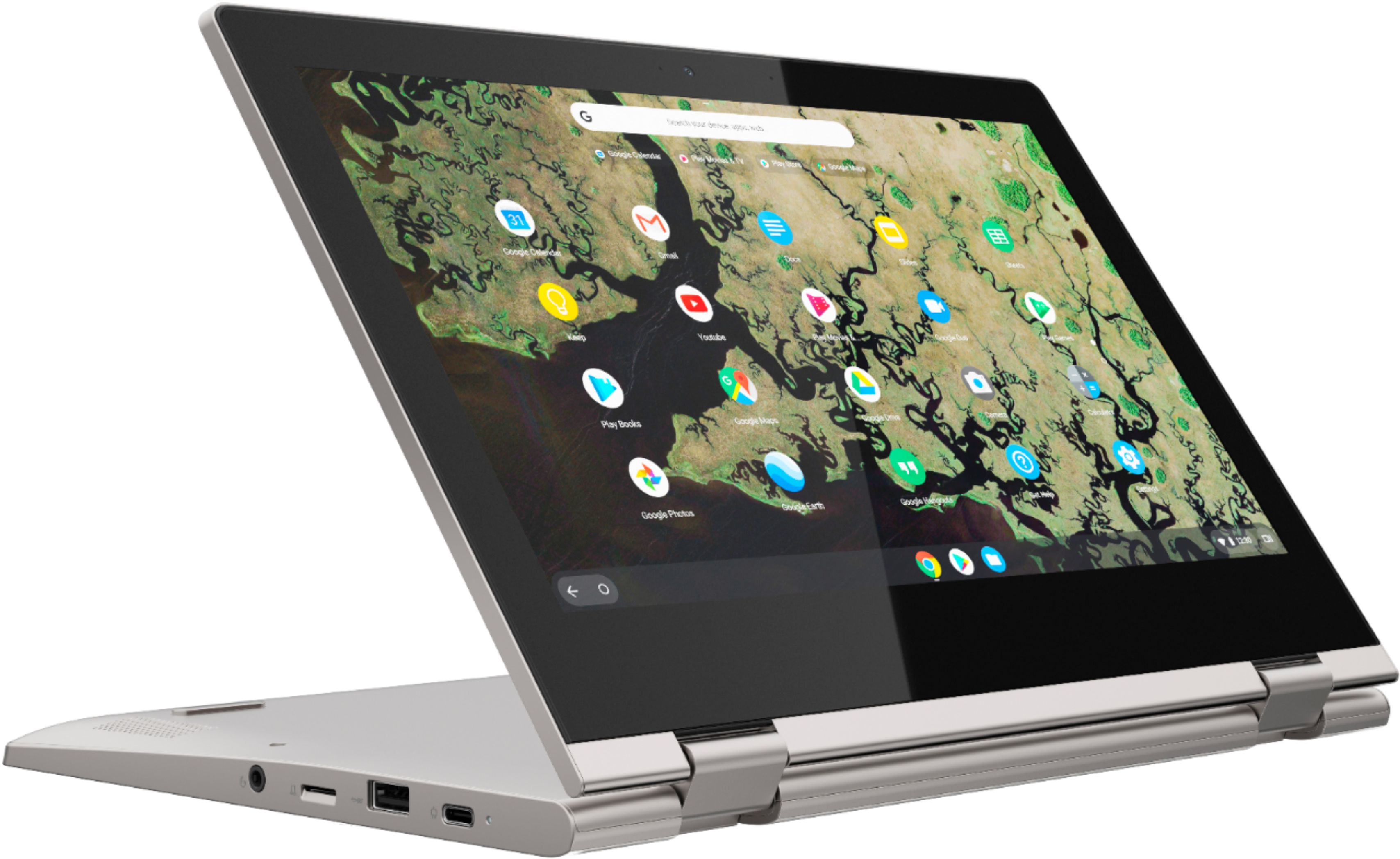
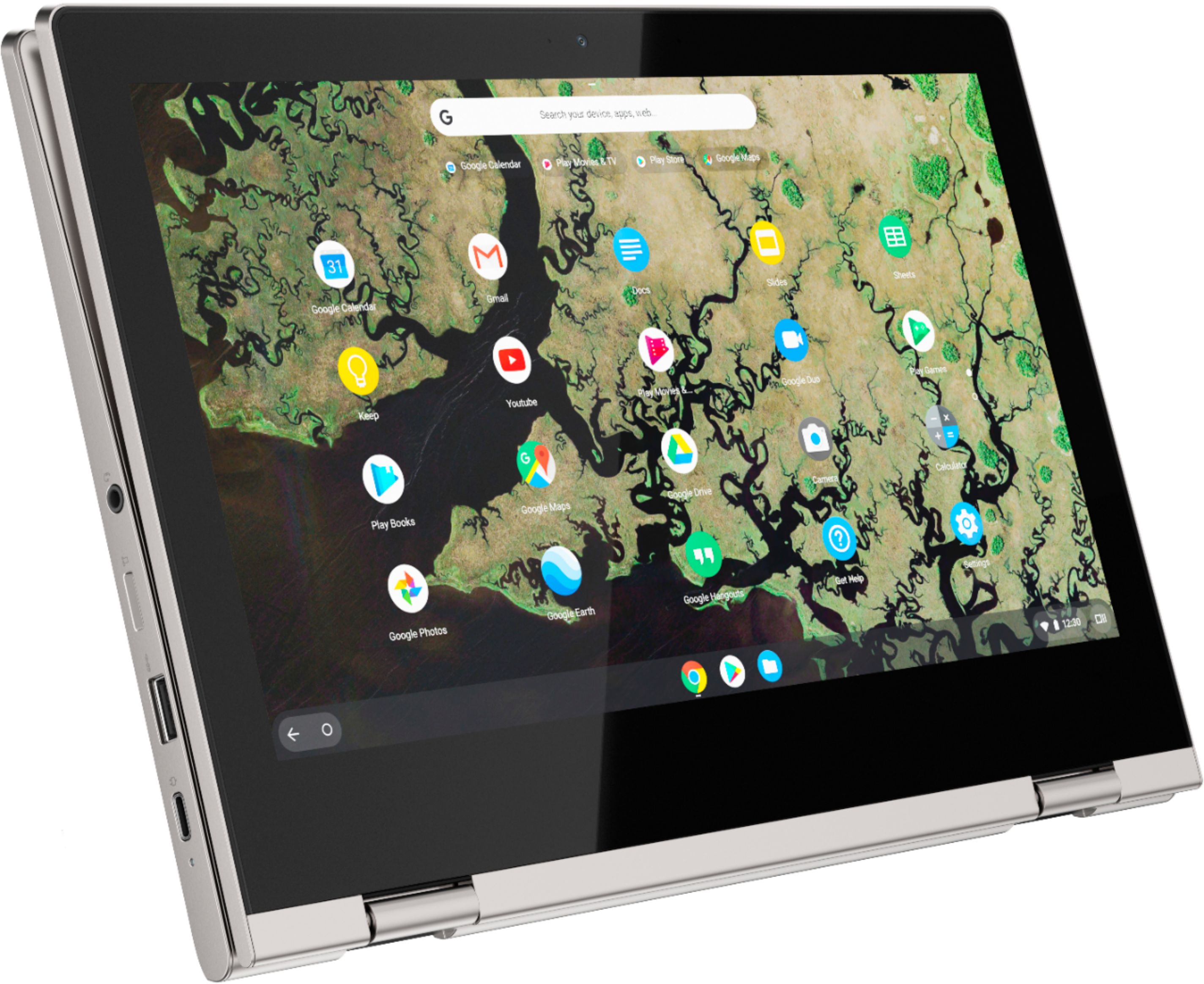
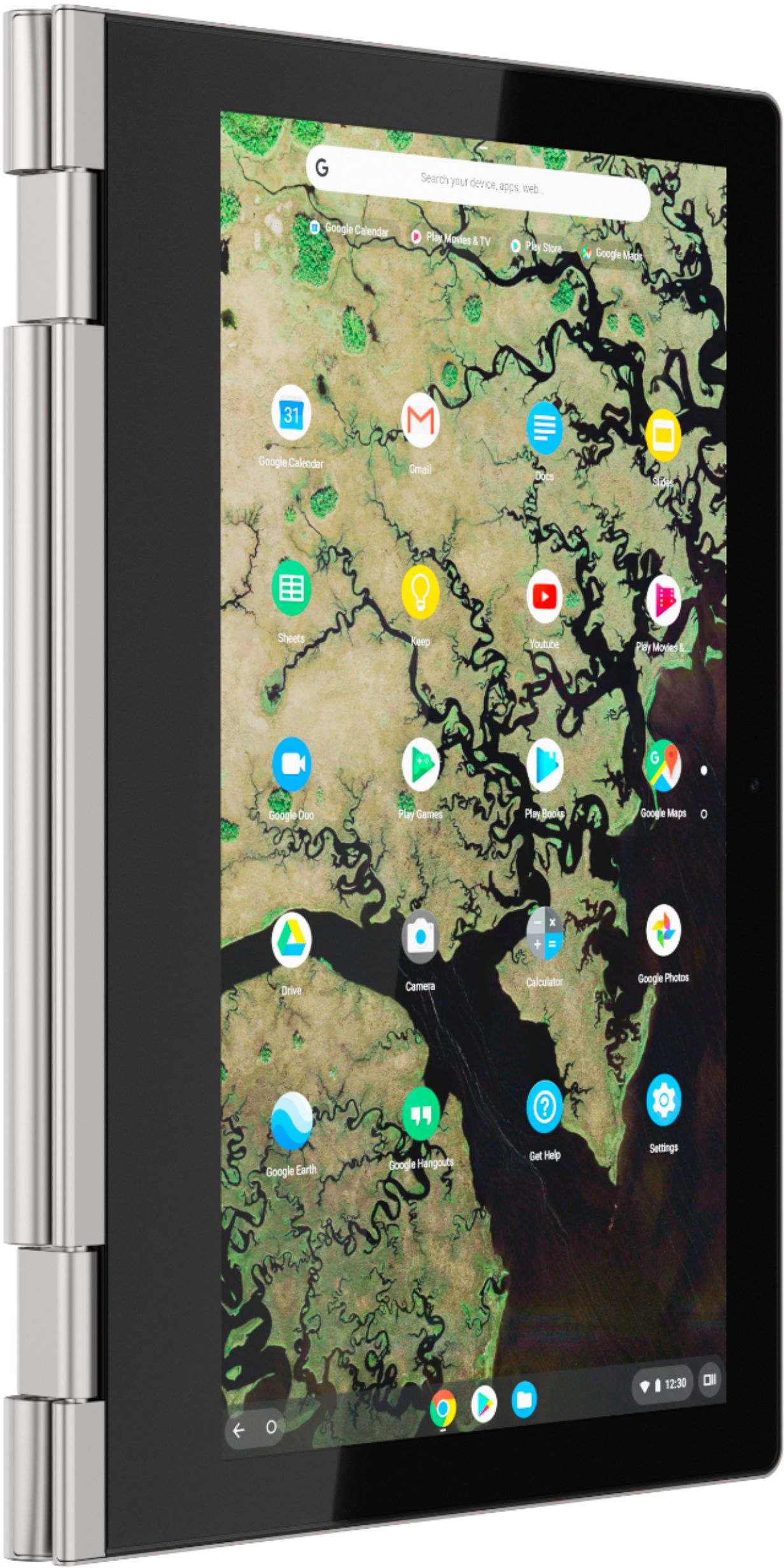
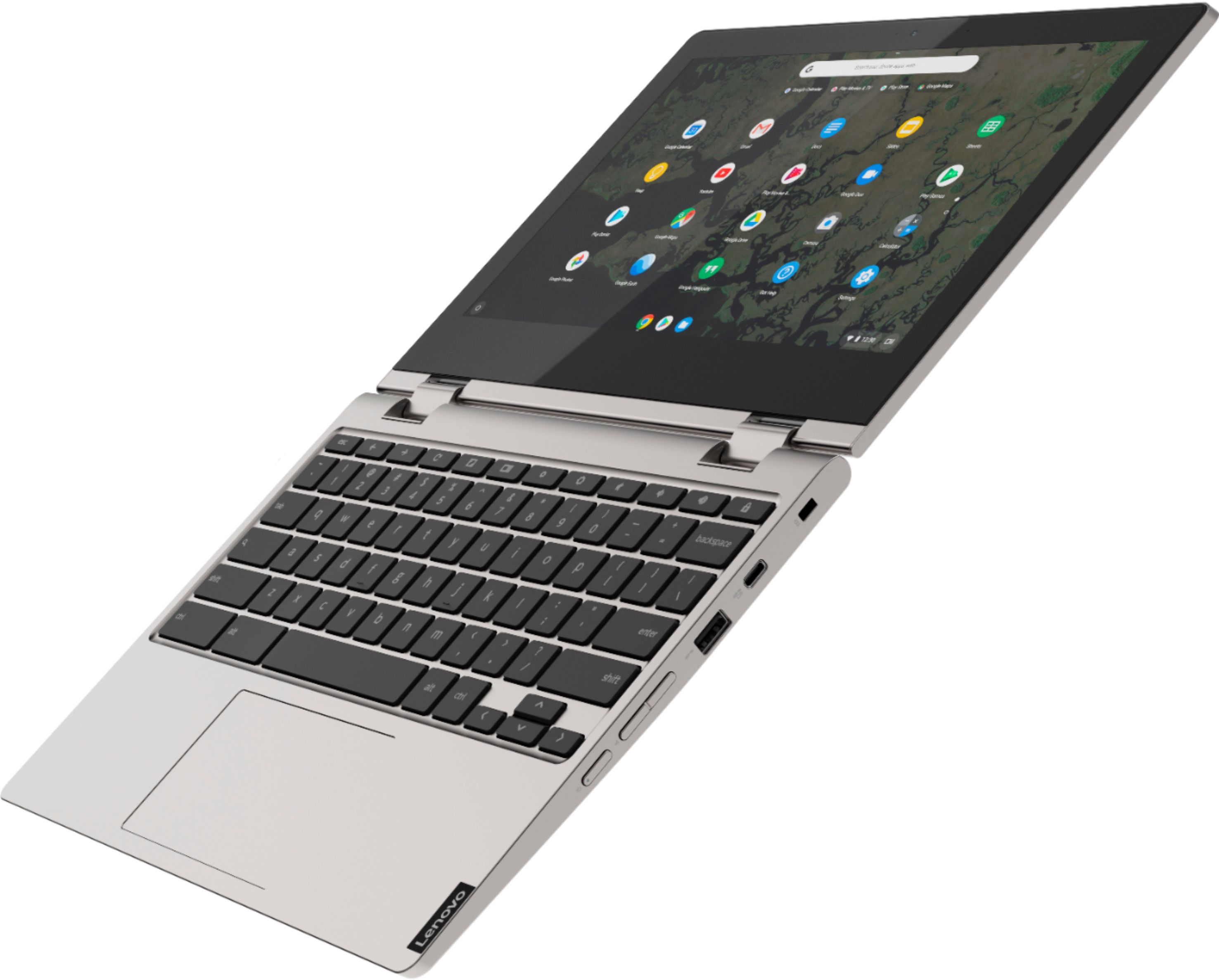
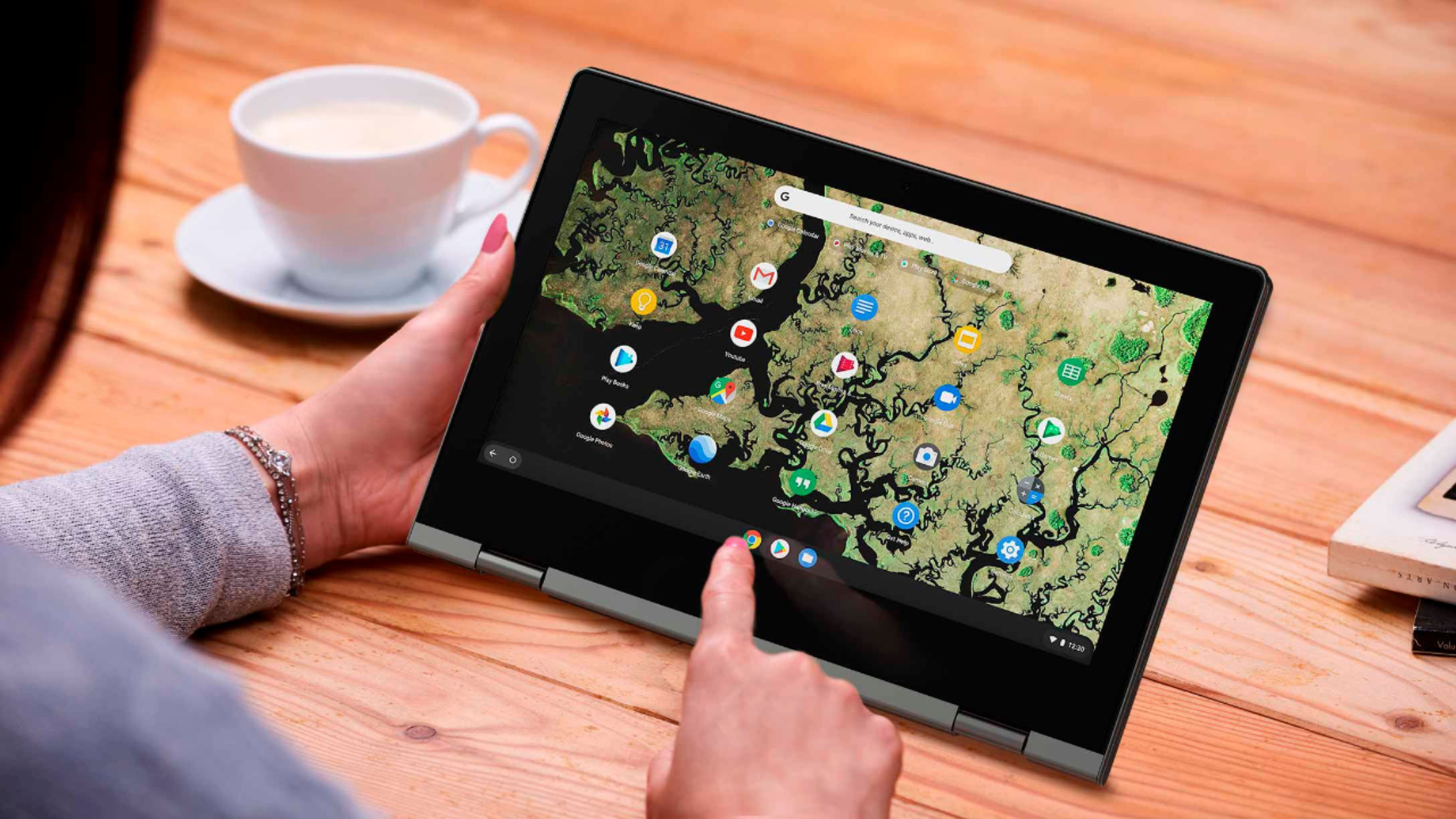
A:AnswerThe Lenovo C340-11 Chromebook, model number 81TA0000US, ships with a IPS LCD w/LED Backlight screen, with a resolution of 1366 X 768 (HD) and a brightness level of 250 nits.
A:AnswerThat will depend on the compatibility of the printer with the Google Cloud Print APP. We recommend you check with the printer manufacturer for compatibility. Here is a link to more information about Google Cloud Print: https://support.google.com/chrome/a/answer/9633006?hl=en