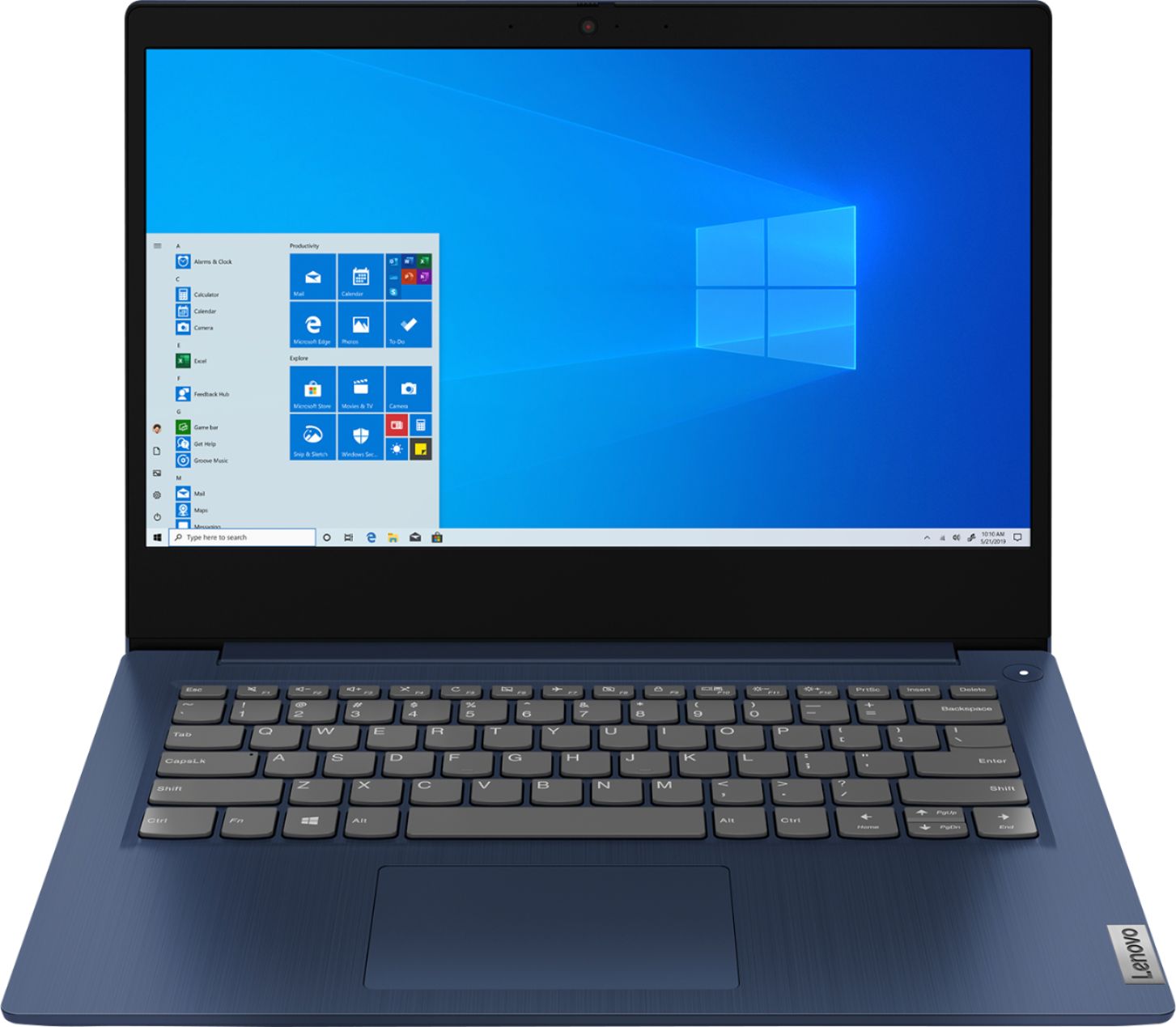
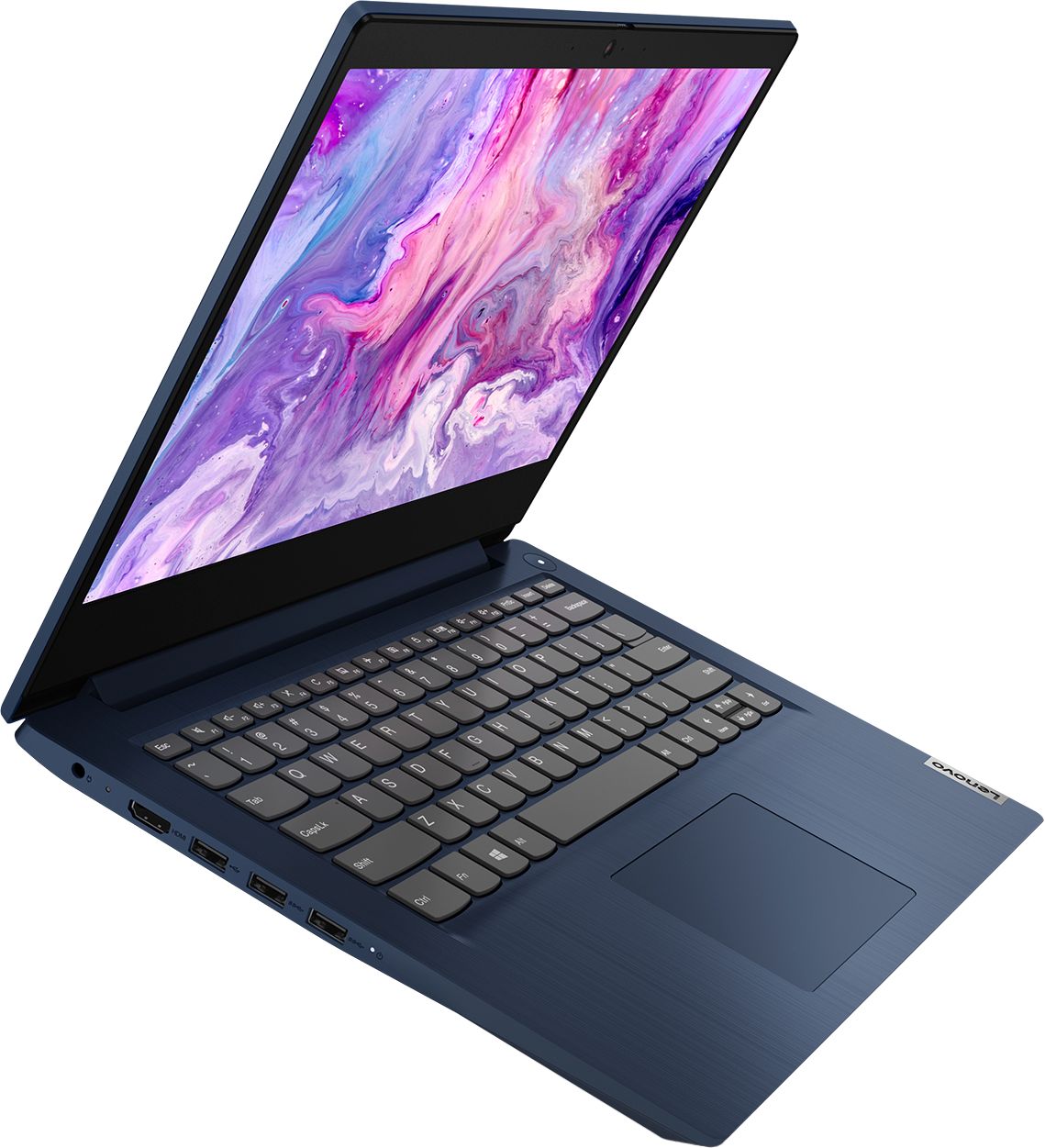
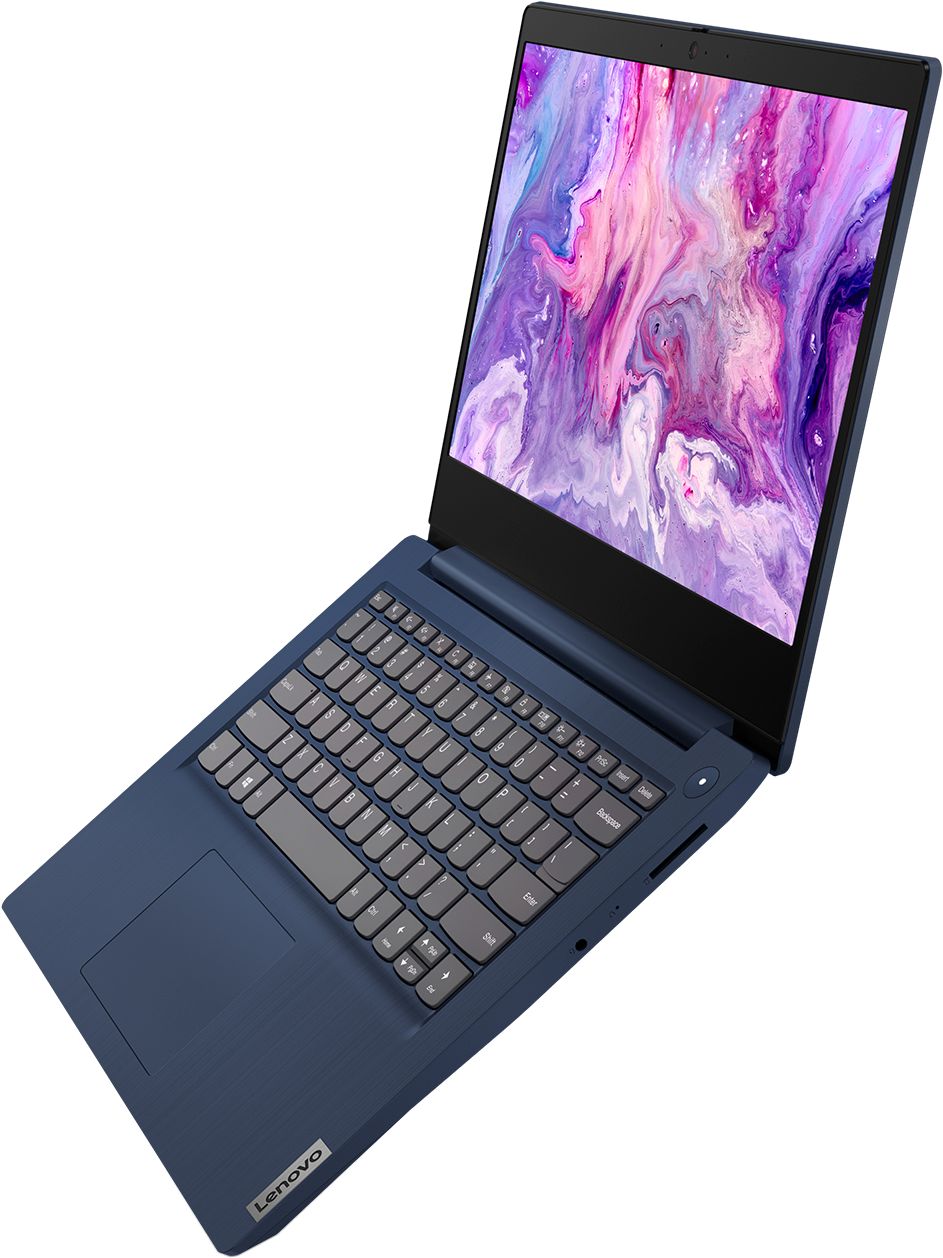
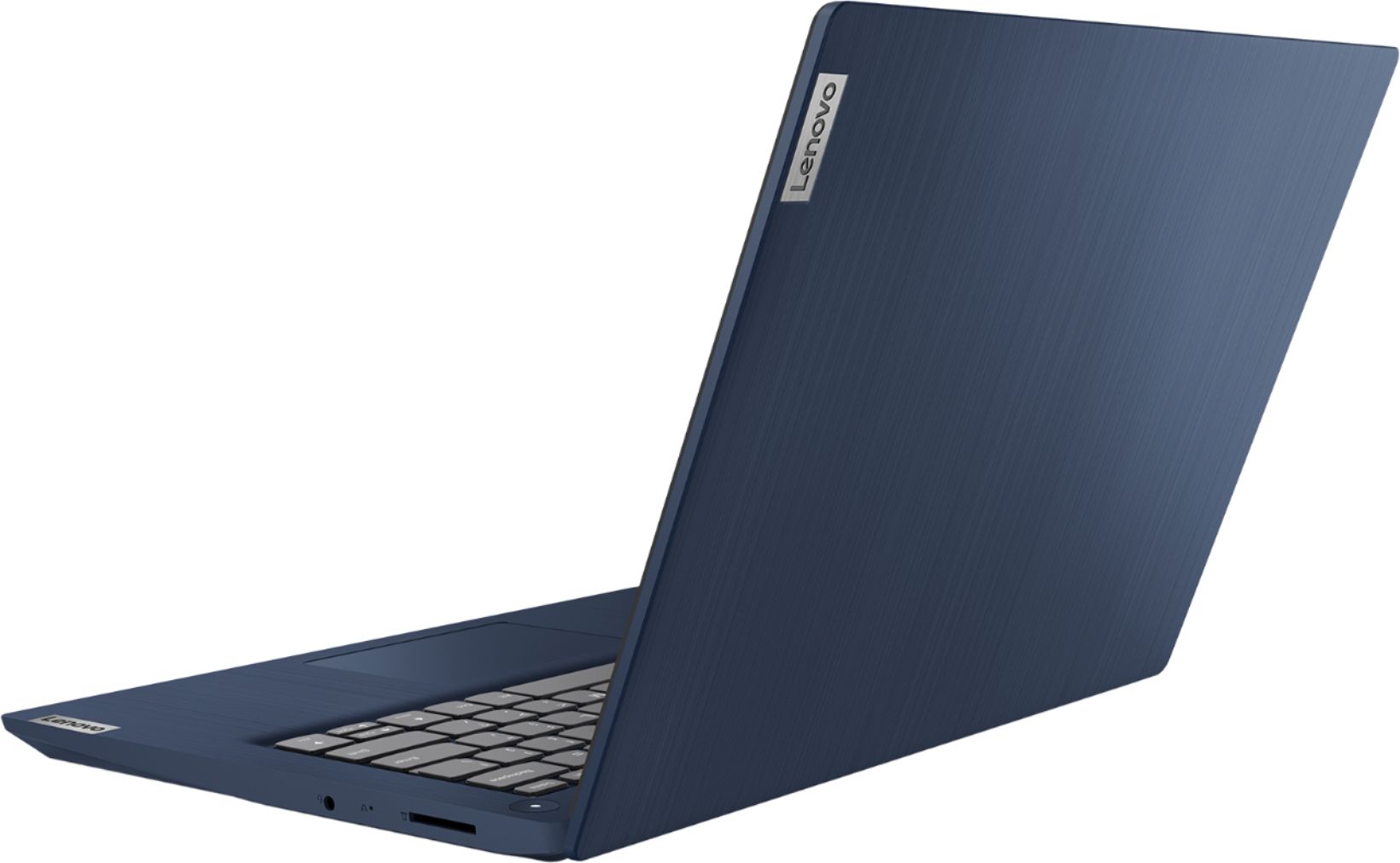
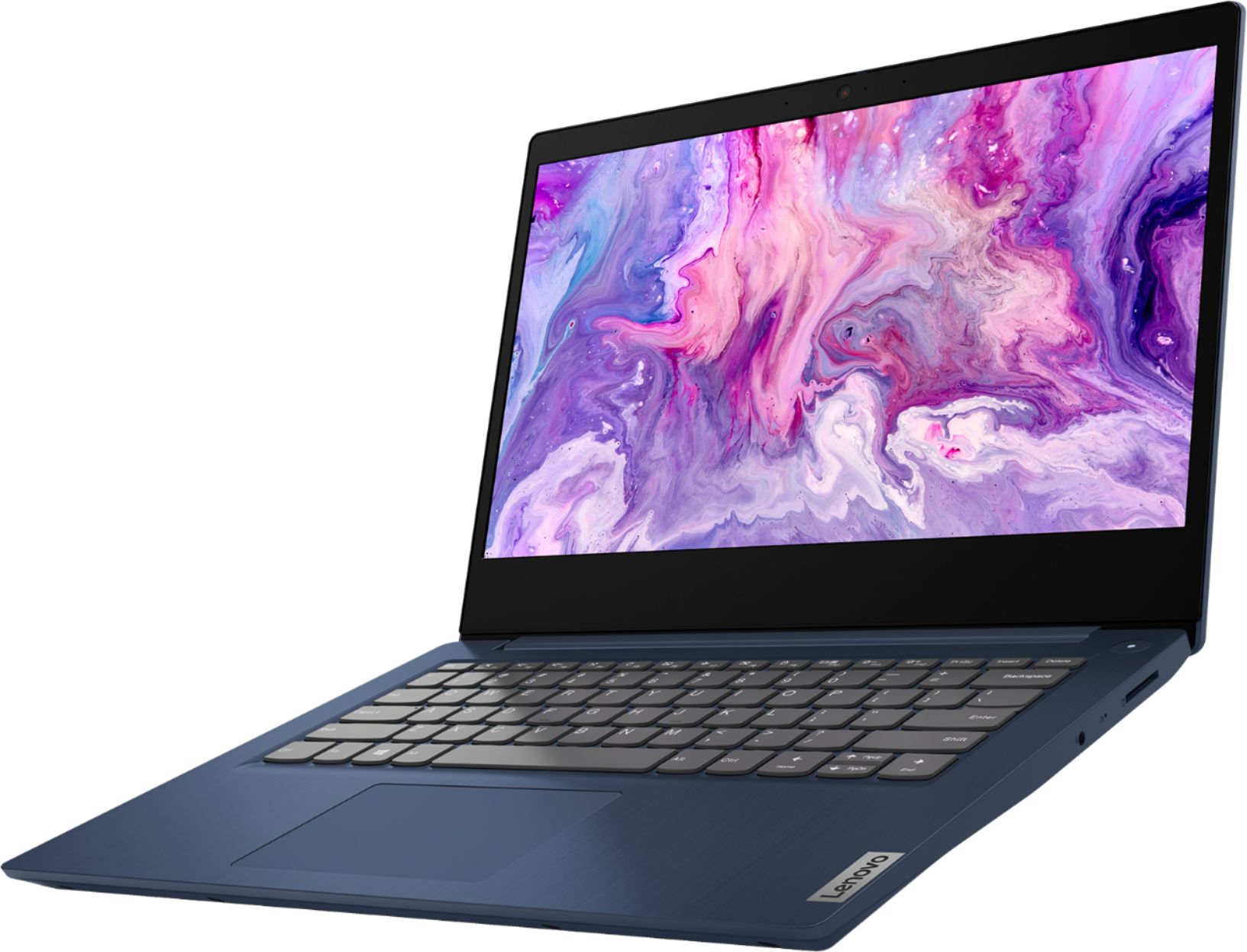
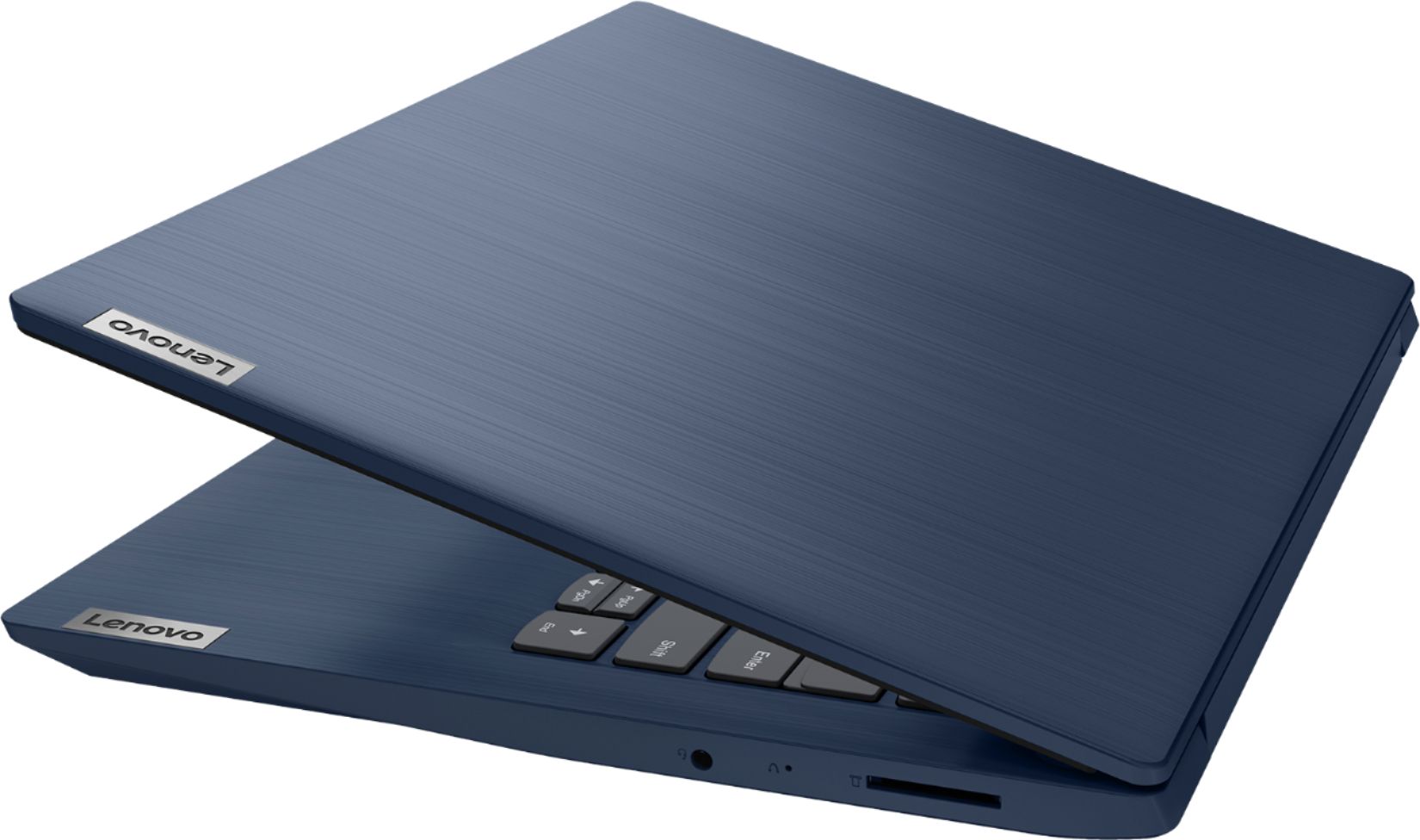
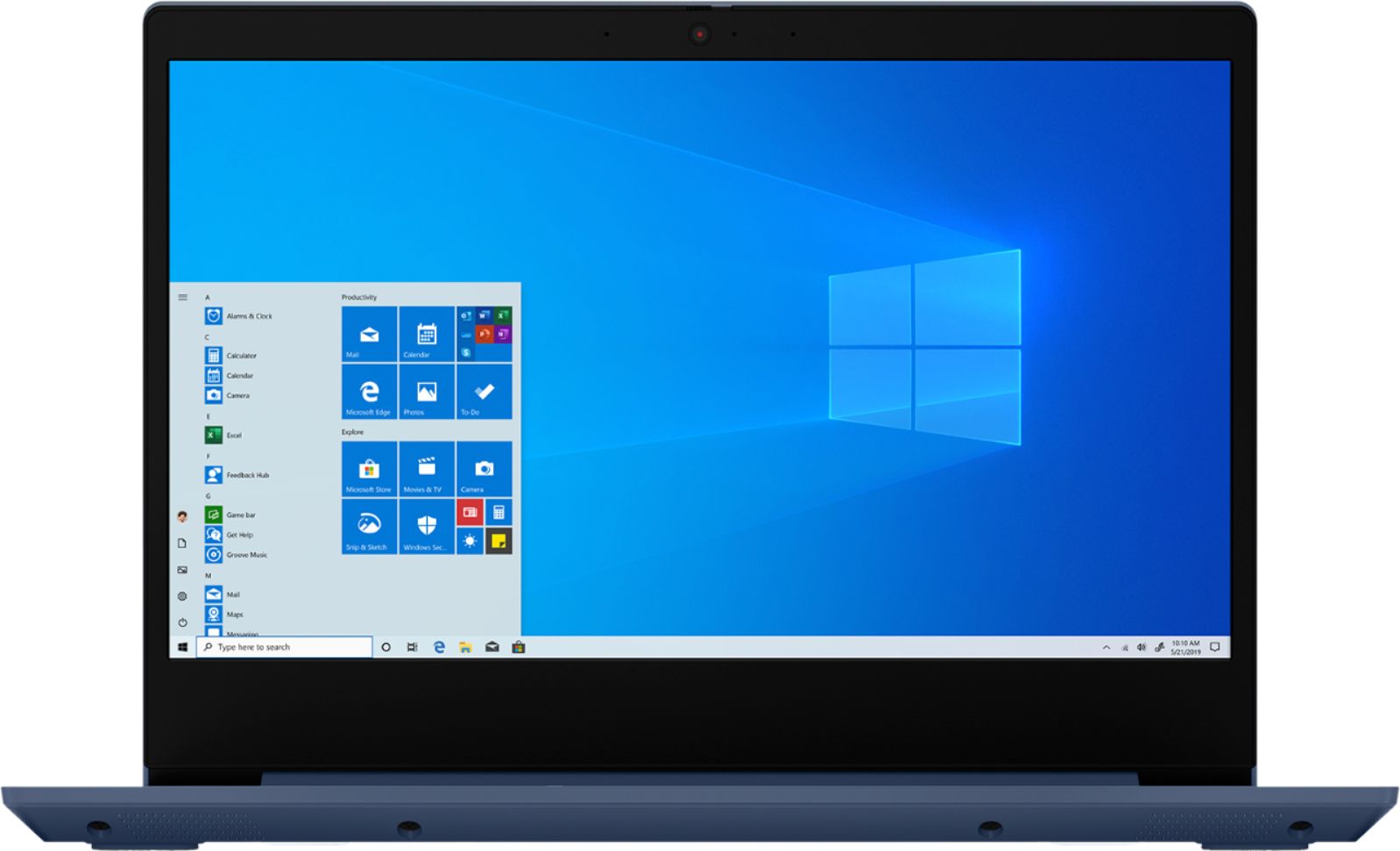
A:AnswerThe Lenovo IdeaPad 3 14 Laptop, model number 81W0009DUS, ships with a 2CELL_35WH_INTERNAL, Lithium Polymer Battery, with a battery life of up to 7 hours, depending on the work the device is performing.
A:AnswerThere is no International Warranty. The Lenovo IdeaPad 3 14 Laptop, model number 81W0009DUS, is a USA/Canada model. The limited 1-year manufacturer's warranty is valid in the USA/Canada only.
A:AnswerThe Lenovo IdeaPad 3 14 Laptop, model number 81W0009DUS, ships with the AMD Ryzen 3 3250U processor, which has automatic boost. The base speed of the processor is 2.6GHz and the boost speed of the processor automatically increased up to 3.4GHz, depending on workload demand.
A:AnswerThe Lenovo IdeaPad 3 14 Laptop, model number 81W0009DUS, ships with the 2-Core/4-Thread AMD Ryzen 3 3250U processor, with a base speed of 2.6GHz and a boost speed of up to 3.4GHz.
A:AnswerThe Lenovo IdeaPad 3 14 Laptop model number 81W0009DUS uses integrated graphics processing within the AMD Ryzen 3 3250U processor. It is the integrated, AMD Radeon Vega 3 version.
A:AnswerNo. This model is not user upgradable. A certified technician must do all of the work, so as to not void the warranty. The maximum RAM this configuration can support is 12GB DDR4-2400MHz. There is 4GB soldered to the motherboard and on RAM memory slot that can support an additional 8GB RAM. We recommend you consult your certified technician about your upgrade options.
A:AnswerThat will depend on the specific requirements of the software you want to use. The Lenovo IdeaPad 3 14 Laptop, model number 81W0009DUS, ships with a 30-day trial of Microsoft Office 365 included as part of the Windows 10 operating system. In order to keep the program active after the trial period, you will need to purchase a product key. You will not need to download any additional software. We recommend you check the requirements of the specific software you want to use for any requirements and compatibility needed for the type of work you do.
A:AnswerThe Lenovo IdeaPad 3 14 Laptop, model number 81W0009DUS ships with a 720p (HD) webcam with manual Privacy Shutter. First, be sure the Privacy Shutter is open all the way. There is a small slider directly above the webcam lens. Slide this tab to the right to open the Privacy Shutter. There is a red dot over the webcam lens when the Privacy Shutter is closed or partially closed. This red dot will disappear when the Privacy Shutter is open completely. If the image is still not clear, then be sure you have the latest version of Windows 10 on the computer, then update all of the BIOS files and drivers, including those controlling the webcam, up to that latest version of Windows 10. You can easily accomplish this by scanning the computer with the Lenovo Utility software available on this computer. This system has Lenovo utilities installed to help maintain the health of the device and keep the operating system software up to date. Type "Lenovo Vantage" in the Cortana Search window (if Lenovo Vantage is not installed on your device, you can download the APP and install it now). Select Lenovo Vantage from the list. In the window that opens, click on "Health and Support". In the expanded menu, select "Hardware Scan" In the window that opens, select "Run Quick Tests". This will scan your entire system for errors. Follow any directions that may pop up. If the problem continues after this scan, now click on "System Update". First select Windows update from the menu. Scan your system to be sure you have the latest version of Windows 10. Once that scan is complete, select "Additional Updates". This will scan your device to be sure there are no new BIOS/Driver updates needed. Follow any instructions that may pop up. If the issue still continues after these updates, we recommend you call Lenovo Tech Support at: 877-453-6686 for additional help.
A:AnswerThat will depend on the requirements of the software you are using and the compatibility of the software and the web sites you visit. The Lenovo IdeaPad 3 14 Laptop model number 81W0009DUS, ships with Windows 10 S-Mode Operating System. Windows 10 S-Mode provides added security by only allowing APPs available ( and therefore certified by Microsoft) at the Microsoft Store. If you don't need the added security or you need to install APPs not available at the Microsoft Store, you can switch to standard Windows 10 Home 64-bit Operating System, at no additional cost. We recommend you check with the software publisher's web site for their compatibility with Windows 10 S-Mode 64-bit operating system and the minimum/recommended hardware requirements (Is a Graphics card required, the processor speed and the minimum required system RAM and the minimum available hard drive space) to run their program, then compare those requirements to this system's configuration.
A:AnswerHi Nick, This model ships with Windows 10 S-Mode Operating System. Windows 10 S-Mode provides added security by only allowing APPs available (and therefore certified by Microsoft) at the Microsoft Store. If you do not need the added security or you need to install APPs not available at the Microsoft Store, you can switch to standard Windows 10 Home 64-bit Operating System, at no additional cost. We always recommend you check the requirements and compatibility of any software you will be installing on your new computer before you invest in any computer. Be sure your new computer can support the software you will need to use.
A:AnswerWe recommend you check with the game's software publisher's web site for their compatibility with Windows 10 Home (or S-Mode if applicable) 64-bit operating system and the minimum/recommended hardware requirements (Is a Graphics card required, the processor speed and the minimum required system RAM and the minimum available hard drive space) to run their program, then compare those requirements to this system's configuration.
A:AnswerHi Nate! Here is a link to instructions for switching from Windows 10 S-Mode to Windows 10 Home: https://support.microsoft.com/en-us/help/4456067/windows-10-switch-out-of-s-mode