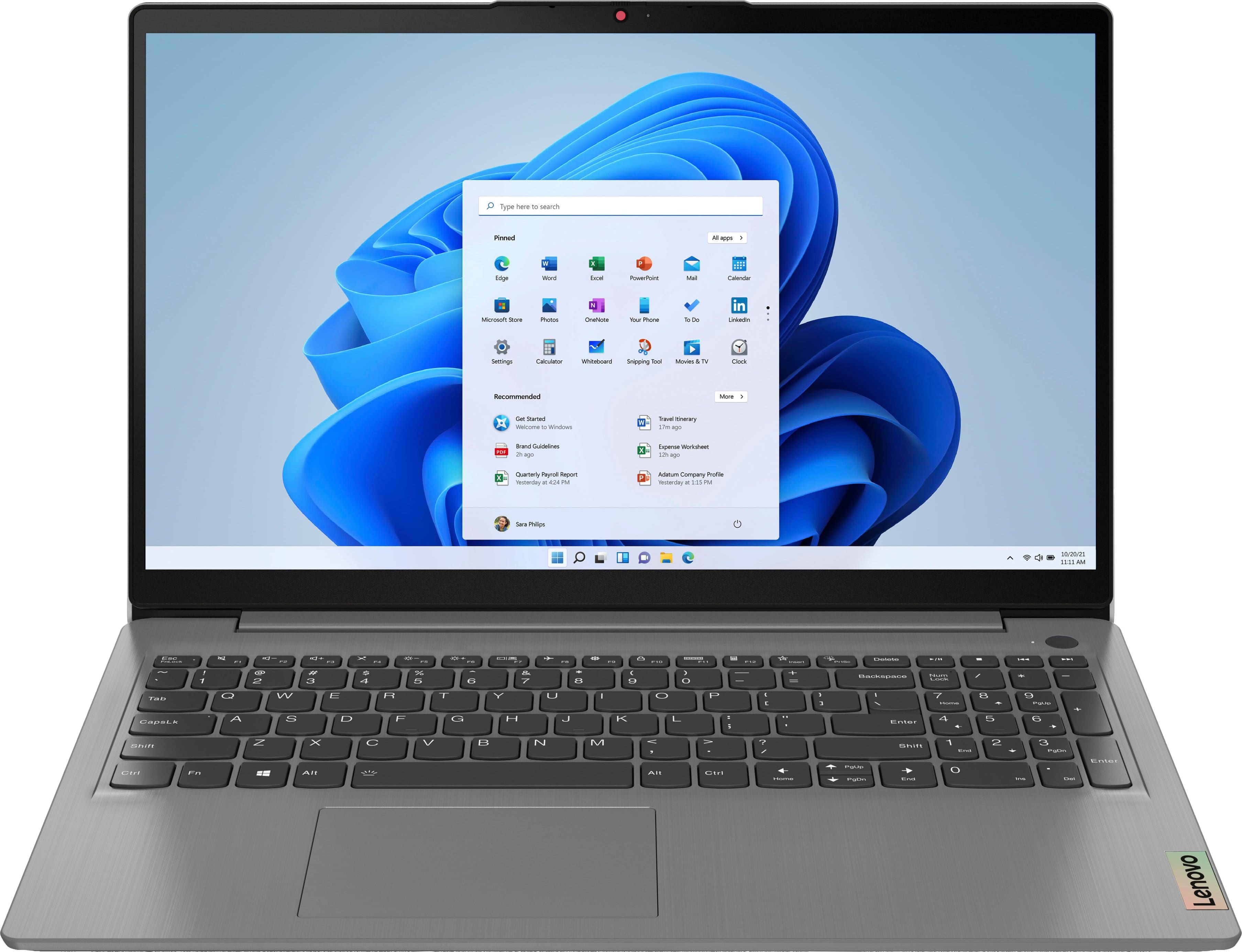
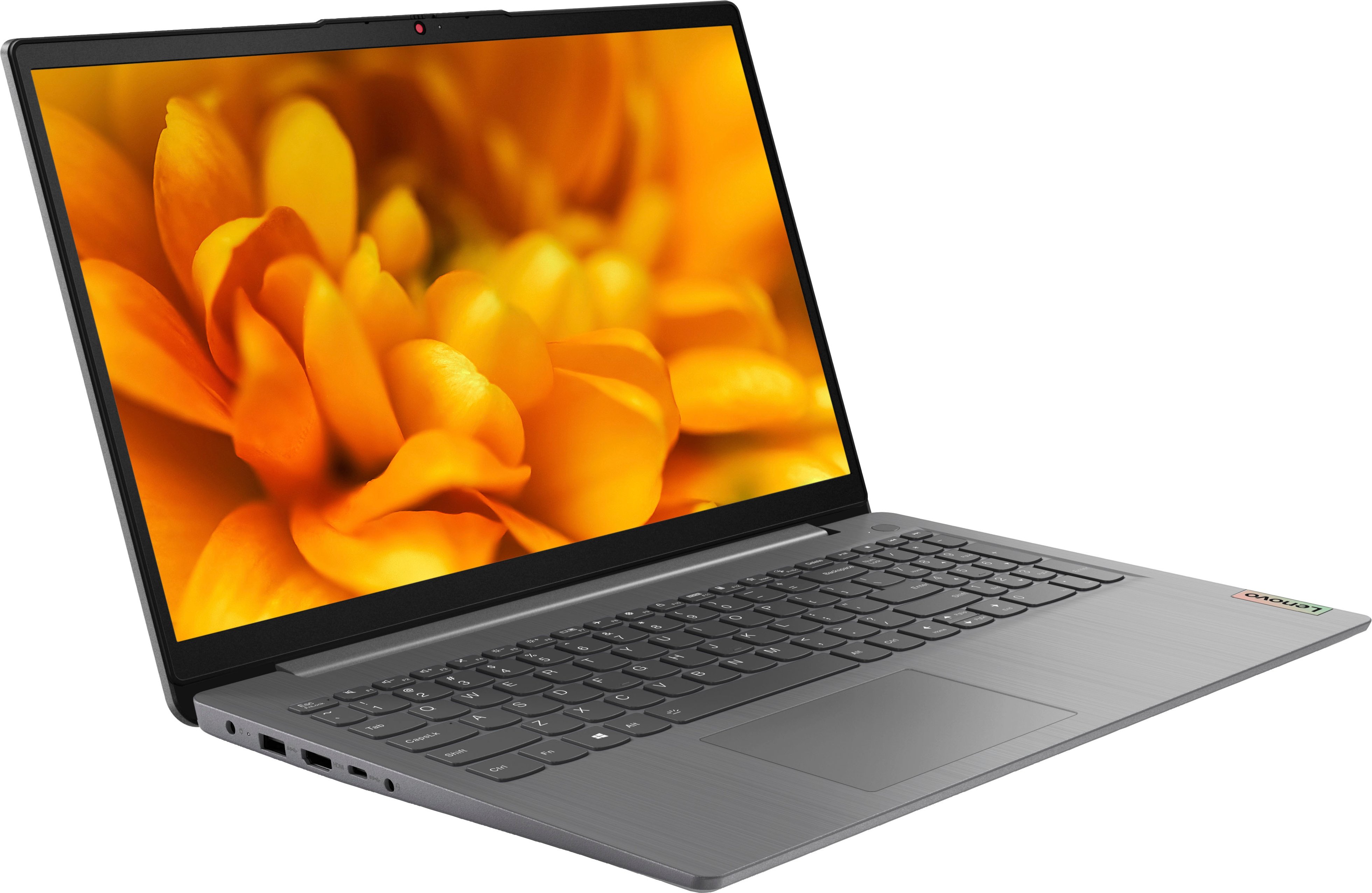
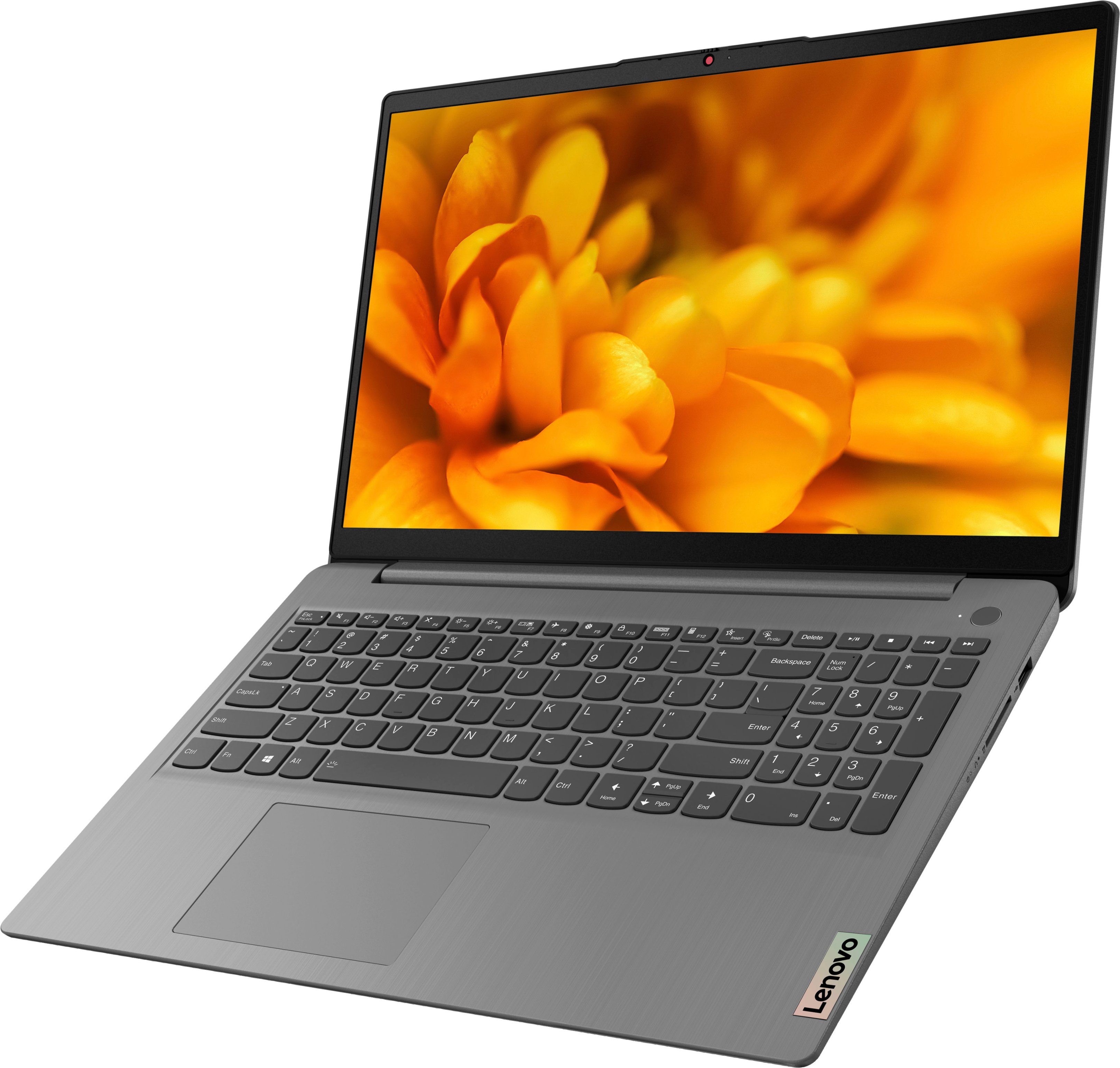
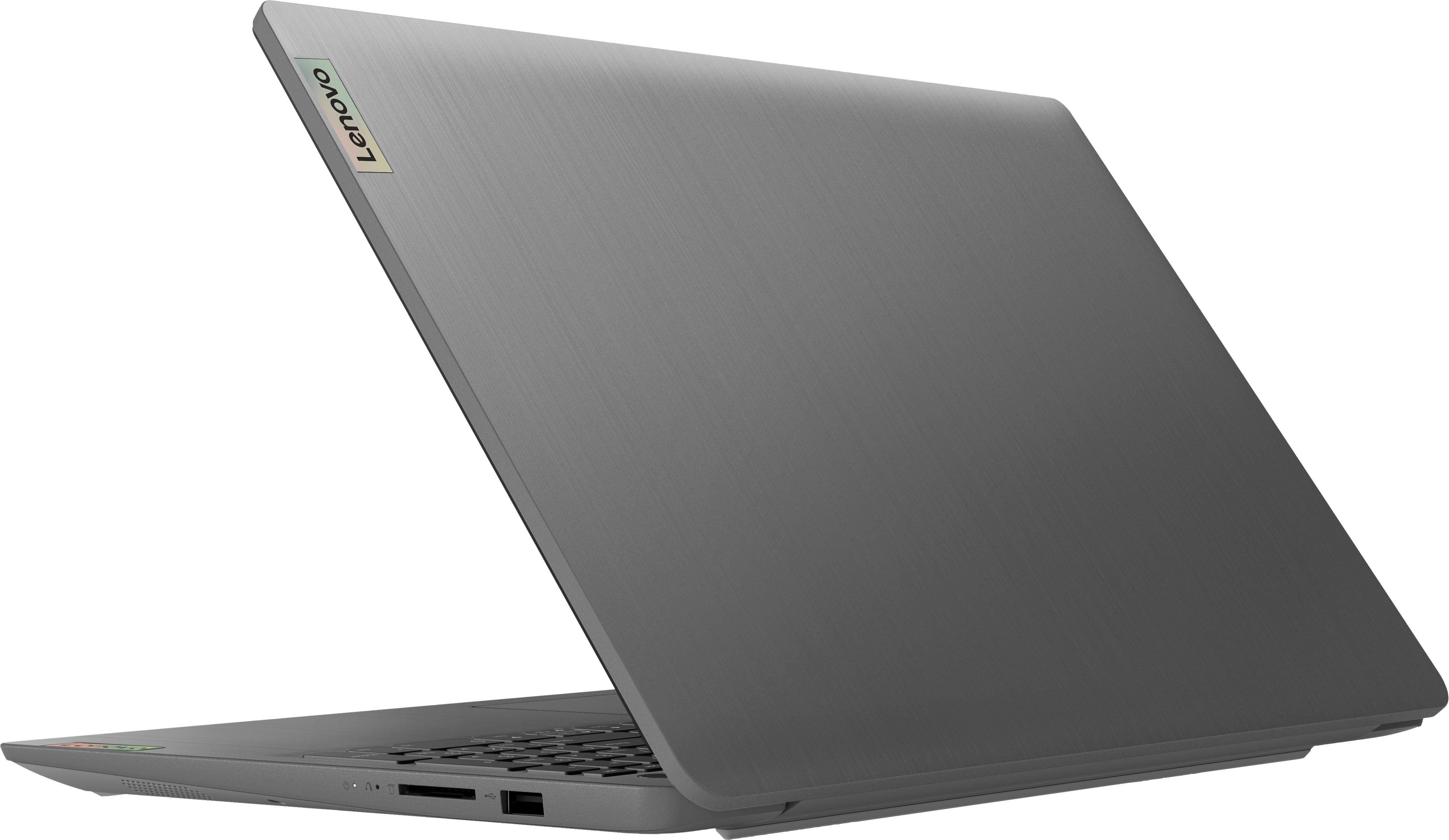
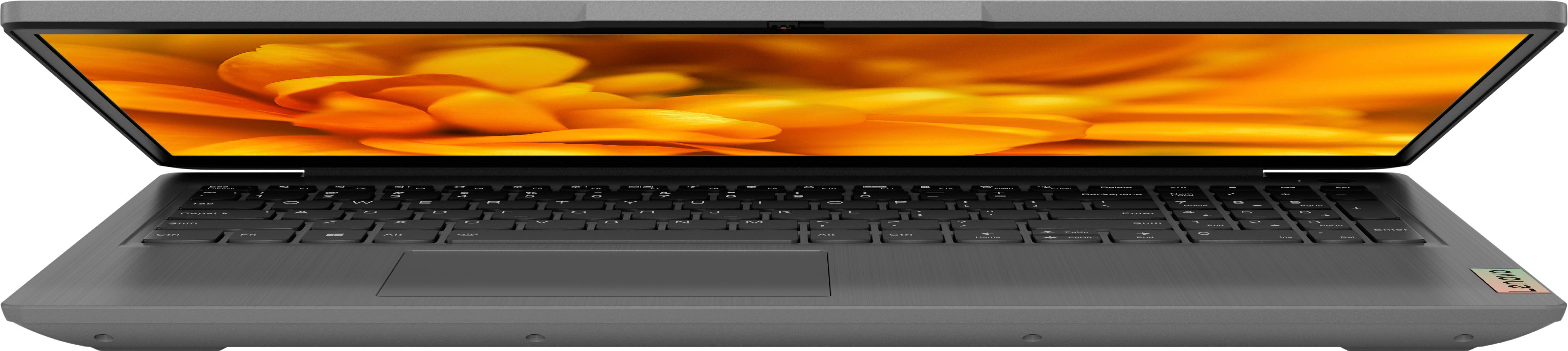
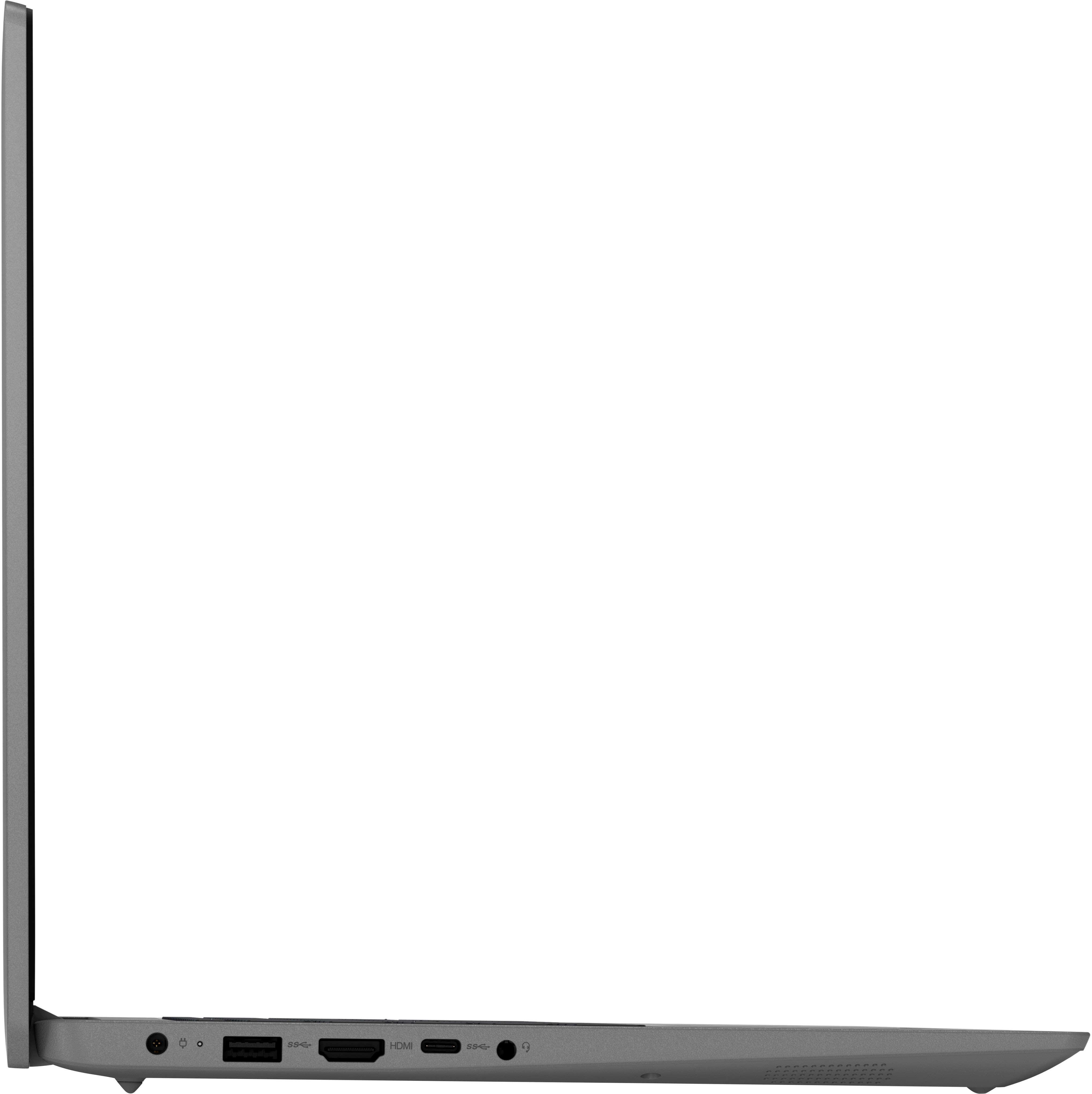
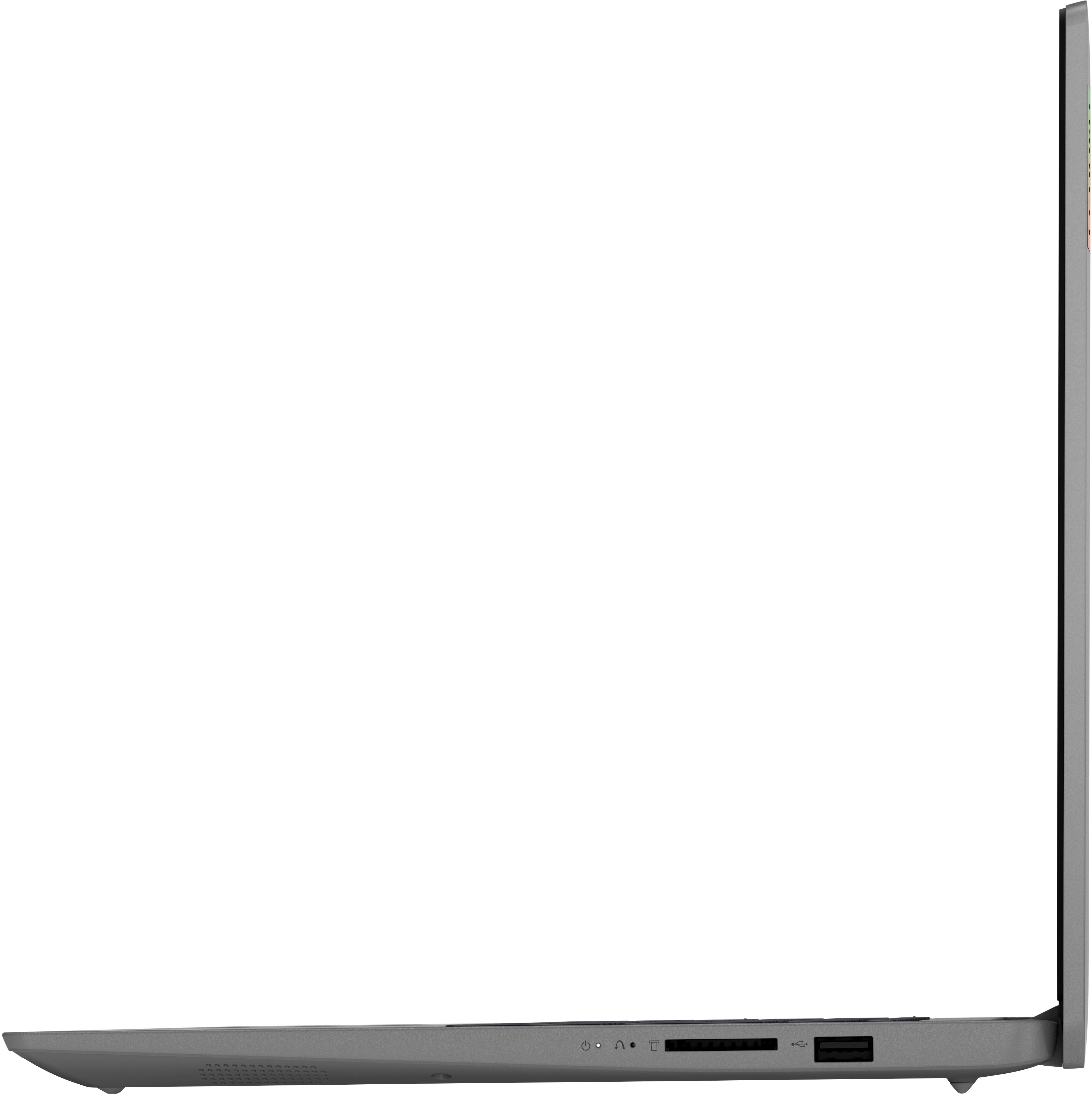
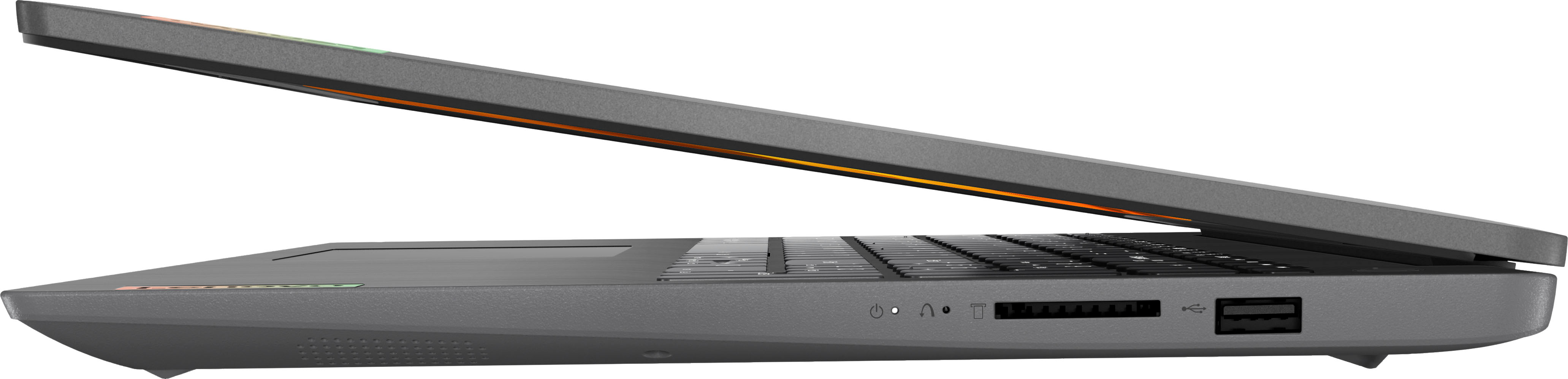
A:AnswerThe speed is great and it has a 512GBbstorage drive. It should work well for a college student as long as they don't store a ton of useless junk. A USB connected external CD drive could be used to store junk. The computer is very lightweight.
A:AnswerOnly if you change from Windows S to the standard vision of windows.
There are tutorials that let you do that. But it'll probably cost you an extra 15 to 20 minutes of your time.
A:AnswerWhen I setup my laptop, I went into the setting and searched for printers. When I found the printer, I selected it and added that printer to the laptop setting.
A:AnswerHi, thanks for the question. Not to turn your question back to you, but that would depend on what the requirements for any software are that you plan to use. Also, if your intended workload and level of multi-tasking align with a device with these specifications. Generally, users searching for a device with the same intentions choose higher performing computers. Also, the processor in this model IdeaPad is an Intel Core i5-1135G7 with a base clock speed of 2.4GHz. To help ensure you find the right fit for your needs, we recommend working with a Best Buy Expert in stores or online via this link: https://www.bestbuy.com/services/triage/shopping?cat=cnt
A:AnswerThe laptop is equipped with Windows 11 Home in S Mode. Windows 11's S Mode is designed to enhance security by restricting app usage to those available on the Microsoft Store. If you wish to exit S Mode, you can easily do so by using your PC settings and accessing the Microsoft Store.
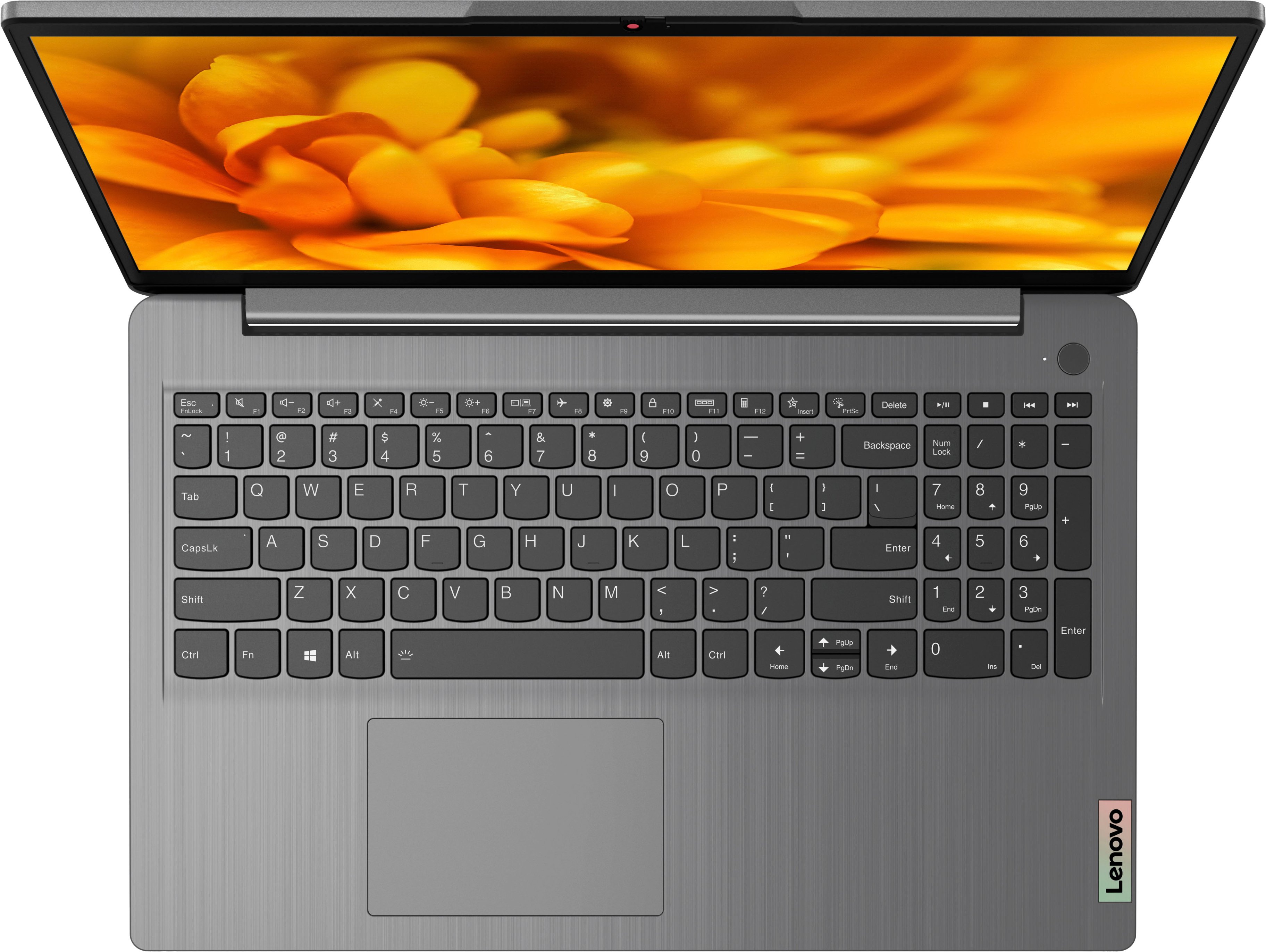
A:AnswerThe keycaps are US English; you could put stickers on them if you want to change the keyboard layout. Alternatively, you can add the "United States-International" keyboard during setup; it lets you enter accented letters by typing combinations of characters (for example, if I type ' e with no space in between, I get é). It can be a little annoying - if you actually WANT an apostrophe, you have to type a space after it or else it will try to combine with the next letter - so I set "English-US" as my default keyboard, and only switch to International as needed.
Once again, though: if you want to use an actual Spanish keyboard layout, you'll need to get stickers (or a silver Sharpie) and put them on the keycaps.