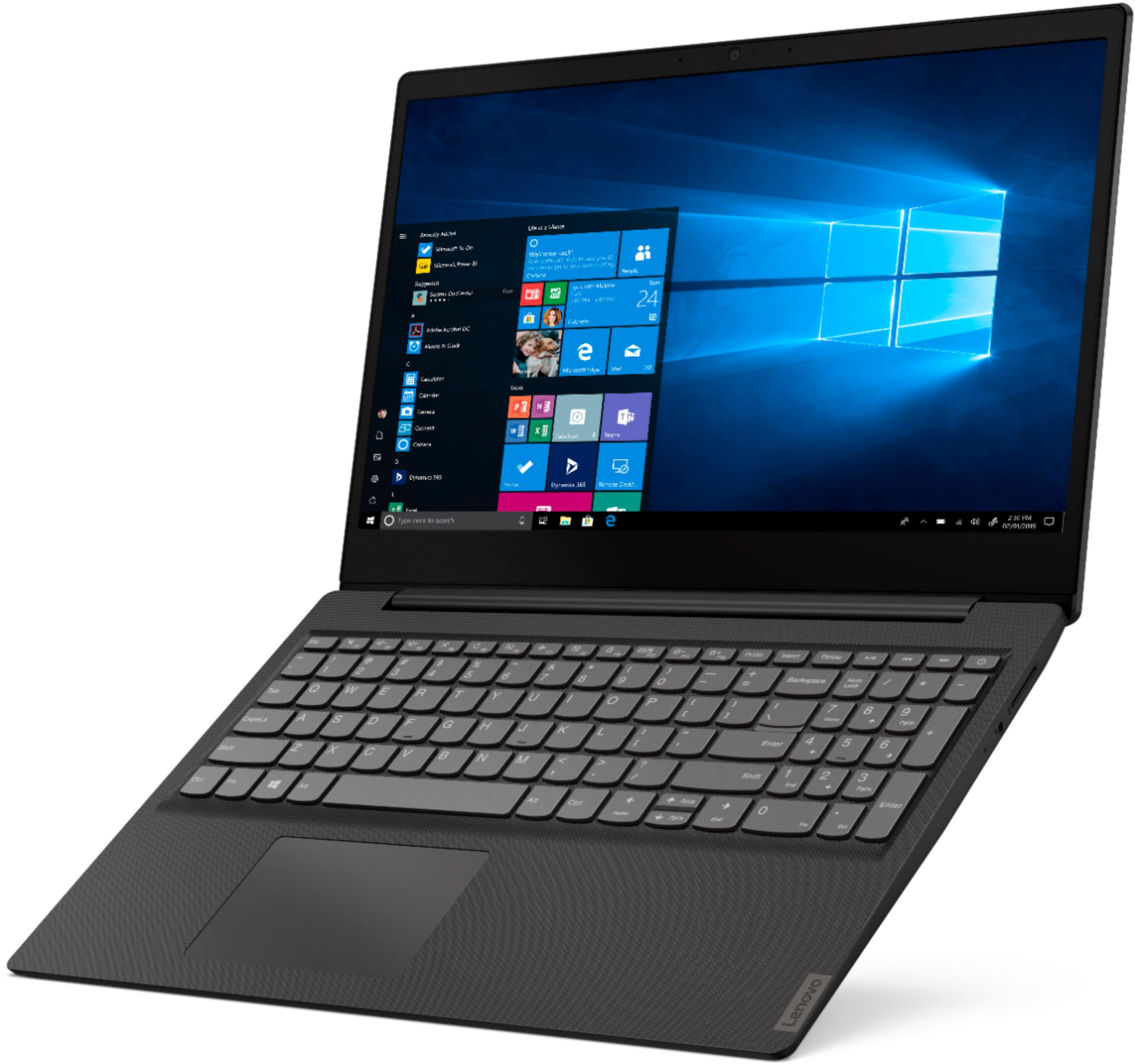
A:AnswerThat really depends on the requirements and compatibility of the specific game. We recommend you check with the game's software publisher's web site for their compatibility with Windows 10 S-Mode 64-bit operating system (Windows 10 S-Mode provides added security by only allowing APPs available ( and therefore certified by Microsoft) at the Microsoft Store. If you don't need the added security or you need to install APPs not available at the Microsoft Store, you can switch to standard Windows 10 Home 64-bit Operating System, at no additional cost.) and the minimum/recommended hardware requirements (Is a Graphics card required, the processor speed and the minimum required system RAM and the minimum available hard drive space) to run their program, then compare those requirements to this system's configuration.
A:AnswerThat really will depend on the requirements and compatibility of the specific game. We recommend you check with the game's software publisher's web site for their compatibility with Windows 10 Home 64-bit operating system and the minimum/recommended hardware requirements (Is a Graphics card required, the processor speed and the minimum required system RAM and the minimum available hard drive space) to run their program, then compare those requirements to this system's configuration.
A:AnswerThat really depends on the requirements and compatibility of the specific game. We recommend you check with the game's software publisher's web site for their compatibility with Windows 10 Home 64-bit operating system and the minimum/recommended hardware requirements (Is a Graphics card required, the processor speed and the minimum required system RAM and the minimum available hard drive space) to run their program, then compare those requirements to this system's configuration.
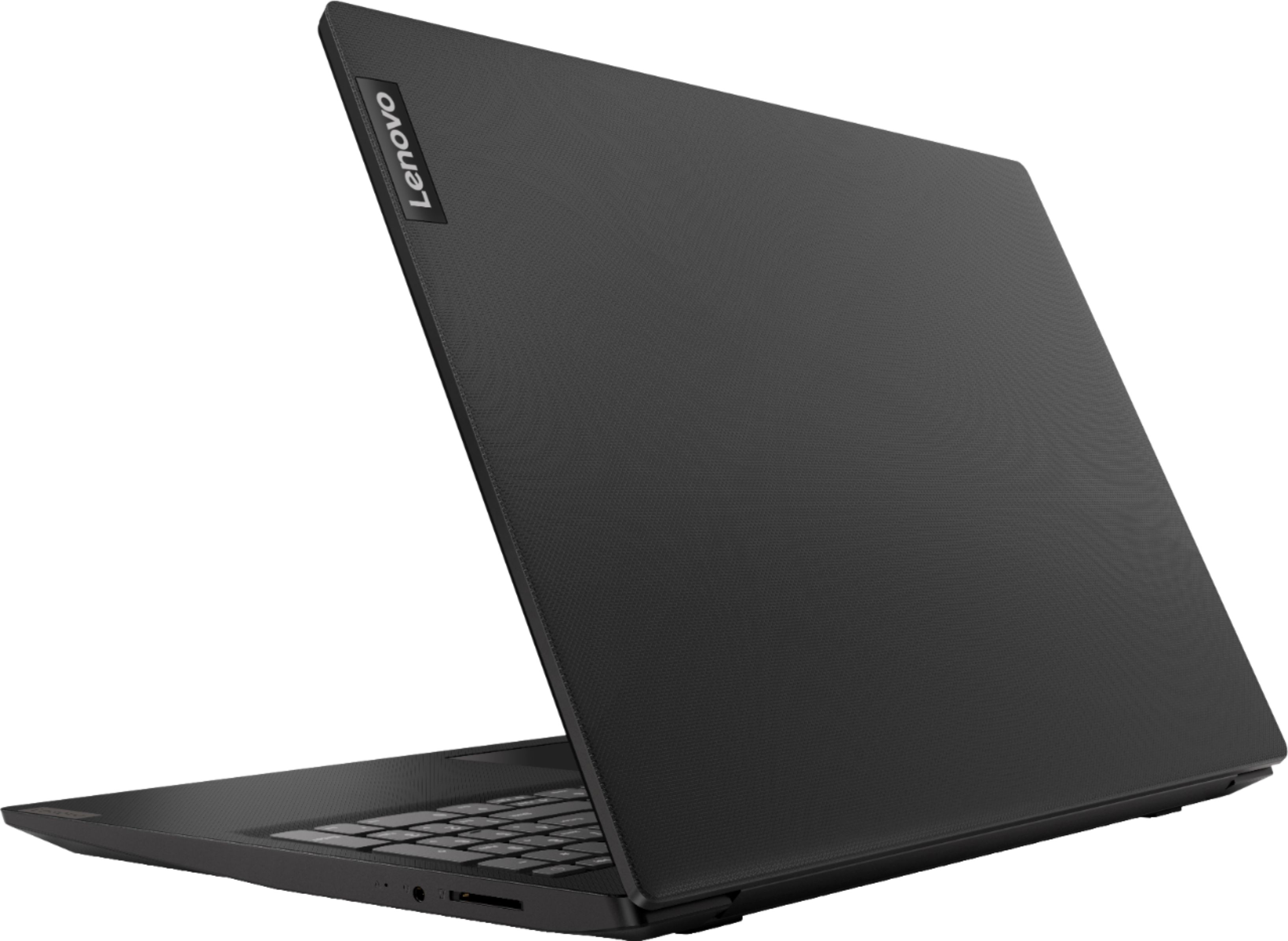
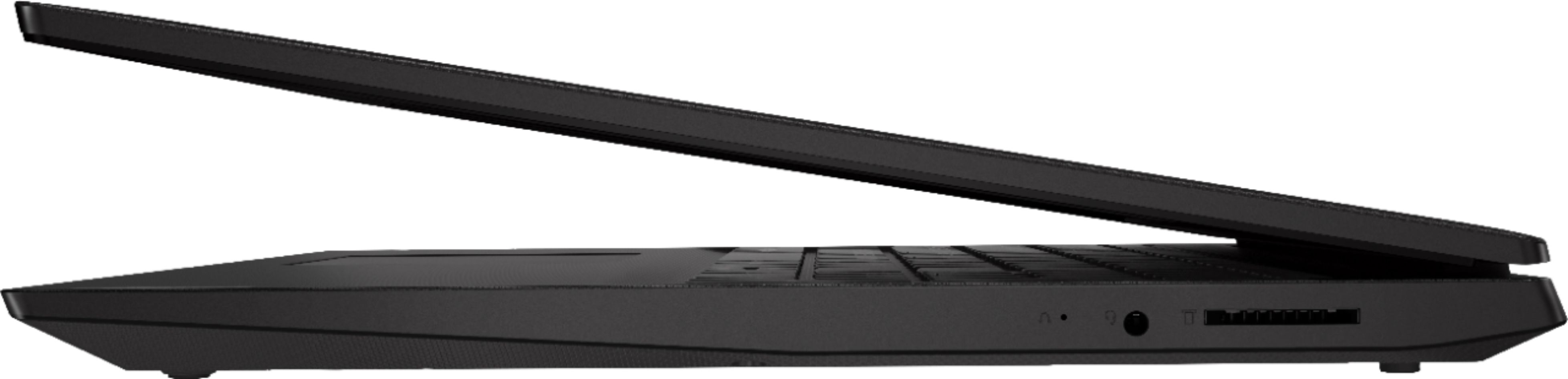
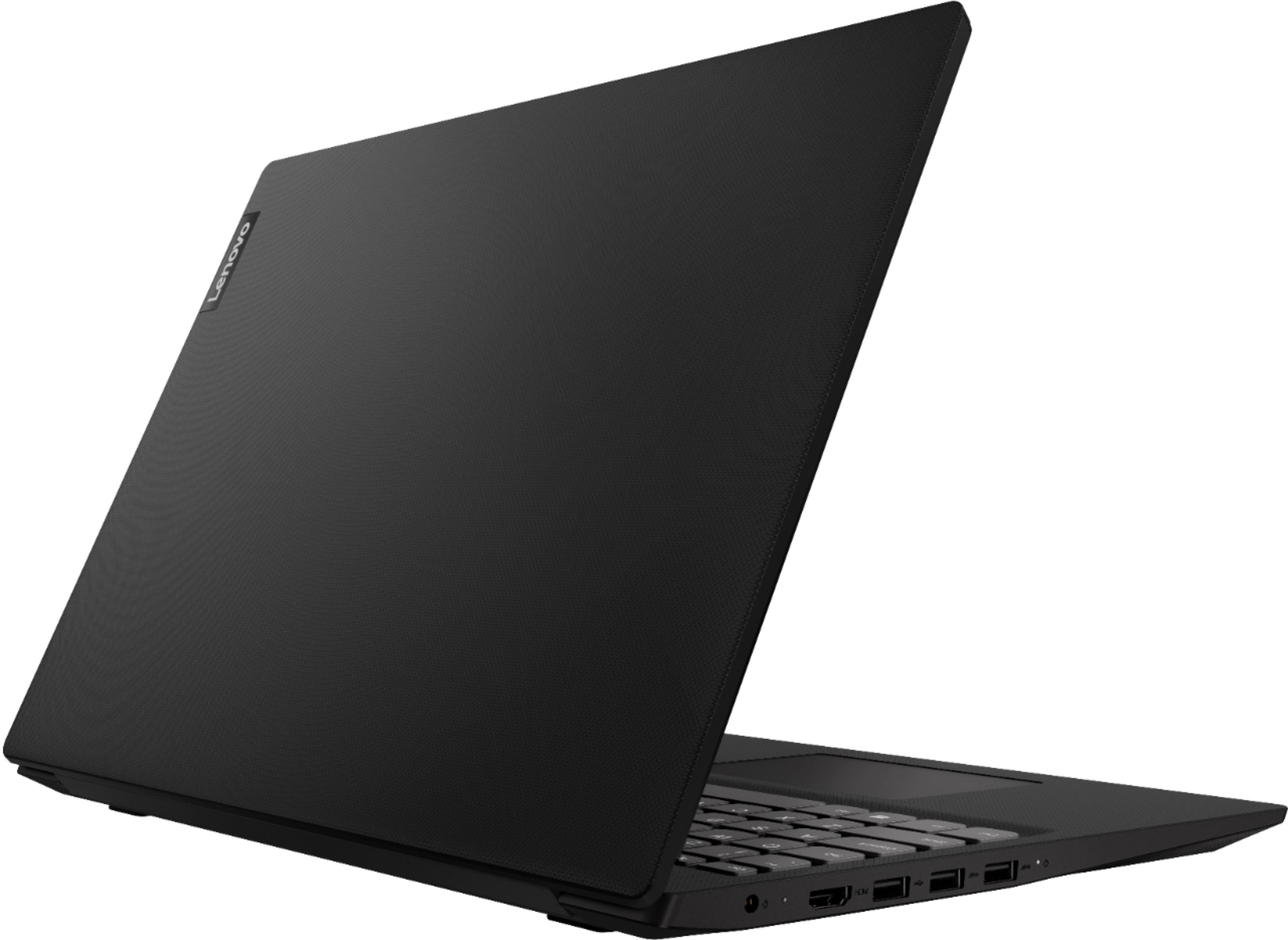
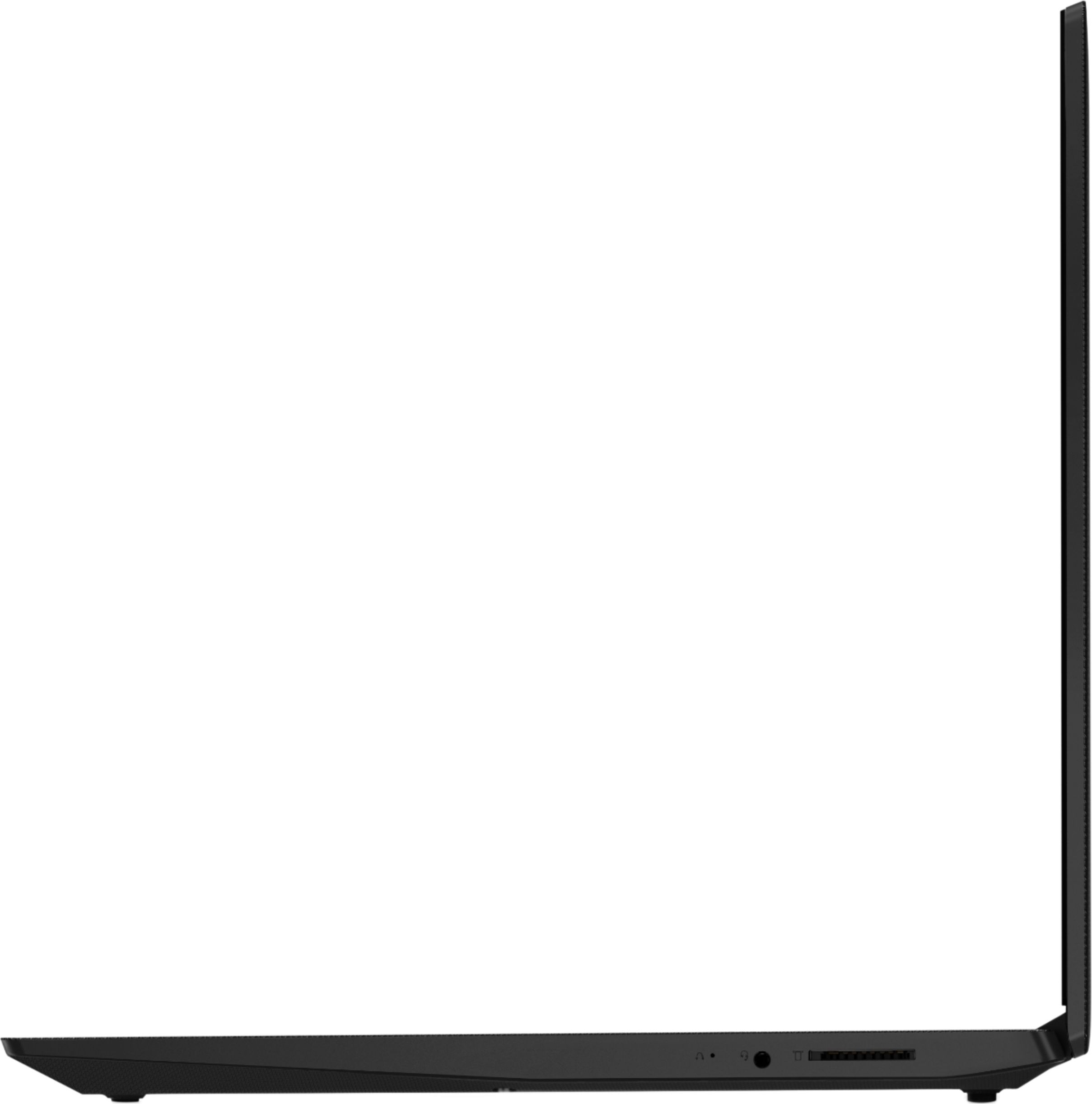
A:AnswerHere is a link to instructions for resetting your Windows 10 laptop to original factory settings, assuming you can boot the computer to the Windows 10 Desktop: https://support.microsoft.com/en-us/help/17085/windows-8-restore-refresh-reset-pc. If you can not boot the computer, This system is equipped with OneKey Recovery System. there is a very small pin hole on the right side of the device, right near the headphone jack on the device. You will need a pin to push this reset button. Plug the device in. Let the battery charge for about 15 minutes. Push the reset button. The system should boot to a choice screen where you can choose "Restore To Factory Default". Select this. It will delete everything from the hard drive except the original factory install of the operating system. You will need to reinstall all programs and files after the reset. If you don't have copies of the files, try to make one before you restore by selecting "Boot to desktop" and trying to back up your files. If the problem persists after the factory reset, we recommend you contact Lenovo Tech Support at: 877-453-6686.