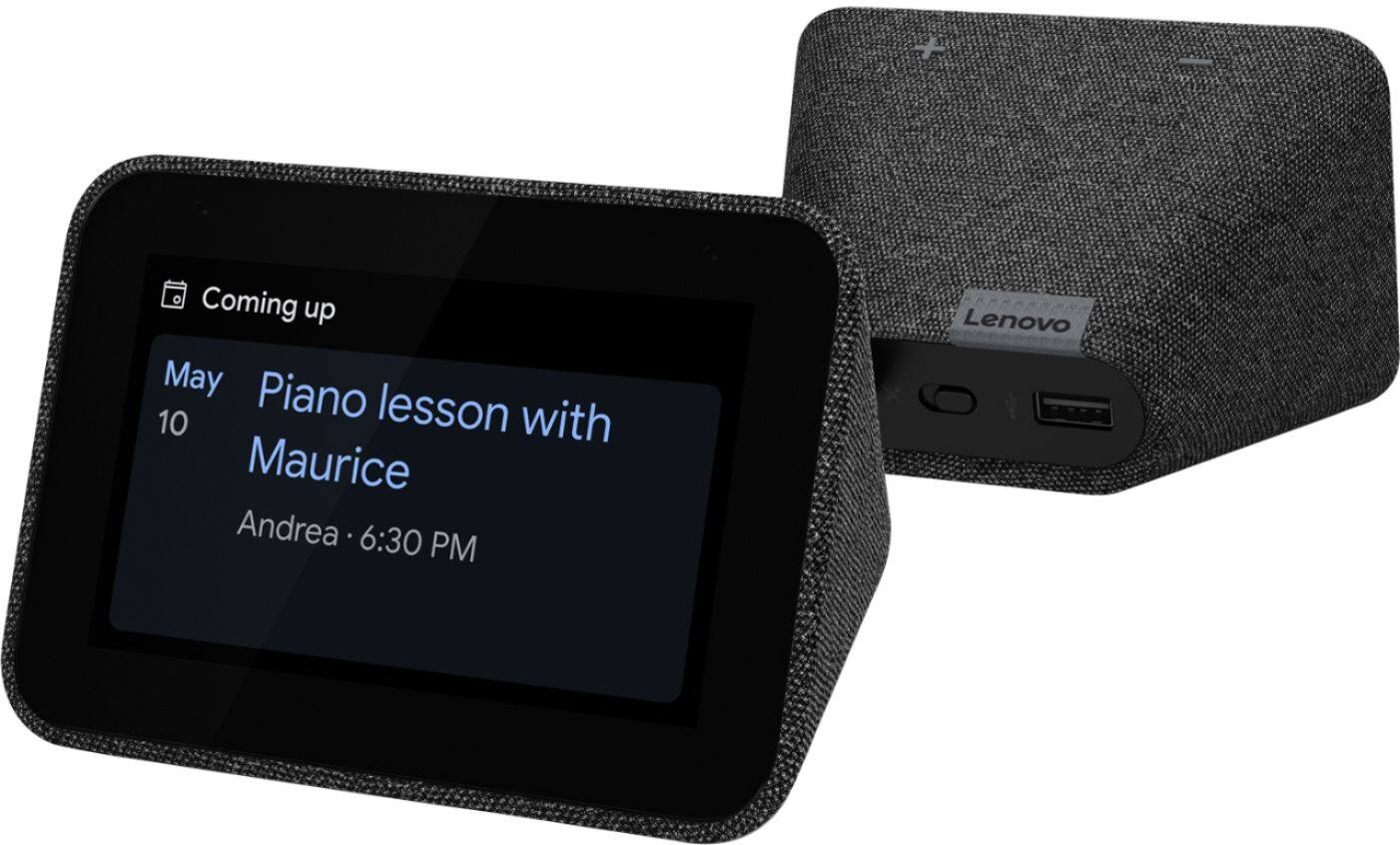
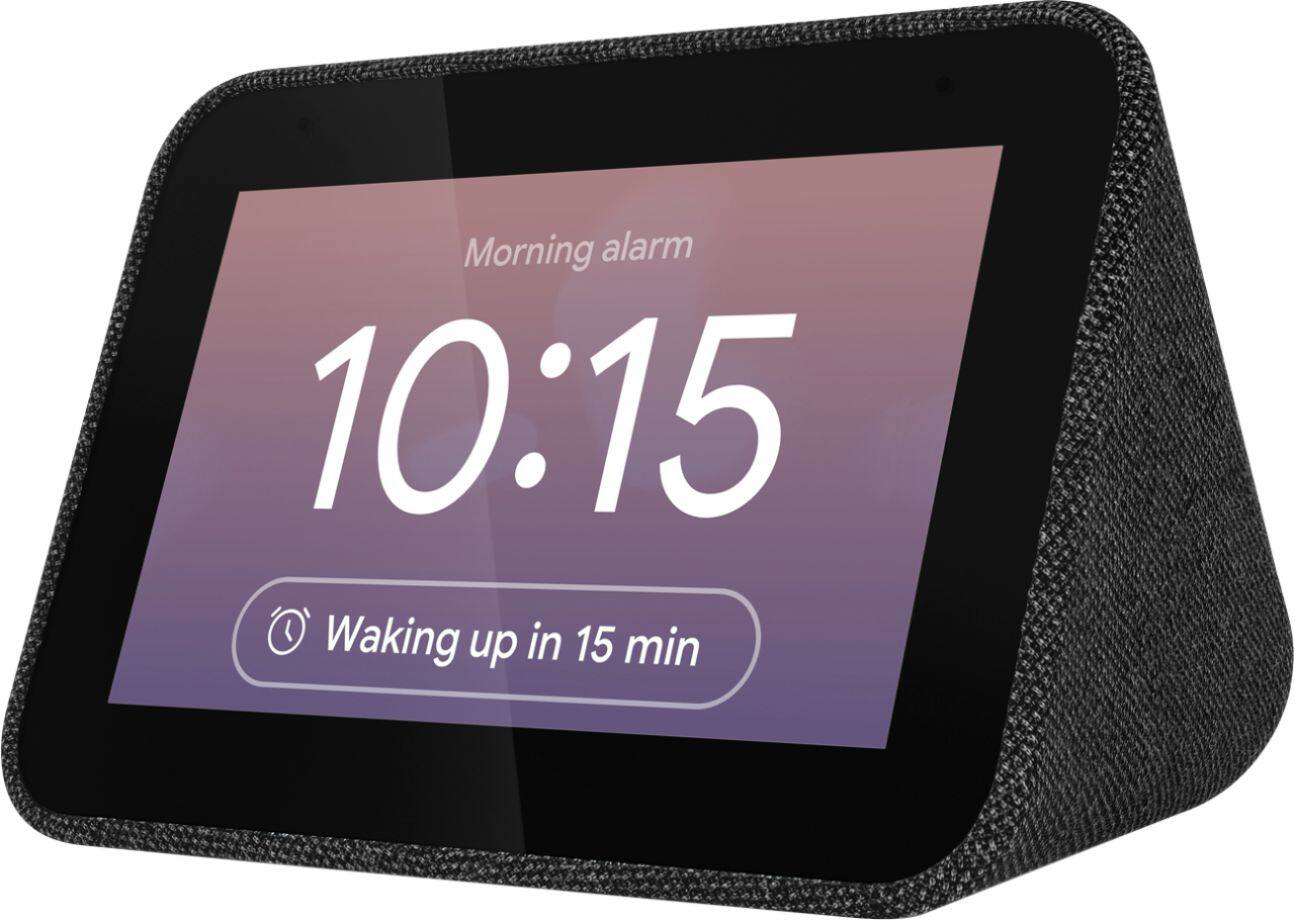
A:AnswerHi Mitch! Yes, you can have two clocks setup next to each other. You can change each clocks sensitivity to “Hey Google” within the device settings in the Google Home App. Alternatively you can say “Okay Google”. At this time, you are not able to change the “Hey Google” or “Okay Google” phrase.
A:AnswerHello Benjamin! This device is no longer available. Please check the Lenovo Smart Home website again at a later date. https://www.lenovo.com/us/en/smart-home
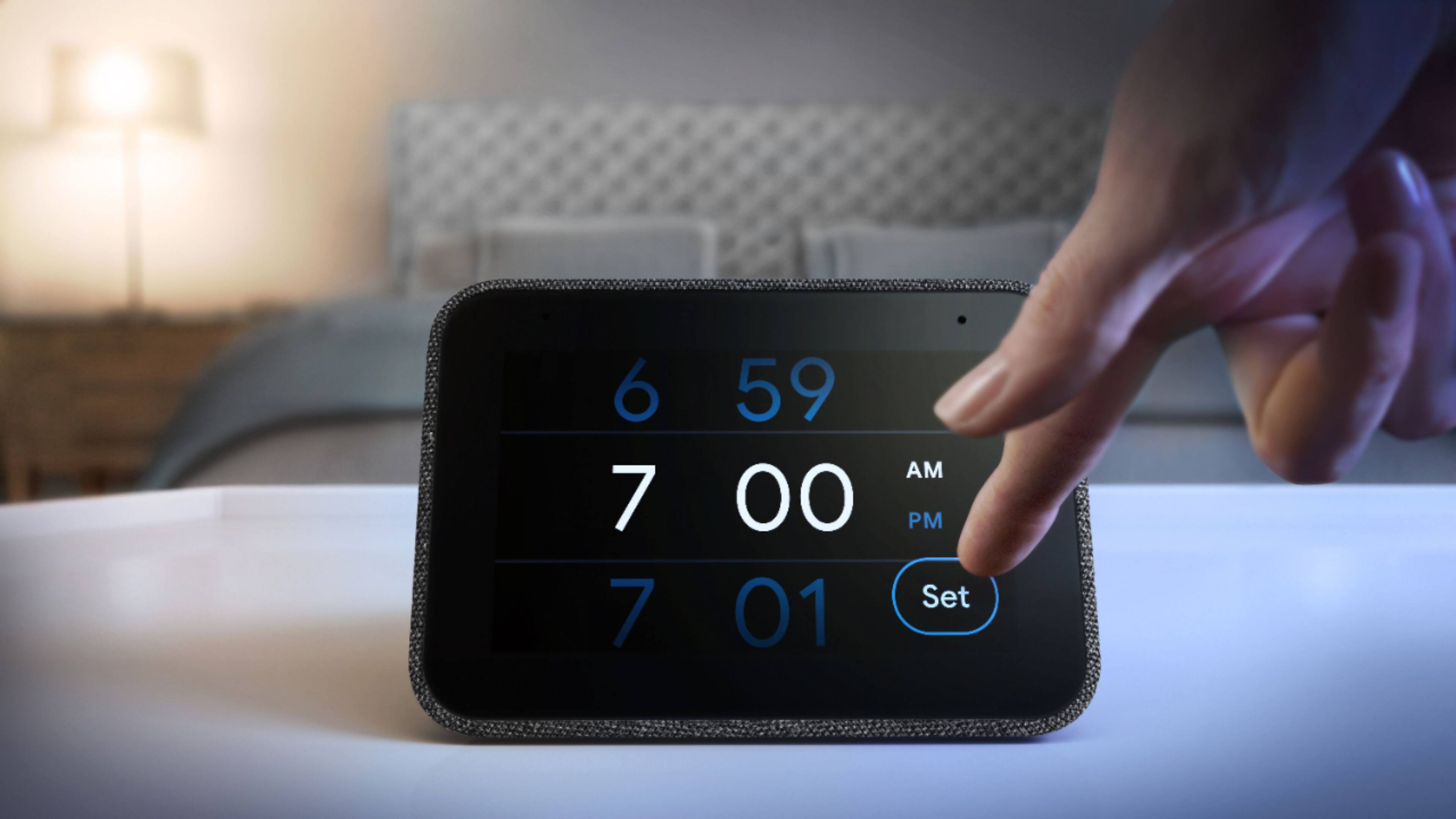
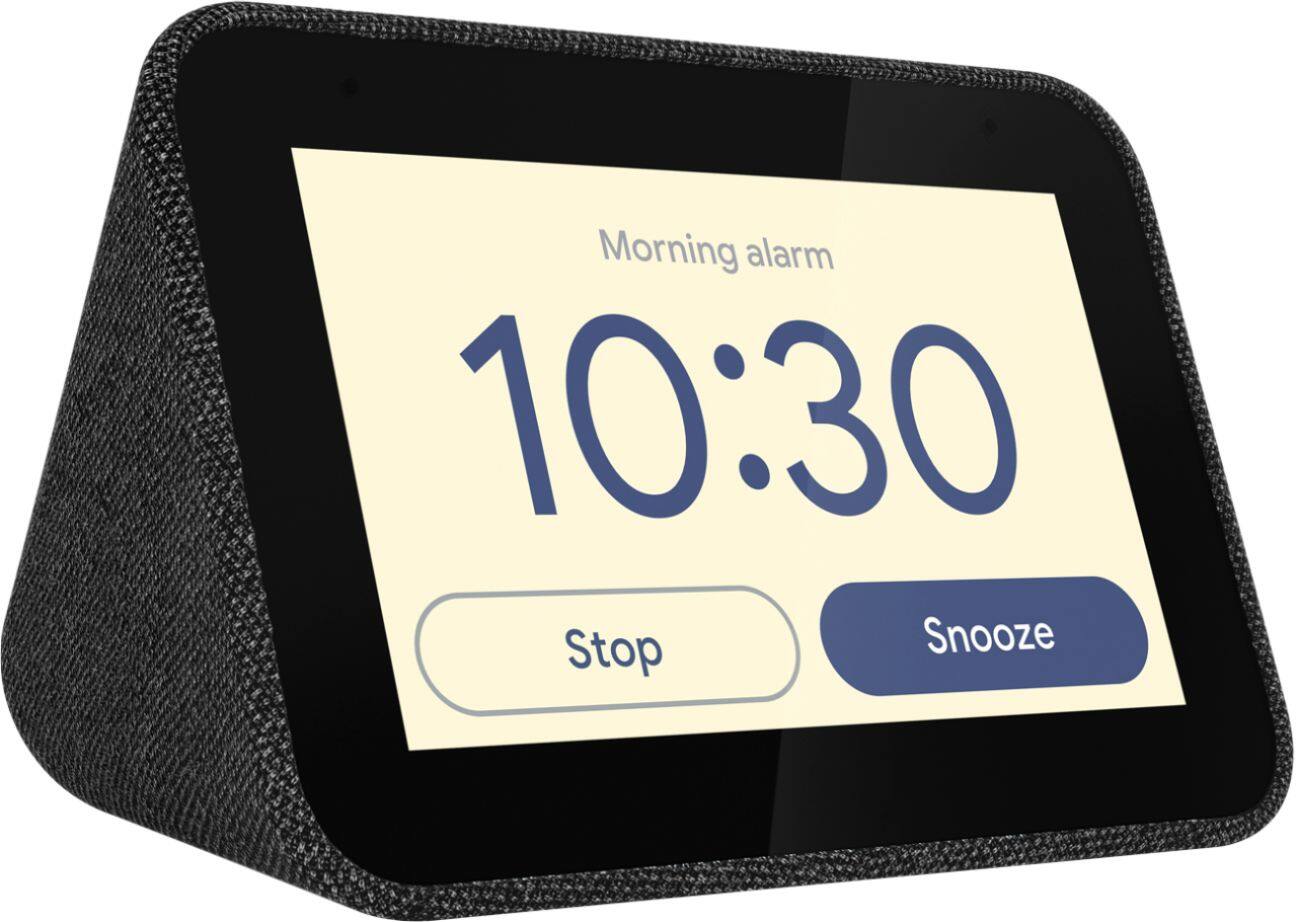
A:AnswerHi! The clock requires power from an AC adapter to function. The Lenovo Smart Clock with the Google Assistant does more than just tell you the time and wake you up. Designed to reduce smartphone screen-time at night, it can help you unwind and sleep better. It can also run your smart home, play your favorite music across your home, manage your schedule, and much more. All hands-free, quickly, and easily. Just say “Hey Google” to get started.
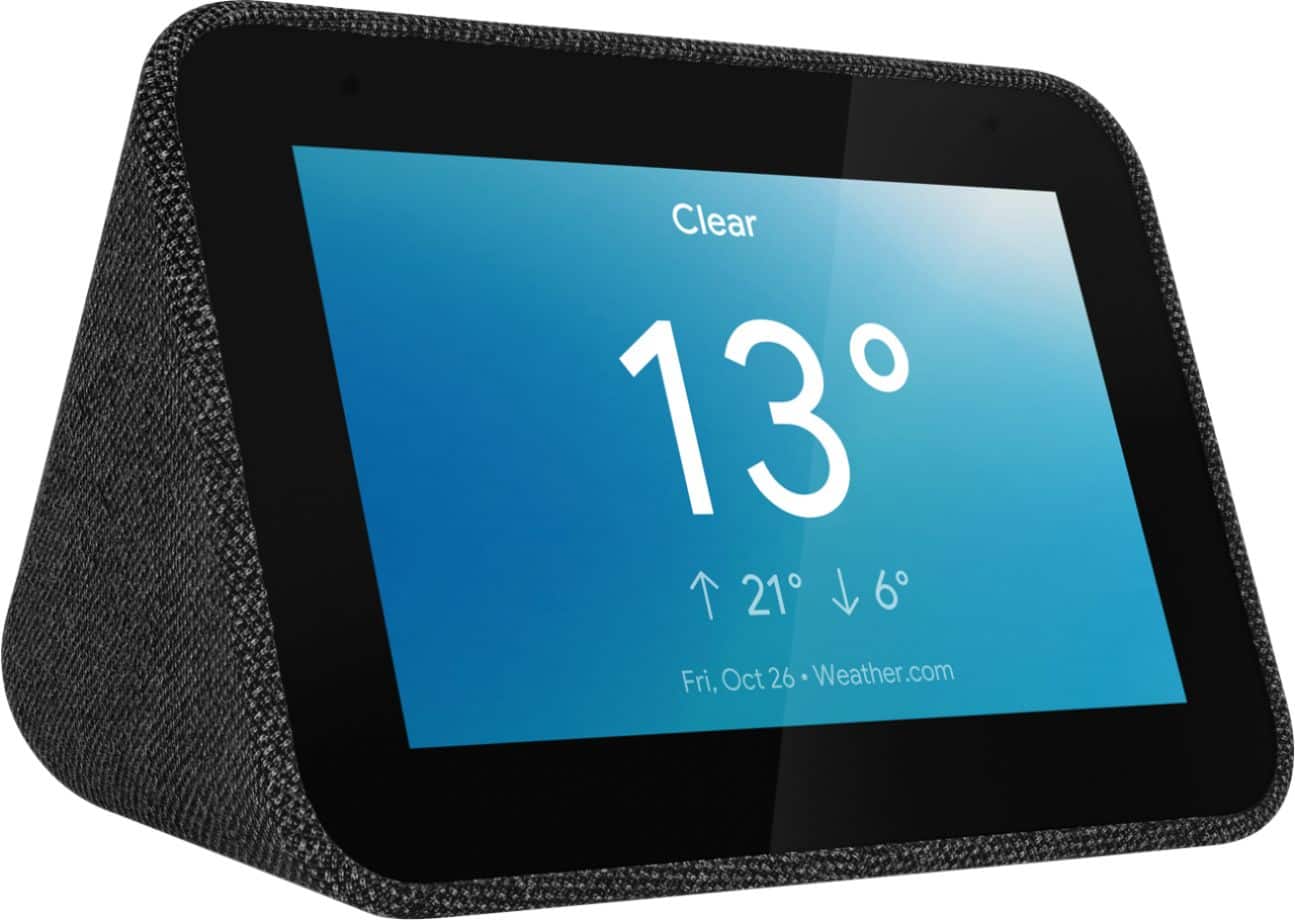
A:AnswerHey there! The Lenovo Smart Clock with the Google Assistant does more than just tell you the time and wake you up. Designed to reduce smartphone screen-time at night, it can help you unwind and sleep better. It can also run your smart home, play your favorite music across your home, manage your schedule, and much more. All hands-free, quickly, and easily. Just say “Hey Google” to get started.
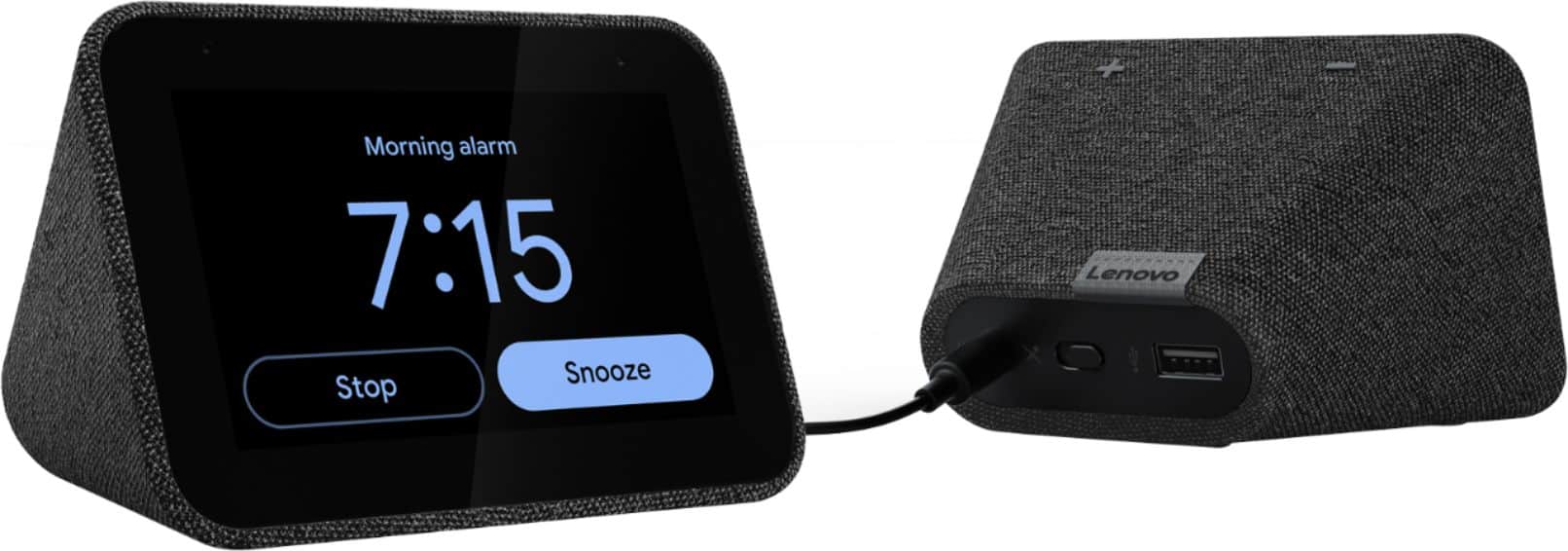
A:AnswerHi Joy! You can activate “Do Not Disturb” on your Lenovo Smart Clock by swiping up. This will silence notifications. You can also access “Night Mode” settings on your device on the Google Home App on your smartphone/tablet. From here you can set the volume of your device to a certain level at night between the hours you specify.
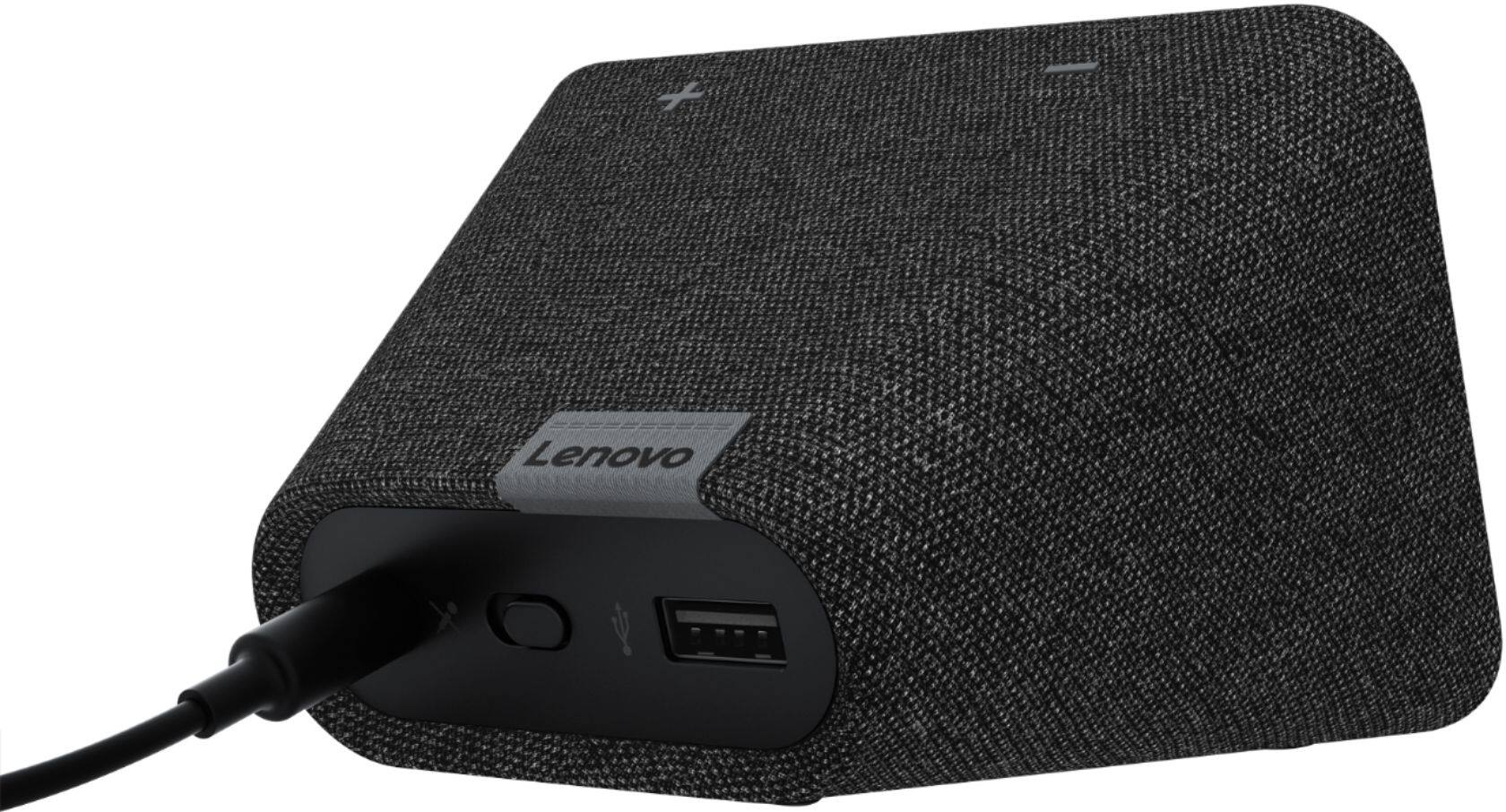
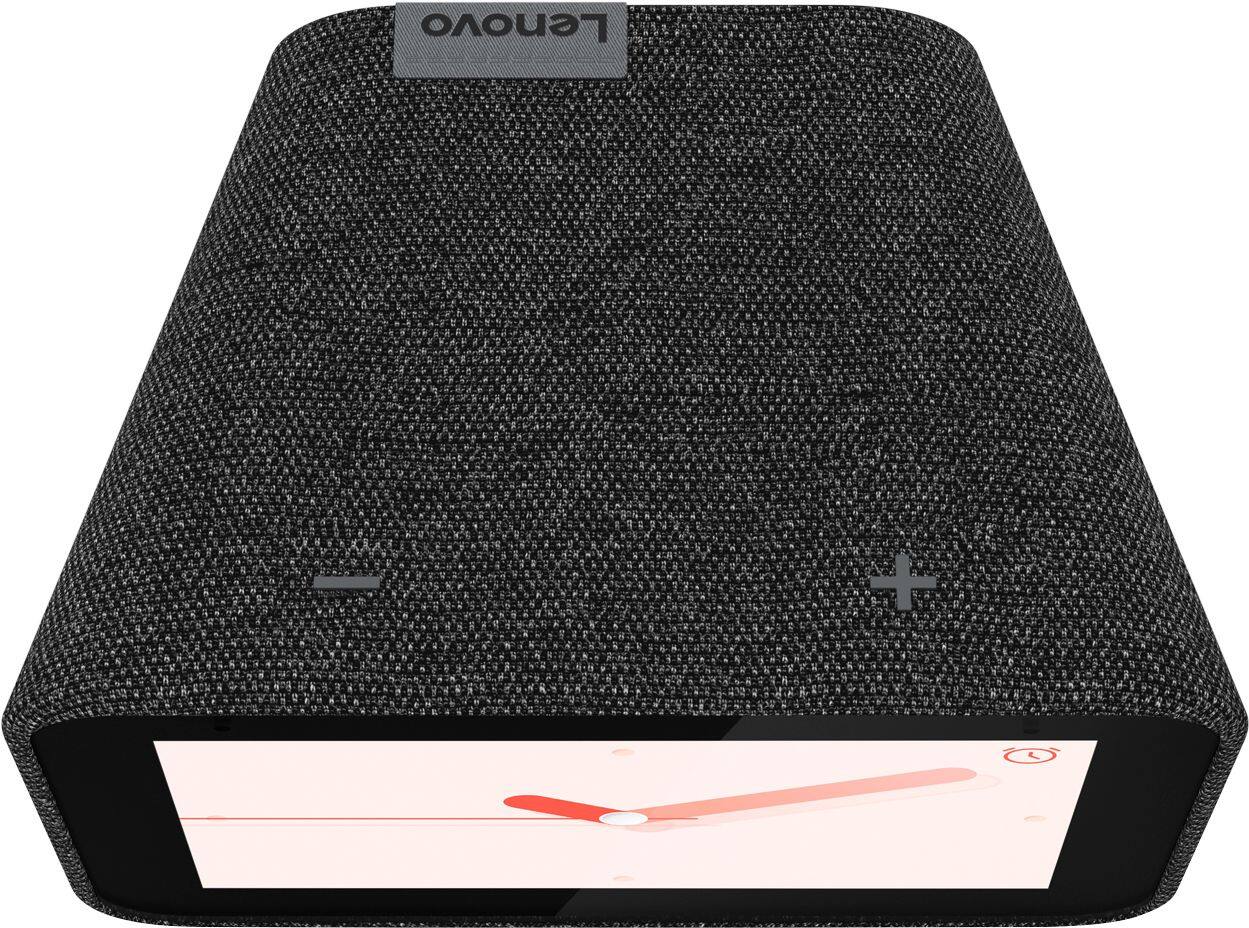
A:AnswerHi! We are sorry to hear you are experiencing issues with your device. Try power cycling the clock by unplugging it, plugging it back in, and allowing it to reboot. If the issue persists please perform a factory reset by holding down the “Volume + and –“ buttons simultaneously for 8 seconds. If after following these steps, your issue still hasn’t been resolved, please reach out to our Smart Home Technical Support team at 866-426-0911
A:AnswerTo turn on the auto-dim function, simply swipe up on the display and tap the sun icon in the lower left corner of your device. When there is an "A" in the center, you have turned on the auto-dim.
A:AnswerUPDATE: I originally answered that this was not possible, but a recent update for the clock was issued and it now does have photo frame capabilities!
A:AnswerHey there! Yes, Vivant is compatible with the Google Nest Hub so it will work with any Google Assistant device on your home network. Your Lenovo Smart Clock with Google Assistant is indeed part of your google home network once connected to your W-Fi.
A:AnswerHello! Your Lenovo Smart Clock with Google Assistant Displays the time, weather, and can show/tell you about your appointments on a given day. At this time you are not able to pull up your full google calendar. You can setup a morning routine that gives you all of this information with a simple voice command like “Hey Google, good morning” or “Okay Google tell me about my day”. You can also have your appointments shown to you by saying something like “Okay google whats my schedule?”.
A:AnswerHey there! Thanks for your question. The Lenovo Smart Clock with Google Assistant works with Google Assistant and the Google Home App. It does not work with Siri or HomeKit.
A:AnswerHi John! We are sorry to hear you are experiencing this issue with your Lenovo Smart Clock. Please perform a factory reset by holding down the “Volume + and – ” buttons on top of your device for 8 Seconds. If the issue persists, please contact our customer support team at 866-426-0911
A:AnswerHello! Thanks for your question. No, this shouldn’t cause you any issues. You can fine tune your setup by adjusting the sensitivity to “Hey Google” and setting the default speaker of each device from within the Google Home App. Furthermore, you have the option to mute the microphone if both devices are responding to your voice commands at the same time.
A:AnswerYou can't download apps to the clock, but the Google Assistant connects to a bunch of radio apps/services (you can just ask it to play stations available through them).
https://support.google.com/googlenest/answer/7071793?hl=en
A:AnswerHi Rose, we are sorry to hear you are experiencing issues with your device. It should not be overheating. Please contact customer support at 866-426-0911