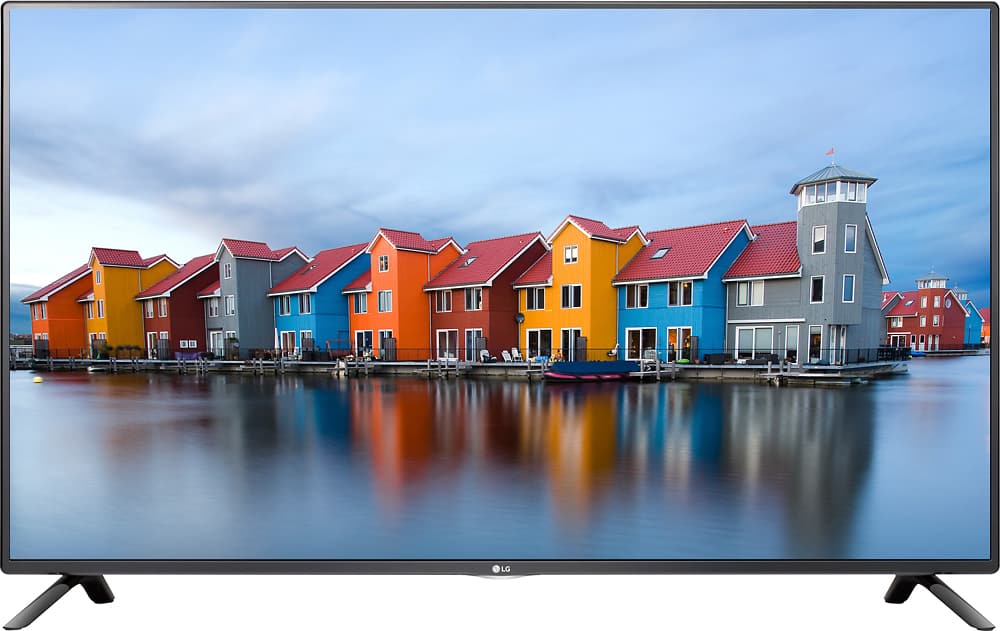
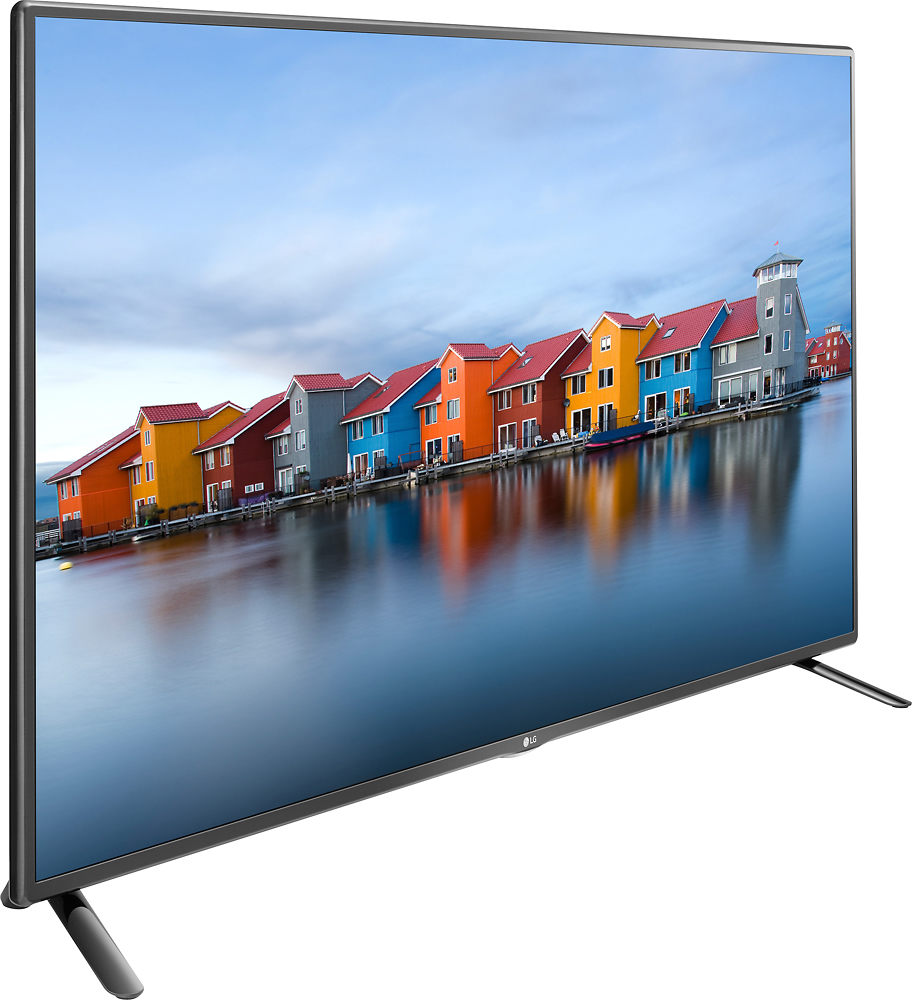
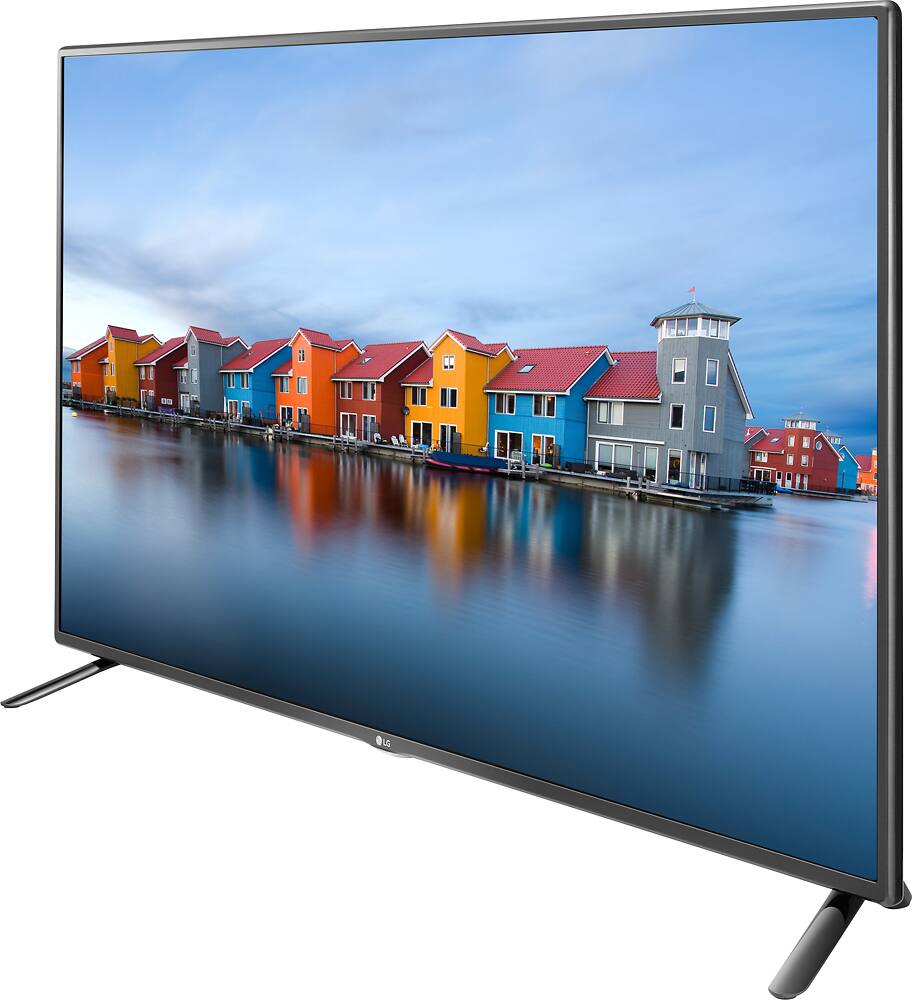
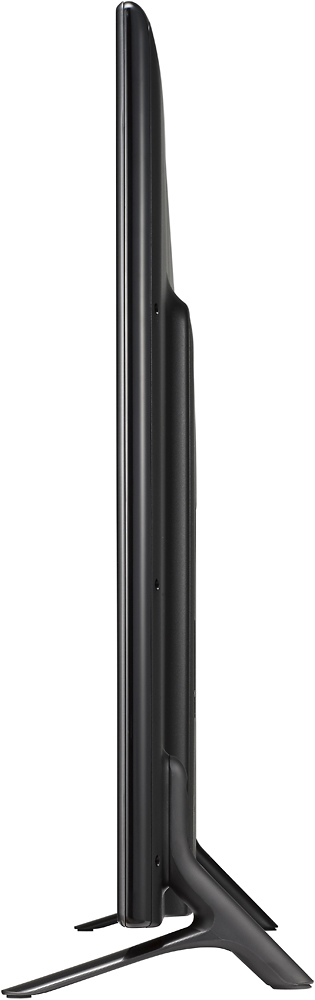
A:AnswerThe LG - 55" Class (54.6" Diag.) - LED - 1080p - Smart - HDTV - Black, Model # 55LH575A has a semi-gloss screen which helps to reduce the intensity of small lights. Large Reflections are diffused on the screen...^IFV
A:AnswerThe manual shows all possible connections. This TV features Antenna/Cable In, 2x HDMI IN, USB, LAN, Optical Digital Audio Out, Component In, and AV In.
A:AnswerThe LG - 55" Class (54.6" Diag.) - LED - 1080p - Smart - HDTV - Black, Model # 55LH575A will fit on a 50" wide surface. The TV itself has a side to side width of 48.9" and the stand legs are 45.6" apart...^IFV
A:AnswerThe LG - 55" Class (54.6" Diag.) - LED - 1080p - Smart - HDTV - Black< Model # 55LH575A is designed for internet video playback and has the Google Play, Google Play Movies, Hulu Plus, Netflix, Vudu, YouTube internet streaming services on it. It is not an Android TV...^IFV
A:AnswerThe tv comes with a fixed base. Actually it is a pair of legs that attach to the back of the tv. There are numerous wall mounts available that allow swivel and tilt, which works well for me and frees up a lot of floor space.
A:AnswerHib Zackary. The issue that you are experiencing may not be your TV. The LG - 55" Class (54.6" Diag.) - LED - 1080p - Smart - HDTV - Black, Model # 55LH575A like all newer high-definition televisions comes equipped with multiple aspect ratios that can cut off portions of the screen if the setting is in the wrong aspect mode, but besides the television's aspect mode feature, elements outside the television such as the DVD player, DVR, the cable or satellite set-top box contribute to this problem as well. On the 55LH575A, you can navigate to 'To adjust Aspect Ratio' in the Picture Settings in the TV's menu where you will find a 16:9 setting that displays an aspect ratio of 16:9, an 'Original' setting that changes the aspect ratio to 4:3 or 16:9 depending on the input video signal. There is 4:3 setting, a Vertical Zoom setting that you can use to adjust the vertical dimension of the screen and align the screen vertically by using Adjust Zoom Ratio and Adjust Screen Position. There is an All-Direction Zoom setting that lets you adjust the horizontal/vertical/diagonal dimensions of the screen and align the screen horizontally/vertically by using Adjust Zoom Ratio and Adjust Screen Position. If you enable Just Scan on each screen size, you can view the screen in your selected size using the original image without any areas cropped. Many cable and satellite receivers also come with an adjustment to the screen setting because stations that broadcast a high-definition signal usually also project a widescreen image along with the HD signal. For you TV to accurately portray this image, you will need to set the cable or satellite box to normal. You will want to check other channels to see if they have the same issue because sometimes when the image is cut off, the problem may be with the channel rather than the television...^IFV
A:AnswerHi GaryP. You will be able to connect an older DVD player that only has the older RCA ports on it through what is now referred to as the Shared Component/Composite connection on the LG - 55" Class (54.6" Diag.) - LED - 1080p - Smart - HDTV - Black, Model # 55LH575A. That type of connection is no longer a priority and manufacturers have limited the number of those ports eliminated them altogether or consolidated them. The input circuitry of the "Shared Composite/Component Video Input" has been modified so that both a composite and component video source can be accommodated. Component video cables (red/green/blue) can be connected as usual but you can also use the green component video input to connect the composite video connection (i.e. the yellow RCA ). The red and white RCA male plugs (L/R stereo audio) can be connected as usual to the RCA ports on the TV. The only thing you can't do is plug both a composite and composite signal at the same time...^IFV
A:AnswerHi Cookie. Hopefully we can clear up any confusion with regards to this TV and the issue of refresh rates. There are two important things to understand about video. The first is that you cannot add detail beyond what is already in the source footage, and secondly, that the source footage is never greater than 60 Hz. Movies on Blu-ray players are a 1080p picture at 60 Hz, original footage for movies recorded on film is actually 24 frames per second and is upconverted to 30 frames through a process known as 2:3 pulldown so that the source frames can be distributed and spread across 30 frames per second and then shuffled and combined to 60 frames per second or 60 Hz to match the 60 Hz refresh rate of most TVs (Hertz of Hz is just another way of saying frames per second). When the refresh rate for a TV goes higher than the source footage, it starts to use a process referred to as interpolation to produce a higher frame rate. What the TV is basically doing is creating new frames based on data from the frames that are in the source footage and inserting them between the 60 frames per second. These are images that were not in the original footage, they are images that the TV thinks it should draw between the images that your media is telling it to draw. This is great for motion blur which is when the picture appears blurry when watching fast moving pictures like when watching sports of fast action movies. The panel on the LG - 50" Class (49.5" Diag.) - LED - 2160p - Smart - 4K Ultra HD TV - Black, Model # 50UH5530 has a 60 Hz panel refresh rate and the TruMotion which is LG's name for the motion interpolation is what is listed as Trumotion 120Hz. We are not sure how this question was answered as you mentioned, but that is what may be causing the confusion as to whether this has a refresh rate of 60 Hz or 120 Hz. Hopefully this helped and didn't confuse things even more...^IFV