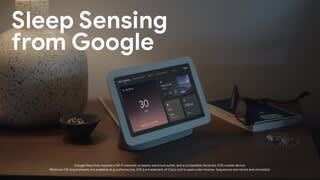
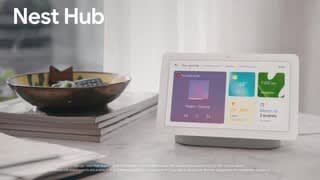
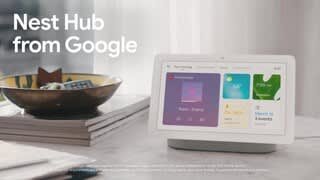
A:AnswerDefinitely! With Google Home app content filters, you can block explicit music and video content from YouTube and other music or radio services from playing on Google Nest and other Assistant-enabled speakers and displays. Parents can use these controls to limit which content their children can access.
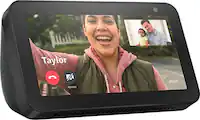
A:AnswerOn Nest Hub, calling feature will default to audio only and there's no video for the recipient of your call since it doesn't have a camera. You can enjoy the two-way video calling feature on Nest Hub Max that has a camera. Take a look at the following link for more details: https://support.google.com/googlenest/answer/9849261
A:AnswerHi there, Jc. Yes, the Nest Hub (2nd Gen) allows you adjust the snooze length before it goes off again — here’s how:
1. Swipe up from the bottom of your display and then tap Alarms.
2. Tap Settings and then Silence after or Snooze length.
3. Choose the length of time you want.
4. Tap Done.
Check out this guide for more information: https://support.google.com/googlenest/answer/7071598
A:AnswerThanks for the inquiry, nikki. Unfortunately, the Nest Hub (2nd gen) cannot connect to Facebook Messenger for video calls. It uses Google Meet to make those video calls. Check out this link for more details: https://support.google.com/googlenest/answer/14114319
A:AnswerHello Pam! You can easily set up your speaker to work with your Nest Hub by ensuring they are both placed within the same home structure.
For additional guidance, we recommend referring to this helpful article: https://support.google.com/googlenest/answer/7029485
If you require further assistance, please don't hesitate to reach out to us!
A:AnswerIf you use the Google home app you can easily set up and integrate and we use it as a baby monitor for our nest camera in baby’s room. It works great bc it’s larger than a phone but smaller than an iPad screen still