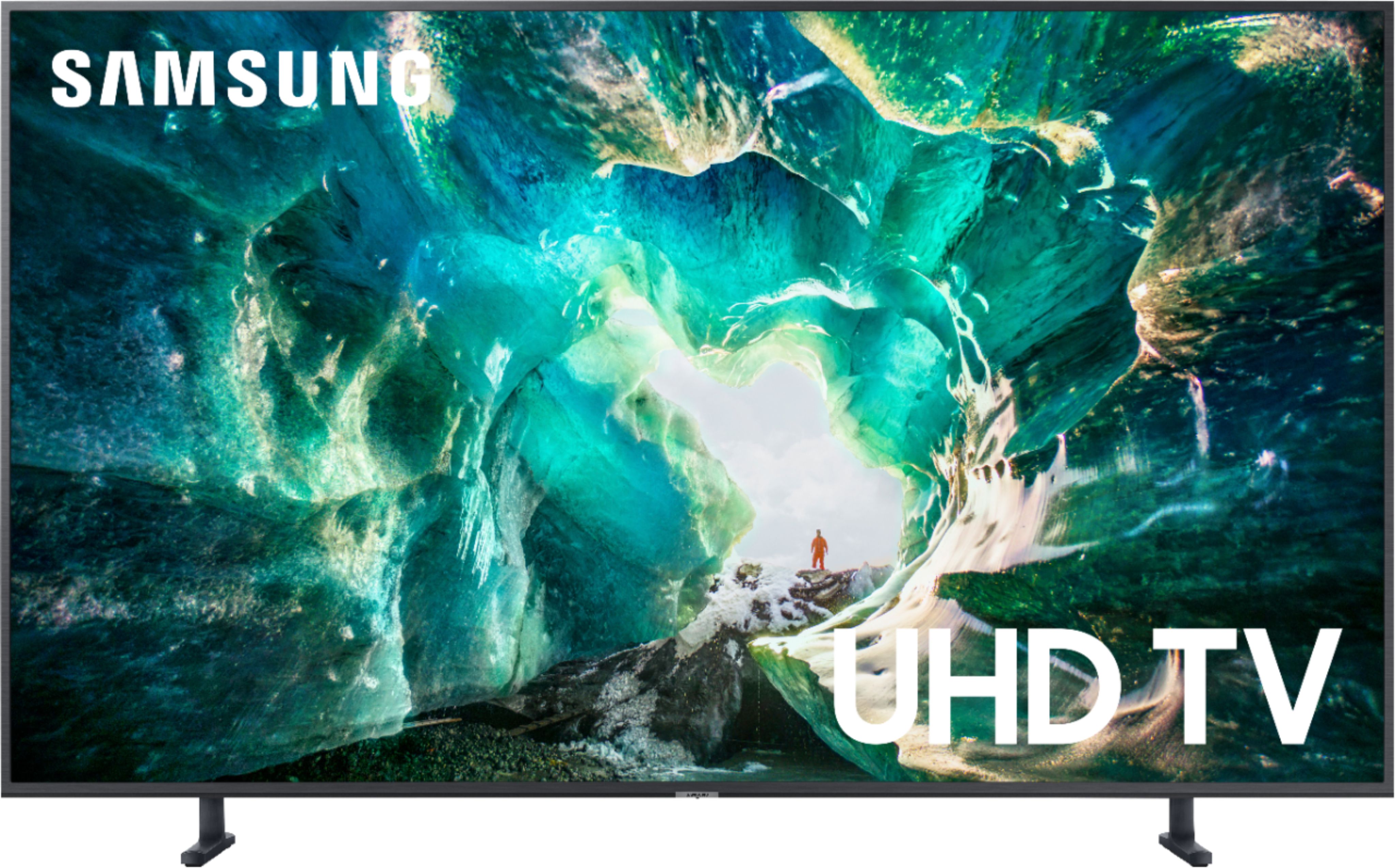
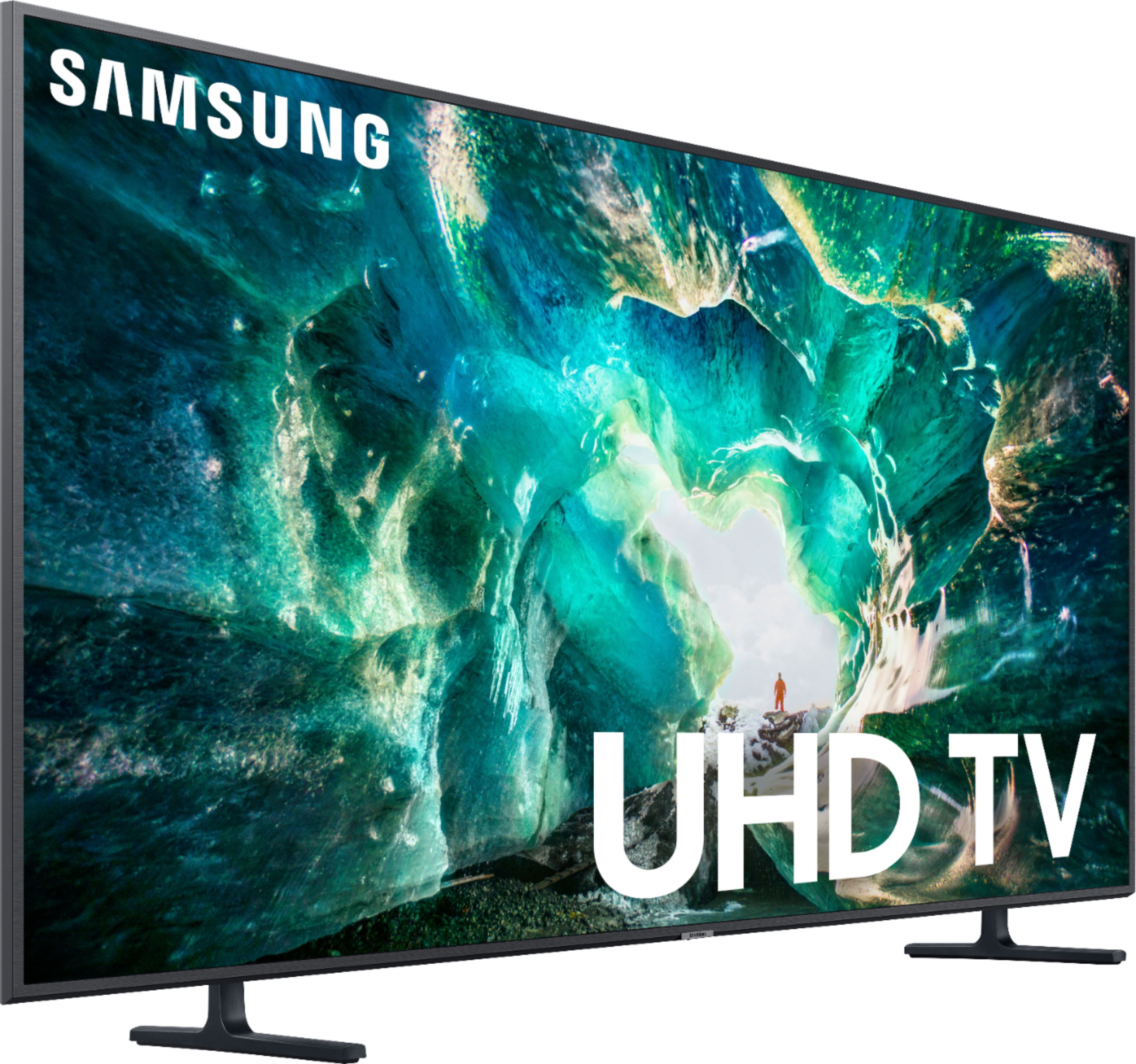
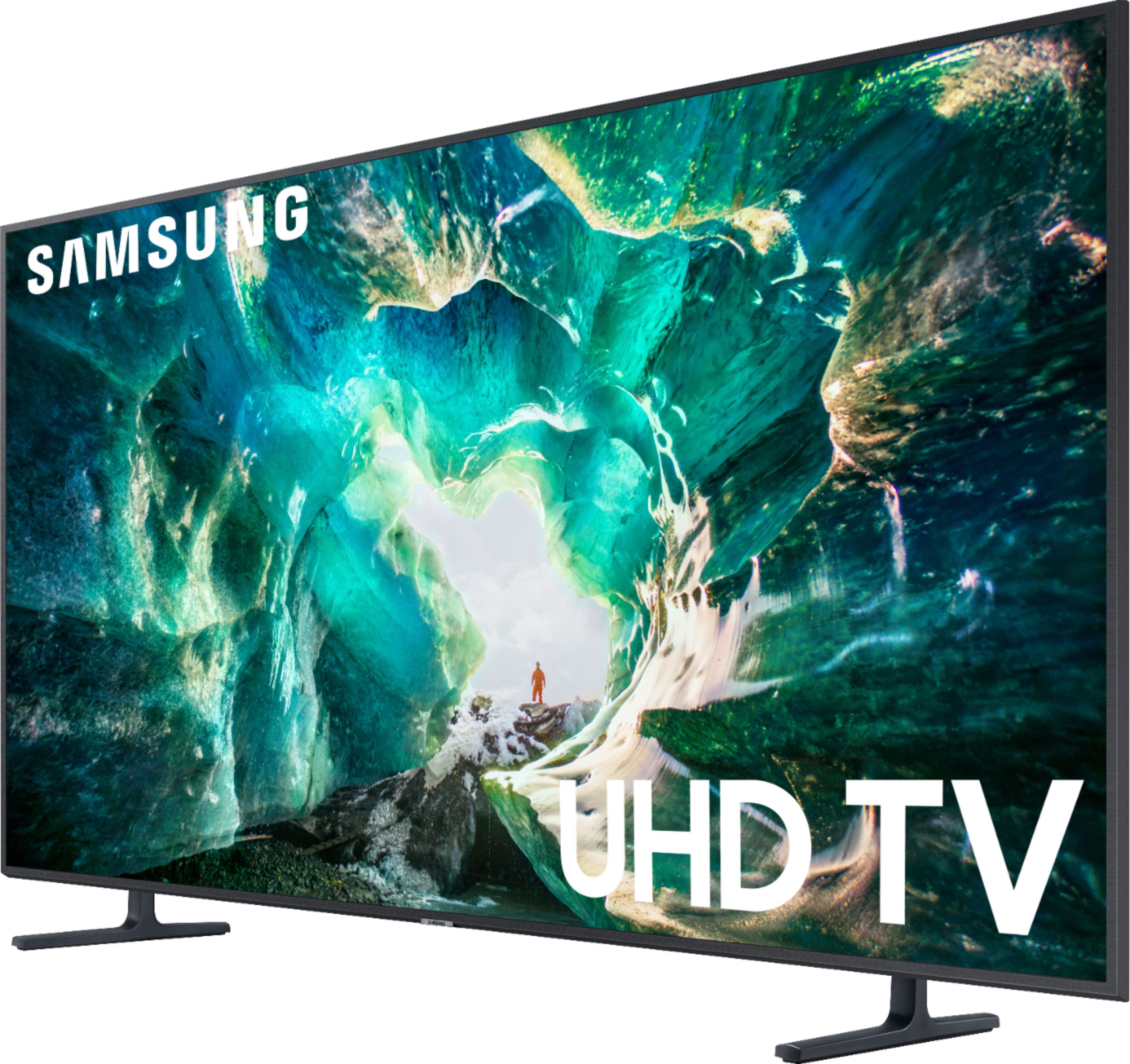
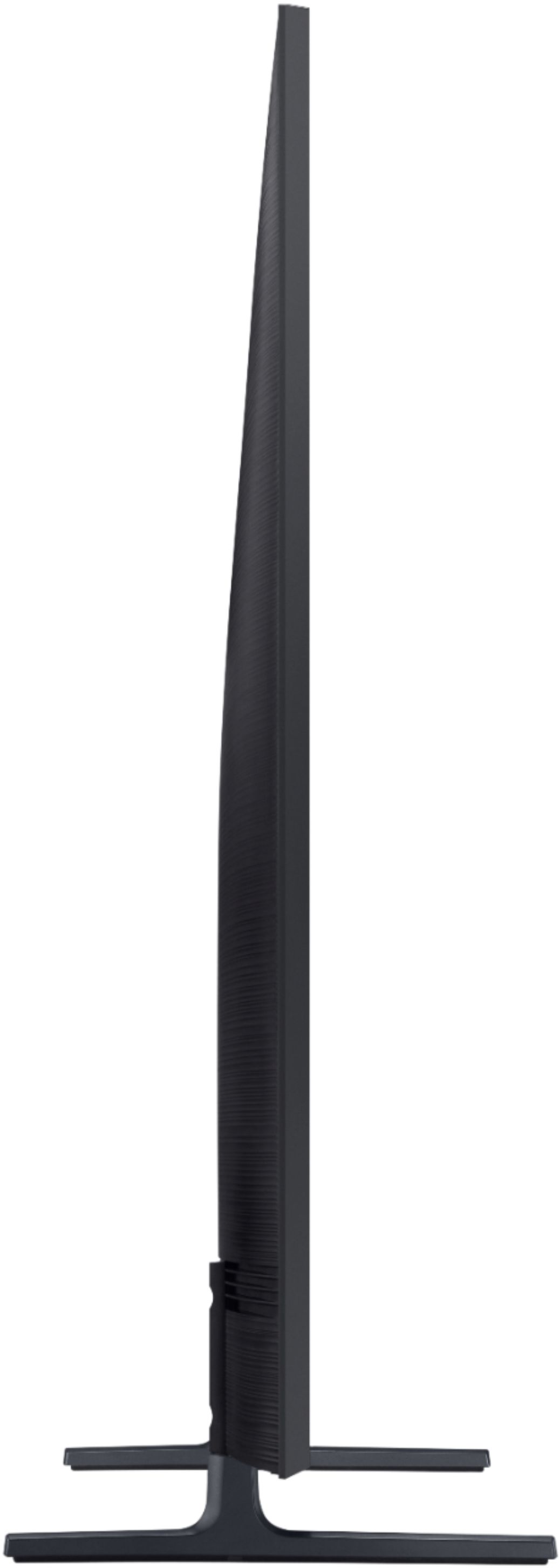
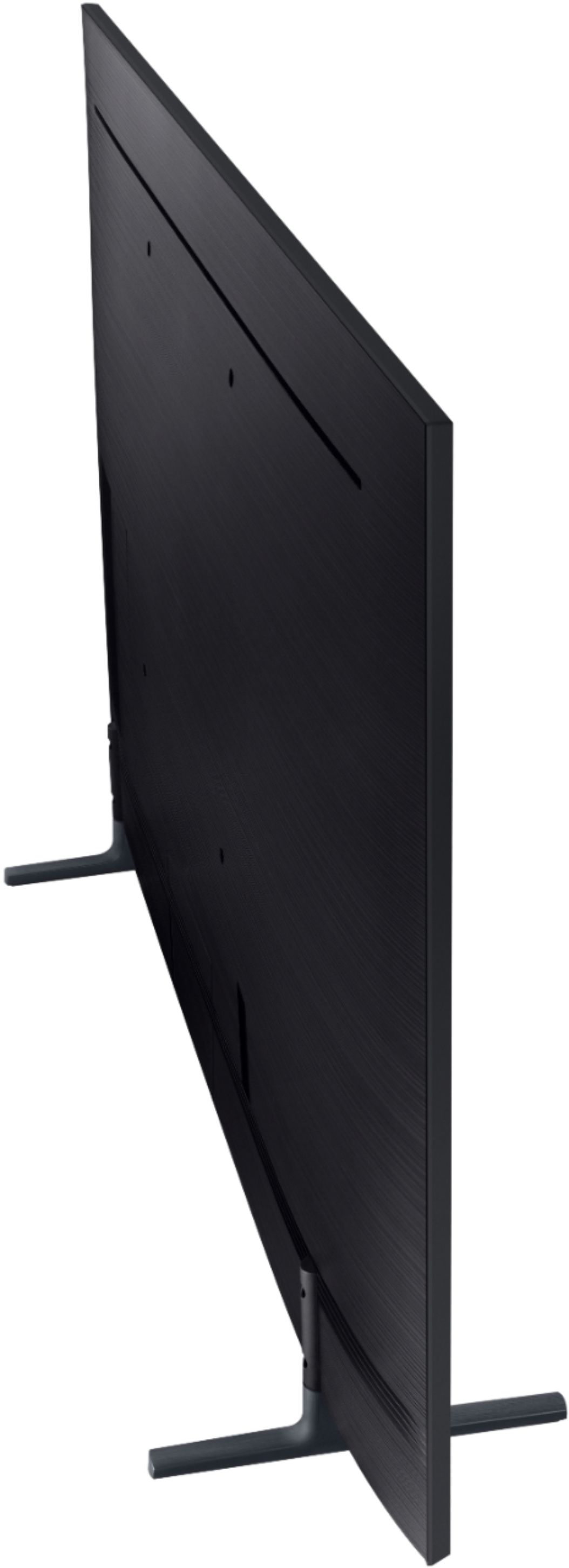
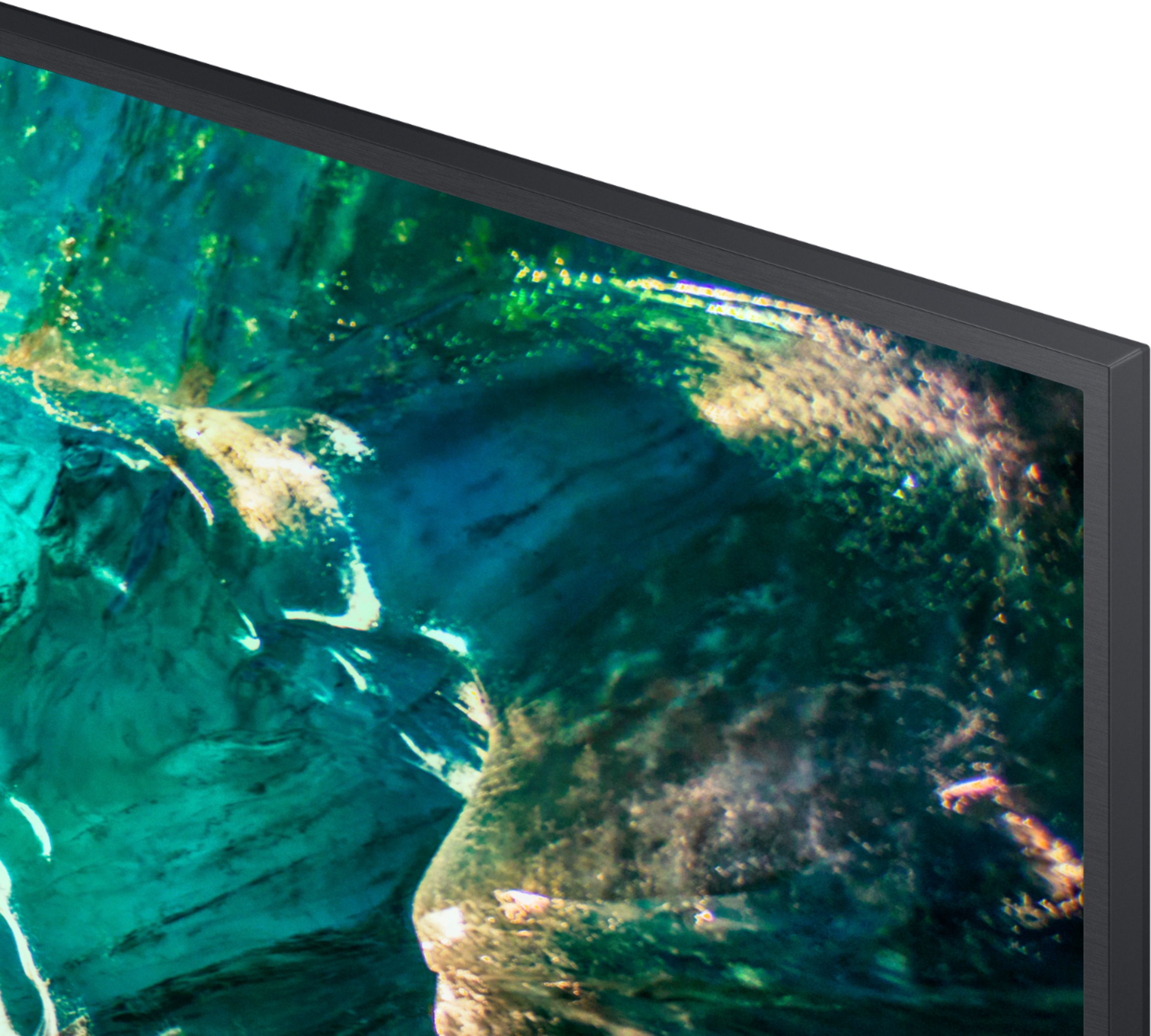
A:AnswerThe tv outside measurements (not including the stands) are , 43 inches wide, 23 inches high, 2.5 inches deep. The frame around the screen is a thin 0.5 inch
A:AnswerCan't imagine why you can't stream Netflix, we just bought a Samsung and have had no problems. We have the voice remote which has the Netflix button, works perfectly.
A:AnswerIt is neither one. However I will point out that in many regards the RU8000 performs similarly to Samsung’s entry level QLED solution (the Q60/Q60R) and a Head to Head comparison on sites like Rtings shows where the main differences are.
A:AnswerThis does not sound Normal. I have 5 of the Samsung 8000 series TV's in my house ranging from 49" to 75". All of them sound normal in the 10 to 15 Volume Range. The Only difference is if I have the Soundbar on for one of them and need to adjust it. With the Volume issues and the top of the screen being shady, it might be good to do a reset on the TV and see if that fixes the issues. Restoring it back to factory settings might help
A:AnswerHello Bob. The only cord included is the power cord. You will need other cords to connect your video source to the TV. USB cords probably will not do this. You have HDMI hookups on the back of the set. Directions are pretty good, but not like "old school" when setting up. Not just plug and play. Take your time going through the set up and you should be fine. I think this is just the way it is not with the new TV's.
Good luck, Ward
A:AnswerThis happened to me as well, you do unfortunately need to have some sort of antenna plugged into the TV in order to get your over the air channels, otherwise it won't pick up many channels, if any.
A:AnswerIn order to deactivate the Bixby button, you'll have to create an account first.
Open Bixby as you normally would by clicking the physical button on the left.
From the Bixby main screen, tap the Settings icon in the upper right corner of your screen. ...
Deactivate the Bixby button by switching it to the Off position.