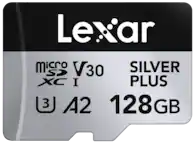
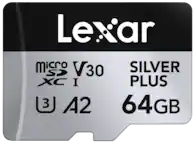
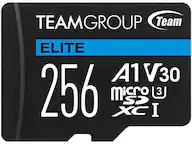
A:Answer What You Need:
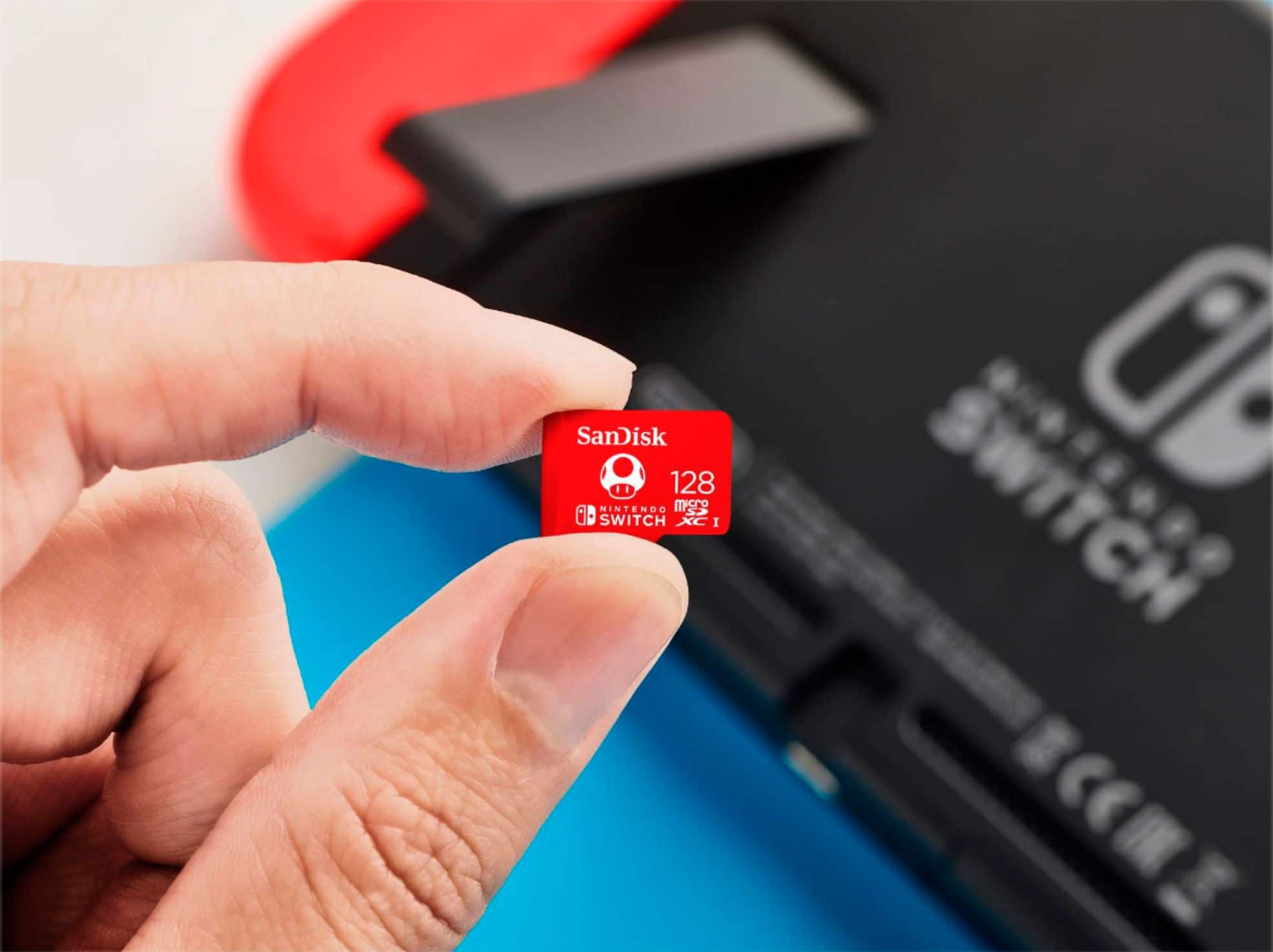
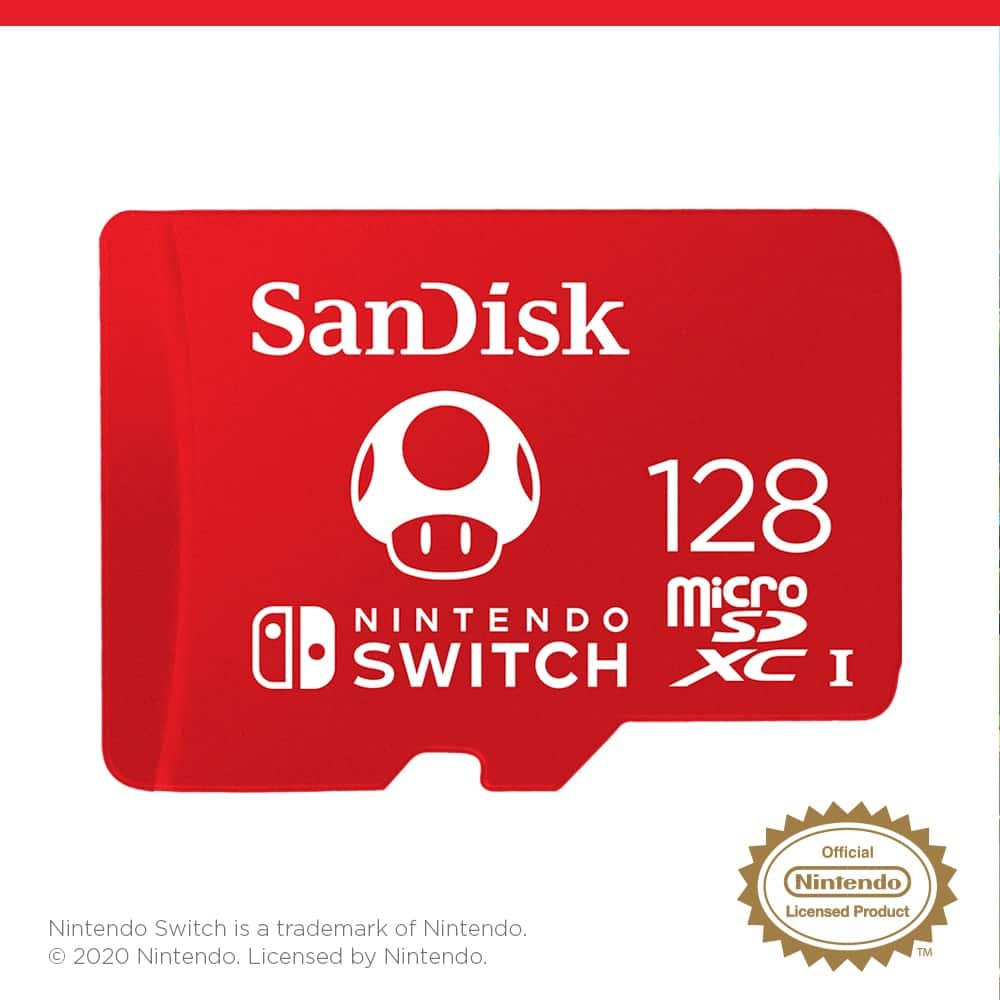
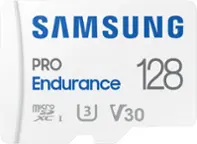
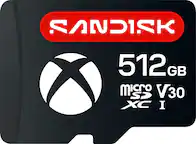
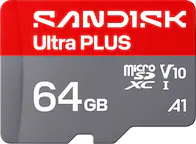
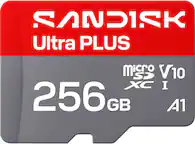
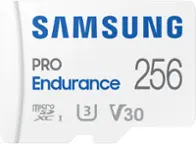
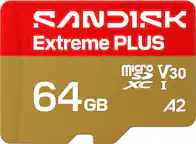
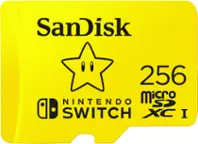
•Two compatible microSD cards.
•An SD card slot on a PC or a commercially available microSD card reader/writer.
•If your PC does not have a microSD card slot you will need a card adapter.
Complete These Steps:
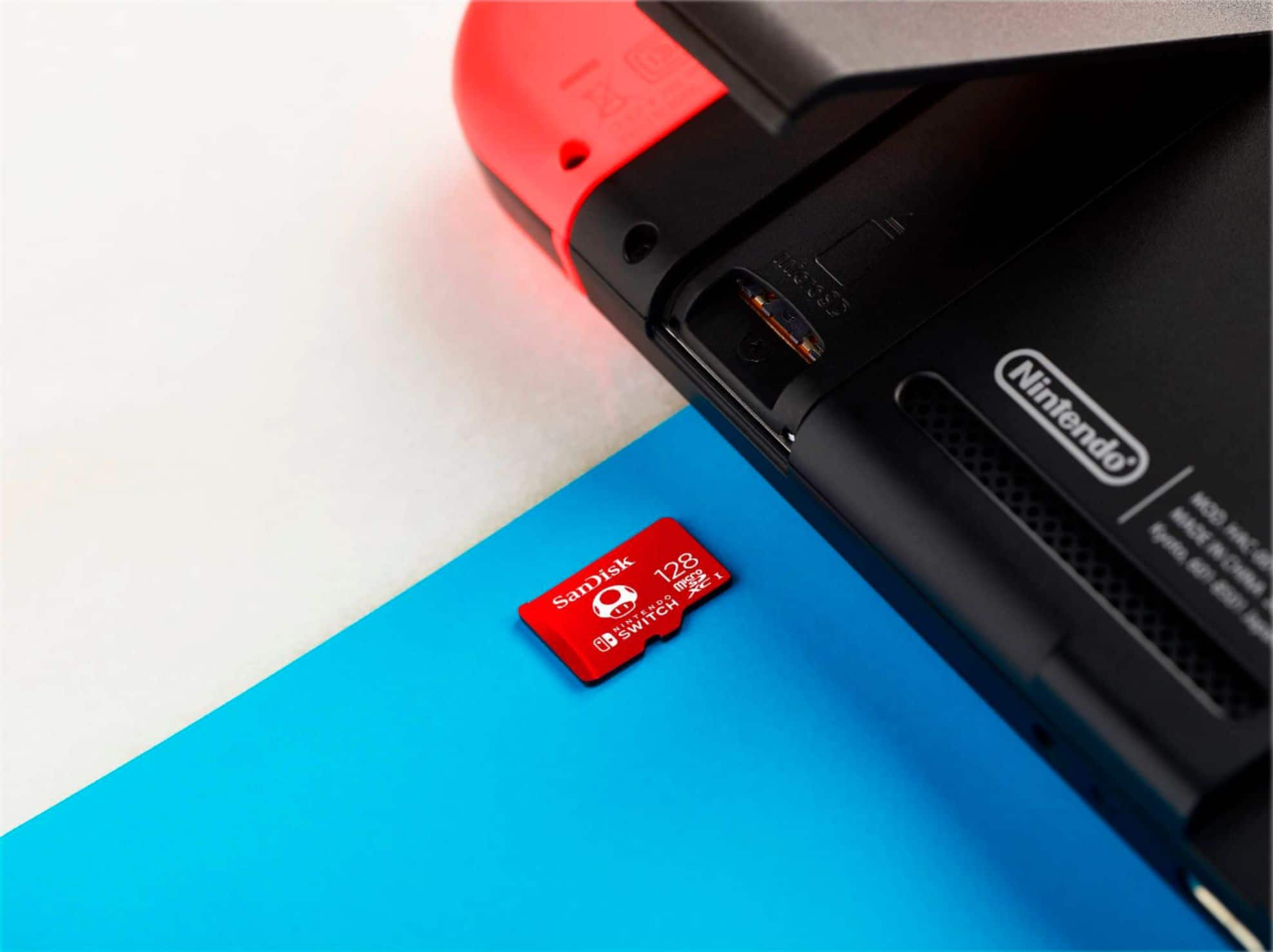
1. Power off your Switch and remove the original microSD card from the Nintendo Switch console.
2. Insert the microSD card with the Nintendo Switch data into the microSD card reader/writer.
3. Open Windows Explorer (for PC) or Finder (Mac) and access the microSD card.
4. Highlight the data and drag it to the desktop.
If you are moving your content to a new microSD card, BE SURE to format the NEW card before adding the old switch files onto it.
5. Do not delete, format, or alter the content from the original microSD card until you have verified the new microSD card is working correctly.
6. Once the new card has been formatted, continue with the instructions below.
7. Eject the first microSD card, then insert the second microSD card into the slot or reader/writer.
Using Windows Explorer/Finder access the microSD card again.
8. Drag the data from the desktop to the new microSD card, then insert the new microSD card into the Nintendo Switch console.
**Any software that cannot be read on the system using the new microSD card can simply be redownloaded from the Nintendo eShop.