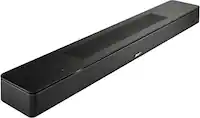





A:AnswerGreat question! As long as the remote is IR (it probably is) its a breeze. In the app, go to settings -> system -> name of the room -> scroll down under Home Theater, you'll see the option for "remote control setup". - We'll walk you through it from there!
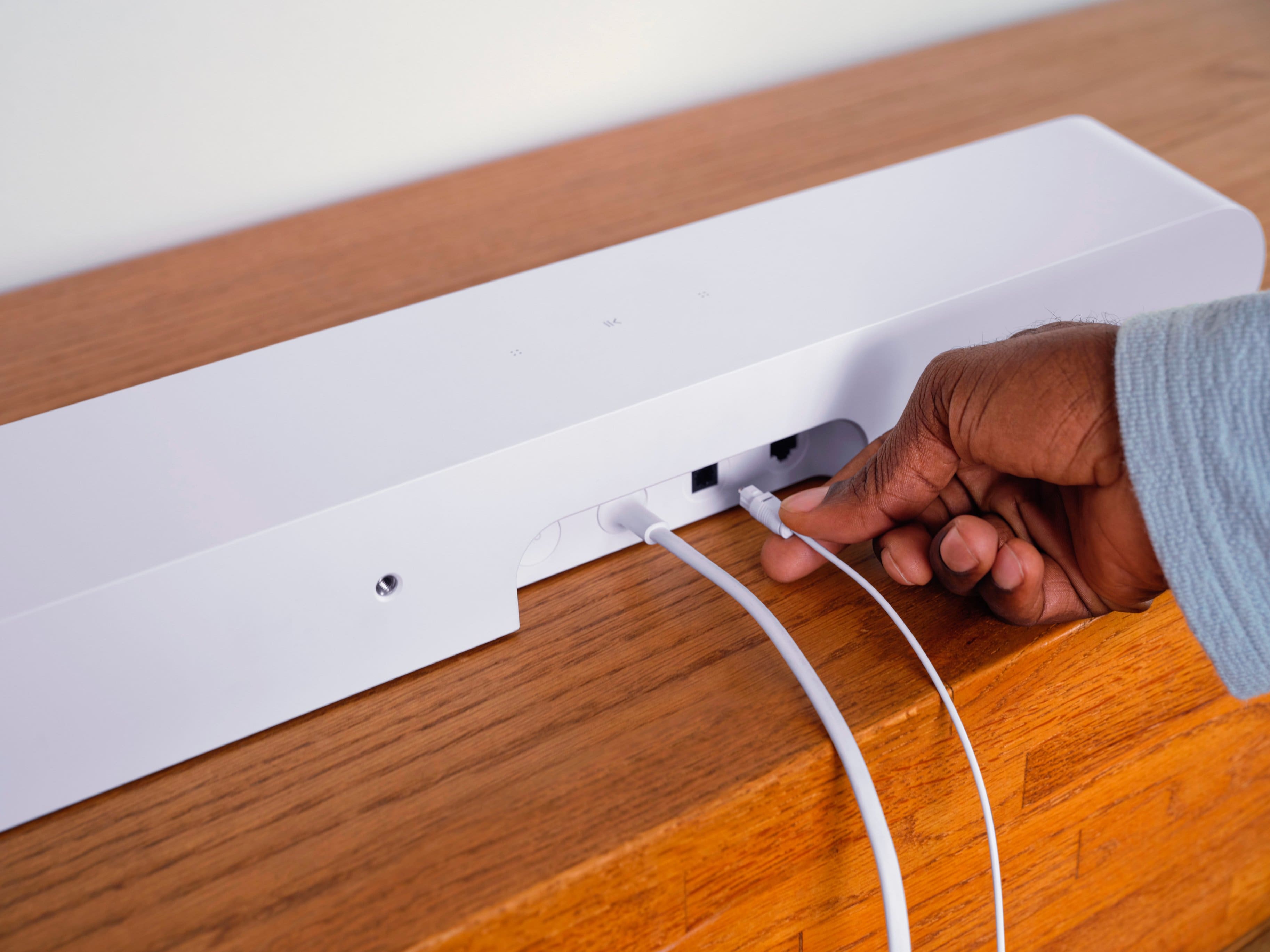
A:AnswerThis soundbar is not compatible with any TVs as it does not have HDMI ARC. The only way to connect to a TV is via Digital Optical cable and because it’s an optical link features like volume control (via HDMI-CEC) will not work
A:AnswerThank you for your question! The Sonos Ray does not come with a remote control. Instead, it is designed to work with your existing TV remote for controlling volume.
To control the Sonos Ray with your TV remote, follow these steps:
Open the Sonos app on your mobile device.
Go to Settings > System.
Select your Sonos Ray soundbar from the list of products.
Tap on Remote Control Setup and follow the on-screen instructions to pair your TV remote with the Sonos Ray.
If you encounter any issues during the process or need additional assistance, feel free to reach out at support.sonos.com.
A:AnswerIf you're experiencing issues with sound on a specific channel (in this case, METV) when using your Sonos system, but all other channels work fine, there could be a few potential reasons for this behavior:
Audio Format Compatibility: It's possible that the audio format used by the METV channel is not fully compatible with your Sonos system. Some channels or programs may use audio formats that are not supported by certain audio equipment, leading to issues with sound playback. In this case, you may need to adjust the audio settings on your TV or Sonos system to ensure compatibility with the audio format used by the METV channel.
Volume Leveling or Audio Processing: Some TVs and audio equipment have built-in audio processing features such as volume leveling, dynamic range compression, or audio enhancement modes. These features can sometimes affect the audio output and may cause issues with certain channels or programs. Try adjusting the audio settings on your TV or Sonos system to see if disabling or adjusting these features resolves the issue.
Network Interference: In some cases, network interference or signal issues can affect the performance of wireless audio systems like Sonos. If the METV channel is being streamed over a network connection, network interference or signal dropouts could potentially impact the audio playback. Try troubleshooting your network connection or relocating your Sonos speakers to see if it improves the audio performance on the METV channel.
Sonos Software or Firmware Updates: Ensure that your Sonos system is running the latest software and firmware updates. Updates can often address bugs or compatibility issues that may affect audio playback.
Other Factors: There could be other factors at play, such as audio settings on your TV or optical audio connections, or external devices connected to your TV or Sonos system. Check all audio settings and connections to ensure they are configured correctly.
A:AnswerI used the Sonos app to set up the bar to my TV and the remote. It walked me through. First by identifying the bar I had, then identifying my remote. It worked seemlessly.
A:AnswerThanks for your question! Yes, you can group Move, and Ray to play the same thing at the same time. However, you can't pair the Move's as rears.
A:AnswerIt does have a dedicated array for dialogue and supports our dialogue enhancement feature which turns up that center array for louder dialogue without turning up the rest of the sounds.
A:AnswerI agree. I found Sonus sound bar to be cumbersome in using and did not like the idea of only being able to control volume from phone. Staff at Best Buy said I could have went into "systems diagnosis" to set up to use on remote but it was a bit difficult to do. I didn't want to bother with that, so I went with the Samsung sound bar which I am very happy with......which by the way, the staff at Best Buy were great in assisting me and directing me to return Sonus and purchase the Samsung sound bar.