A:AnswerHi Tiger,
Thank you for your interest in the Sony K43S30 (BRAVIA 3)!
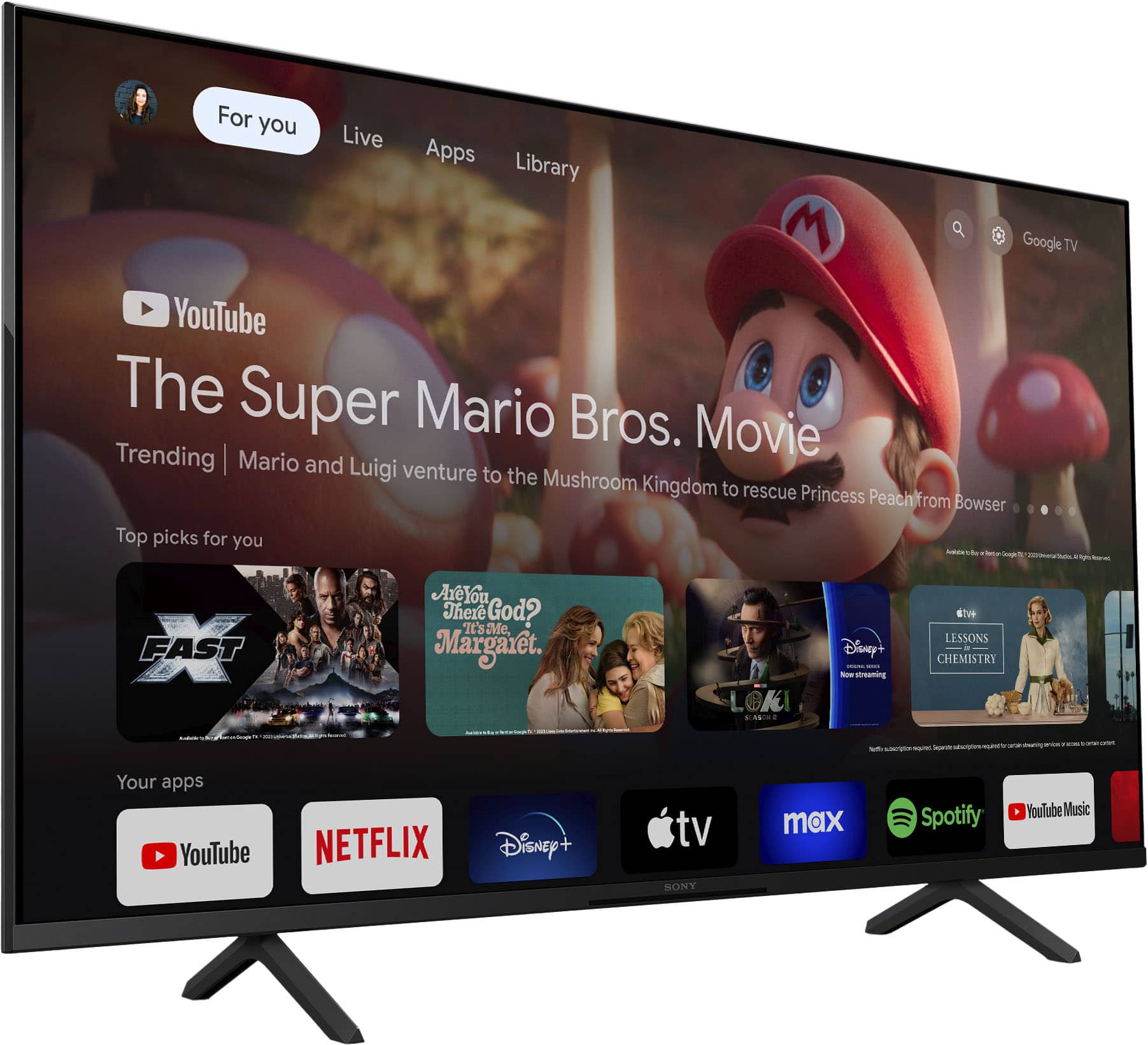
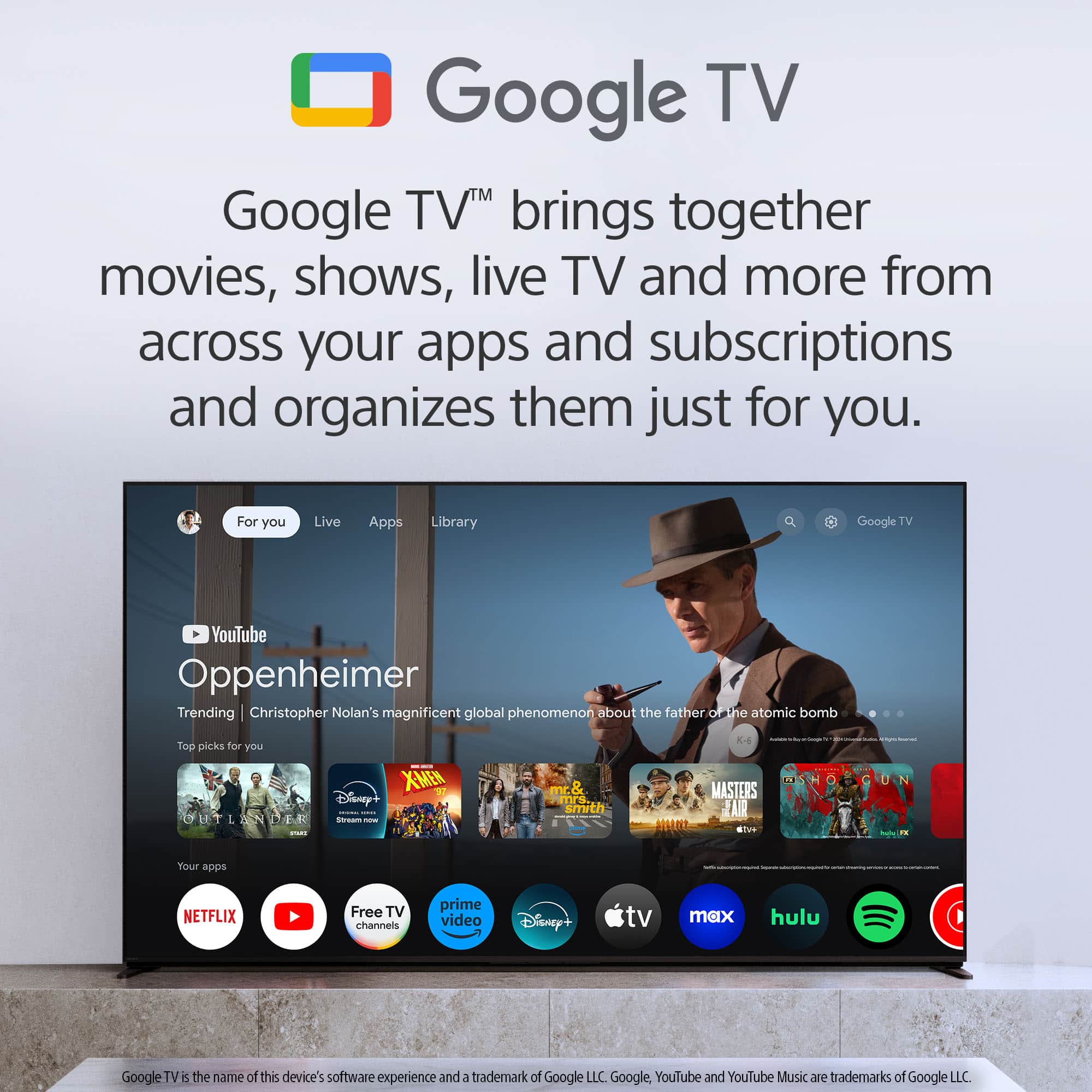
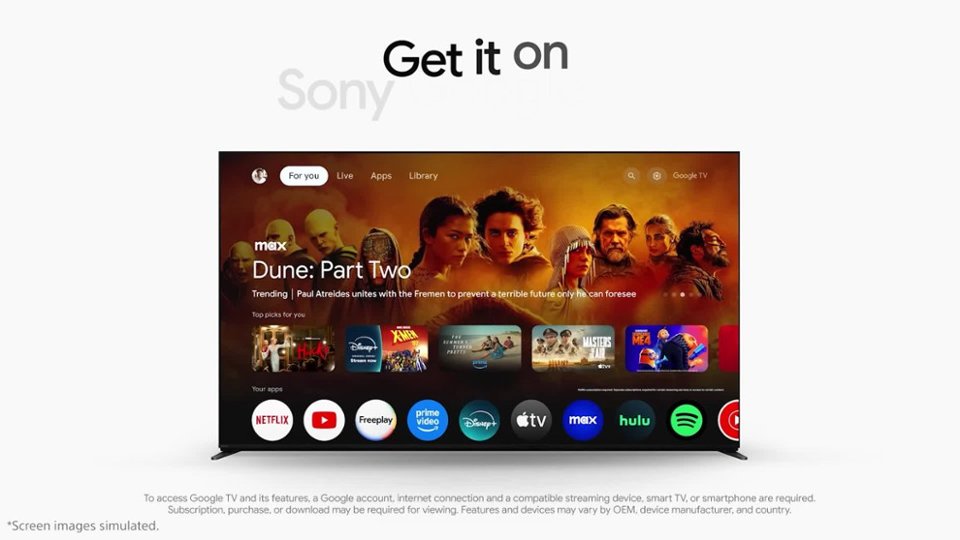
In response to your question, the YouTube TV app does not come pre-installed on this television. However, you can easily download it from the Google Play Store available on the TV.
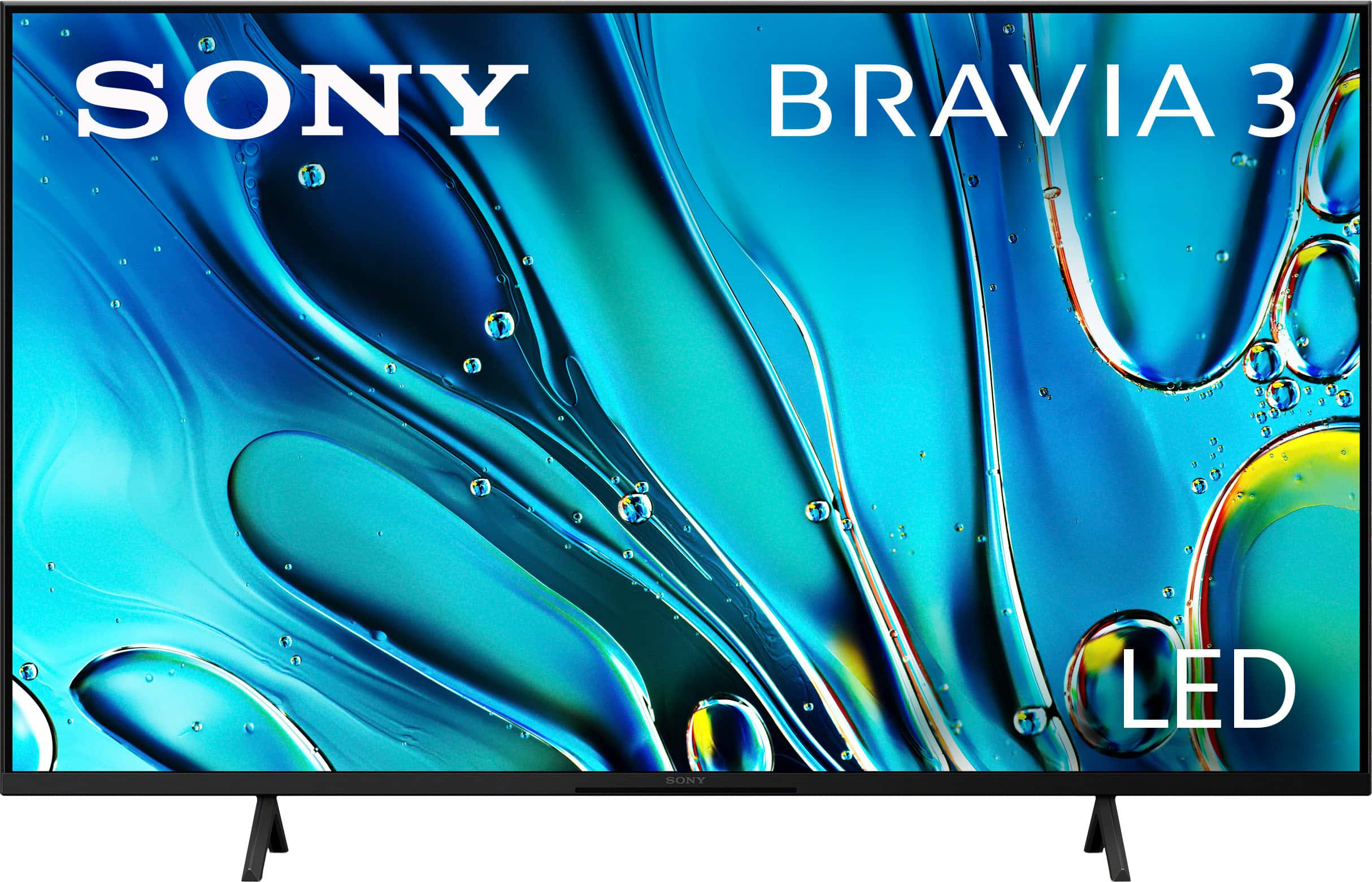
The BRAVIA 3 Smart TV is designed for an enhanced viewing experience, offering an intuitive interface and a range of all-in-one smart features for hassle-free entertainment. With its large screen, vibrant colors, and immersive sound, everything you enjoy watching becomes even more thrilling.
I hope this information is helpful!
Best regards,
Romeo
A:AnswerHi Happy,
Thank you so much for your question! Yes, the K-43S30 (BRAVIA 3) is compatible with the DirecTV Stream app. You can download and use the DirecTV Stream app from the Google Play Store. This allows you to access DirecTV services, including their unlimited show recorder feature, directly on the TV.
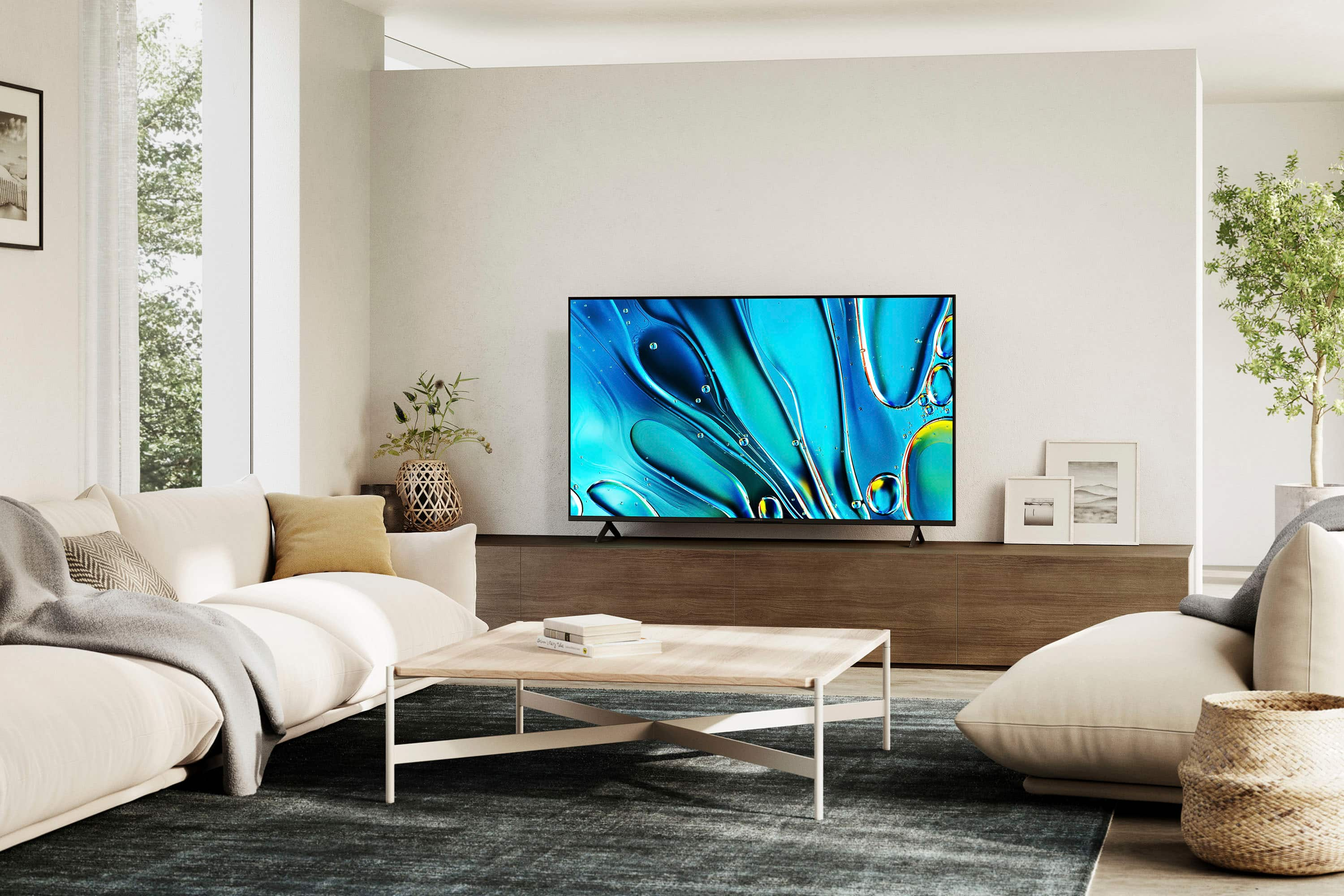
Smart TV for everything you watch. The BRAVIA 3 Smart TV is exceptionally easy to use with a variety of all-in-one smart features for stress-free viewing. With a large screen, detailed pictures full of color and dynamic sound, everything you love feels so much more exciting.
I hope this helps!
Best regards,
Romeo
A:AnswerHi 808geek,
Thank you for your question. The BRAVIA 3 has Android 12 operating system.
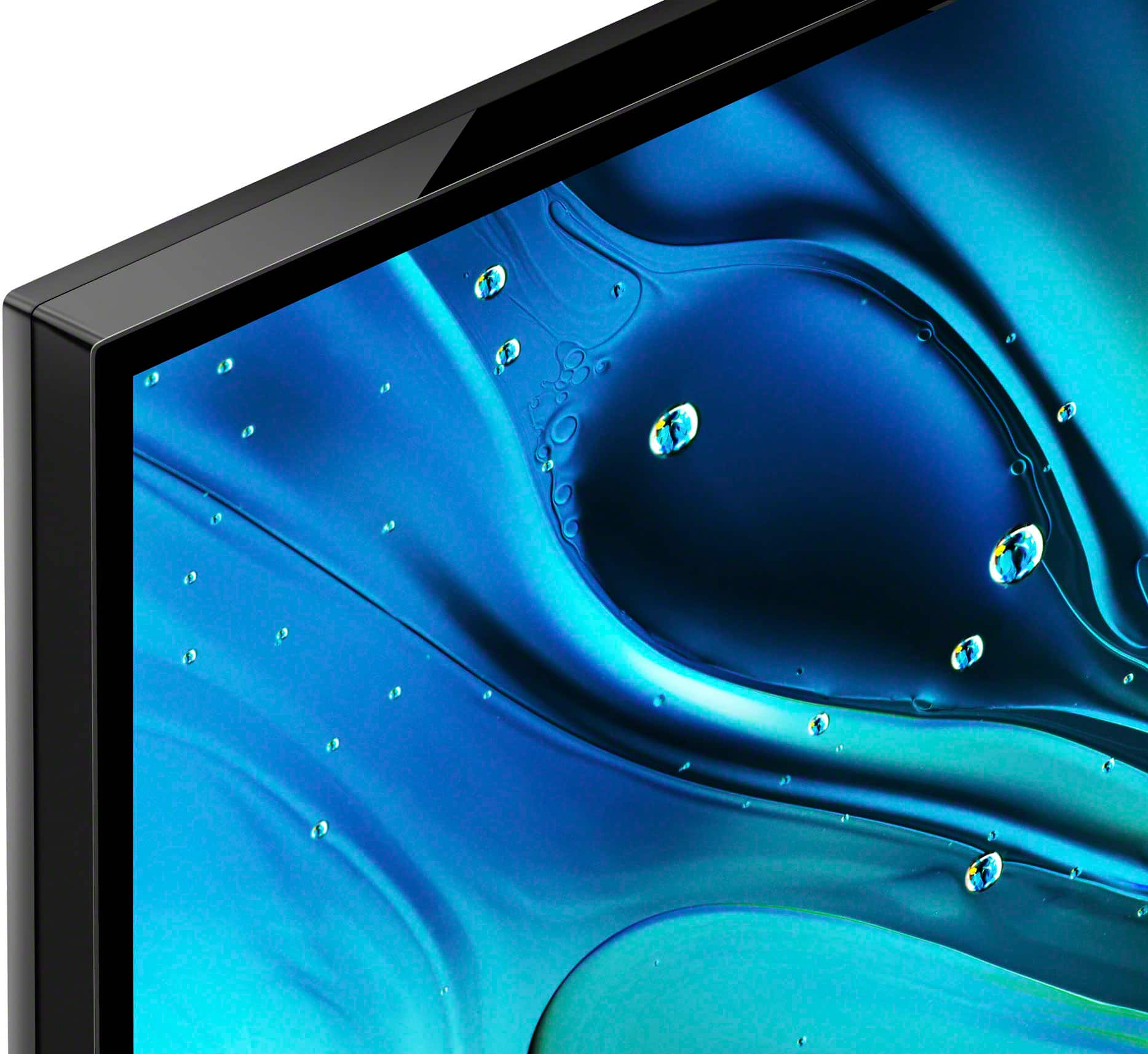
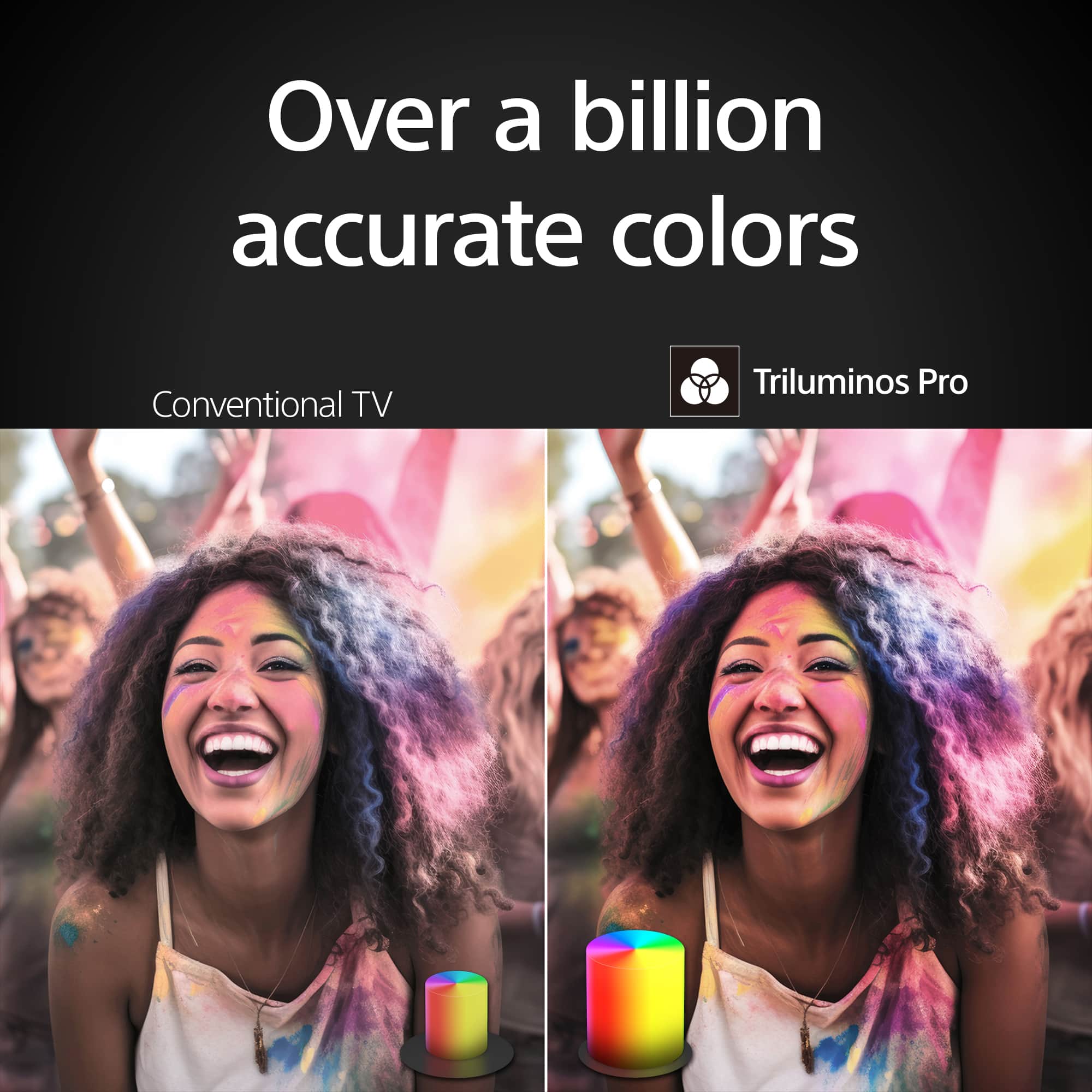
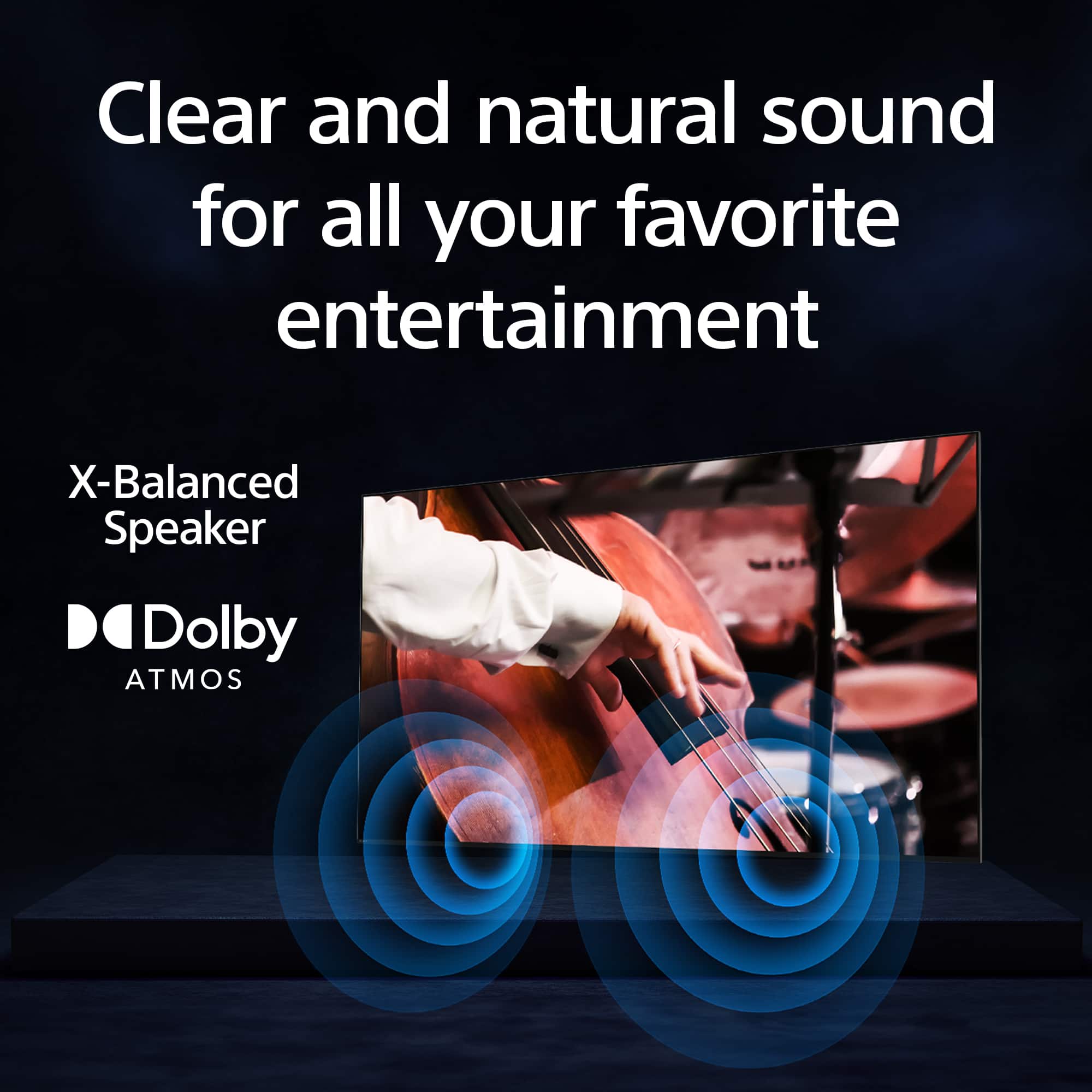
See life’s true colors, vivid and bright. Triluminos Pro™ reproduces over a billion of them with enhanced saturation and hue for natural shades. Our 4K X-Reality™ PRO analyzes, cleans and refines images using our unique 4K database so you can indulge in stunning pictures from virtually any content. Hear everything with complete clarity. Our innovative X-Balanced Speaker™ brings distortion-free acoustics and powerful bass so you’ll miss nothing of your entertainment. Your eyes are focused on the picture, not what’s around it. We’ve designed this TV with a Flush Surface that makes the bezel almost invisible.
-Ralph
A:AnswerHi Janniper,
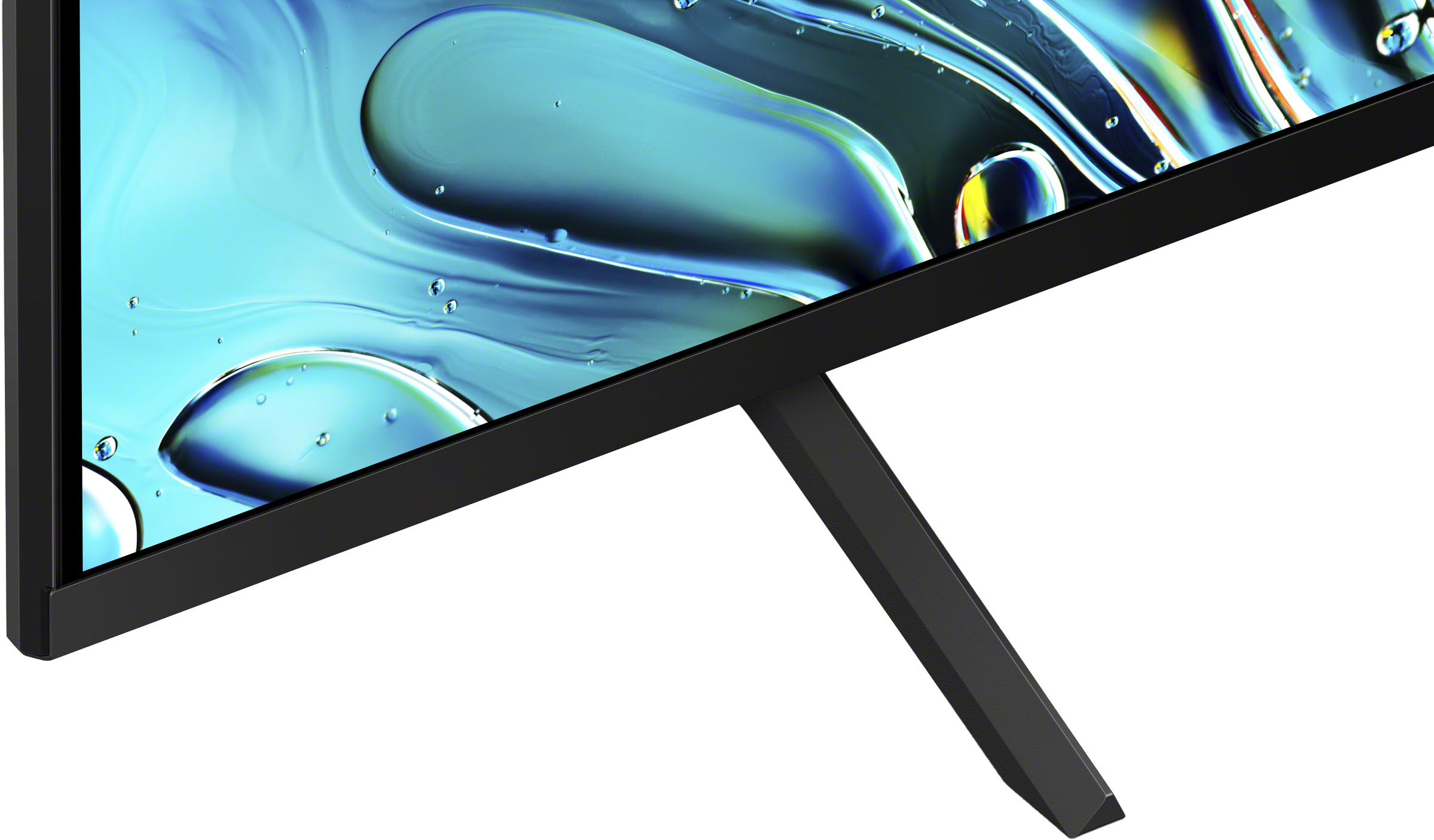
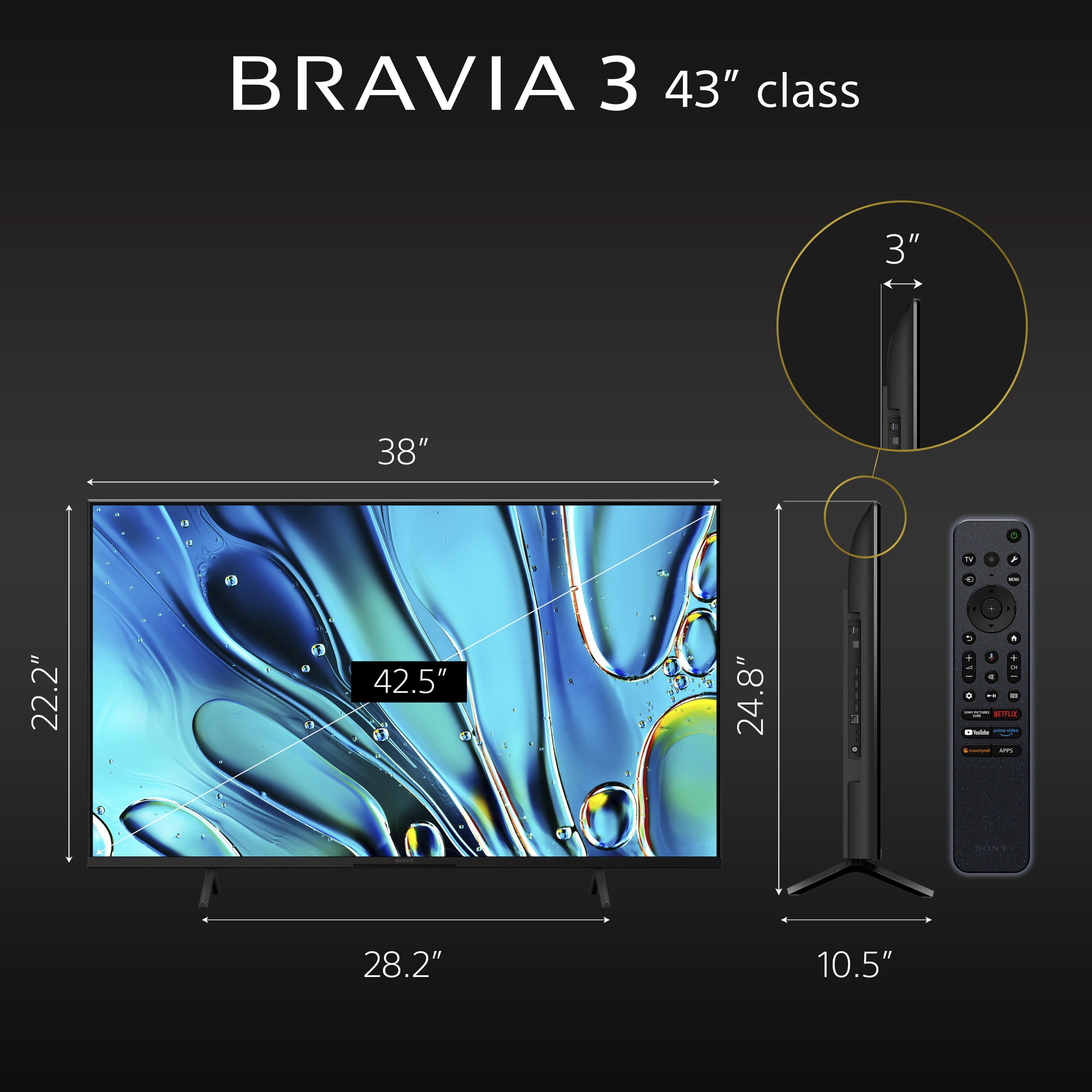
Thank you very much for your question. The TV stand of our K-43S30 can only be set up in a standard position. The stand legs have an end-to-end distance of approximately 28 1/4 inches (715 mm) and approximately 10 1/2 inches (266 mm) deep when installed on the TV. The height from the bottom of the TV to the bottom of the TV stand is 2 5/8 inches (66 mm). Unfortunately, we do not recommend using a third-party TV stand as we cannot guarantee its stability and may cause the TV set to topple over, fall down, and cause personal injury or damage to the TV. We recommend using only the supplied TV stand of the TV.
If you're looking for a Sony TV that supports multiple TV stand position, please visit our official website for more details.
Smart TV for everything you watch. The BRAVIA 3 Smart TV is exceptionally easy to use with a variety of all-in-one smart features for stress-free viewing. With a large screen, detailed pictures full of color and dynamic sound, everything you love feels so much more exciting.
I hope this helps!
Best regards,
Romeo
A:AnswerHi there,
Thank you for your inquiry. Unfortunately, our TVs do not come with a built-in recorder for recording TV shows or programs. To record TV programs, you will need a separate Digital Video Recorder (DVR) or DVD recorder that connects to the TV's input. You can use an external DVR device, such as a satellite box or a cable box with DVR functionality, to record TV shows. Additionally, many streaming apps offer a DVR function, so please check with your TV service provider to see if they provide DVR functionality. I hope this information helps!
Smart TV for everything you watch. The BRAVIA 3 Smart TV is exceptionally easy to use with a variety of all-in-one smart features for stress-free viewing. With a large screen, detailed pictures full of color and dynamic sound, everything you love feels so much more exciting.
Best regards,
Romeo
A:AnswerHi Chris,
Thank you for your question. The BRAVIA 3 does not include a power pack supply as part of the power cable. Instead, it uses a single unpolarized cable. I hope this helps!
Smart TV for everything you watch. The BRAVIA 3 Smart TV is exceptionally easy to use with a variety of all-in-one smart features for stress-free viewing. With a large screen, detailed pictures full of color and dynamic sound, everything you love feels so much more exciting.
Best regards,
Romeo
A:AnswerHi there,
Thank you for your question. Full operation is not guaranteed when using a different stand for the K43S30 TV. For optimum performance and stability, it is recommended to use the supplied stand (legs) of the TV. We recommend using a base or table that is capable of supporting the dimensions of the TV stand ((width: 28.25" (715 mm); depth: 10.5" (266 mm)). The VESA dimensions is for wall-mounting purposes. Hope this helps!
See life’s true colors, vivid and bright. Triluminos Pro™ reproduces over a billion of them with enhanced saturation and hue for natural shades. Our 4K X-Reality™ PRO analyzes, cleans and refines images using our unique 4K database so you can indulge in stunning pictures from virtually any content. Hear everything with complete clarity. Our innovative X-Balanced Speaker™ brings distortion-free acoustics and powerful bass so you’ll miss nothing of your entertainment. Your eyes are focused on the picture, not what’s around it. We’ve designed this TV with a Flush Surface that makes the bezel almost invisible.
-Ralph
A:AnswerHi there,
Thank you for your interest in the Sony BRAVIA 3 TV!
We're happy to confirm that this TV is compatible with PlayStation 5. The TV supports the exclusive features for PlayStation 5 such as Auto Genre Picture Mode and Auto HDR Tone Mapping which are automatically configured when using a PS5.
Auto Genre Picture Mode - BRAVIA automatically switches into Game mode to minimize input lag and make the action more responsive. When watching movies on PlayStation5® consoles, it switches back to Standard Mode to focus on picture processing for more expressive scenes. This function works when Auto Picture Mode is ON.
Auto HDR Tone Mapping - With Auto HDR Tone Mapping, the HDR settings will be optimized instantly during your PS5™ console’s initial setup. Your PS5™ automatically recognizes individual BRAVIA TV models and selects the best HDR setting for your TV accordingly. So even in high-contrast scenes, you’ll see the crucial details and color in the brightest and darkest parts of the screen.
Hope this information helps, and feel free to reach out if you have any more questions!
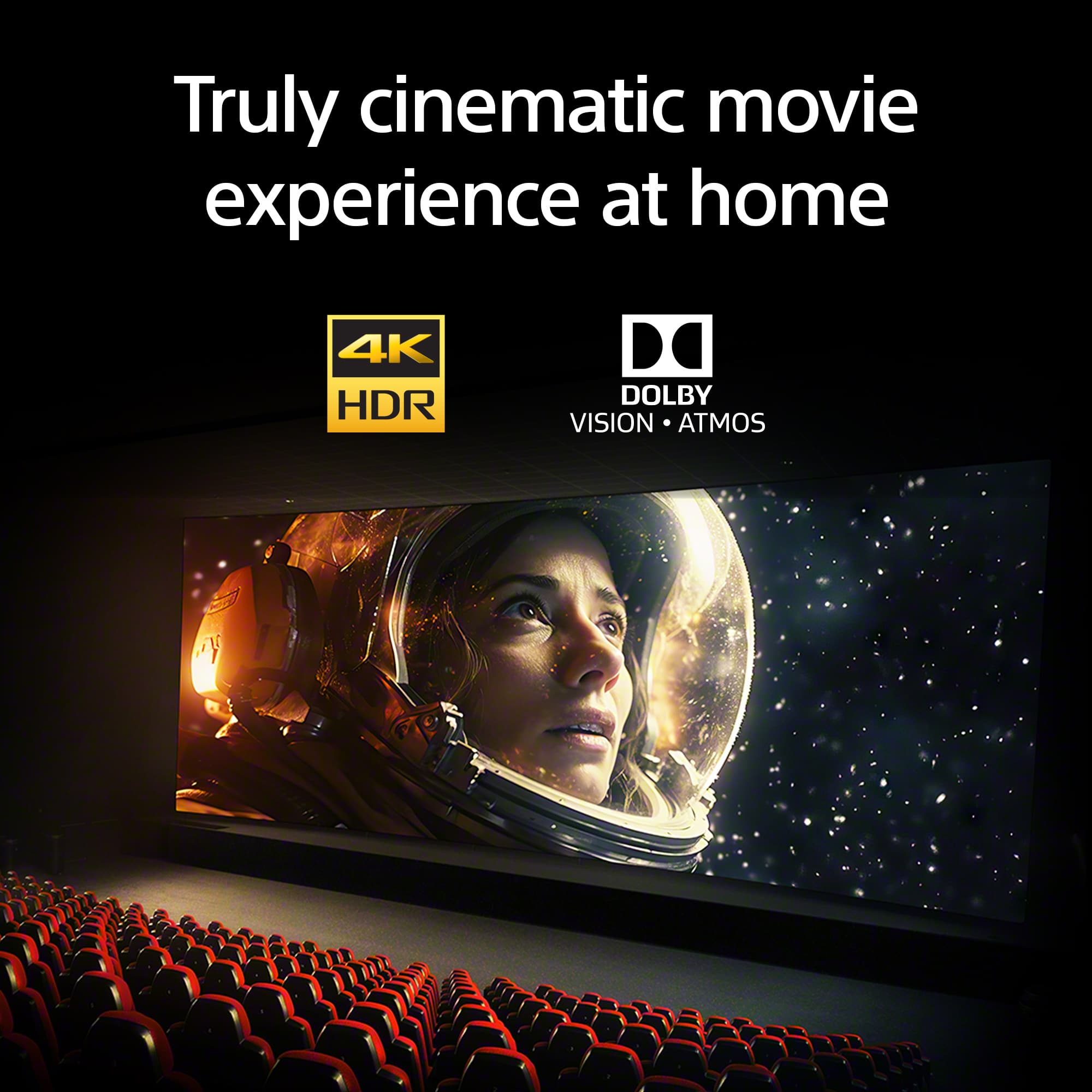
See life’s true colors, vivid and bright. Triluminos Pro™ reproduces over a billion of them with enhanced saturation and hue for natural shades. Our 4K X-Reality™ PRO analyzes, cleans and refines images using our unique 4K database so you can indulge in stunning pictures from virtually any content.
Best Regards,
Maria
A:AnswerHi there,
Thank you so much for your question! Unfortunately, no. The K43S30 (BRAVIA 3) does not have a component input. If you have any other questions or need further assistance, please let us know by following the steps below:
Unfortunately, due to the current Best Buy phishing protocol for your protection, we cannot provide a direct email or phone number for customer support as of now. Please find Sony Electronics' Support information: Go to our support website > click on “Support” > scroll down click on “Contact Support” > click on "(select your product type)" and from there you'll see different ways to contact us.
Apologies if you disclosed some of this information in your review and to customer service, we just want to ensure that we have your accurate details at the time of communication.
Name:
BestBuy Username:
Model Number:
Question/concern:
Telephone Number:
Smart TV for everything you watch. The BRAVIA 3 Smart TV is exceptionally easy to use with a variety of all-in-one smart features for stress-free viewing. With a large screen, detailed pictures full of color and dynamic sound, everything you love feels so much more exciting.
I hope this helps!
Best regards,
Romeo
A:AnswerHi Lyn,
Thank you very much for your question! Unfortunately, no. The TV stand of our K-43S30 can only be set up in a standard position. The stand legs have an end-to-end distance of approximately 28 1/4 inches (715 mm) and approximately 10 1/2 inches (266 mm) deep when installed on the TV.
Additional information:
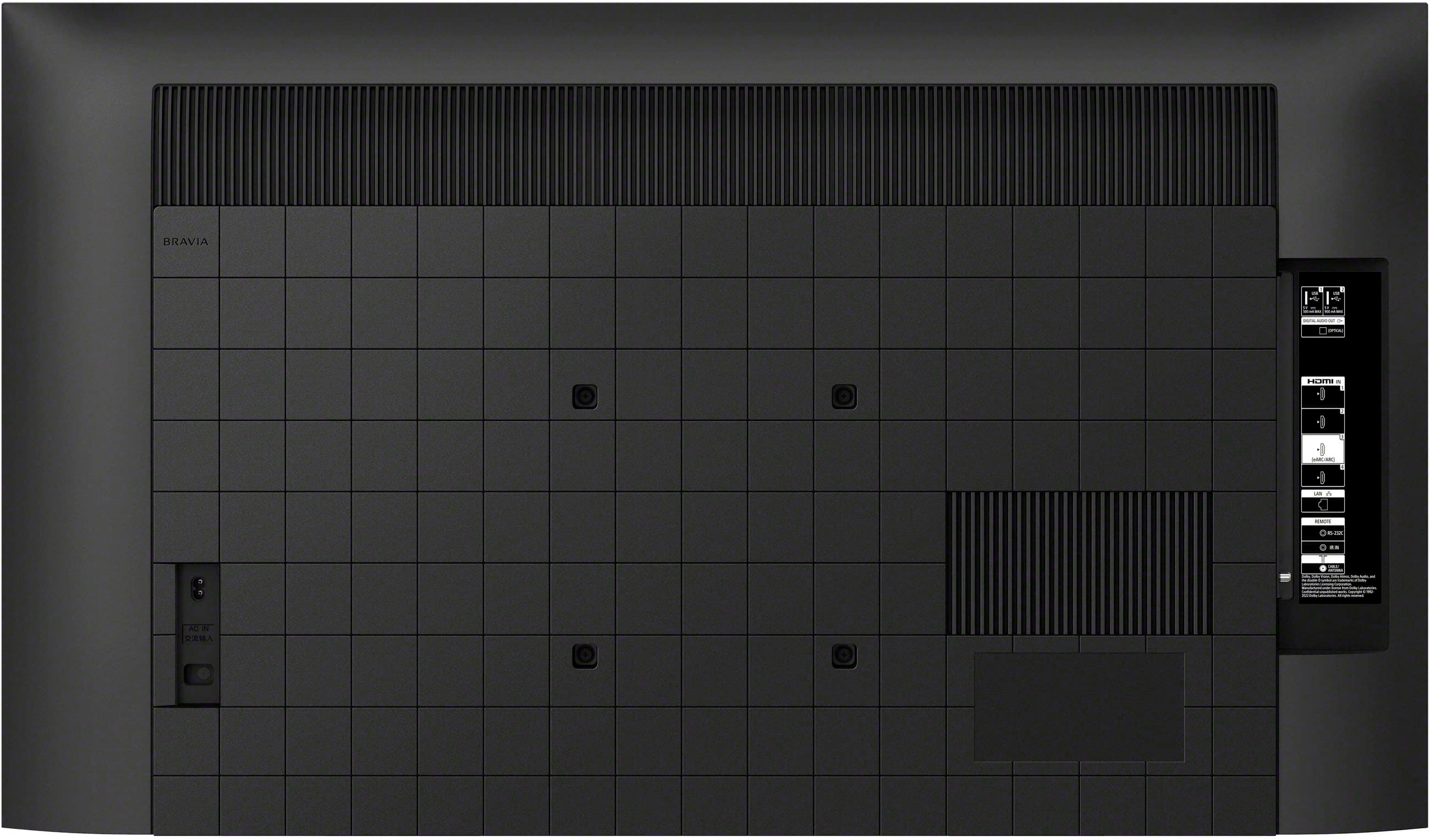
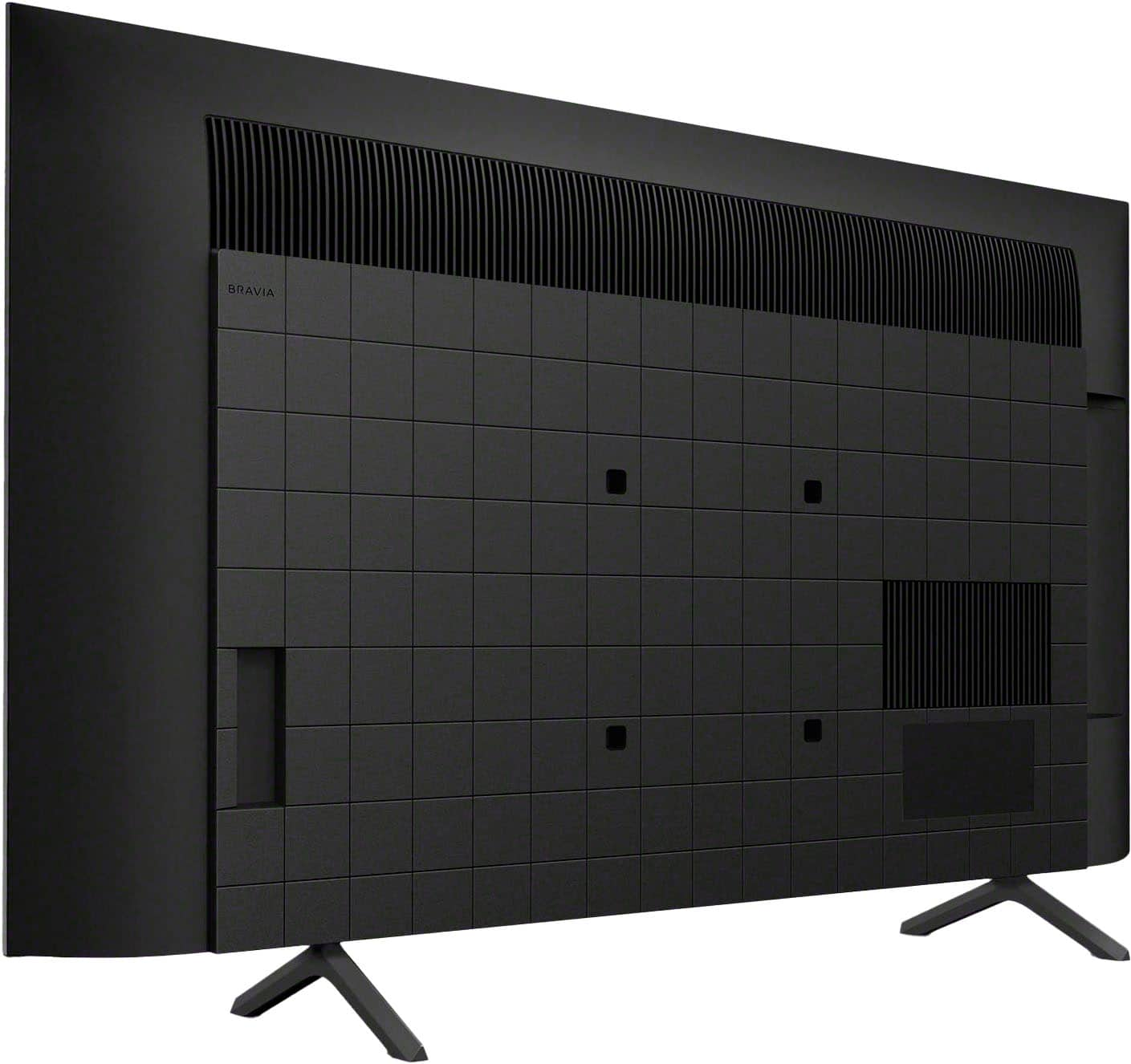
If the TV stands will not fit your TV entertainment console, as an alternative option, you can mount the TV to a wall using a suitable Wall-Mount Bracket (not supplied). The Sony BRAVIA 3, 43" class LED 4K HDR conforms to the VESA Mount Standard and has a VESA hole pattern of 7.87 x 7.87 inch (200 x 200 mm). For product protection and safety reasons, we recommend that a qualified professional perform the installation of the TV on the Wall-Mount. You may visit your local retailer/Best Buy to find the best Vesa-compliant wall mount bracket that meets the size of the TV, your wall or environmental requirements, and your stylistic preferences.
The BRAVIA 3 Smart TV is exceptionally easy to use with a variety of all-in-one smart features for stress-free viewing. With a large screen, detailed pictures full of color and dynamic sound, everything you love feels so much more exciting.
I hope this helps, and thanks again for your inquiry!
Best regards,
Romeo
A:AnswerHi myrtle,
Thank you very much for your interest in Sony's K-43S30! Regarding your question, unfortunately, no. This TV doesn’t have the ATSC 3.0 Tuner.
Smart TV for everything you watch. The BRAVIA 3 Smart TV is exceptionally easy to use with a variety of all-in-one smart features for stress-free viewing. With a large screen, detailed pictures full of color and dynamic sound, everything you love feels so much more exciting.
I hope this helps!
Best regards,
Romeo
A:AnswerHi StillUsingDialup,
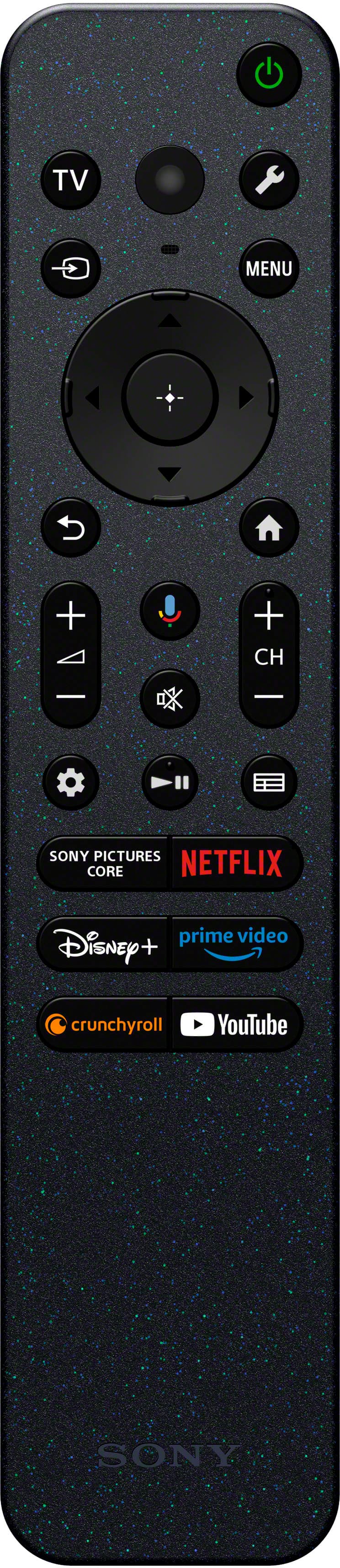
Thank you for bringing this to our attention, and we sincerely apologize for the inconvenience. To configure the Ambient mode function of your BRAVIA 3, press the quick settings (wrench button) on the Sony TV remote control, then select [Settings] — [System] — the desired option (Ambient mode). I hope this helps.
If the issue persists or you may need more information/technical assistance, please feel free to contact us by following the steps below and we'll be more than happy to assist you.
Unfortunately, due to the current Best Buy phishing protocol for your protection, we cannot provide a direct email or phone number for customer support as of now. Please find Sony Electronics' Support information: Go to our support website > click on “Support” > scroll down click on “Contact Support” > click on "Television" and from there you'll see different ways to contact us.
Apologies if you disclosed some of this information in your review and to customer service, we just want to ensure that we have your accurate details at the time of communication.
Name:
BestBuy Username:
Sony TV Model Number:
Question/concern:
Telephone Number:
I hope this helps!
Best regards,
Romeo
A:Answerits a 4 k TV so if the game is 4K it should be excellent. it has gaming option. But is not a super quick TV. you may need a quicker TV if if that is important.
A:AnswerHi Fred,
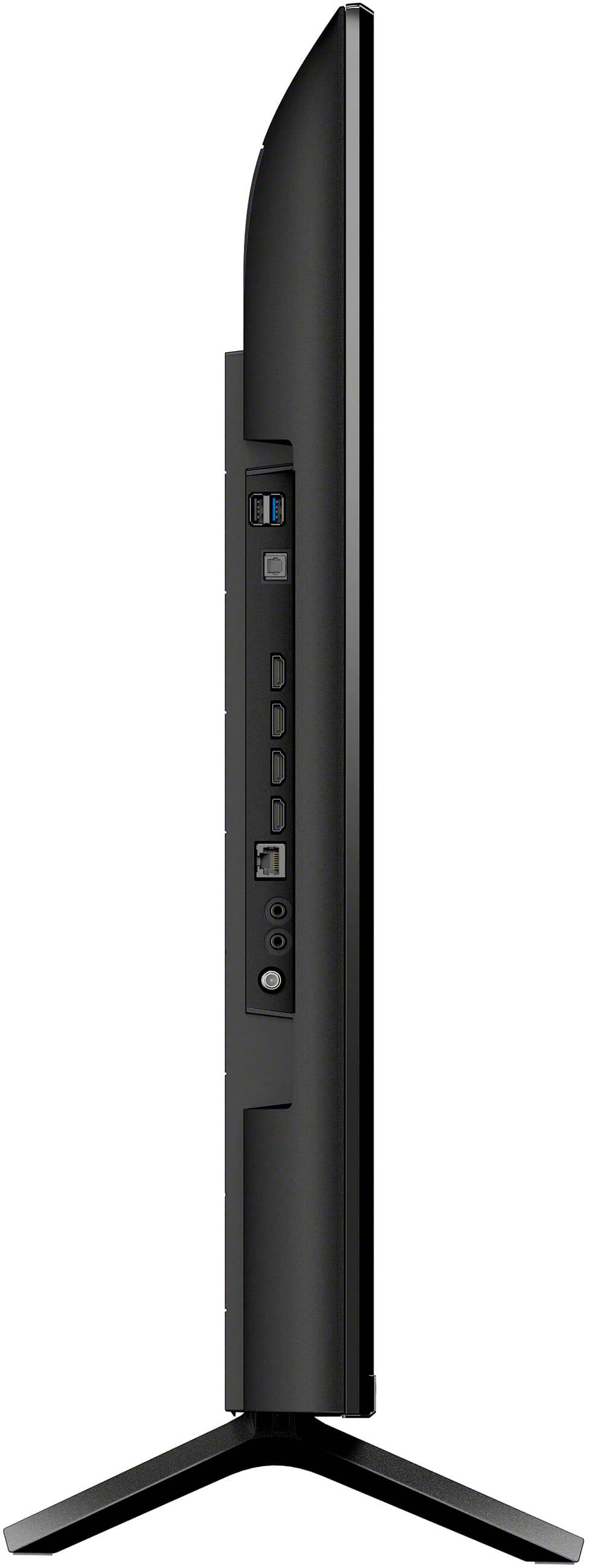
Congratulations on your new BRAVIA 3, and thanks for your inquiry! Regarding your question, if you're using a set-top box to stream Xfinity, you can simply connect it to the available HDMI port on the TV (there are 4 located on the side) to stream your favorite movies, shows, and live entertainment. For more details, please visit the Help Guide (available on Sony's support website) for the BRAVIA 3 and refer to the 'Connecting a Blu-ray or DVD player' page.
However, if you are referring to the Xfinity (Comcast) app, currently, this app cannot be downloaded from the Google Play Store on our Google TV. As an alternative, if your phone or tablet supports Chromecast, you can use this feature from the Xfinity (Comcast) app to cast the content to this TV.
Should you need more information/technical assistance with our product, please feel free to contact us by following the steps below:
Unfortunately, due to the current Best Buy phishing protocol for your protection, we cannot provide a direct email or phone number for customer support as of now. Please find Sony Electronics' Support information: Go to our support website > click on “Support” > scroll down click on “Contact Support” > click on "(select your product type)" and from there you'll see different ways to contact us.
Apologies if you disclosed some of this information in your review and to customer service, we just want to ensure that we have your accurate details at the time of communication.
Name:
BestBuy Username:
Model Number:
Question/concern:
Telephone Number:
Smart TV for everything you watch. The BRAVIA 3 Smart TV is exceptionally easy to use with a variety of all-in-one smart features for stress-free viewing. With a large screen, detailed pictures full of color and dynamic sound, everything you love feels so much more exciting.
I hope this helps!
Best regards,
Romeo