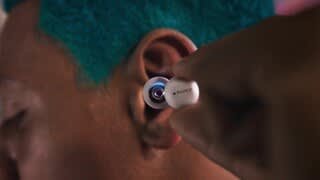
A:AnswerEveryones fit inside the ear is different but I would be confident in saying these would be extremely uncomfortable to sleep in. Its hard and they dig into certain spots in my ear and they are not very comfortable past the 1 hour mark.
A:AnswerYep, there is an application for it as well where you can customize its EQ and other things. This app exists on both Android and iOS for all Sony ear/headphones. I don’t think the app exists for Mac/PC however, but they will still connect to any device via Bluetooth.
A:AnswerHi VideoconferencingQs,
Thanks for reaching out to us. We're sorry to hear if the music playback sound quality on your LinkBuds is poor when connected to a computer. Check to make sure the computer is set to output sound through the headphones. If the music playback sound quality is poor, check that the A2DP function which supports music playback connections is enabled in the computer settings.
Advanced Audio Distribution Profile (A2DP) is intended to playback music. The Hands-free Profile (HFP) and Headset Profile (HSP) are intended for voice calls. You will notice a bit of quality difference in the way different devices and software version do this.
• When listening to music from a computer on the headset, the sound quality may be poor (e.g., difficult to hear the singer’s voice, etc.) for the first few seconds after a connection is established. This is due to the computer specifications (priority on stable connection at the start of transmission and then switches to priority on sound quality several seconds later) and is not a headset malfunction.
If the sound quality does not improve after a few seconds, use the computer to establish an A2DP connection. As for the operations on your computer, refer to the operating instructions supplied with the computer.
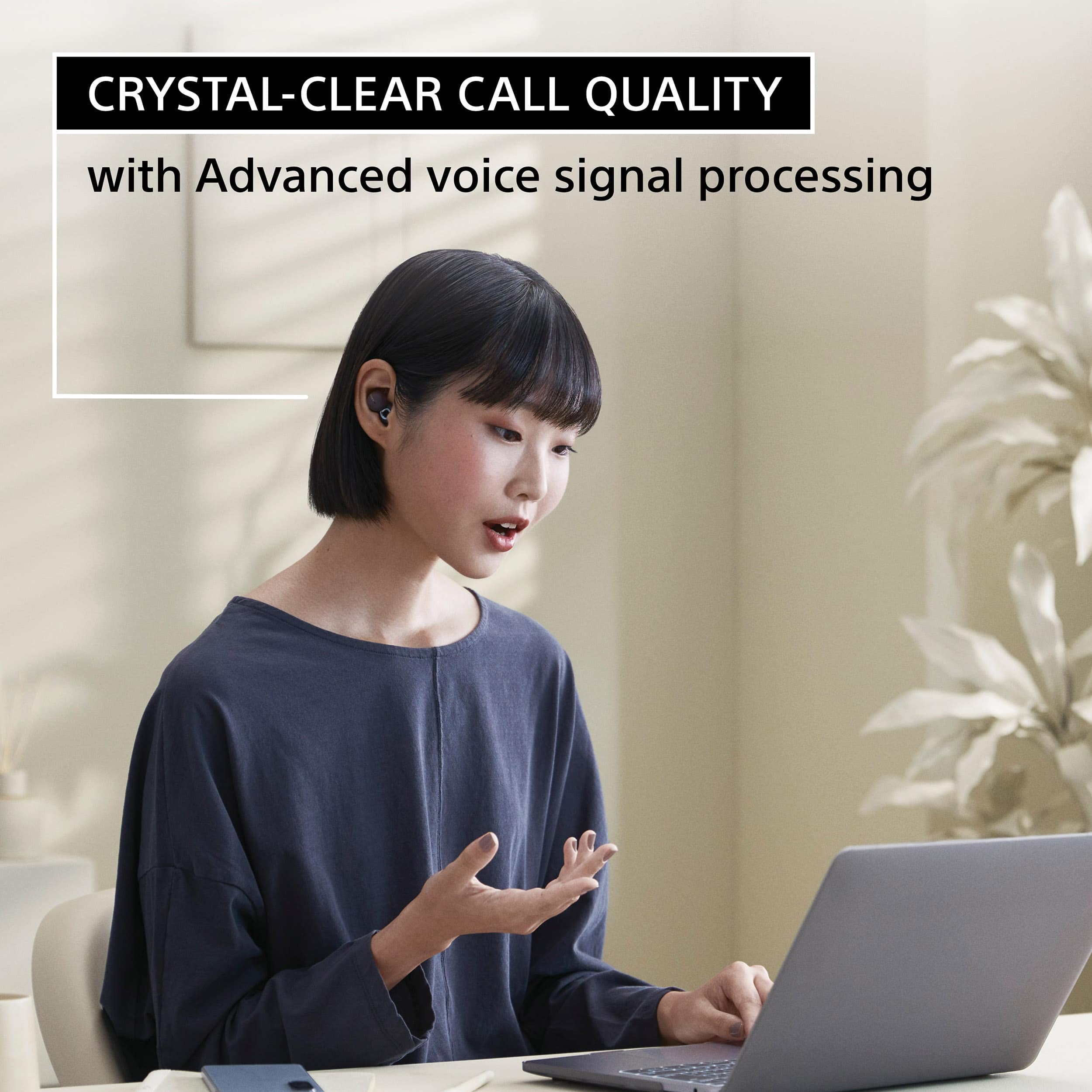
• When you make a video call on your computer, select calling connections (HFP/HSP) and not music playback connections (A2DP). If you select music playback connections, a video call may not be available.
On the speaker settings, select calling connections [Headset (LinkBuds Hands-Free)]. ([Headphones (LinkBuds Stereo)] is for music playback connections.)
• Depending on the video calling application you are using, calling connections [Headset (LinkBuds Hands-Free)] or music playback connections [Headphones (LinkBuds Stereo)] may not be selectable on the speaker or microphone settings, and only [LinkBuds] may be displayed. If this is the case, select [LinkBuds].
To isolate and hopefully resolve this issue, please refer to this link: https://helpguide.sony.net/mdr/linkbuds/v1/en/contents/TP1000445760.html
If you continue to experience issue, this may be improved by restarting the computer.
For more information, you may find this link helpful: https://www.sony.com/electronics/support/wireless-headphones-bluetooth-headphones/wf-l900/articles/00250089
Should you need further assistance, you can email us at socialsupport@am.sony.com with the following details:
Name:
Best Buy Username:
Model Number:
Issue:
Telephone Number:
Regards,
Jess
A:AnswerHi Quads,
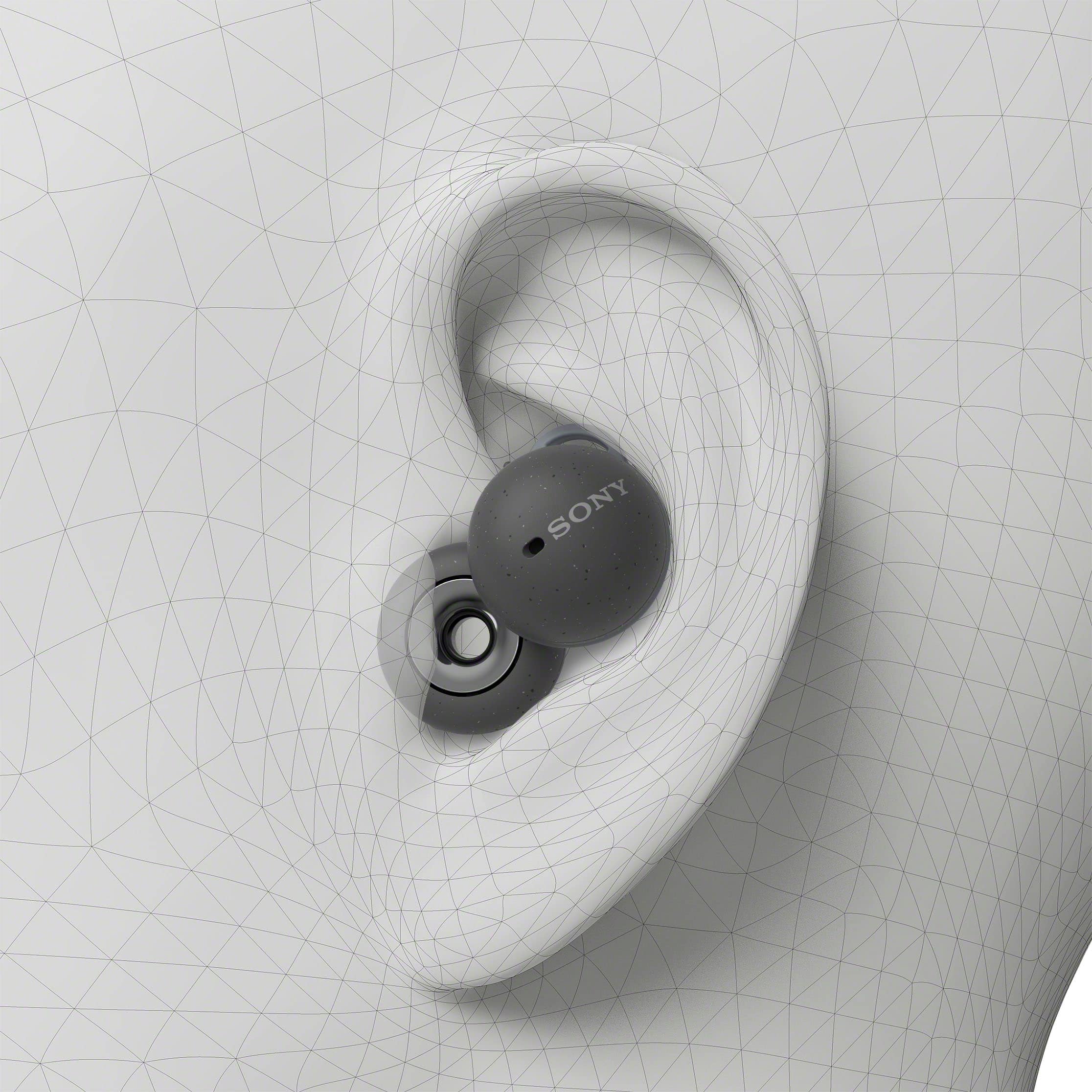
Thank you for your question. Sony LinkBuds are open-ear wireless earbuds that deliver high-quality call and audio with minimal sound leakage. These also do not include the noise canceling feature. However, in a quiet room, some degree of sound leakage may still occur depending on individual factors such as ear shape, fit, and the volume at which you are listening to your music or other audio.
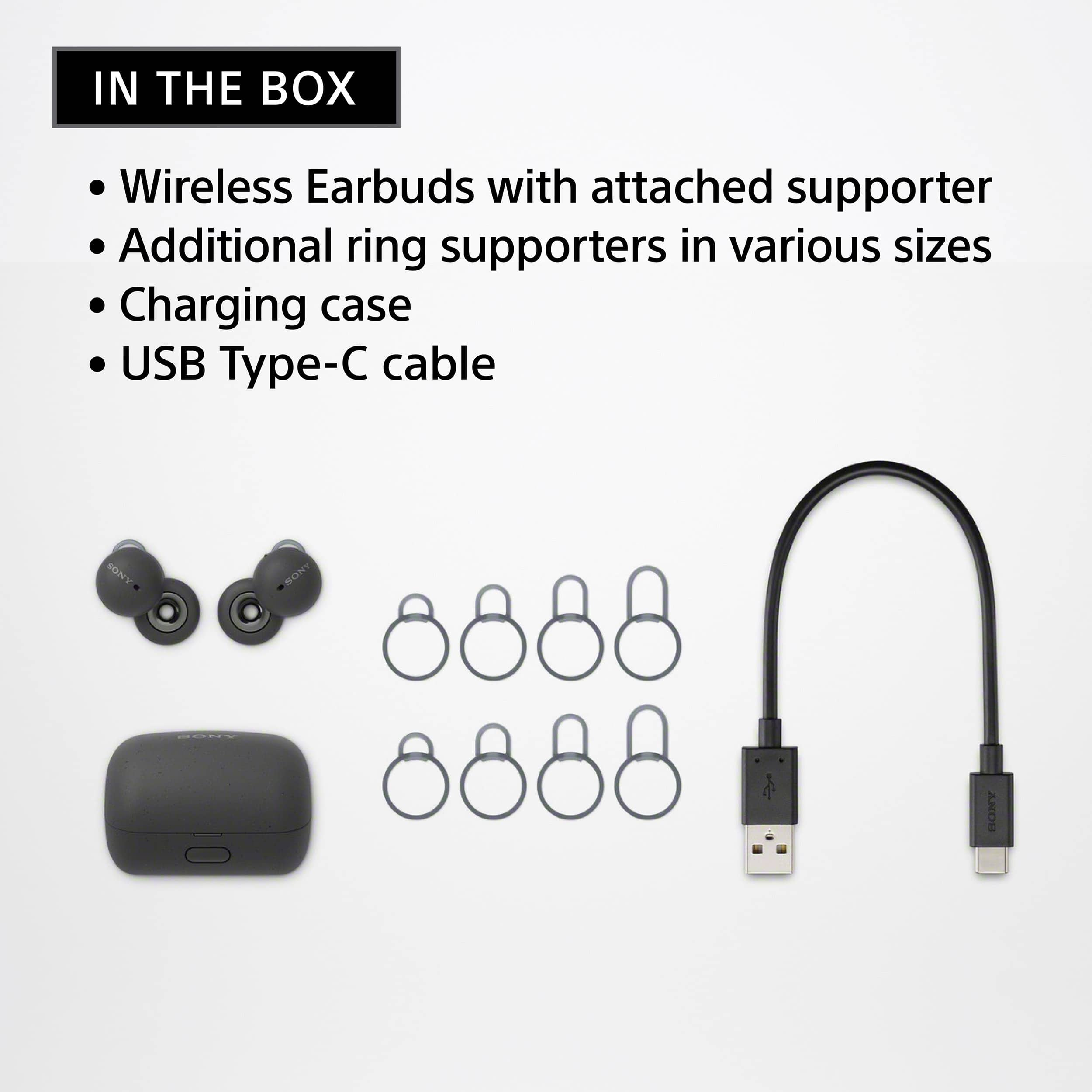
To minimize sound leakage, select a fitting supporter to help the LinkBuds fit snugly and comfortably in your left and right ears. Additionally, reducing the volume level can also help to minimize sound leakage. I hope this helps!
Regards,
Jess
A:AnswerHi there,
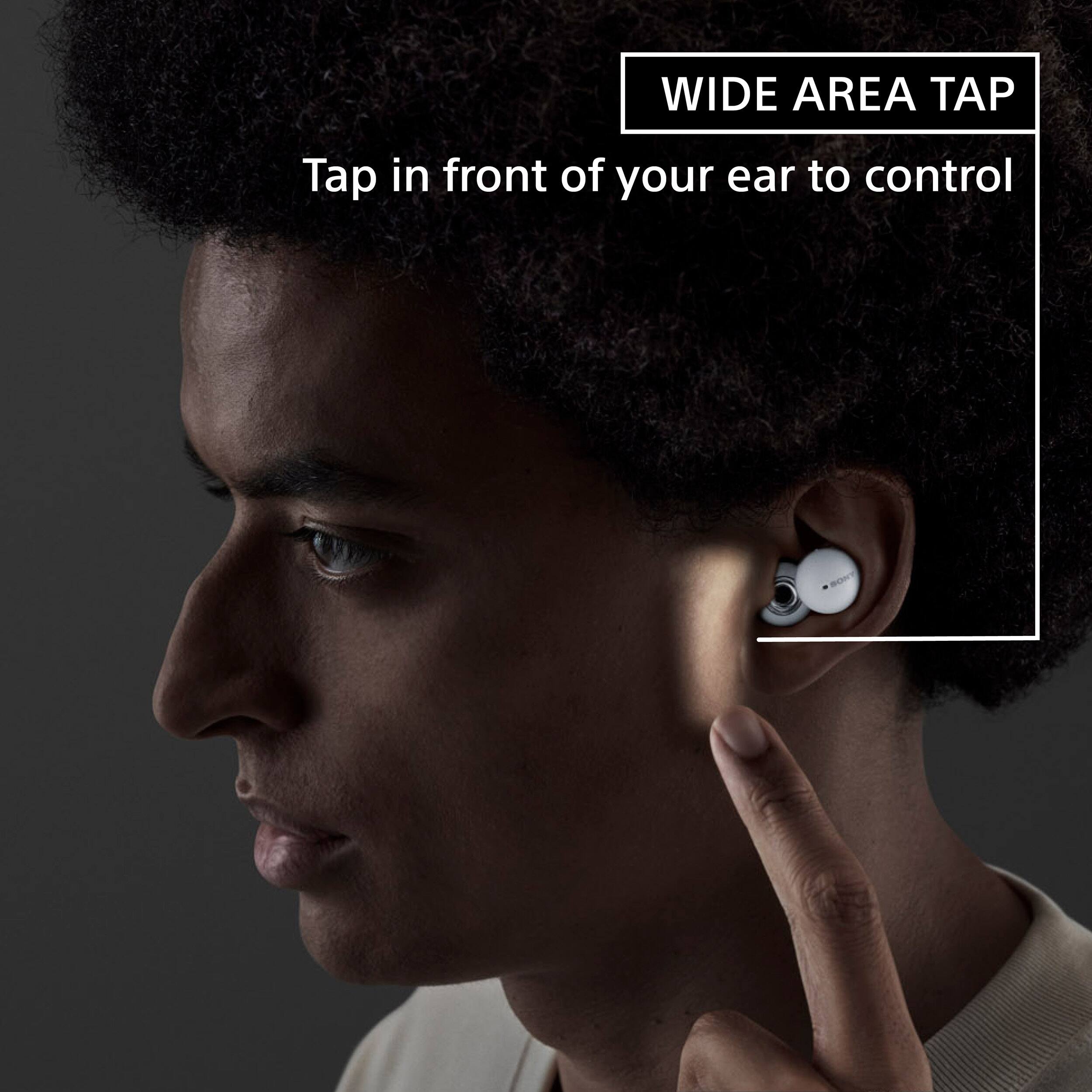
Thanks for your question. Yes, the touch control on the LinkBuds let you play, stop, or skip through tracks and adjust the volume. LinkBuds feature a wide tap area, allowing you to control the headset simply by tapping the side of your head! You can use either the left or right unit to perform the following operations.
• Play/Pause: Tap the headset or in the area near your ear twice quickly (with an interval of about 0.2 seconds).
• Skip to the beginning of the next track: Tap the headset or in the area near your ear 3 times quickly (with an interval of about 0.2 seconds).
In addition to tapping around your ear, tap operations are detected when you tap the headset unit.
Note:
In the factory settings, you cannot adjust the volume on the headset. Adjust the volume on the connected device. If you are unable to adjust the volume on the connected device, install the “Sony | Headphones Connect” smartphone app and adjust the volume in the app or assign the volume adjustment function to the touch control.
Regards,
Jess
A:AnswerThere is an option in the app to prioritize Bluetooth stability or quality. Even with quality selected, the lag isn’t that bad. Movie/video is fine without noticeable lag in iPhone 12 Pro or HP Zbook studio.
However for gaming, I would strongly advise going with wired headphones/earphones if you play games in which reaction time is important. Or perhaps something designed specifically for it.
A:AnswerHi Customer,
Thank you for reaching out to us! We're sorry to hear what happened with your headphones. For charging issues, please check this article on how to isolate and resolve your issue.
https://www.sony.com/electronics/support/wireless-headphones-bluetooth-headphones/wf-l900/articles/00204618?cpint=spt-mdr_triage_00204483_charge
For us to better assist you, please email us at socialsupport@am.sony.com with the following details:
Name:
Best Buy Username:
Model Number:
Issue:
Telephone Number:
-David
A:AnswerHi Kilhyon,
Thank you for the inquiry! These headphones work with Samsung smartphone.
https://helpguide.sony.net/mdr/linkbuds/v1/en/contents/TP1000447697.html
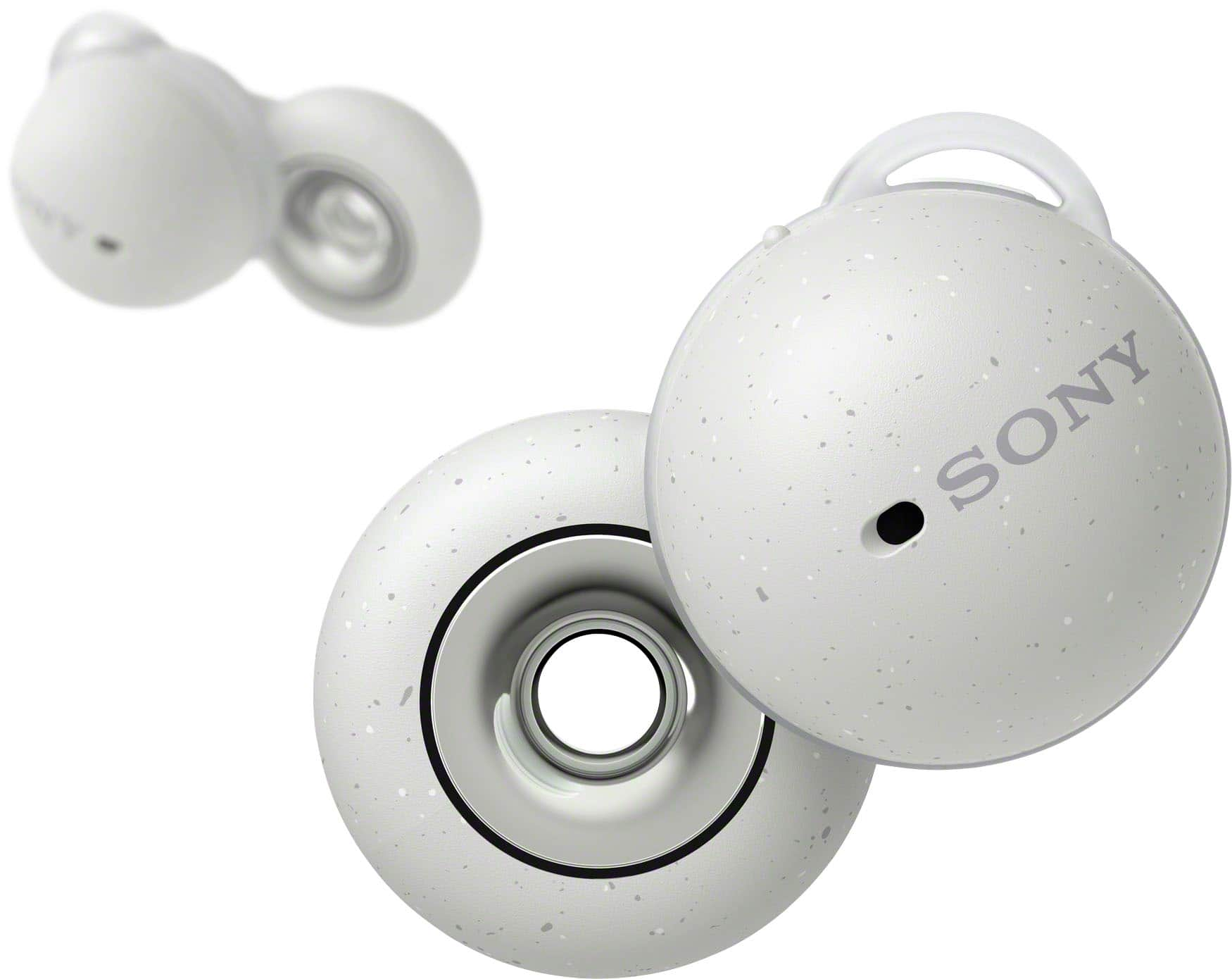
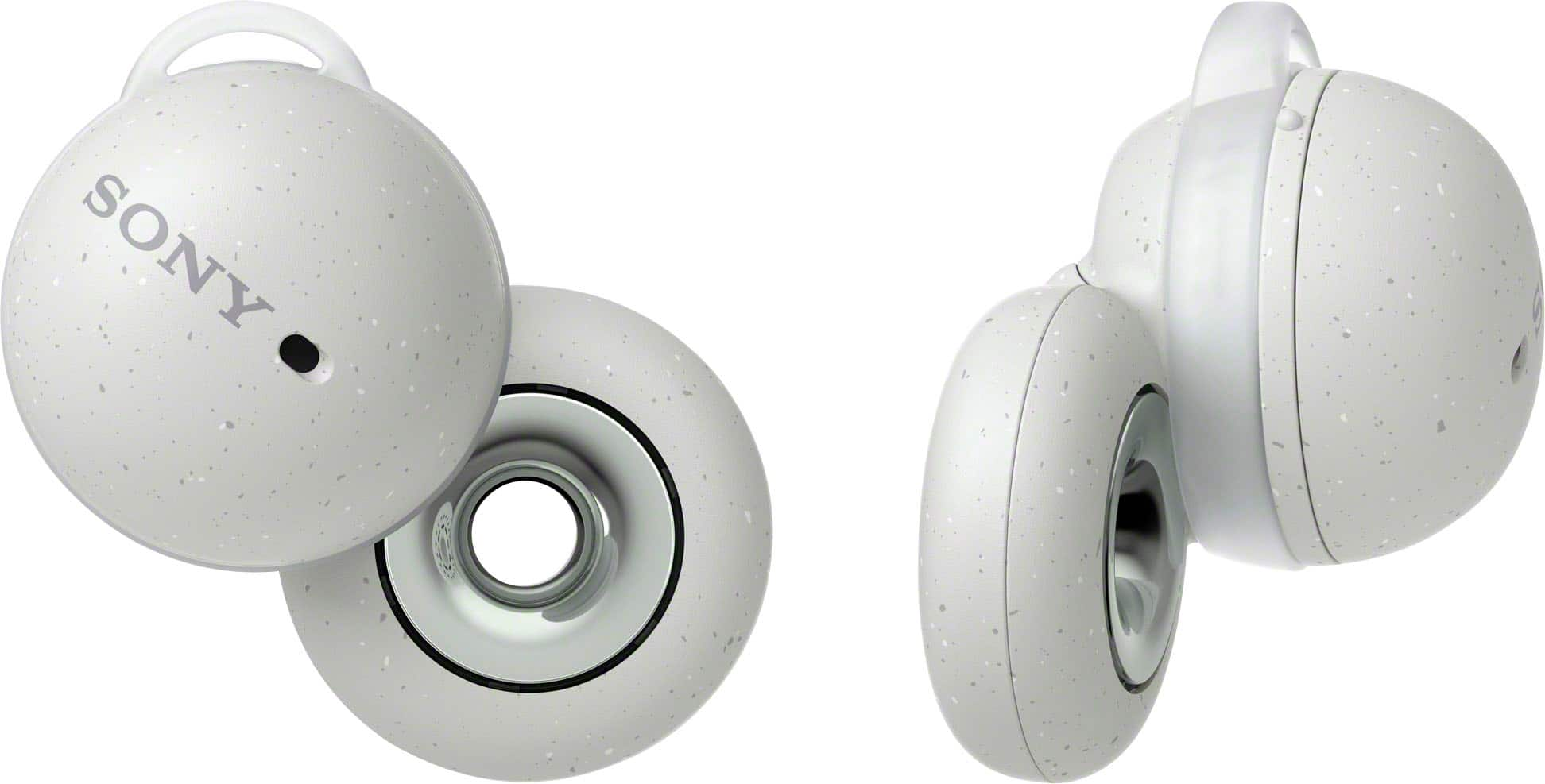
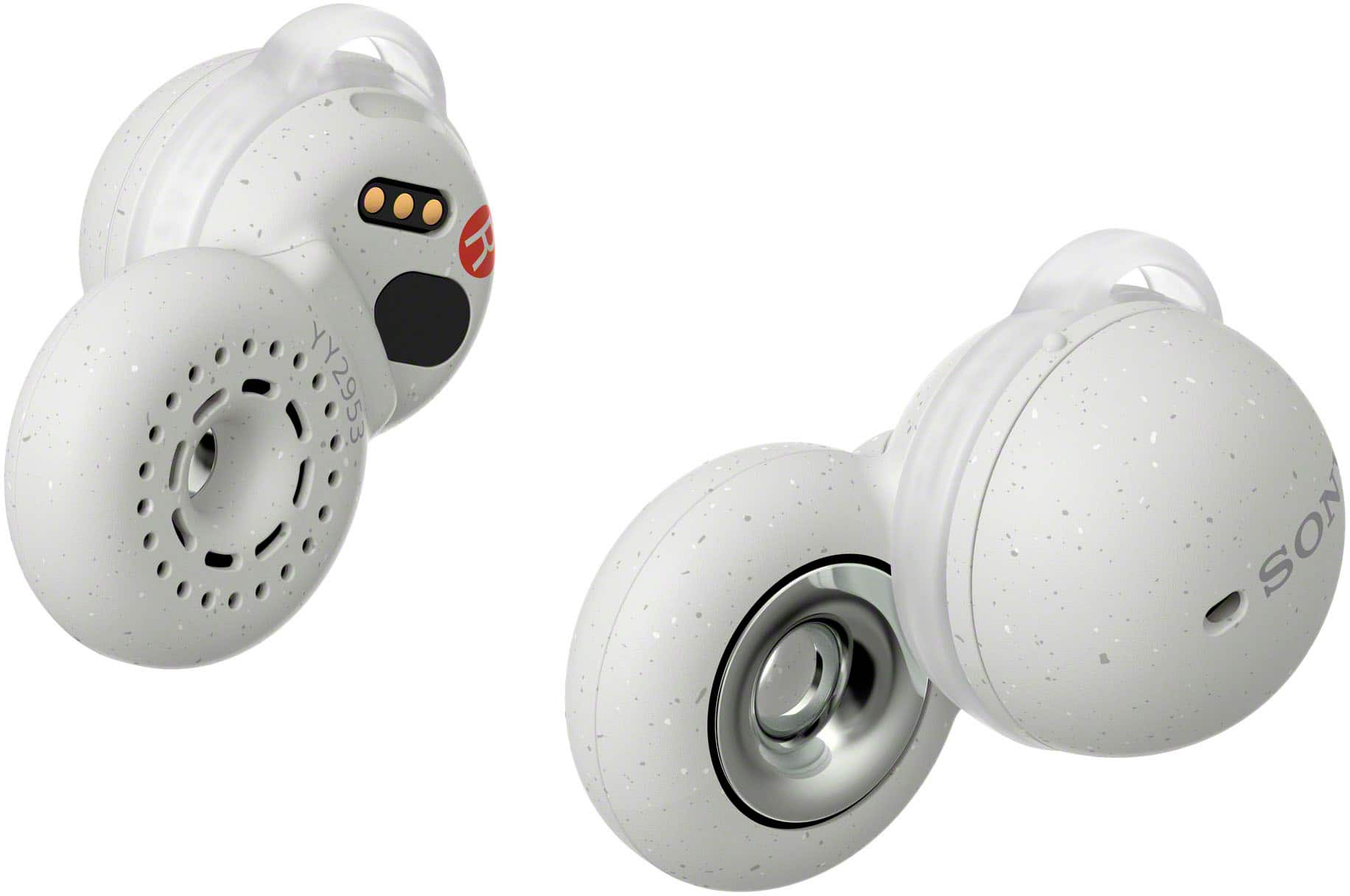
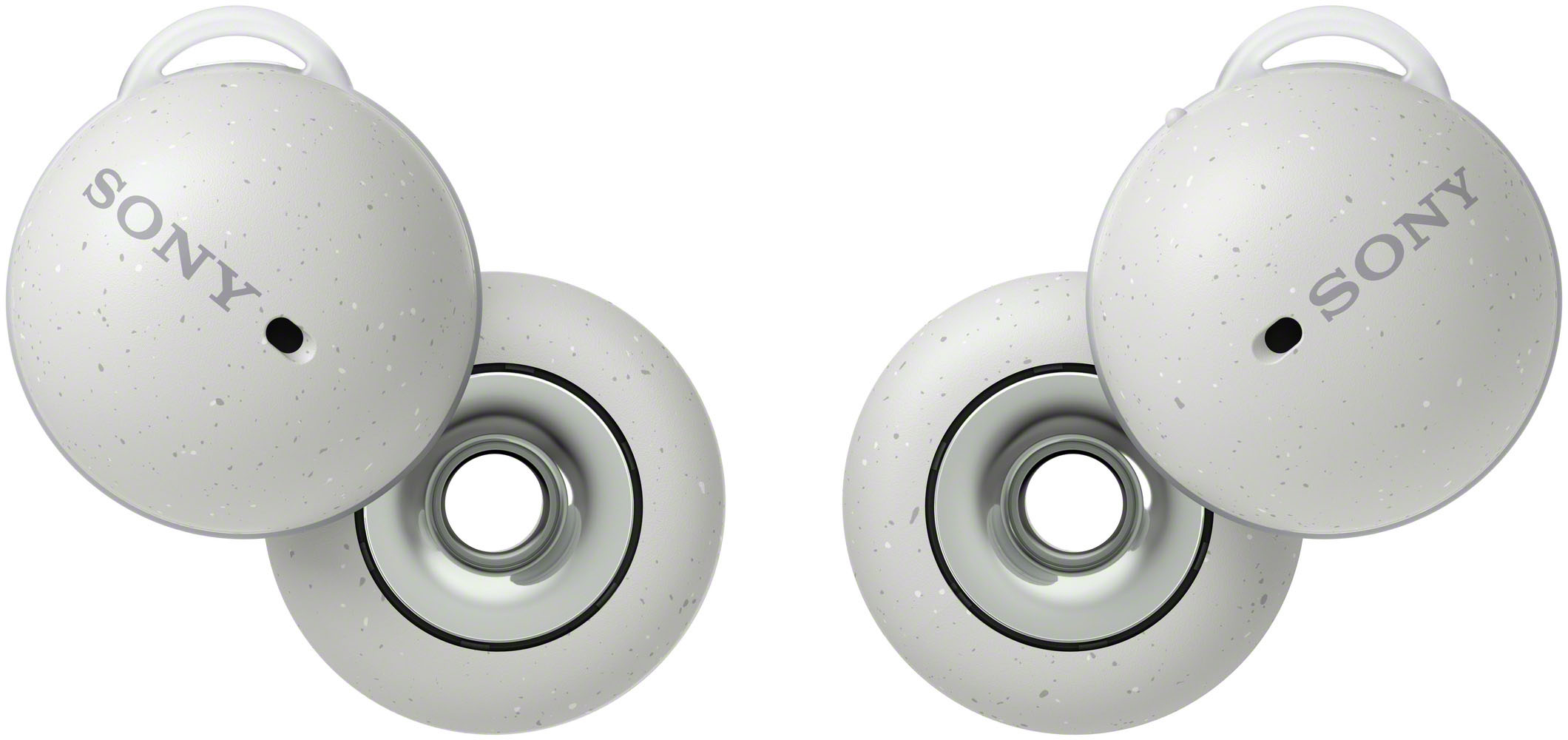
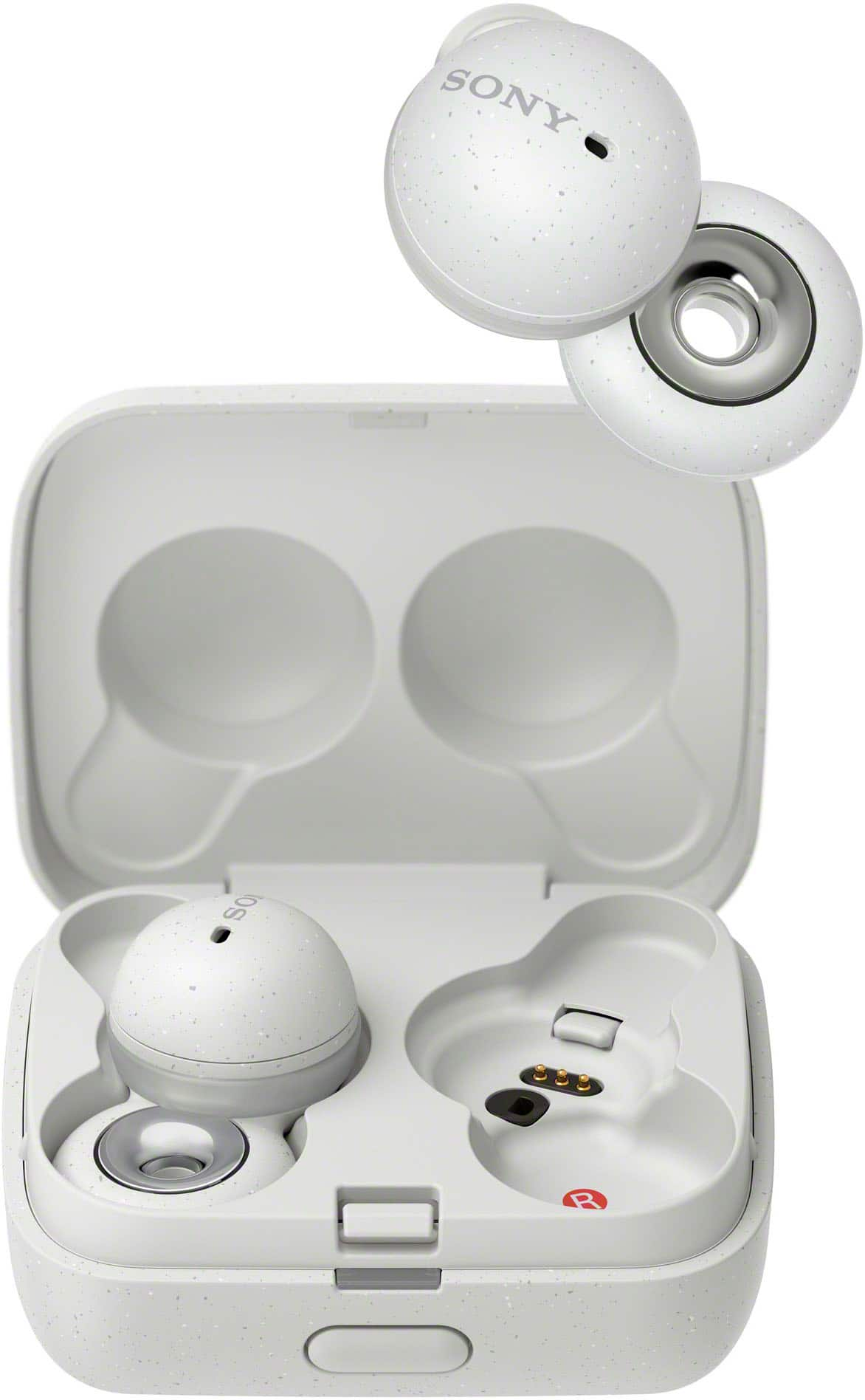
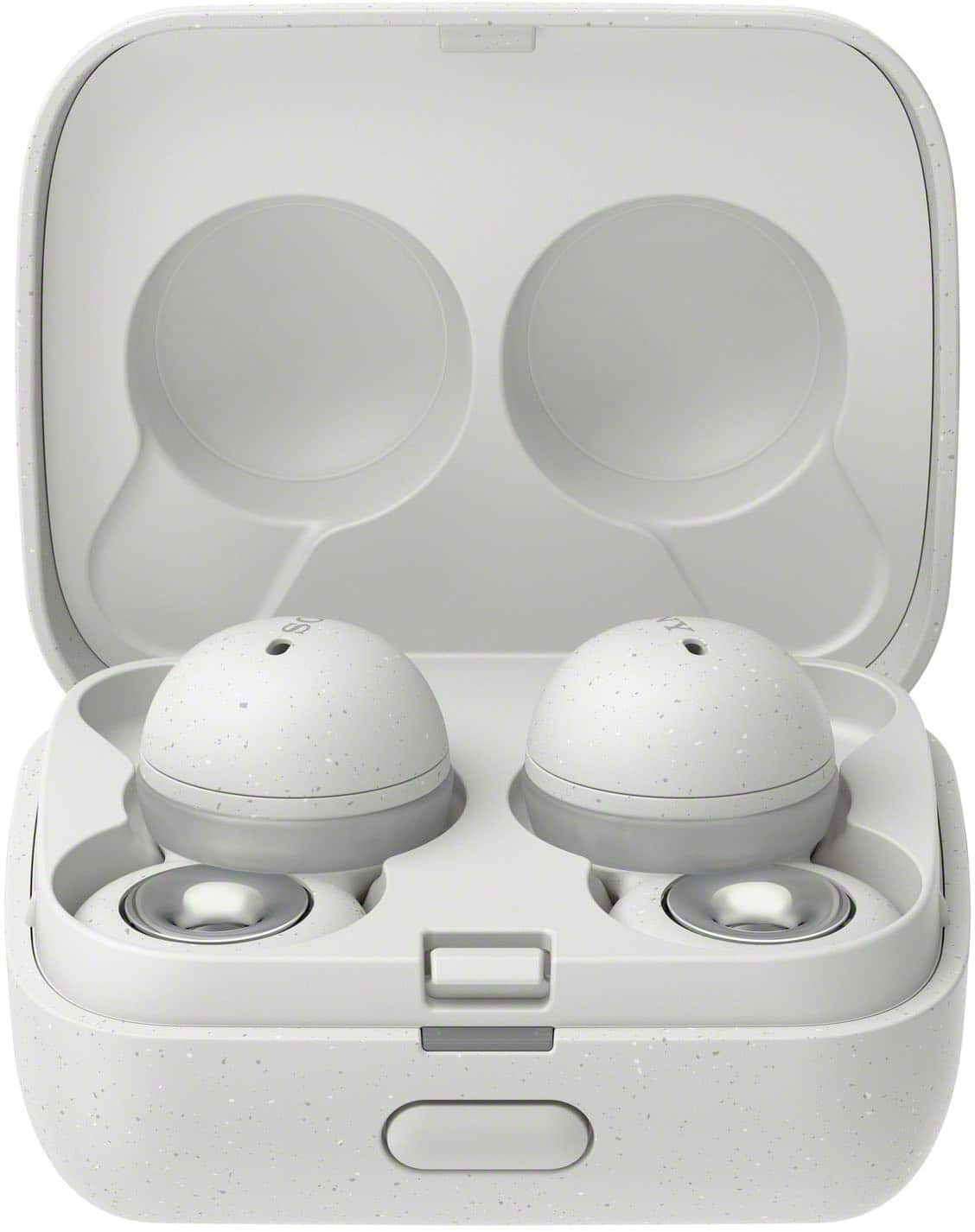
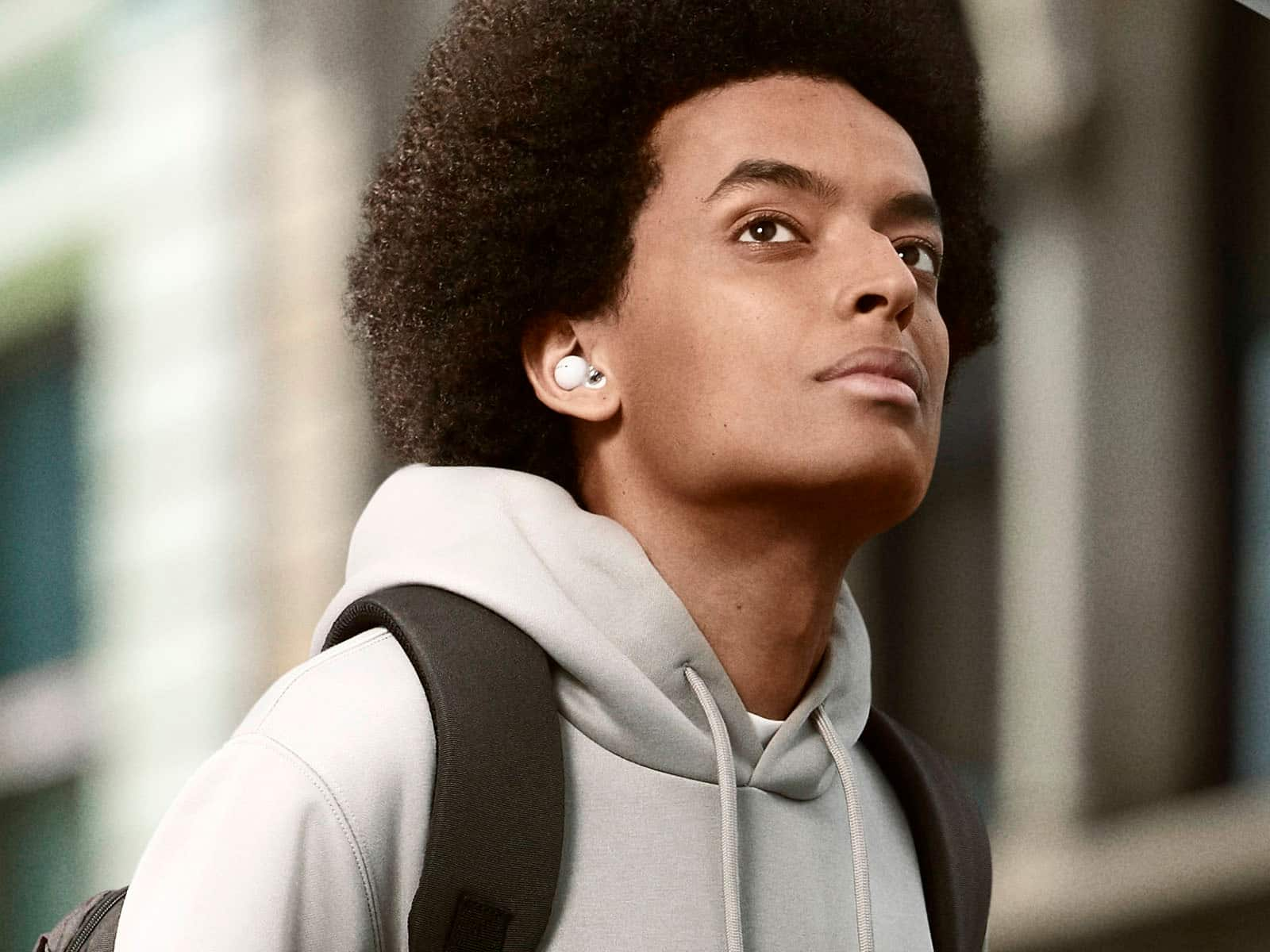
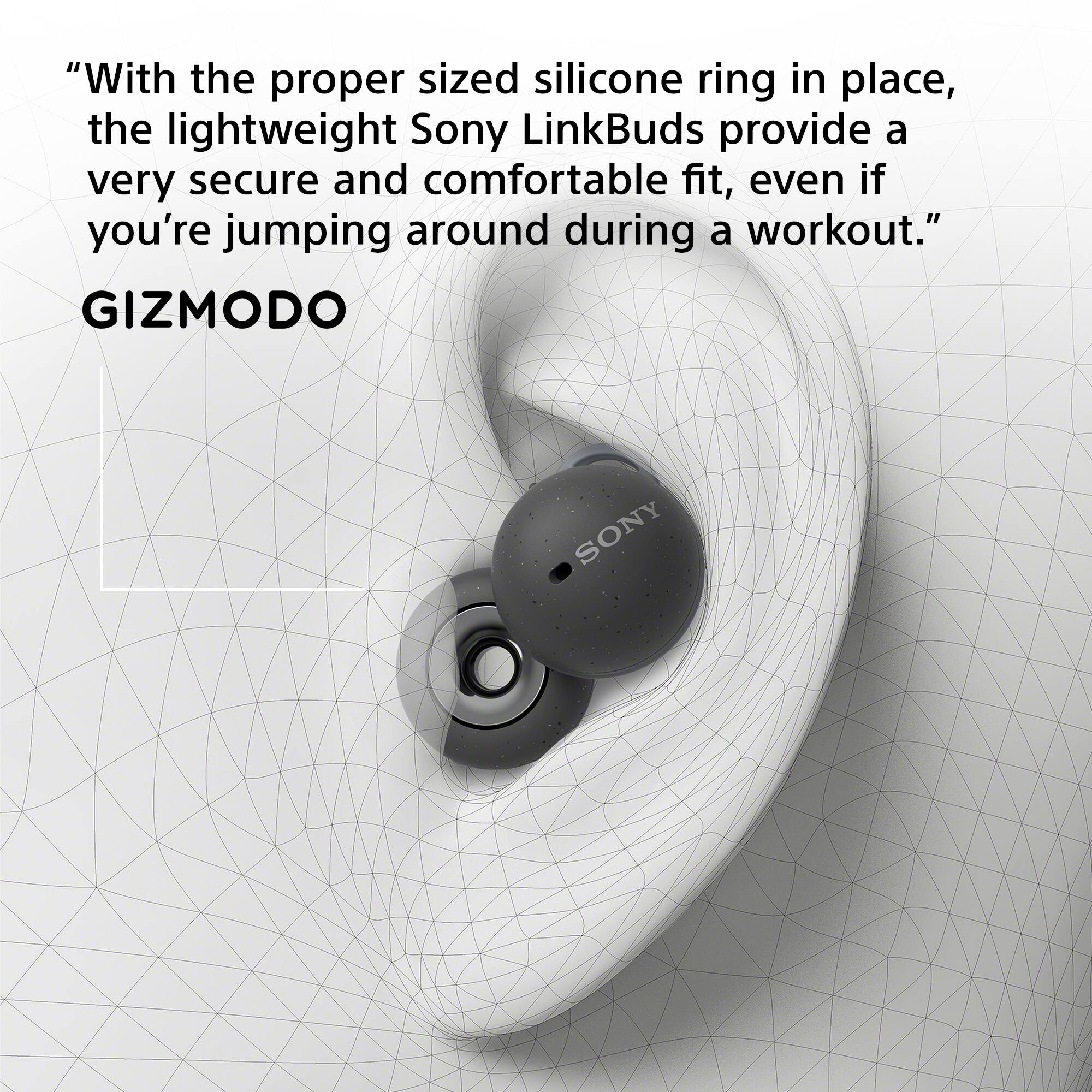
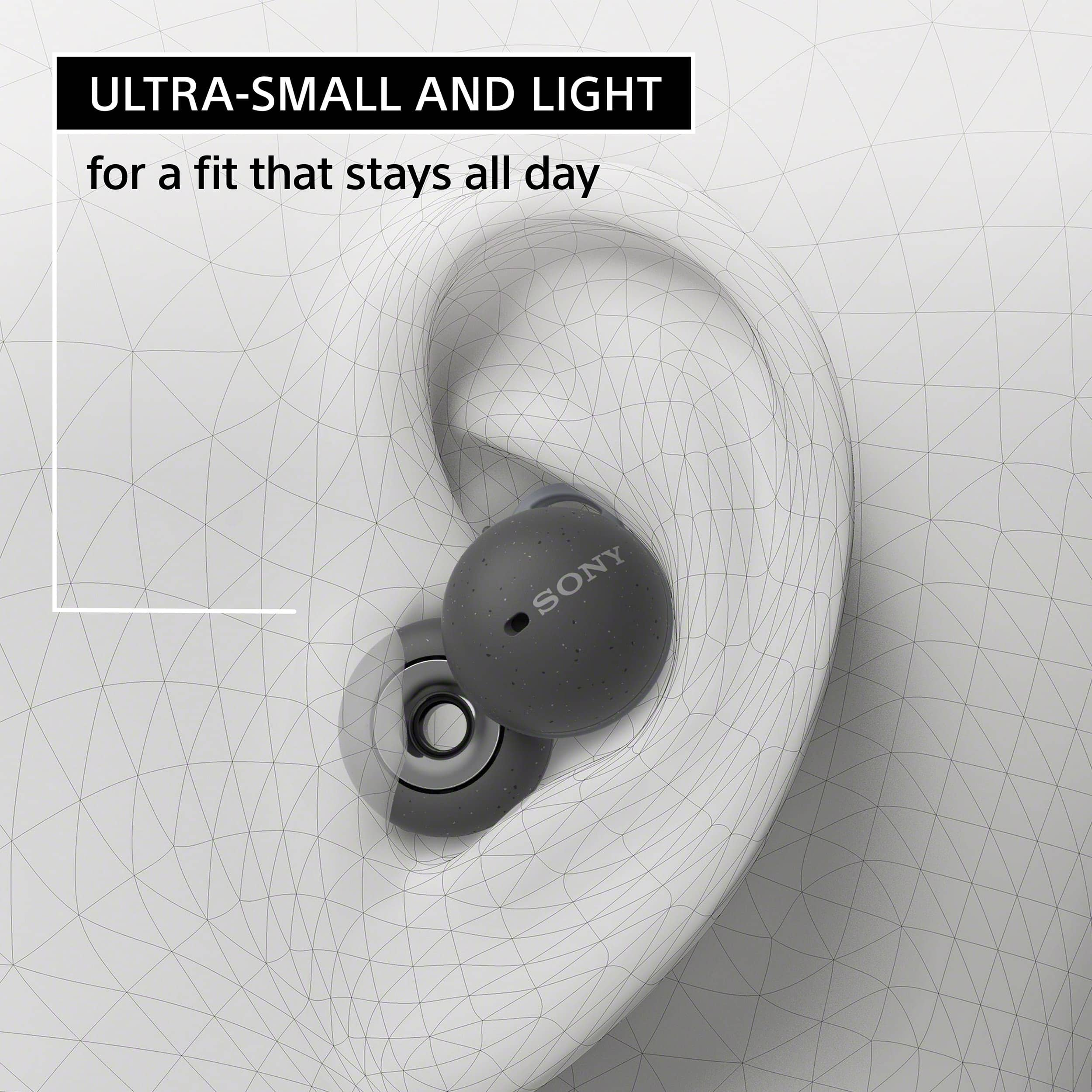
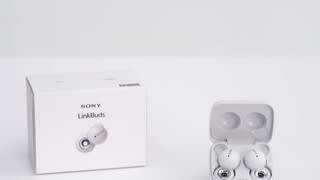
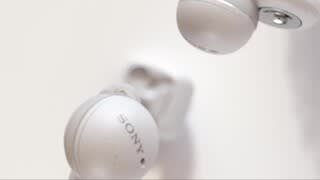
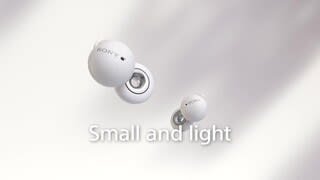
Link your online and offline worlds with headphones that keep you in both. The all-new Sony LinkBuds feature a comfortable open-ring design that blends natural and digital sound. Stay authentically connected to everyday life while listening to music, taking calls, gaming, and more, all with dynamic sound.
-David
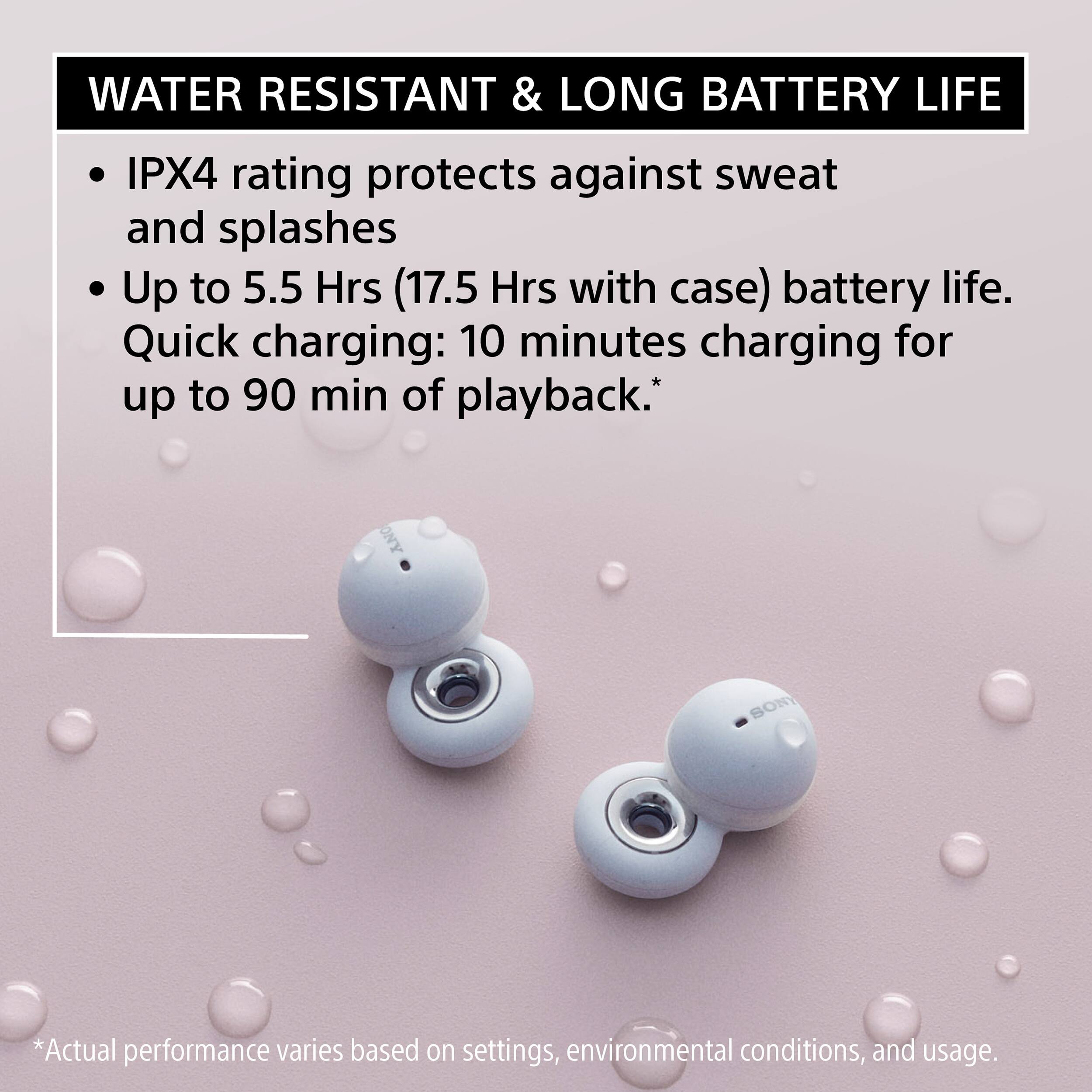
A:AnswerUnfortunately no, they cant be charged wireless, however the battery charges very fast, if you have a USB c to USB c you can charge from your phone. You can charge them on your commute in the car, or over night.
A:AnswerThanks for your question, Knuckles625. The LinkBuds S earbuds are ready for LE Audio, a next-generation Bluetooth audio that enables ultra-low latency—ideal for gaming. However, the WF-L900 LinkBuds do not support Bluetooth LE audio. It only supports the following Bluetooth codecs: SBC and LDAC.
The LinkBuds features a clearer, more stable Bluetooth signal. Rather than relaying sound from one ear to the other, the Bluetooth signal is transmitted to both ears at the same time for low latency and high sound quality, even around other interference. Thanks to the powerful Integrated Processor V1, you’ll enjoy stable, skip-free, wireless sound.
For product updates & announcements, please visit our support website:
https://www.sony.com/electronics/support/wireless-headphones-bluetooth-headphones/wf-l900
Regards,
Jess