A:AnswerHi JUSTIN!
Thank you for reaching out with your question!
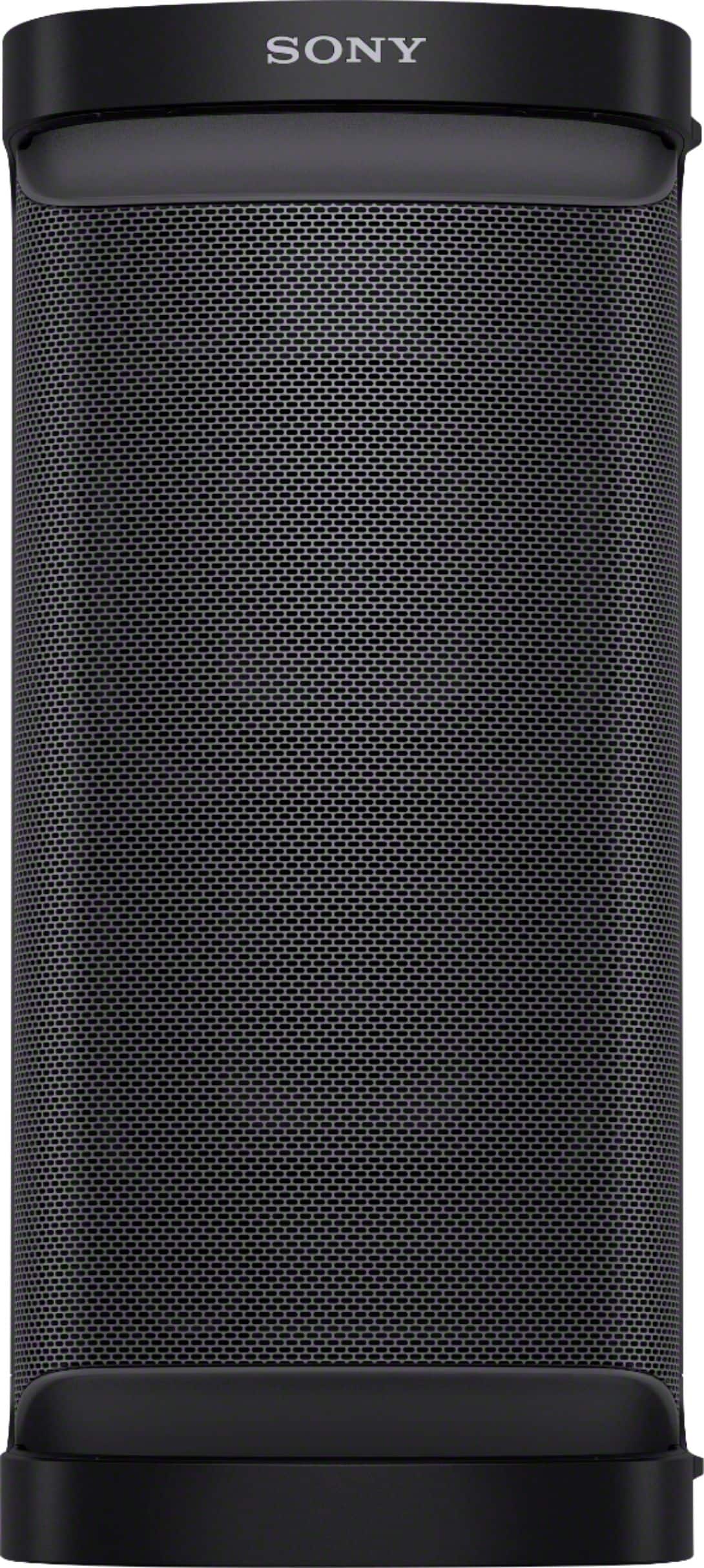
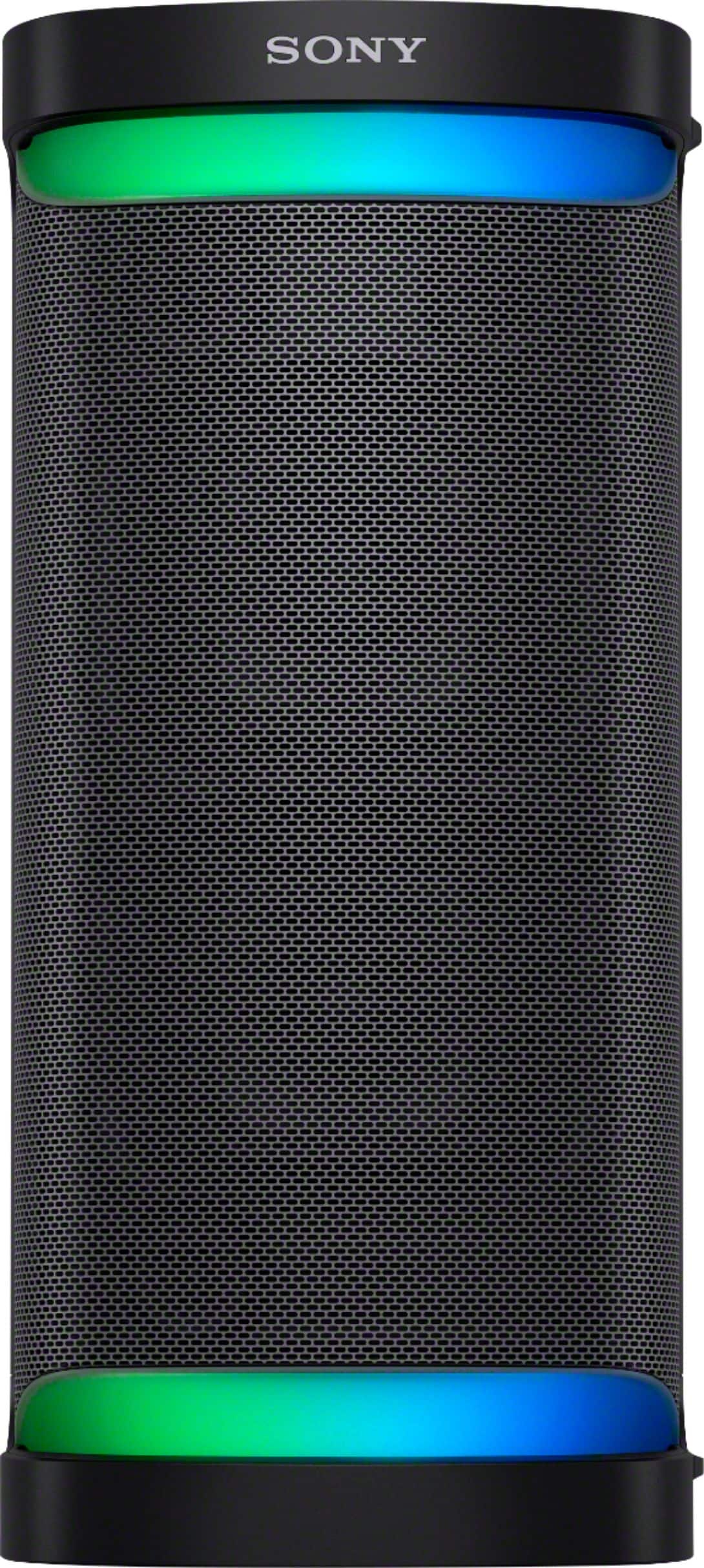
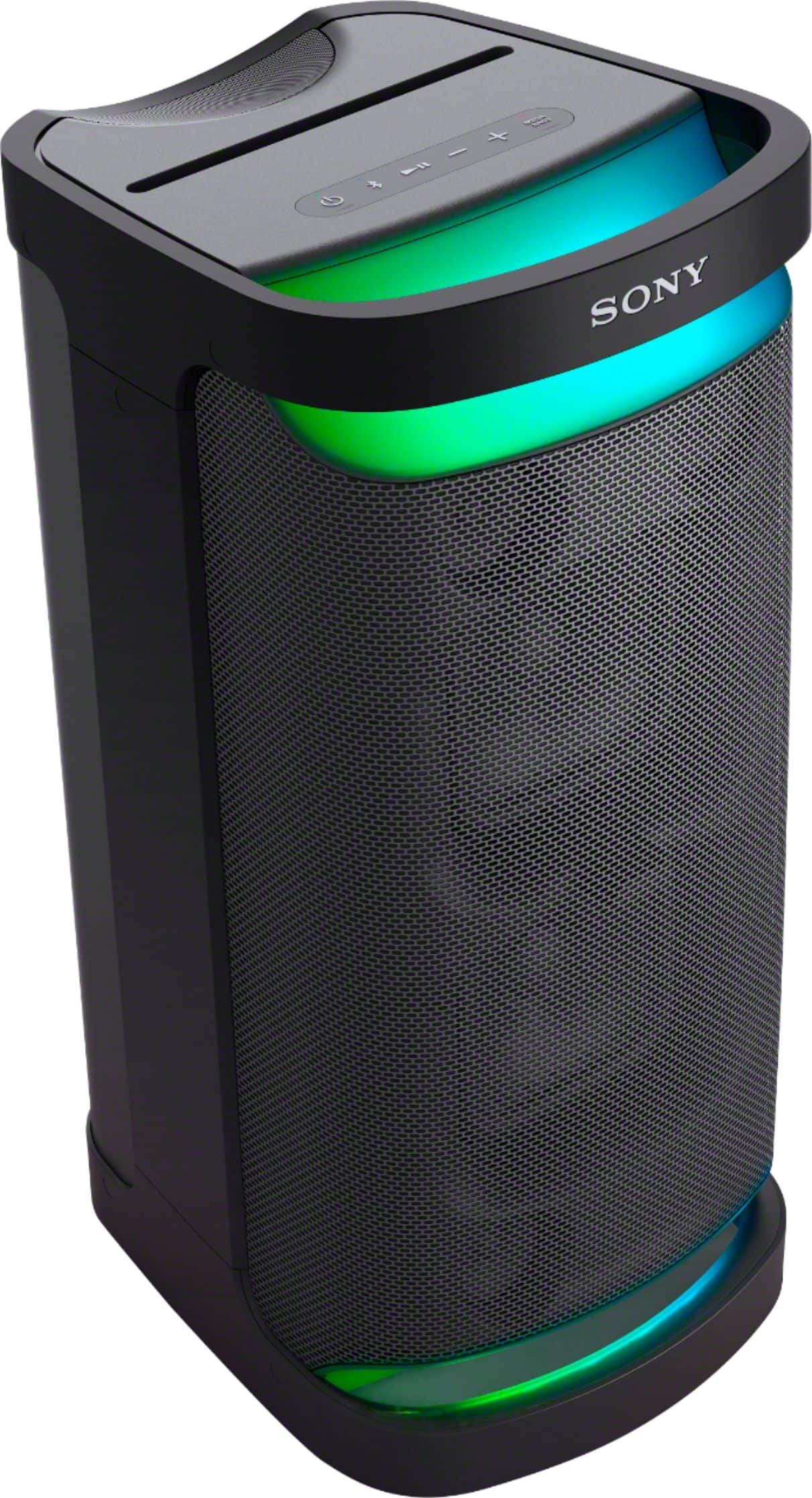
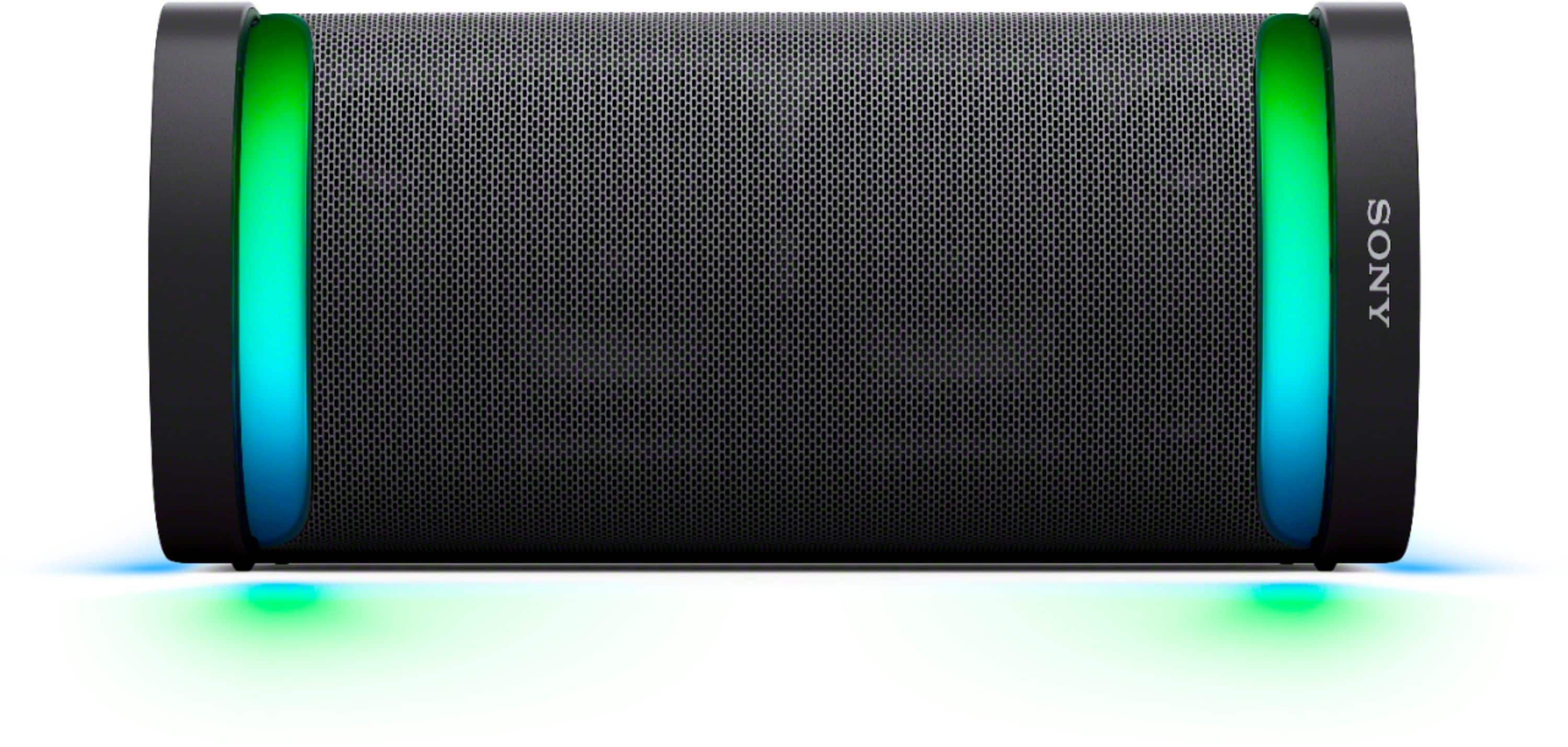
Yes, absolutely! You can definitely connect a microphone to the Sony SRS-XP700.
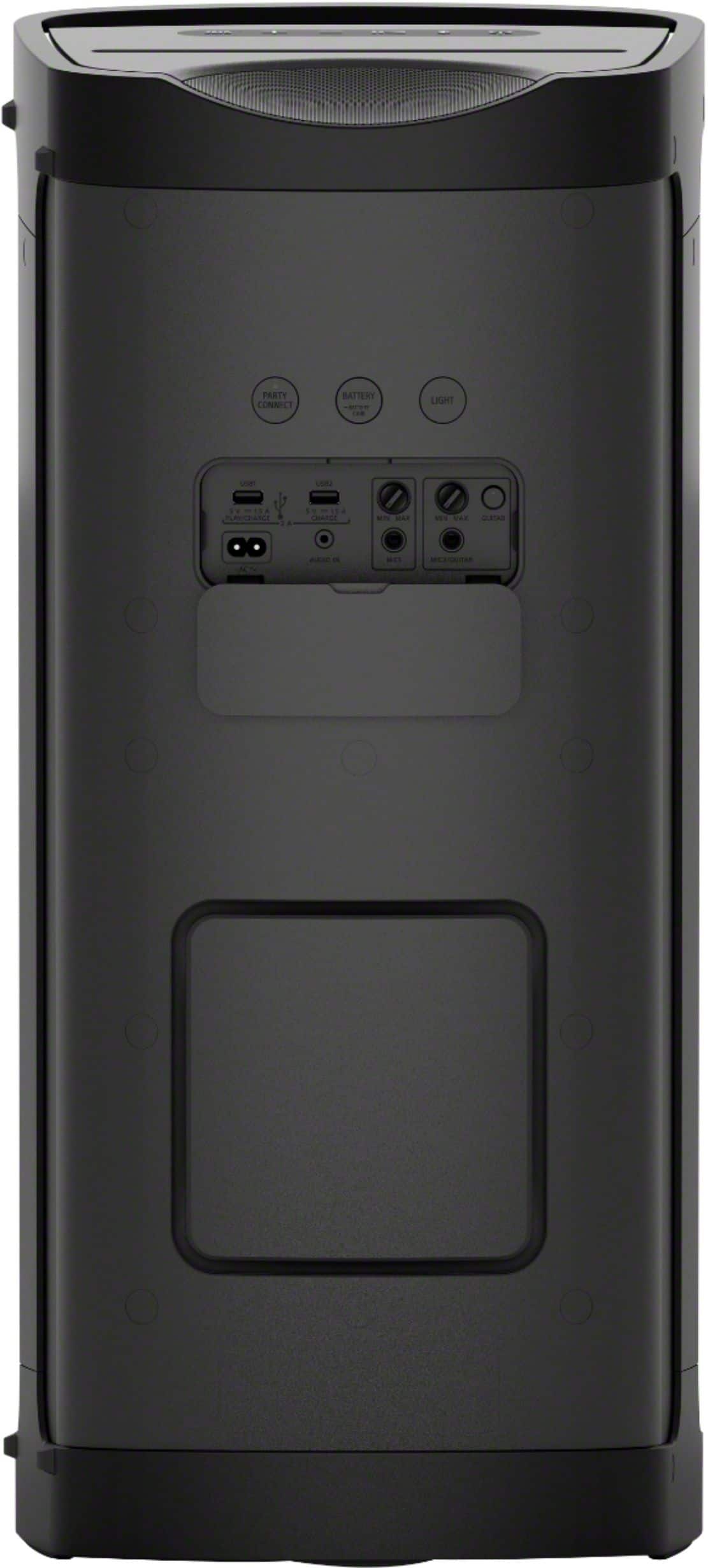
On the back panel, you’ll find a dedicated port labeled Mic/Guitar that uses a standard 1/4 inch jack. It's a simple plug and play setup, and there is even a physical knob right above the plug so you can adjust your mic volume separately from the music. If you're planning on a duet, there's actually a second port as well, which allows you to plug in two mics at once or even a guitar.
To explore this topic further, kindly use the link provided below.
https://helpguide.sony.net/speaker/srs-xp500/v1/en/contents/TP1000243091.html
We appreciate you considering Sony for your next purchase!
Best regards,
Estefany
A:AnswerHi Fred,
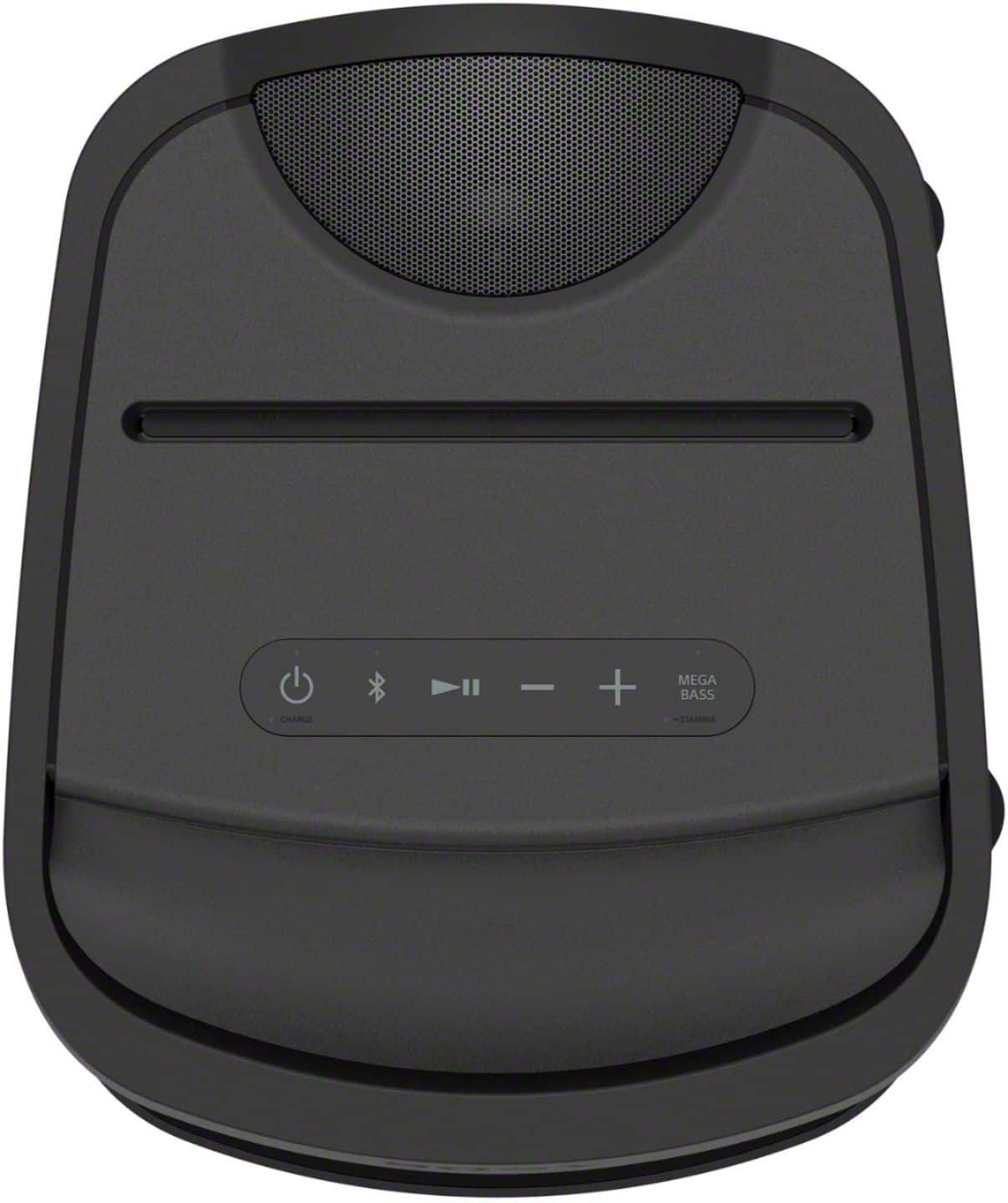
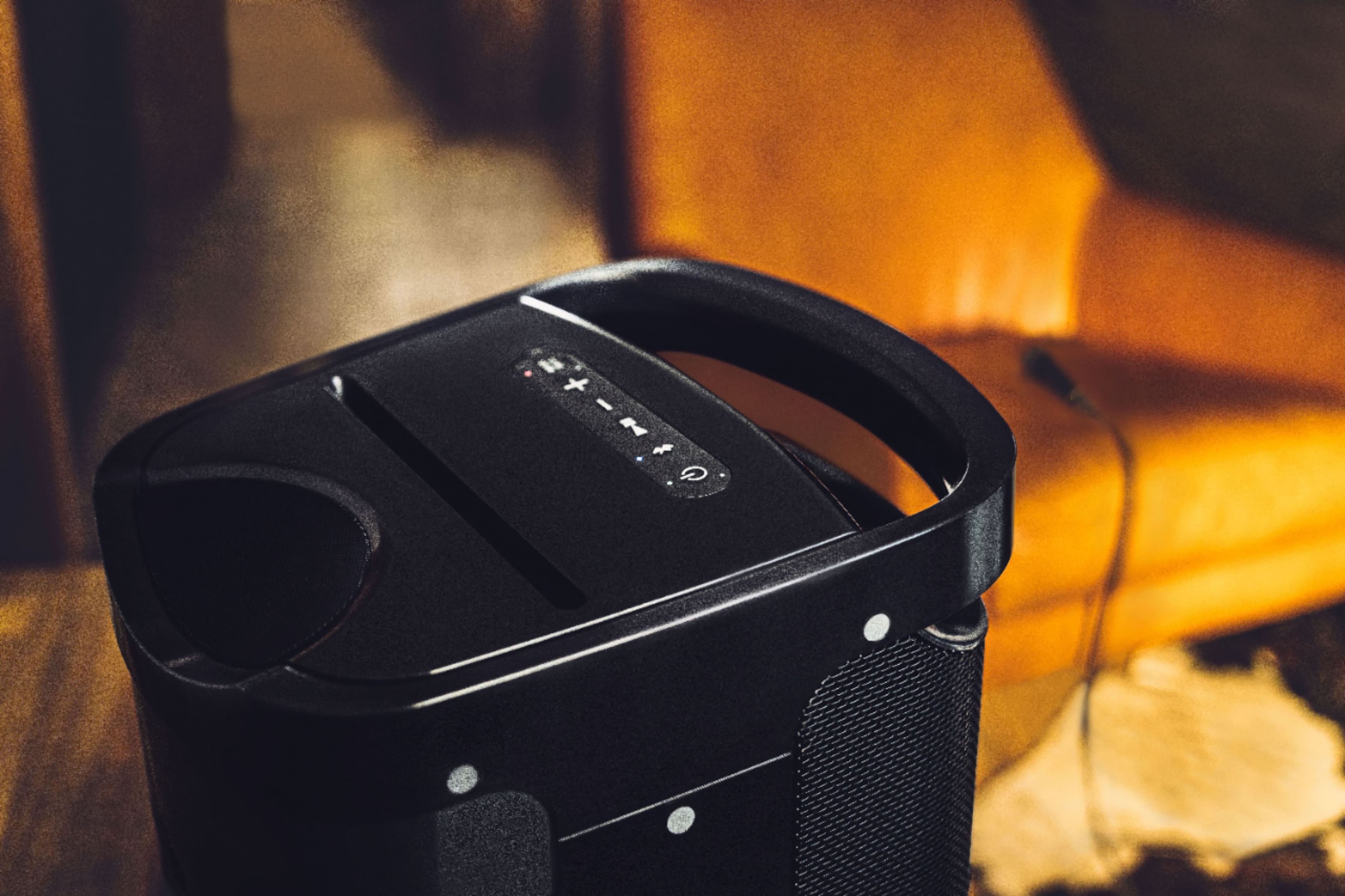
Yes, you can control your USB music playback directly using the buttons on the XP700. To skip to the next track, press the Play/Pause button twice quickly; to skip back to the beginning of the current track or the previous song, press the Play/Pause button three times in quick succession. Additionally, you can use the Sony | Music Center app on your smartphone to browse your USB music library and select specific songs more easily.
Thanks for choosing Sony.
Best regards,
Eliab
A:AnswerHi Hank,
Sony does not officially disclose the specific wattage (RMS or Max) for our portable speakers, as these figures can be measured in various ways and may not accurately reflect the actual sound performance or efficiency of the drivers. Instead, we focus on the sound pressure level and the X-Balanced Speaker technology to ensure the XP700 delivers a powerful, high-quality audio experience that fills your venue.
Thanks for choosing Sony.
Best regards,
Eliab
A:AnswerHello Mellymel,
Thank you for your interest in Sony products!
We’re delighted to assist you. The Sony SRS-XP700 speaker can indeed be connected to your TV through either Bluetooth or a wired connection, depending on your preferences and your TV’s capabilities.
Bluetooth Connection: To connect via Bluetooth, please ensure your TV supports the Advanced Audio Distribution Profile (A2DP). If it does, follow these steps to pair your SRS-XP700 with your TV:
Activate Pairing Mode on the Speaker: Press and hold the Bluetooth button on the SRS-XP700 until the Bluetooth indicator begins to flash rapidly, signaling that the speaker is in pairing mode.
Pair with the TV: Navigate to the Bluetooth settings on your TV and select the SRS-XP700 from the list of available devices. Once selected, the connection will be established.
Wired Connection: Alternatively, you can connect the SRS-XP700 to your TV using a wired connection. The speaker has a stereo mini jack (3.5mm) input, so simply use a compatible audio cable to connect the speaker to your TV’s headphone or audio output jack.
Please note that the SRS-XP700 does not support HDMI or optical audio connections, so ensure your TV has the appropriate output options for a wired setup.
For more detailed instructions on pairing and wired connections, please visit the following link:
https://helpguide.sony.net/speaker/srs-xp500/v1/en/index.html
If you have any further questions, feel free to reach out.
Best regards,
-Fred
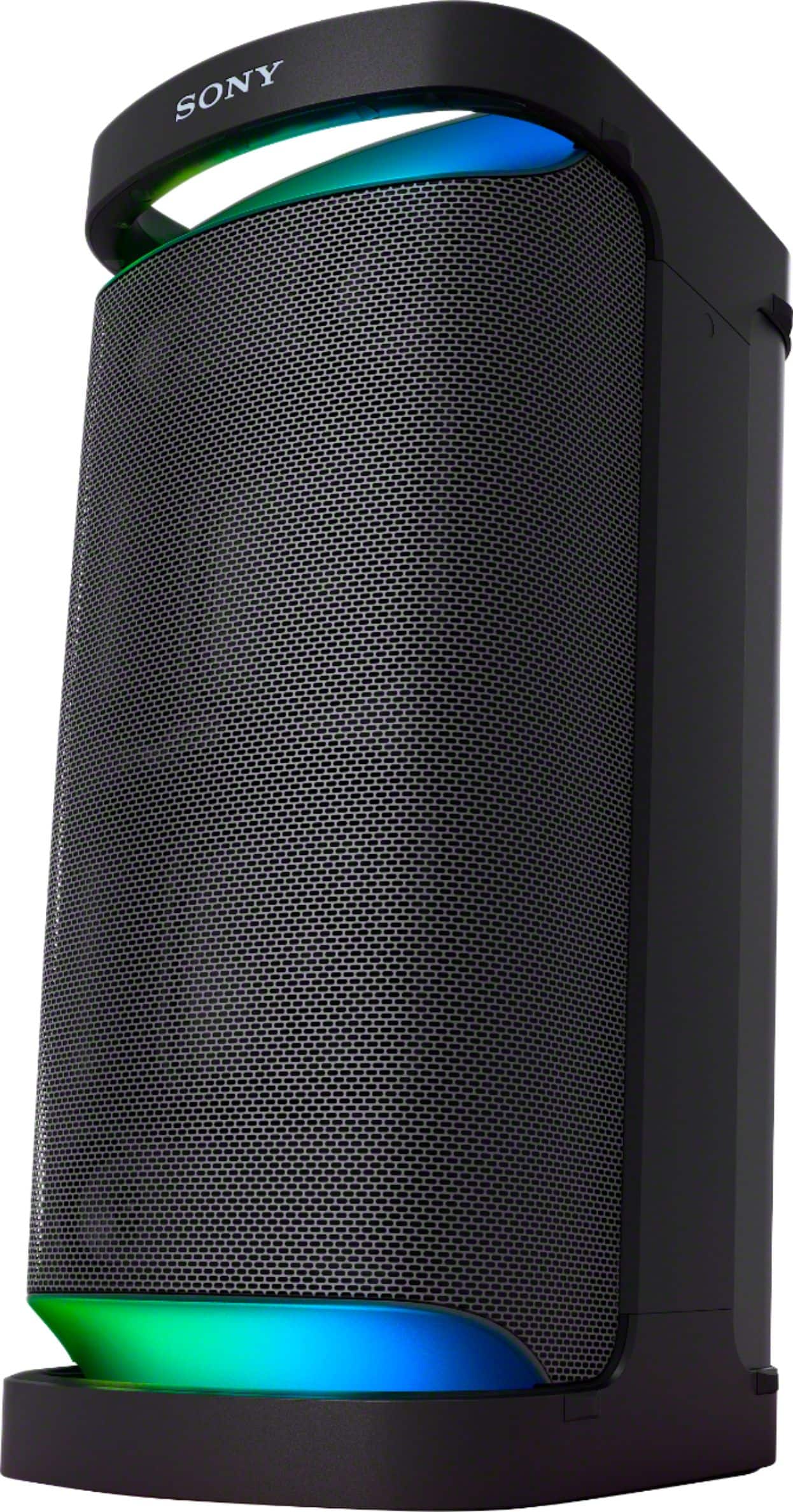
A:AnswerHi Skynyrd,
Thanks for sending your question. We're happy to clarify that for you!
On its own, a single SRS-XP700 doesn't provide true left-and-right stereo separation. Because all the sound comes from one unit, it mixes the audio channels together to give you a big, room-filling sound, but it functions more like a mono speaker.
If you’re looking for that authentic stereo experience where you hear distinct sounds on the left and right, you would actually need to pair two of these speakers together. Using the Stereo Pair feature in the Sony | Music Center app, you can set one speaker to handle the left channel and the other to handle the right. This creates a much wider soundstage and gives you that true stereo performance you're looking for.
To explore this topic further, kindly use the link provided below.
https://helpguide.sony.net/speaker/srs-xp500/v1/en/contents/TP1000243088.html
We sincerely appreciate you considering a Sony product!
Best regards,
Estefany
A:AnswerHello Dogmaluna,
Thank you for considering Sony products!
We appreciate your question and are here to assist you. Yes, you can connect the Sony PS-LX310BT turntable to the Sony SRS-XP700 speaker, and it should deliver excellent sound quality.
Below are the steps to set up the connection via Bluetooth:
1. Enable Bluetooth on Both Devices: On the PS-LX310BT turntable, press the BLUETOOTH/PAIRING button to enter pairing mode. For detailed instructions, please refer to page 14 of the PS-LX310BT manual: https://www.sony.com/electronics/support/res/manuals/4748/2a8f06044efec02b753eff3df707fb93/47487551M.pdf
On the SRS-XP700 speaker, press the BLUETOOTH button to activate pairing mode. More details about pairing can be found here: https://helpguide.sony.net/speaker/srs-xp500/v1/en/contents/TP1000243076.html
2. Pair the Devices: Once both devices are in pairing mode, they should automatically detect each other. Confirm the pairing on both devices if prompted.
3. Adjust Volume Levels: Set the volume on both the turntable and the speaker to a comfortable level.
The SRS-XP700 speaker is designed to deliver high-quality audio with advanced features such as Clear Audio+, DSEE, and Omnidirectional Party Sound, which will enhance your listening experience.
Best regards,
-Fred
A:AnswerHi Jen,
Yes, the Sony XP700 is excellent for karaoke and supports connecting two microphones simultaneously using the dedicated inputs on the back of the speaker. To use two speakers and have the music from the TV play across both, you can use the Party Connect function to link them wirelessly. However, please be aware that when using Party Connect, the microphone sound will only output from the single speaker that the microphones are physically plugged into, while the music will play from both speakers.
Thanks for choosing Sony.
Best regards,
Eliab
A:AnswerHello Mama,
Thank you for your interest in Sony products!
We’re happy to assist you. You can connect your phone directly to the SRS-XP700 speaker via Bluetooth to stream Spotify without needing the Sony Music Center app. While the app is optional, it provides enhanced features such as sound customization, lighting controls, playback management, and Party Connect, which allows you to link up to 100 compatible speakers for a richer audio experience.
For more details, please visit: https://www.sony.com/electronics/support/product/srs-xp700/manuals
Best regards,
-Fred
A:AnswerHello Wendae,
Thank you for choosing Sony!
We appreciate your question and are here to assist you. The SRS-XP700 speaker is not compatible with any Sony remote control. However, you can easily manage and control the speaker using the Sony | Music Center App. This app allows you to handle music playback, select playlists, adjust audio settings, and control lighting patterns conveniently from your smartphone.
For more details about the app, please visit: https://www.sony.com/electronics/support/articles/MC000001
Best regards,
-Fred
A:AnswerHello Frizz,
Thank you for choosing Sony!
We appreciate your question and are here to assist you. Yes, the SRS-XP700 speaker can be used with a TV. To connect it, your TV needs to be compatible with the A2DP Bluetooth protocol, which is required to transmit audio to the speaker. Please verify your TV supports this Bluetooth profile for proper connection.
You can check the steps to put the unit in pairing mode to connect your TV or other devices at the following link: https://helpguide.sony.net/speaker/srs-xp500/v1/en/contents/TP1000243076.html?search=pairing
Best regards,
-Fred
A:AnswerHi there,
Sony does not disclose a specific wattage number for the XP700. For our portable speakers, we focus on key features like the X-Balanced Speaker Unit and MEGA BASS technology, which more accurately represent the sound quality and performance.
Thanks for choosing Sony.
Best regards,
Eliab
A:AnswerHello charlie33,
Thank you for choosing Sony!
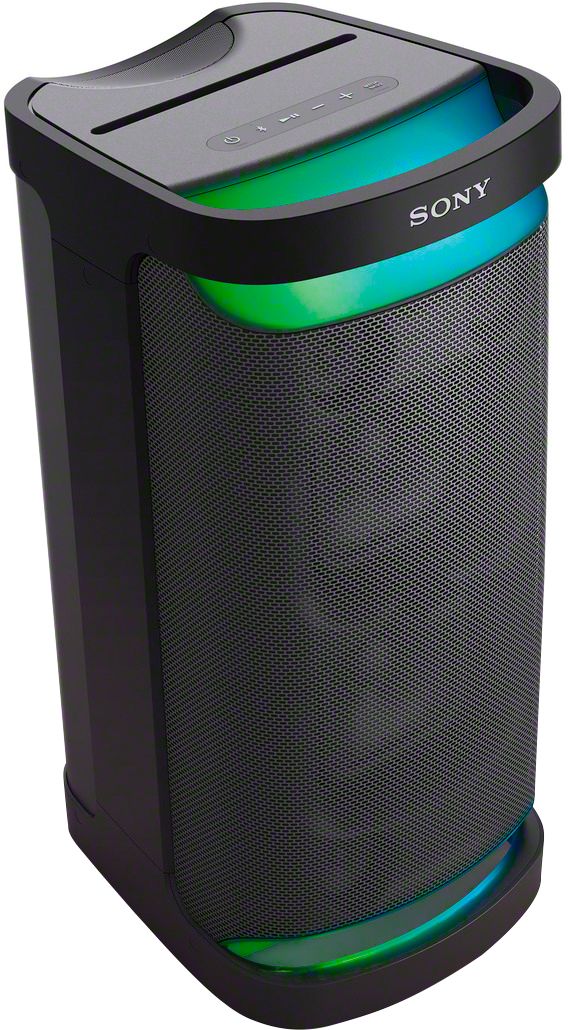
We appreciate your question and are here to assist you. The SRS-XP700 is not mono – it’s a stereo speaker with multiple tweeters and woofers that deliver powerful, immersive sound. It’s designed to fill any space with a much wider sound experience, perfect for parties or gatherings.
If you're looking for an even more expansive stereo effect, you can pair two SRS-XP700 speakers together. This creates a dedicated left and right channel, giving you a truly impressive and wide soundstage. You can find instructions on how to set this up here: https://helpguide.sony.net/speaker/srs-xp500/v1/en/contents/TP1000243088.html?search=stereo
Best regards,
-Fred
A:AnswerHi Weezie,
Yes, the Sony XP700 Portable Bluetooth Party Speaker does come with an owner's manual. You can find a digital version, including the "Operating Instructions" and a "Help Guide" with detailed information here: https://www.sony.com/electronics/support/product/srs-xp700/manuals. We highly recommend reviewing it to get the most out of your speaker's many features.
Thanks for considering Sony products.
Best regards,
Eliab
A:AnswerI love my speaker. The sound is outstanding. Yea it is push down volume, meaning you have to touch the speaker for the volume to go up and down. You can control with your Bluetooth device. I wish I would have bought the bigger version. You will not regret buying this speaker.
A:AnswerHello Salam,
Thank you for getting in touch with Sony!
We're excited to assist you with your inquiry regarding the Sony SRS-XP700. This remarkable speaker boasts a maximum output power of 110 watts, making it a robust enhancement to any audio system.
For more information on its specifications, please visit: https://www.sony.com/electronics/support/speakers-wireless-speakers/srs-xp700/specifications
We hope this helps!
Best regards,
-Fred
A:AnswerHi, Pepe,
Thanks for the questions! In regard to any warranty concerns, we highly recommend reaching our Warranty Support Team via email at protect-tv@photoregister.com. They will gladly answer any questions and will definitely help you further. Also, you might want to take a look into the Frequently Asked Questions website at: https://protect.electronics.sony.com/care_faq.
We hope this information comes in handy!
Thanks for the understanding, have a nice day!
-DiegoV