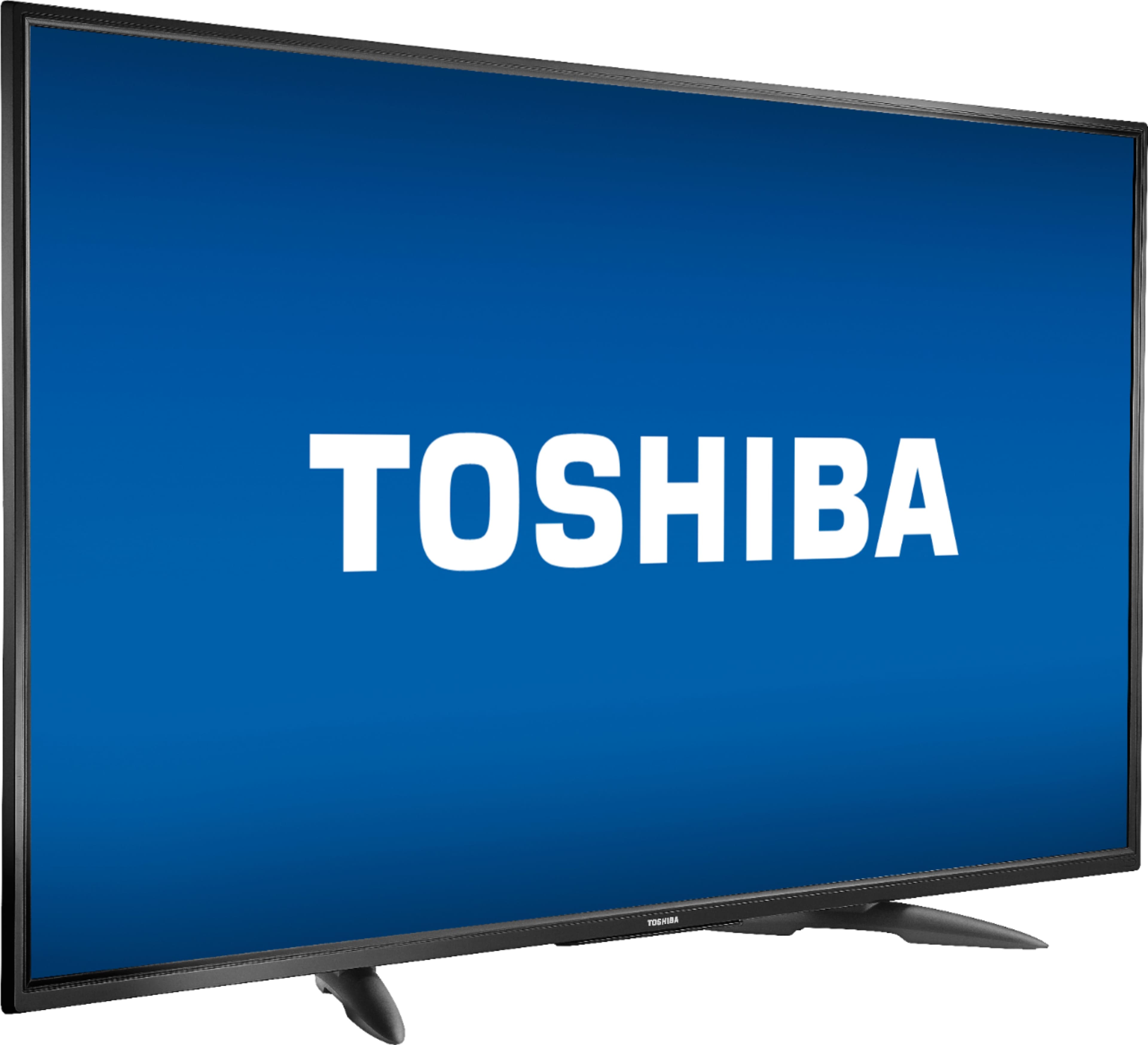
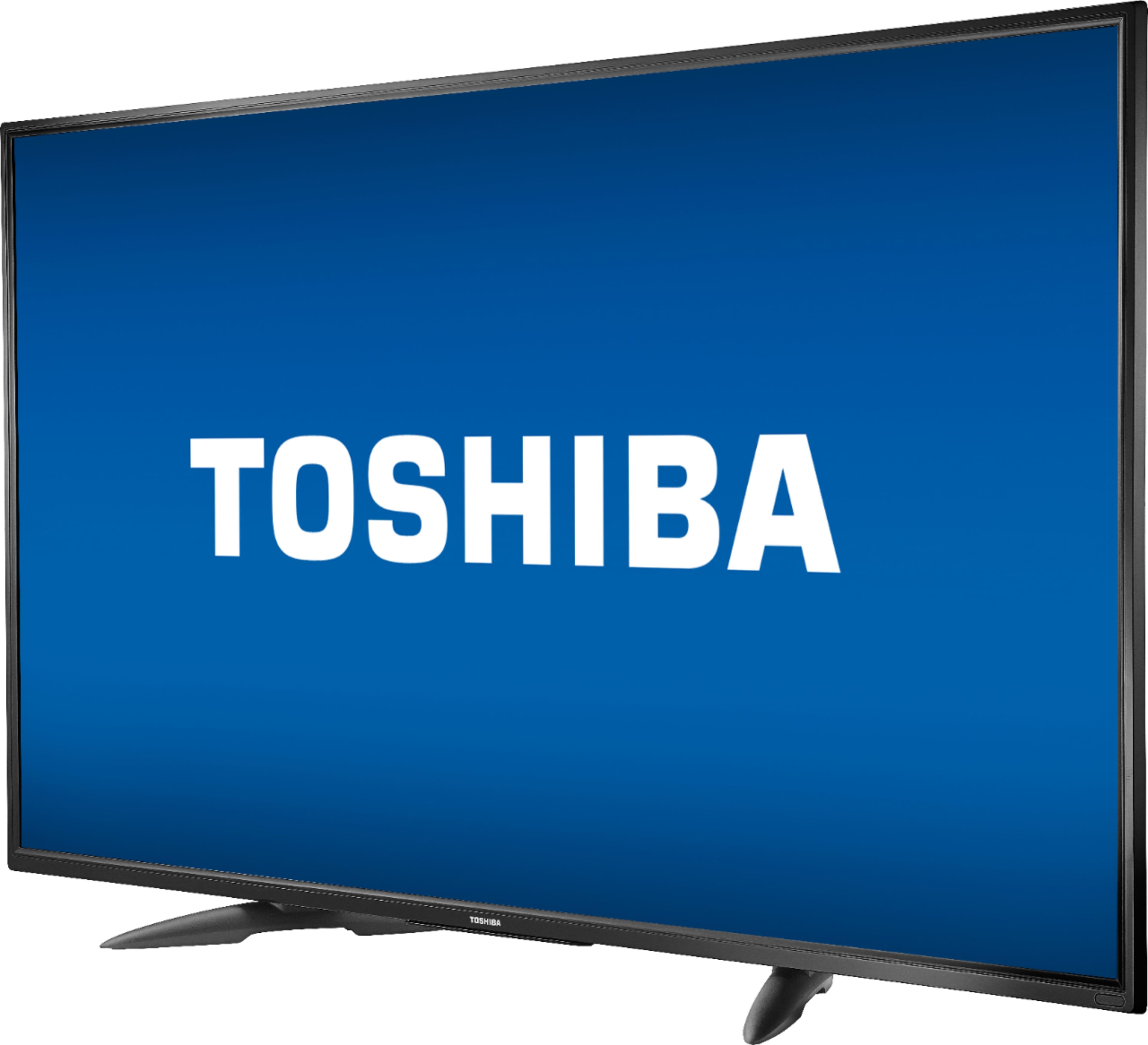
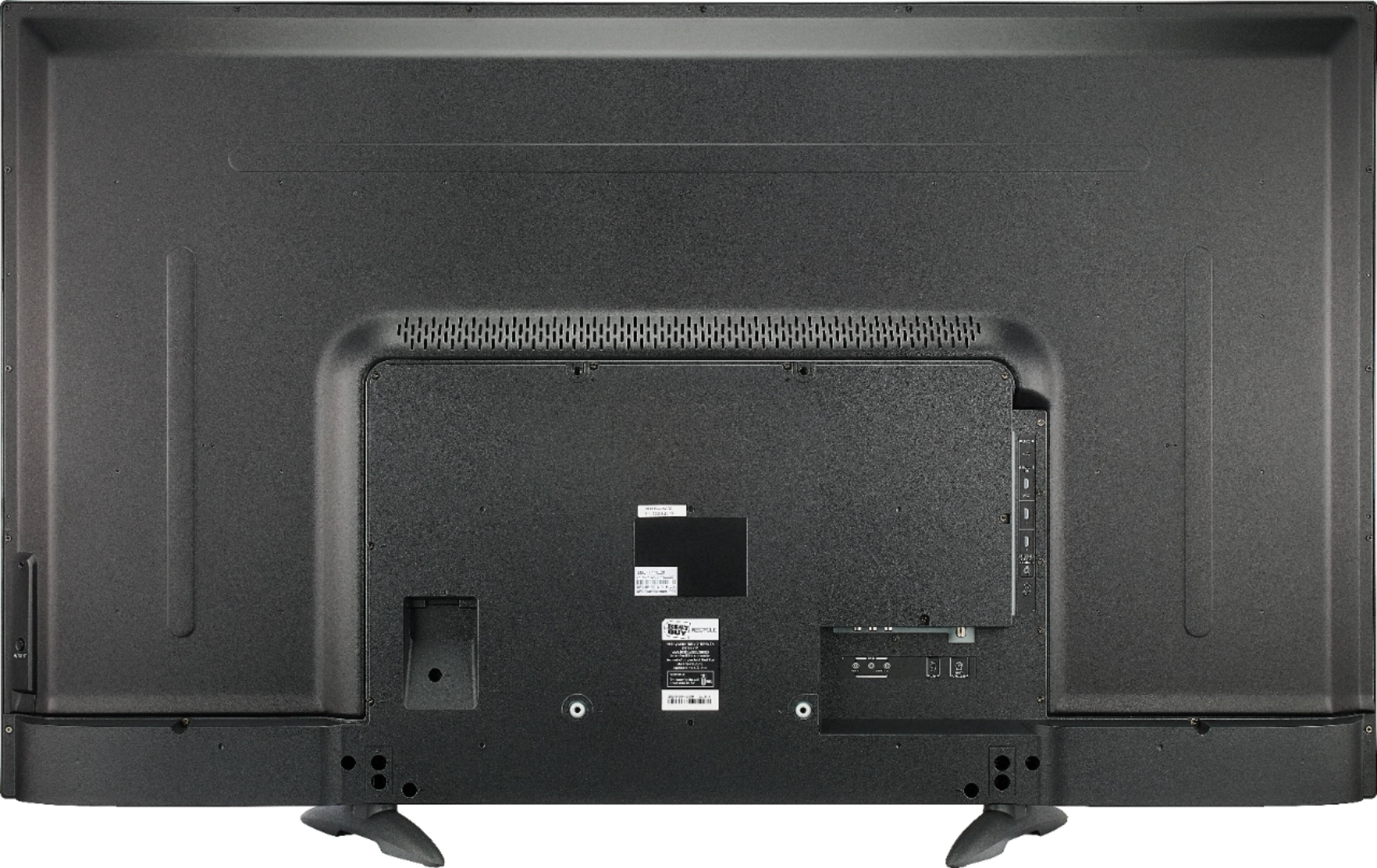
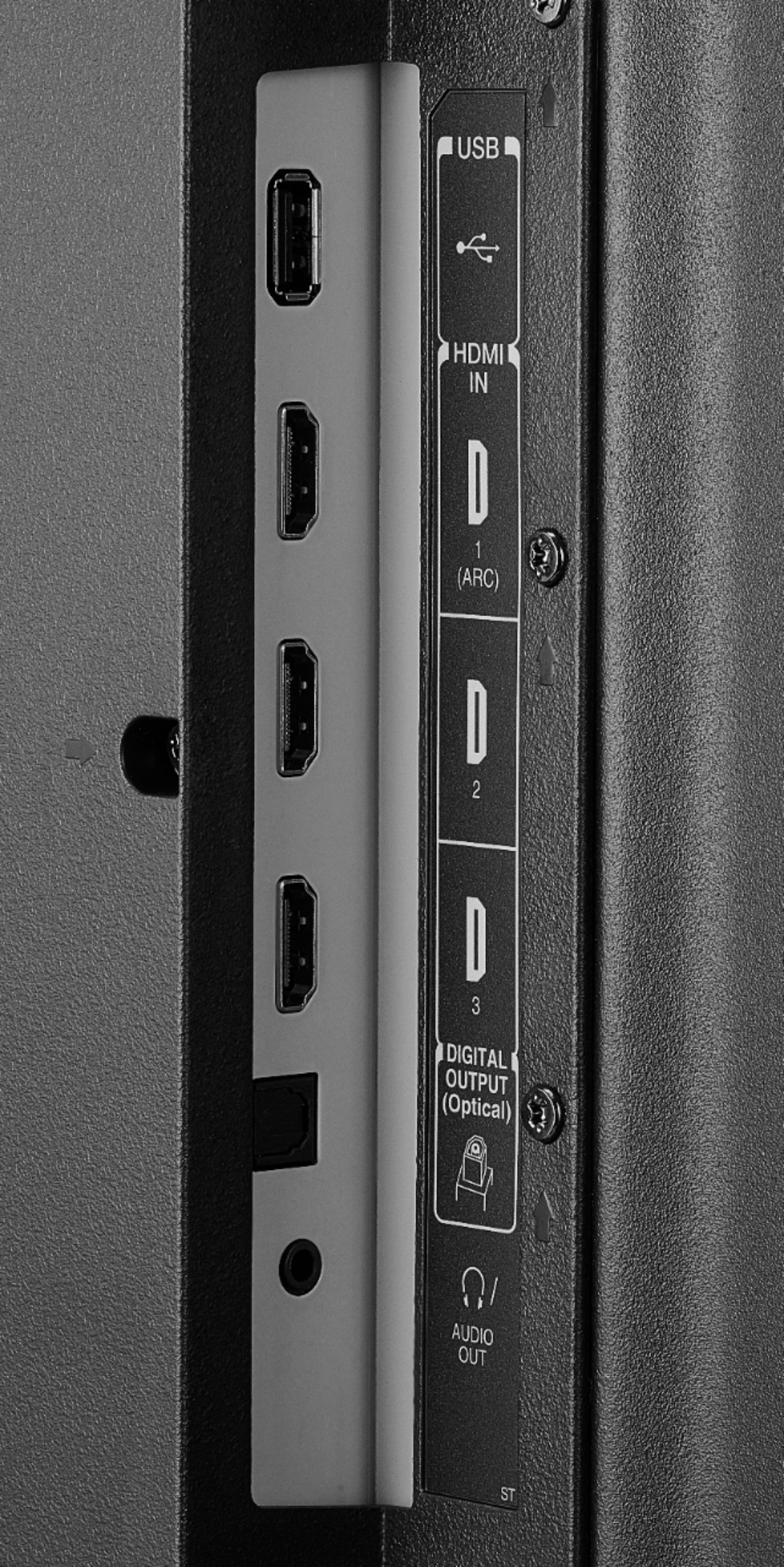
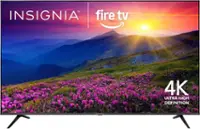
A:AnswerThe YouTube TV app shows as available for the Fire TV Edition television experience.
For more information, please visit https://tv.youtube.com/welcome/
To search for available apps to download on your Fire TV Edition television, please visit: amazon.com > Menu - Shop By Category > Fire TV > Fire TV Apps & Channels > Refine by Device Type select Fire TV Edition TV and search.
David M. - Toshiba Support
A:AnswerTo do a Channel Scan on the Fire TV Edition television go:
Home > Settings > Live TV > Channel Scan.
For product support please call 1 (855) 527-2411 available from 8 am to 9 pm CT everyday.
David M. - Toshiba Support
A:AnswerYes, the point is to save money. Amazon essentially subsidizes the cost of the TV to get you to be in their ecosystem where you will presumably pay them back over time buying their content. The price for this TV is significantly less than a comparable TV without Fire built in.
A:AnswerThe Fire TV Edition television features built-in Bluetooth so you can pair your wireless headphones. To pair a device, go to Settings > Controllers and Bluetooth Devices > Other Bluetooth Devices. Only one audio device can be connected at anytime.
David M. - Toshiba Support
A:AnswerThe Fire TV Edition television does not support screen mirroring.
Connect a streaming device that supports it using HDMI.
David M. - Toshiba Support
A:AnswerDownload Amazon app store fire tv remote. As long as both tv and phone on same wifi you can do almost anything you can do with remote. Bonus you can use a keyboard to type in any search.
A:AnswerThe best workaround I've found (for Android at least since it can be difficult to cast or mirror with it as well.) Is to go in with you tube and use the cast option that shows on there.
I had found one other way that worked but after doing a factory reset I couldn't find it remember what I used before. Switched phones about same time so didn't have whatever app on either one anymore.