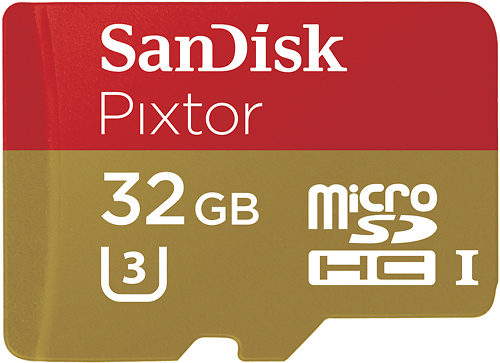
A:AnswerYes. Install the Vivitar Action Cam App on your phone then turn the camera's WiFi on. Connect your phone to the camera's WiFi signal then the App controls the phone via the camera's WiFi network. Be sure to use a new Micro SD no larger than 32GB card as older or larger cards sometimes will not allow the WiFi to turn on for some reason.
A:AnswerOpen the battery cover. Remove the thin plastic cover on the battery and reinstall the cover. It's all in the included manual btw. The remote operates via it's own frequency - not bluetooth or WiFi. Works very well at close distances.
A:AnswerYes, you can definitely use it for recording things like this. If you leave it plugged in to a USB port, it will go for as long as the USB power is present. It does charge off the USB connection. Don't connect, or disconnect the USB cable with the camera powered on. That seems to get it into a strange state where the orange light is faintly lite, and the camera becomes unresponsive. To clear this condition, pull the battery for about a minute, and then put it back in..
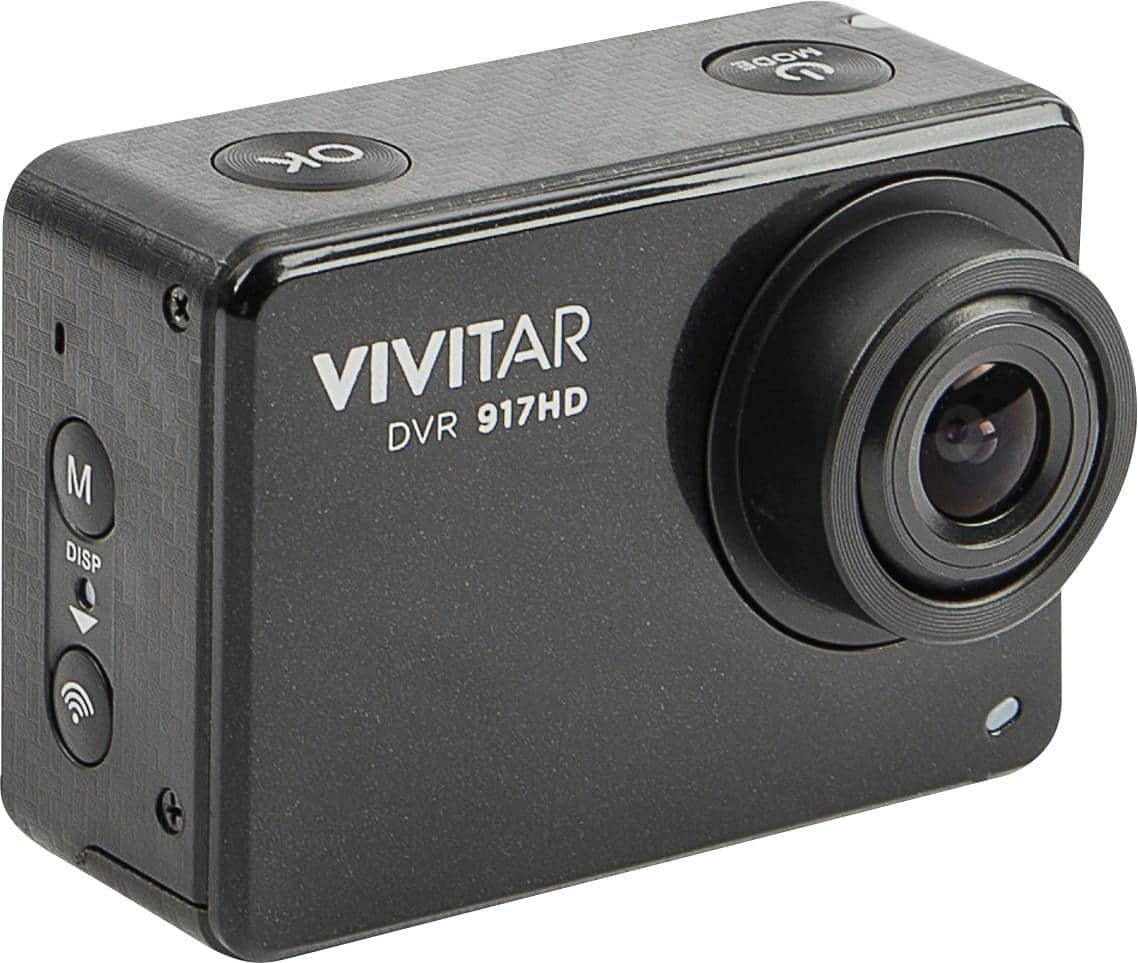
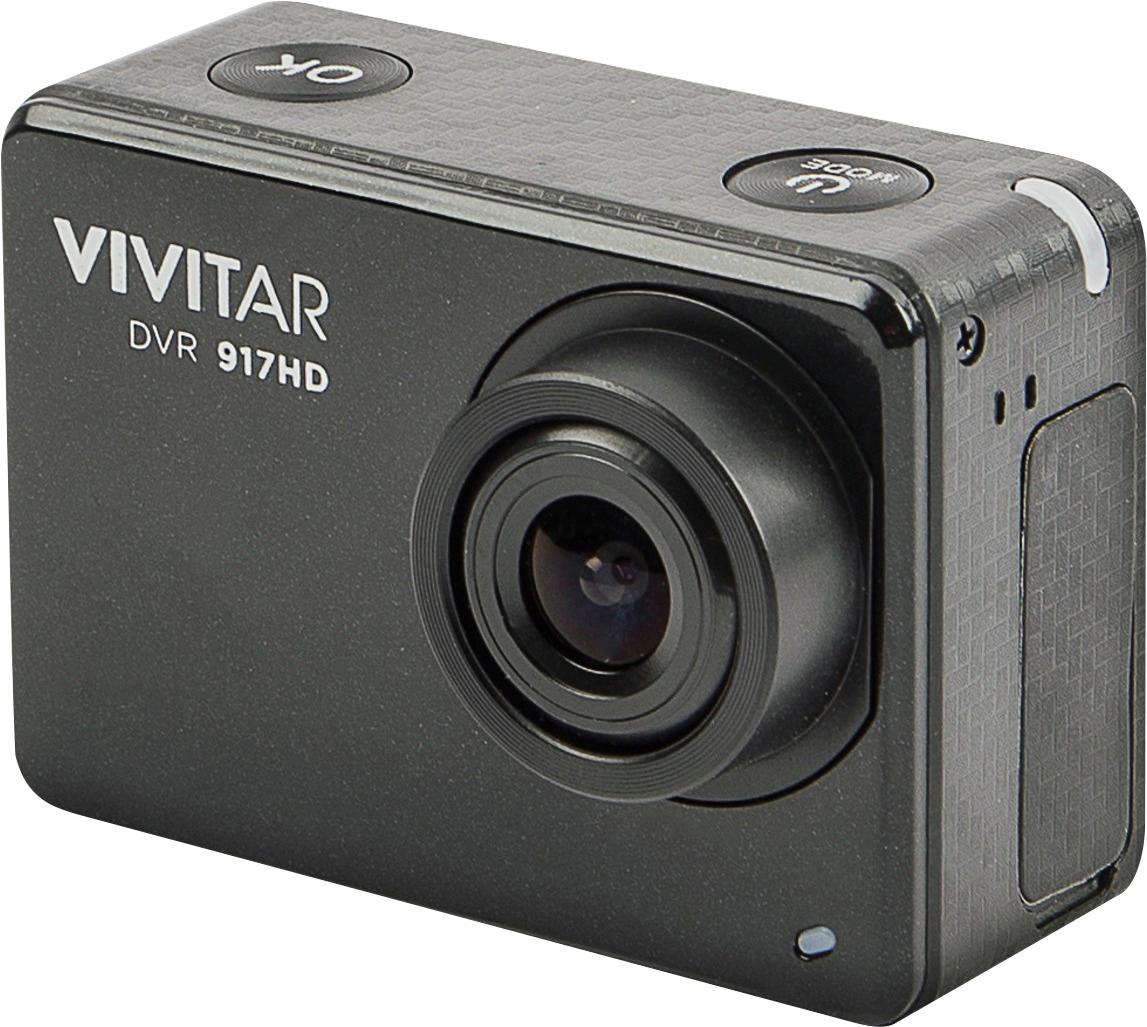
A:AnswerNo, the Vivitar 917HD doesn't take slow motion video. 1080 and 720 line files capture 30 frames per second. 4k files capture 25 frames per second.
A:AnswerSounds to me like your battery is not functioning right. Try taking out the battery, checking that it holds a charge, and if it does then check your battery connection.