Customer Ratings & Reviews
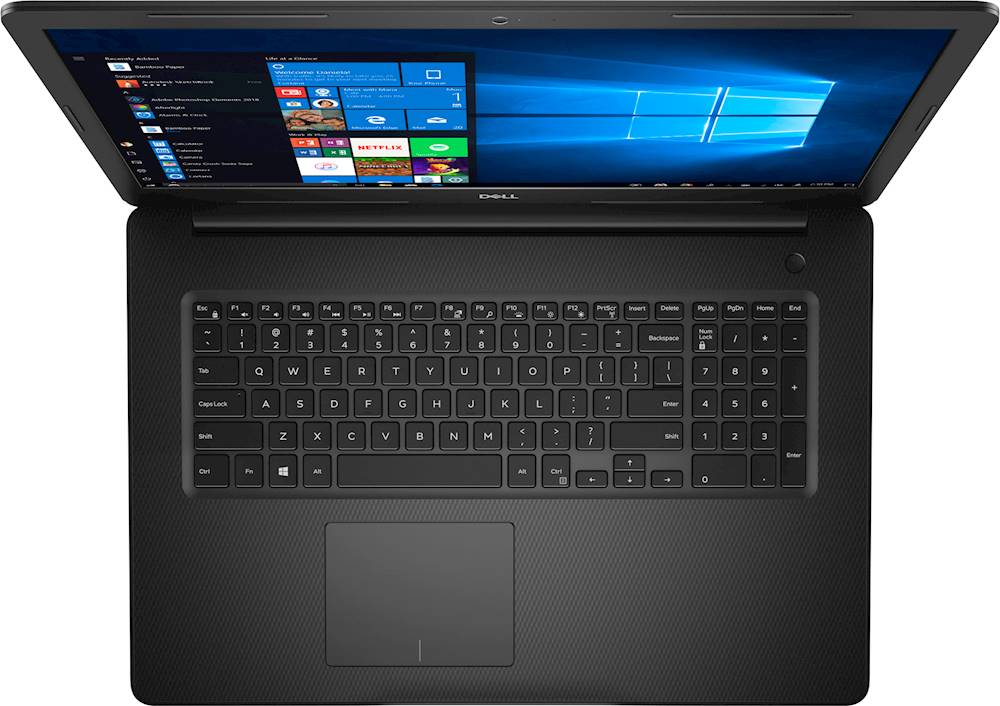
- Model:
- I3793-7336BLK-PUS
- SKU:
- 6381721
Rating by feature
- Value
Rating 4.3 out of 5 stars
- Quality
Rating 4.2 out of 5 stars
- Ease of Use
Rating 4.2 out of 5 stars
Customers are saying
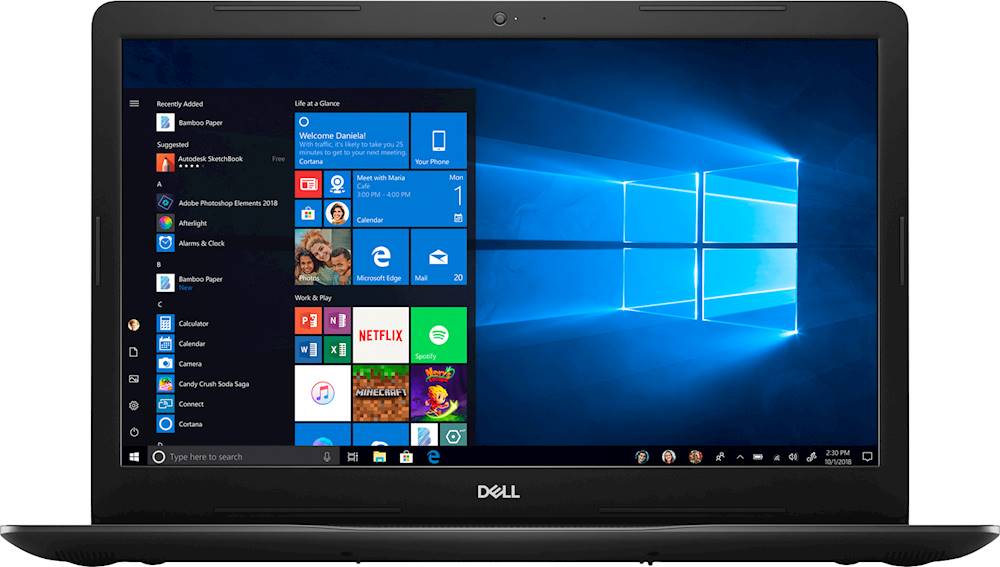
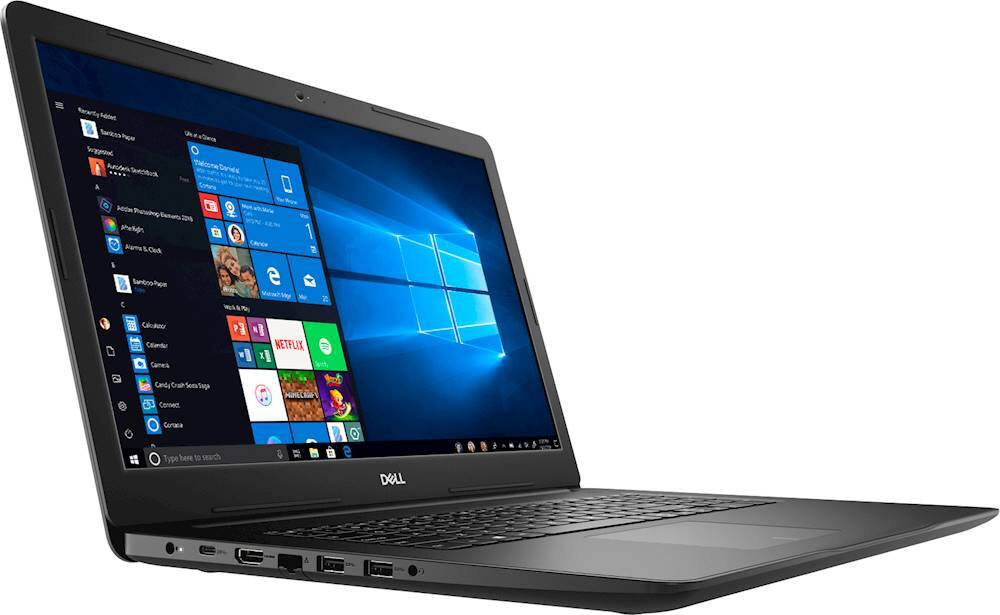
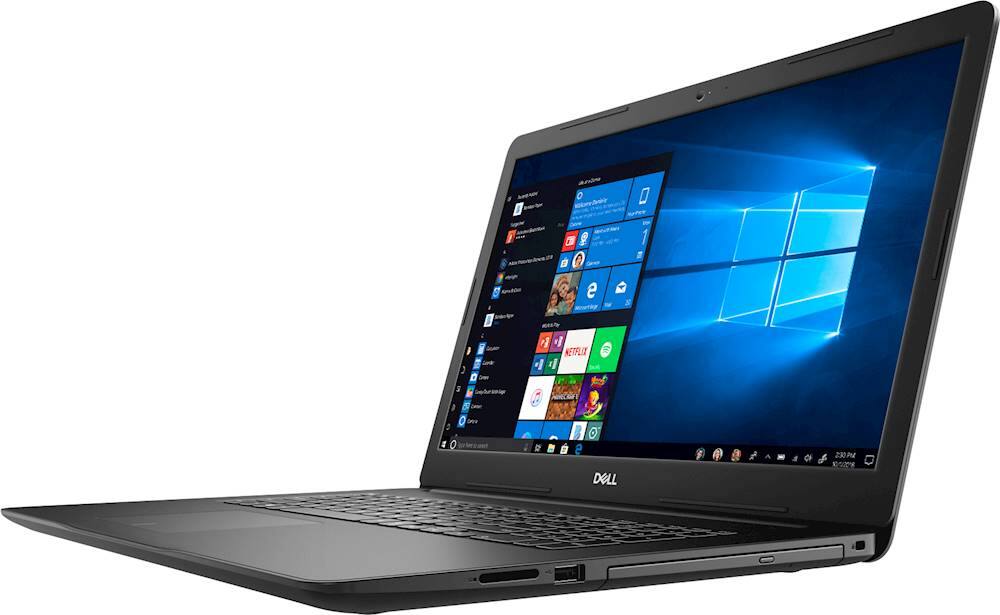
Customers enjoy the Inspiron 17.3" Laptop for its large screen, with many reviewers calling it "very large" and "great". The laptop also has a lot of storage, with one reviewer saying "2 TB?? Unbelievable at that price!" Customers also appreciate the price, with one reviewer saying it is "very reasonable".
This summary was generated by AI based on customer reviews.
Very slow performance for video editing
||Posted . Owned for 3 weeks when reviewed.This reviewer received promo considerations or sweepstakes entry for writing a review.Most of the time the software’s are open very slowly and while editing it hung. Expected the best performance with 16 GB RAM and 10th Gen Intel
No, I would not recommend this to a friendBrand response from YourDellTeam
Posted .sree,
Thanks for your review. We're sorry to hear that your computer is not performing the way you hoped it would. We'd recommend running the Windows Performance Troubleshooter to see if it will help your computer run faster. We'd also recommend the following tips to help with the freezes that you're experiencing:
1. Run a Computer Diagnostic. To determine if your computer is experiencing a hardware problem, run the Dell Preboot System Assessment (PSA) Diagnostics. For information on how to run Diagnostics, and to determine the issue, refer to Dell Knowledge Base Article: http://dell.to/2iaiujA.
2. Check Safe Mode for Symptoms. To boot into safe mode, please follow the instructions below:
a) Start the computer.
b) Tap 'F8' on the keyboard immediately and every one second until the Dell logo screen disappears. From there you will see the Windows Advanced Options Menu on the screen. (If the Windows Advanced Options Menu does not appear, restart the system and try again.)
c) Select Safe mode with Networking and press Enter.
d) Log on as the administrator or as a user with administrative access.
e) Open applications and test the computer in safe mode. If the symptoms exist in safe mode, please continue the troubleshooting steps in this article. If the symptoms do not exist in safe mode, the issue is likely related to a driver or software and you may wish to complete step 3 to see if you are able to resolve the lockups or freezing.
3. Check for Malware. Malware (Virus, Spyware, etc.) can definitely cause a Windows system to lock up or appear to hang. To check for malware on your system and to ensure that your computer is up to date on security software, visit Dell Knowledge Base Article: http://dell.to/2wWP1zI.
You can read the full article here - http://dell.to/2tW5m33.
Best,
Bryan
1-800-624-9896
- Cons mentioned:Customer service issue, Speed
Dell Inspiron 17 3000- Don’t Buy
Posted .This reviewer received promo considerations or sweepstakes entry for writing a review.I bought Dell Inspiron 17 3000 laptop in the month of July 2020 with high expectations . Much to my disappointment , I’m scared to use this laptop. It takes 25 minutes to start the laptop and open a google chrome page. I have called Customer care in the month of September 2020 to report this. Customer care mentioned that it’s a software issue and I need to pay 125$ as I crossed one month. After which I hate to use this laptop as it takes 25-30 minutes of time. To write this review, I have opened my laptop but fed up with the waiting time. I switched on my husband laptop wrote this review still my laptop they to open . Please I request every one not to buy this laptop and waste your hard earned money. I seriously regret that I wasted 885$ On this garbage
No, I would not recommend this to a friend - Pros mentioned:Price, StorageCons mentioned:Speed
Doing everything I need it to
||Posted .This reviewer received promo considerations or sweepstakes entry for writing a review.I wanted a laptop with 2TB of storage that wouldn't be extremely expensive. I didn't need any more speed than a conventional (non-SSD) HDD, so I was pleased to find this one. It's performing very well with daily use.
I would recommend this to a friend - Pros mentioned:Large screen
This is a good computer
||Posted . Owned for 1 month when reviewed.This reviewer received promo considerations or sweepstakes entry for writing a review.For a large 17 inch laptop it is really good, except, The color is black and the keyboard is also black and not back lit so you really need to know your keyboard keys because they are hard to see the letter and numbers on them.... Also the keys are spaced so you need to retune your fingers to the wide old style typewriter key spacing. That is something to get reused to also. Other than that it is a good machine.
I would recommend this to a friend - Pros mentioned:Price, Storage
Wonderful price for a great laptop!
||Posted . Owned for 3 weeks when reviewed.This reviewer received promo considerations or sweepstakes entry for writing a review.This laptop has a lot of features for the price. 2 TB?? Unbelievable at that price! It had everything I wanted and the ability to add memory. I am not a gamer and it never occurred to me to look at a gaming computer for my photography until one of your agents suggested it to me & I thank him profusely Thank you
I would recommend this to a friend - Pros mentioned:Keyboard, Large screen
Nothing Short of expectations
||Posted . Owned for 3 weeks when reviewed.This reviewer received promo considerations or sweepstakes entry for writing a review.The hardware on this laptop is awesome. - Big screen. - Very low fan sounds. - Enough Ram capacity. - The keyboard feels good and snappy.
I would recommend this to a friend - Pros mentioned:PriceCons mentioned:Power cord
Good solid PC
||Posted . Owned for 3 weeks when reviewed.This reviewer received promo considerations or sweepstakes entry for writing a review.Power cord gets very hot. Good PC for a very reasonable price.
I would recommend this to a friend Does the job
||Posted . Owned for 4 months when reviewed.This reviewer received promo considerations or sweepstakes entry for writing a review.Works for what I need it for which is general office use but also as a secondary source for photo and video editing. Speed is good but not earth shattering. What I don't like is the touchpad. The new design of a completely flat pad with your button clicks at the bottom is a mess for someone like me with fat fingers. My solution is to use an external mouse as much as possible. I've owned Dell's the majority of my computer buying years. Rarely disappointed with their products.
I would recommend this to a friend- Cons mentioned:Speed
Disappointed in speed
||Posted . Owned for 9 months when reviewed.This reviewer received promo considerations or sweepstakes entry for writing a review.Saved up money for awhile to treat myself to a new laptop. Bought this one a little over a year ago. It is ridiculously slow, and has been since I first got it. I regret not figuring out why it was so slow at the beginning. I thought it may be releated to the newness and setting it up. A year later and I am still disappointed. I hardly get to use it because it takes so long to boot up, and too long to do anything once it starts up.
No, I would not recommend this to a friend - Cons mentioned:Battery life
never. again.
||Posted . Owned for 8 months when reviewed.This reviewer received promo considerations or sweepstakes entry for writing a review.Ive never been so disappointed in a product. This computer was purchased so our children could basically play some game apps, do schoolwork and stream videos. We didnt want to spend alot on a macbook or too little that we would be frustrated with functionality. So we sprung $1000 for a laptop that should perform at high speed for all our needs. (we have Fios 5g thats superfast on our other computers). Instead, battery dies every night, downloads CRAWL!!!! (half an hour for a game?!) and speakers and display are junk. We already had to send back for warranty within a few months to repair a hard drive failure. Will never purchase a Dell again.
No, I would not recommend this to a friend - Pros mentioned:Storage
Great performance and plenty of storage
||Posted . Owned for 1 week when reviewed.This reviewer received promo considerations or sweepstakes entry for writing a review.With 10th generation Intel Core i7 I dont have any issue while running my programs anymore. there is plenty of storage space and I can store all my files and pictures. it is also slick, fit into my bag and easy to carry. price/performance is excellent.
I would recommend this to a friend - Pros mentioned:Storage
Great home laptop!
||Posted . Owned for 1 month when reviewed.This reviewer received promo considerations or sweepstakes entry for writing a review.This laptop is easy to use and makes a great computer for home use, small business use, storage. I don't game, so cannot comment on that.
I would recommend this to a friend - Pros mentioned:Storage
Great Laptop and Screen Display
||Posted . Owned for 2 weeks when reviewed.This reviewer received promo considerations or sweepstakes entry for writing a review.Upgrading my 5 years old HP-15 (core-i5) notebook, to cope with Zoom requirements regarding processor specs and the easiness of changing meetings background. At first was hesitant between this one and the other Dell 17.3 of 2.25T hard, but decided to choose this after I read the reviews on the other complaining of only downloading programs and files on the small partition hard and the pain of later transferring to the larger drive partition. The performance of this machine, sharp large display, sound quality, and the huge 2T storage with 16G RAM are all super great features for heavy office and home work.
I would recommend this to a friend Excellent
||Posted . Owned for 3 weeks when reviewed.This reviewer received promo considerations or sweepstakes entry for writing a review.I bought 2 laptops. The only difference was this one has a 2TB HDD drive and the other one had that plus a 256 GB SSD. My main complaint about the other drive had to do with the handling of saving files to the library and not being able to save them to the larger drive, but I found a work around for that. I think this laptop is a great value and will handle all of my needs. It has a large hard drive for photos and documents, a very good display, all the ports I need, and a DVD/CD drive. The memory is good enough for my needs. I had a 12GB before which was enough, so this is better. I would like to see a light on the NumLock key. In fact a backlit keyboard would have been nice and worth a few dollars more. I like the ports and will be able to run any peripherals I have without running out of ports. I had some problem with the text being too small, but I went into Settings, Ease of Access, and was able to increase it to something I could read better. Overall, I think the laptop was a good purchase and I am pleased with everything about it (except the lack of a NumLock light) now that I fixed the text size.
I would recommend this to a friend- Cons mentioned:Speed
Good for everyone
||Posted . Owned for 3 weeks when reviewed.This reviewer received promo considerations or sweepstakes entry for writing a review.So far so good. Initial start up response and program opening is a little slower than I would expect for a computer in 2020. But overall the function is satisfactory if you are not in a hurry.
I would recommend this to a friend - Pros mentioned:Large screen
Great Computer
||Posted . Owned for 3 weeks when reviewed.This reviewer received promo considerations or sweepstakes entry for writing a review.This computer is the real deal. I love the screen size and great speed. The colors are great.
I would recommend this to a friend - Pros mentioned:Large screen
Very Good Laptop
||Posted . Owned for 1 month when reviewed.This reviewer received promo considerations or sweepstakes entry for writing a review.Very Good Laptop. Very good performance and screen size.
I would recommend this to a friend Love the big screen!
||Posted .This reviewer received promo considerations or sweepstakes entry for writing a review.This purchase is a replacement for an existing computer which I have been extremely happy with. It still works, but is getting older, and it's operating system (Windows 7) is about to lose tech support. So far I am happy with my new computer, and am slowly getting used to the new system, and all of the enhanced features this one has over the older one.
I would recommend this to a friend- Pros mentioned:Large screen
Large display
||Posted . Owned for 1 year when reviewed.This reviewer received promo considerations or sweepstakes entry for writing a review.Great screen size. Heavy and processor running quite slow. No viruses in system and not used for gaming
No, I would not recommend this to a friend - Cons mentioned:Power cord, Speed
Extremely Disappointed!
||Posted . Owned for 1 month when reviewed.This reviewer received promo considerations or sweepstakes entry for writing a review.What a disappointment from Best Buy and Dell! First and last time I will buy a computer from either. I used the computer as a main computer and start transferring all my files. I finally started to use it and it was very slow. The computer I replaced it for was lightning speed compared to this one. It gives me an error about the power cord and it is not charging. It is the original power cord. Not it does not allow me to log in. I’ve un system scans and it still does not work. Now I have no access to my many files and photos. Also when I reviewed the package, it was re-package with another person’s name and address. So Best Buy did not repackage it. They simply put the package in a my box and sent it. DON’T BUT THIS!!!
No, I would not recommend this to a friend