Customer Ratings & Reviews
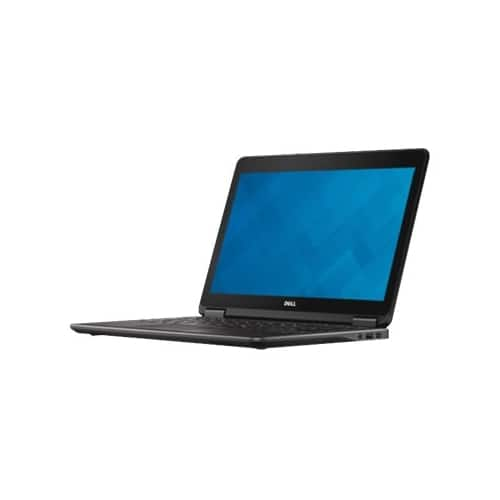
- Model:
- E7240.I5.8.128SSD.PRO
- SKU:
- 6318278
to a friend
- Cons mentioned:Cursor jumps
Not meeting my need
||Posted . Owned for 1 month when reviewed.This reviewer received promo considerations or sweepstakes entry for writing a review.This laptop was refurbished but still has serious problems. While it is faster than my previous laptop, it is very difficult to type documents because the cursor jumps while you are typing. I have tried to return it for repairs, but the geek squad is not working.
No, I would not recommend this to a friendBrand response from YourDellTeam
Posted .Ellen,
We're sorry to hear that you're having touchpad issues. You can follow these steps to re-calibrate your touchpad:
Some Notebooks and Tablets with Keyboards have added gesture features to the touchpad hardware and drivers. A few of these features are two or three finger scrolling, pinch zoom, circle zoom, rotate and swiping. These new features may be the reason for the erratic cursor movement since most are turned on by default. You can disable or modify the way the features work in the touchpad driver properties. Here are some tips to modify these settings:
1. In the Search box, type main.cpl.
2. Touch or click main.cpl in the list of programs.
3. Touch or click the Dell Touchpad tab.
4. Touch or click on the picture of the touchpad.
5. Touch or click Gestures (depending on your computer there may not be a Gestures option).
6. Change the options as preferred.
7. Touch or click Save.
8. Touch or click the X in the upper-right corner to close the Dell Touchpad Utility.
9. Touch or click OK on the Mouse Properties window.
10. If the touchpad still does not work after following the preceding steps, refer to Dell Knowledge Base article - http://dell.to/2iaiujA.
You can read the full article here - http://dell.to/2tqmS02.
Best,
Bryan
1-800-624-9896
- Pros mentioned:Cheap
Cheap and cheerful
||Posted . Owned for 3 weeks when reviewed.This reviewer received promo considerations or sweepstakes entry for writing a review.I needed a cheap laptop for browser testing, and for that sole purpose it works just fine.
No, I would not recommend this to a friendBrand response from YourDellTeam
Posted .Scribblings,
Thanks for your review. We're glad to hear that your new laptop is meeting your needs. If you have any questions about your computer you can check our Product Support Page here: https://dell.to/2KJweOH.
Best,
Bryan
1-800-624-9896