Customer Ratings & Reviews
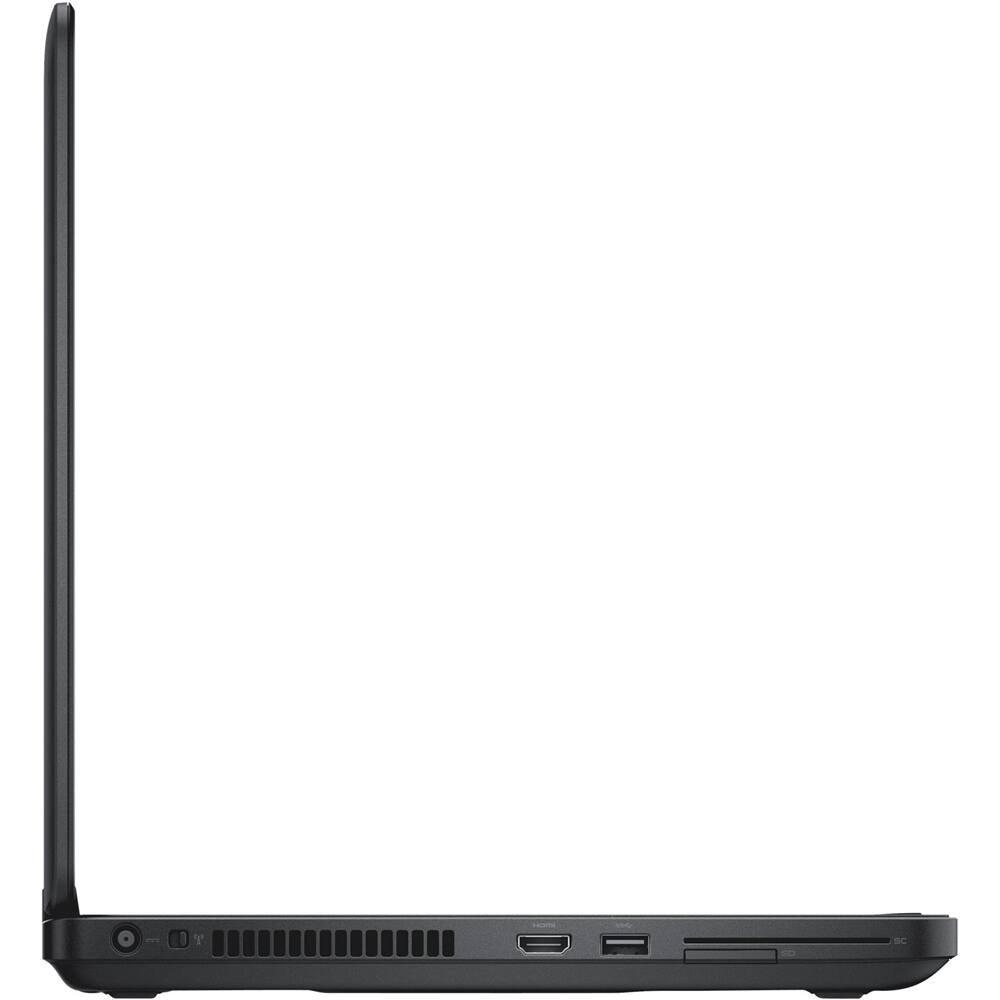
- Model:
- E5540-1560
- SKU:
- 6219234
to a friend
Customers are saying
Customers commend the affordability of the Latitude 15.6" Laptop, describing it as a "great laptop for the price."
This summary was generated by AI based on customer reviews.
- Pros mentioned:Brand, Easy to use, Reliability
Dell Laptop
||Posted . Owned for 1 year when reviewed.This reviewer received promo considerations or sweepstakes entry for writing a review.Wife's laptop passed away so had to get her something that was easy to use and reliable. This one fit the bill. She has been using it everyday for almost 2 years now and has had no problems what so ever. Would purchase a Dell again if needed.
I would recommend this to a friend - Pros mentioned:Affordable, Easy to use
Laptop for Wife
||Posted . Owned for 9 months when reviewed.This reviewer received promo considerations or sweepstakes entry for writing a review.Bought this for my wife who is relatively inexperienced and it has worked out great. Loaded my Office software with no problems. Machine is more than adequate for her needs which include some use of Word, Banking, Email and Internet searching. Great laptop for the price.
I would recommend this to a friend - Cons mentioned:Touchpad, Warranty
Tech support..?? NOT
||Posted .This reviewer received promo considerations or sweepstakes entry for writing a review.I purchased a refurbished Dell laptop from BestBuy in early November, 2018. When I went to the store I asked about the definition of refurbished and was told by the salesman that they were either "open box products" os had been returned by a customer and restored to "like new" condition. I asked if this meant that they still came with the original manufacturer's warranty and was told that warranty work was carried out by a third party, not Dell. Since first using the laptop I noticed a problem with the touch pad. The pointer is set far far too high sensitivity and everything it touches opens a new page, enlarges the page or shrinks the page. I called Joy Systems, the new warranty firm and spoke with someone in tech support who, if possible, knew less about the laptop than I did. He made a suggestion, which I didn't really understand and then hung up quickly. The suggestion was useless and the problem gets worse with each passing day. I have tried using a wireless mouse, which makes the problem just a little less severe but frustrating, to say the least. Where do I go from here?? I was afraid I was making a mistake not purchasing online from someone like Amazon, which has a no questions return policy. I tried to buy locally but learned a valuable lesson. I would never buy another computer without a manufacturers warranty and certainly not from BestBuy.
No, I would not recommend this to a friendBrand response from YourDellTeam
Posted .JS958,
We're very sorry to hear about the problems that you're experiencing with the touchpad on your new laptop. We'd recommend re-calibrating the touchpad with the following steps:
Some Notebooks and Tablets with Keyboards have added gesture features to the touchpad hardware and drivers. A few of these features are two or three finger scrolling, pinch zoom, circle zoom, rotate and swiping. These new features may be the reason for the erratic cursor movement since most are turned on by default. You can disable or modify the way the features work in the touchpad driver properties. Here are some tips to modify these settings:
1. In the Search box, type main.cpl.
2. Touch or click main.cpl in the list of programs.
3. Touch or click the Dell Touchpad tab.
4. Touch or click on the picture of the touchpad.
5. Touch or click Gestures (depending on your computer there may not be a Gestures option).
6. Change the options as preferred.
7. Touch or click Save.
8. Touch or click the X in the upper-right corner to close the Dell Touchpad Utility.
9. Touch or click OK on the Mouse Properties window.
10. If the touchpad still does not work after following the preceding steps, refer to Dell Knowledge Base article - http://dell.to/2iaiujA.
You can read the full article here - http://dell.to/2tqmS02.
We hope that these steps help your computer perform better for you.
Best,
Bryan
1-800-624-9896
- Pros mentioned:Affordable
Surprised and delighted
||Posted .This reviewer received promo considerations or sweepstakes entry for writing a review.I was nervous about buying a refurb, but everything works great! Looks almost new!! Perfect for a first laptop, with a great price.
I would recommend this to a friend - Pros mentioned:No issues
Great for anyone
||Posted .This reviewer received promo considerations or sweepstakes entry for writing a review.Using this for work, have had no issues with it. If there is a problem it is always operator error!
I would recommend this to a friend - Pros mentioned:Affordable
Like new
||Posted .This reviewer received promo considerations or sweepstakes entry for writing a review.1st time purchaser of refurb pc. Very pleased. Great price.
I would recommend this to a friend