Customer Ratings & Reviews
- Model:
- 20T6002LUS
- SKU:
- 6421924
to a friend
- Cons mentioned:Customer service, Microphone, Ram
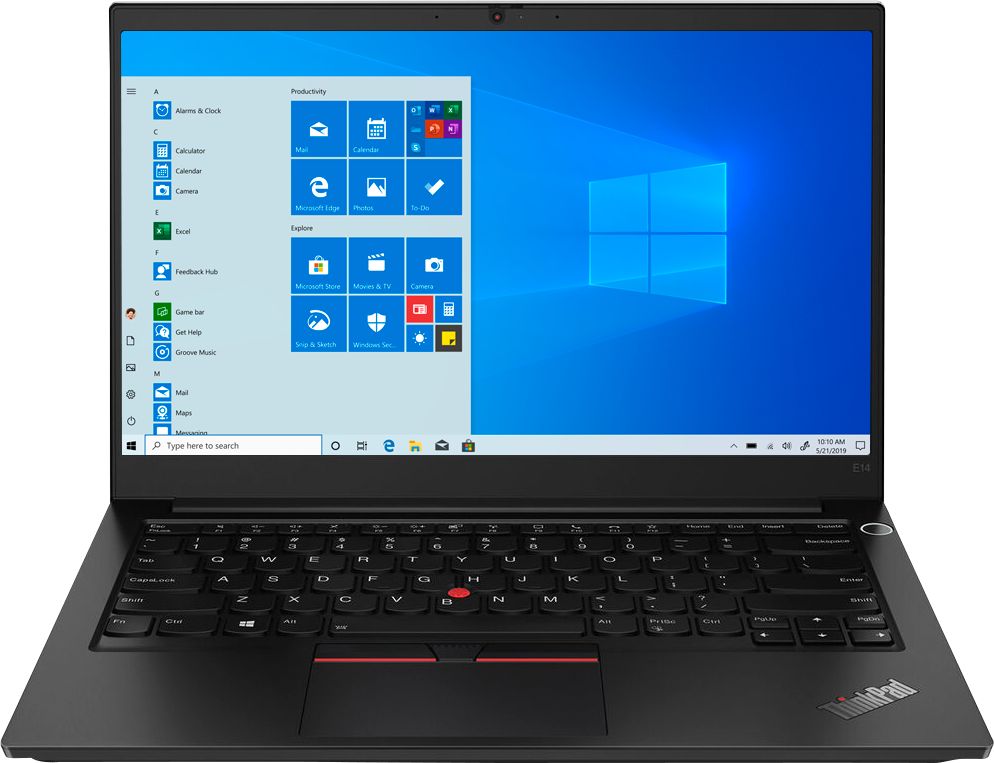
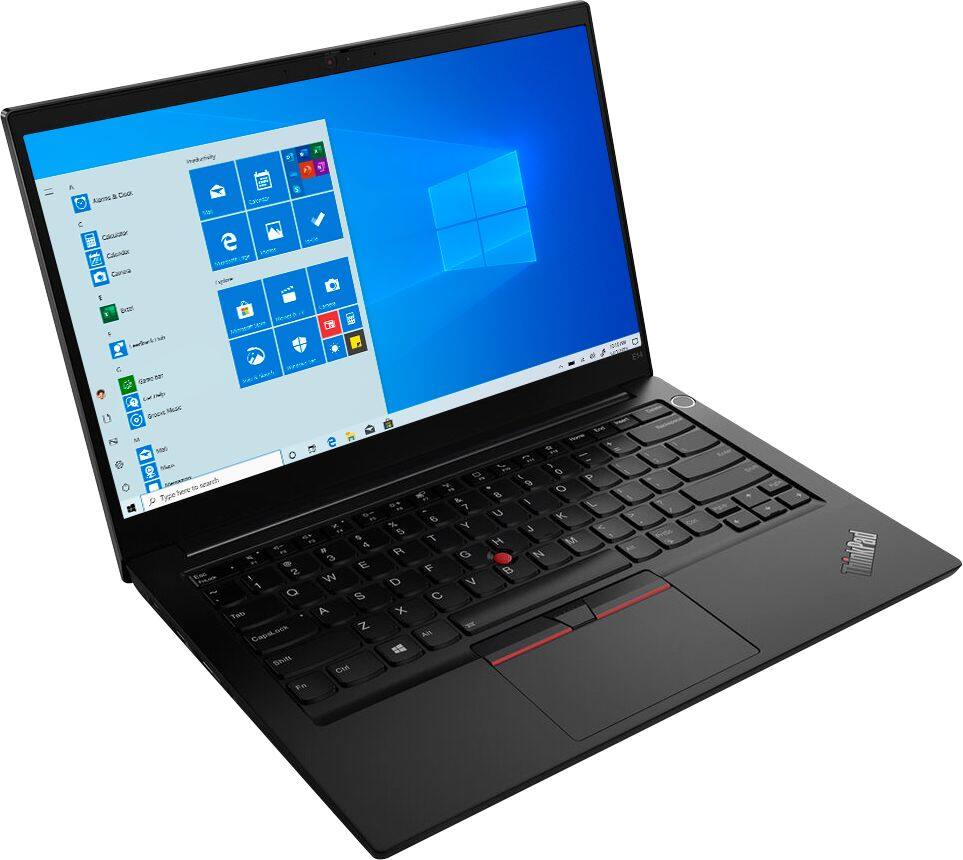
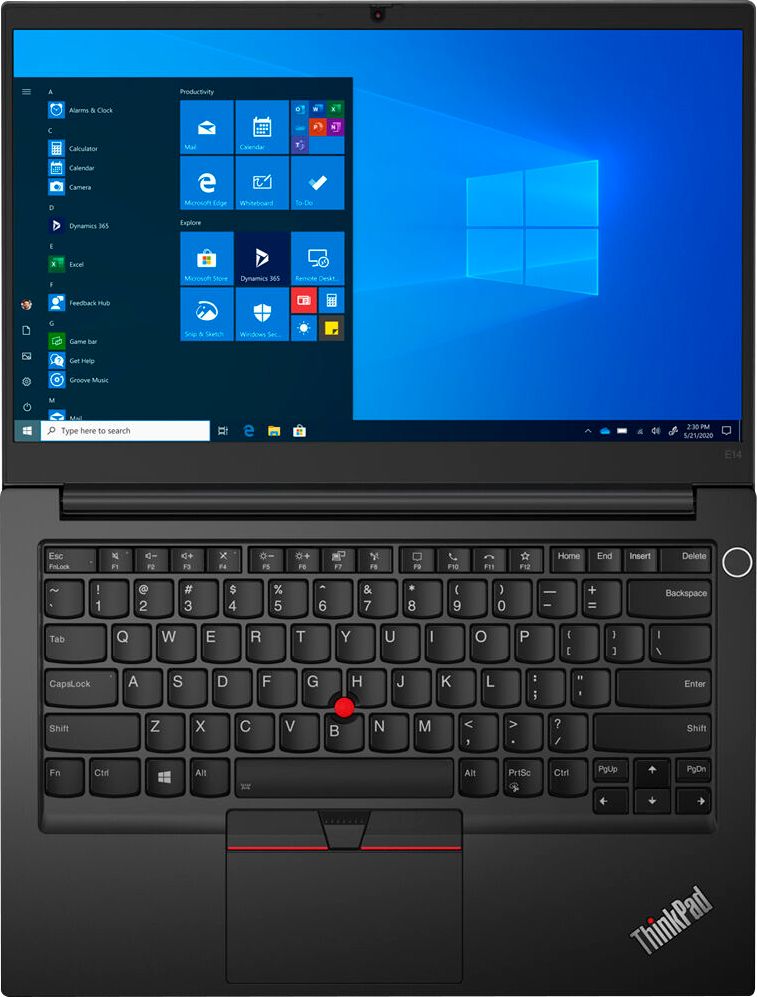
LENOVO THINKPAD E14 GEN 2 (AMD)
||Posted .This reviewer received promo considerations or sweepstakes entry for writing a review.I bought this laptop for school. I went with no backbit keyboard, and 250 nits display. I was aiming to get the moderate performance as a light coder, and good keyboard for typing, so I went with this model. I wrote my review on Lenovo website, but seems like they won't post it. This review is for those who are on lower side of budget, students, or feel like this laptop will meet their expectations. Do not fall for it quickly and be careful. Test it within first week so that you can identify all malfunctions. My 8gb ram is almost fully consumed by the processor, so having all these cool specs do nothing really due to bottleneck. Need to buy extra ram now and put it on. Mine came with defects that I thought were due to the BIOS's and drivers. However, after playing with it it just never got fixed. Laptop has hard time going to sleep, and if it does, it will have hard time waking up. So I had to hard restart it and lose part of my work on this thing. So test its sleep issues. Next, is that microphone with time started malfunctioning really bad. I am not sure why, Laptop is always in the backpack or at the table. What caused this I can attribute to the bad QC of the product initially. Further, the service at Lenovo with me was less than POOR. I contacted their service support line and they kept telling me that technician will call "today" to setup the meeting. I waited week and a half for them to call me, but they never did. I reached multiple times again and again and I never got service I asked for from the Lenovo. Now of course no one will compensate the time I lost with this thing, which has been only frustration. This is the first and last time I buy Lenovo laptop!!! I will just say be careful with these units, they seem to have good specs and all, but really test them if you buy them within the window of return. Unfortunately, in my case problems were progressing with this laptop, so the return time was late already.
No, I would not recommend this to a friendBrand response from Lenovo Product Expert
Posted .Hello we are sorry to hear you are expperiencing issues with your Lenovo ThinkPad E14. Your device should not be behaving in this manner, Please ensure you are running the latest system software, device drivers, and BIOS from Lenovo.
Lenovo Vantage: You can easily accomplish this by scanning the computer with the Lenovo Utility software available on this computer. This system has Lenovo utilities installed to help maintain the health of the device and keep the operating system software up to date. Type "Lenovo Vantage" in the Cortana Search window (if Lenovo Vantage is not installed on your device, you can download the APP and install it now). Select Lenovo Vantage from the list. In the window that opens, click on "Health and Support". In the expanded menu, select "Hardware Scan” In the window that opens, select "Run Quick Tests". This will scan your entire system for errors. Follow any directions that may pop up. If the problem continues after this scan, now click on "System Update". First select Windows update from the menu. Scan your system to be sure you have the latest version of Windows 10. Once that scan is complete, select "Additional Updates". This will scan your device to be sure there are no new BIOS/Driver updates needed. Follow any instructions that may pop up. Be sure any software you installed is compatible with Windows 10. There is no need to install Microsoft Office software. The software is already part of the operating system, you just need to activate the software with a purchased product key. If you have installed a copy of Microsoft Office, this is conflicting with the existing copy on the system and this will slow your system down. If you have installed a 3rd party anti-virus program, be sure that Windows Defender is turned off and that the trial version of McAfee Anti-Virus software is uninstalled. There can only be one anti-virus program on the system. You may need to restore your system to original factory default settings if any of the programming errors have occurred. You can do that by typing "restore" in the Cortana search window. Just click on the magnifying glass icon at the bottom left of your Windows 10 Desktop. Click on "Reset This PC” Then click on "Get Started" and follow the on-screen directions to restore to factory defaults. If the problem persists, we recommend you contact Lenovo Tech Support at: 877-453-668