Customer Ratings & Reviews
- Model:
- 81DM0007US
- SKU:
- 6275802
to a friend
- Cons mentioned:Lan, Wifi
Would not recommend
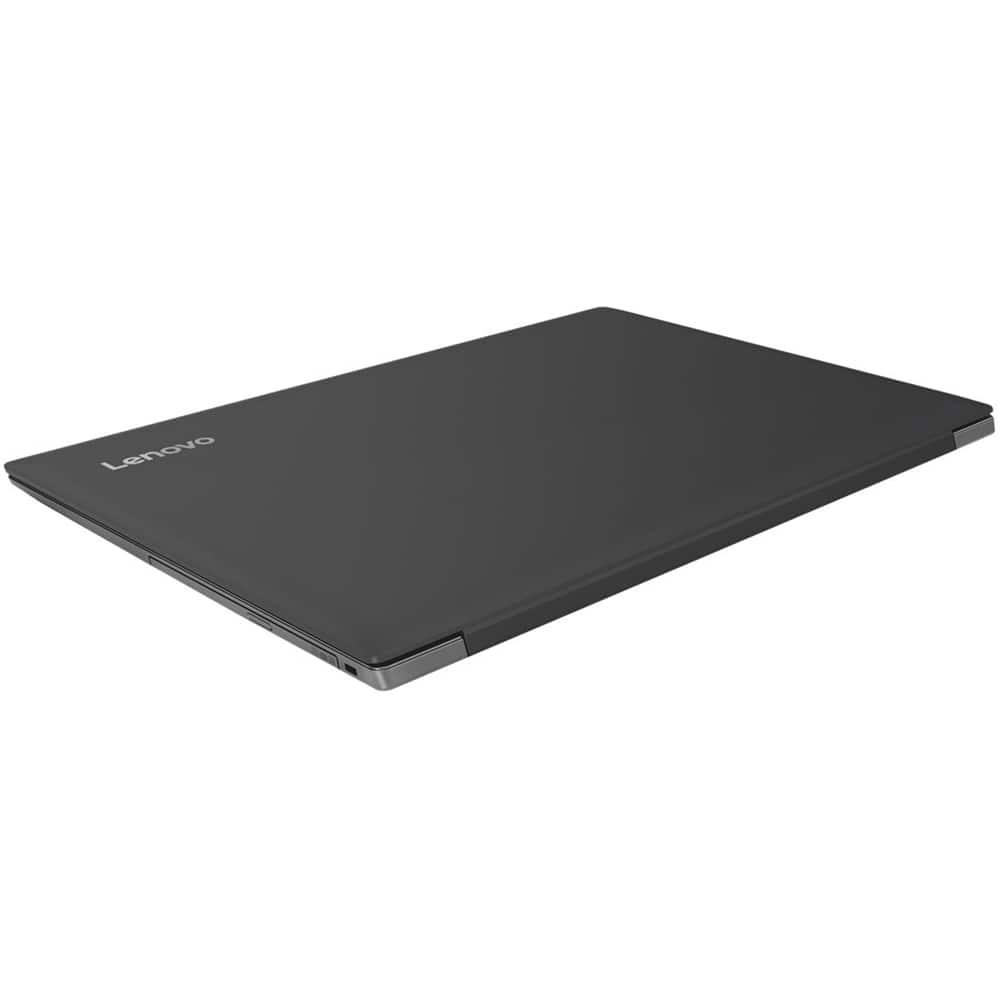
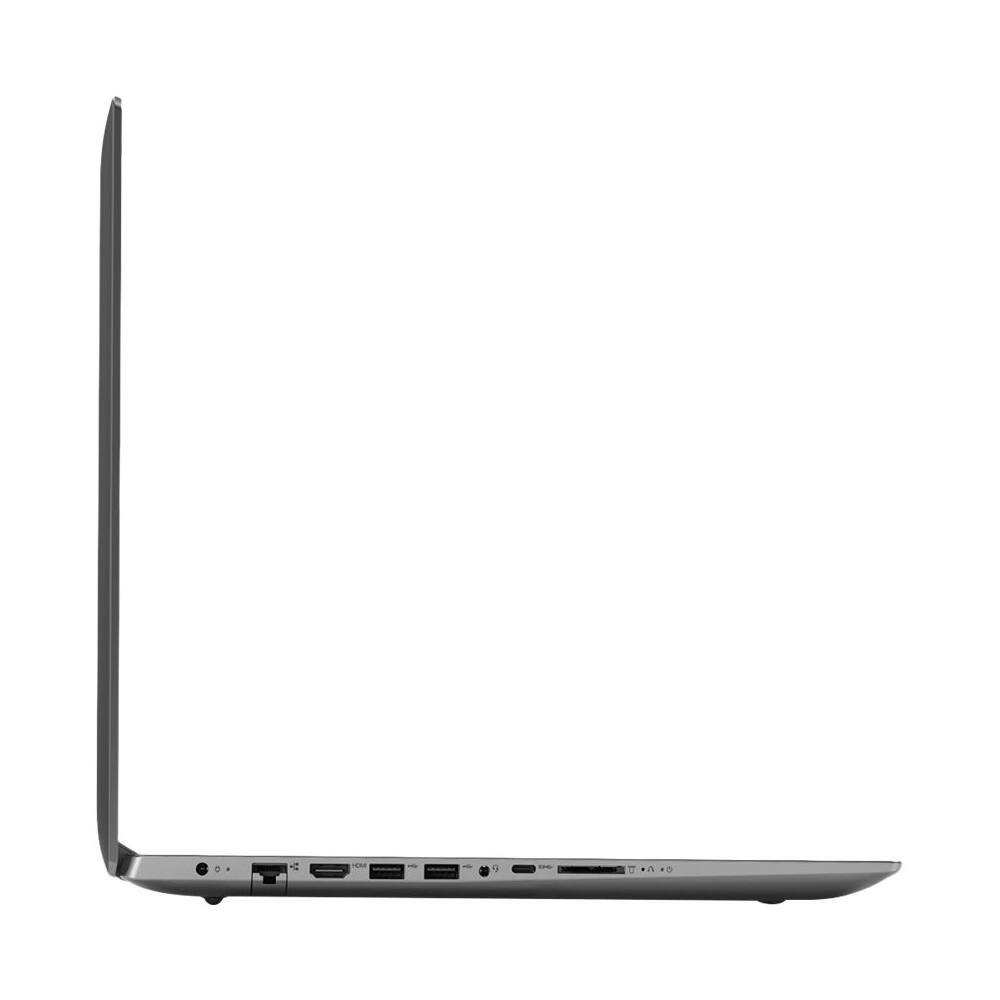
Posted .This reviewer received promo considerations or sweepstakes entry for writing a review.Brought laptop July 2018, worked great for about five months then started having intermittent wifi connect issues. I switch to the RJ45 LAN port that worked okay for about two months. By Jan 2019 neither wifi or LAN port will work. Tried to reload a fresh Windows 10 OS image and the restore failed. I have owned Dell and HP laptops in the pass and never had this type of problem.
No, I would not recommend this to a friendBrand response from Lenovo Product Expert
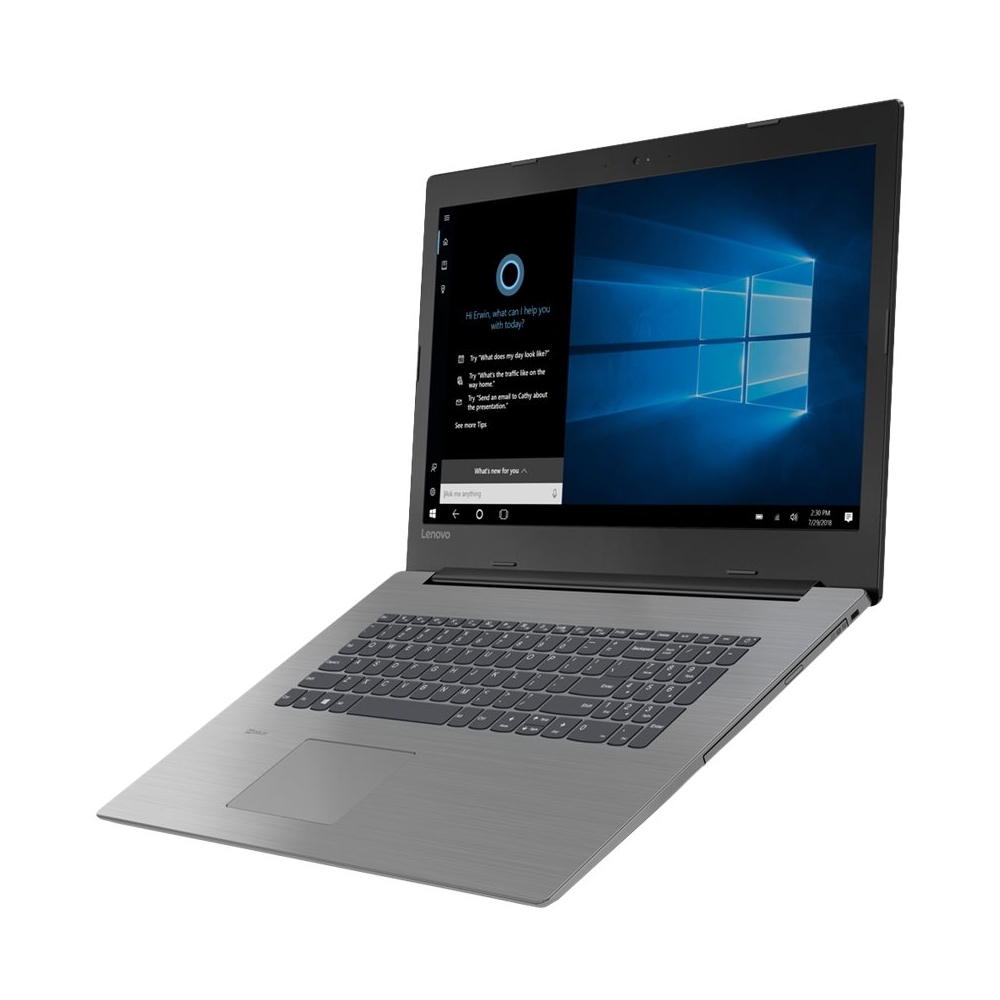
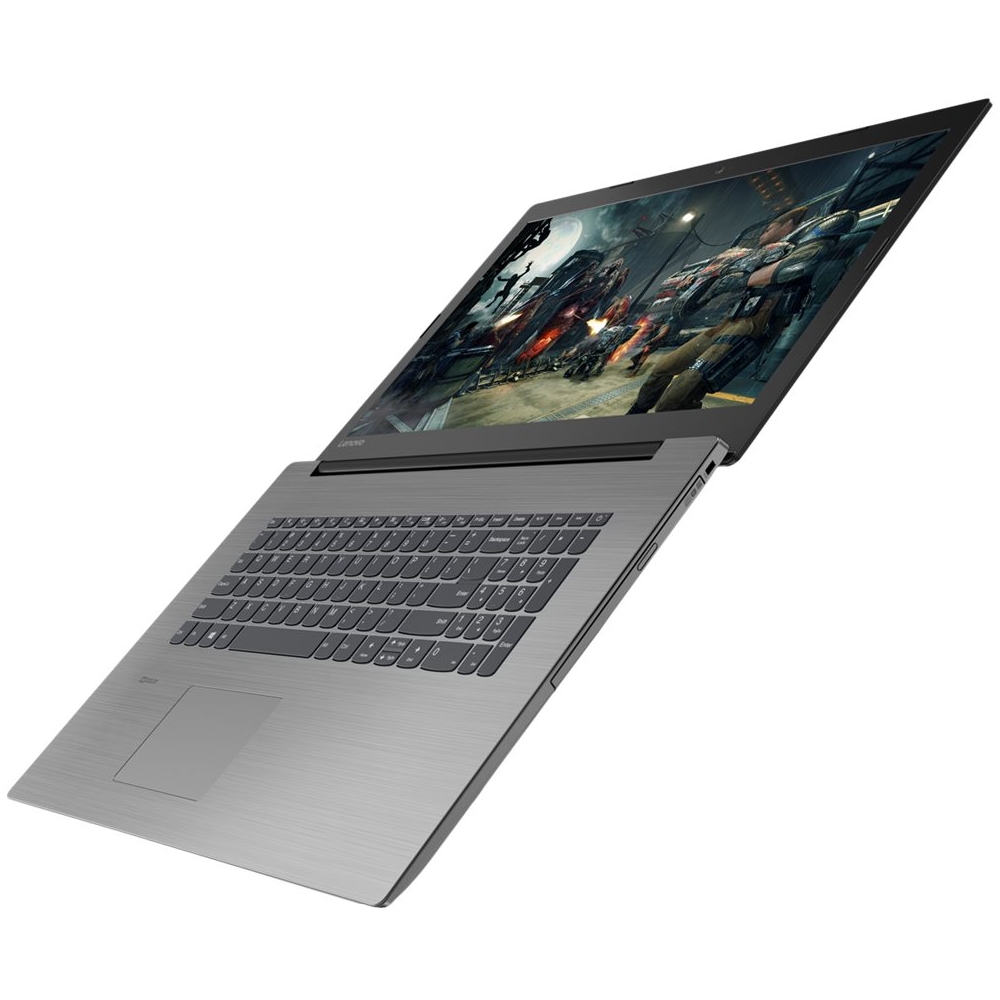
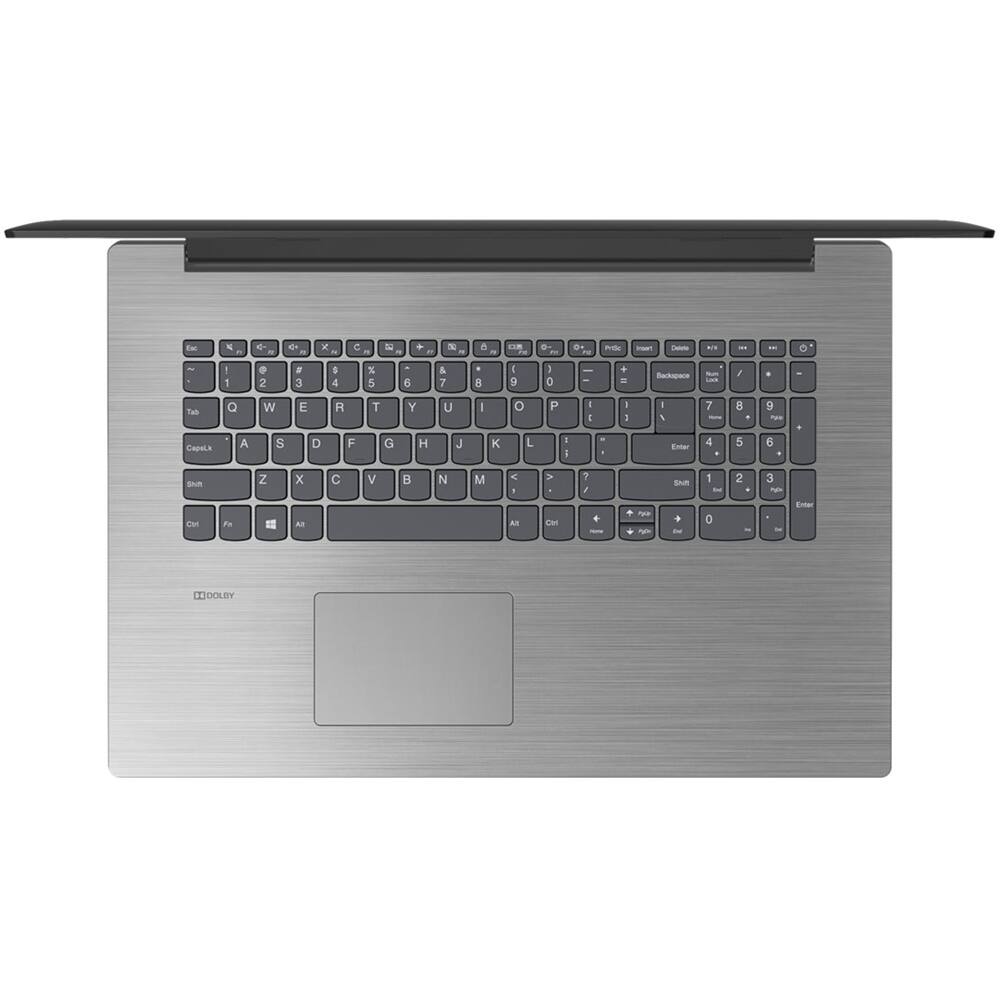
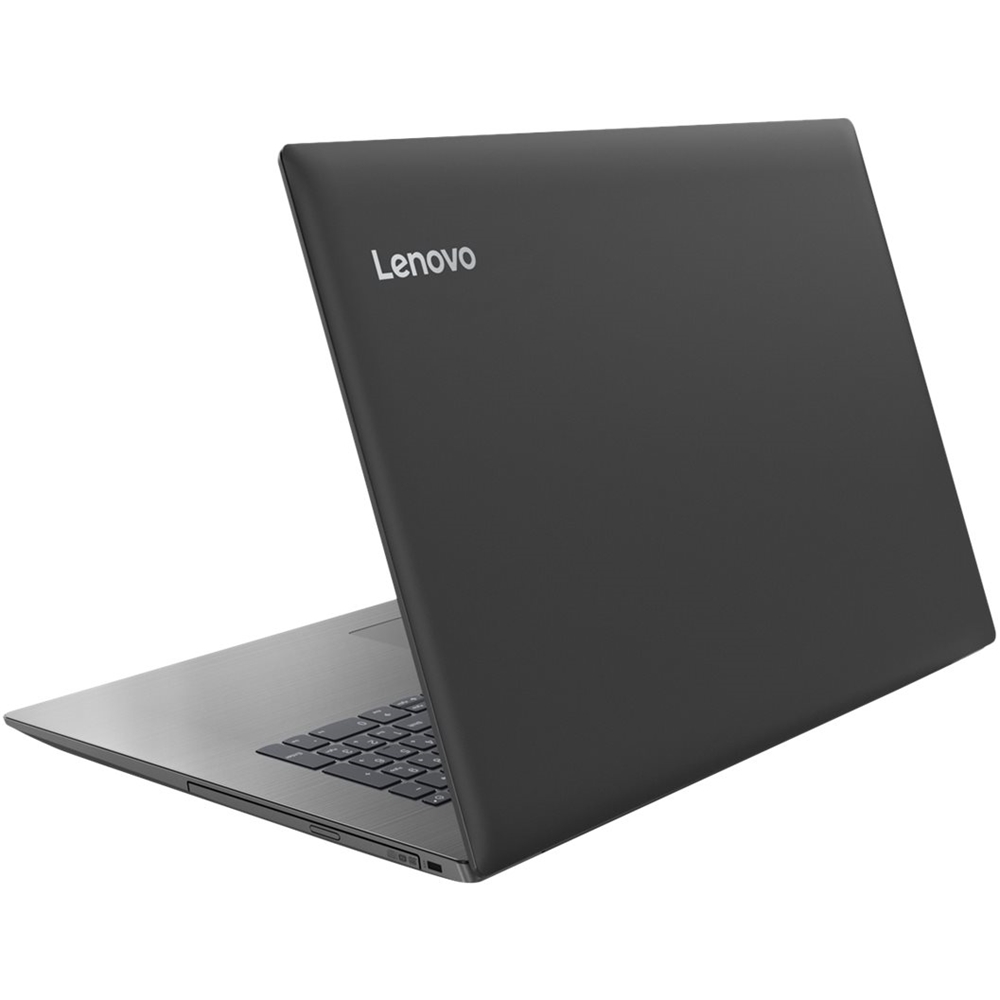
Posted .The Lenovo IdeaPad 330-17 laptop ships with the latest 5G 802.11AC frequency WiFi. Since you describe the WiFi working well during the first 5 months, then issues developed. This sounds like it may be an issue with Windows 10 update that requires a separate update of the BIOS and Drivers on this computer. This can be easily accomplished by scanning the computer with the Lenovo Utility software installed on the computer. This system has Lenovo utilities installed to help maintain the health of the device and keep the operating system software up to date. Type "Lenovo Vantage" in the Cortana Search window (if Lenovo Vantage is not installed on your device, you can download the APP and install it now). Select Lenovo Vantage from the list. In the window that opens, click on "Health and Support". In the expanded menu, select "Hardware Scan" In the window that opens, select "Run Quick Tests". This will scan your entire system for errors. Follow any directions that may pop up. If the problem continues after this scan, now click on "System Update". First select Windows update from the menu. Scan your system to be sure you have the latest version of Windows 10. Once that scan is complete, select "Additional Updates". This will scan your device to be sure there are no new BIOS/Driver updates needed. Follow any instructions that may pop up. If the issue still continues after these updates, we recommend you call Lenovo Tech Support at: 877-453-6686 for additional help.
